Survey/Forms Results Grid Overview
The last page in the Surveys/Forms module is the Results page. This will be the grid where you can see all the responses, when they were submitted, and perform internal evaluation reviews if required.
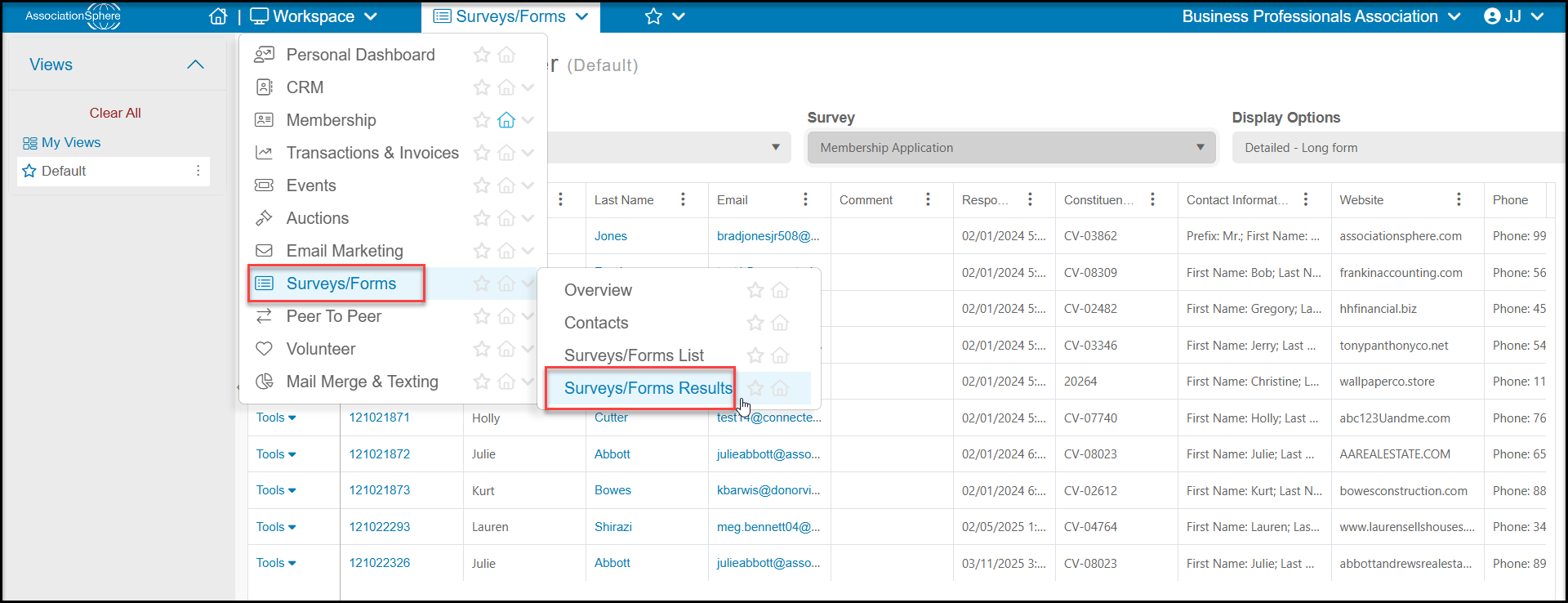
When you click on the Surveys/Forms Results page link, the grid will initially open with a blank grid. You will be asked to create a default view if it is your first time visiting this grid. Note that due to the variety of question types, the available shown initially will only include:
- Submission ID - the unique number associated with the submission.
- First Name, Last Name, Email & Constituent ID - for submissions where the constituent name and email is collected. These fields will always be included on the grid. For anonymous submissions or surveys where this information is not collected the columns will be blank.
- Comment - when performing an internal review of a submission, there is a field to add a comment.
- Response Date - the date the survey was submitted.
Like other grids you can move the columns, add filters & sorts to the columns, but they are only applied while you are viewing the grid. The Views feature will not save or share views. The software will always return back to the default view when the survey is repopulated.
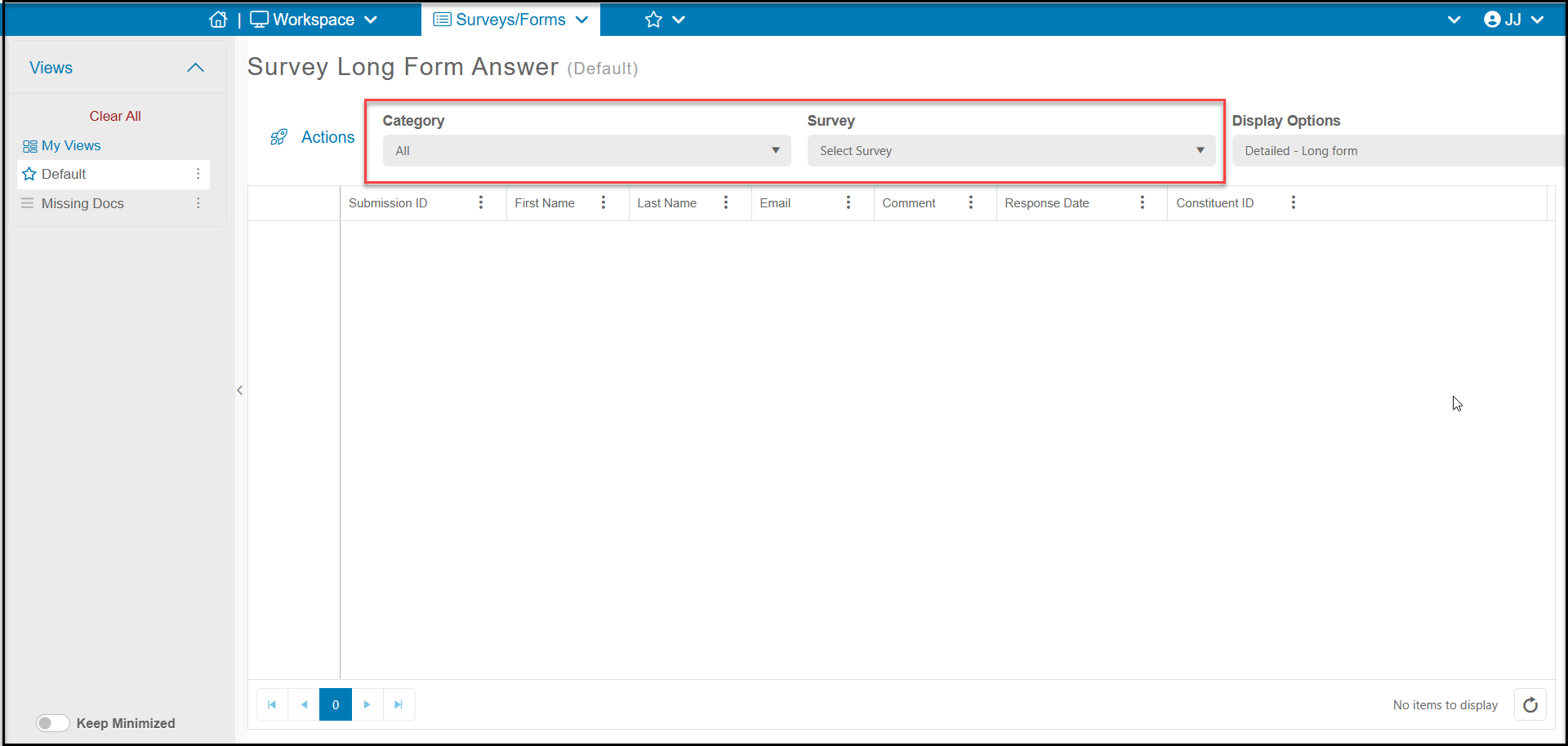
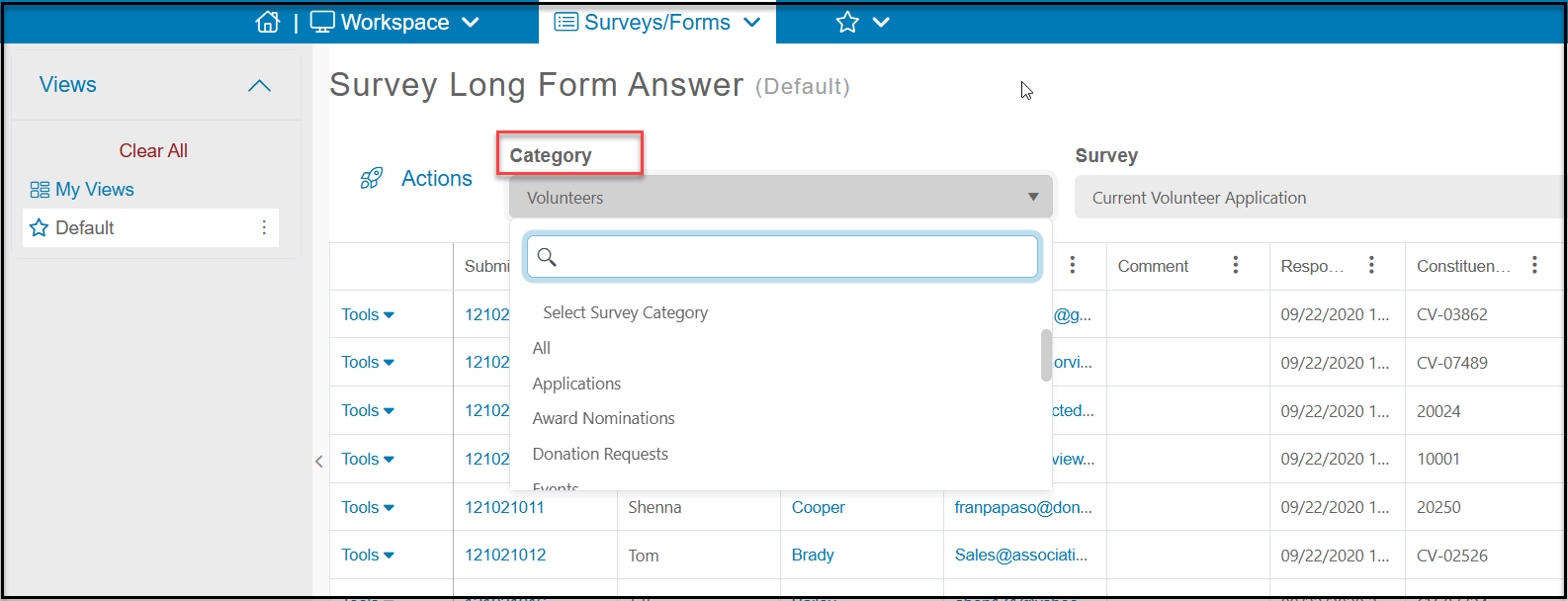
To view results of the submissions, you can select a survey Category from the dropdown, or leave the selection as “All.” Categories are shown in alphabetical order.
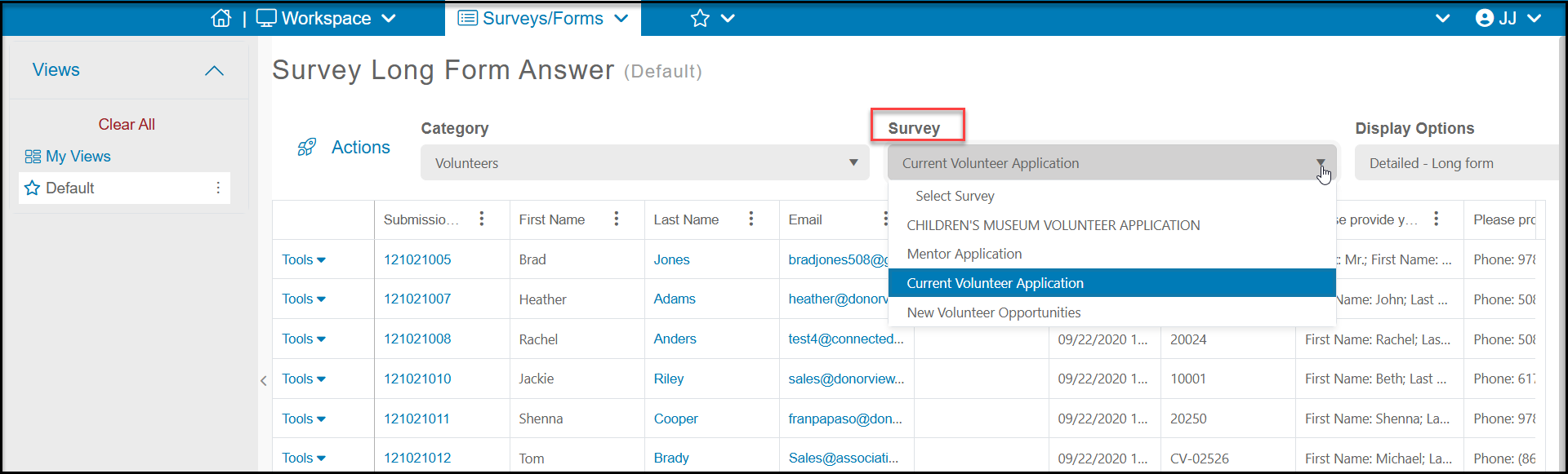
Next you will select which survey or poll to review from the Survey dropdown menu. By default, the surveys will be arranged in order of the survey most recently created at the top of the list.
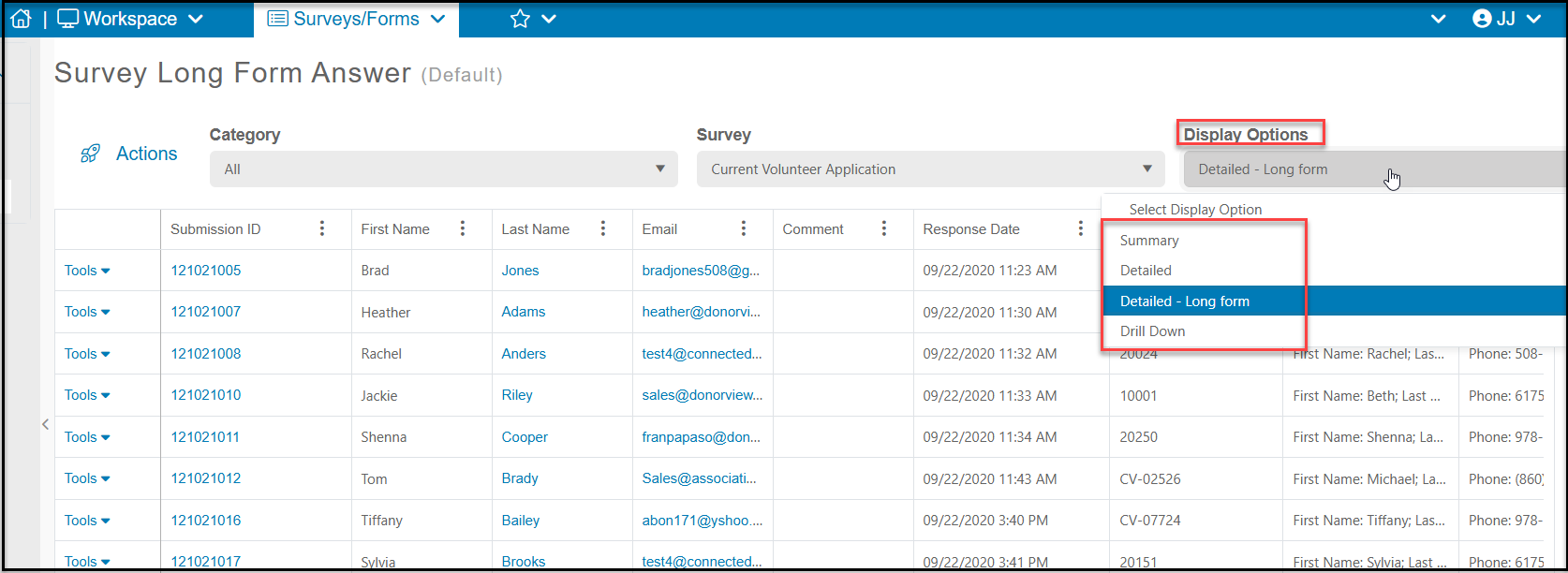
The Display Options dropdown menu will default to the Detailed - Long Form view. Other view options include Summary, Detailed, and Drill Down. You can learn more about these options by clicking on the name to open that article.
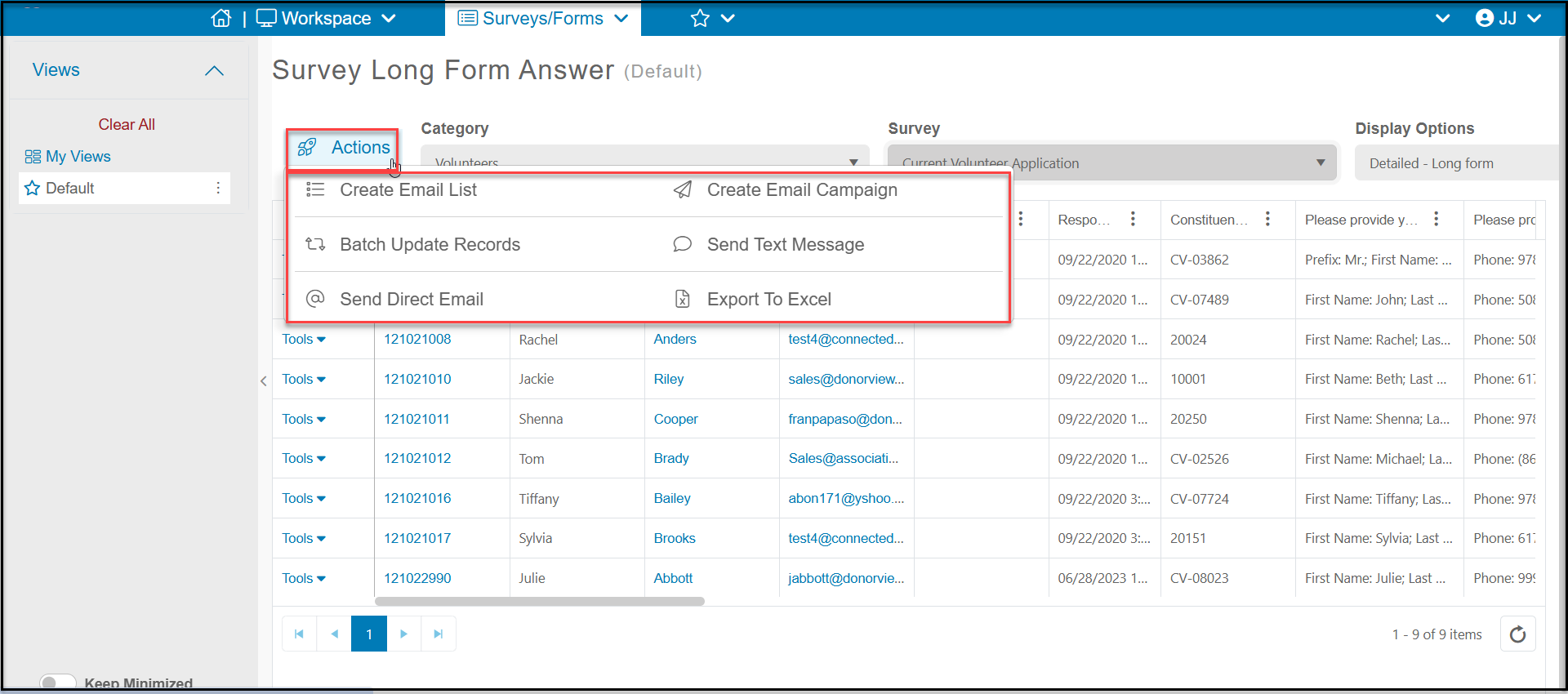
The Actions menu on the left side of the grid has many of the standard items available including:
- Create Email List - creates an email list of the constituents shown in your view to be used with the Email Marketing module.
- Create Email Campaign - initiates a new email campaign from the Email Marketing module for the constituents shown.
- Batch Update Records - Allows you to add information into all the records shown in your view. Batch update is limited to 500 records at a time. You can add information to constituent's profile information, like constituent categories, and you can add documents, time tracking and interactions.
- Send Text Message - sends text messages to the records included in your view. Note that constituents must have a phone number identified as “Mobile” to receive text messages.
- Send Direct Email - sends standard emails from the software to the records included in your view and saves a copy in the constituents record.
- Export to Excel - will export the data on the grid to Excel. Note that to export your list, you must have your pop-up blockers off for your browser. If you export a file and nothing happens, be sure to check that your pop-up blocker is off.
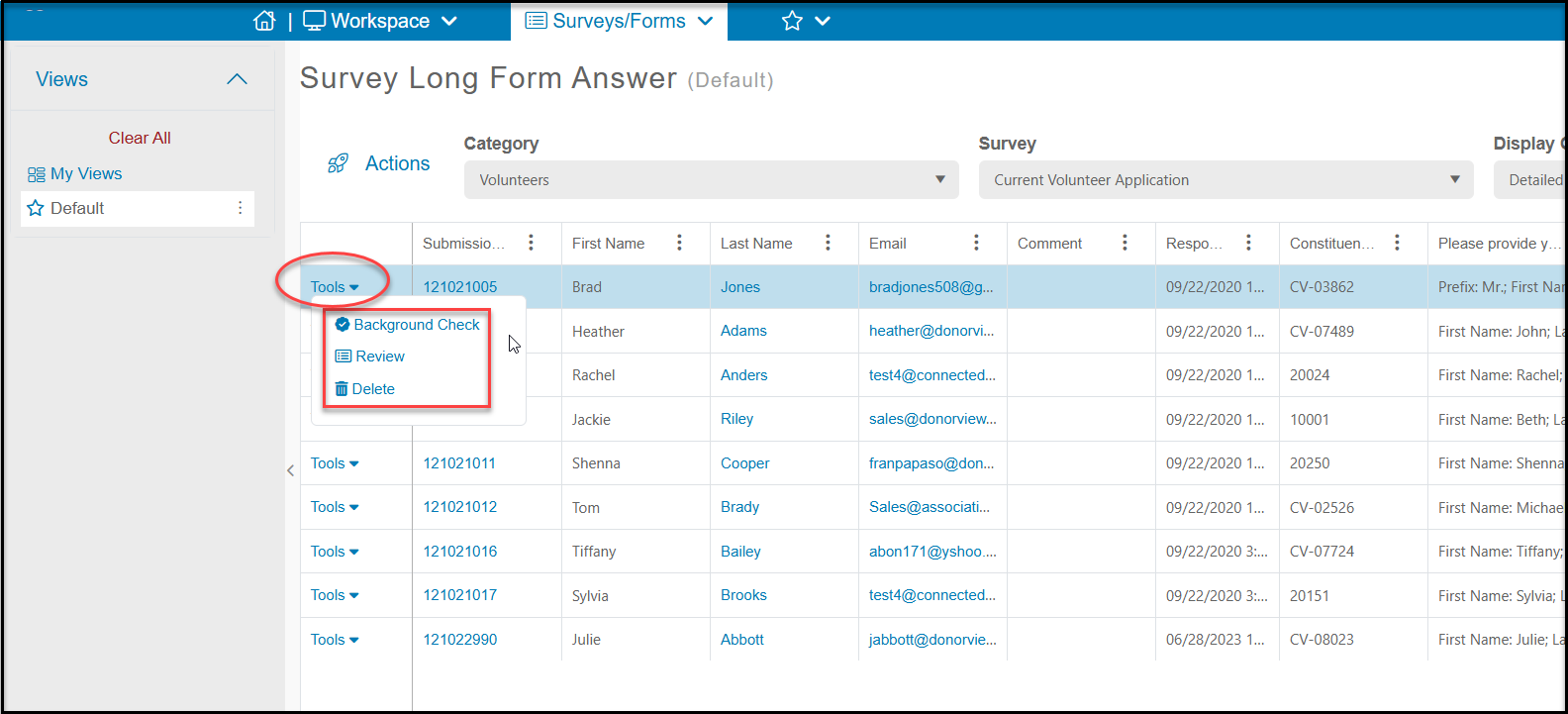
The Tools menu on the left side of each row allows you to perform actions for that specific response.
- Background Check - If you are using the Background Check feature in the software, you can initiate a background check for the constituent with this link. You can learn more about background checks in the CRM Module course.
- Review - Will allow you to add a comment to this survey response or perform an internal evaluation review if you had established this in the Survey/Form Settings tab when creating or editing the survey.
- Delete - Completely removed the response. Note that this does not delete the constituent record, only the survey response.