Survey/Forms Results - Summary
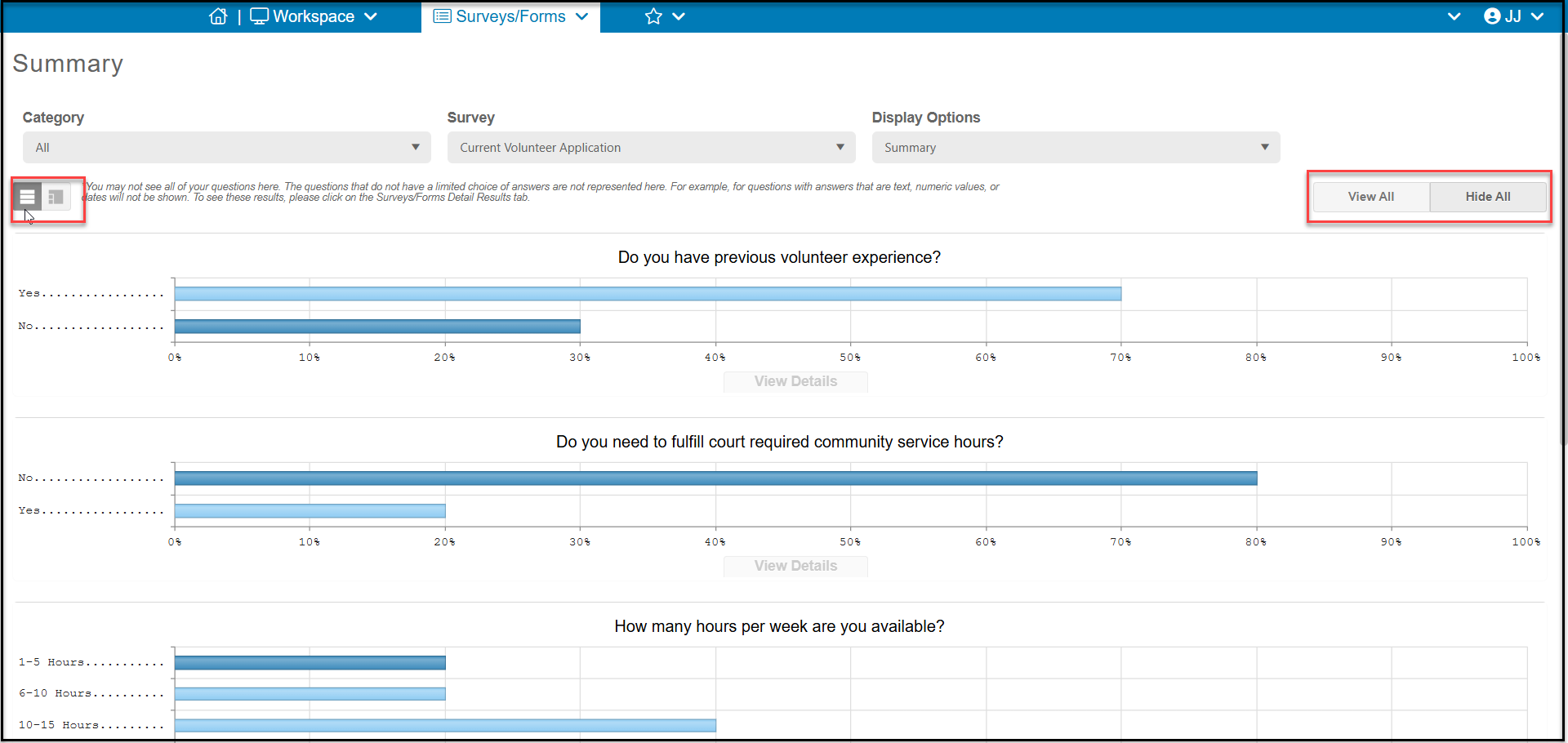
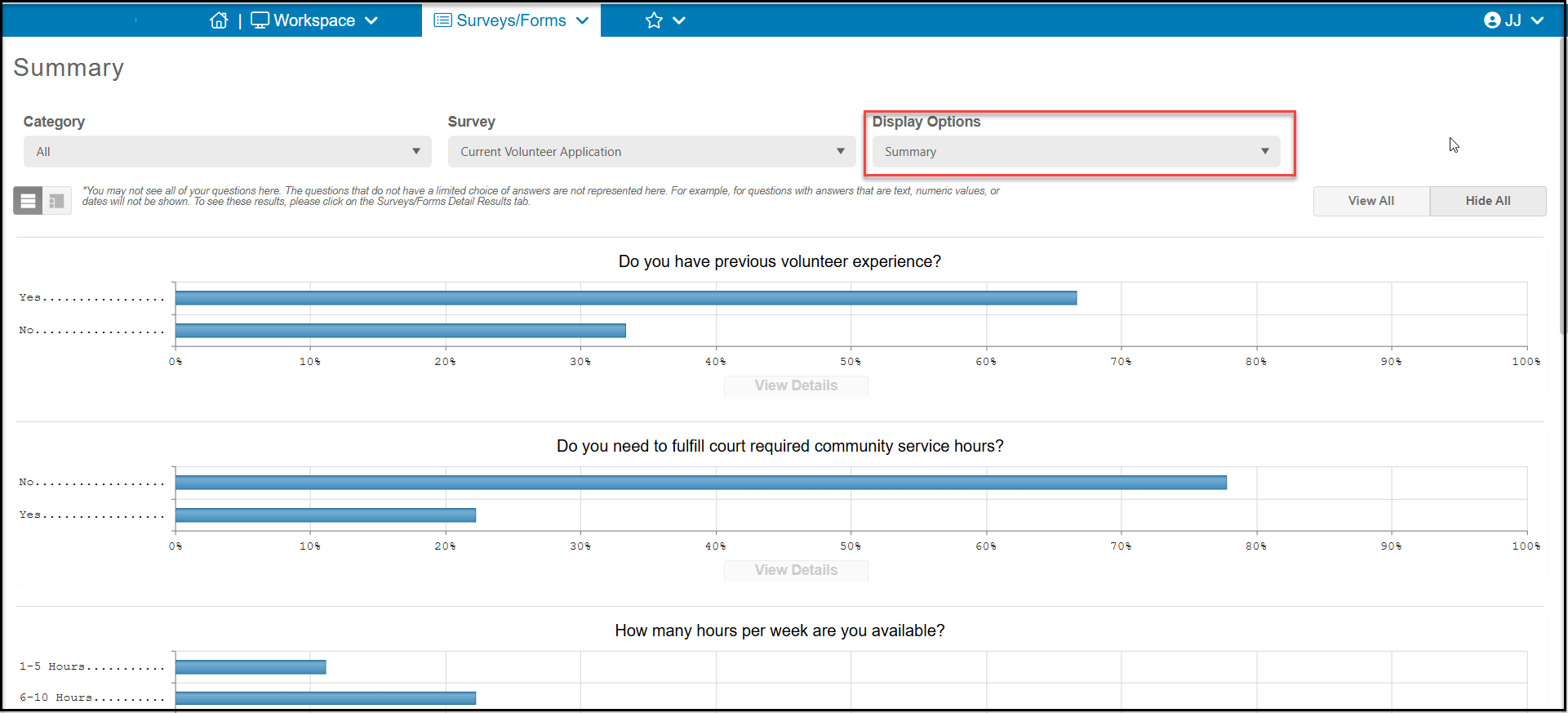
Selecting Summary for your display option will reveal the summary results only for multiple choice questions. Each multiple choice question will show a bar chart with the percentage of responses for each answer.
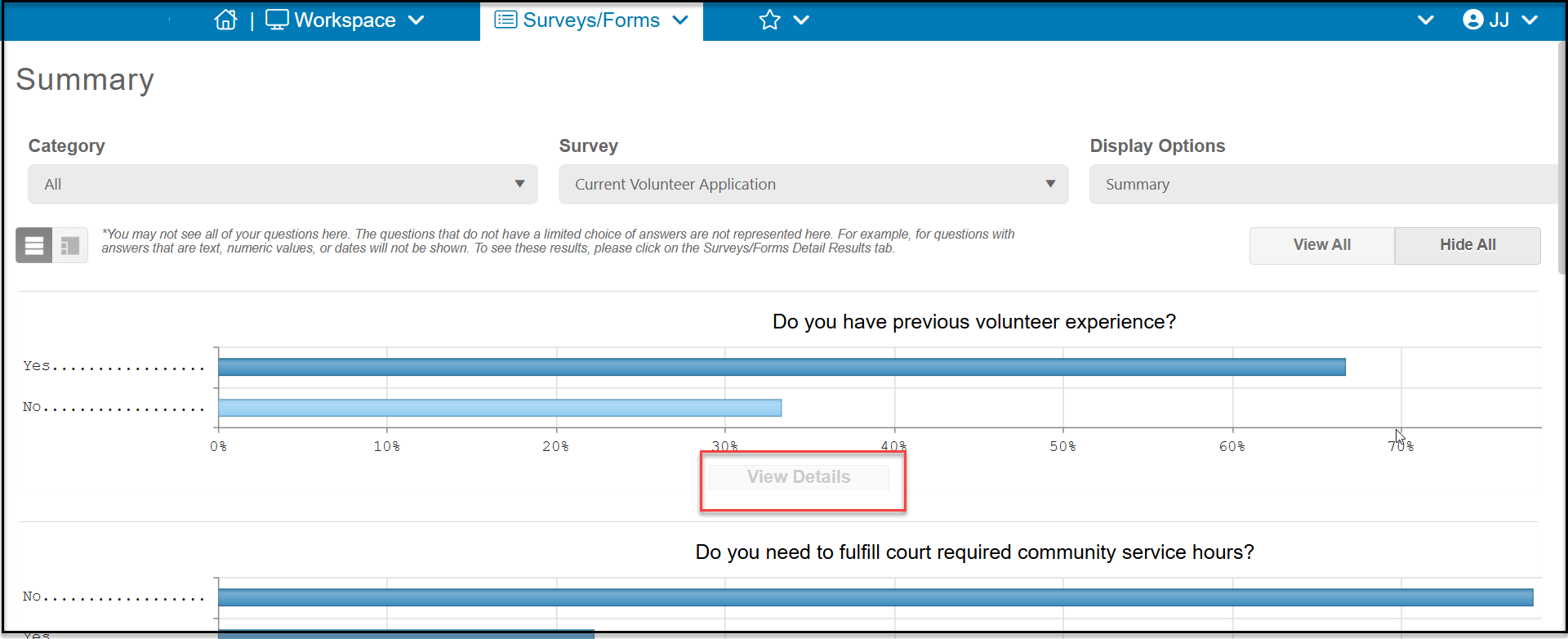
You can see a breakdown of which constituents provided what response by clicking on the View Details link under each question.
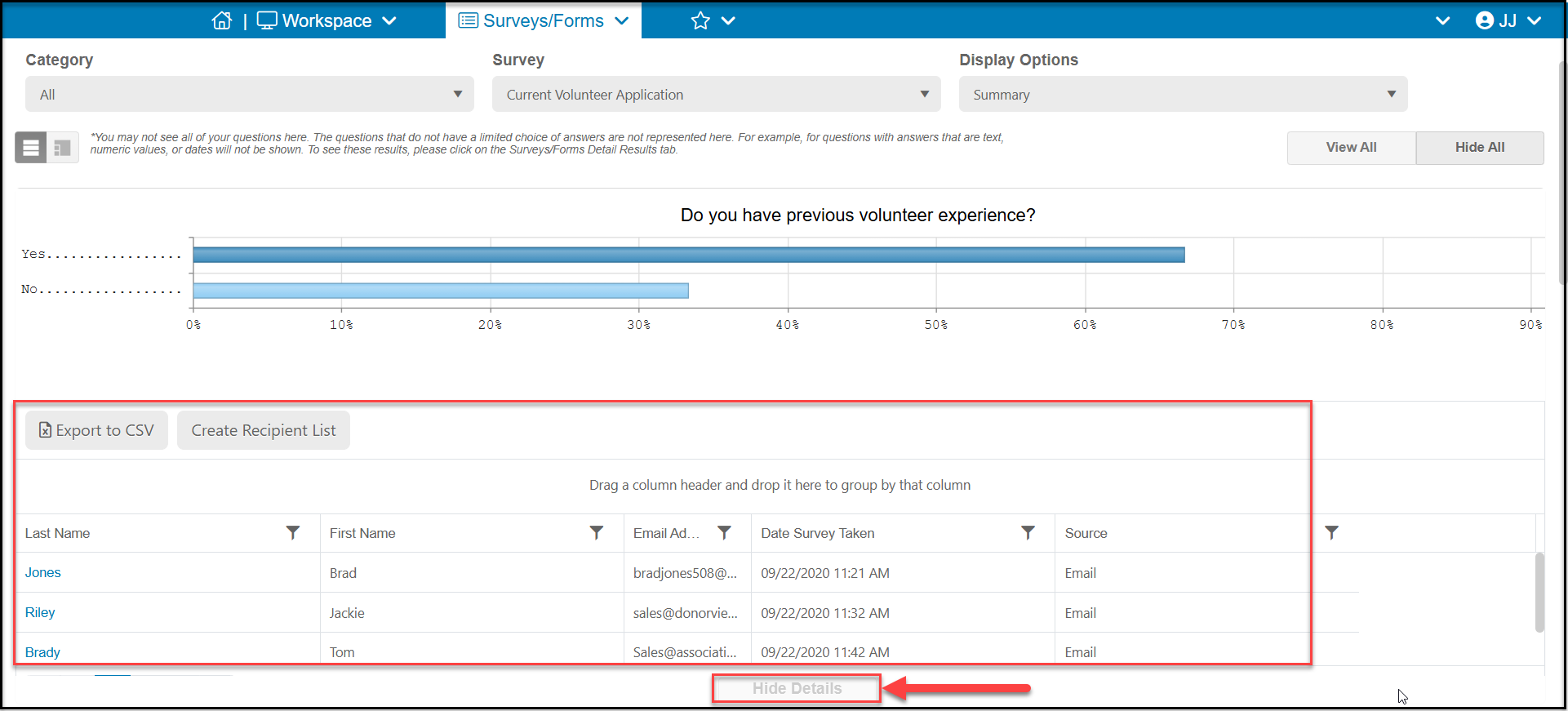
When you click on one of the bars, you will see a list of the constituents who selected that answer.
You can also click the button Export to CSV to export just these constituents to an Excel/CSV (comma separated values) file. The export will only include the following fields:
- Last Name
- First Name
- Email Address
- Submission ID
- Date Survey Taken
- Source - which will always say “Email”
You can also click on Create Recipient List to create a new email list that includes just these respondents.
To close the grid, click on Hide Details.
At the top of the grid there are also options on the left to show all the questions on the page, or click on the adjacent icon to show just one question at a time.
On the right side is the option to View All, which will display all of the questions as well as the the details for each question. Or the default is Hide All, which only shows the bar charts without the details.