Survey/Forms Results - Drill Down
The last display option for survey results is Drill Down. This section is optional as this is an advanced feature for performing detailed analysis. It allows you to apply filters to your data to see percentages of responses to multiple-choice questions in sub-groups. At the top of the page you will see a graphic displaying an inverted triangle representing the filtered responses. If you prefer to skip this section, scroll to the bottom of the page and click Next.
Begin by selecting the first, or base question you wish to see a breakdown of subsequent responses. For example, in our volunteer survey, we want to know what percent of applicants who have previous volunteer experience, were available for 10- 15 hours per week, and were also interested in Meal Preparation.
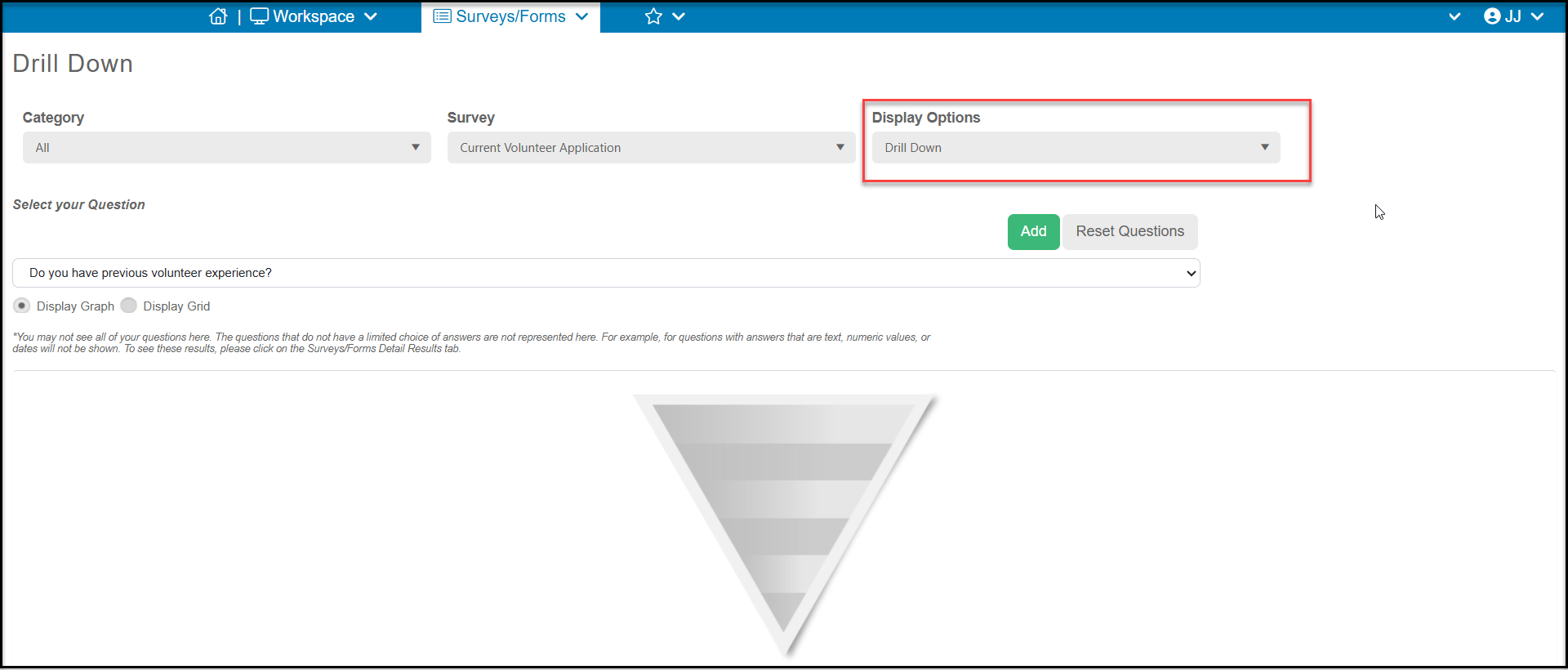
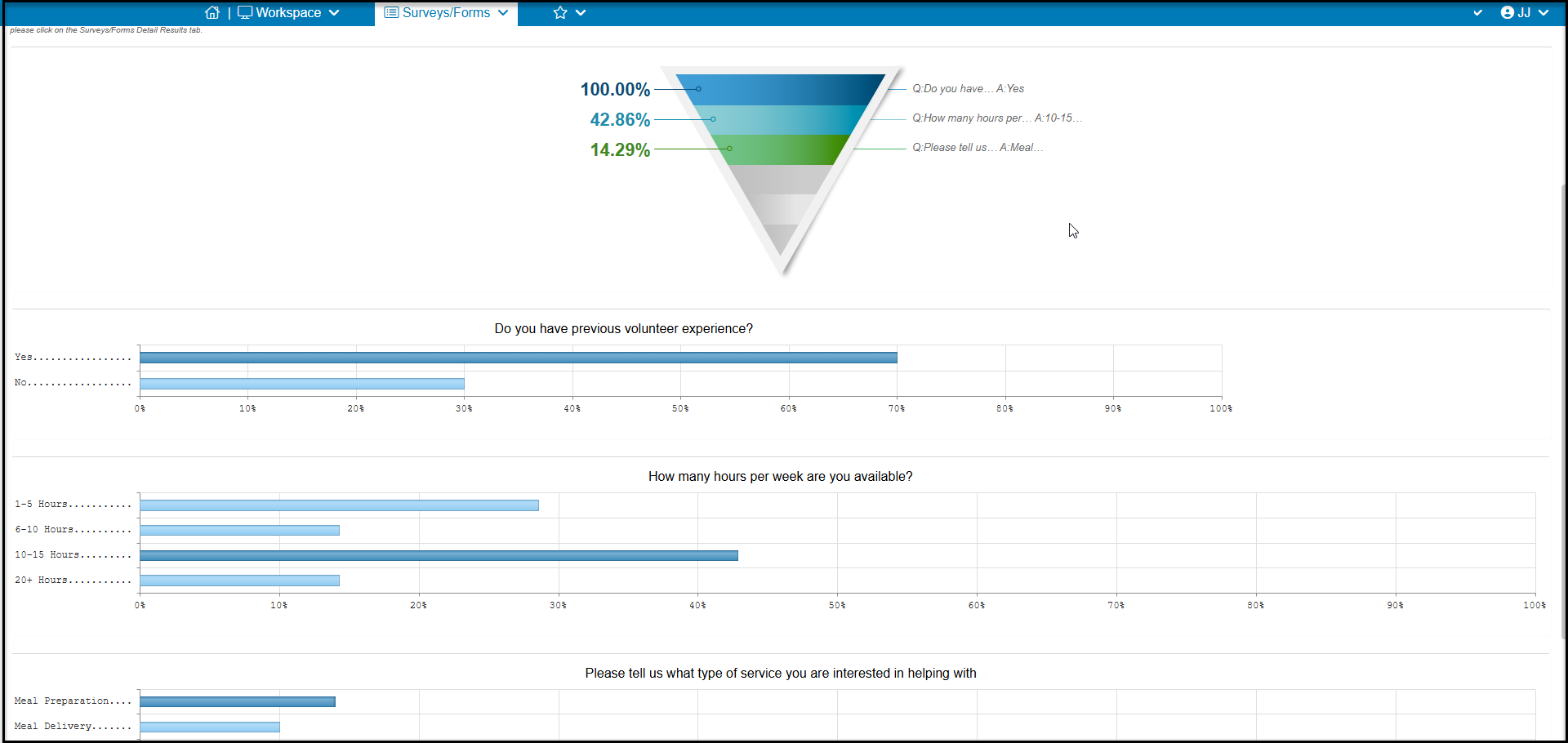
You will choose the first question from the dropdown under Select you Question, then click the green Add button. Be patient, it will take several seconds for the page to update. When it updates, you will see the first question listed at the top of the graphic with the first answer entered as the default. In our example, we wish to see everyone who answered “Yes” to the question of having previous experience. If you would prefer a different response to analyze, you can click on an alternative answer in the bar chart now shown below the graphic.
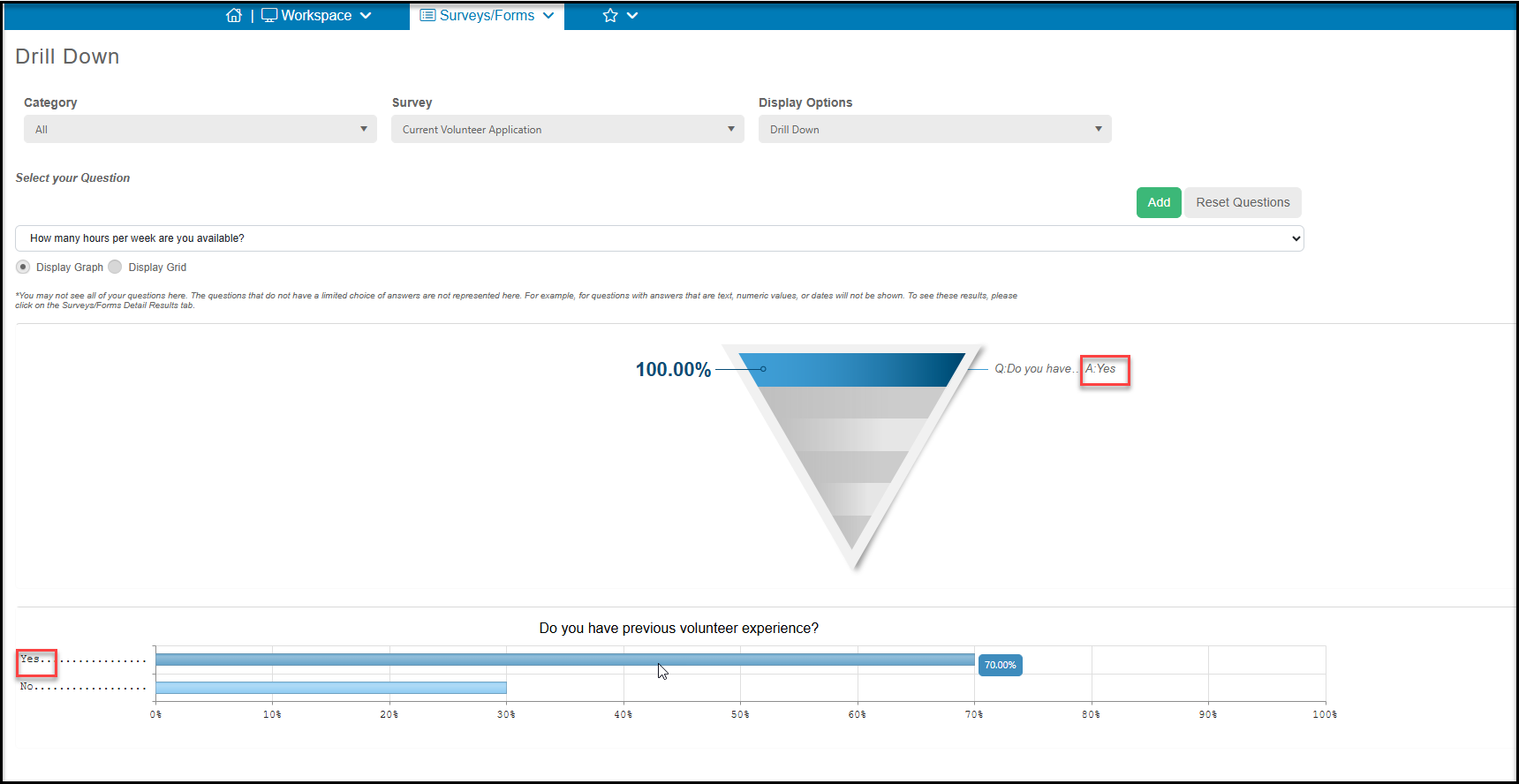
Adding the next question to the graphic, "How many hours per week are you available" will show us that of the respondents who answered “Yes” they have previous volunteer experience, 42.86% of those are available 10 - 15 hours per week.
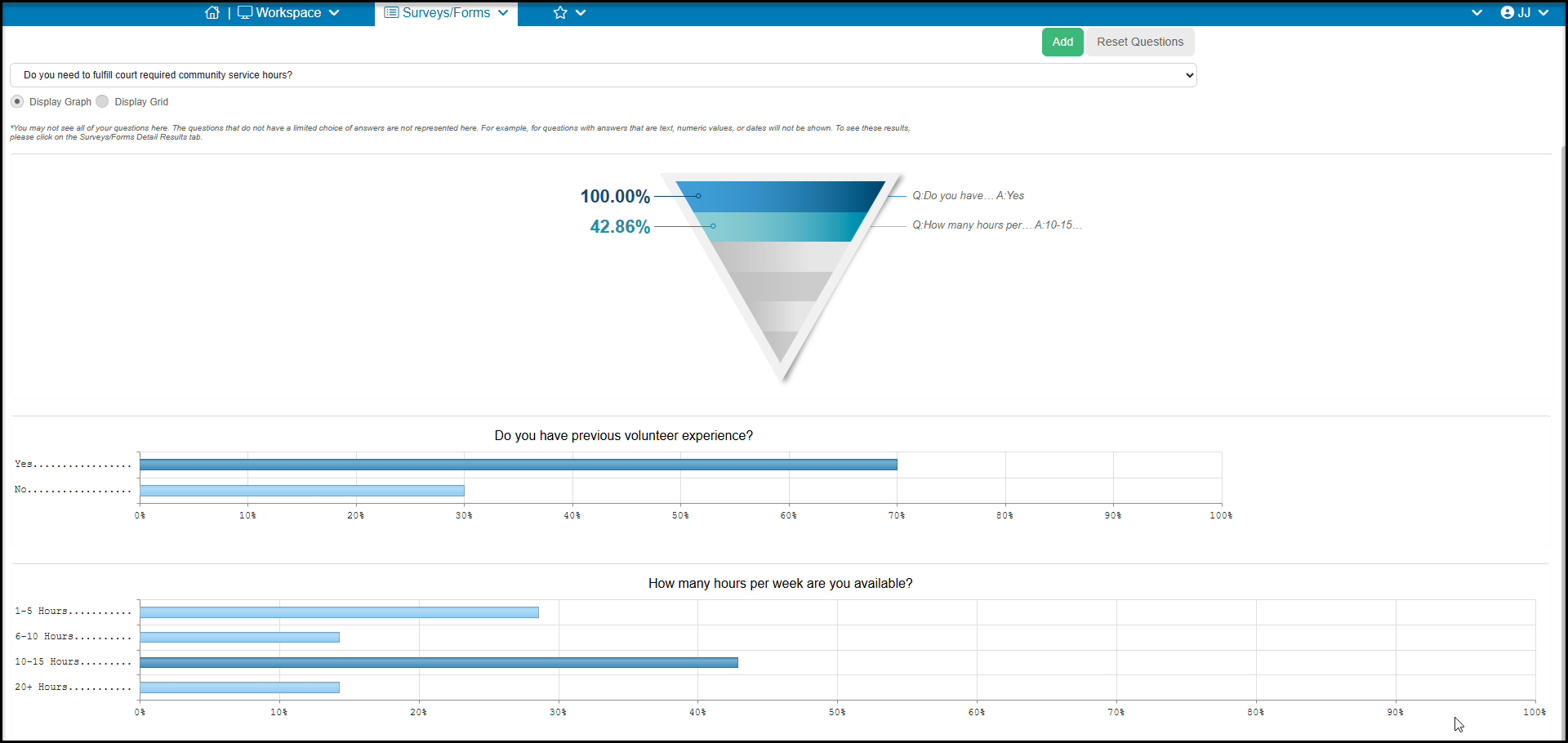
When we add the last question, "Please tell us what type of service you are interested in helping with" and we select the answer “Meal Delivery” we can see that 14.29% of the original responses that have previous experience and are available for 10 - 15 hours per week are also interested in Meal Preparation.
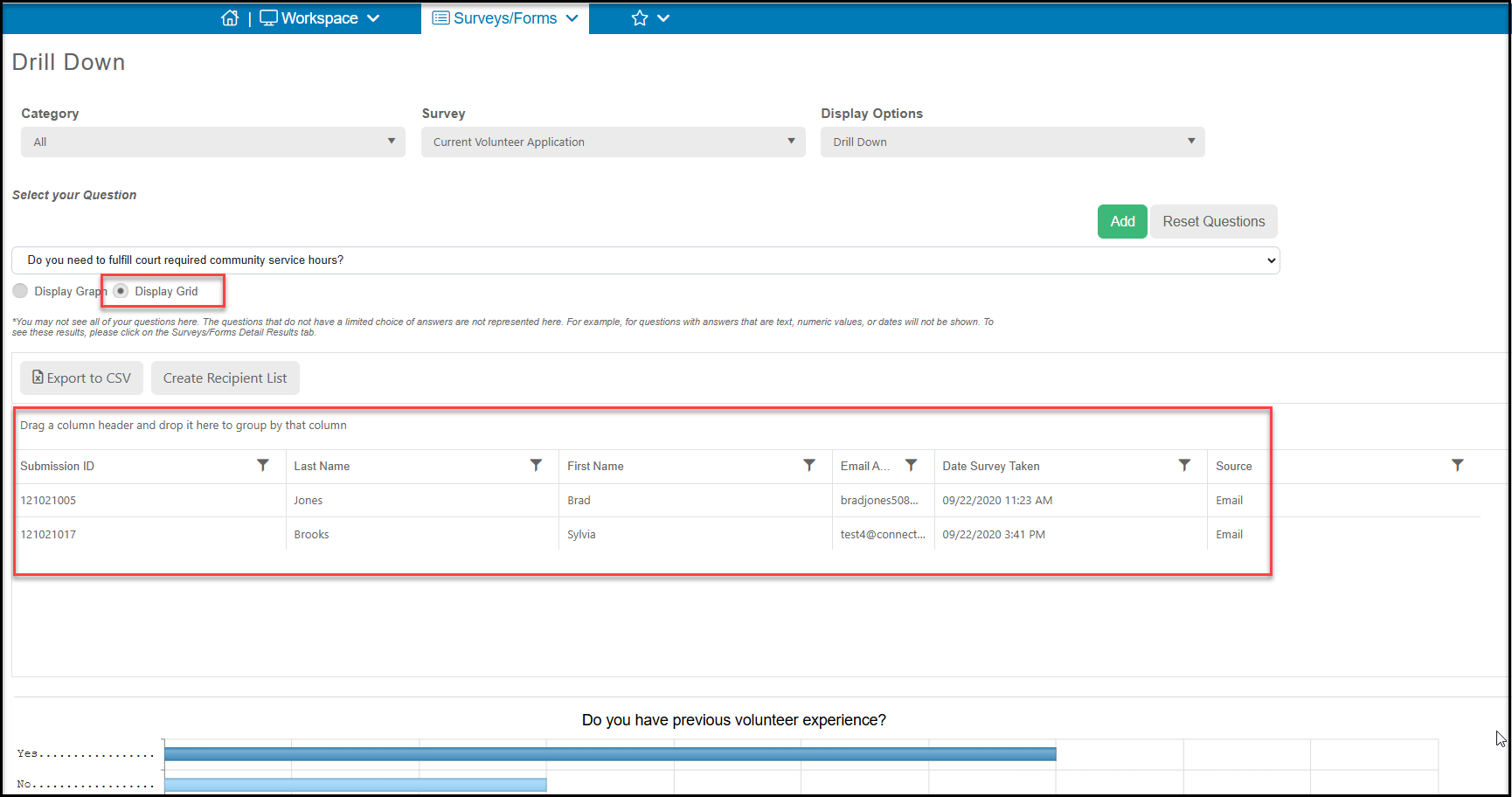
To see a list of exactly who those respondents are, at the top of the graphic, click on Display Grid to see a list of names who meet your filtered criteria. This list can be exported to Excel via Export to CSV file or you can Create Recipient List to create an email list for this group.