
You can create a new survey, application, or form from scratch by clicking on +New, then choosing Survey/Form. You can also copy and existing survey by highlighting that row and using the Actions menu and choosing Copy Survey/Form or you can use a survey from the library by selecting Survey/Form Library. For simplicity, we will use the term "survey" when describing the steps, however the same steps apply regardless of what type of form you are creating.
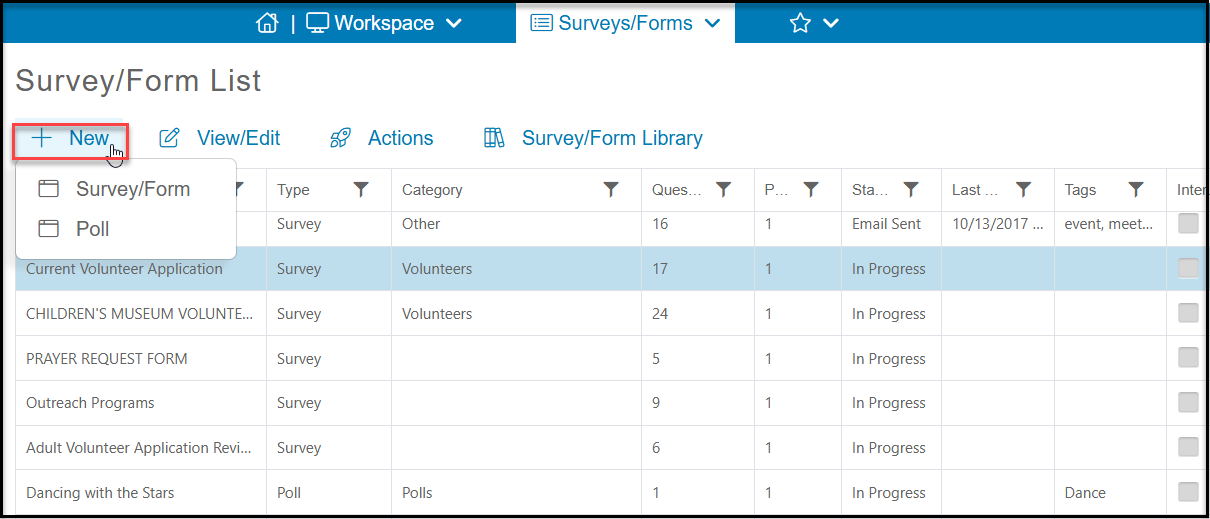
The first step in creating your survey is the Survey/Form Info tab. It includes the following fields:
- Name - Add a name for your survey.
- Is Internal? - Add a checkmark to the box if you do NOT wish to share it with the public. The internal survey feature will be discussion in a future lesson.
- Survey Category - Editable dropdown list you can select what kind of survey this is.
- Tags - You can add tags which you can filter on the Survey/Forms Lists grid.
- Description - provide a short description of what this survey is used for.
- Email Display Name - The name of the person or organization that is sending the thank you message when the survey is submitted.
- From Address - The email address of the sender.
- Subject Line - You can customize what your subject line says for the thank you message.
Click Save & Next to proceed to the next tab.
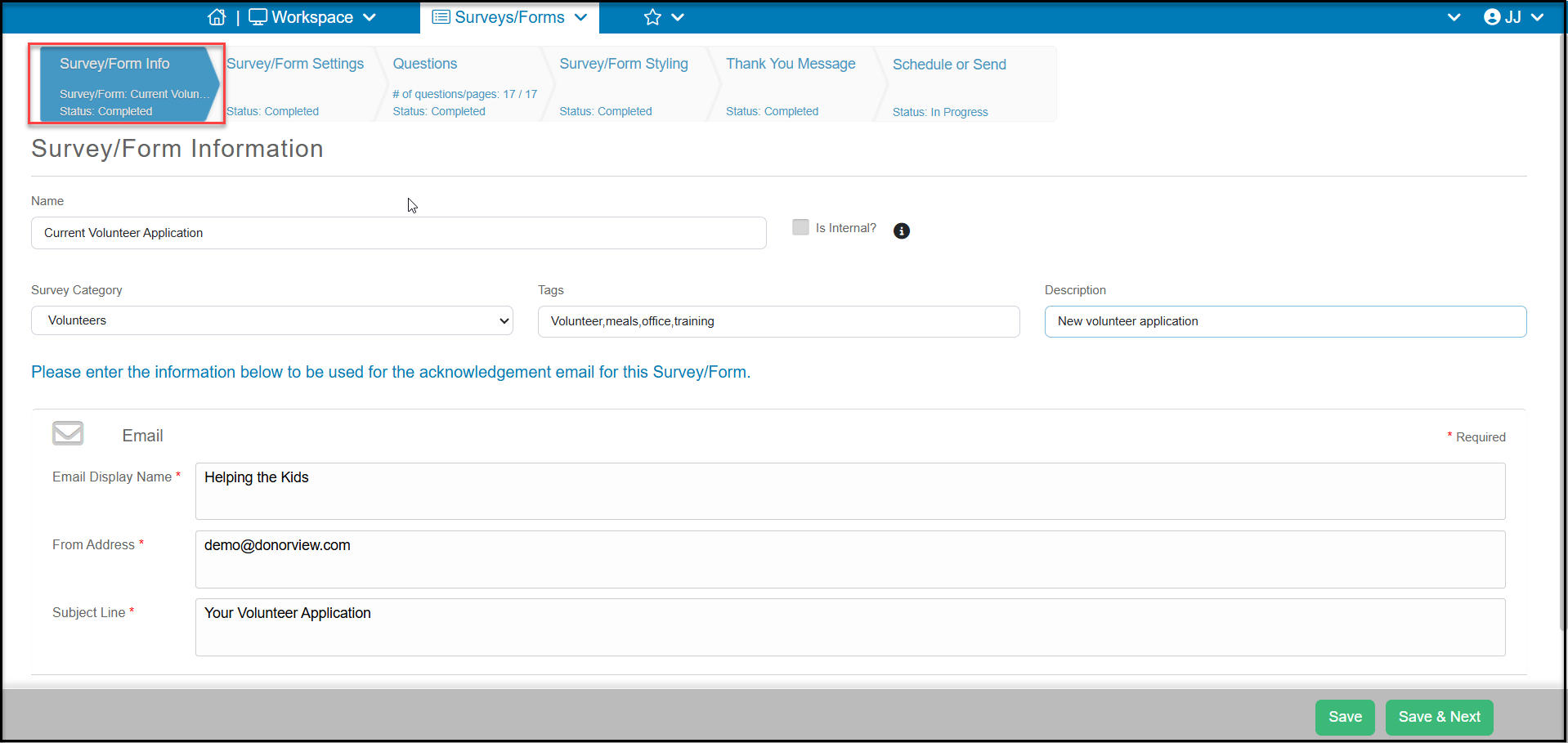
On the Settings tab you can establish the basic structure of your survey. Fields include:
- Start Date - The first date/time that the survey would be available for your constituents to complete. Before this date a respondent would see the error message.
- End Date - The last date/time that the survey is available. After this date a respondent would see the error message.
- Distribute survey via email campaign? - Marking this to YES will add two more tabs to complete, the Attach Recipients List and Welcome Message. This process will covered more in an upcoming lesson.
- Message to display when not active - this is the error message that would display is someone attempts to complete the survey when it is not active.
- Use Identity Verification- you can set this to YES if you wish the respondent to verify they have an existing constituent record or create a new one. The respondent will enter their email address or phone number and the software will look for a match. If no match is found, then the respondent will be asked to provide a name and email to create a new constituent record.
- When set to YES, you can select which Verification Method to use, Email, Phone or Both.
- In the Identity Verification Display field you can customize the label of the verification.
- Notify when survey/form submitted - this box is checked if you would like to receive notifications when a survey has been submitted.
- Send email notifications to - enter up to five email addresses separated by a semicolon to receive an alert when a survey has been submitted
- Include survey/form answers with the Notification email - if this box is checked the notification will include a pdf copy of the submission. Note that the pdf copy may not show all the details for all the fields. It is recommended that you log back into DonorView to see more complete information if needed.
- Send text when survey is submitted- if you have text messaging activated, you can set this to YES and add phone numbers to receive an alert that a survey has been submitted.
- Add a phone - Enter the 10 digit phone number (US only) and click Add to add the phone numbers.
- Phones - a list of phone numbers that have been added to receive the notification.
- Anonymous - You can check this box to identify that you would like the responses to be anonymous however, you cannot ask questions like Name & Email or send the survey via email if you wish the responses to be truly anonymous. Checking this box does not restrict the kinds of questions and does not hide the name and email of the respondent if that is included in the survey.
- Allow to save changes and return later - Checking this box will allow the respondent to start the survey, but save their changes and return later. This requires that the respondent enter their name and email address and it will create a constituent record for that constituent if they do not already existing in the database. The respondent will receive an email with a link to complete the survey at a later time. You will be able to see partially completed responses.
- End survey/form after a number of completed surveys/forms - if you wish to place a cap on the number of responses, you can check this box and you must enter a maximum number of responses in the small box to the right of the field. If this is left blank, you will not be able to receive any submissions.
- Include survey/form answers with the Thank You email - checking this box will include a pdf copy of the submission with the Thank You email.
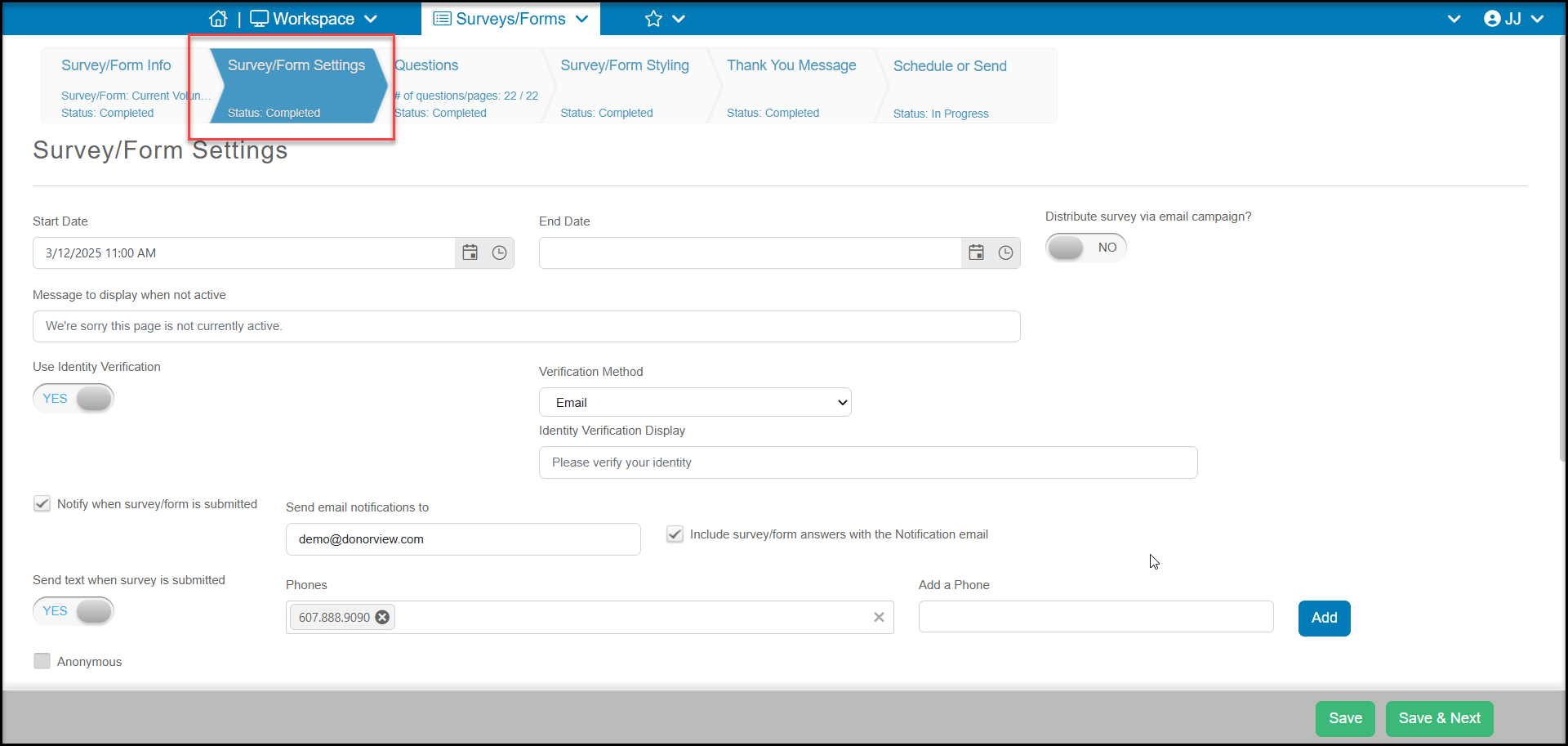
- Show survey/form on a single page- you can check this box if you would like all the questions to show on one page. This box cannot be checked if you would like to use logic in your survey. Logic questions will be discussed in a future lesson.
- Question Numbering - with the box checked, you can select what kind of number you would like to use.
- Volunteer Application - If this survey is a volunteer application, you can check this box so that they survey is available in the Volunteer module's application page.
- Enable Internal Review - If you would like to add a review process to this survey, for example for membership or volunteer applications, set the toggle to YES.
- Survey/Form Name - with internal review enabled, you can select another survey to document the review. You can create the additional survey anytime, then attach it to this survey.
- Internal Contacts - Select what DonorView user will receive a notification of the submission to perform the review.
- External Contacts - You can also choose a constituent with an email address in your database to help with the review. In the box, you can search for an existing constituent to add as a review. This person will also receive a notice to perform the review, however they do not need to have DonorView login rights. They will receive a link to perform their review and can submit without logging into the platform.
- Review Status - This is an editable dropdown list where you can create your various review statuses. These statuses will appear as options when the review is completed. Select from your dropdown list what you would like the initial status to be when the survey is first submitted by the respondent.
- Constituent Category - If you are collecting name and email and connecting your responses to a constituent record, you can assign the respondent to a constituent category.
- Constituent Skill - If you are collecting name and email and connecting your responses to a constituent record, you can assign the respondent to a constituent skill.
- Email List - If you are collecting name and email and connecting your responses to a constituent record, you can assign the respondent to an email list.
Click Save & Next to proceed to the next tab.
The Questions tab is where you build the questions associated with your survey. The Questions tab will show you all of your questions created so far. On the top left side of the questions list, you have two options to display. The option on the left will show each of the questions in full. On the far right side of the page, you have the option to just show the question with Hide answers or you can display the fields or table with Show answers.
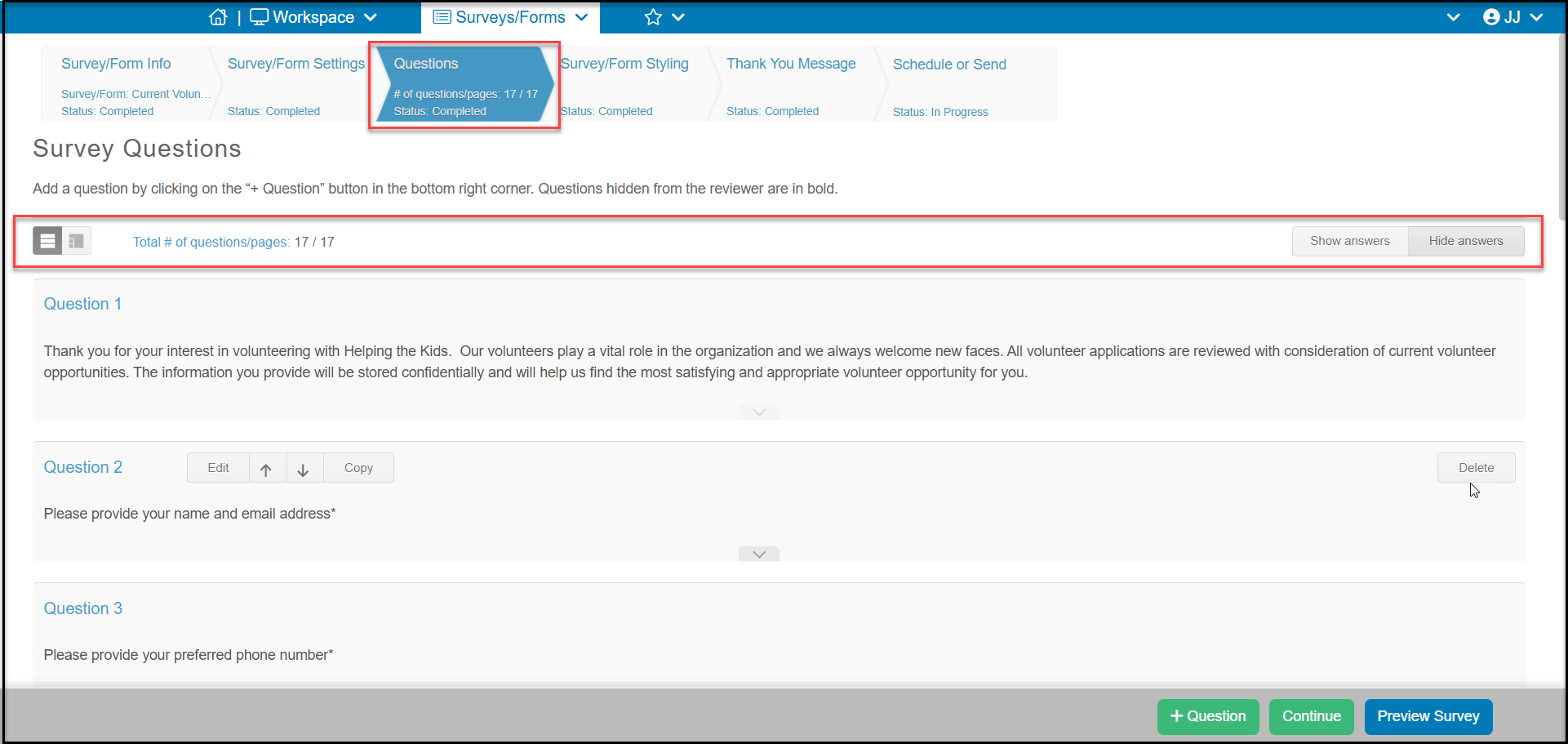
If you choose the option on the right, you will instead see your question numbers listed on the left as an index. You can click on the number to reveal the question.
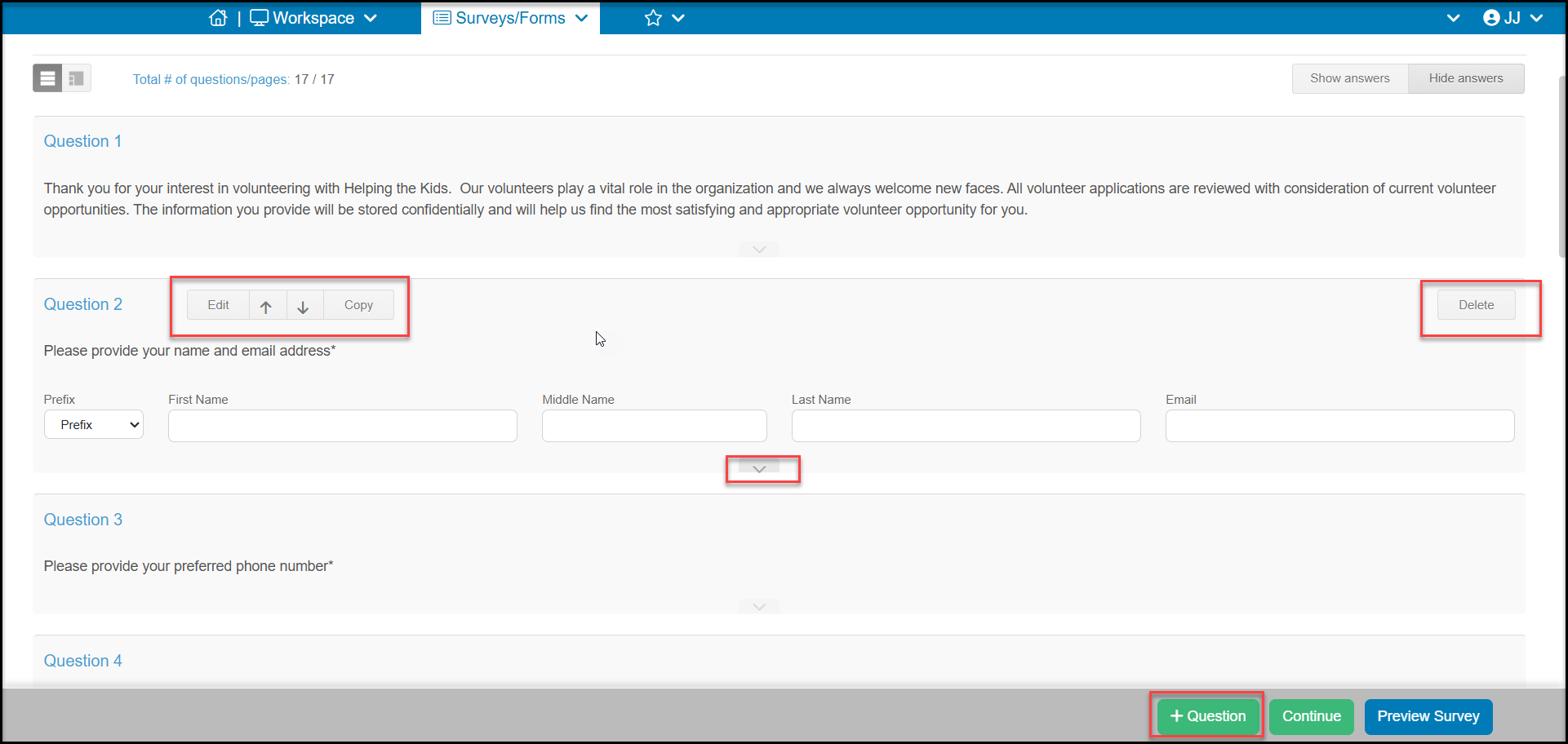
You can hover over any question to reveal options to Edit, Move, Copy, and Delete a question. If you have Hide answers selected, you can also click on the arrow at the bottom of the question to reveal the answer fields. Note that you can edit the question text or the responses, but you cannot edit the question type. Once the question has been saved, the question type cannot be changed. You would need to delete the question and re-enter it with the desired question type. You will learn more about question types in the next two sections.
To add a new question, click on +Question at the bottom of the page. Once your questions have been added, you can click on Continue to go to the next step. You can also preview your survey with the Preview Survey button. You can learn more about all the types of questions available in this article "What types of questions can I include in my survey?"
Note that each survey can only be linked to one constituent and if you wish the response to link to an existing constituent or create a new one, be sure to include the question type Constituent Field > Name & Email to link to or create an individual constituent. If you wish to link to a company-type constituent, use the field Constituent Field > Company & Email. Surveys distributed to a specific email list will automatically link to the constituent when they respond.
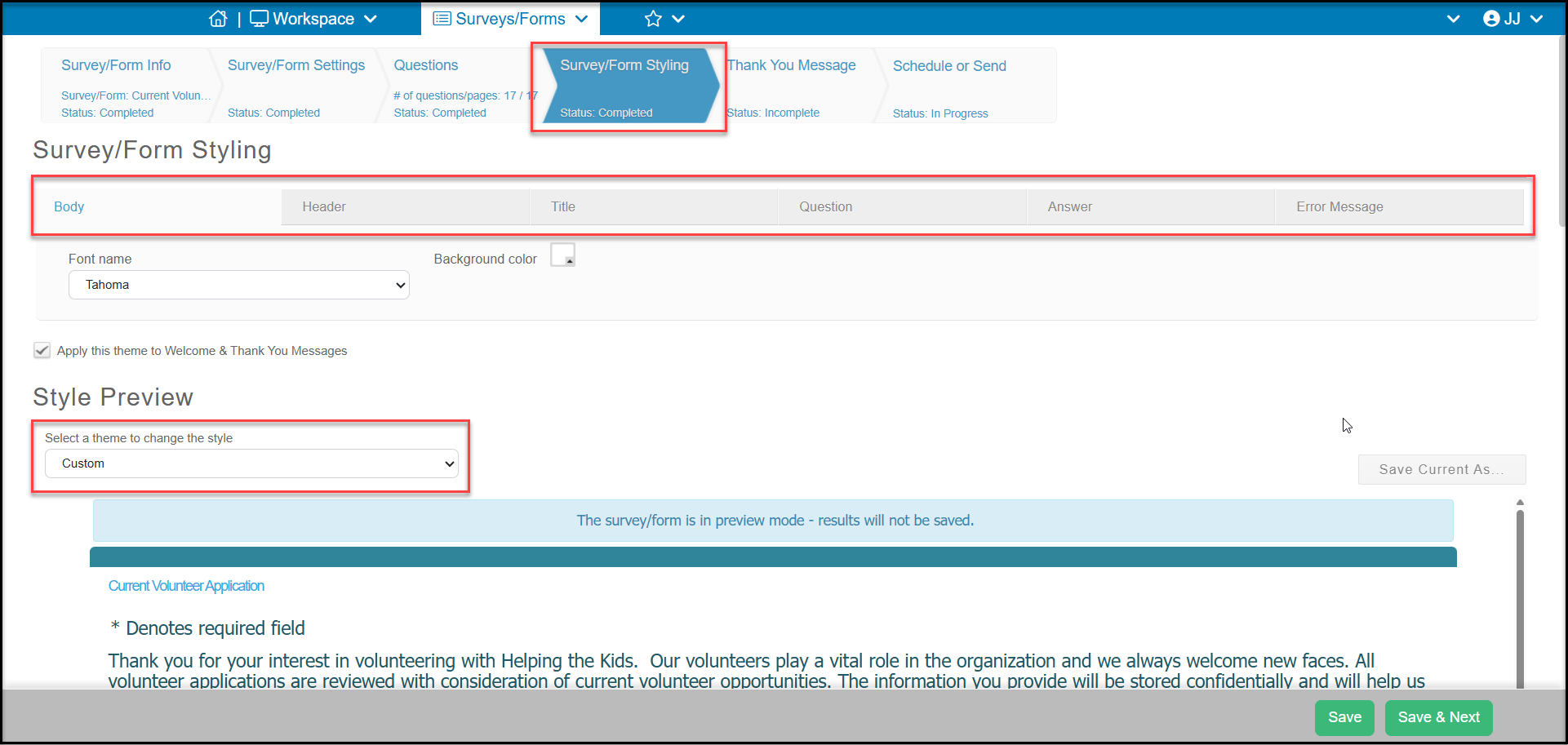
The fourth step in creating a basic survey is the styling tab. This step will allow you to customize the color theme of your survey. Divided into 6 sub-tabs, you can update the colors, fonts, font sizes, and font colors for different areas of the form. Note that the arrangement of the form cannot be changed, so the order in which items are displayed and the placement on the page is not editable.
If desired, you can check the box Apply this theme to Welcome & Thank You Messages to apply the same color theme to those emails.
You can learn more about all the options available for styling in this article "Can I customize or edit the colors and fonts in my survey styling?"
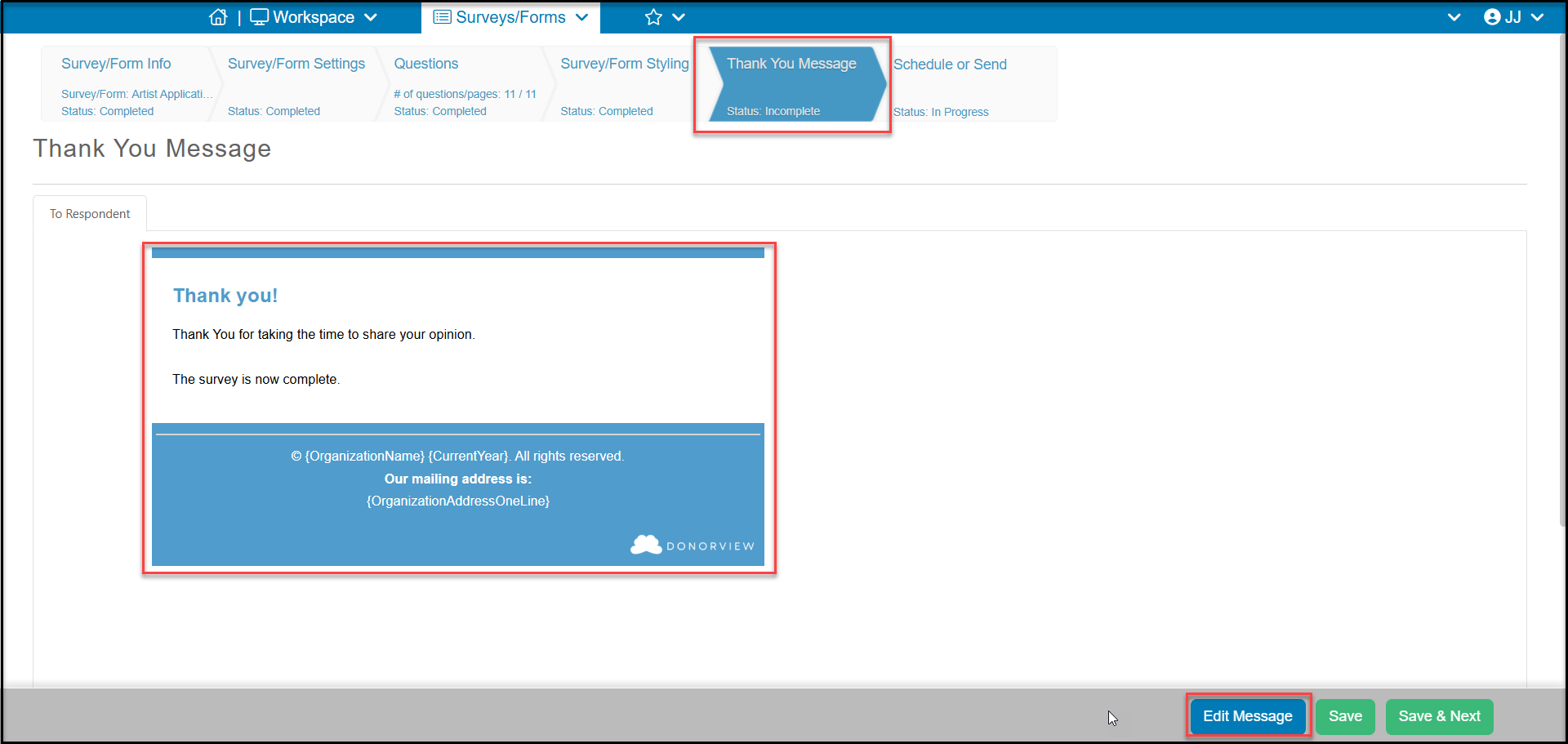
The Thank You Message is the fifth step in the setup of your survey. This step will allow you to customize the message that appears on the screen after a survey is submitted and a copy will also be emailed to the person who submitted the survey if the constituent field for name and email or company and email are selected. This message can be customized with any content and can also include a few merge fields for personalization including First Name, Last Name, Email and Payment Amount if the Payment option is included.
Click Edit to open the email template editor to edit your message.
For a survey that is not being sent via an email campaign, the last step is the Schedule or Send tab. On this step the software will automatically create a custom URL and QR code that you can share as desired. Use the small image icon on the top left corner of the QR code to download a png image file of the QR code.
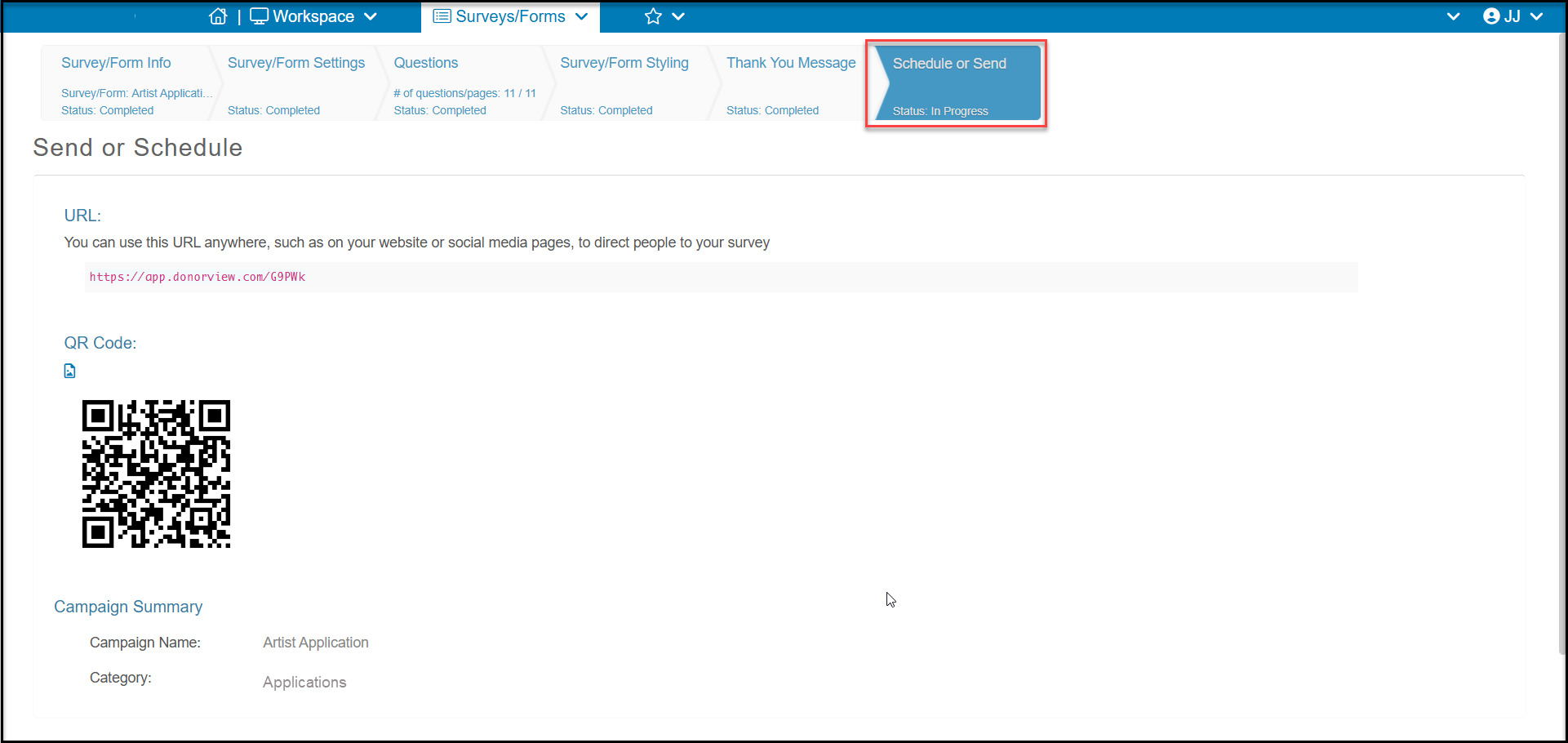
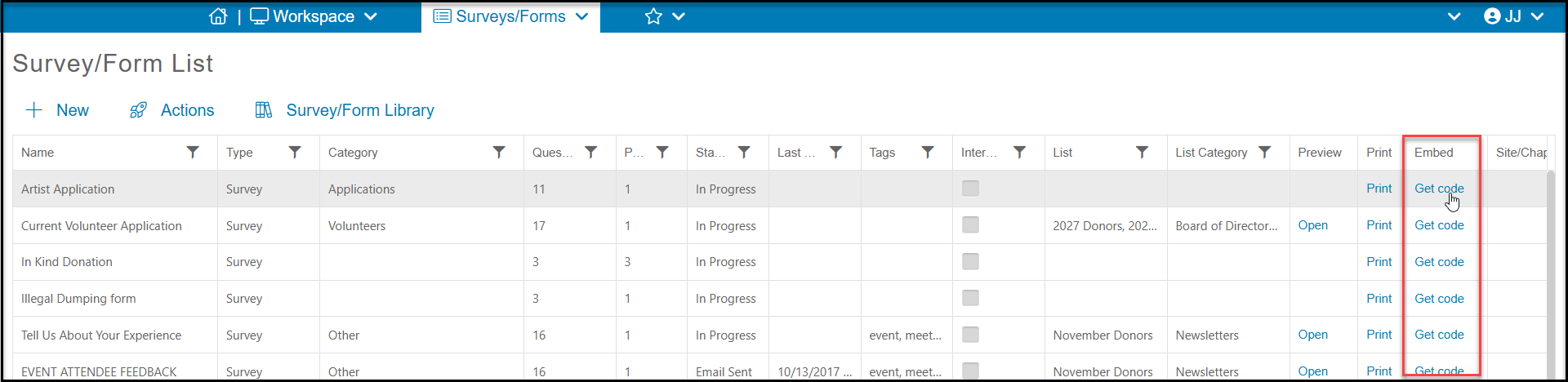
The URL is generated internally and is not editable. However, if you would like to embed your survey into your website, you can use the Survey/Form List grid and click on Get Code in the Embed column of the desired survey to add your survey inside the frame of your website.
To learn more about distributing a survey via an email campaign, see this article: "How do I send a survey or form to an email list?"