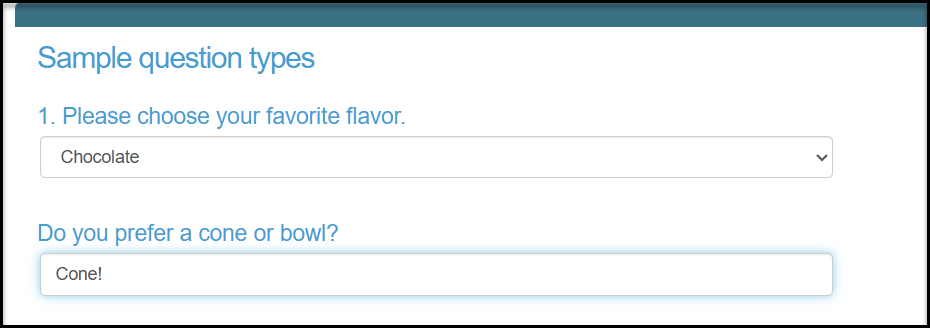
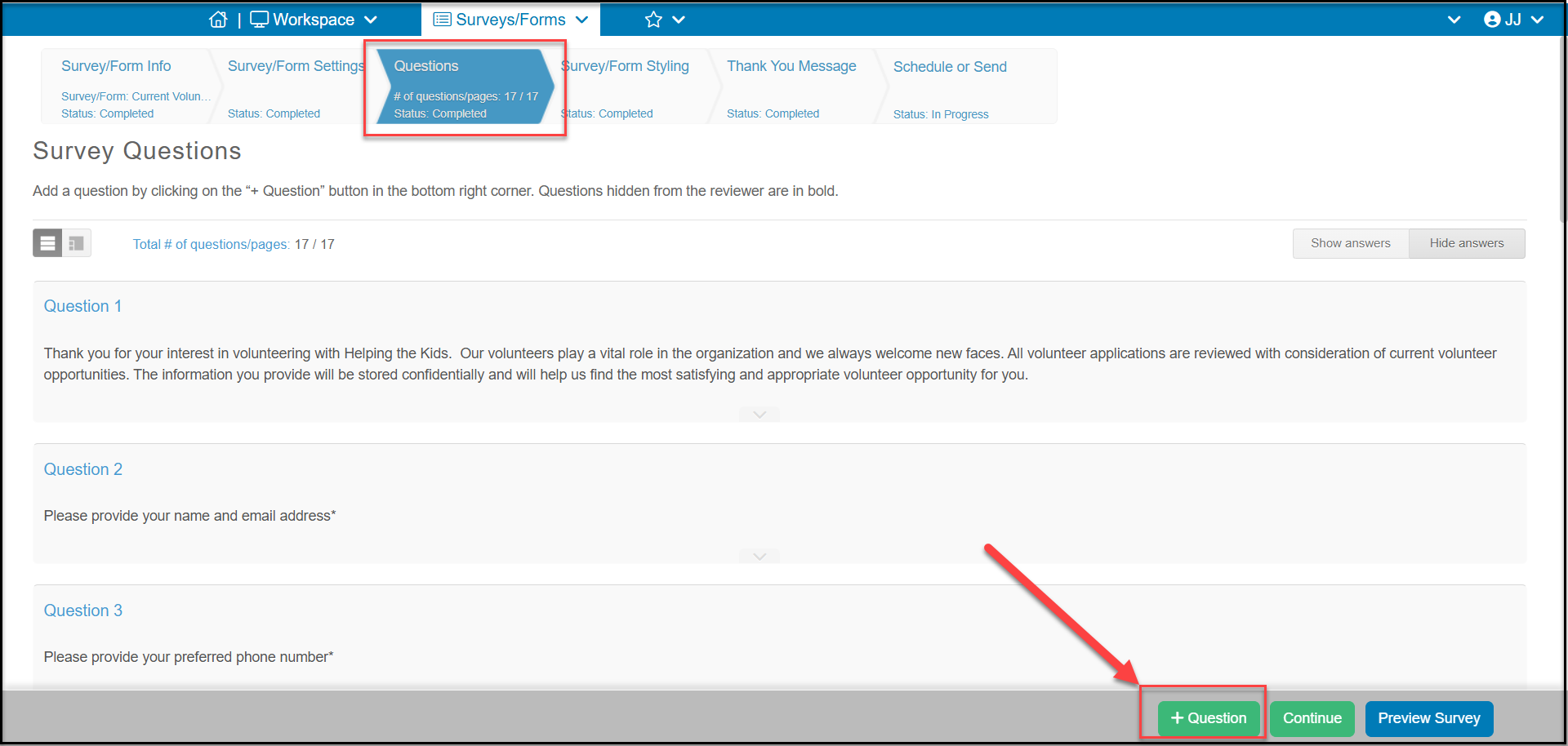
To see the different types of questions that are available to add to your survey, from the Questions tab, click on +Question.
There are many different question types available for your survey. There are two main categories of question types: Generic and Constituent Field.
Generic types of questions are those that are not linked to fields in the constituent's profile. For example, a generic question in a post-event survey might be "Provide a rating on the entertainment for the evening" or "Tell us what your favorite part of the event was." These types of questions collect information, but they do not have corresponding fields that are are updated in the constituent's profile.
Constituent Field questions will update information on a constituent's profile page. When selecting Constituent Field as the top option, standard and custom profile page fields will appear for you to select. In order to update a constituent's record with this information, the field Name and Email must be selected to link to or create a new individual constituent record. If you wish to link the responses to a company-type record, use the field Company and Email. To software links to constituent records based on email address and name. If no matching record is found, a new constituent record will be created.
Generic Question Types
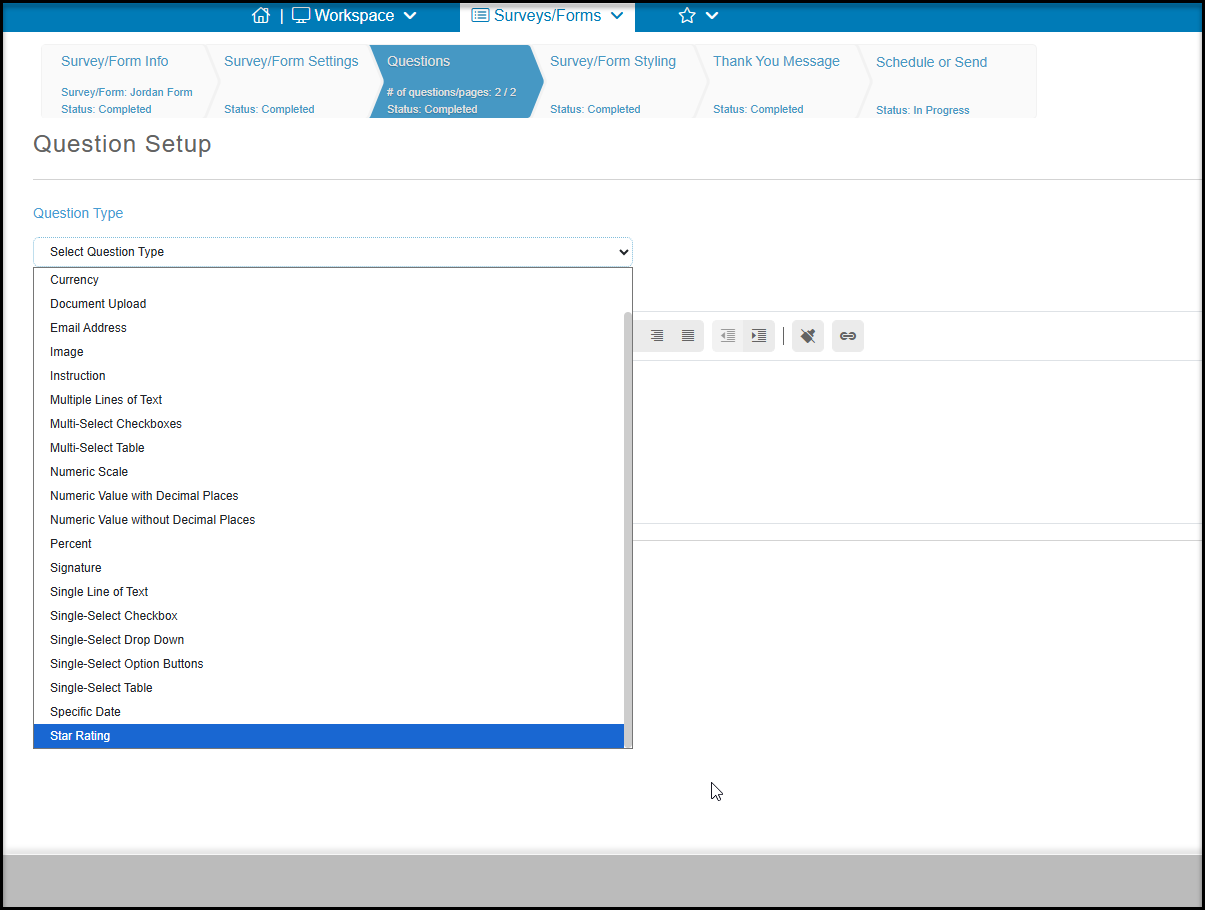
Under Question Type you will find a drop down menu listing all the types of questions available. The top choice Constituent Field, will be covered in the next section.
The other questions types are generic, they are not linked to a specific constituent profile field. They include:
- Currency - for respondent to indicate an currency amount - not for payment processing
- Document Upload - allows respondent to upload pdf, doc, xls, png and jpg files up to 10 MB
- Email Address (is not linked to a constituent record - this is a text field with a mask to require @ in the response
- Image - to upload an image into the survey
- Instruction - to provide instructions to respondent
- Multiple Lines of Text - for paragraph responses
- Multi-Select Checkboxes - to choose multiple items
- Multi-Select Table - to choose multiple items on multiple lines at once
- Numeric Scale - to enter a numeric score or scale - like 1 to 10
- Numeric Value with Decimal Places - to enter a number with decimal places
- Numeric Value without Decimal Places - to enter a number without decimal places
- Percent - to enter a percent value
- Signature - to provide an electronic signature
- Single Line of Text - for single line of text responses
- Single-Select Checkbox - to check a box indicating agreement
- Single-Select Drop Down - to choose one items from a drop down list
- Single-Select Option Buttons - to select one item from multiples
- Single-Select Table - to select one item on each row of choices
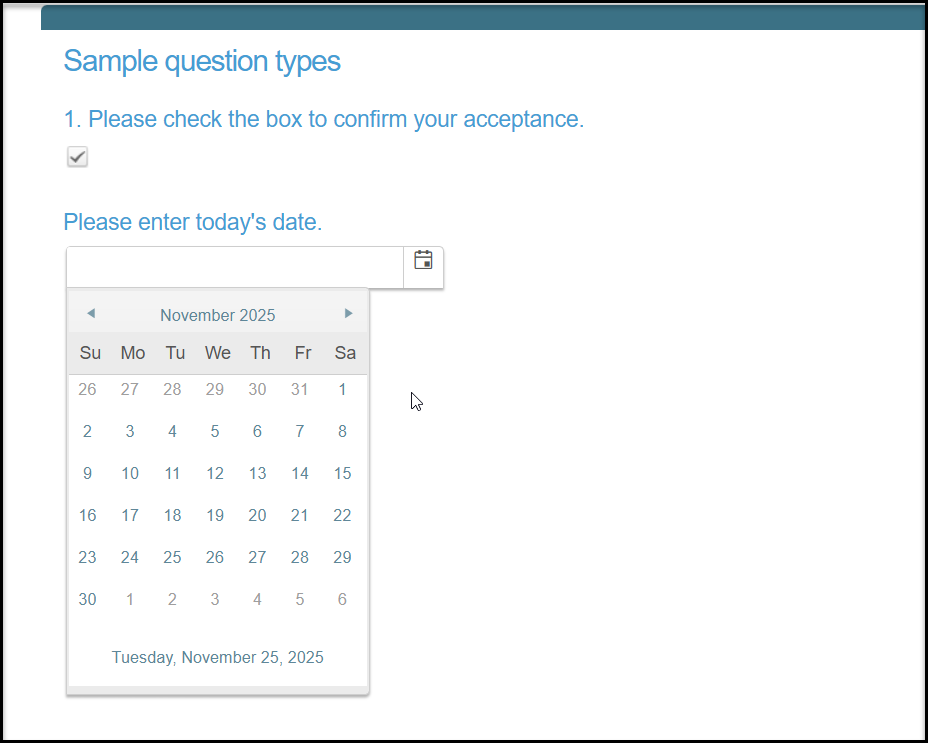
- Specific Date - to enter a date
- Star Rating - to assign a star rating - like 1 - 5 stars
You can learn more about each of these types of questions in this article "How do generic question types work in a survey or form?"
Constituent Field Questions
If you would like to link the survey responses to a specific constituent, for example for a membership or volunteer application, you will choose the top Question Type of Constituent Field.
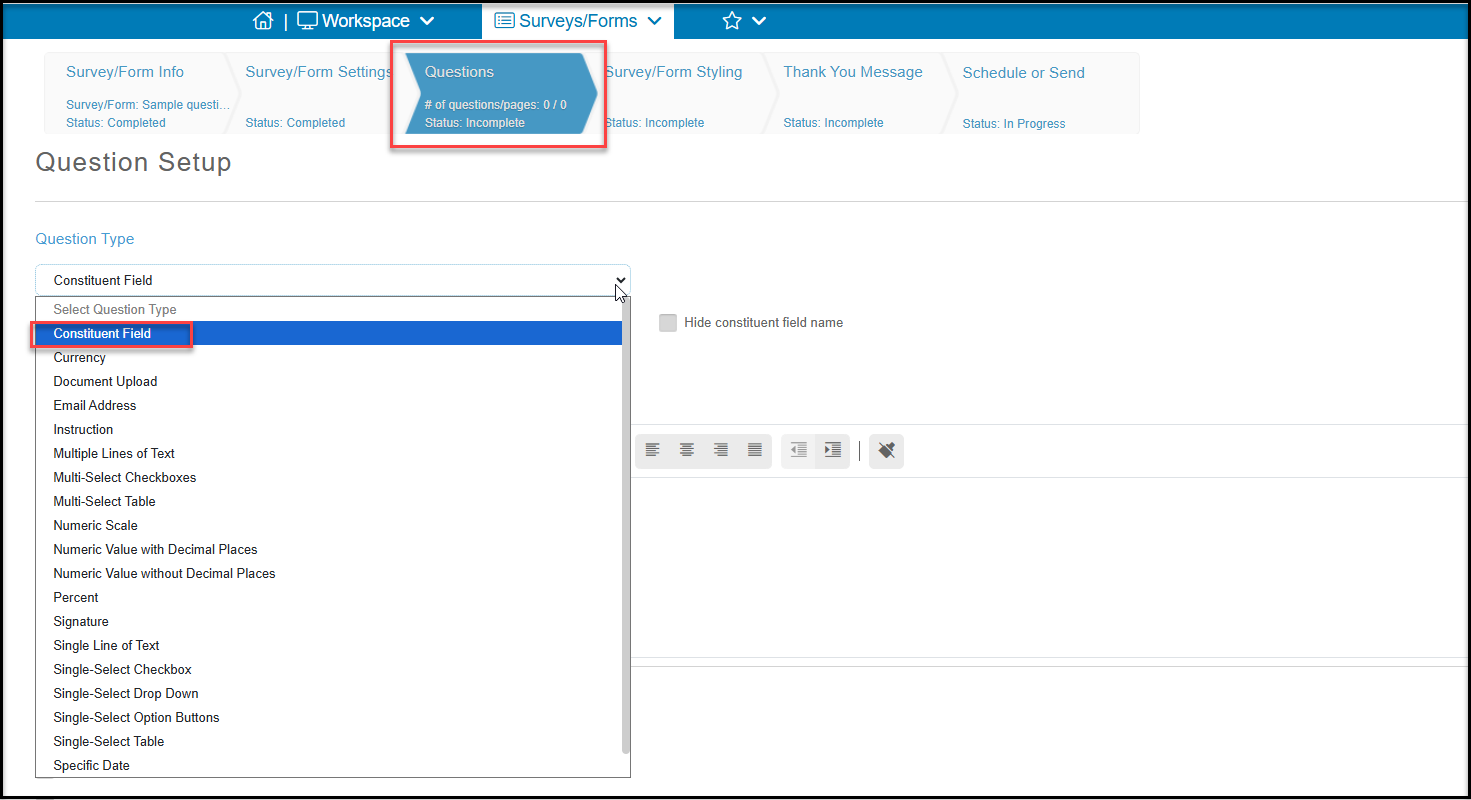
Once Constituent Field is selected as the question type, you will see a new dropdown list to show all the available fields to update in a constituent's record.
You have the option to check the box to Hide constituent field name if you would prefer to add your own description of that field in the Question Text.
Choosing the Type of Constituent Record to Collect
A key point is that each survey response can only link to one constituent record. You cannot collect and populate data for multiple constituents through a single survey response. For example, a person cannot submit one survey and create an individual constituent record for themselves, one for their spouse, and a separate company constituent record for their employer.
To connect a survey response to a single constituent record, first choose what kind of record you are connecting to. The options are:
- An individual adult by choosing the constituent field Name and Email.
- An individual child (who does not have an email address) by choosing the constituent field Name and Birthdate.
- A company-type record by choosing the constituent field Company and Email. You would choose this when linking survey responses to an organization, business, or other company-type constituent record.
You should only select one of the above three options. If you select more than one, the last one added on the survey will overwrite the previous constituent identifying questions when the survey is submitted.
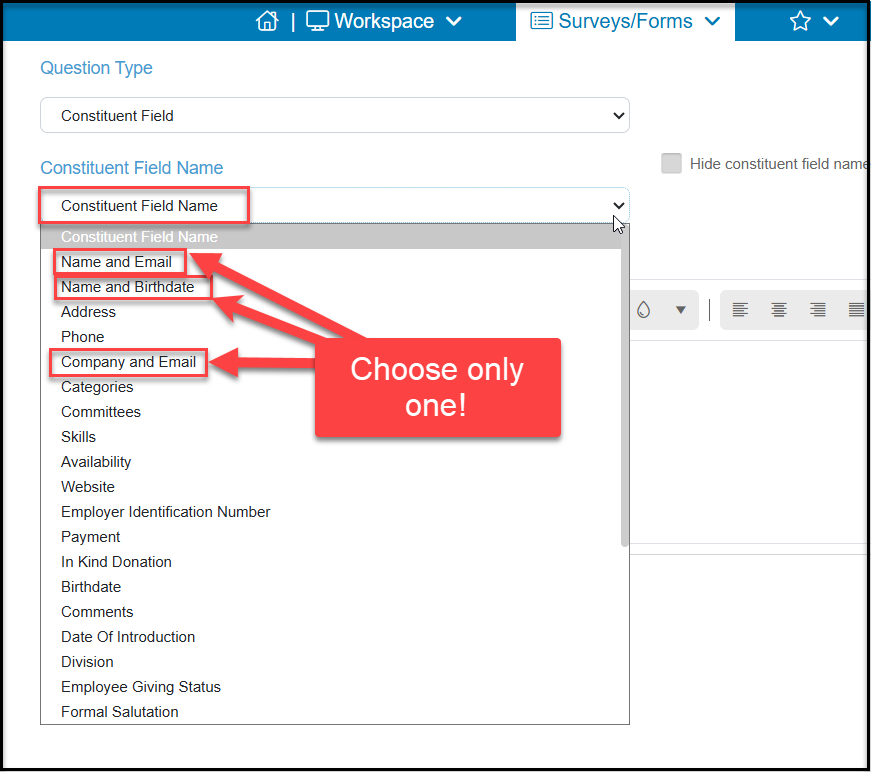
Constituent field questions not only fill in profile fields like Address, Phone, Website, Birthdate, and custom fields, they can also be used to record in kind donations and accept payments within the survey. You can learn more about the options available in Constituent Field questions in this article "How do Constituent Field questions work in a survey or form?"
Additional Options
Once you have selected your question type and added your labels and answer choices, at the bottom of most questions, you will have some additional options. Some options will only be available on specific question types.
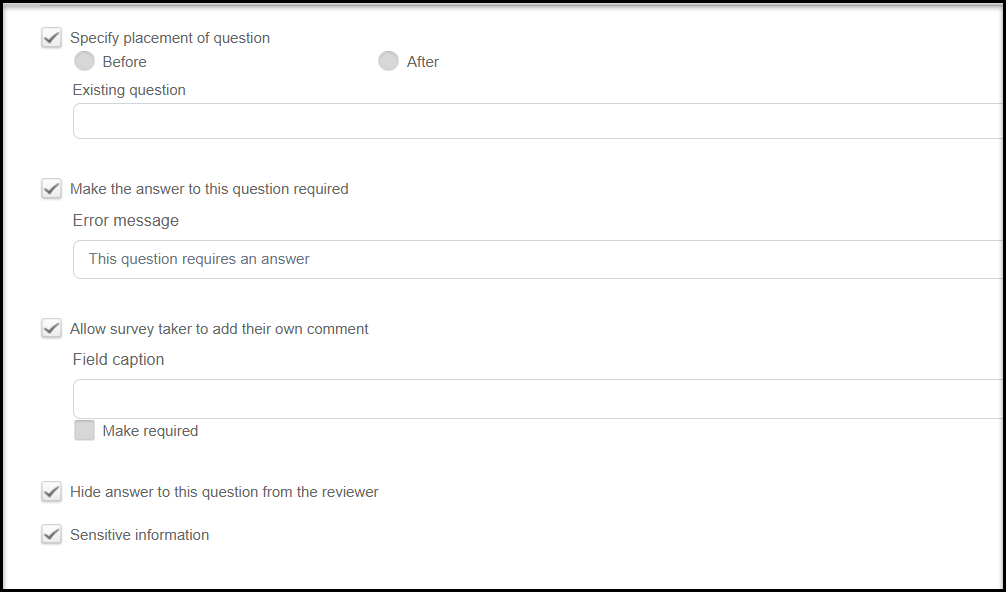
- Specify placement of question - If you already have a survey questions, you can insert this question Before or After existing questions. You can also move questions once they are saved.
- Make the answer to this question required - If checked, the survey cannot be submitted until this question is answered. You can also customize the error message that will display at the top of the survey.
- Allow survey taker to add their own comment - You can make this in addition to their answer to the question, or it can be an alternate write-in choice. The additional comment can also be made required.
- Hide answer to this question from the reviewer - If you have activated the enable review feature, you will see an option to hide the response from a reviewer. This may be appropriate if you are collecting personal information, like a birthdate, that the reviewer does not need to consider when performing their review.
- Sensitive information - For some text fields, you can mark them as sensitive information, which will hide their answers on the results grid.
Follow-Ups
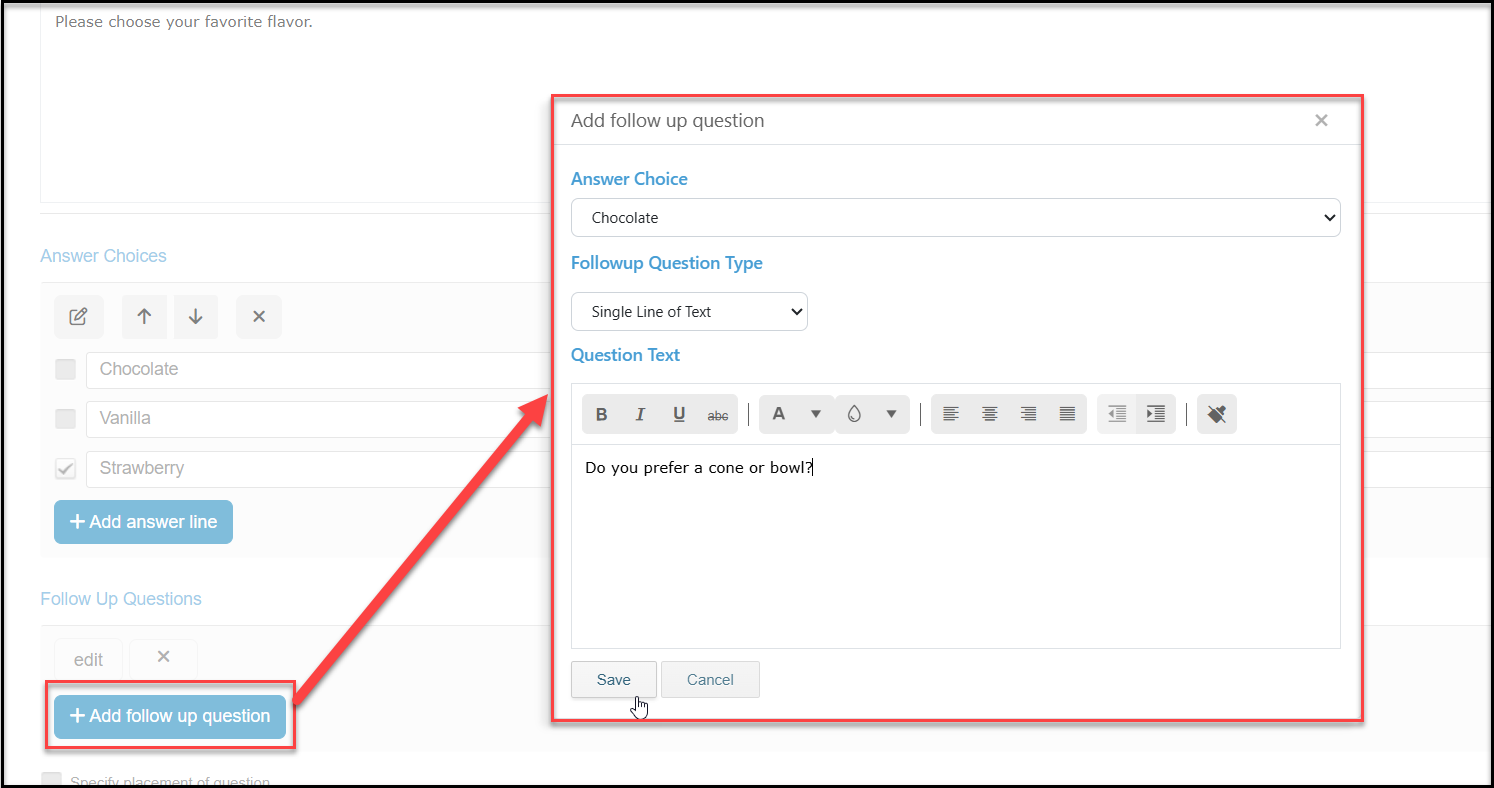
Some questions will also offer the ability to add a follow up question. For single option questions, you can click on +Add follow up question to open a new window to select what Followup Question Type to use for the follow up. Follow up questions are limited to:
- Currency
- Email Address
- Multiple Lines of Text
- Numeric Value With and Without Decimal Places
- Percent
- Single Line of Text
- Specific Date
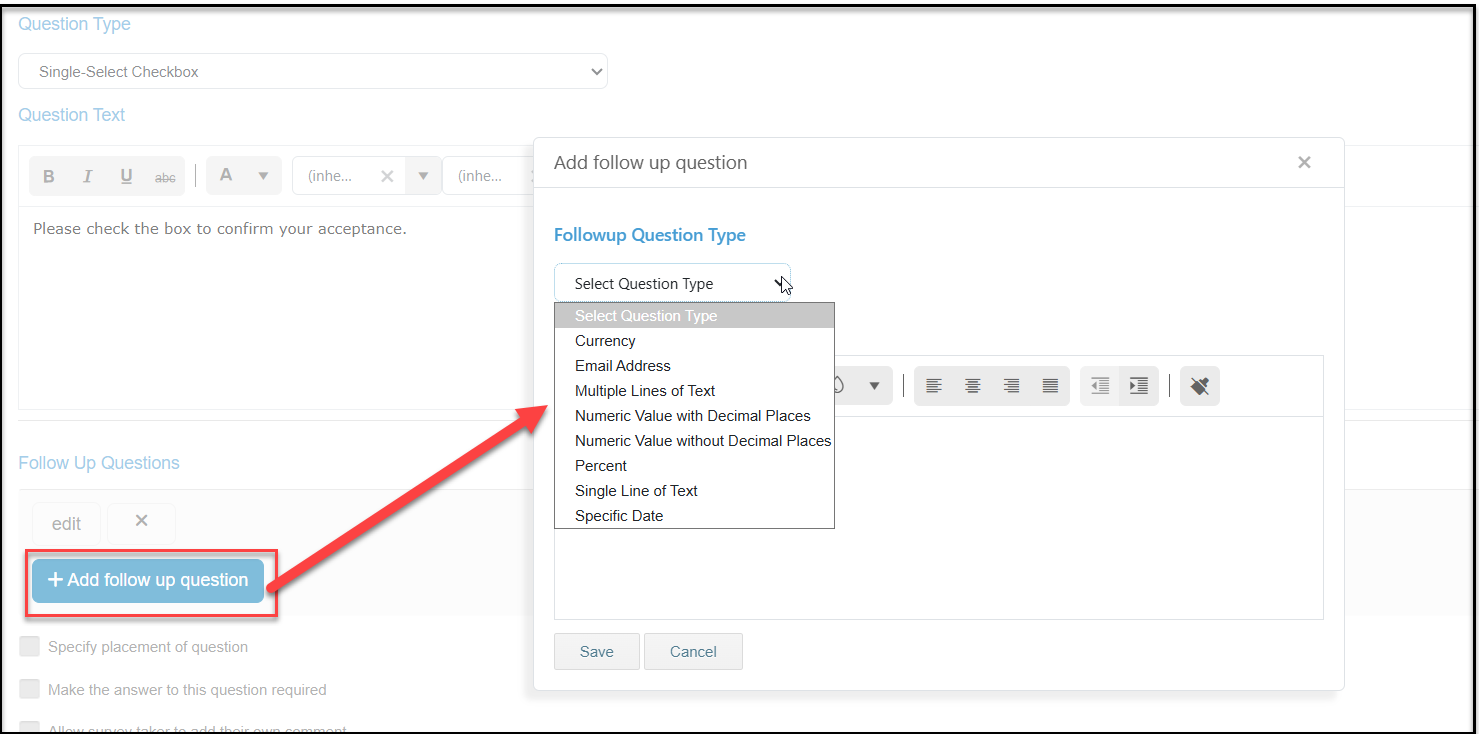
After selecting the kind of follow up question, you can enter the question text.
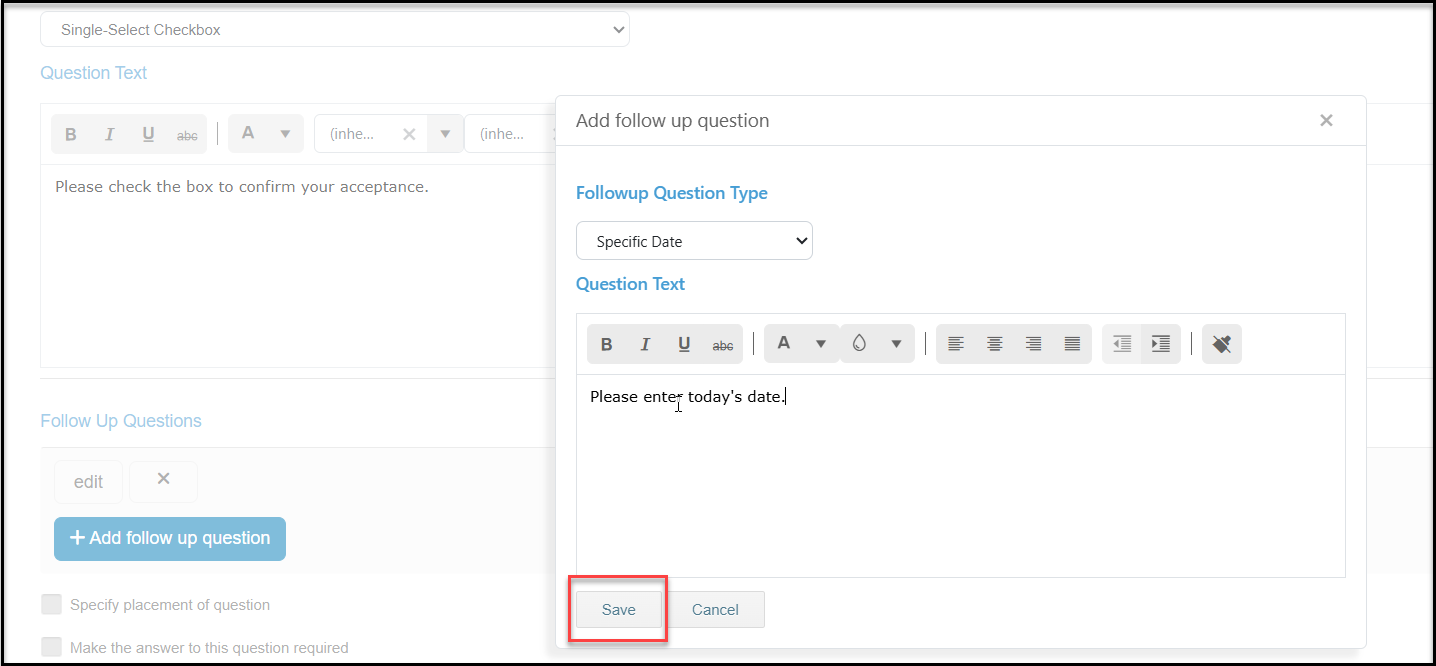
On the survey, once the respondent provides a response to the initial question, the follow up question will appear.
If your question has multiple choices, you can choose which responses will have a follow up option. Under Answer Choice, you will choose the answer first. Then you can select the Followup Question Type.
On the survey, only the answers with follow up questions assigned will reveal the follow up question.