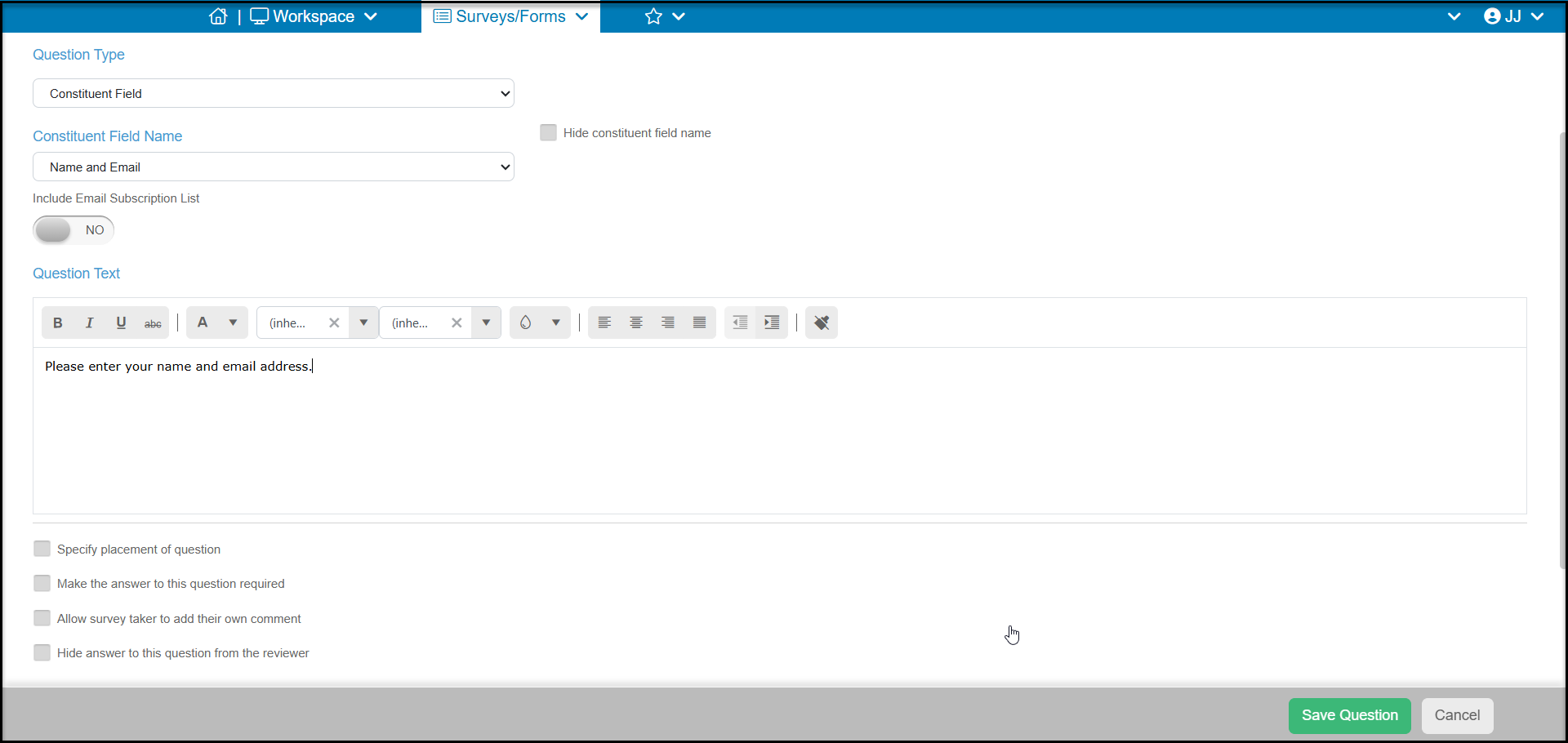
If you would like to link the survey responses to a specific constituent, for example for a membership or volunteer application, you will choose the top Question Type of Constituent Field.
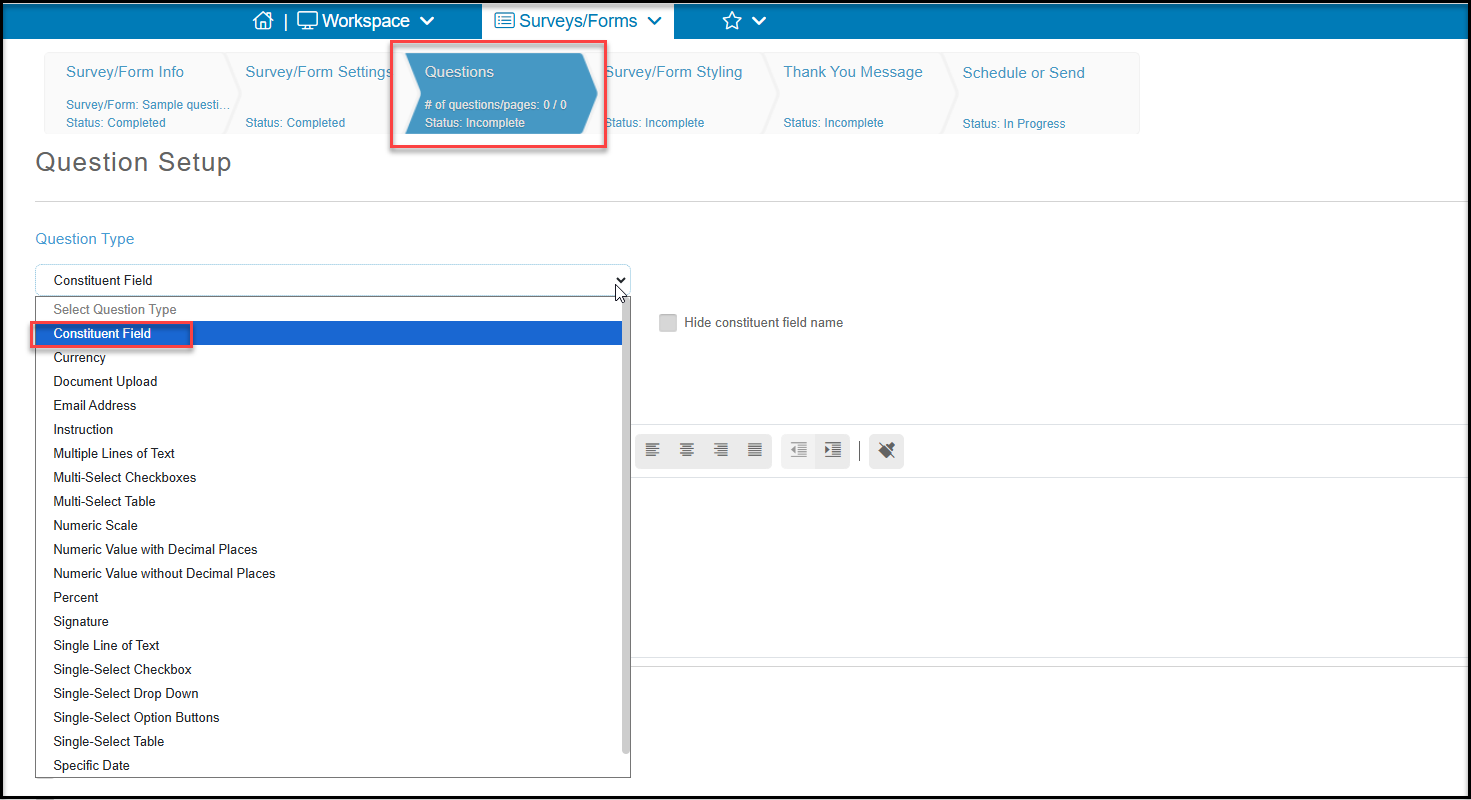
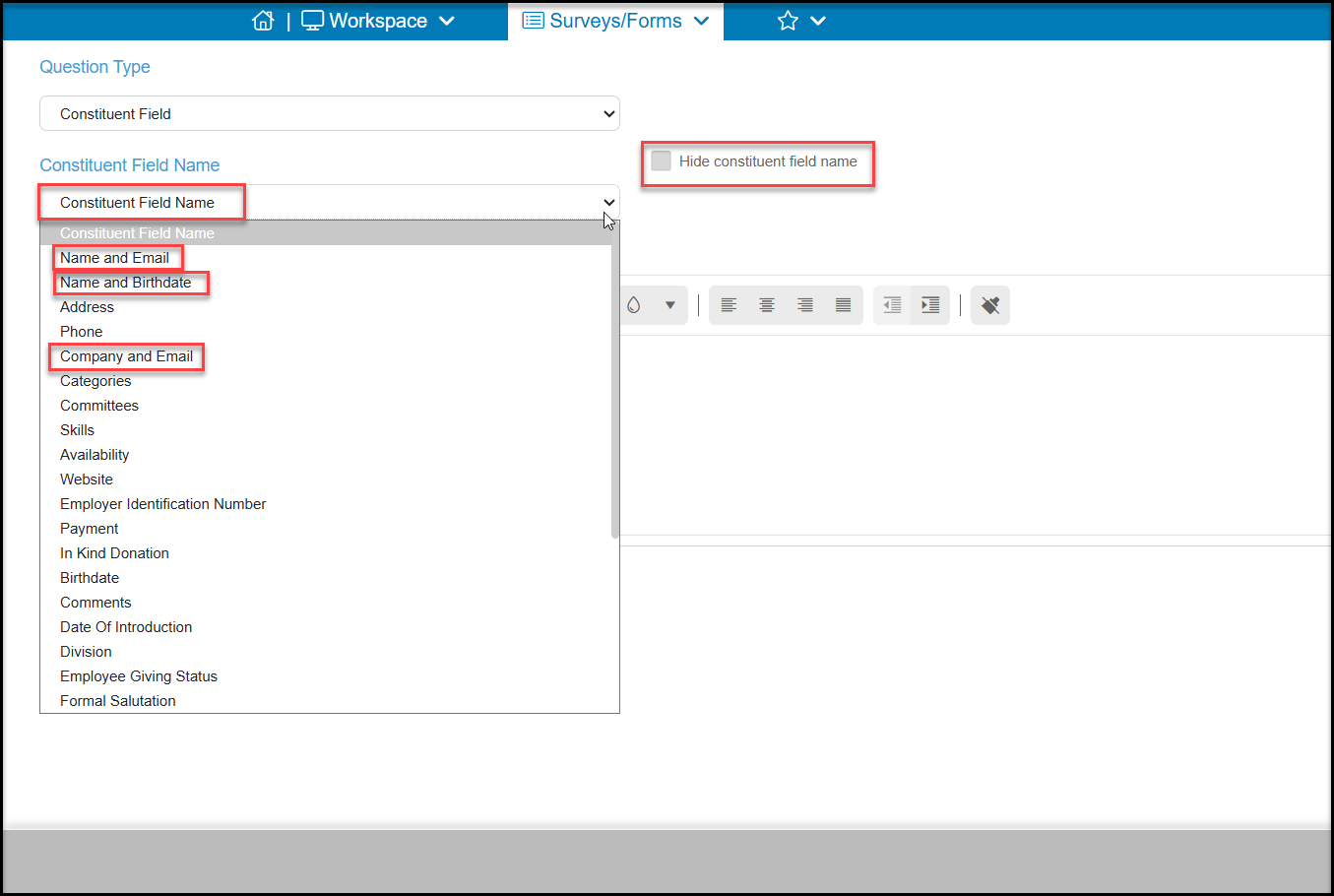
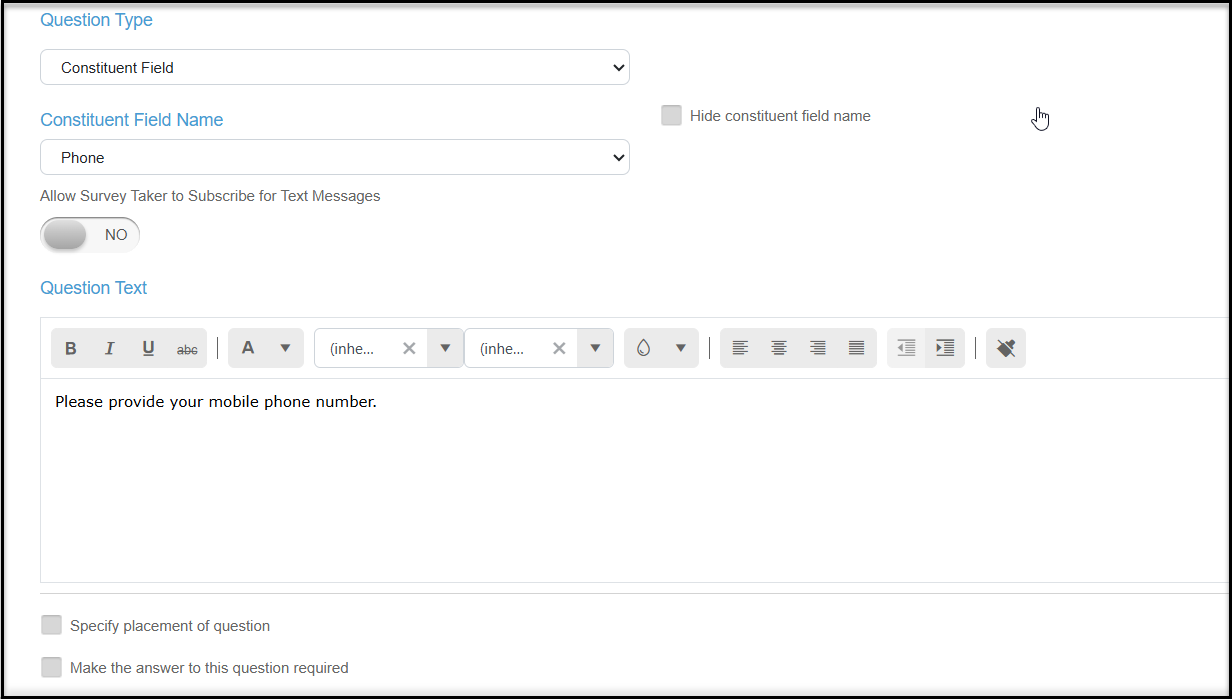
Once Constituent Field is selected as the question type, you will see a new dropdown list to show all the available fields to update in a constituent's record.
You have the option to check the box to Hide constituent field name if you would prefer to add your own description of that field in the Question Text.
Choosing the Type of Constituent Record to Collect
A key point is that each survey response can only link to one constituent record. You cannot collect and populate data for multiple constituents through a single survey response. For example, a person cannot submit one survey and create an individual constituent record for themselves, one for their spouse, and a separate company constituent record for their employer.
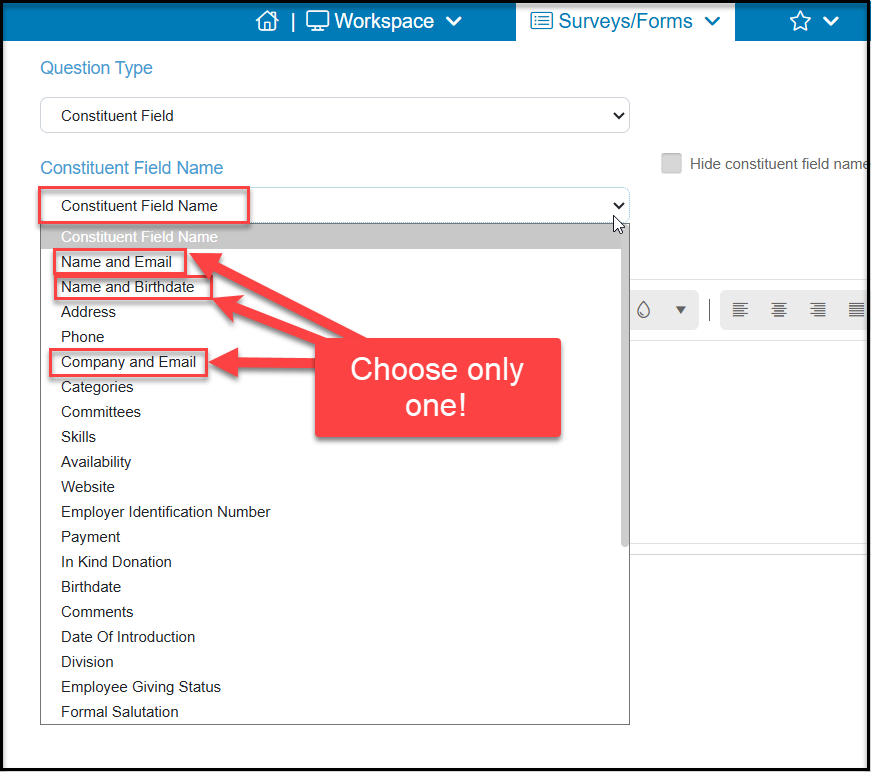
To connect a survey response to a single constituent record, first choose what kind of record you are connecting to. The options are:
- An individual adult by choosing the constituent field Name and Email.
- An individual child (who does not have an email address) by choosing the constituent field Name and Birthdate.
- A company-type record by choosing the constituent field Company and Email. You would choose this when linking survey responses to an organization, business, or other company-type constituent record.
You should only select one of the above three options. If you select more than one, the last one added on the survey will overwrite the previous constituent identifying questions when the survey is submitted.
Once you select what type of constituent you are linking the responses to, you can add Question Text for additional instructions as needed. For Name and Email, you will also see an option to Include Email Subscription List if you would like to invite your constituent to subscribe to your email marketing lists.
As with generic questions, you will also see options to:
- Specify the placement of question
- Make the answer to this question required
- Allow survey taker to add their own comment
- Hide the answer to this question from the reviewer
For all questions, click Save Question to add this question to your survey.
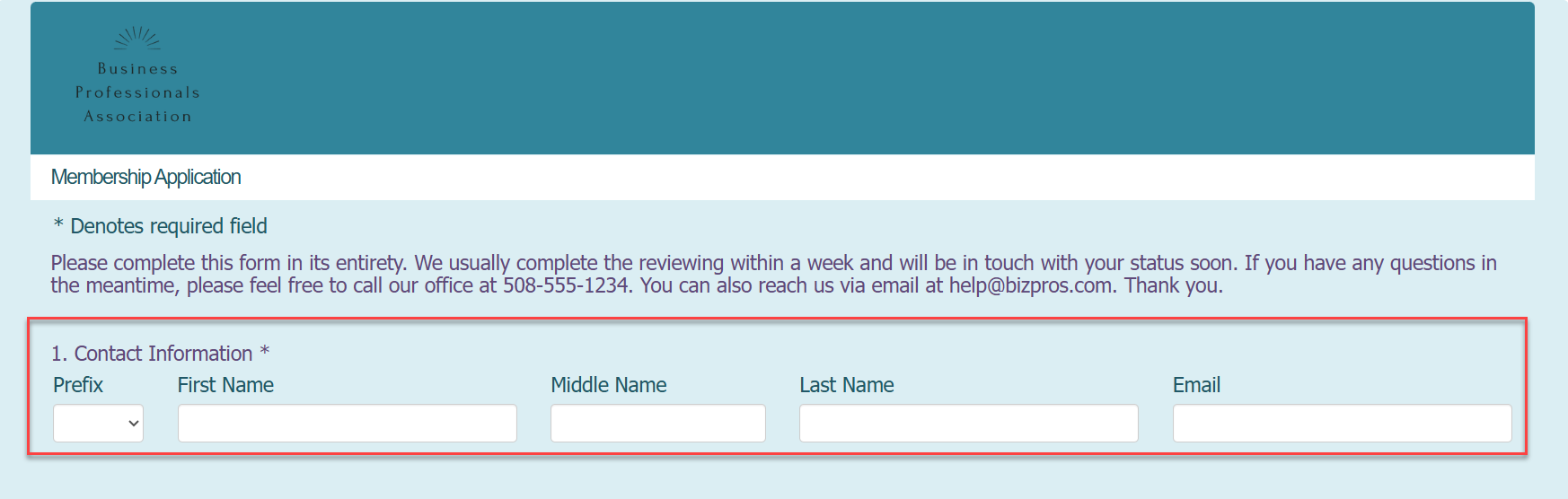
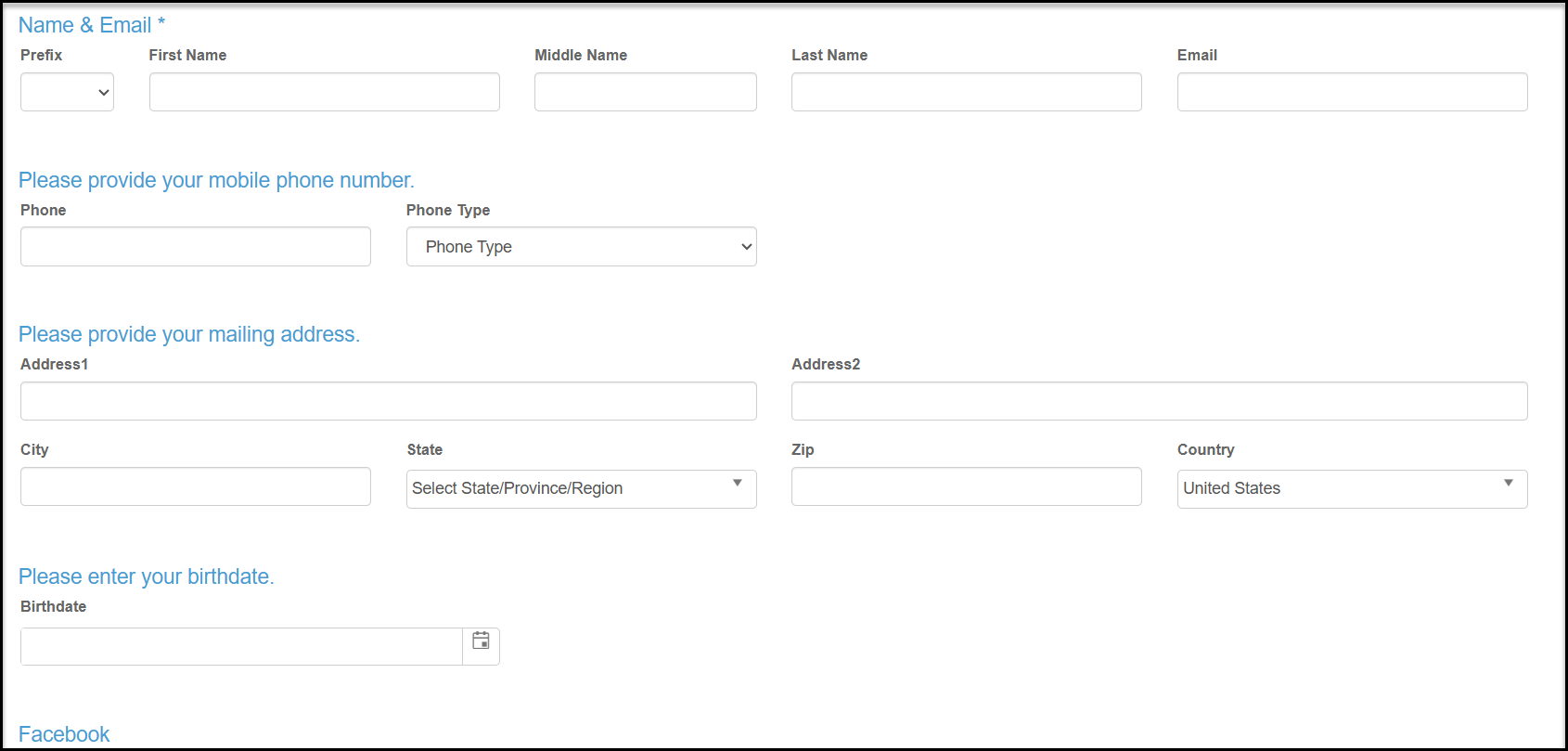
On the survey, the fields will include Prefix, First Name, Middle Name, Last Name and Email. Only First Name, Last Name and Email will be required fields if the question is required.
Depending on your organization's account settings for duplicate matching, the software will attempt to locate an existing constituent record to match the responses to. It will use Email first, then depending on your settings it may also use First and Last Name. Keep in mind that email (and/or name) fields must match exactly what is in your database to link to an existing record. If no exact match is found, a new constituent record will be created.
Multi-Select Constituent Fields
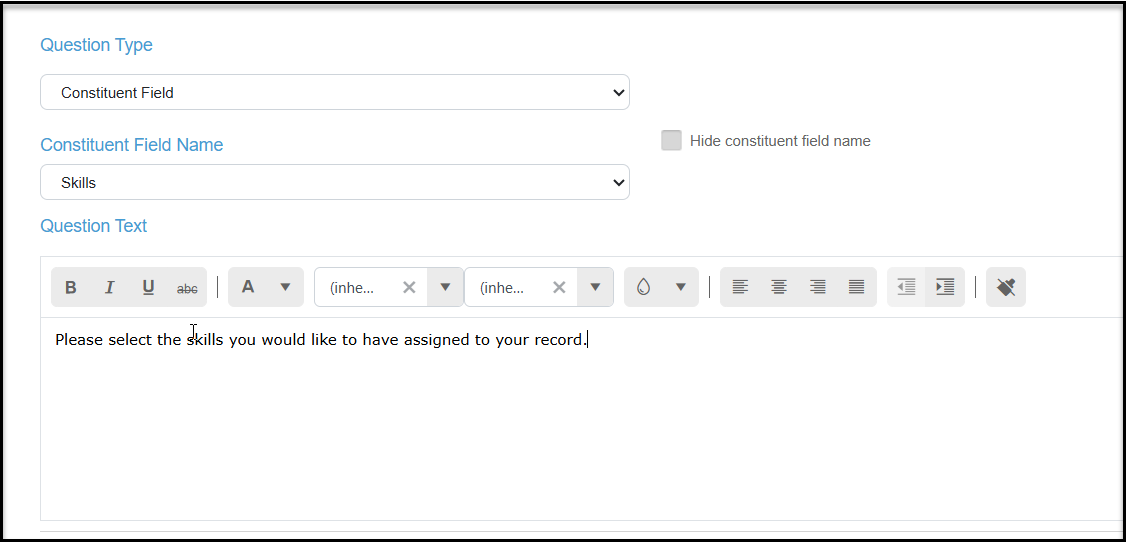
Some constituent fields, like Categories, Skills, Availability, and custom multi-select fields will allow the respondent to select multiple choices from your existing lists in those fields. For constituent Categories, only those categories identified as public are included in the list to select.
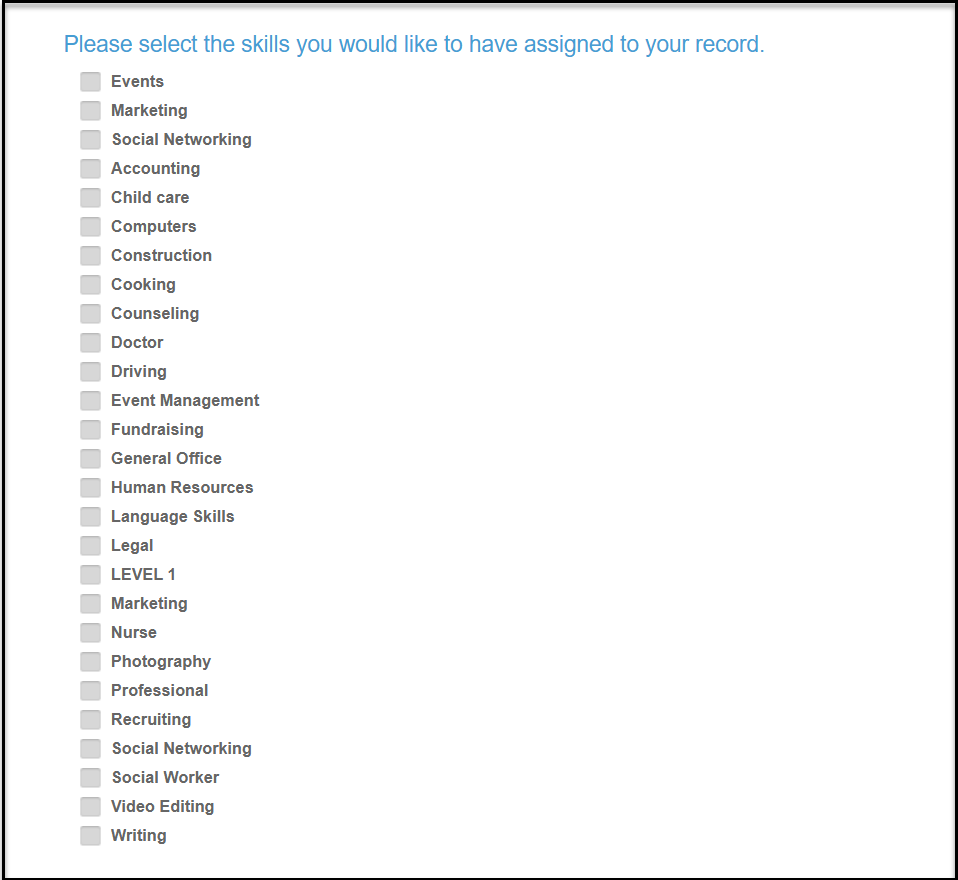
On the survey, the respondent can select any of the items from your list and this information will be added to the constituent's record.
Standard Constituent Fields
The Constituent Field options will also include standard fields like Address, Phone Number, Website, Gender, Salutations, Social Media handles, and Birthdate. Choosing any of the standard fields will auto-populate this information directly into the constituent's record.
On the survey the respondent will be able to add their information to update their record.
Accepting Payment
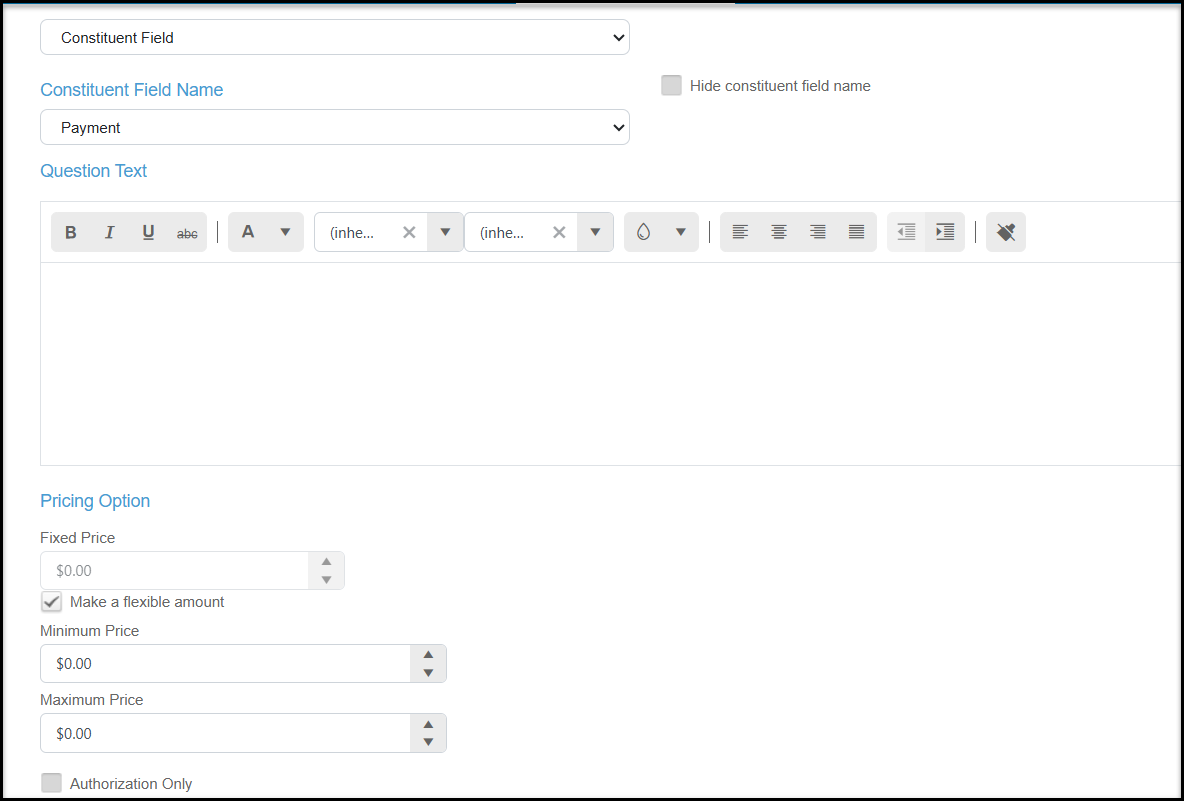
The Constituent Field question type “Payment” has an option to process payments. These payments can either be a Fixed Price, for example an application fee, or you can set it to Make a flexible amount where the respondent writes in an amount to pay or donate. There is also an option for Authorization Only, which allows the credit card to be collected, but not charged, but not immediately charged. Authorization only just saves the credit card in the constituent's Payment Options tab for a future purchase/payment.
The survey thank you message can include a merge field for the payment amount if you wish it to serve as the transaction acknowledgement.
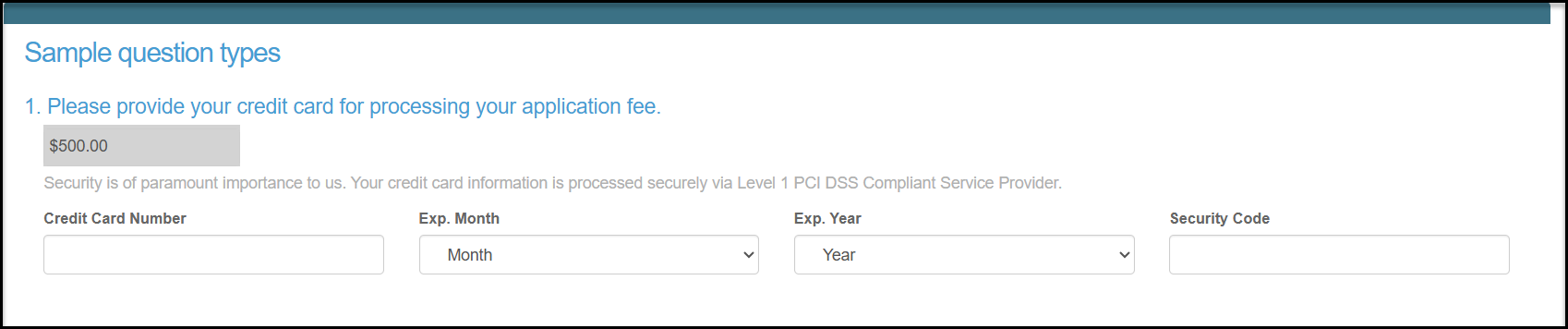
The example below shows a fixed price for an application fee. When the survey is submitted, the charge will show on the Transactions grid and in the constituent's Transactions tab. It will be processed as a General type of transaction with a Online Category of Donation, but the name of the survey will be shown in the Online Subcategory field.
In Kind Donations
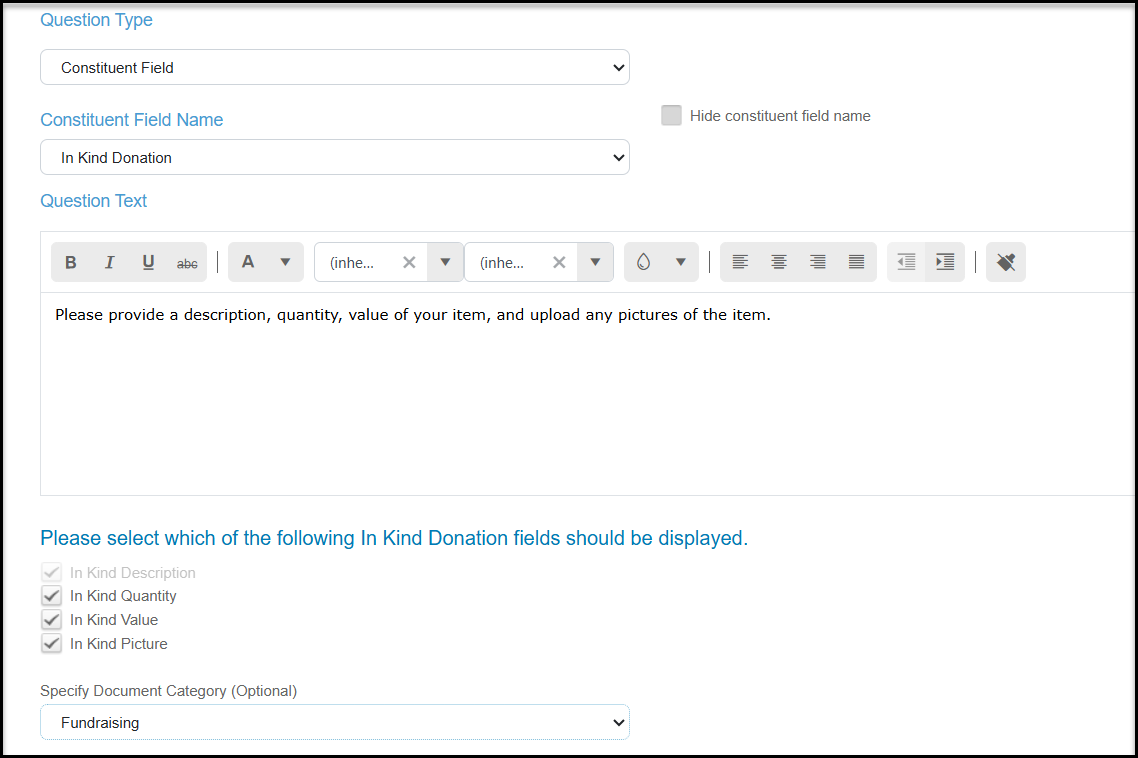
You can use the Constituent Field question type to collect and process in kind donations as well. With this question type you can provide the instructions in the Question Text field, then select what information you need about the item including:
- In Kind Description (required) - a description of the item.
- In Kind Quantity - how many items are being donated.
- In Kind Value - allowing the respondent to assign a Sale Value of the item.
- In Kind Picture - allowing the respondent to upload a jpeg or png photograph of the item. If you are uploading images, you can also specific the document category assigned to the photograph.
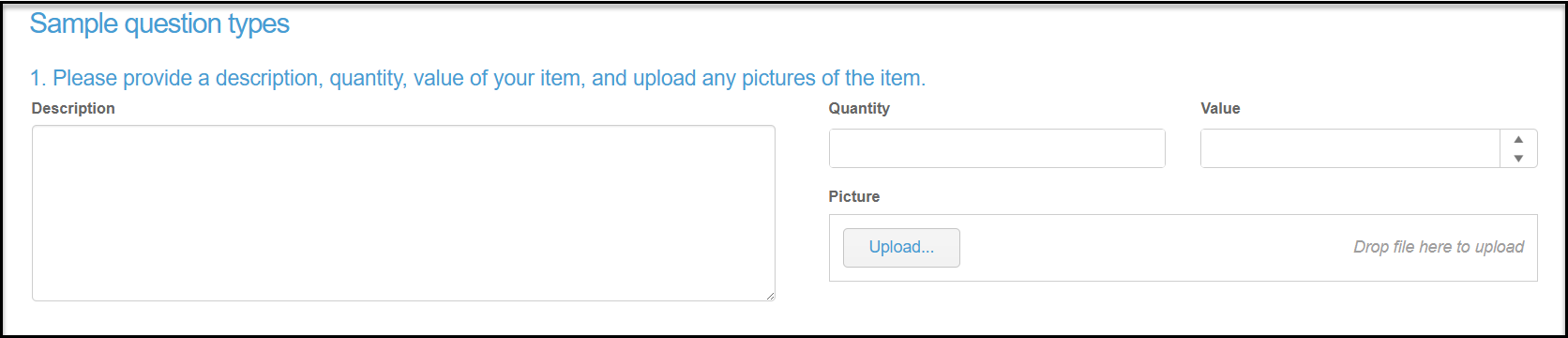
On the survey the respondent will see the fields you have included.
Once the survey is submitted, the transaction will be recorded as transaction type of in kind. There will be no amount for in kind items, however the value assigned by the respondent will be entered in the Sale Value field for that transaction.
A manual thank you letter will be required for these donations as these merge fields are not available in the automated thank you message for the survey submission.
Custom Fields
If you have any custom constituent fields, you will find them at the bottom of the list of Constituent Field Names available.
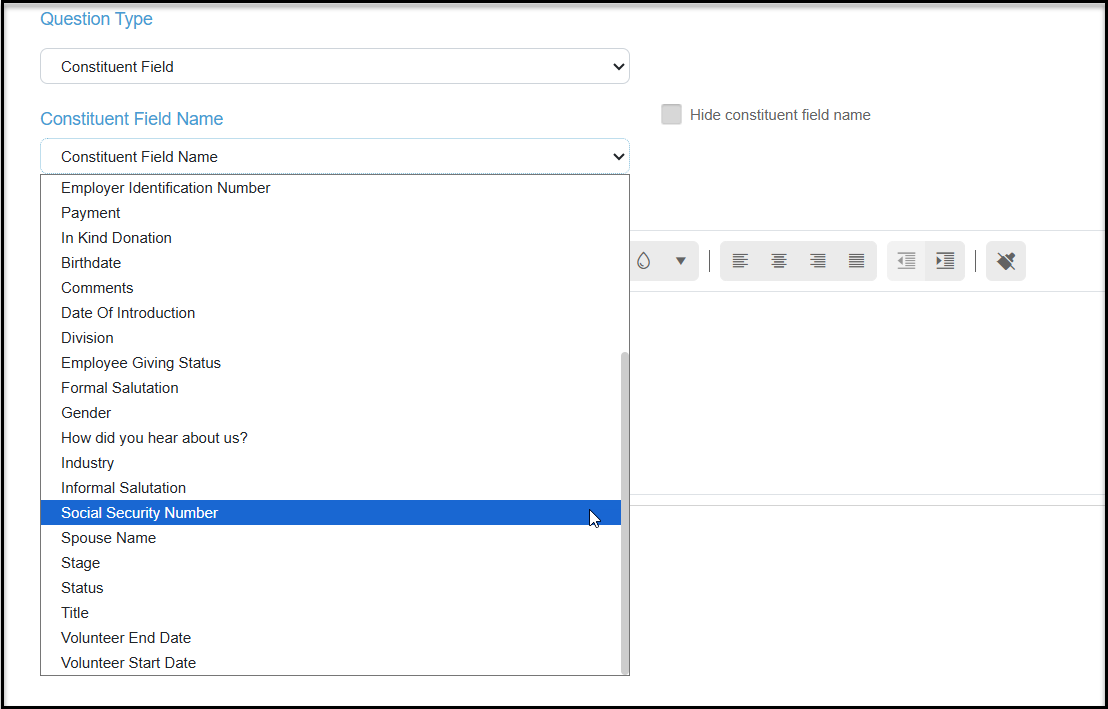
Like other Constituent Field question types, you will select the field and add your Question Text as needed along with any other requirements for the question.
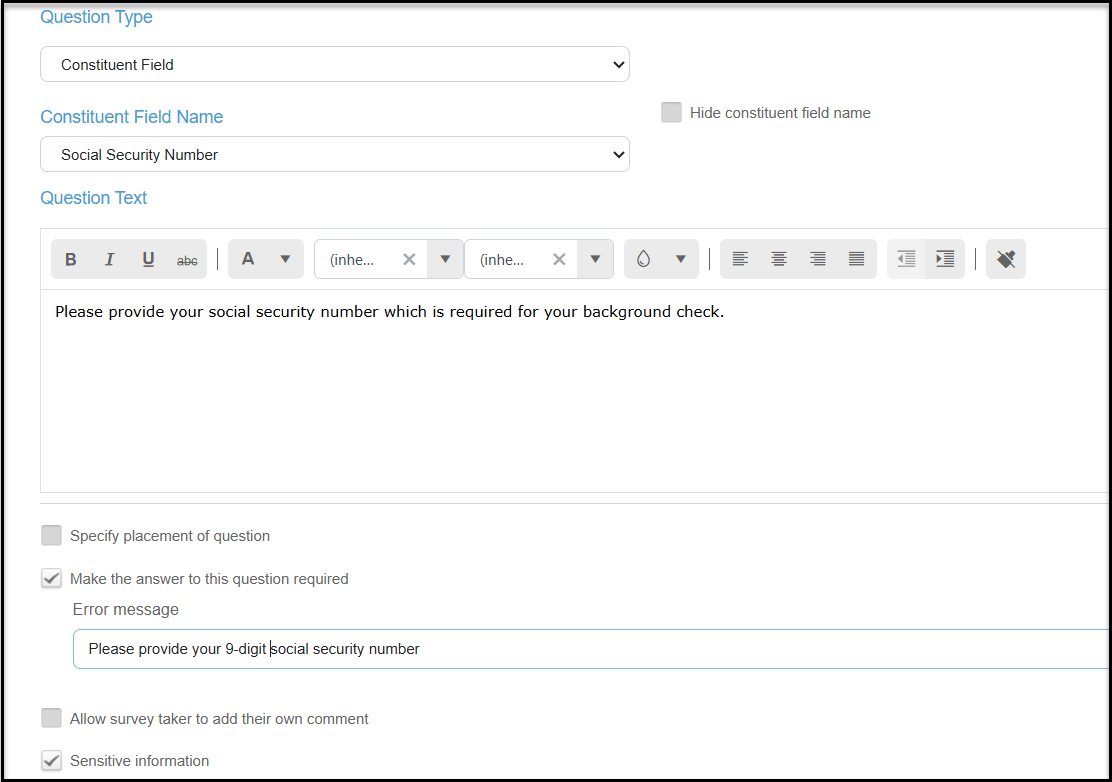
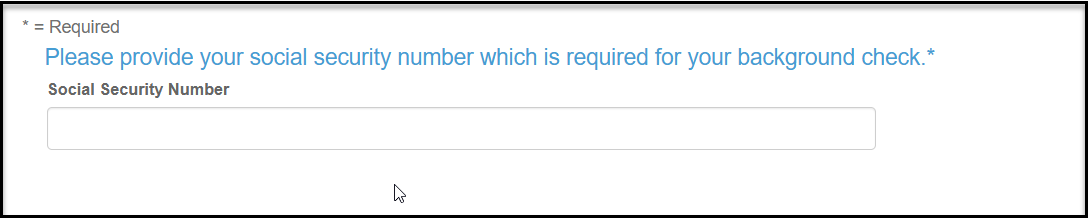
On the survey the respondent will see the field to complete. Once the survey is submitted, the information will auto-populate their constituent profile record. If the question is marked as Sensitive Information, the response will be hidden from the Results grid. Sensitive information can only be viewed by an Admin level user if they export the data to Excel using the Actions menu on the Survey/Forms Results grid.