
Can customize or edit the colors and fonts in my survey styling?
Yes, during setup you can customize the colors and fonts and you can go back at any time to edit the survey styling. Be sure to check the box for “Apply these themes to Welcome & Thank You Messages” if you want to update those with the new color selections. Click on the tab for the welcome and thank you messages to save any changes as applicable.
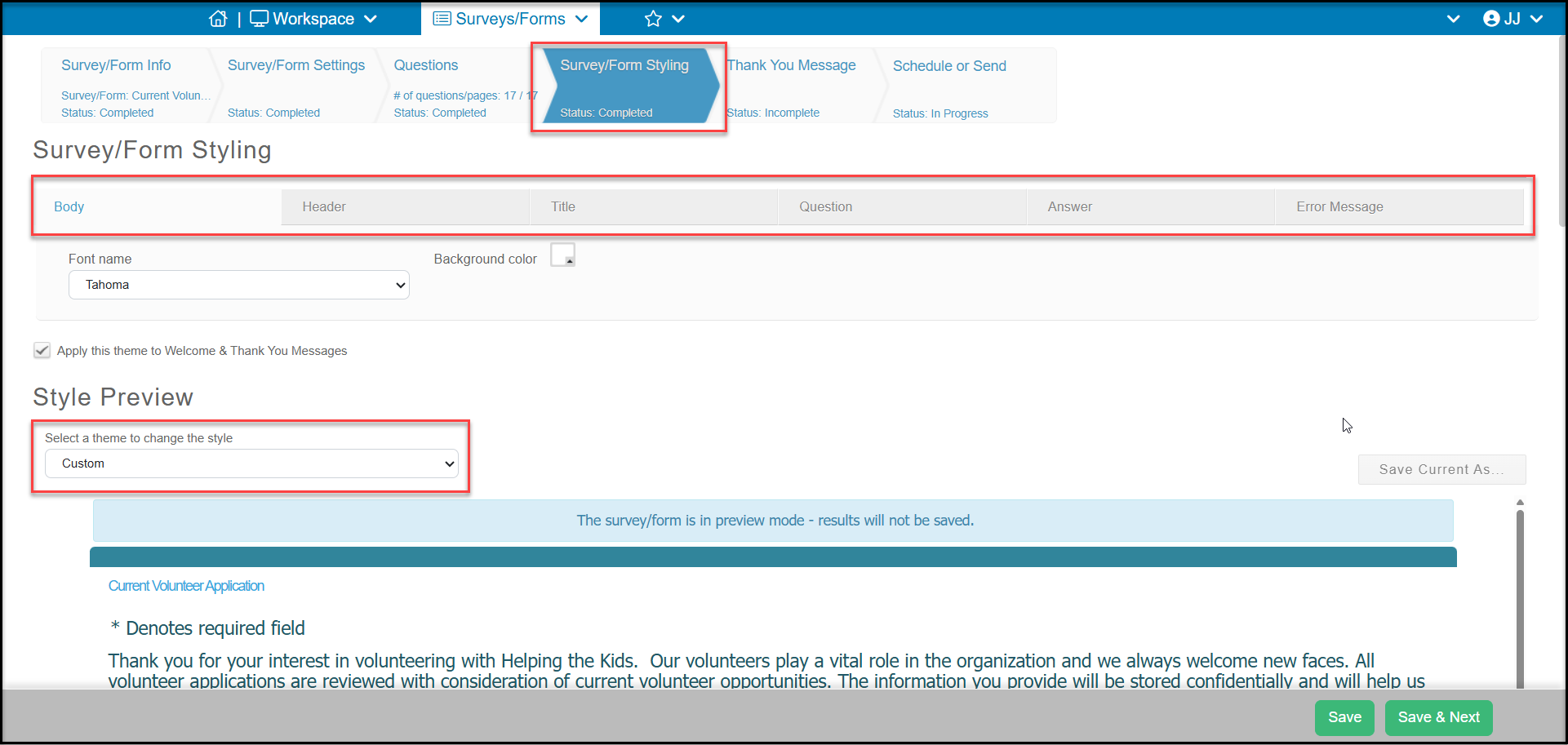
You have the option of selecting one of the built in color themes from the Select a Theme to Change the Style dropdown. Click on a theme and you can see the page update in the Style Preview area. With a theme selected, you can then edit the colors and fonts in the different areas.
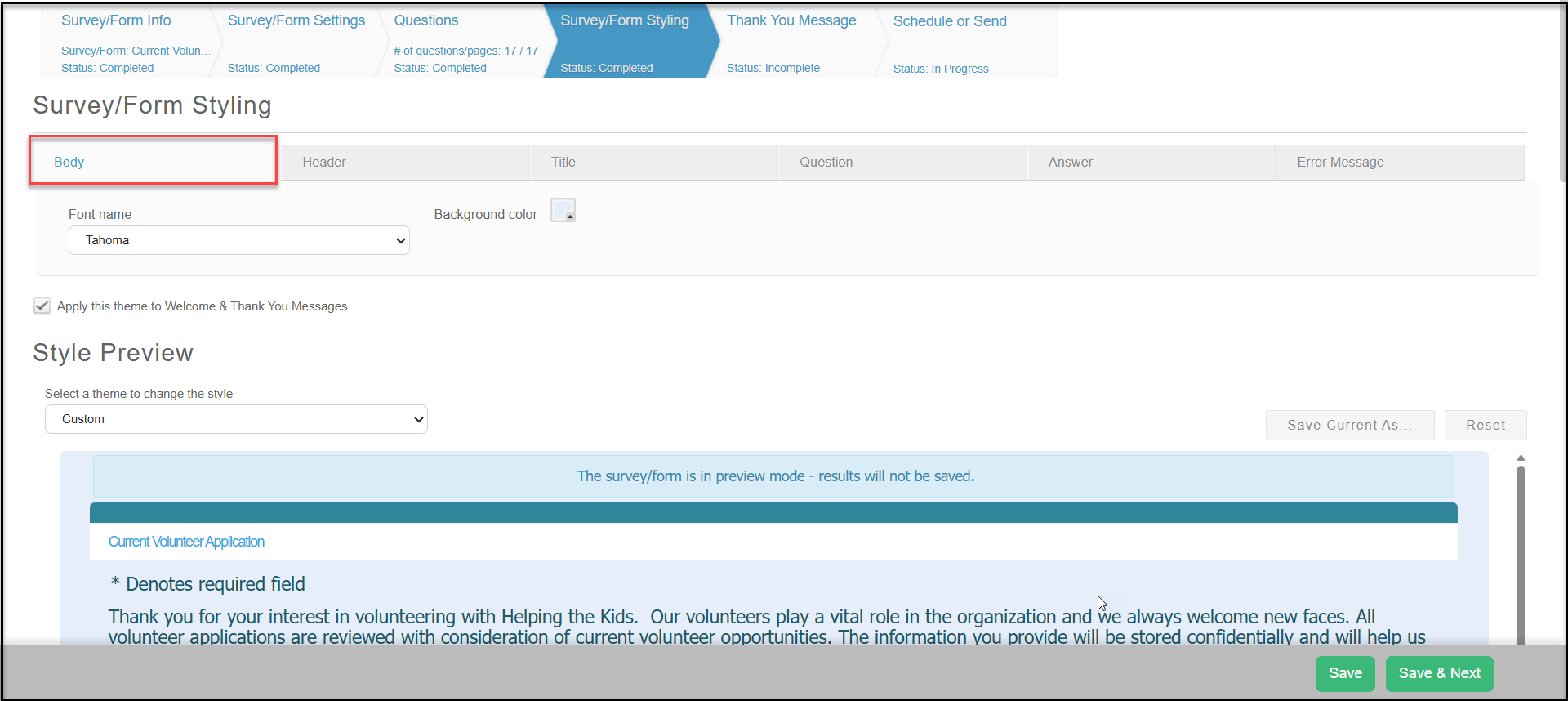
On the Body tab, you can edit the font or background color of the page.
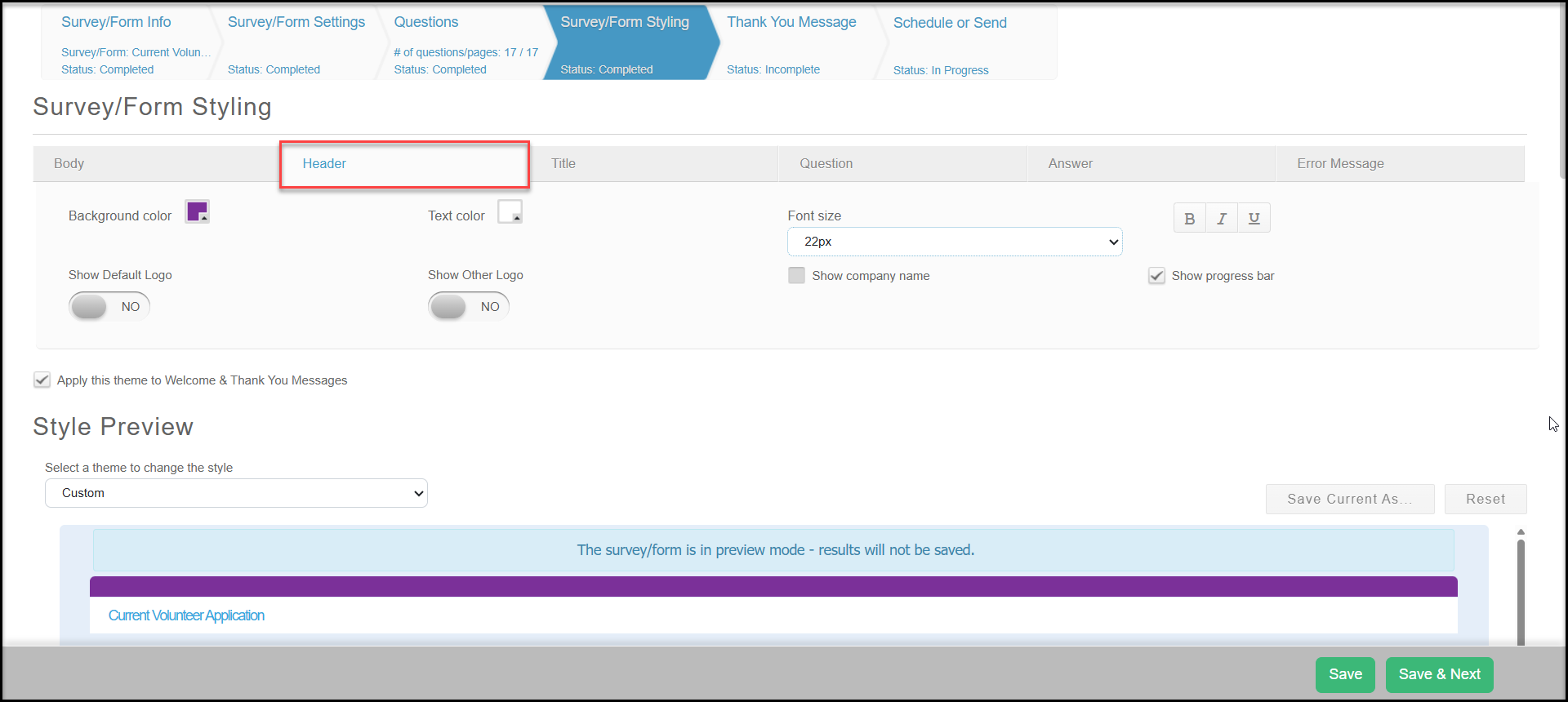
On the Header tab, you can edit the bar at the very top of the page. You can edit the font size and include your organization name by checking the box Show Company Name.
You are also able to Show Default Logo from your account settings or upload an alternative logo to appear at the top of the page. Note that if you upload a new alternative logo, with Show Other Logo, but it will update your account settings as well as any other pages which use the alternative logo. You are also able to select the alignment of the logo, left, center or right aligned.
You can check the box Show progress bar if you would like the respondents to see their progress. This can be helpful if you do not show all questions on one page.
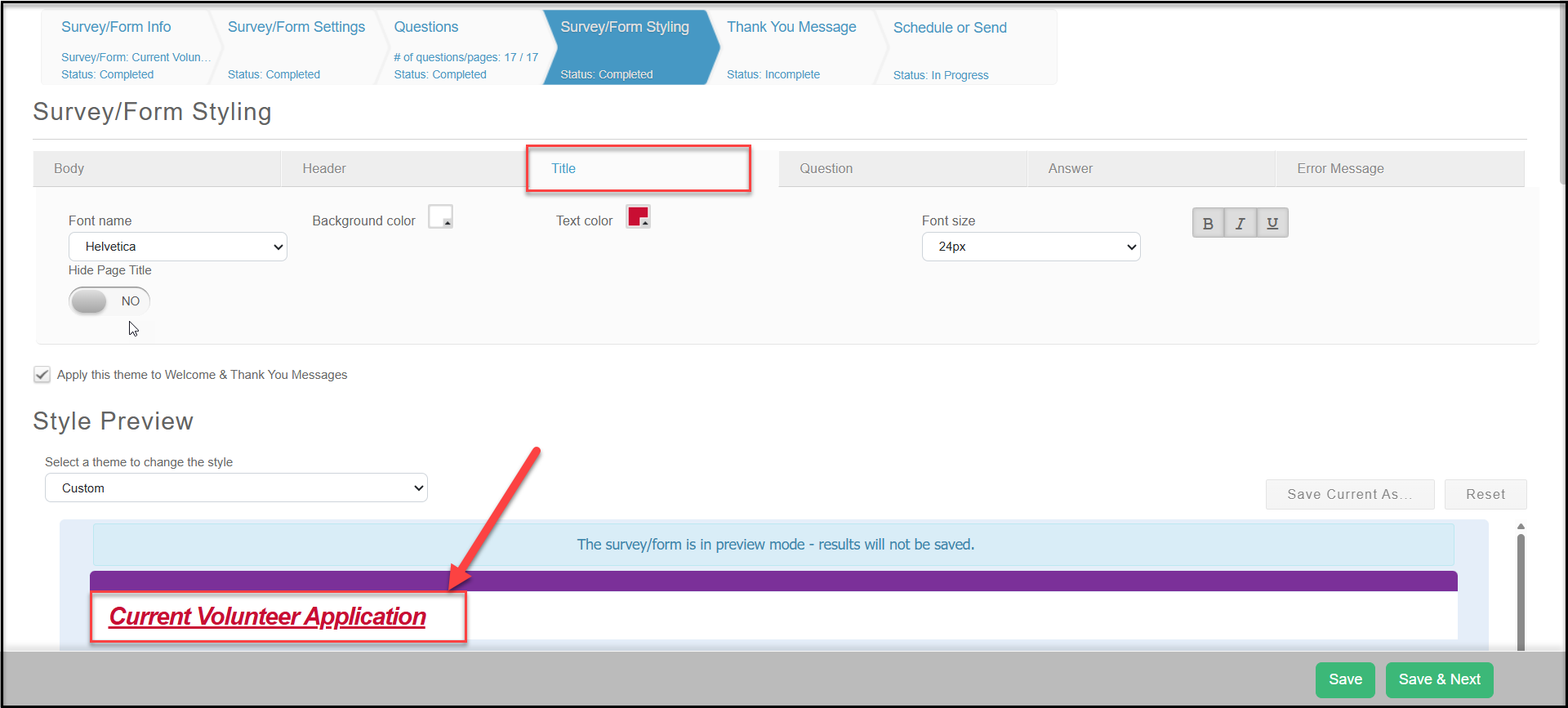
The next tab is the Title. The title you have assigned your page in the Survey/Form Info tab is what is displayed here. You can edit the font, background color, text color, font size, and add bold, italic and underline. Note that if your respondents will be viewing this page on a mobile device, it is recommended that you increase the font size for better mobile viewing. If you wish to hide your page title, you can toggle Hide Page Title to YES.
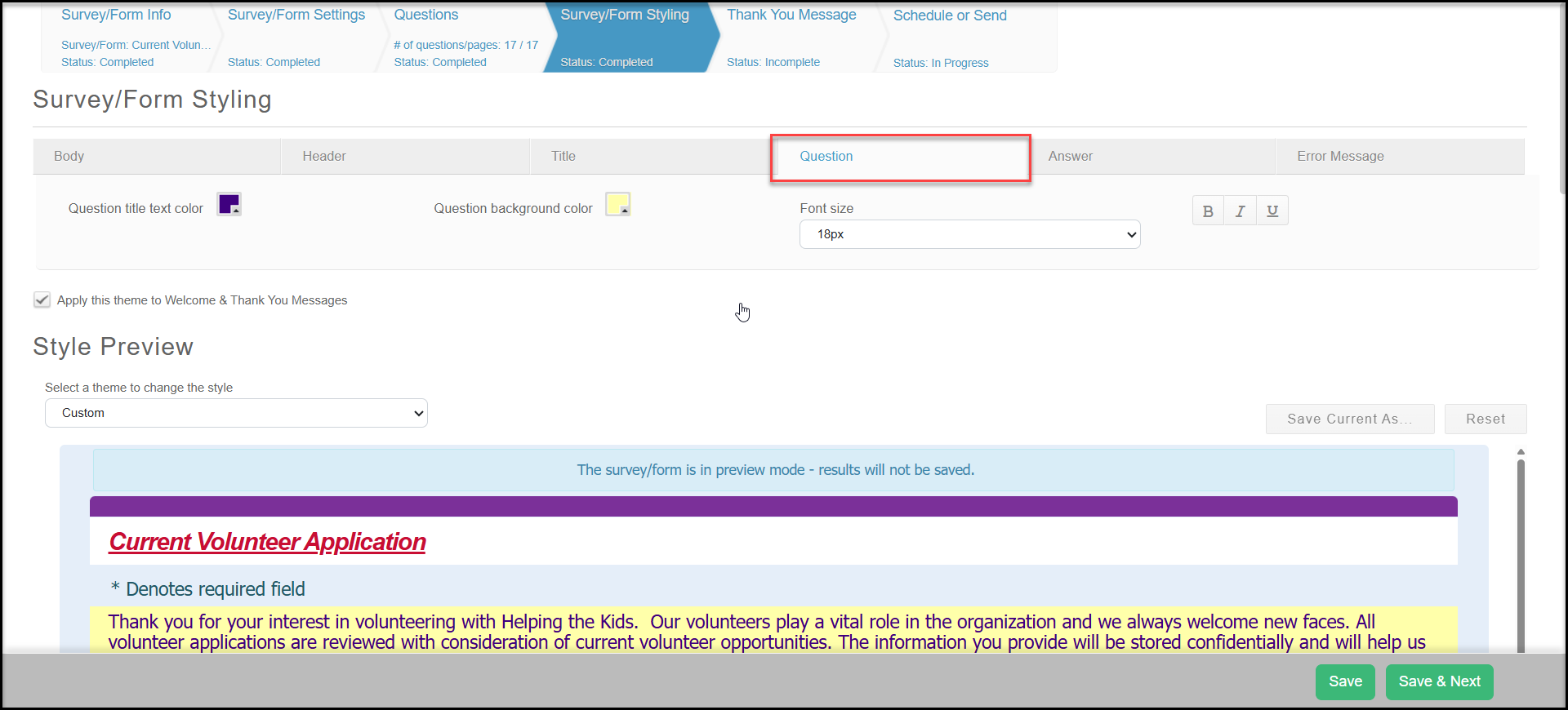
The Question tab allows you to customize the way the questions look with text color, background color (to make it stand out), font size, and bold, italic and underline options.
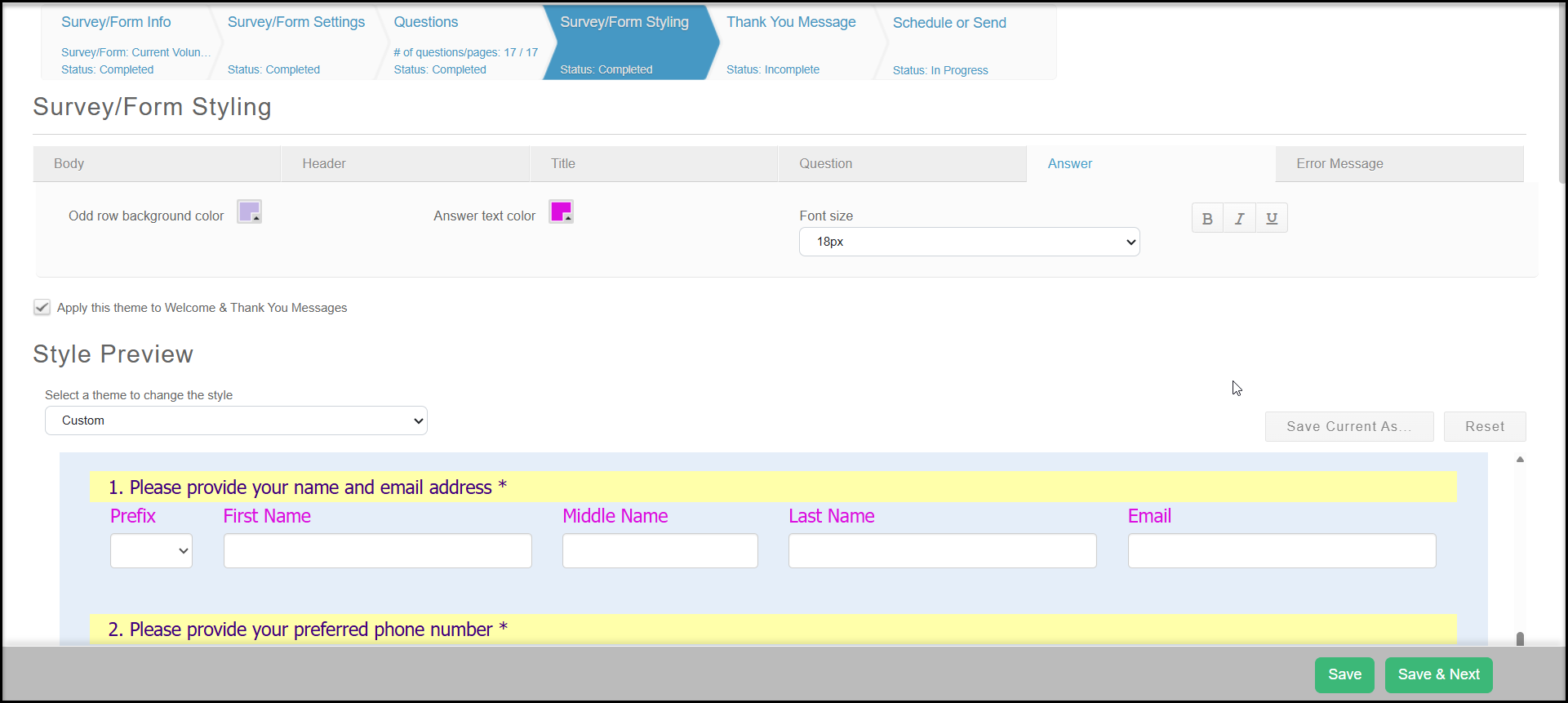
The Answer tab allows you to customize the way the answer fields look with text color, background color (to make it stand out), font size, and bold, italic and underline options.
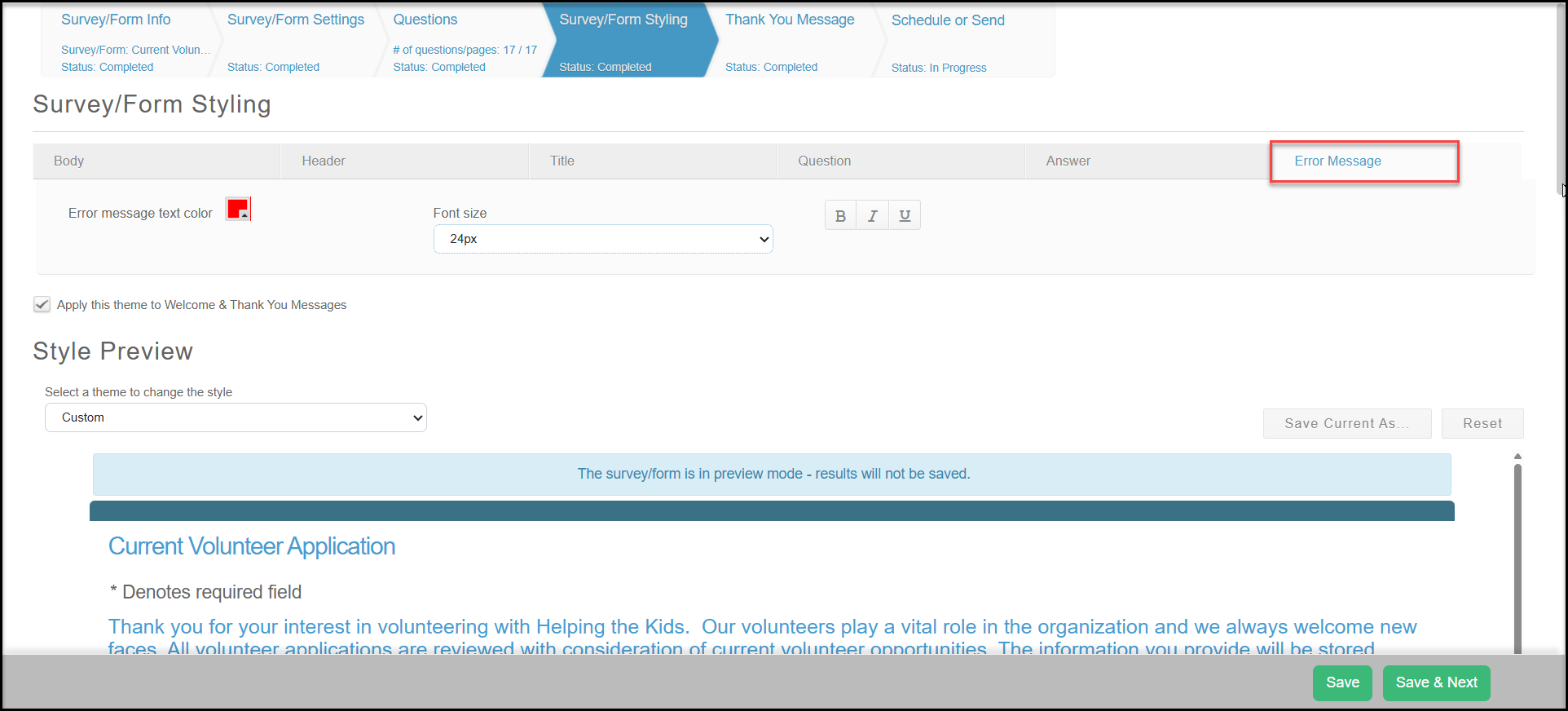
The final tab is the Error Message tab. If there are any errors when completing the survey, this will be the font color and size of the error message display at the top of the page. If you should make your survey inactive, this will also apply to that inactive message. The inactive message itself is set up in the Survey/Form Settings tab.
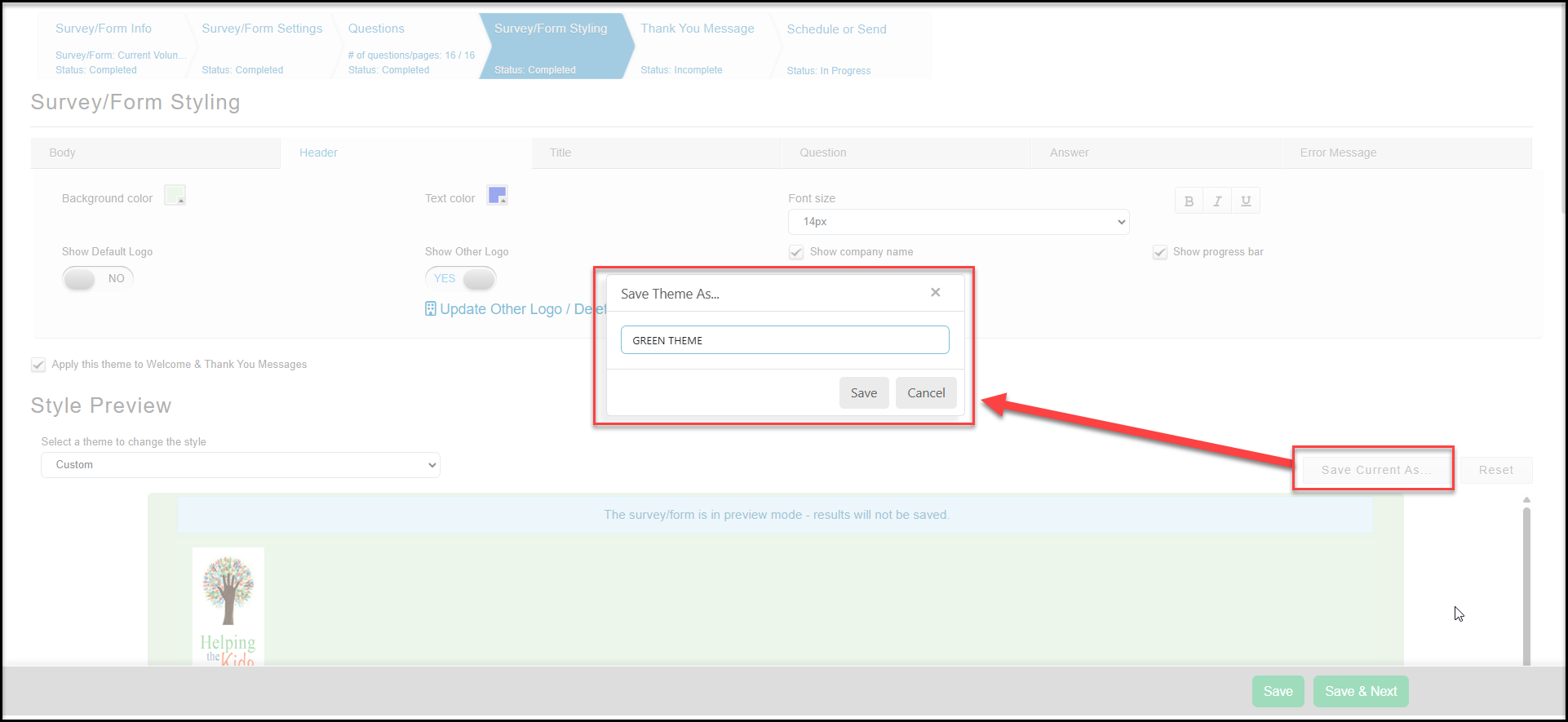
Once you have set up your colors and fonts, if you wish to save this styling for use in the future, you can click on Save Current As and enter the name of your custom style. This new style will appear at the bottom of the Select a theme list for you to choose on any other page.
Be sure to click Save or Save & Next to save your changes.