How do I send a survey or form to an email list?
You may want to send a survey to a specific group of constituents, for example sending a post-event survey to all your event attendees. Be sure to create your email list(s) so that they are available to select when ready. You can learn more about creating email lists in the Email Marketing Module articles.
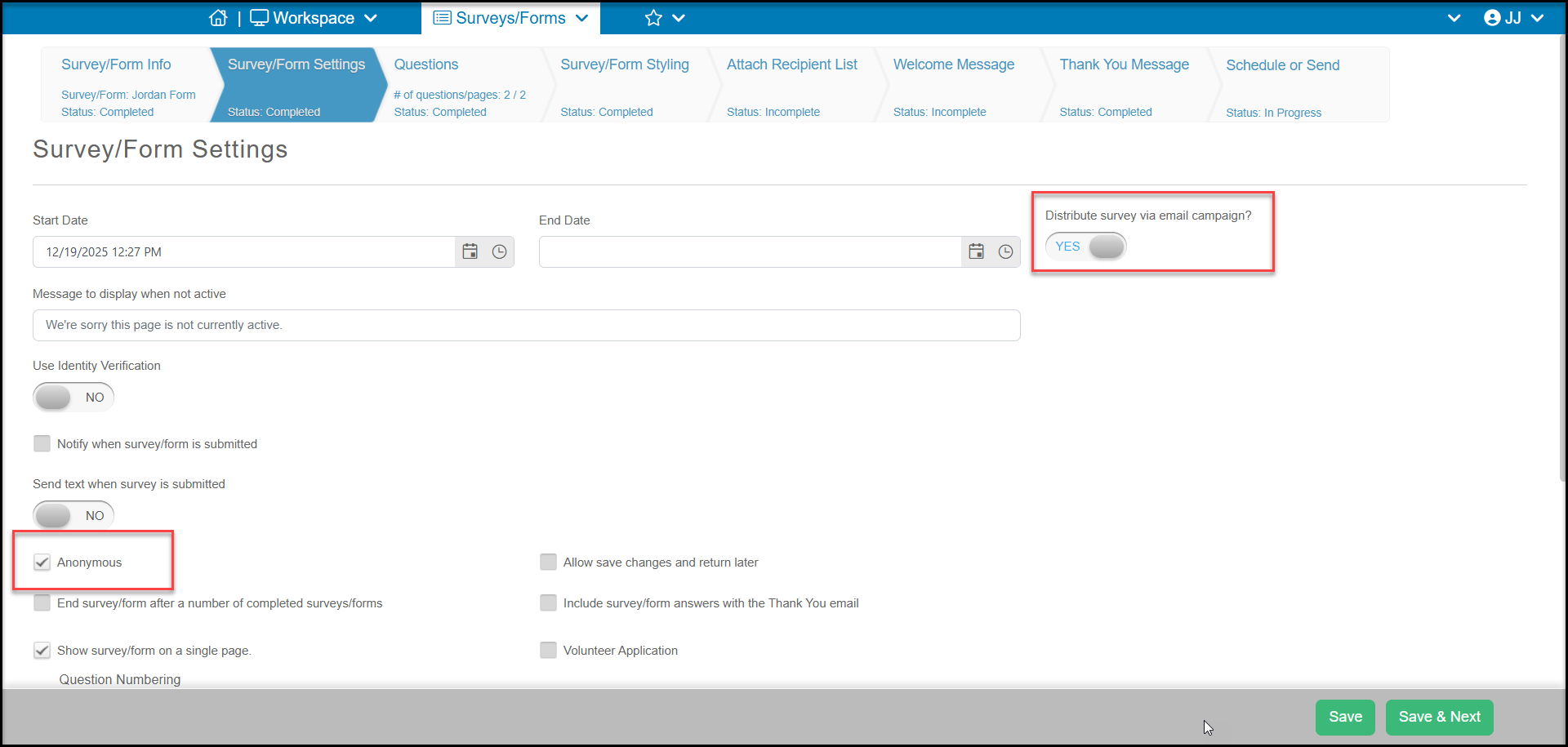
The steps to create the survey page are the same as described in the article "How do I create a basic survey, application, or other form?" If you would like to send your survey via an email campaign, go, on the Survey/Form Settings tab set Distribute survey via email campaign to YES.
When a survey is sent to a specific email list, the responses will automatically be linked to the constituent, so you will be able to see who submitted the response. If you do not wish the responses to be linked to the constituent, check the Anonymous box to remove that information from the responses.
Complete the remaining fields and click Save or Save & Next to reveal two new tabs, Attach Recipients List and Welcome Message.
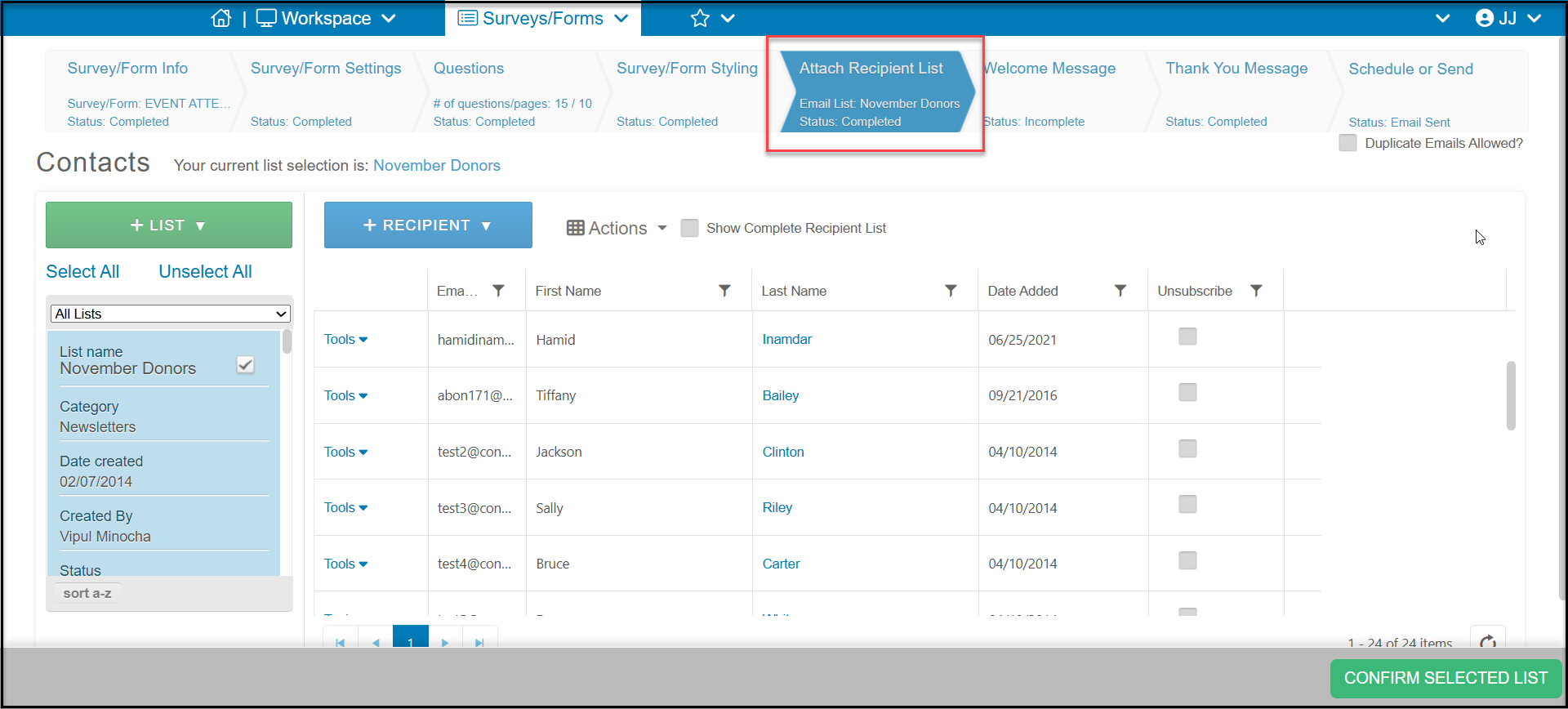
After completing the Questions and Survey/Forms Styling steps, next step is on tab Attach Recipient List. This is where you will select which email lists to send this survey by checking the box next to the email list name. You can select as many email lists as you like.
Similar to a regular email marketing campaign, you have all the same functionality to update lists as well as add and remove recipients. The software will automatically combine duplicate emails so that each email address will only receive one message.
Once you have selected your lists and made any necessary changes, click Select Recipient List or Confirm Selected List at the bottom of the page to go to the next step.
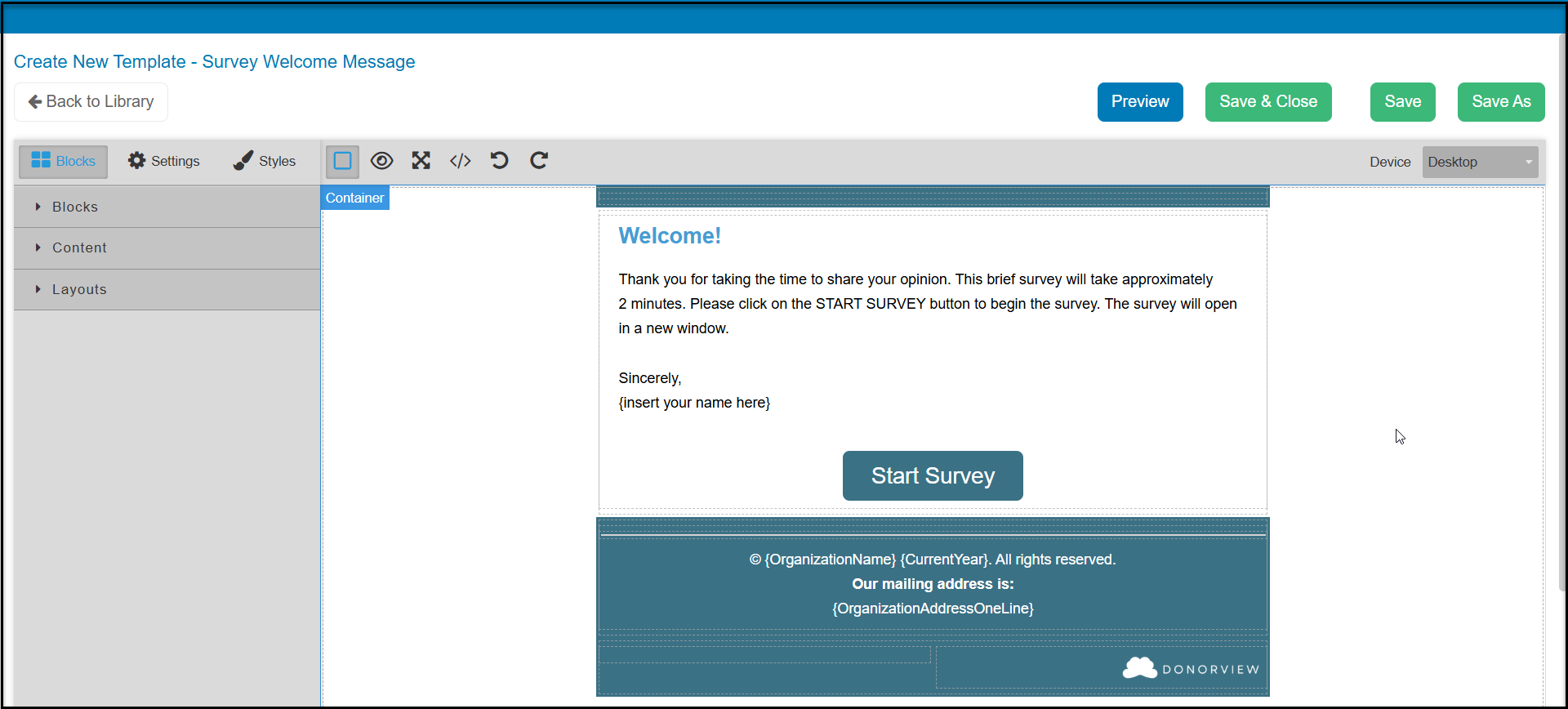
Since the survey will be sent via email, the Welcome Message tab allows you to customize the email sent to your recipients. The default message is shown below. If you selected to use the same color scheme as your survey, you will need to click on the Edit button in order to refresh this message to update the color scheme.
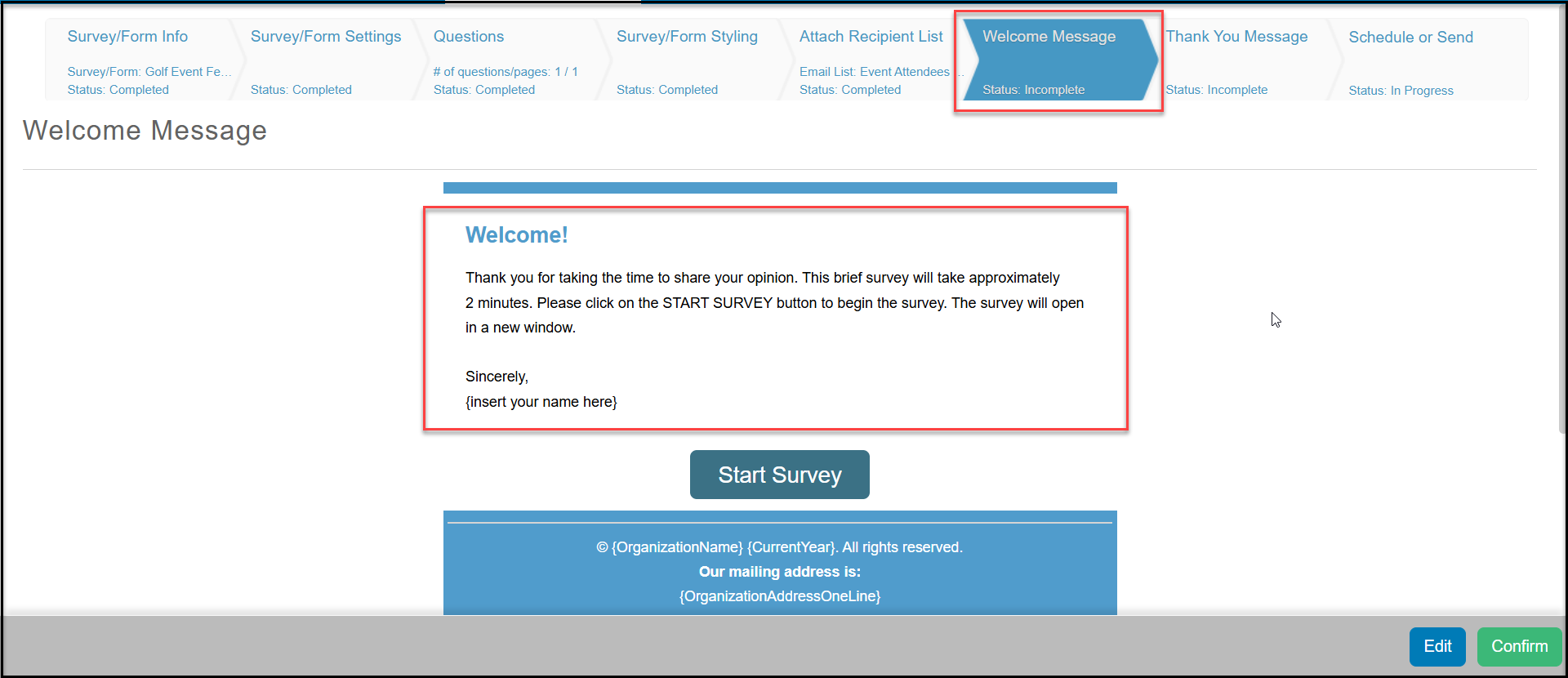
The email will open in the email template editor where you can make whatever changes you would like. Be sure not to remove the Start Survey button or edit it's link as this will be necessary for the recipients to open and submit the survey.
When you are finished making your changes, click on Save & Close to save your changes and return to the survey page setup.
This will take you to the next step to edit the Thank You Message which is sent after the survey is submitted.
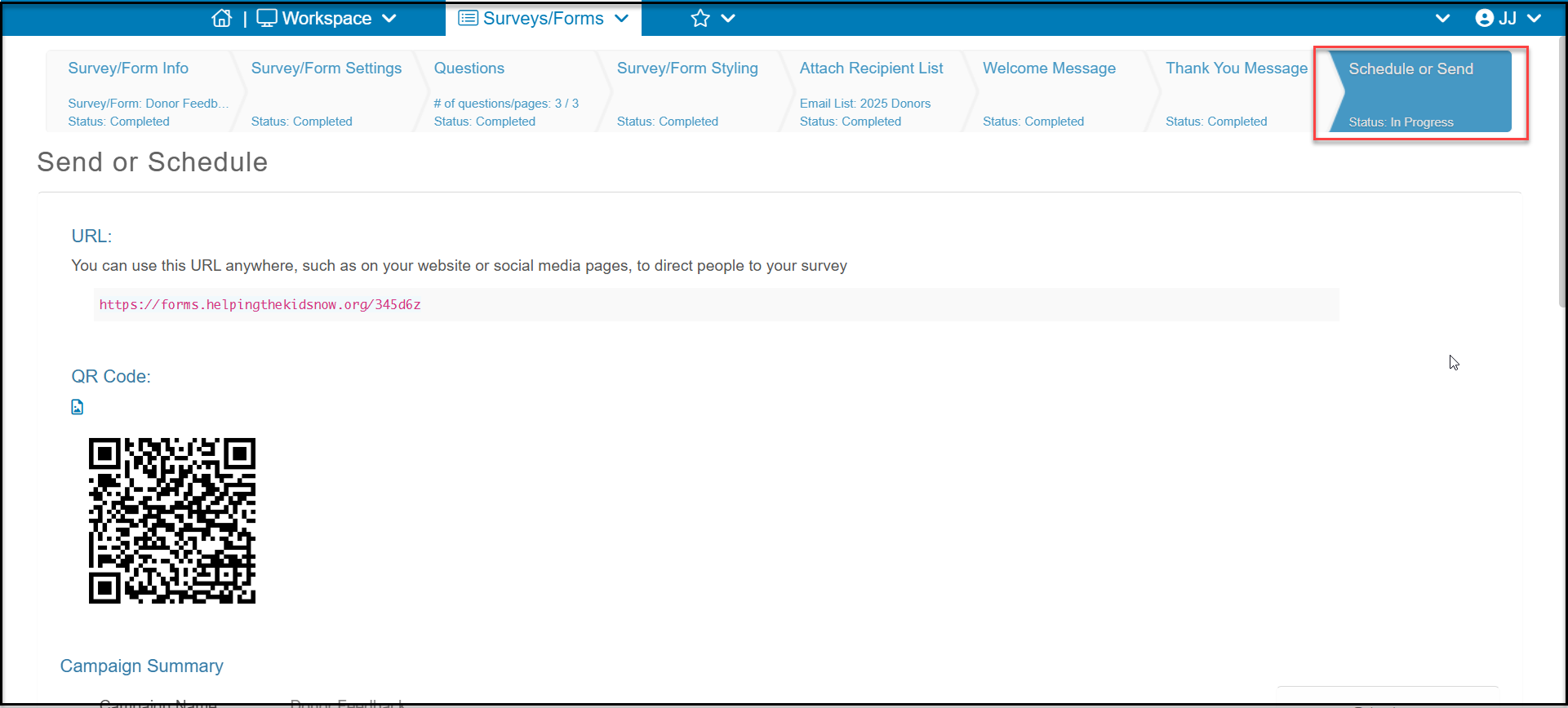
When emailing a survey via the email campaign, new options will be included on the last step, Schedule or Send. At the top of the page will be the custom URL and QR code. You can still share these with constituents who are not on your email list to collect additional responses as desired. Note that if you are not asking the question Constituent Field > Name and Email, those additional responses will be anonymous.
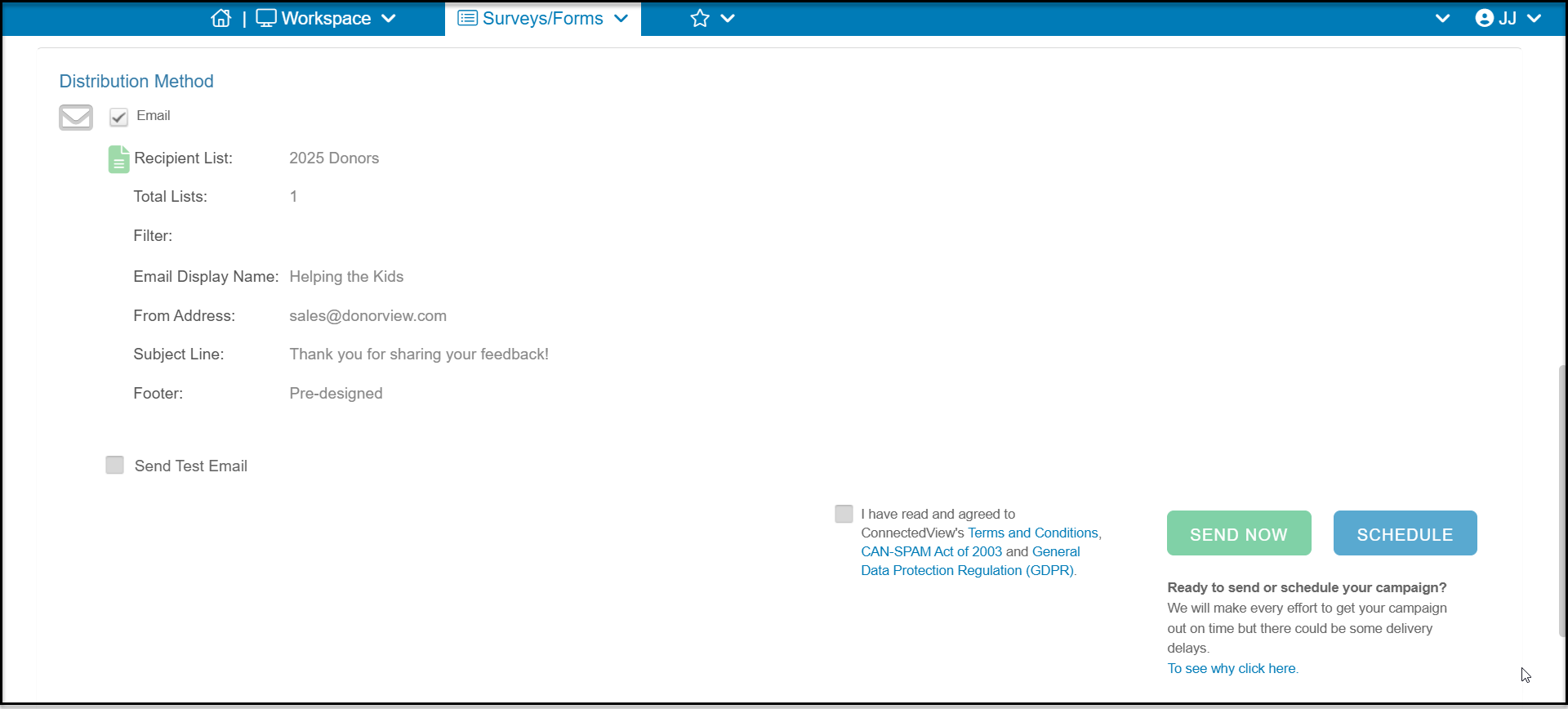
Towards the bottom of the page you will find the summary information under Distribution Information. You have the option to Send a Test Email if you would like to validate that the operation of the emails and survey. Any survey responses submitted from the test email are not recorded permanently.
When you are satisfied with your survey, you can check the box to verify you are not engaging in SPAM. Then you have the option to Send Now to send the email immediately or Schedule to choose the date and time you would like your email to be sent.