
How do I Import a document for a Member?
Updated Feb 25, 2026·1 min read
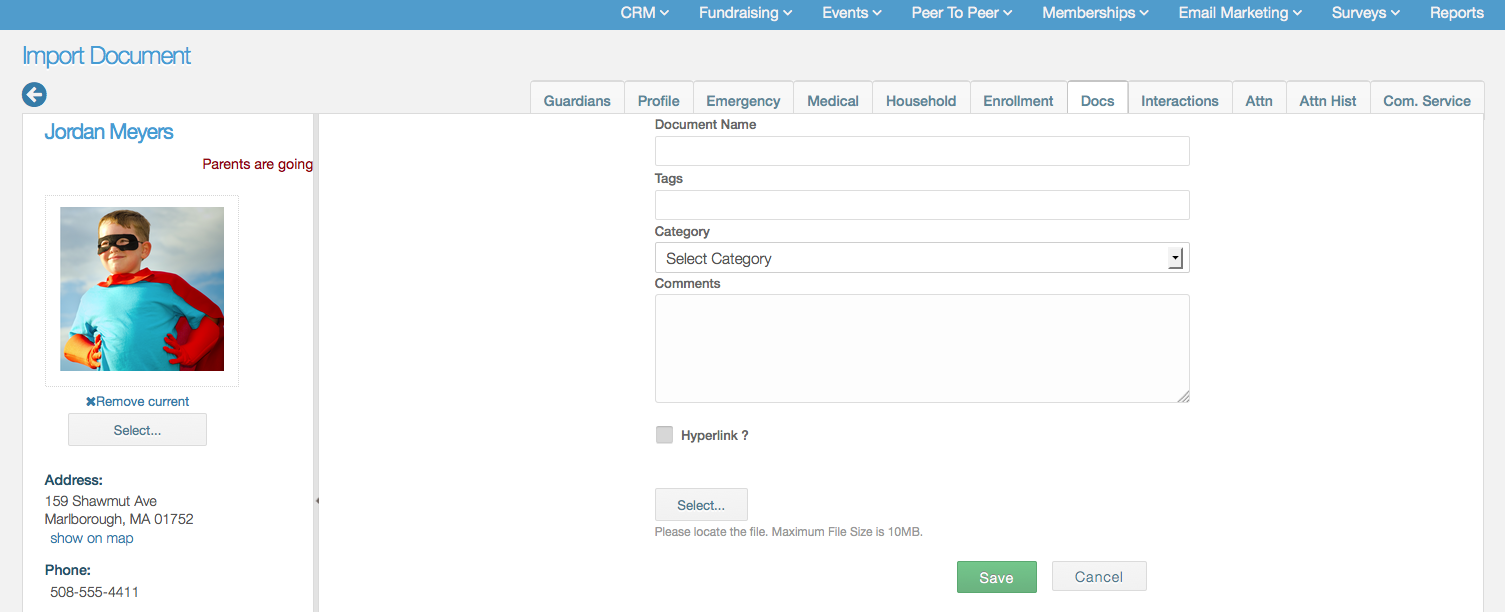
Once inside a Member’s record you just need to click on the “Docs” tab. Once there you will see any documents that were previously uploaded. You will also see a green, “+ Document” button. Click this button and a new document form will appear. On this import form you can fill out the following:
- Document Name – Enter the name your document will appear as.
- Tags – Enter keywords that will make it easier to find your document in a search.
- Category – Select or create a label the best fits your document.
- Comments – Write a description about what your document contains.
- Hyperlink – If the document is already hosted online you can enter the URL for it and we will import the document from that link
- Select – If the document is saved on your device then you can hit this button and find the file for import.
Once you are done click the green, “Save” button.
Was this article helpful?