
Auctions Overview
Like other areas of the software, creating an auction all begins with creating an auction page. The auction page interfaces with several other modules and features including the Fundraising Module and Events Module and, for online auctions, you will also use the features of text messaging and the Constituent Portal.
Auctions can be silent, live, online, and a hybrid combination of these.
- A silent auction is one where your bidders enter their bids manually on a bid sheet.
- A live auction is one where your bidders attend an event and an auctioneer/emcee solicits bids for an item live at the event. Bidders typically hold up a paddle with their auction bidder ID number on it, or raise their hand to indicate their bid.
- An online auction is one where bidders can only make their bids using a mobile device (cellphone or tablet) or computer by visiting the auction page. Online auctions require the activation of text marketing. Bidders must have a portal account and a credit card on file to place a bid for an online auction.
- A hybrid auction is one where you have some items being auctioned live and some being sold online or in a traditional silent auction using paper bid sheets. A single auction page can be a hybrid auction, but the individual items should be designated as one type of bid only, whether that is live, online, or silent paper bid sheet.
The auction page also allows you add items like:
- Paddle raises (aka Fund-A-Need, Call To Heart, Live Pledge Drive)
- Game Tickets
- Pull Tickets
- Raffle Tickets
- Other add-ons for sale at your event
The paddle raises and other add-on items are recorded internally only via the Auctions grid and are not visible for sale to your auction bidders or event attendees.
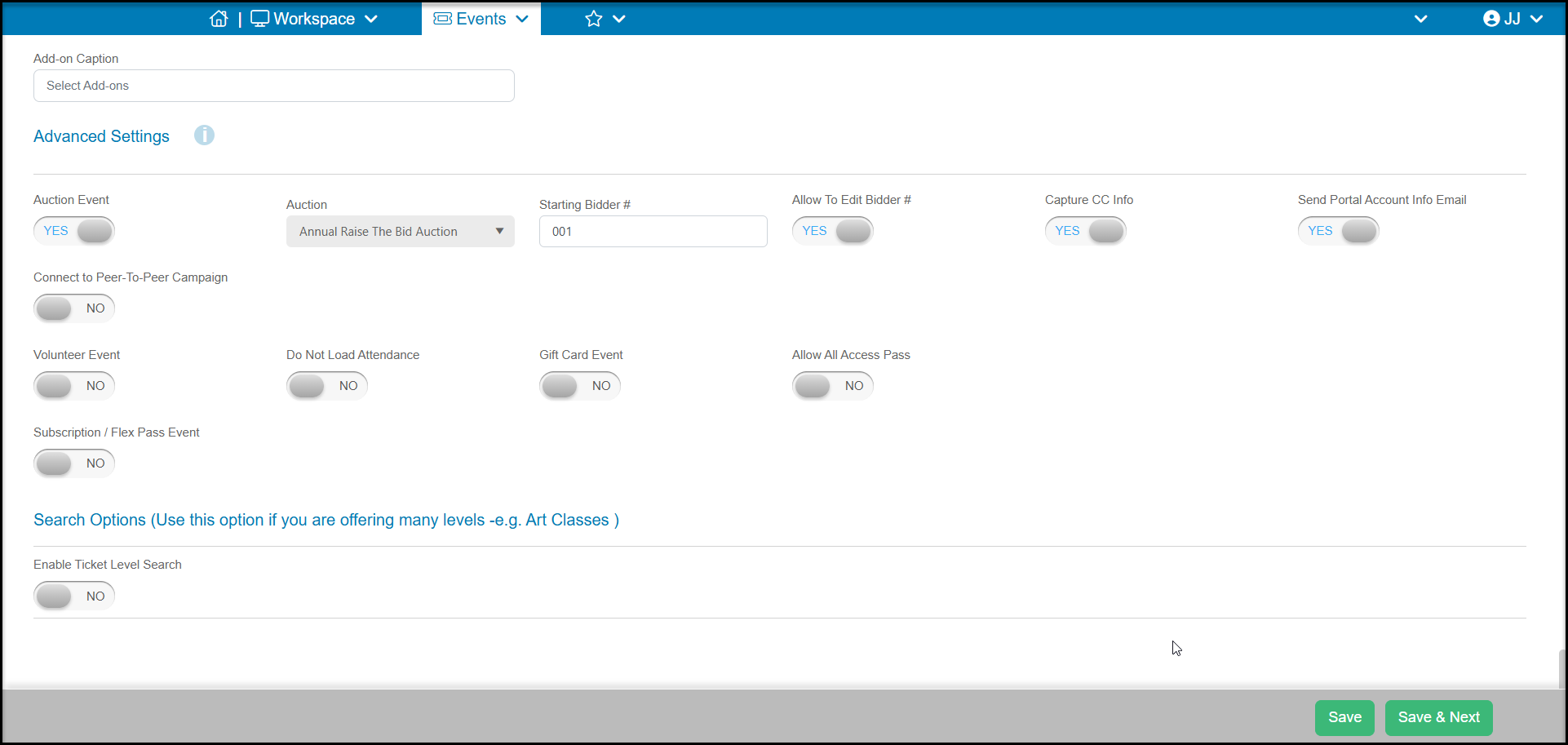
You can also link your auction to an event so that bidder ID numbers will be assigned to attendees automatically. On the event page's Settings tab in the Advanced Settings section, you can activate the Auction Event toggle and select the auction to link to your event.
Linking an auction to an event will limit bidders to those who attend the event or register for the auction online. Auctions are often linked to events where you will be hosting a paddle raise (call to heart, pledge drive, fund-a-need), sell game or raffle tickets at the event, and have silent and live auction items as well.
Virtual Auctions Workflow
A virtual auction is one that is completely online and there is no in-person component. The workflow for creating and managing a virtual auction is:
-
Ensure you have Text Messaging activated. It can take up to two weeks to activate a text messaging account, so be sure to start this process well before your auction.
-
Create your Auction Page.
-
Share the URL link or QR Code to your page via email or social media. You can also embed your auction page into your website if desired.
-
Bidders will register with the links at the top of the page, either creating a new portal account to logging in to their existing portal account. They will need to have a credit card on file to place a bid.
-
All winning bids will show on both the Bid History grid as well as the Auctions grid. The Bid History grid can also show a history of all bids placed.
-
When bidding is closed, you will be able tocheck out all bidders using the
Silent & Live Auction Events Workflow
An auction can be linked to an event so that registration for the event will automatically assign a bidder ID number. In this scenario, the auction is hosted exclusively at the event and the bidders manually enter bids on a bid sheet, via a live auction, or a combination of both silent and live auction. The in-person event can also include paddle raises and add-on items.
-
Create your Event Page. In the Advanced Options area of the Settings tab, link your event to an existing auction page or create a new one.
-
Build your Auction Page.
-
As guests register for your event, they will automatically be assigned a bidder ID number, which is shown on the Event Attendance grid.
-
You can still share the auction page if desired so that guests can get a preview of the items that will be available for bid.
-
Using the Auctions grid, you can print bid sheets, items descriptions and certificates for the silent portion of your auction.
-
During your event, you will use the Auctions grid to enter paddle raises, add-ons purchases, and assign winner bidders for all your items.
-
You will also use the Auctions grid to check out each bidder individually or invite your attendees to create a portal account and they can do a self check out using the mobile portal app.
Hybrid Auction Event Workflow
A hybrid event is one where you have online and in-person auction items being sold at the same event. This can include inviting guests to use the mobile bidding option and having paddle raises, add-ons and live auction items. In this scenario, not all auction participants need to be at the event, individuals can bid virtually on the items on your auction page if you choose to share the page with people who will not be in attendance.
-
Create your Event Page. In the Advanced Options area of the Settings tab, link your event to an existing auction page or create a new one.
-
Build your Auction Page.
-
As guests register for your event, they will automatically be assigned a bidder ID number, which is shown on the Event Attendance grid.
-
If you wish to share the page with people who will not be in attendance, you can do so and they will register themselves. Their names along with all of your attendees will be shown on the Auction Biddersgrid so that you can communicate with all your bidders, not just those in attendance.
-
Event registrants will be invited to create a portal account, but you can also share the link to your auction page with all event attendees to ensure they create a portal account and have a credit card on file prior to the event.
-
At the event, you can also share the QR code via posters, table stands or in your program to invite participation in your online auction bidding.
-
During your event, you will still use the Auctions grid to enter paddle raises, add-ons purchases, and assign winner bidders for all your live auction items. The online bids will appear automatically for any of the items being bid on via the auction page.
-
You will also use the Auctions grid to check out each bidder individually or invite your attendees to do a self check out using the mobile portal app.
Linked articles
- Text/Push Messaging Overview & Activation
- How do I create an auction page?
- Auction Page - Preview & Publish
- How do bidders sign up for the online auction at the event?
- How can I see who is winning an item?
- Can you bulk charge credit cards for auction checkout?
- How do I create a new event?
- Can the software create paper bid sheets?
- How can I record paddle raise donations using an auction page?
- How do I record traditional paper silent auction bids?
- Auction Check Out and Payment Processing
- Mobile Checkout Using the Constituent Portal