Be sure you have activated the Enable Review feature on the survey. You can learn more about this step in this article "How can I activate a review process for survey or application submissions?"
Internal Reviews can be performed from the Surveys/Forms Results grid in the Detailed - Long Form view or they can be performed by the link received if you are identified or assigned as a reviewer. You do not need to be assigned as a reviewer to perform the review. Any user with full access to the Surveys/Forms module can perform a review.
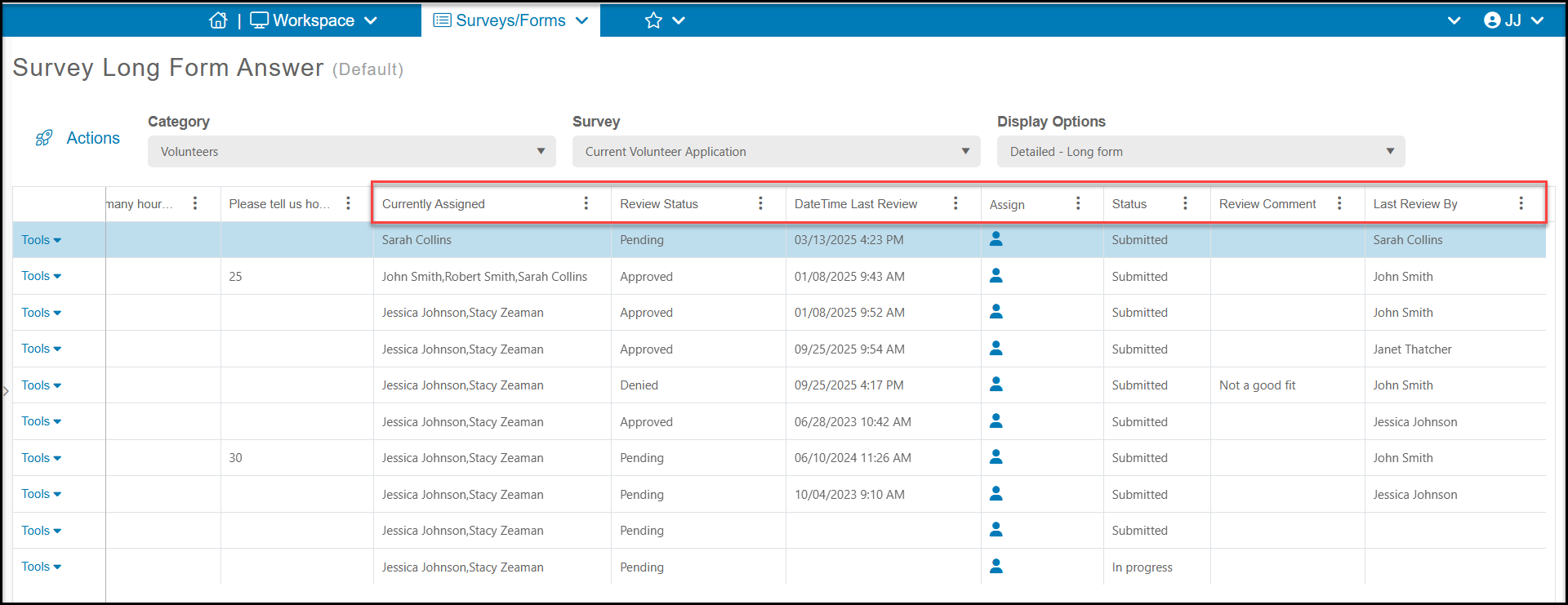
To check the Review Status on the grid, scroll over to the far right side of the grid to see the current Review Status and who is Currently Assigned to perform the reviews. You can also see the DateTime Last Review, Review Comment, and Last Reviewed By.
The Status column is only related to the status of the submission, whether is was Submitted or In Progress.
Assigning Reviewers
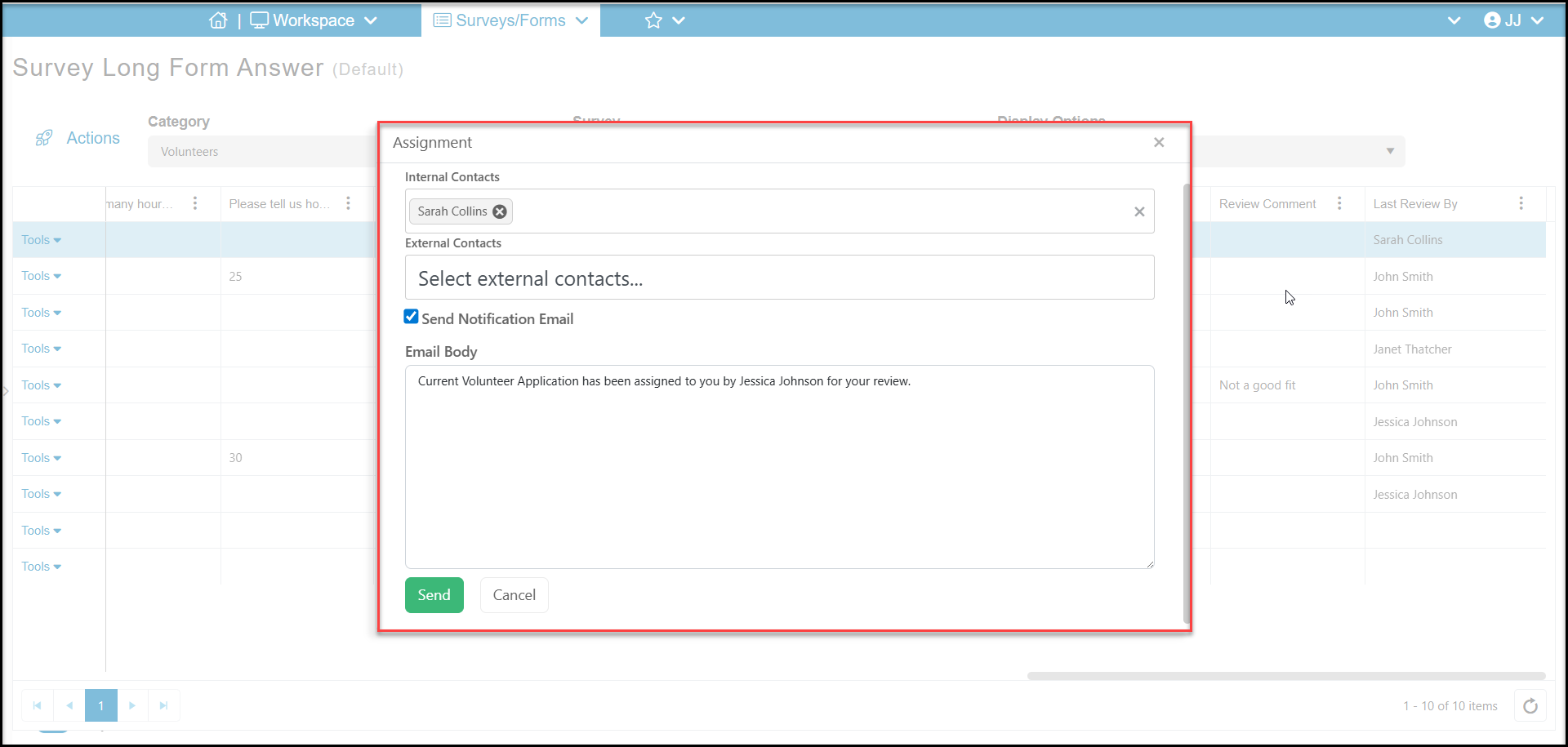
If no one is assigned or you wish to change who is assigned, you can click on the contact icon (blue person) under the Assign column. This will open a new window allowing you to select the Internal or External Contact and customize the email they will receive with the link to perform the review. Click Send to send the request.
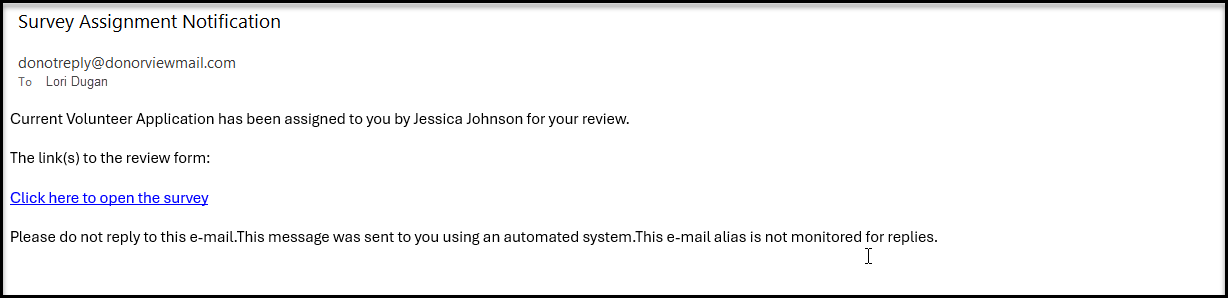
Those assigned to perform the review will receive an email like the one shown below with a link to perform the review.
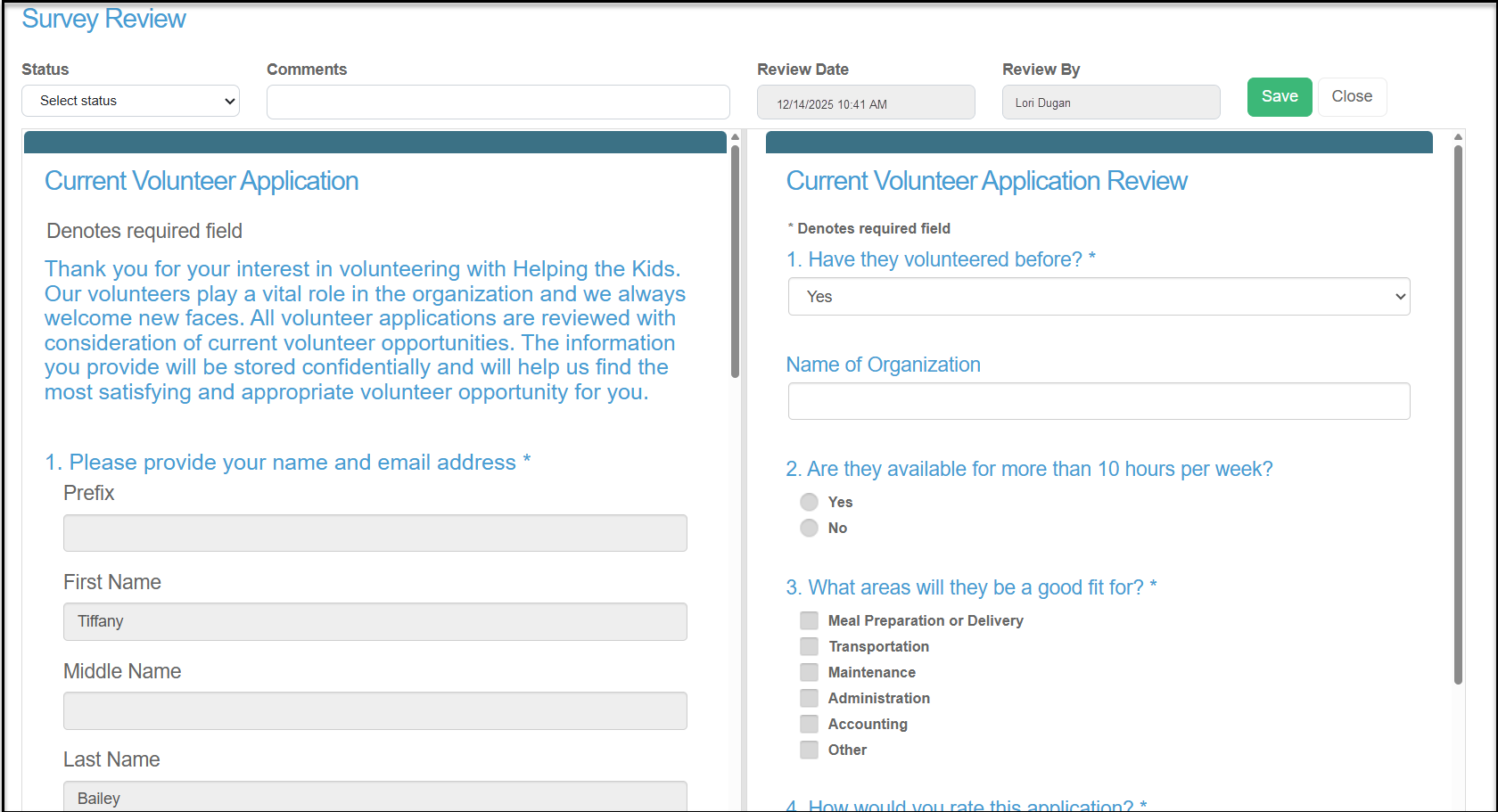
Clicking on the link will open the original submission on the left and, if you are using another survey to document the review, it will appear on the right.
If you are not using another survey, you will only see the original submission and the fields to change the status and comments above the submission.
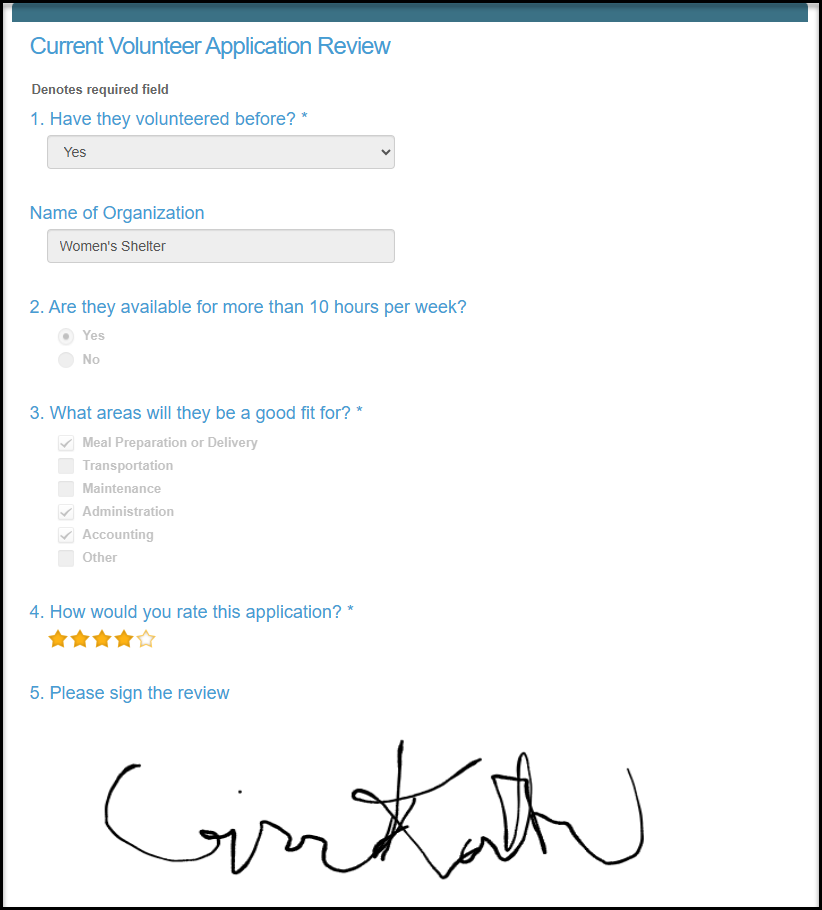
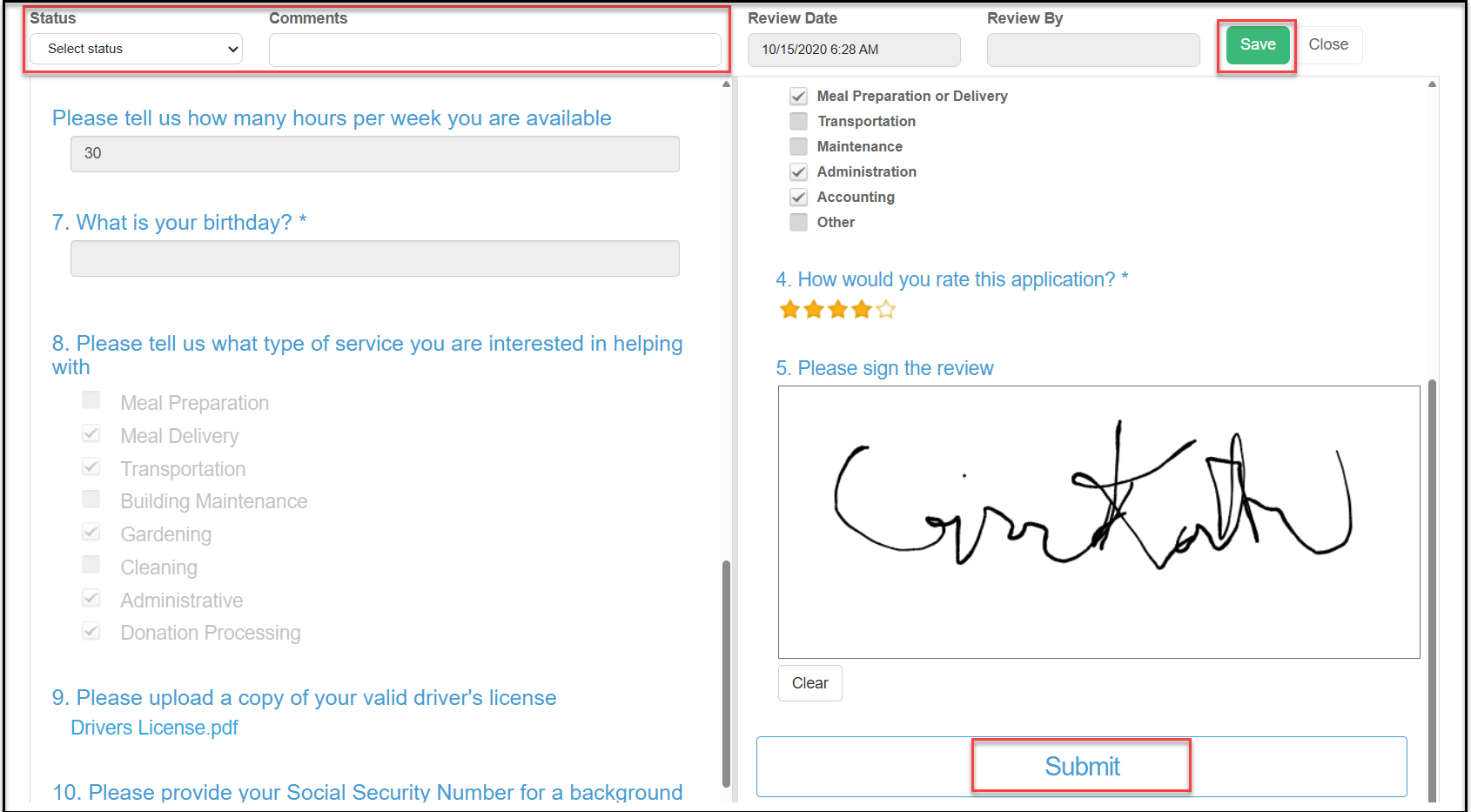
If completing another survey, once the review survey is complete, the reviewer can click on Submit to save their review. All reviews submitted via an additional survey are also saved in the Surveys/Forms Results page and are linked to the original submission.
The reviewer can also update the review Status by choosing the new status from the dropdown menu, add Comments and then click on Save to update the Review Date and Reviewed By fields to reflect the latest review.
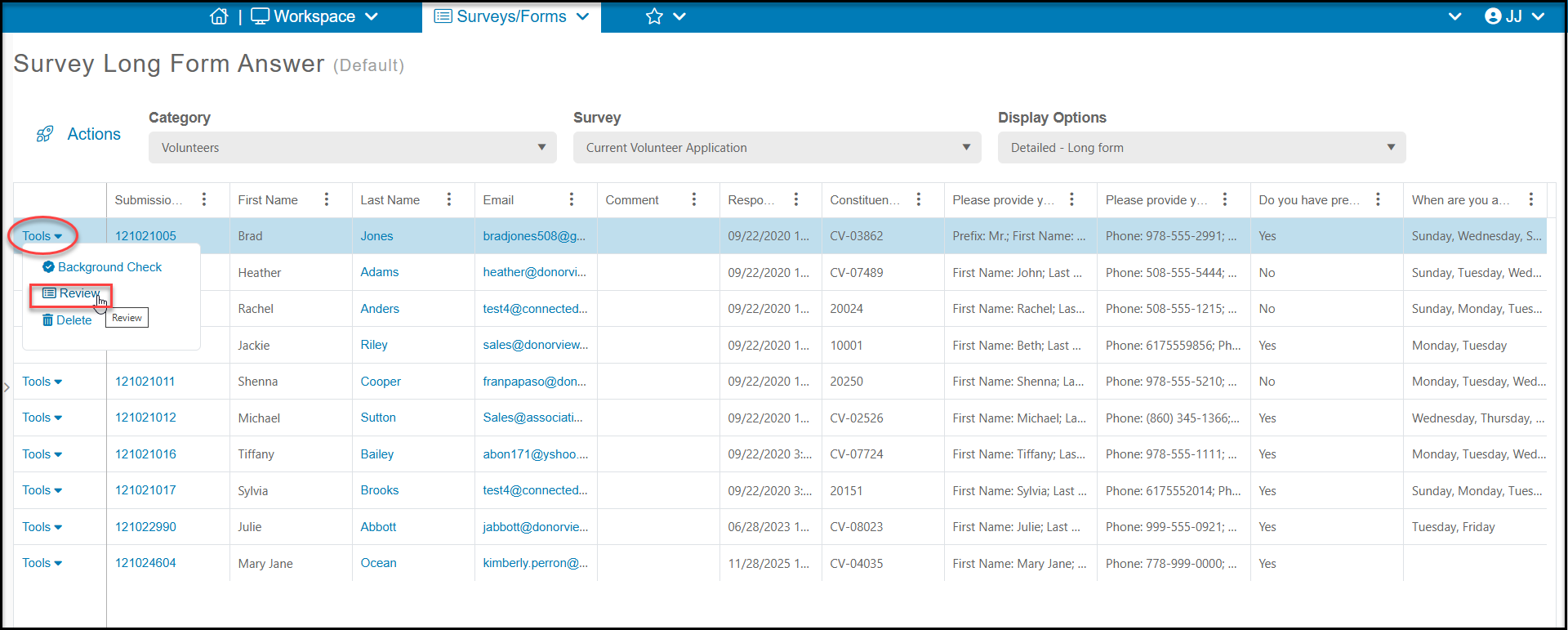
Internal users can also perform the reviews directly from the grid by using the Tools menu and selecting Review. This will open the same review window as described above and the reviewer can submit their review survey (as applicable) and update the Review Status and Comments fields.
Review Surveys
For those internal reviews that include an additional survey to document the review, you can find all the results in the Surveys/Forms Results grid.
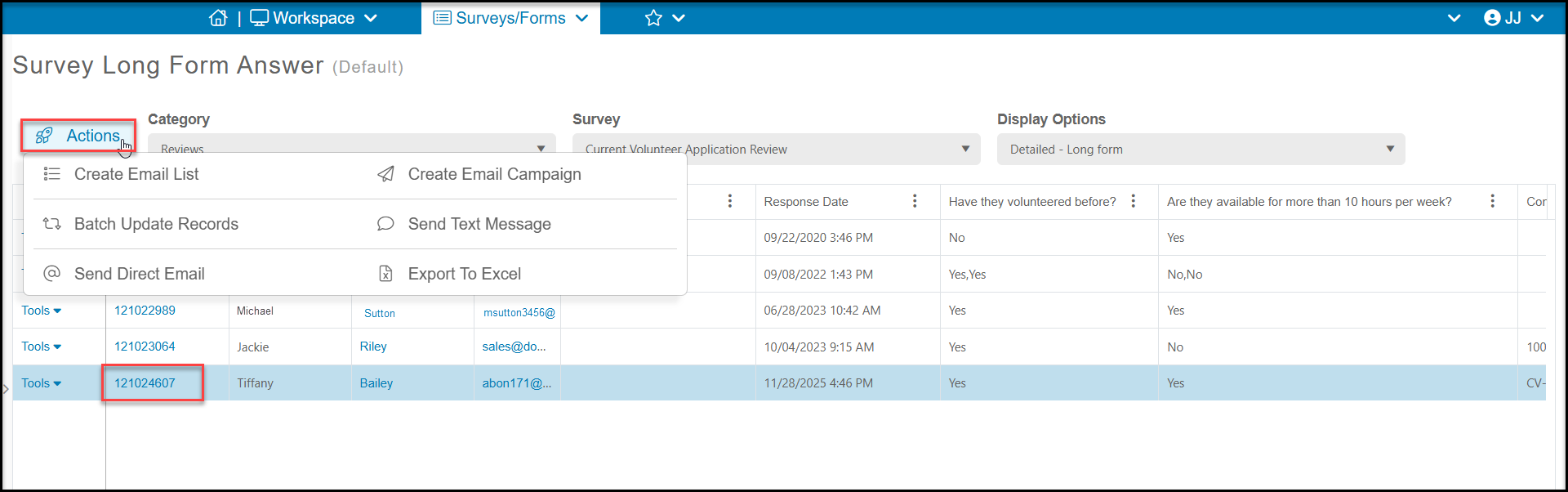
The grid will include the name of the Reviewer, all their survey responses, a link to the original Applicant Submission ID as well as the Applicant First and Last Name.
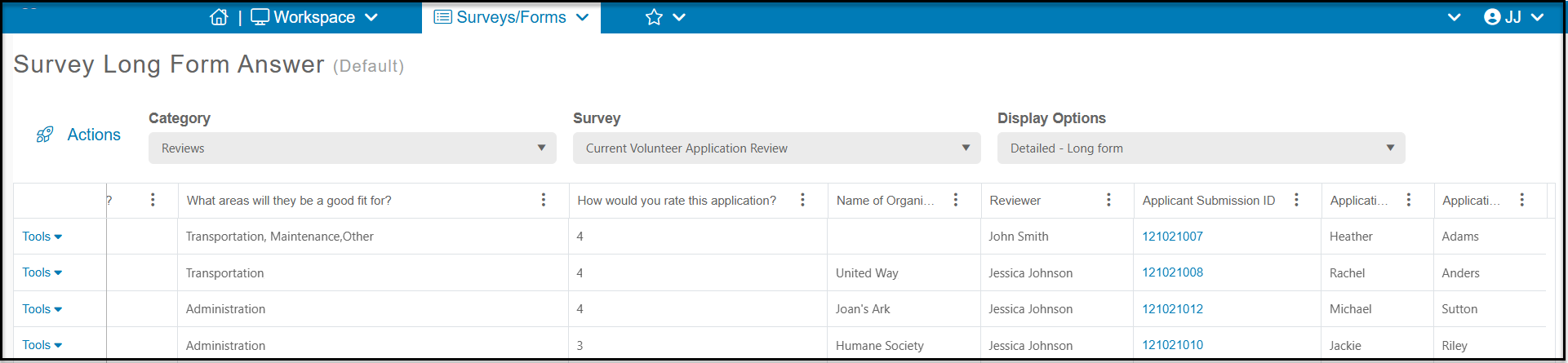
On the left side of the grid is also the Submission ID link, which will open the reviewer's survey response. The Actions menu is also available to export the reviews using the Export to Excel link. Note that the other Action Menu options, like Batch Update or Send Direct Email, apply to the applicants listed under the First Name, Last Name and Email fields on the left side of the grid.