You may be using your Surveys/Forms module for creating things like grant, volunteer, membership applications or even for submissions like contact us, photo contests, or prayer requests. If you would like to track the status or perform a review of the submissions, you can enable this on the survey.
Go to the Survey/Form Settings tab and first set Enable Internal Review to YES.
This will activate the following options:
Survey/Form Name - if you would like to evaluate the submission using another survey, you can create the additional survey and then select it from the dropdown menu. The additional survey must be a survey (not a poll) and it cannot be marked “Internal Only.” It also will not require distribution via email since it will be used only to perform these Internal Review.
Adding an additional survey is OPTIONAL. You do not need to create an additional survey to perform a review and update the Review Status.
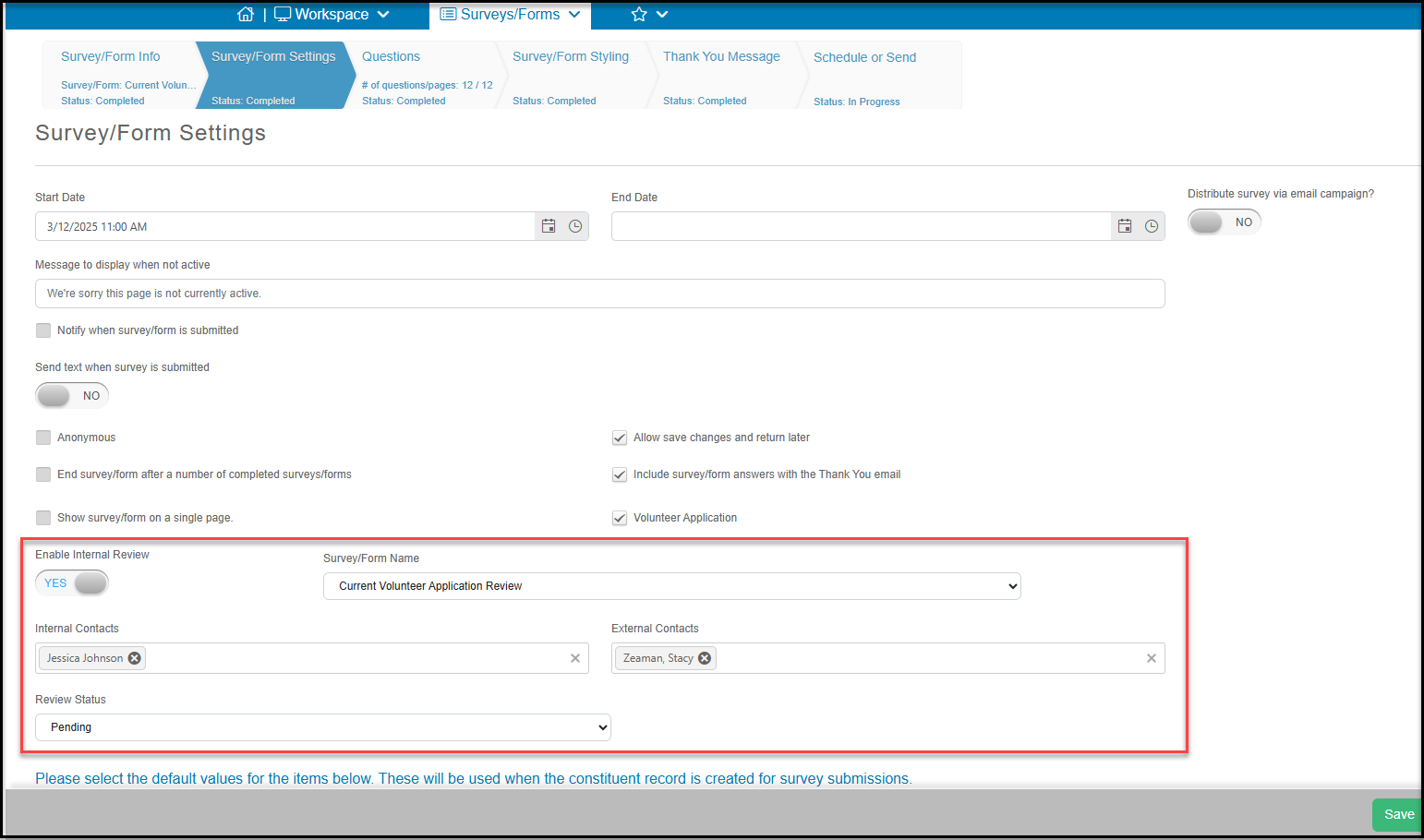
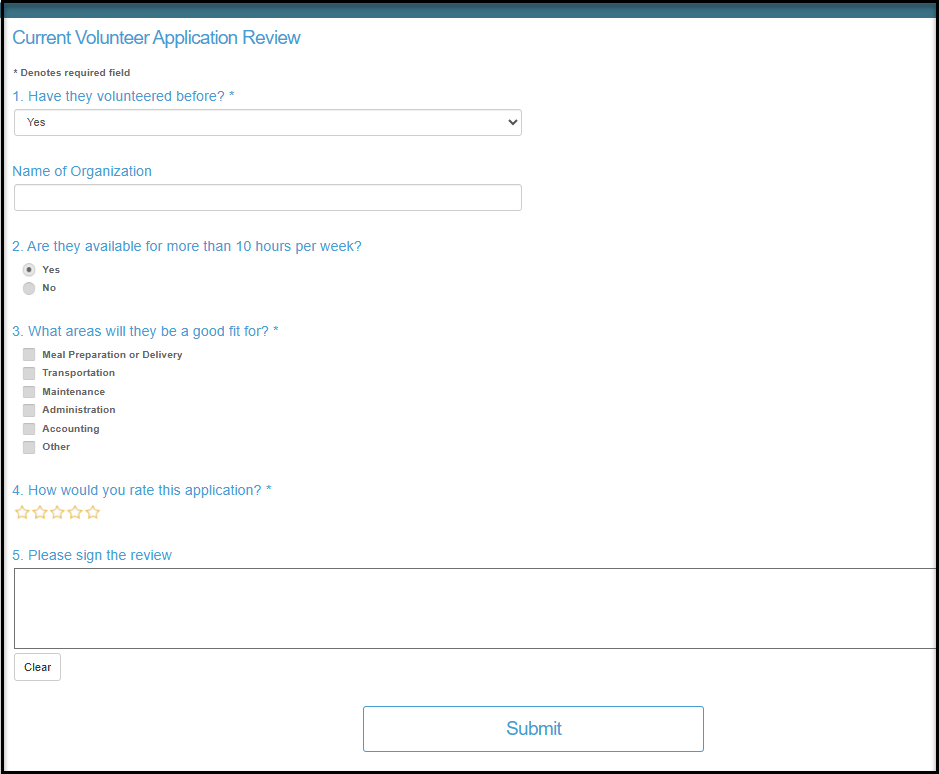
In the example below, we created a short survey used to evaluate volunteer applications. The review survey will be linked to the original Submission ID.
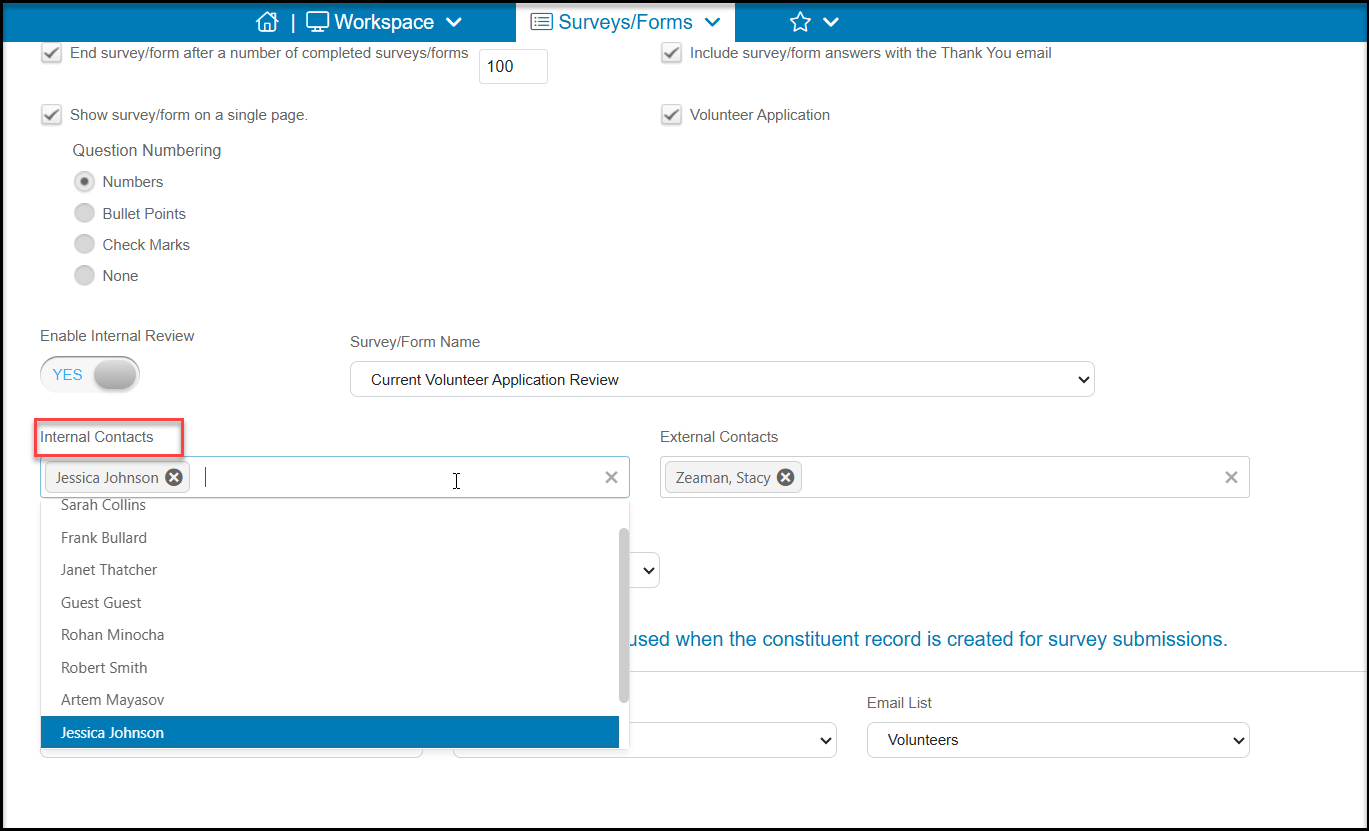
The next field, Internal Contacts, allows you to select one or more of your internal DonorView users to perform the review. These users will receive a notification when a survey is submitted requesting that they perform the review. Multiple reviewers can submit a review survey, however only the most recent Review Status will be shown on the grid if there are multiple reviews.
You can also select a constituent from your database to perform the review using the External Contacts dropdown field. Be sure that the constituent has a primary email address so that they can receive the link to perform the review. You could use this if you have a board member or other trusted constituent who has offered to help your team perform reviews, but they do not require access to the entire database.
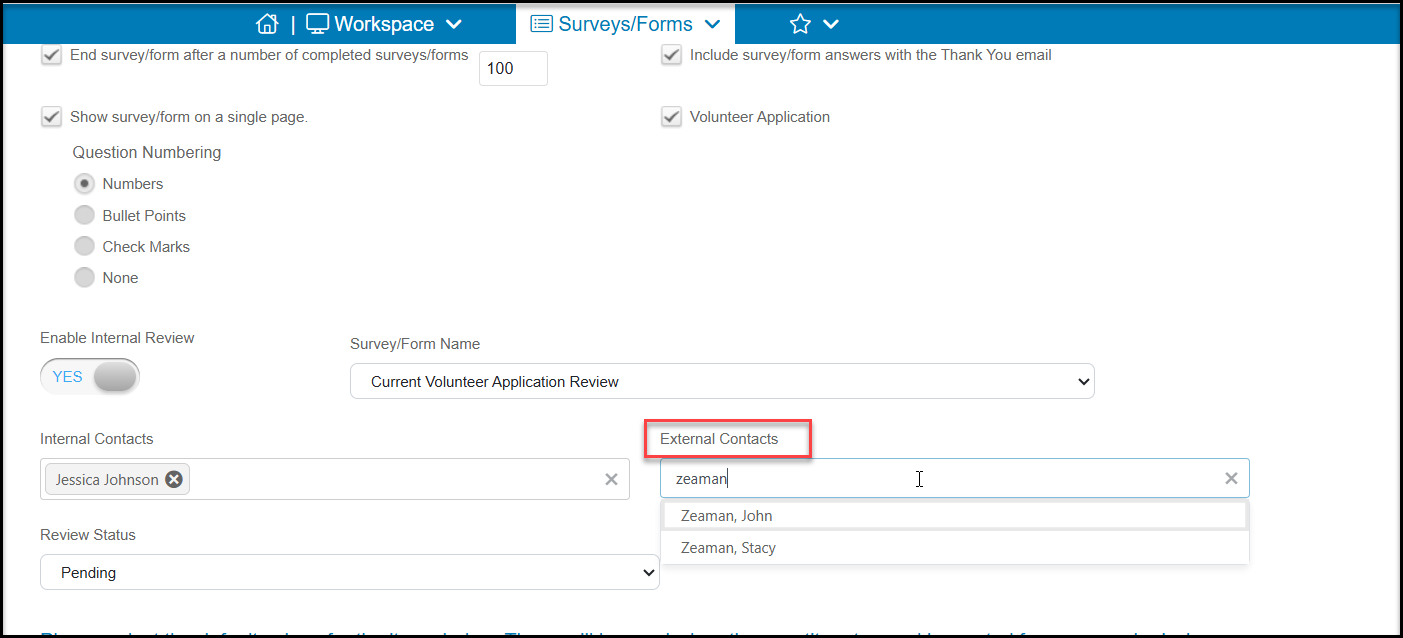
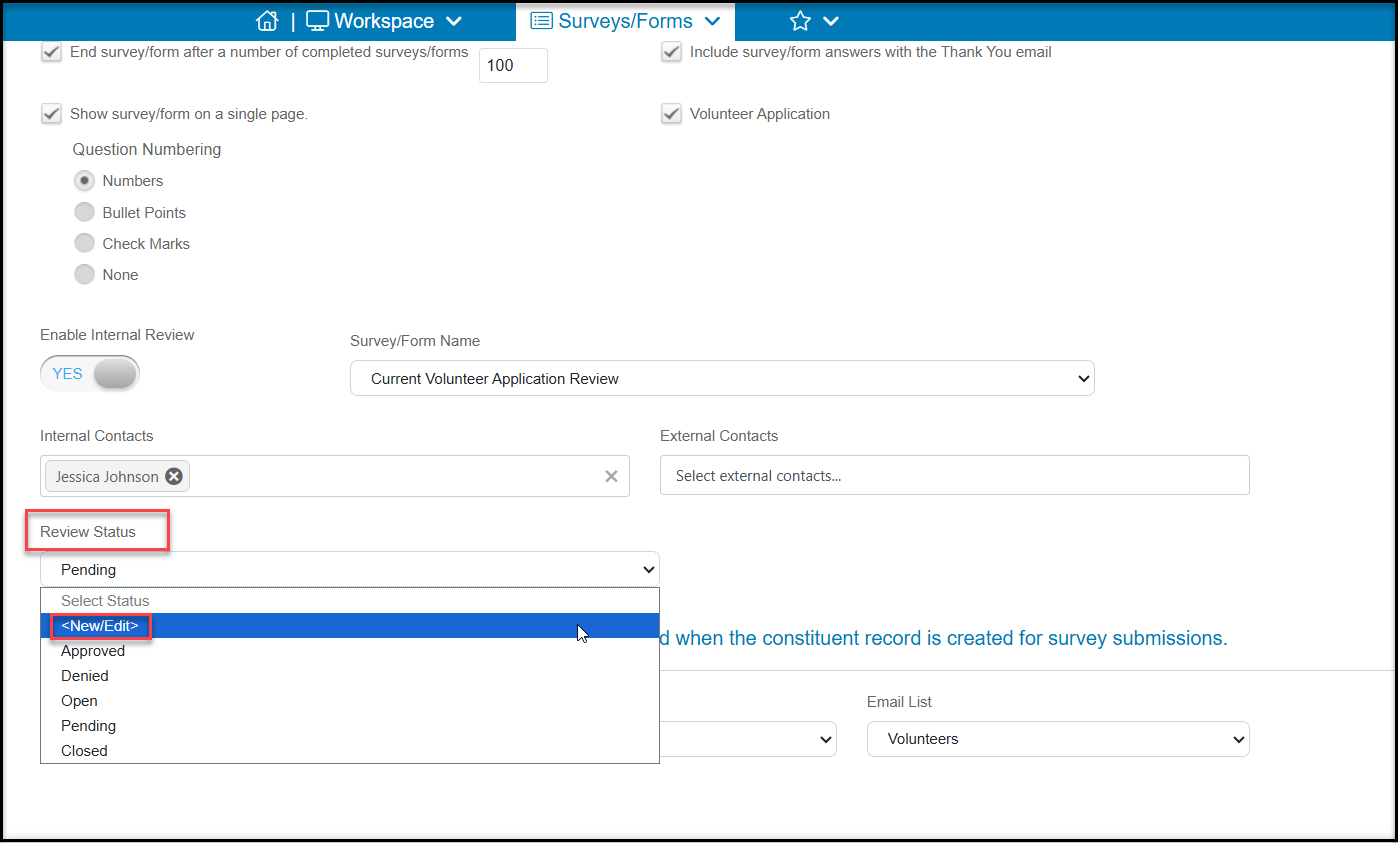
The final field to update is the Review Status. You will need to add options to this list to assign to your respondents. Examples include Pending, Awaiting Review, Approved, Denied, Open, Closed, or Waitlisted. Click on <New/Edit> to open the window to add your review statuses.
Once you add your options, select one which will be applied as the default status when the survey is submitted, for example “Awaiting Review,” to indicate that it has not been reviewed yet.
The Review Status options you have added will be available on all other surveys which enable internal review.
Always click on Save or Save & Next to save any changes made to this tab.