Survey/Forms Overview - Delivery Status and Statistics for Surveys Sent Via Email
You can view the delivery status and statistics for a survey campaign by going to the Overview page. This page will only display data for surveys sent via email. It does not show other email campaigns or surveys that were not sent via email.
There are four tabs on the Overview page:
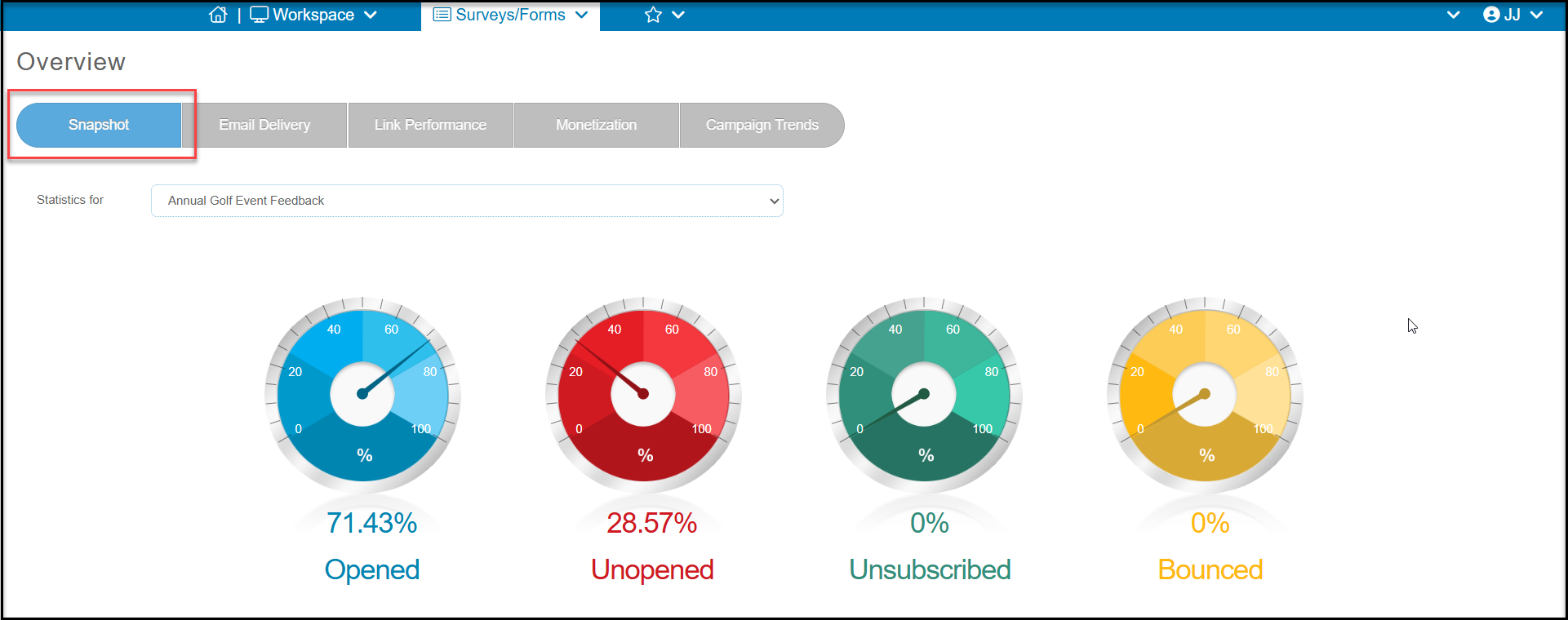
Snapshot - shows a dashboard of open, unopen, unsubscribe, and bounce rates.
Email Delivery - shows a pie chart with details of which constituents fall into the four snapshot categories.
Link Performance - Not functional for surveys
Monetization - Not functional for surveys
Campaign Trends - Not functional for surveys
Snapshot Tab
The Snapshot tab shows your campaign results at a quick glance. Using the dropdown list to select the survey campaign sent, you can view the percentage opened, unopened, unsubscribed, and bounced.
Opened - the recipient opened the email
Unopened - the email address was good and the message was delivered, however the recipient did not open the email. The email could have been delivered to a spam or junk folder.
Unsubscribed - the recipient clicked the link to “unsubscribe” from your email marketing. They will not receive any email marketing messages, including auto reminders for events or membership renewals.
Bounced - the email address was not deliverable. There are a variety of reasons an email will be shown as “bounced.”
Email Delivery Tab
The email delivery tab is where you can view details for opened, unopened, bounced, and unsubscribed emails for a campaign.
You can view the percentage of opened, unopened, unsubscribed, and bounced emails on the pie chart that is to the left of the page. You can see the statistics for different campaigns by clicking the drop down menu that is located above the pie chart, and selecting the campaign you would like to see statistics for.
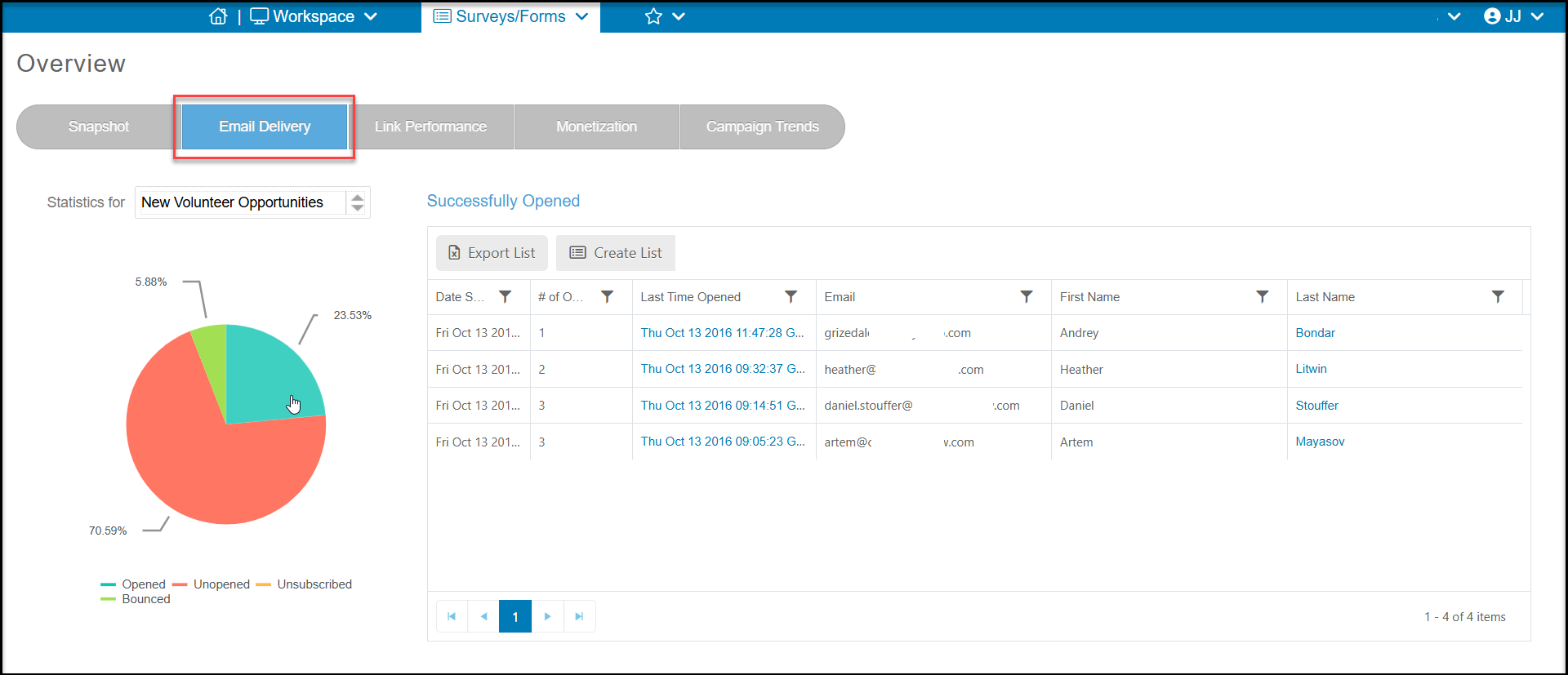
You can click on a piece of the pie chart to view which recipients fall into that category. For example, to see who opened the email, click on the Opened slice of pie. The grid on the right will populate with all recipients that opened the email. You can see the # of times they opened the email and when was the last time it was opened.
You can also create a new email list for the constituents shown on the list by clicking on Create List. You can also export the list to Excel by clicking on Export List.
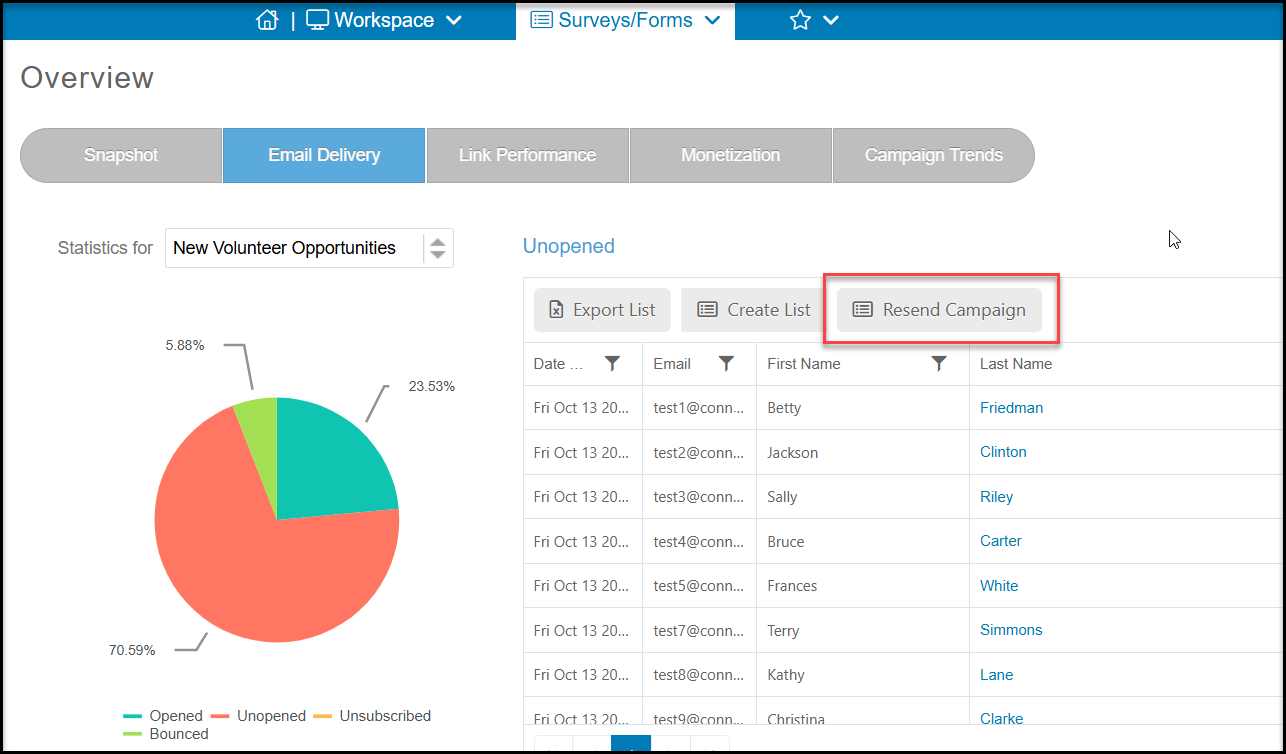
When selecting the Unopened list, you can also resend this same campaign to anyone who did not open the email (and is also not unsubscribed or bounced). Click on Resend Campaign to initiate a new survey campaign just to this group of constituents. If you need to make any edits to the list or survey, you can do so on the applicable survey wizard tabs.
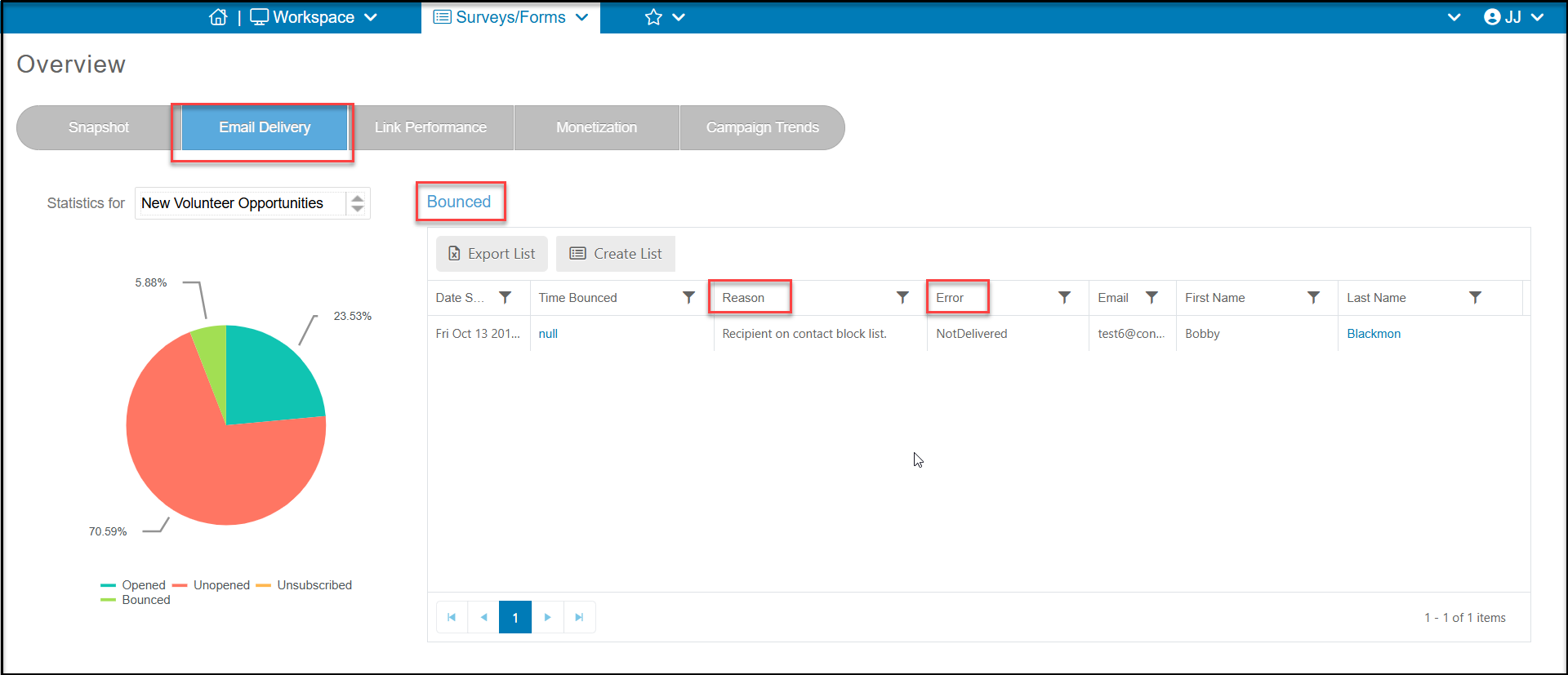
If you have any bounced emails, you can click on that section of the pie to show the Reason and Error that occurred resulting in the bounce. If there is an obvious spelling error, such as Tiffany Bailey, below with yahoo incorrectly spelled "yshoo"," you can click on the constituent's Last Name to open their record and make a correction and clear the hard bounce status.