# Using Seating Charts for Events
> Source: https://support.donorview.com/using-seating-charts-for-events | Updated: 2026-10-12T20:39:48Z
Seating Charts are a special option usually used for a theater venue where specific seats are purchased. Submit a support ticket to request this feature be turned on for your organization. Once activated you will see a new link under the Events Module Menu to upload the seating charts.
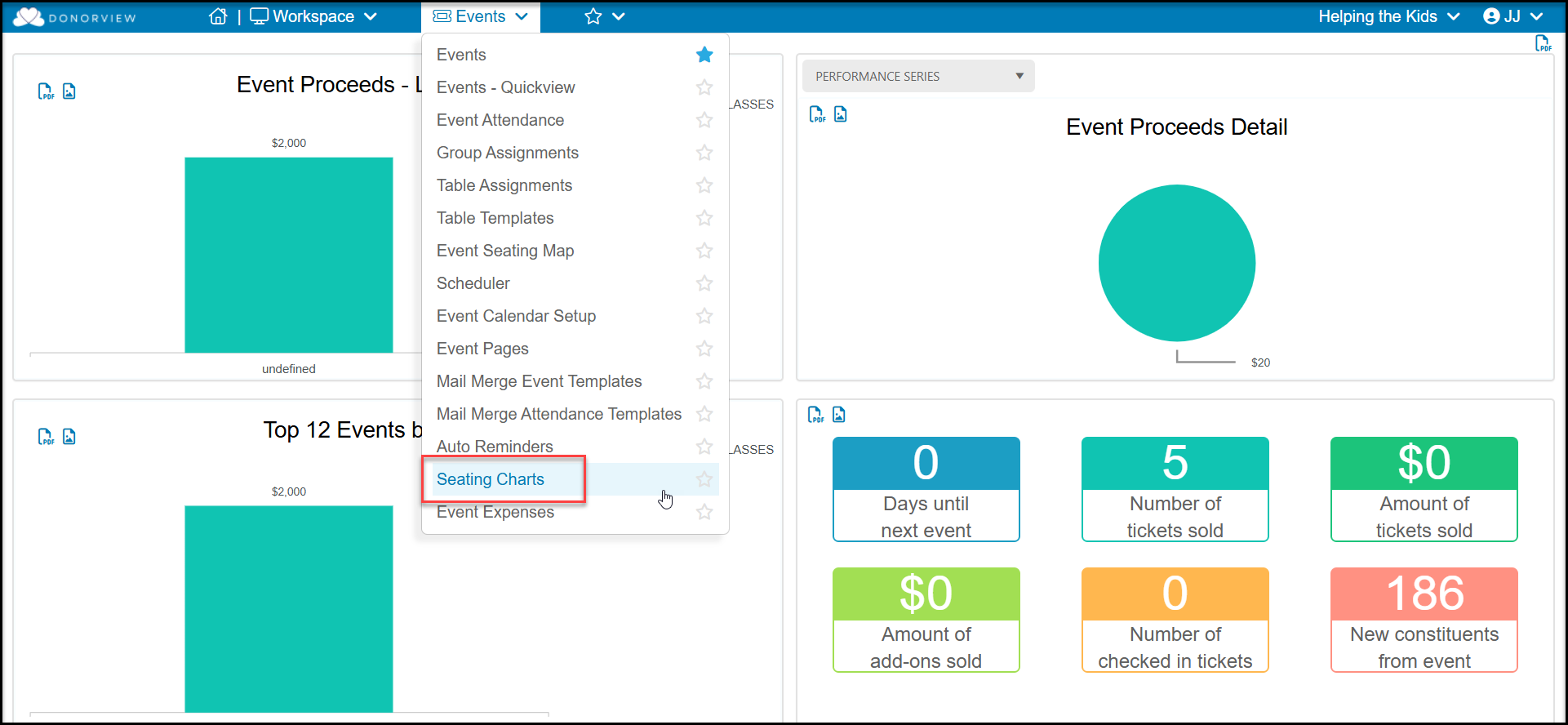 At least one Seating Chart must be uploaded to use Seating Charts for Events. See the article “Creating A Seating Chart in Excel” for more information. Once a Seating Chart has been created and uploaded, you can choose this option when creating or editing the Event Page under the **Settings Tab**.
**NOTE: It is imperative that you have verified that the seating chart is correct prior to choosing it for the event page. You cannot make changes to rows, seat numbers, or handicap status in the seating chart from the event page. If the seating chart is incorrect, you will have to make the changes in the seating chart page, then redo all the set up in the event page.**
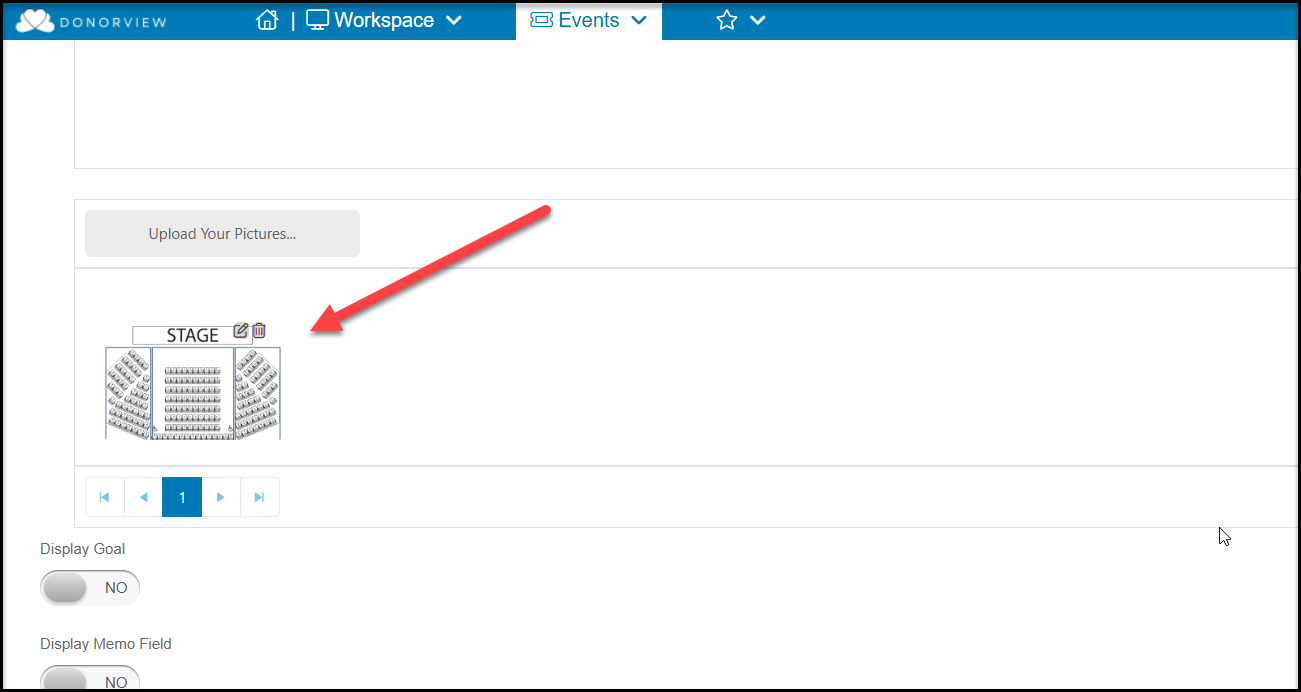
It’s a good idea to upload an image of the total seat map in the **Page Content and Display** section so that purchasers can orient themselves for the different sections and their locations.
At least one Seating Chart must be uploaded to use Seating Charts for Events. See the article “Creating A Seating Chart in Excel” for more information. Once a Seating Chart has been created and uploaded, you can choose this option when creating or editing the Event Page under the **Settings Tab**.
**NOTE: It is imperative that you have verified that the seating chart is correct prior to choosing it for the event page. You cannot make changes to rows, seat numbers, or handicap status in the seating chart from the event page. If the seating chart is incorrect, you will have to make the changes in the seating chart page, then redo all the set up in the event page.**
It’s a good idea to upload an image of the total seat map in the **Page Content and Display** section so that purchasers can orient themselves for the different sections and their locations.
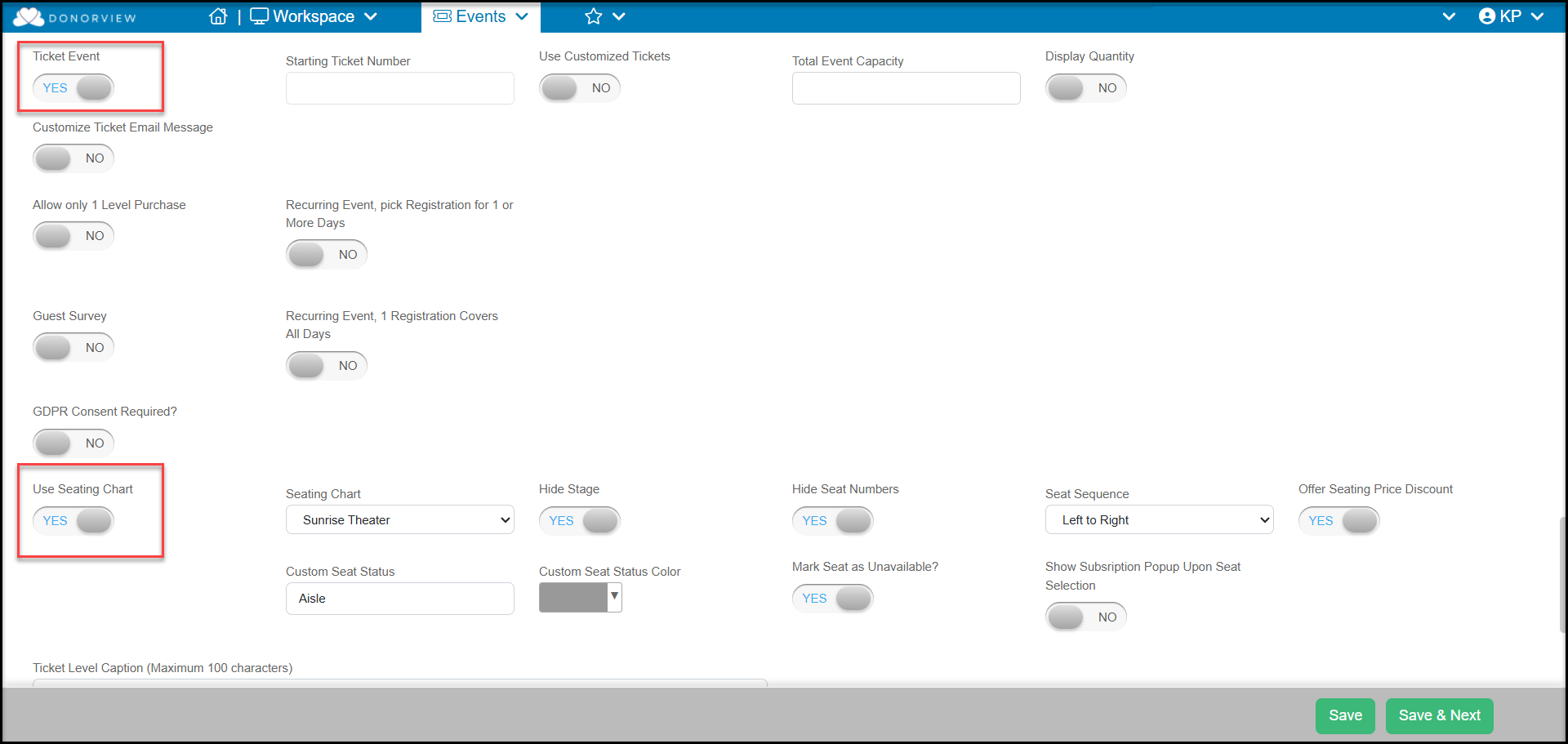
 1. Under the **Ticketing** section, you will select **YES** for a **Ticket Event**. You can also use customized tickets if you prefer.
2. Select **Yes** for **Use Seating Chart.**
3. Select the Seating Chart to use for this event.
4. You can opt to **Hide the Stage** from the seat selection chart if desired.
5. You can also **Hide Seat Numbers**, which is recommended if your venue has different numbers of seats in each row or there are architectural features like aisles that will be depicted. If left set to No, a row of numbers will be visible at the top of each section that may not match the actual seat numbers you have assigned.
6. Select the **Seat Sequence** the seats will be shown on the map, Left to Right or Right to Left.
7. If you are offering a **Seating Price Discount**, set to Yes.
8. **Custom Seat Status** allows you to identify a custom color for specific seats. It can also be used to hide some spaces that are included in your Seating Chart. You can assign any name you like to the **Custom Seat Status**, in the example below some spaces will be shown as an aisle where no seats are available.
9. Select the color you would like those custom seats to be shown on the seat selection page. If you would prefer the seats do not show up, grey and white will appear very faintly on the seat selection page.
10. If you want any seats assigned to the **Custom Seat Status** shown as unavailable, mark that **YES**.
1. Under the **Ticketing** section, you will select **YES** for a **Ticket Event**. You can also use customized tickets if you prefer.
2. Select **Yes** for **Use Seating Chart.**
3. Select the Seating Chart to use for this event.
4. You can opt to **Hide the Stage** from the seat selection chart if desired.
5. You can also **Hide Seat Numbers**, which is recommended if your venue has different numbers of seats in each row or there are architectural features like aisles that will be depicted. If left set to No, a row of numbers will be visible at the top of each section that may not match the actual seat numbers you have assigned.
6. Select the **Seat Sequence** the seats will be shown on the map, Left to Right or Right to Left.
7. If you are offering a **Seating Price Discount**, set to Yes.
8. **Custom Seat Status** allows you to identify a custom color for specific seats. It can also be used to hide some spaces that are included in your Seating Chart. You can assign any name you like to the **Custom Seat Status**, in the example below some spaces will be shown as an aisle where no seats are available.
9. Select the color you would like those custom seats to be shown on the seat selection page. If you would prefer the seats do not show up, grey and white will appear very faintly on the seat selection page.
10. If you want any seats assigned to the **Custom Seat Status** shown as unavailable, mark that **YES**.
 Once all the Event Settings have been established, click **Save and Next** to go on to the Event Setup tab to set up the seat pricing and availability.
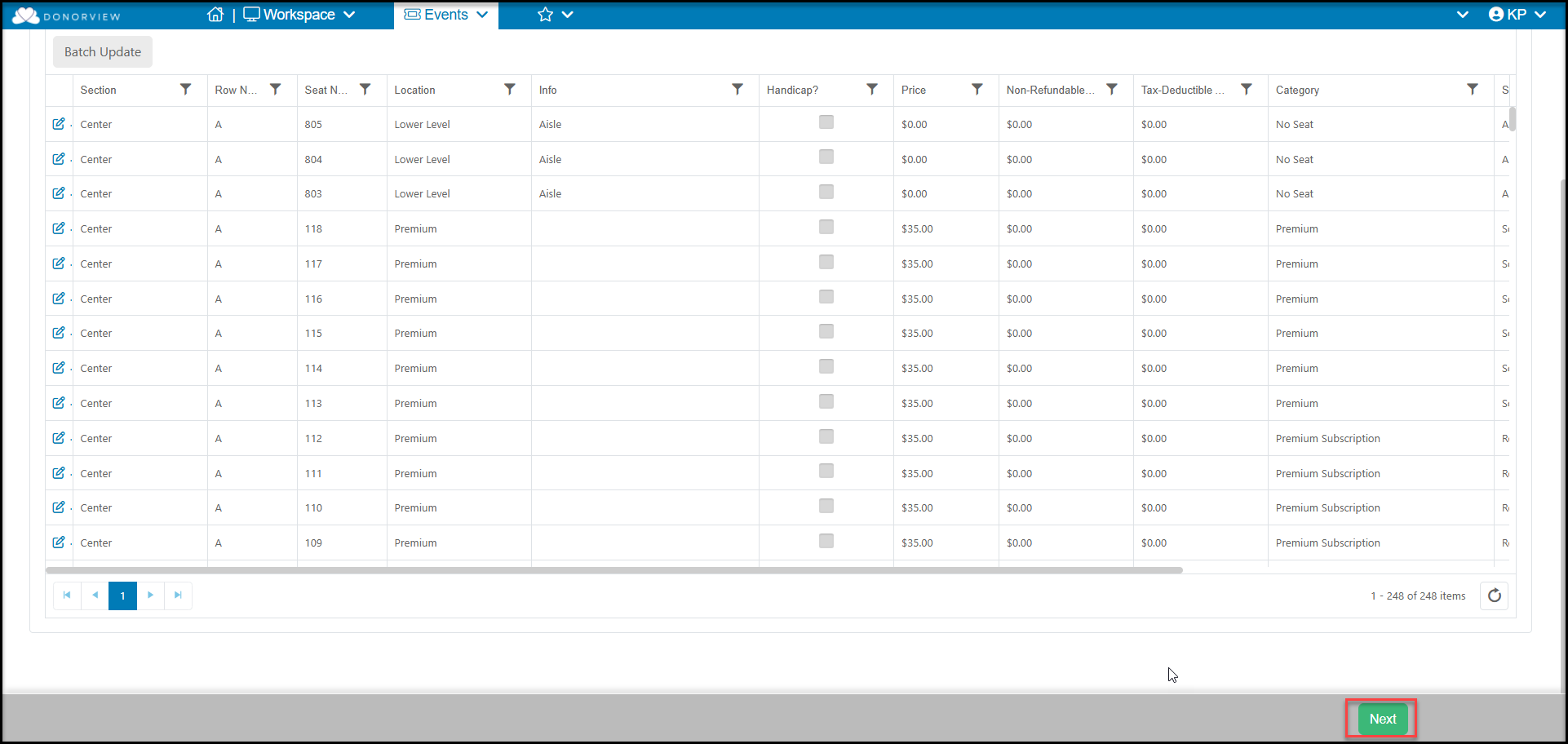
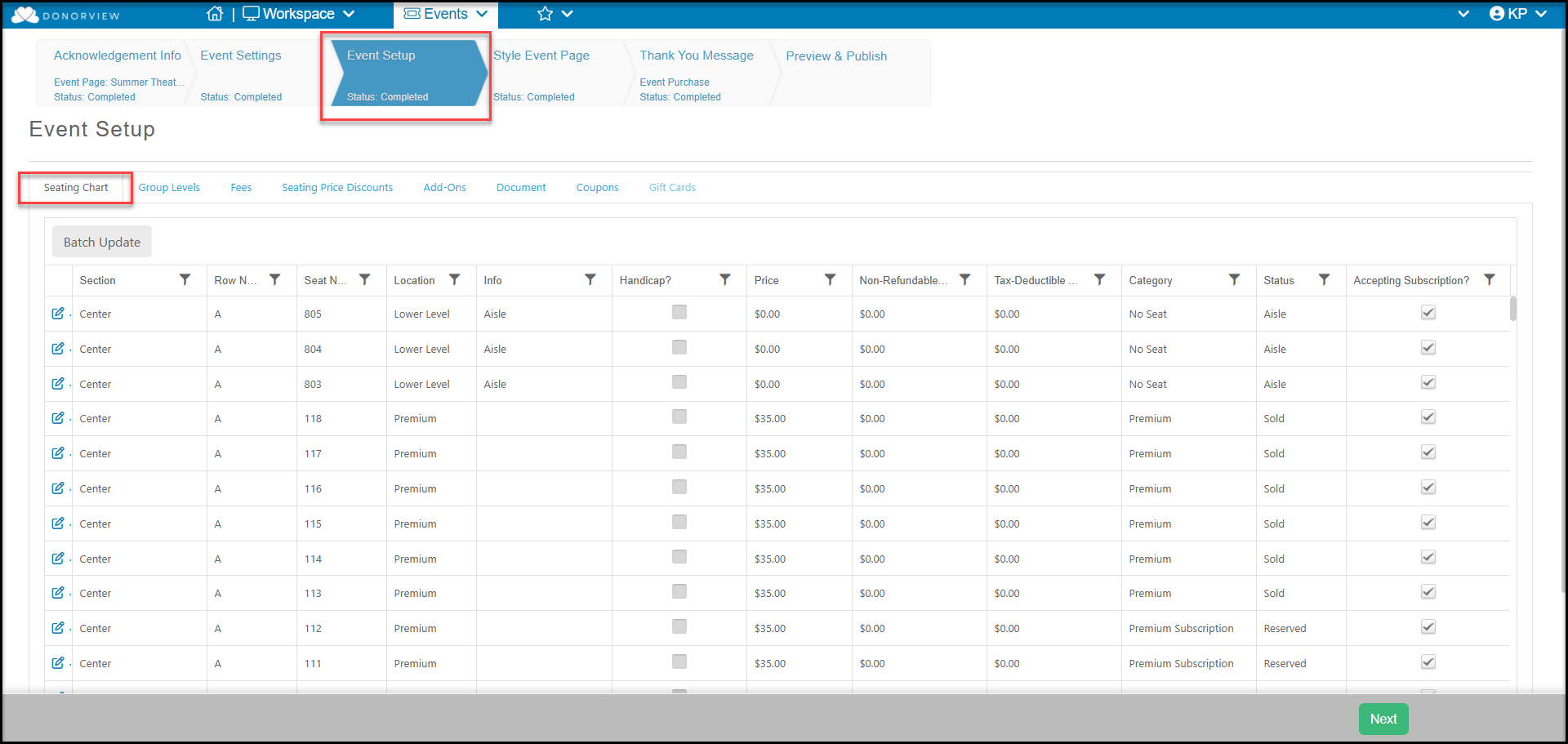 The Event Setup tab is where the data in the Location and Info columns is especially useful. In the example below there are some areas that are designated as an aisle space, where no seat is located. The first two rows in each section are premium seats and are a higher price. The remainder of the seats are all the same price.
Each seat can be edited using the Edit Icon on the left side of the row, however the Batch Update feature is the fastest way to update blocks of seats to show the same features for those seats. Note that identifying seats as Handicap Accessible is done within the Seating Chart page in the Events Module.
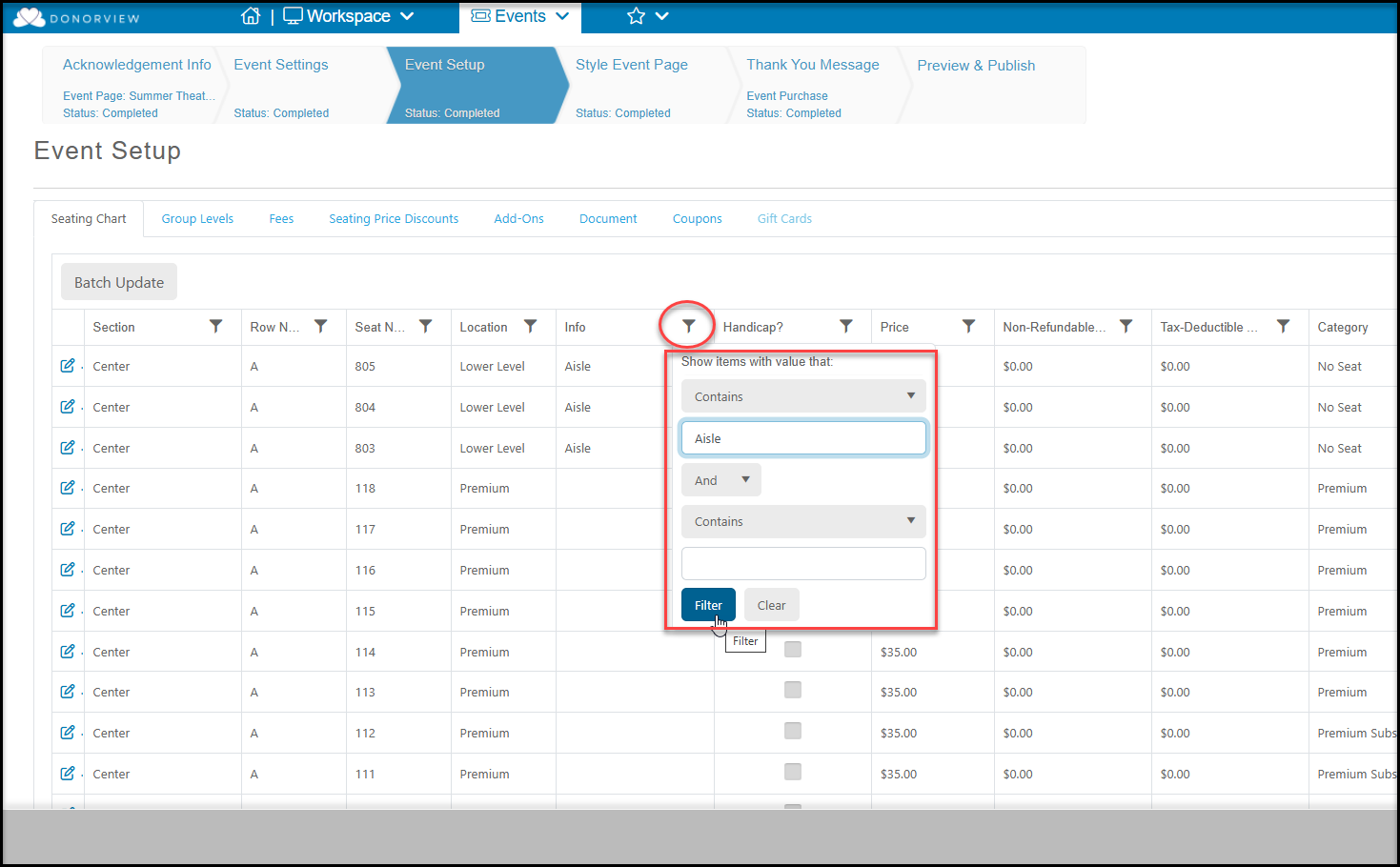
To assign those spaces with the Custom Seat Status of Aisle, the grid is filtered with **Info** column containing Aisle.
The Event Setup tab is where the data in the Location and Info columns is especially useful. In the example below there are some areas that are designated as an aisle space, where no seat is located. The first two rows in each section are premium seats and are a higher price. The remainder of the seats are all the same price.
Each seat can be edited using the Edit Icon on the left side of the row, however the Batch Update feature is the fastest way to update blocks of seats to show the same features for those seats. Note that identifying seats as Handicap Accessible is done within the Seating Chart page in the Events Module.
To assign those spaces with the Custom Seat Status of Aisle, the grid is filtered with **Info** column containing Aisle.
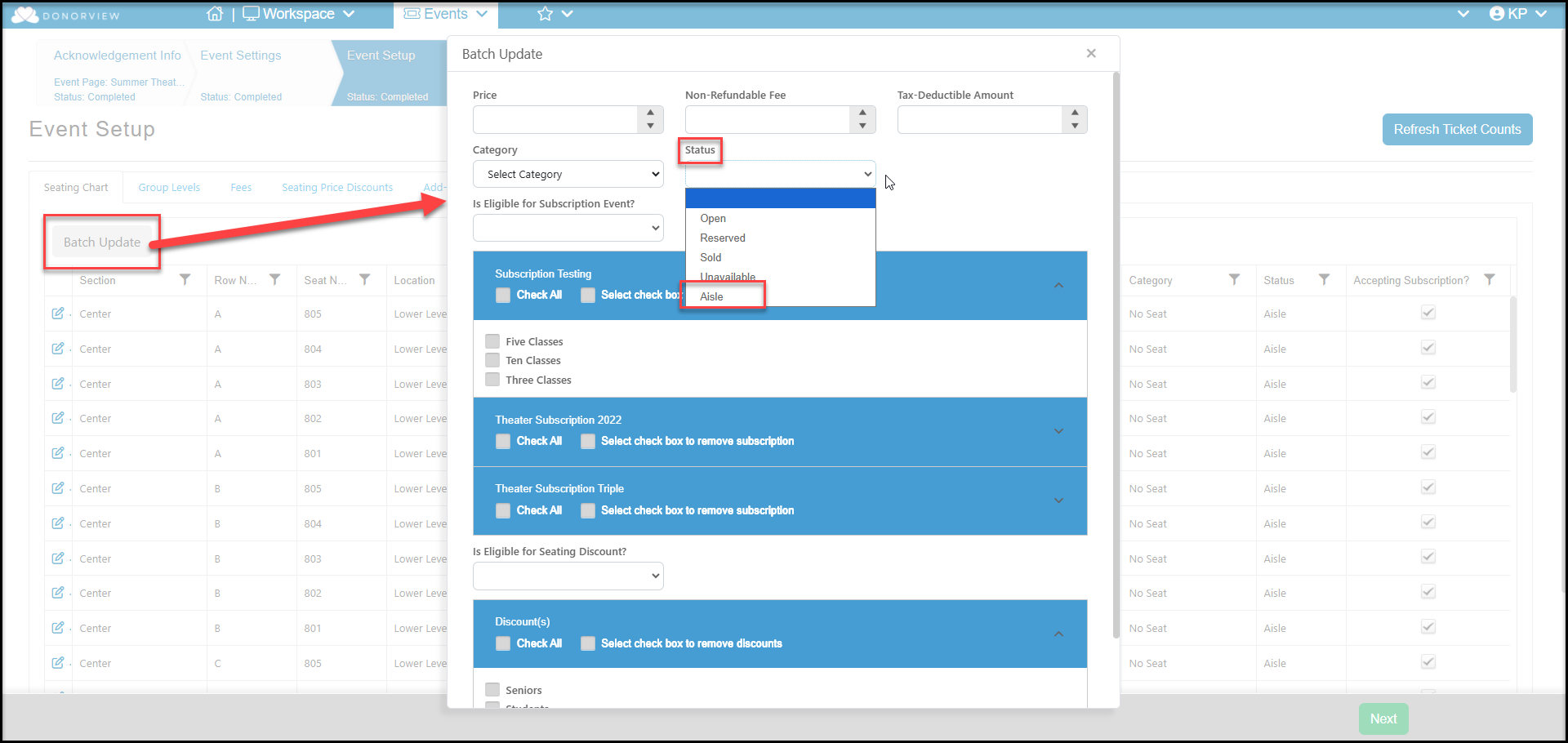
 With the list filtered for the applicable seats, click on **Batch Update** to update the Price, non-refundable fee and sales tax amount if required, assign a Category, and a Seat Status. For the example with the aisle seats, the price is zero, a category was created for “No Seat”, and the Status was assigned that custom status of Aisle. Click **Update** to apply to all the seats in the filtered list.
Note that the **Section, Row, Seat Number, Price** and **Category** all show when the ticket purchaser hovers over available seats in the selection section of the Event Page.
With the list filtered for the applicable seats, click on **Batch Update** to update the Price, non-refundable fee and sales tax amount if required, assign a Category, and a Seat Status. For the example with the aisle seats, the price is zero, a category was created for “No Seat”, and the Status was assigned that custom status of Aisle. Click **Update** to apply to all the seats in the filtered list.
Note that the **Section, Row, Seat Number, Price** and **Category** all show when the ticket purchaser hovers over available seats in the selection section of the Event Page.
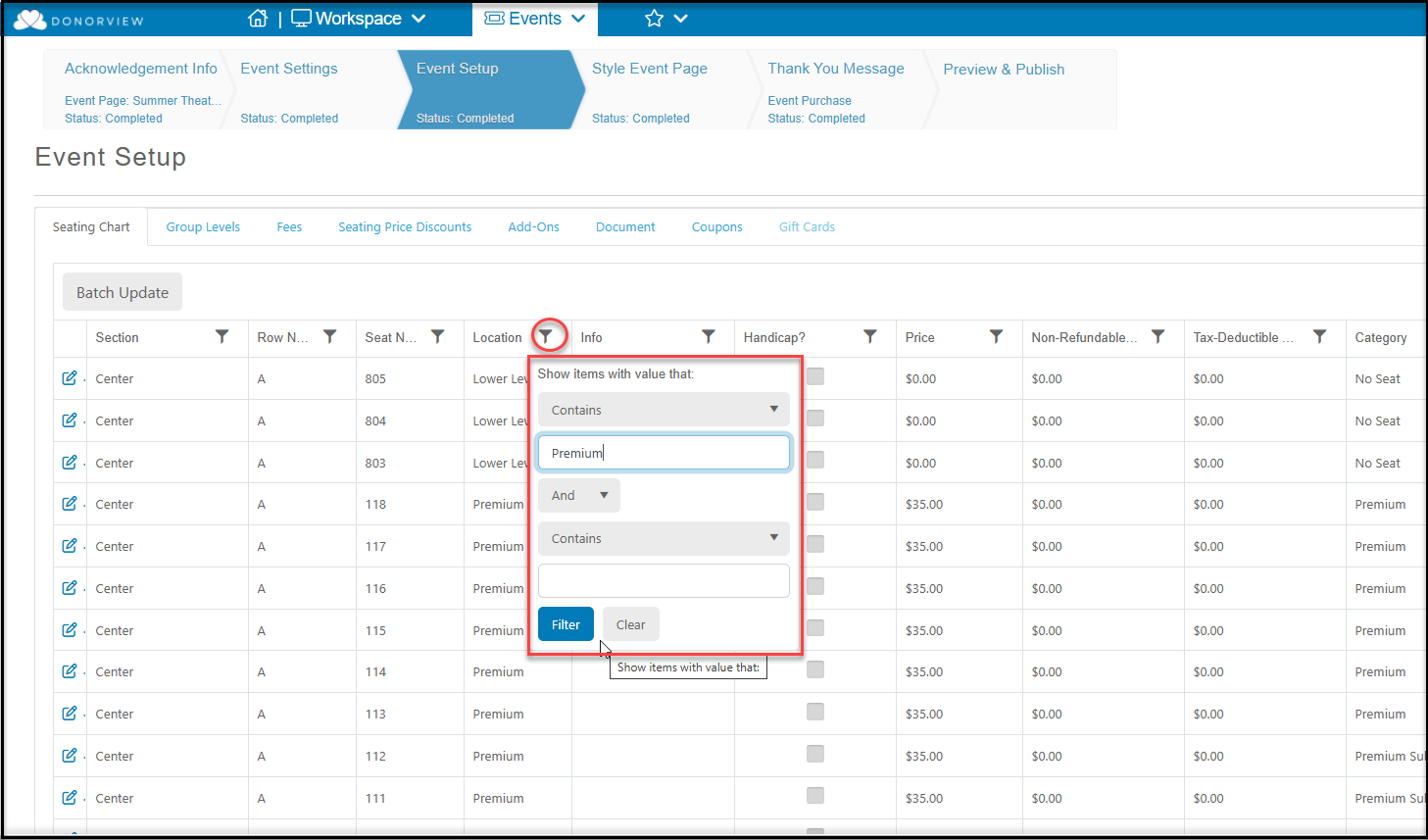
 Next, we can filter the list in the **Location** column for those seats identified as Premium. Note that this designation could have also been applied in the Info column.
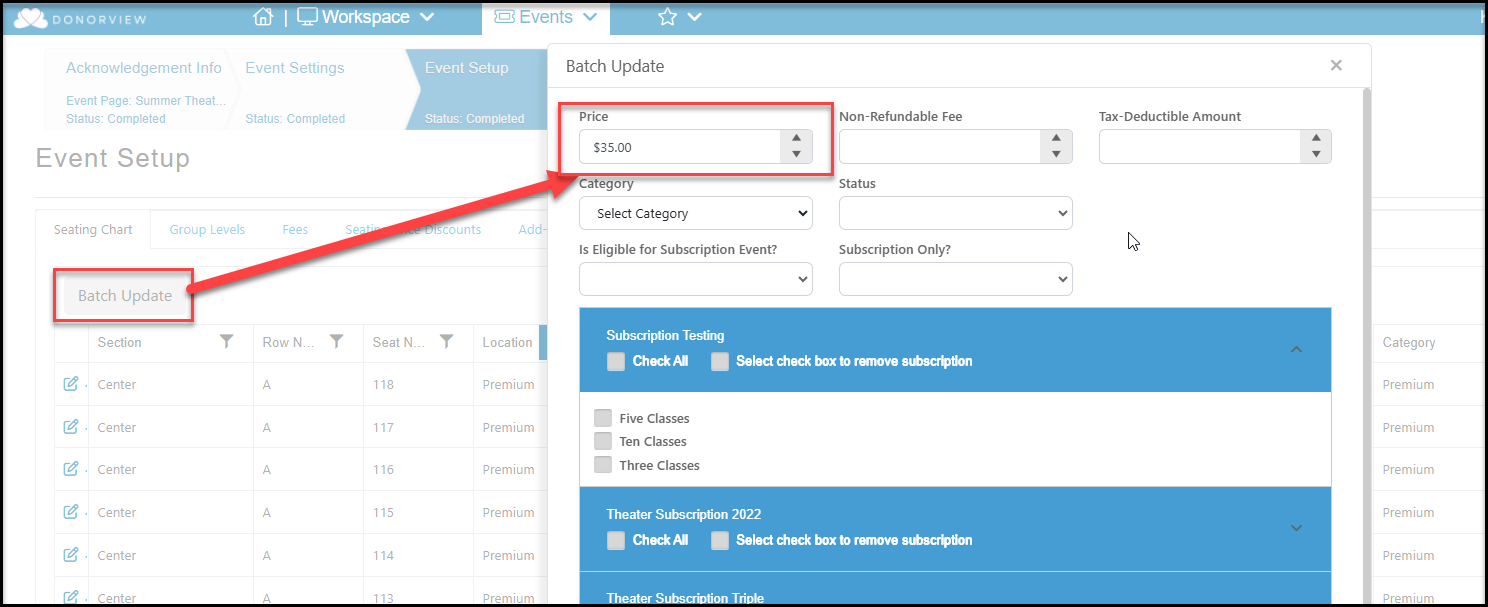
 Using **Batch Update** again, we can assign a price of $35 for these seats, assign a category of Premium and show them as Open seats. Click Update at the bottom of the window to assign this price to all seats with this designation.
 Continue to filter the list as necessary to assign the prices, categories, and status for each batch of seats until they have all been assigned a price and status. Category is optional, but it does help the purchaser orient themselves to specific seating areas like premium seating. You can add a one-time Fees to the purchase, however the Add-Ons, Document, and Coupons tabs are not active when using Seating Charts. When finished, click on **Next** on the bottom right corner of the screen. To go on to style the page and edit the thank you message as necessary.
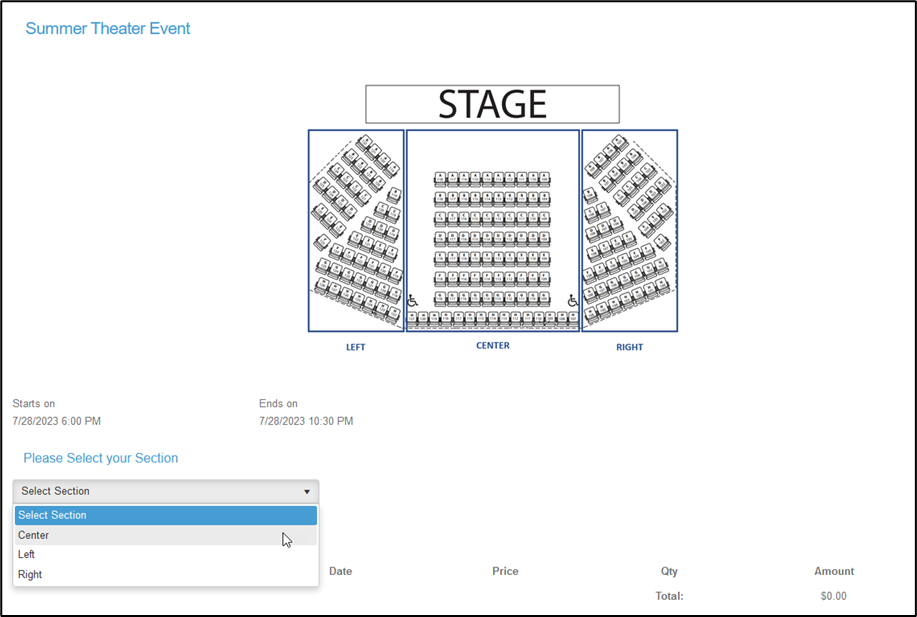
 When all the sections of the Event Page are completed, the custom URL for the page will be activate and ticket purchasing can begin. From the Event Page, the ticket purchaser will first select the section of seats they wish to view.
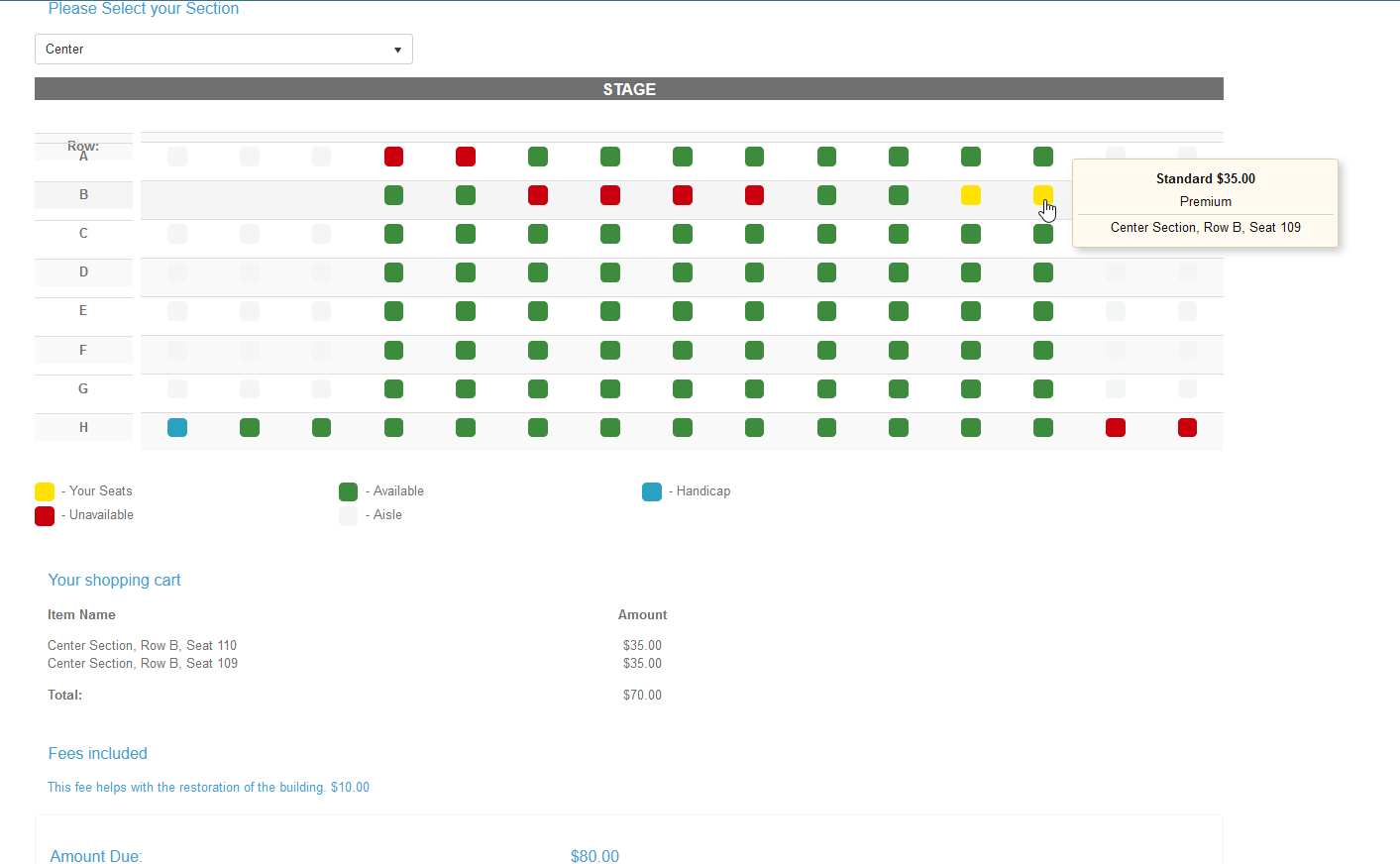
 After selecting the Section, the seat selection area will be viewable for that section. When the purchaser hovers over the green or blue seats, they will be able to see all the information about that seat. When they click on a seat, it changes from green to yellow to indicate which seats are theirs and adds them to the shopping cart. When they finish with their seat selections, they will enter their billing info and click **SUBMIT** to process the transaction.
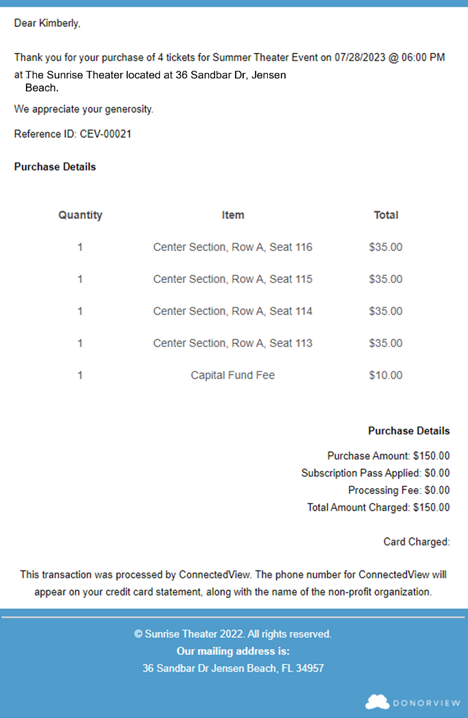
 They will see a screen confirmation and receive a confirmation email along with another email with the tickets attached if custom tickets were created.
 For information about viewing exporting the list of sold and unsold tickets, please see articles How do I view the theater seating map and How do I export the list of theater seats to show which are sold and unsold.