
How can I create an online store using DonorView?
You can use a regular event page to sell any items you would like to track through DonorView. The event page does not work like traditional Point-Of-Sale (POS) software in that it does not calculate sales tax or shipping. However, you can add these fees into the price of the item. Accounting for the sales tax or shipping would need to be reconciled using your accounting software. It also does not link to any inventory management or fulfillment process, these would be managed manually.
You would set up your event page as you normally would with each item for sale being identified as a ticket level. To learn more about basic event page setup, see this article "How do I create a new event?"
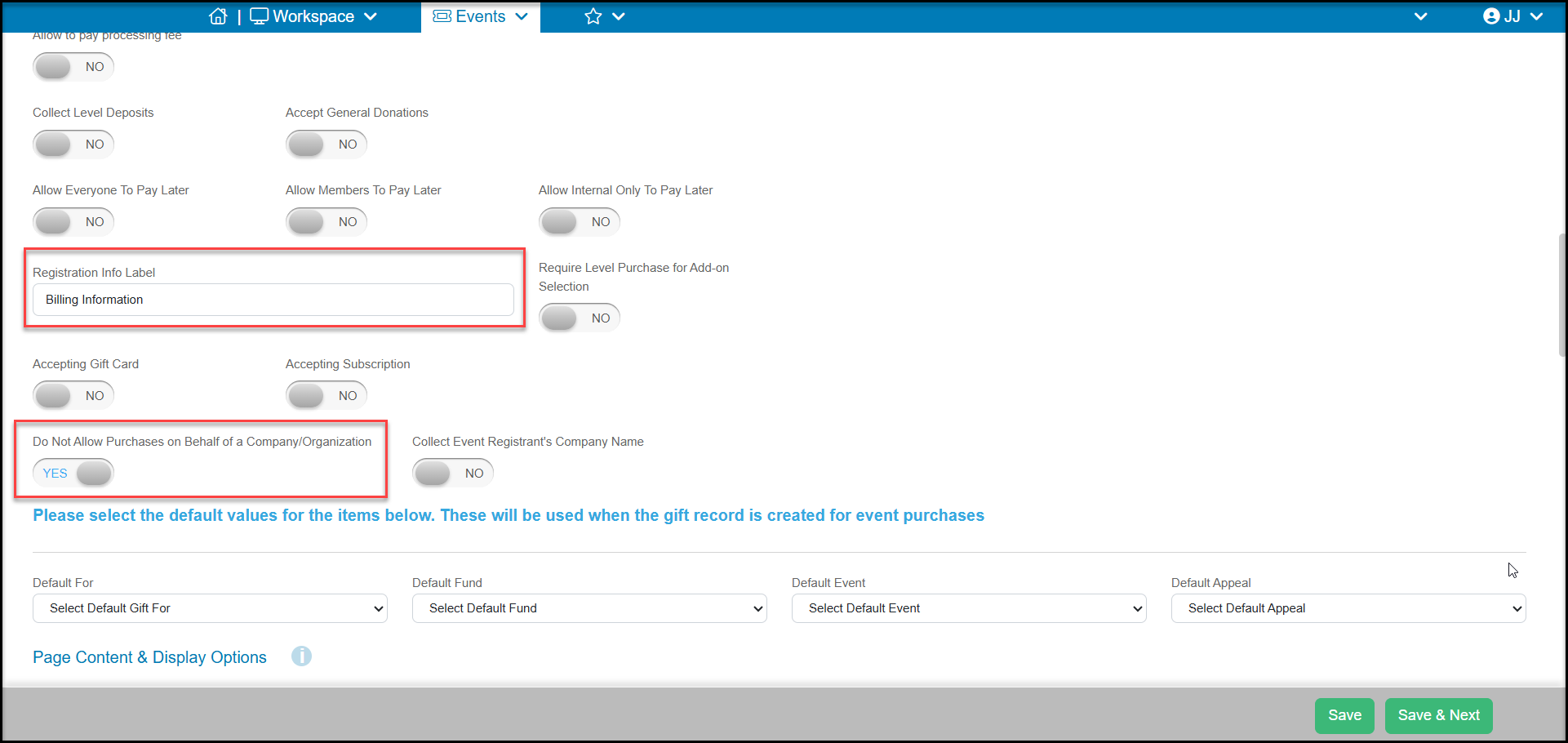
For online stores, you may want to customize your Event Settings tab to ensure you have set up notifications for fulfillment. You should change the Registration Info Label to something like "Billing Information" or "Purchaser Information" since they are not registering for an event.
You can also set Do Not Allow Purchases on Behalf of a Company/Organization to ensure purchases are specifically to individuals, not companies.
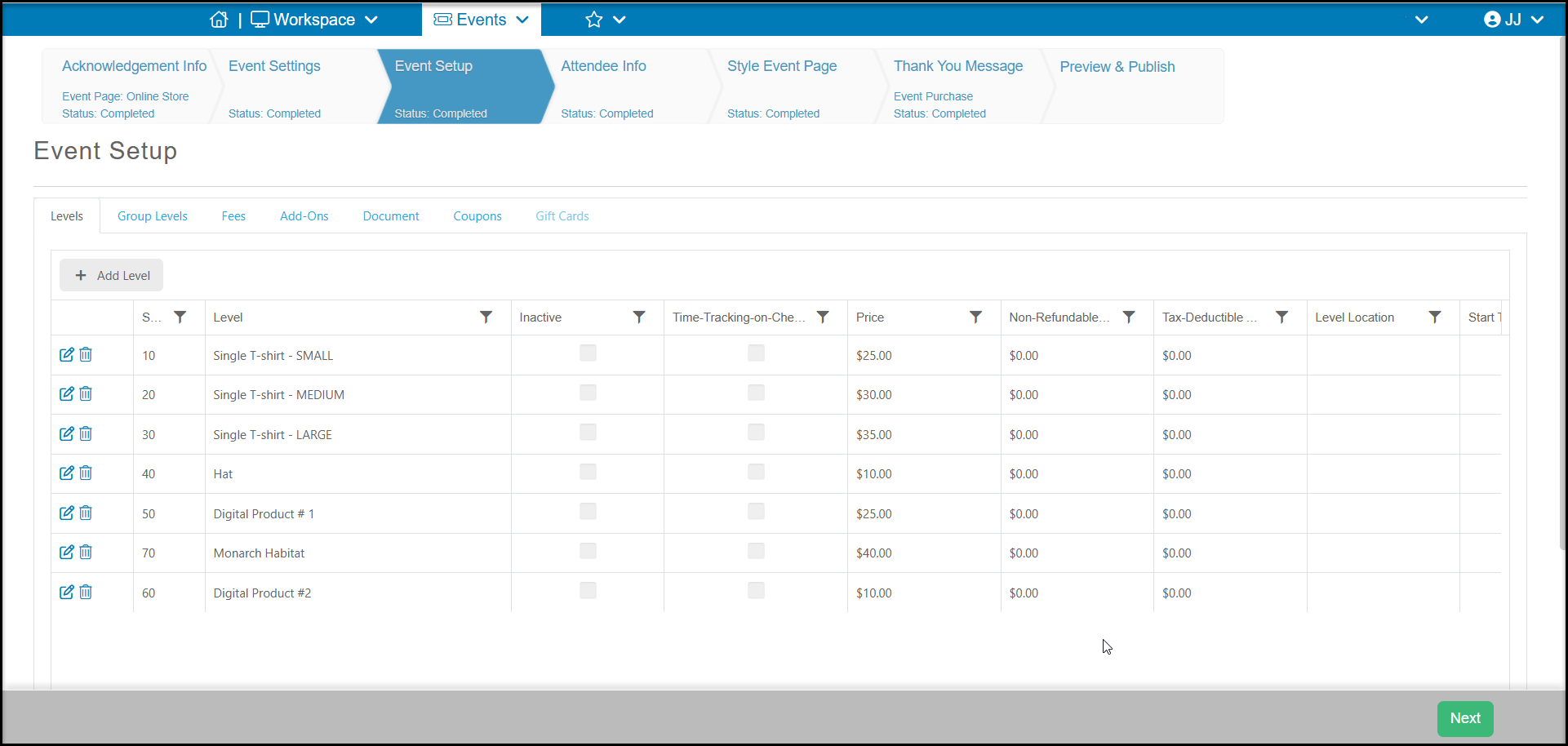
On the Event Setup tab, you will enter all your items for sale. You can limit the available quantity in the Qty Available field. Note that the software does not have the ability to add optional selection details for size or color, so each unique size/color combination will need to have its own ticket level.
Like other event pages, you can also activate coupons for this event page as desired.
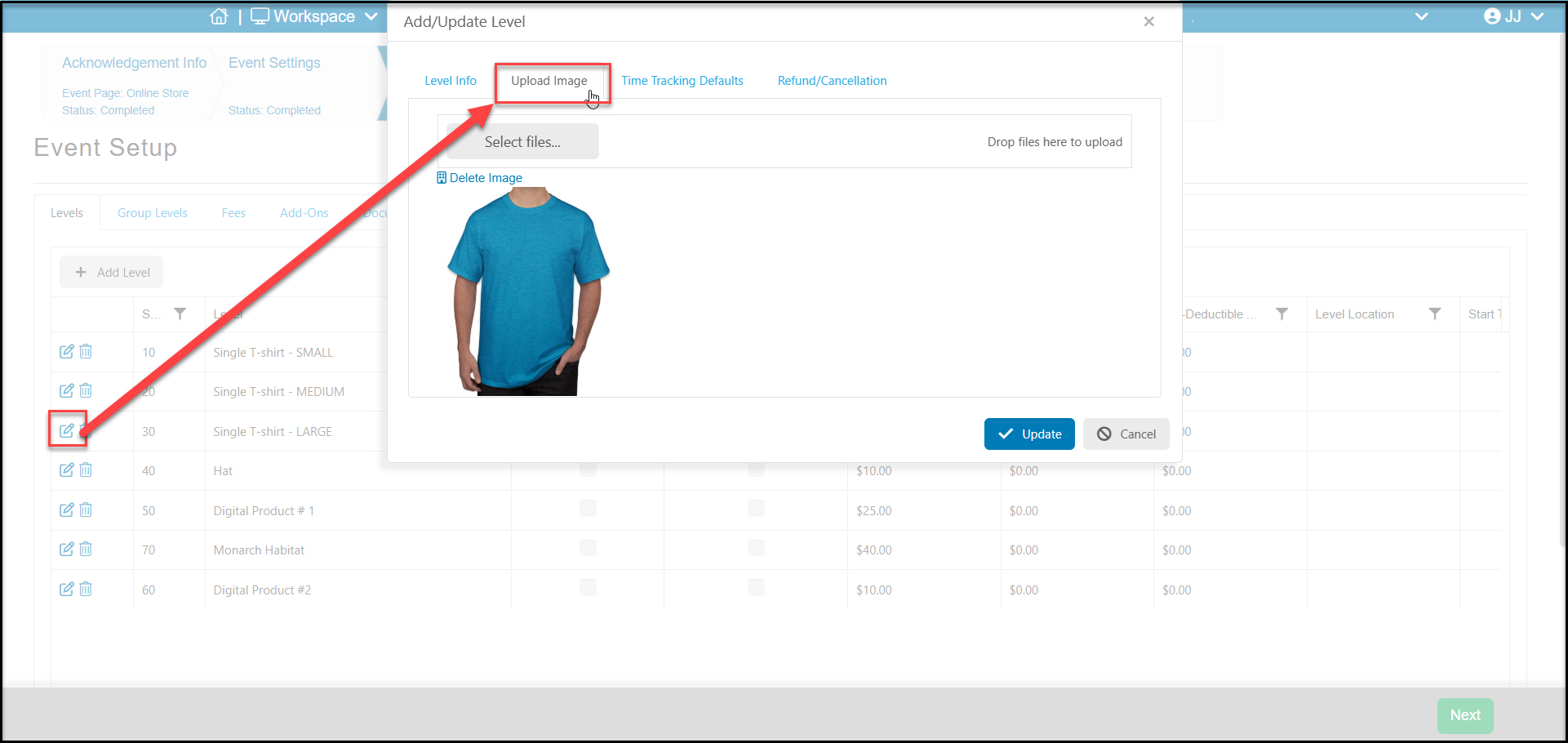
You can update an image for each item. Be sure to keep the file size small, less than 5 MB. Your image will be sized into a 125 px high x 200 px wide thumbnail on the page.
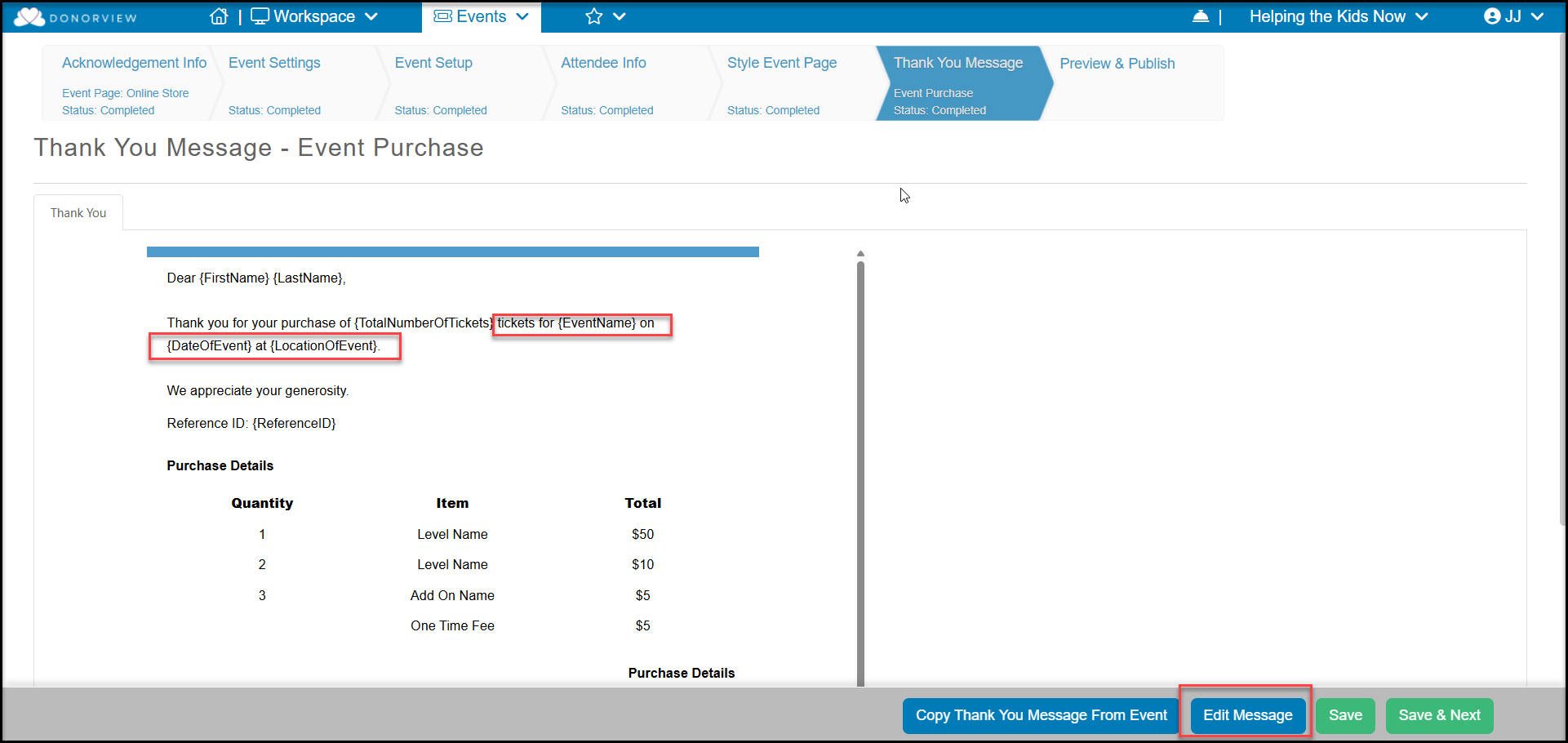
The Thank You message will automatically include a table with a list of all the items they purchased but you should edit it to update the language and remove references to tickets and dates.
The event page will include all your items and purchasers can select their desired quantities.
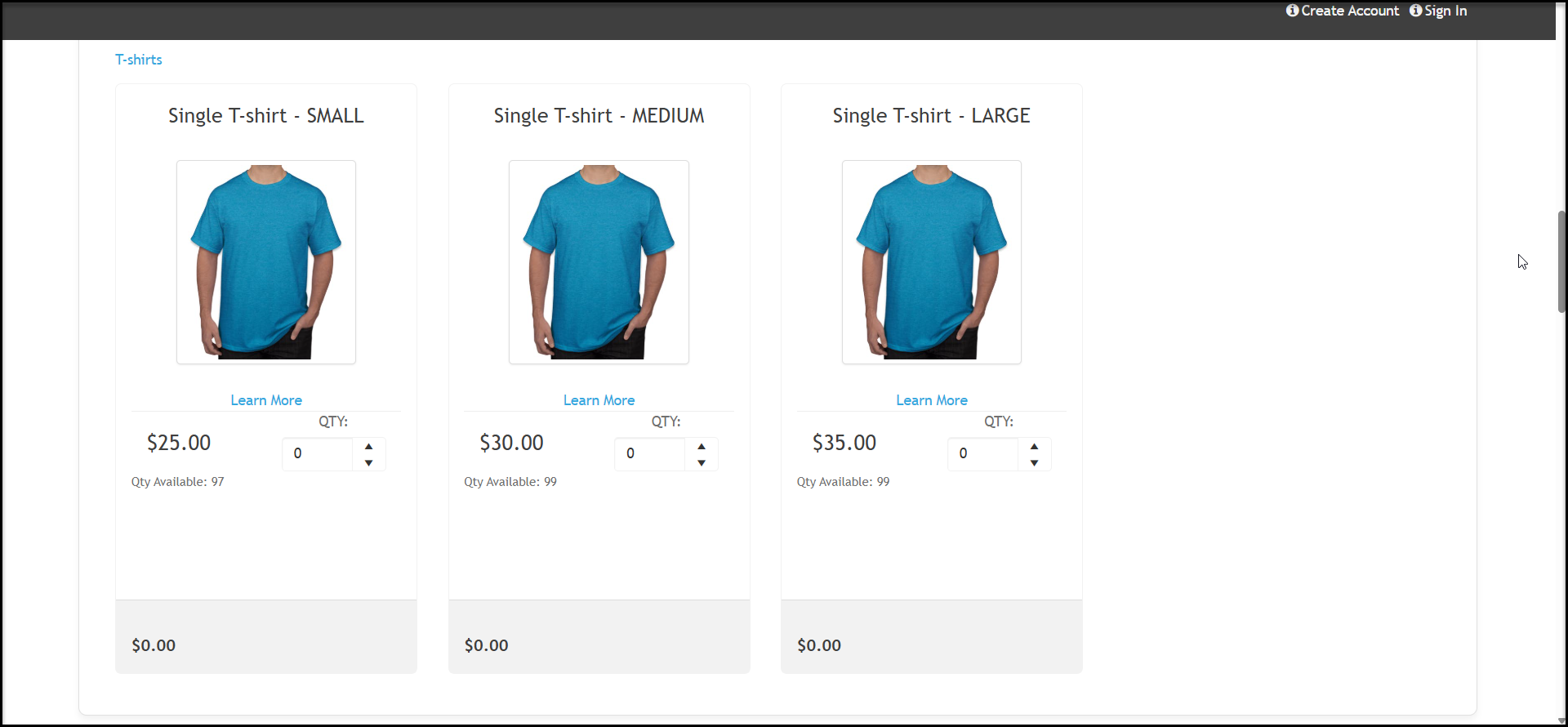
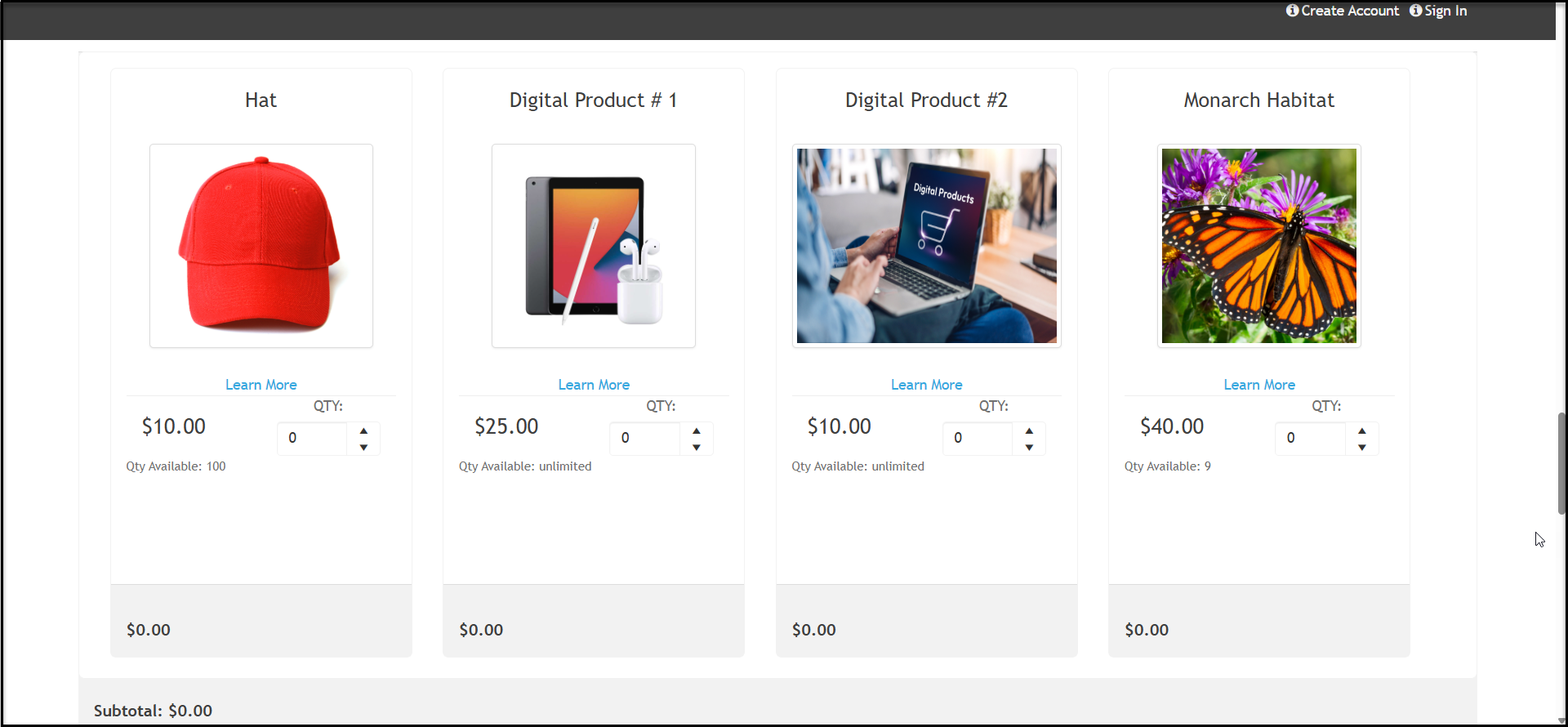
At the bottom of the page the purchaser will enter their credit card and contact information and receive an automatic thank you message.
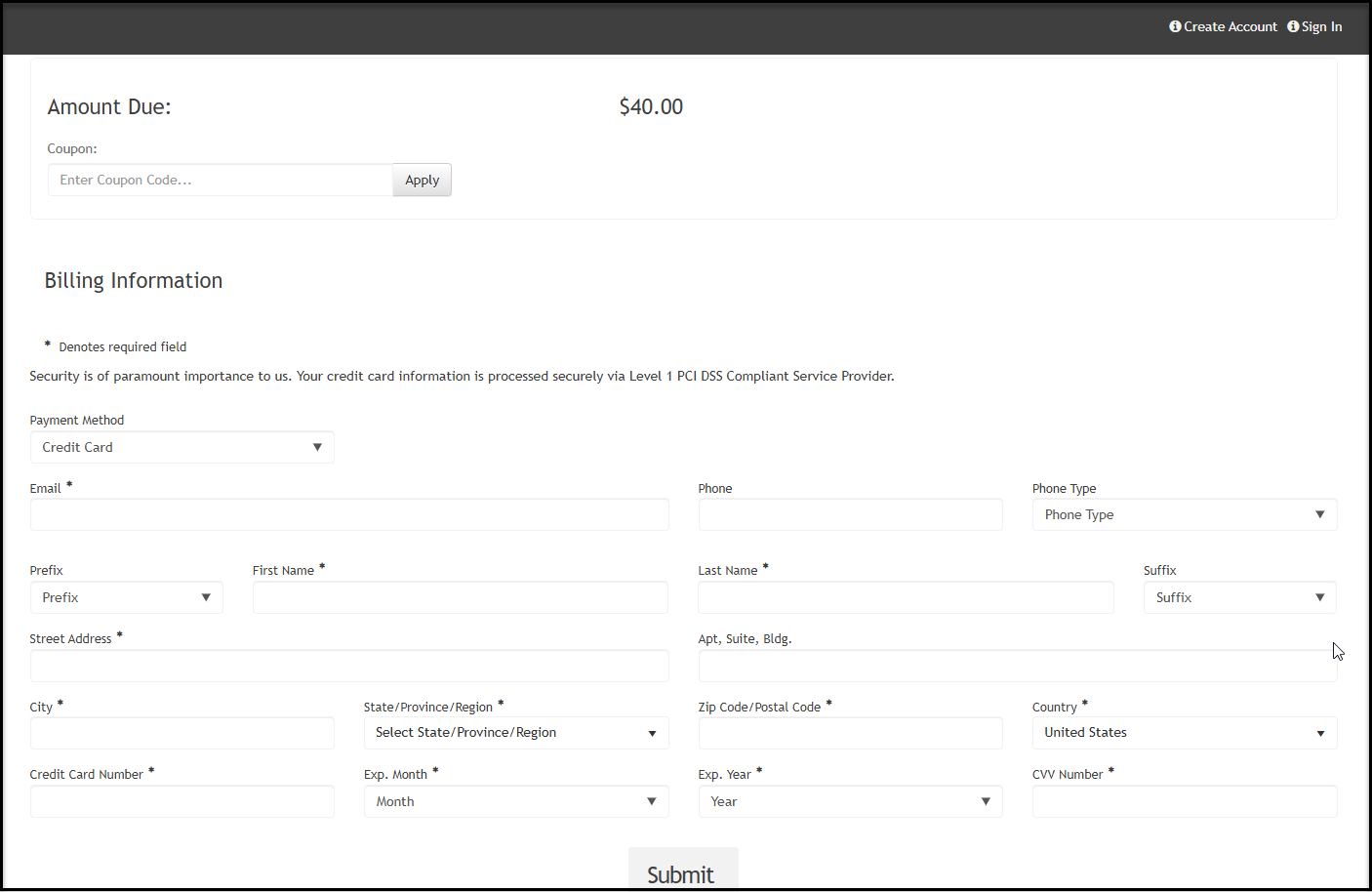
Purchasers do not need to have a constituent portal account unless you restrict access. If you plan to share your page with the public, new purchasers could create a new constituent record in the software. Depending on your constituent matching settings, the software will attempt to match to existing constituents using email address and name (if activated for the match). If an existing match is not found, a new constituent record will be created. You can learn more about constituent matching in this article "How does the software determine if a Constituent already exists?"
All transactions will be recorded on the Events and Gifts grid as an "Event" type of transaction so that you can track and manage the purchases.