How can I track and manage grants?
A grant is a donation given by a constituent (company or individual) for a particular purpose. Grants differ from traditional donations in that they usually require progress reporting back to the grantor and may require contracts delineating how the money can be used.
For example, the Charitable Foundation provides a grant to the Helping Kids nonprofit for afterschool programs. The nonprofit signed a contract to use the funding only for the afterschool programs and agrees to provide a 6 month and one year progress report on how the money was used and what the outcomes of the program were.
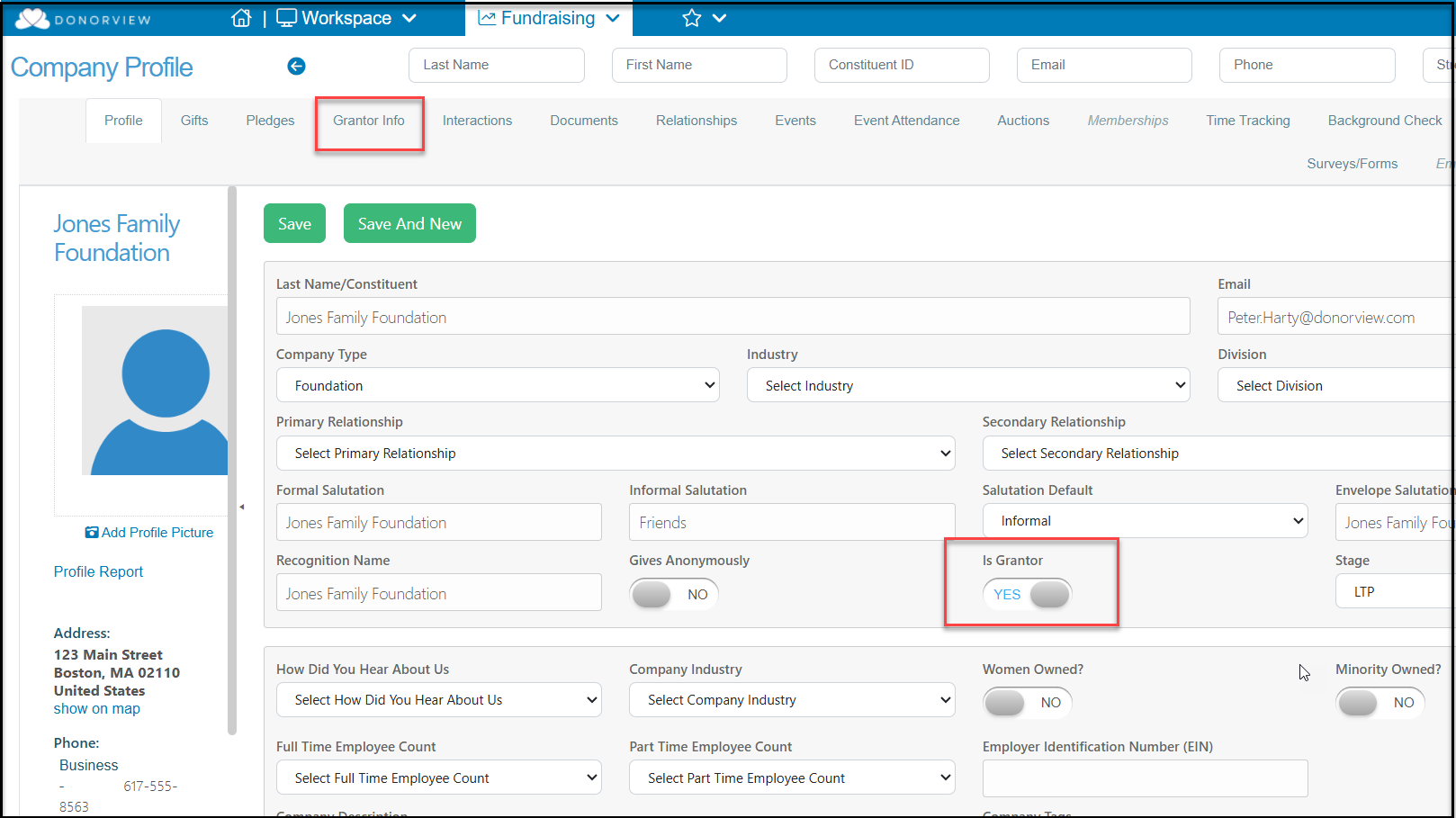
To identify a constituent as a grantor, you need to activate a toggle on their profile. From the constituent's Profile tab (Company or Individual), select “YES” in the Is Grantor field. Save the record and you will see a tab appear called Grantor Info where you can track grant proposals and reporting for this constituent.
Grantor Info
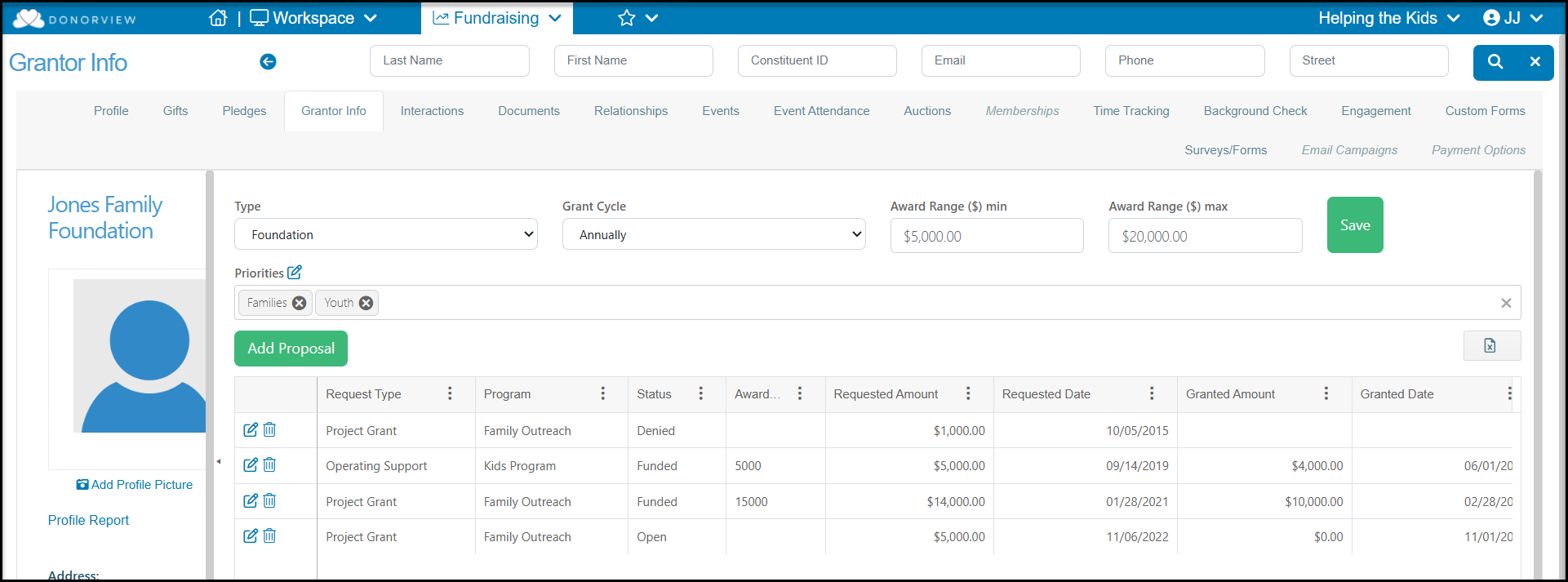
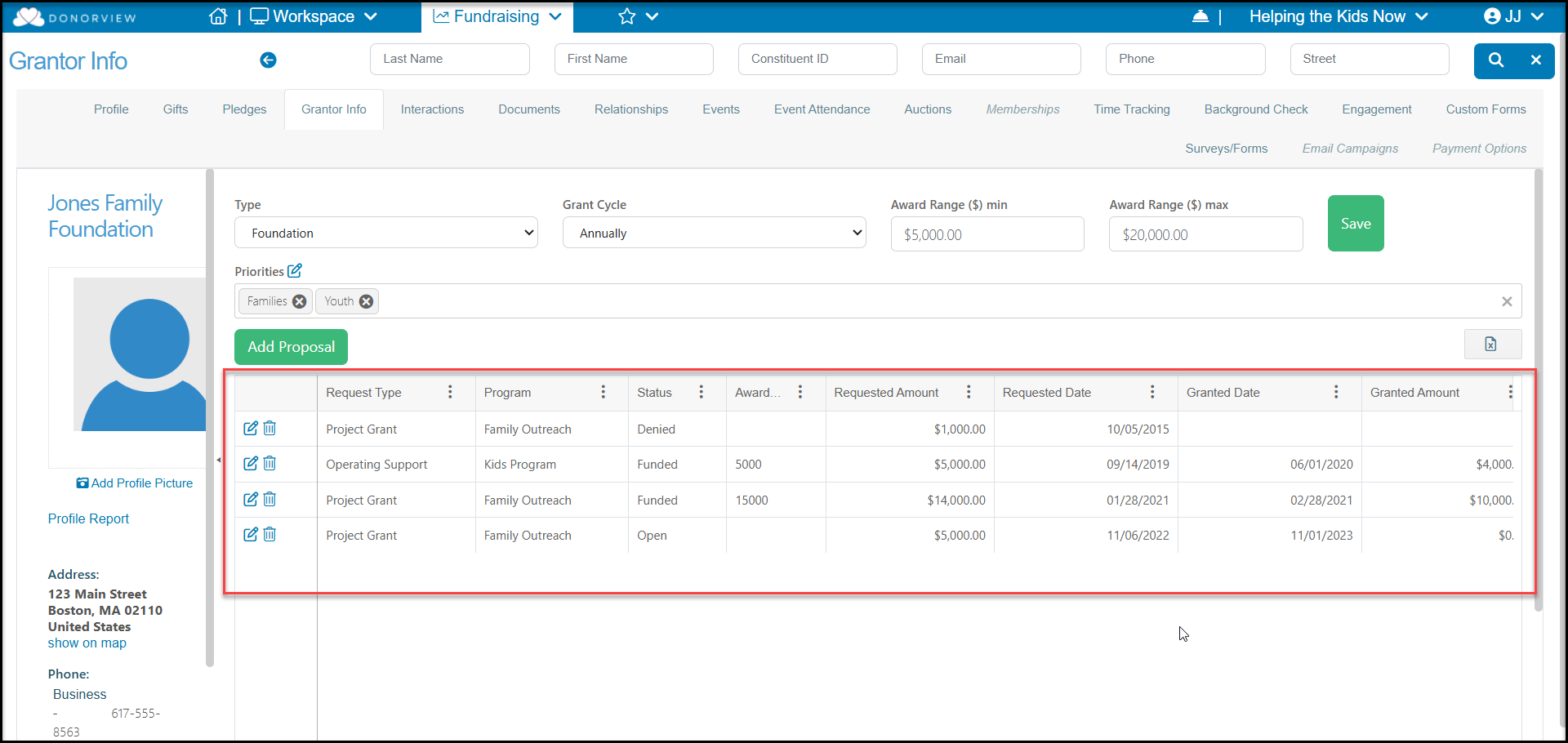
Once the constituent is identified as a Grantor, you can update the information about their programs and add proposals to the Grantor Info tab.
Type is an editable drop down list where you can identify the different types of granting agencies you work with. For example Foundations, Government Agencies, Nonprofits, Corporations, etc.
- Grant Cycle is an editable drop down list where you can describe what the grantor's typical grant cycle is, like Annual, Quarterly, Semi-Annual, None etc.
- Award Range (min) allows you to enter an estimated low award amount.
- Award Range (max) allows you to enter an estimated maximum award amount.
- Priorities is an editable multi-select field for you to create different priority categories this grantor supports.
- Proposals is a list of proposals that have been submitted to this grantor.
Adding Proposals
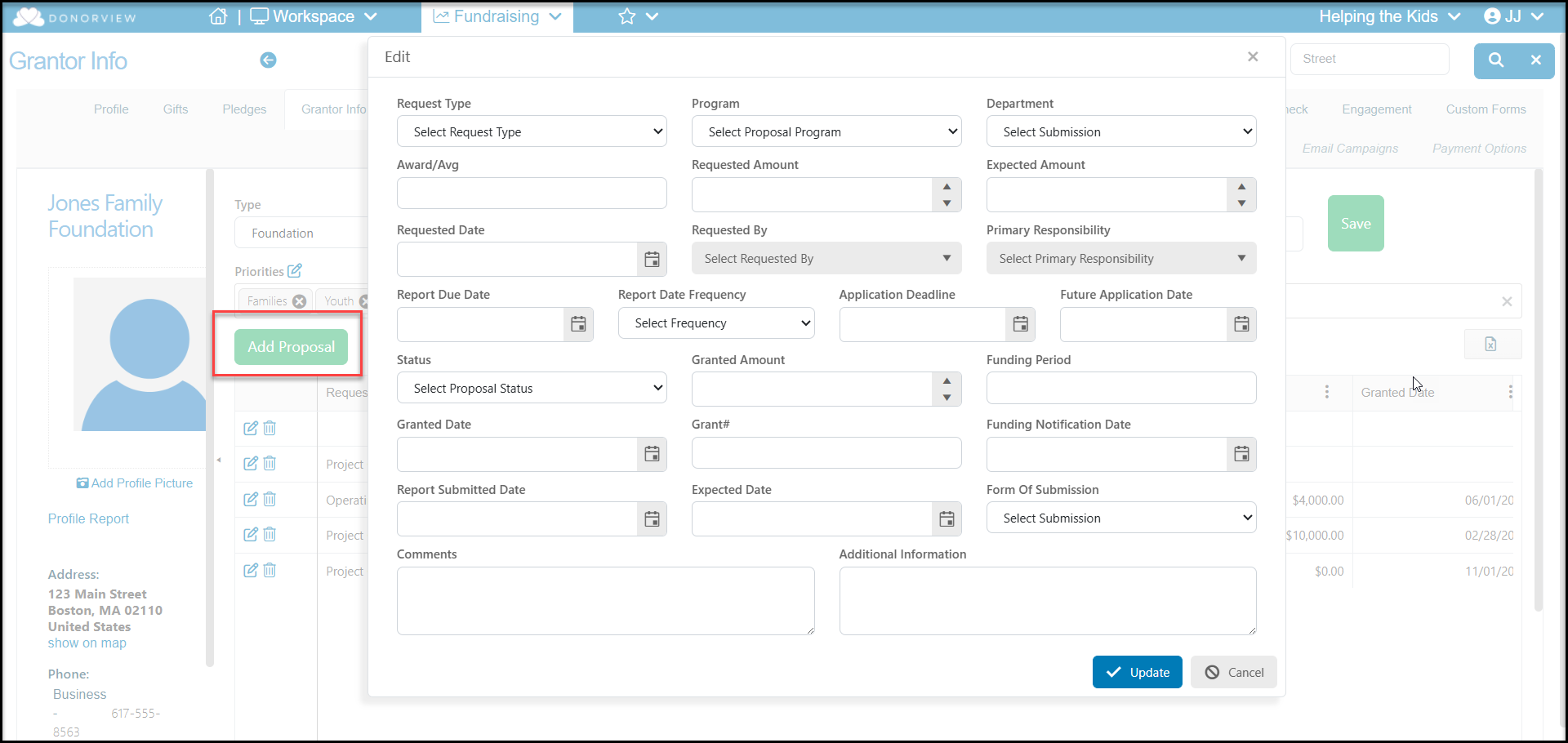
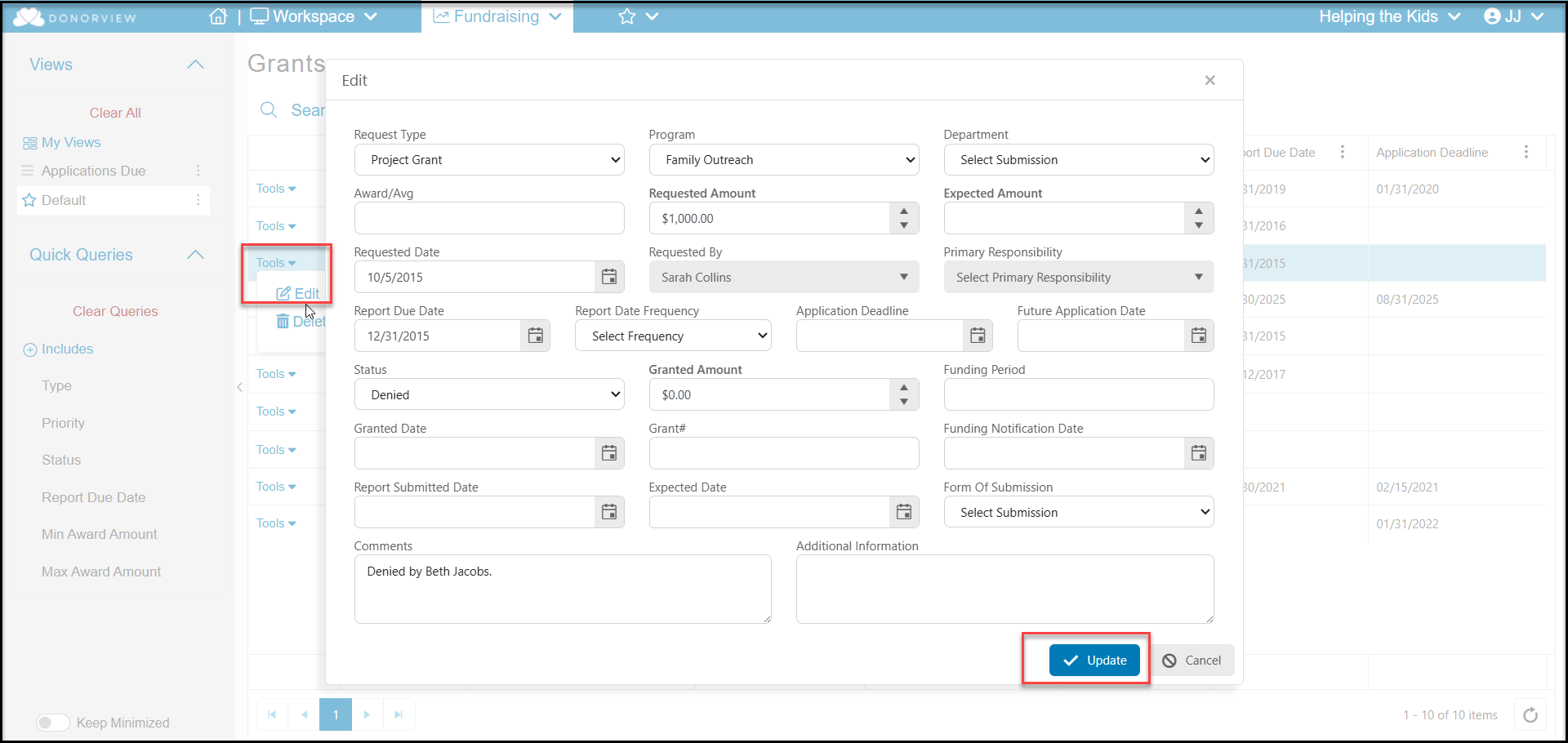
When you have a proposal to add, click on the Add Proposal button to open a new window and enter the appropriate information.
Fields include:
- Request Type - an editable drop down list to identify what type of request for support you are making, for example Matching Grant or Capital Campaign.
- Program - an editable drop down list for you to include your organization's program to be supported with this proposal.
- Department - an editable drop down list for your to identify your organization's department that will be utilizing this grant funding.
- Award/Avg - enter what this grantor's average award amount is for this type of proposal.
- Requested Amount - enter the amount you have requested.
- Expected Amount - enter the amount you expect to receive from the grantor.
- Requested Date - enter the date the proposal was submitted.
- Requested By - enter who in your organization submitted the request.
- Primary Responsibility - enter who in your organization will be responsible for managing the grant.
- Report Due Date - enter the date the next report is due. You may need to update this field over time if multiple reports are due.
- Report Date Frequency - an editable drop down list to identify the report frequency.
- Application Deadline - enter the date the application is due, if applicable.
- Future Application Date - enter another potential application date, if applicable.
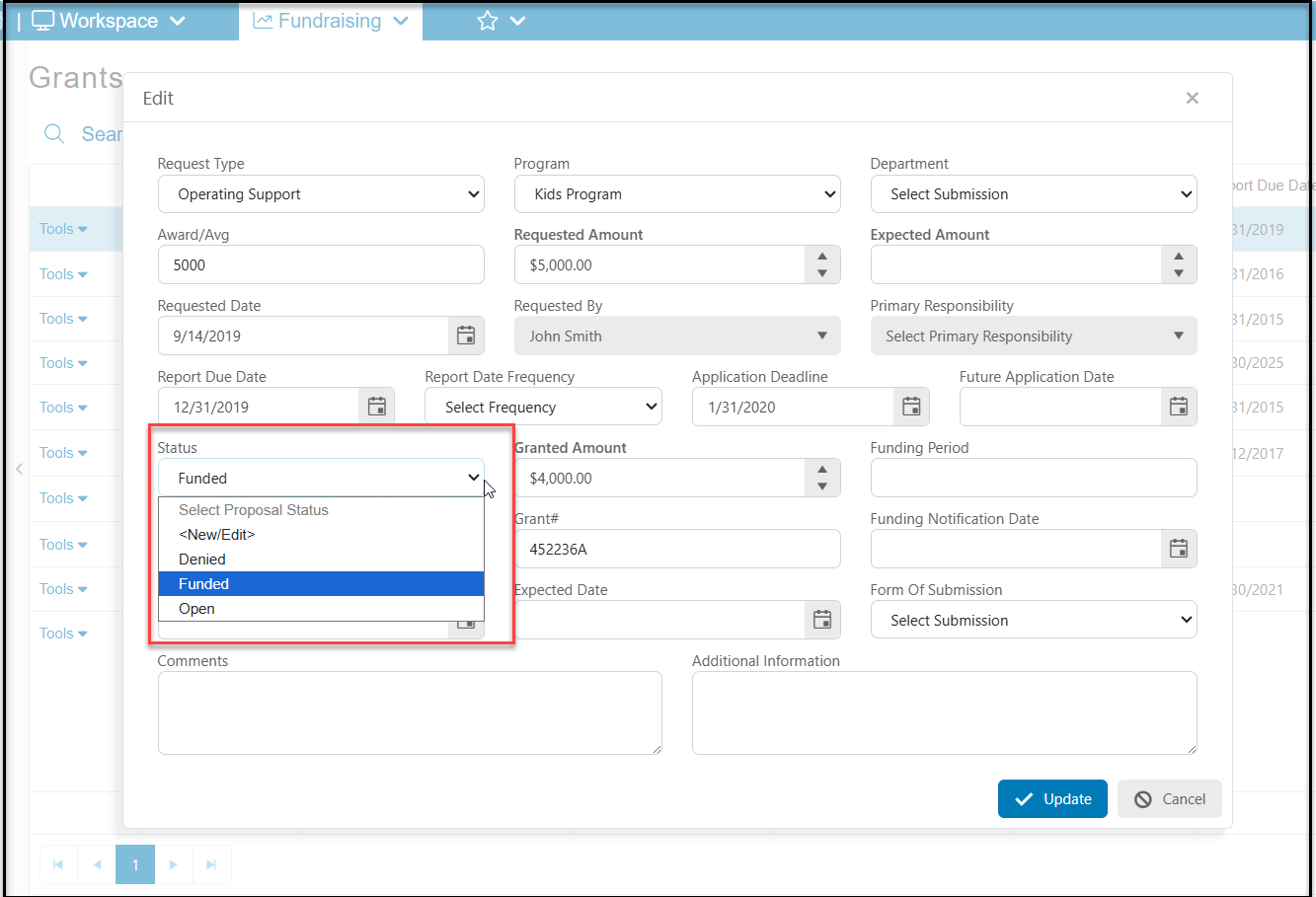
- Status - by default this field is a drop down list containing:
- Denied - the proposal was declined by the grantor
- Funded - the proposal was accepted and funded by the grantor
- Open - you are waiting for a response from the grantor
- You can add additional options if desired
- Granted Amount - the actual amount awarded from the grantor
- Funding Period - you can enter a date range covered by this grant, such as October 2026 - September 2027
- Granted Date - the start date of the grant award
- Grant # - a number assigned by the grantor, or your organization if you assign numbers internally
- Funding Notification Date - enter the date you were notified of the grant award
- Report Submitted Date - the date you submitted your report, note you may have to update this field if multiple reports are required
- Expected Date - expected date to receive the funds
- Form of Submission - an editable drop down field to identify how the grant proposal was submitted
- Comments - a text field to add comments about the grant
- Additional Information - an additional text field for information about the grant proposal, award, reports, or other information as desired.
Click Update when you have updated the desired fields. This will add the proposal to the constituent's Grantor Info tab as well as the Grants grid in the Fundraising module.
All grant proposals for a particular constituents are listed in the Grantor Info tab.
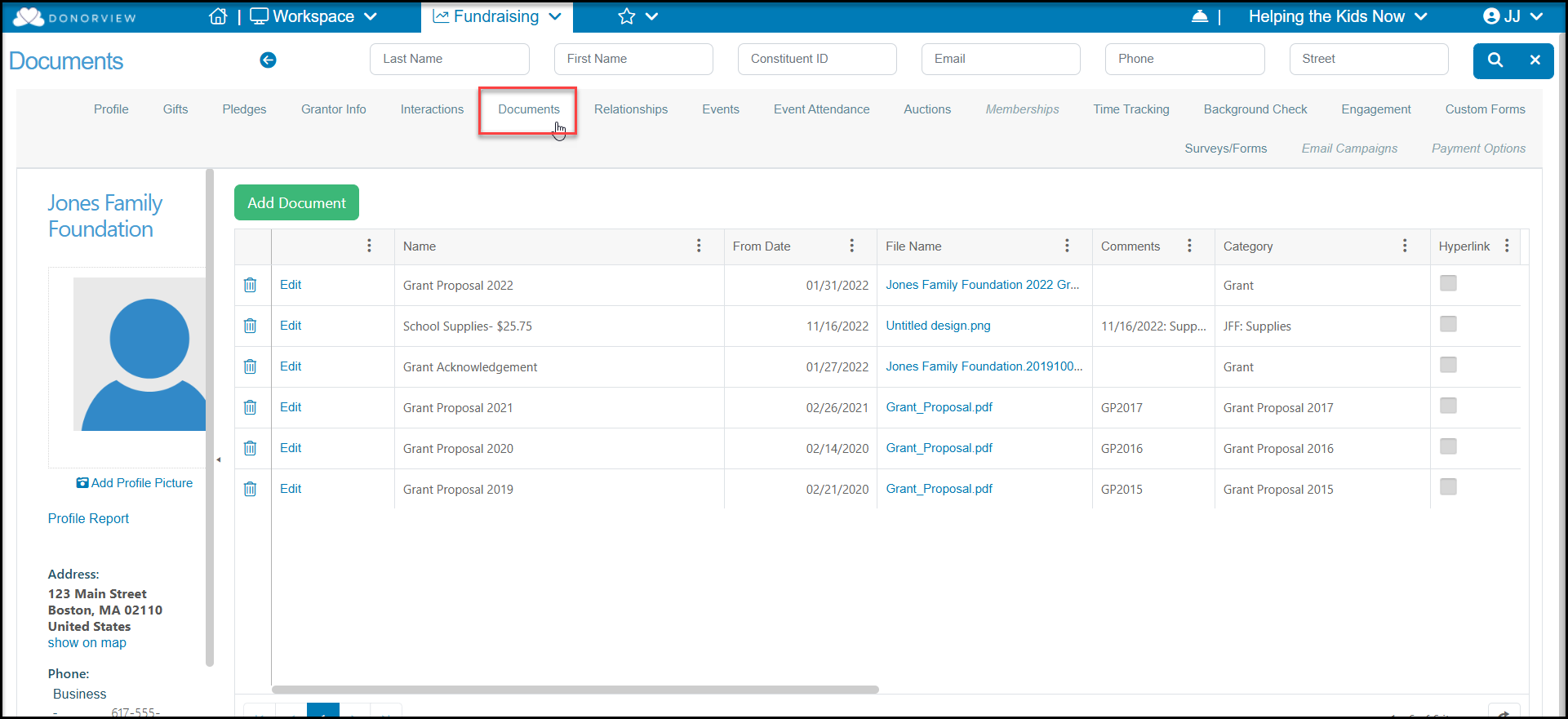
If you have documents associated with this grant, you can also upload them into the constituent's Documents tab to maintain all of the records and information in one place.
Grants Grid & Grant Management
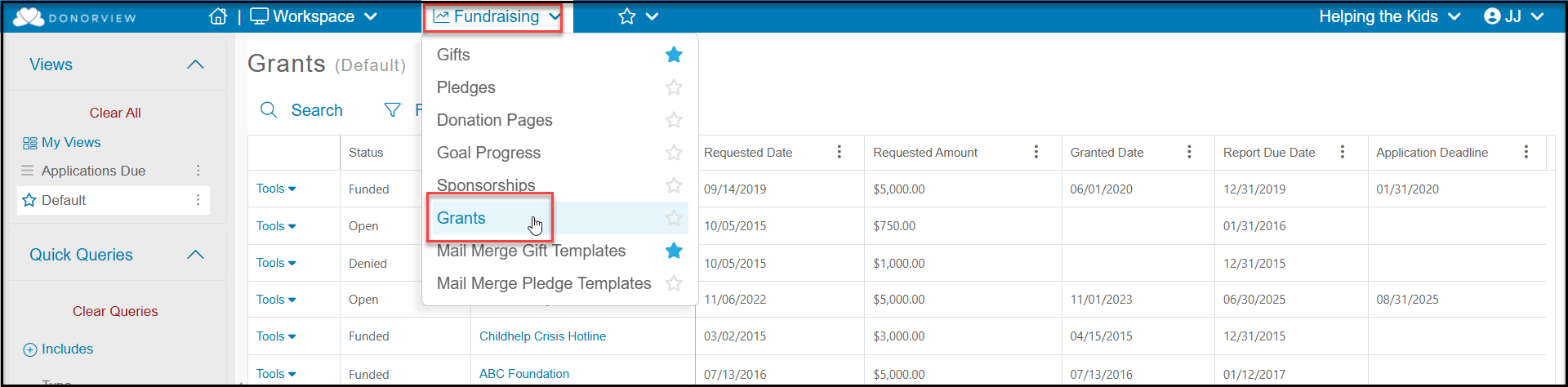
You can find all grants proposals and see their status by going to Workspace >Fundraising > Grants.
Here you will see a grid will all the grant proposals that have been submitted to all the grantors.This grid works like others in the software and you can create custom views for things like the Status or Report Due Date.
The Actions menu will also allows you to export the data in this view to Excel.
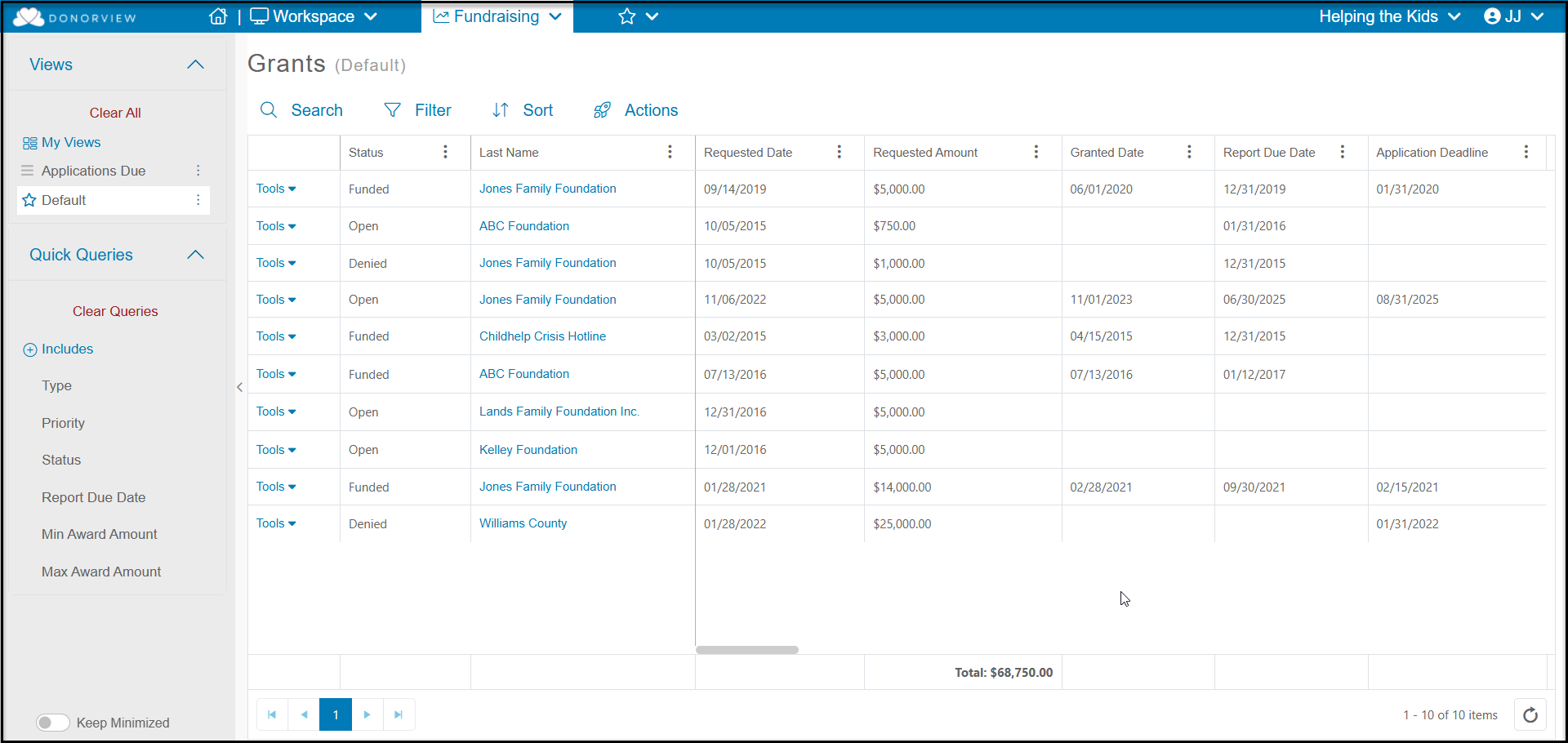
The tools menu on the left side of each row will allow you to select Edit to open the proposal and add or edit information for that specific proposal, like recording reports sent or changing the status. Click Update to save your changes.
Linking Grants to the Donation Entry
-
Once the grant gets funded, open the grant proposal from the Grants Grid by double clicking on the tools on the left side of the grid, the Edit.
-
Change the Status to "Funded."
-
Enter the Granted Amount.
-
Enter the Granted Date.
-
Complete any other fields as desired and click Update to save the changes.
-
Be sure you have a Mail Merge Gift Template letter already created for acknowledging grants if you wish to use the Save And Acknowledge feature after entering the gift.
-
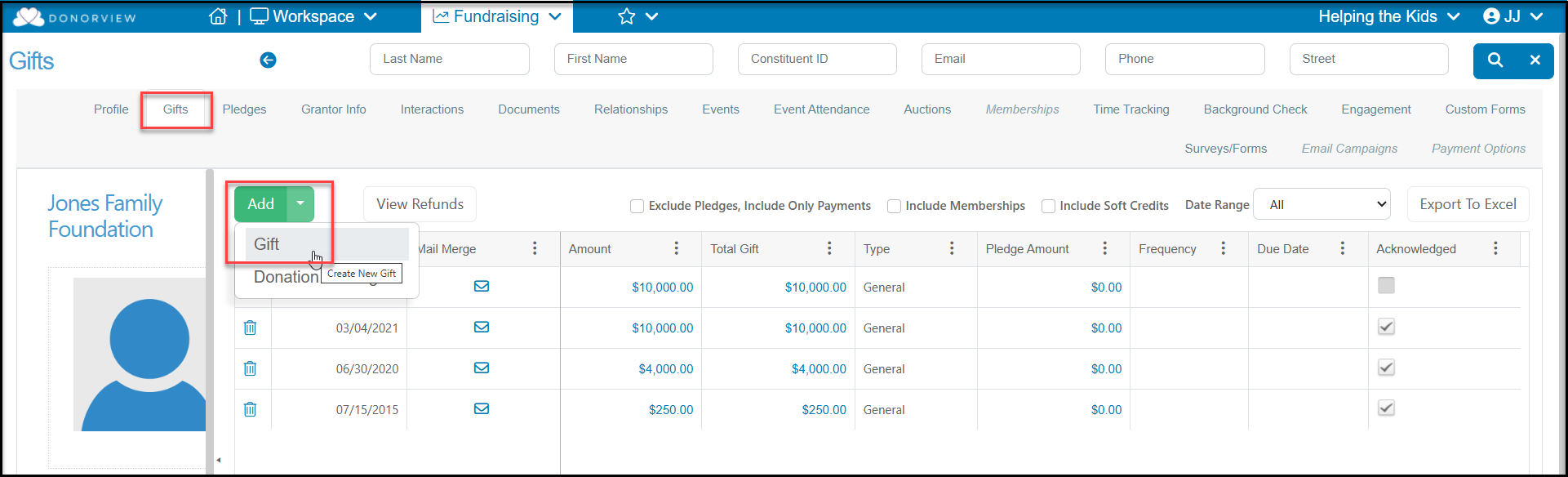
When the funding is received, you will go to the grantor's Gifts tab to enter the donation and link it to the grant.
-
On the Gift Entry page, you will enter the type as General, and enter the Amount and Date of the transaction as well as revenue categories as applicable.
-
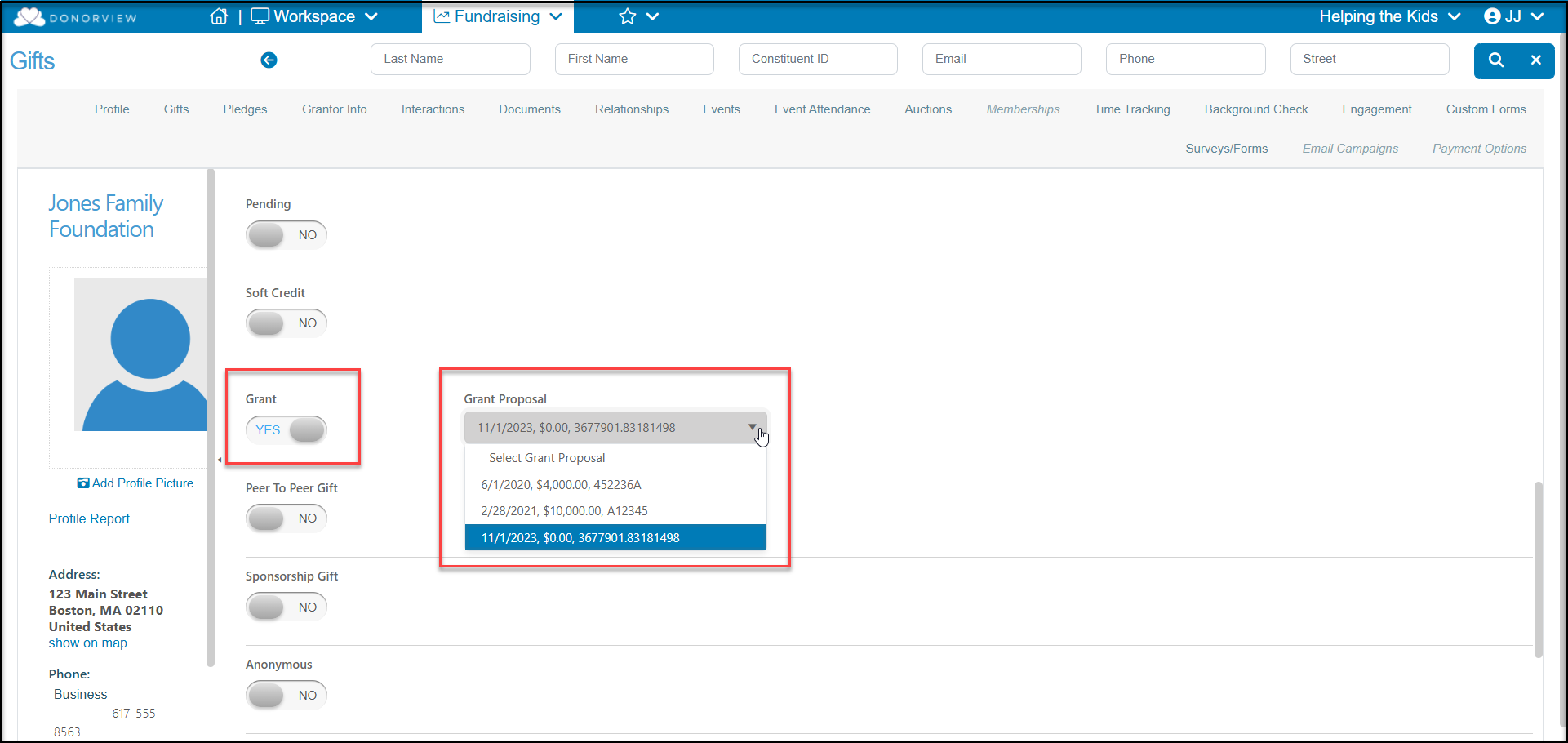
Farther down the page you will find the Grant toggle, which you will set to YES.
-
Once this is set to YES, a new option appears to select the Grant Proposal to link this funding to. Note that only grant proposals with a Granted Amount and Granted Date fields completed will appear in the drop down list.
-
You can link multiple transactions to the same proposal in the case where the funding may come in smaller increments instead of a lump sum.
-
Complete the rest of the entry and click Save or Save And Acknowledge to send your thank you message.
-
Transactions that are linked to grants will appear on the grantor's Gifts tab as well as on the Gifts grid.
-
You can filter by the Grant column to identify any transactions linked to funded grant proposals.
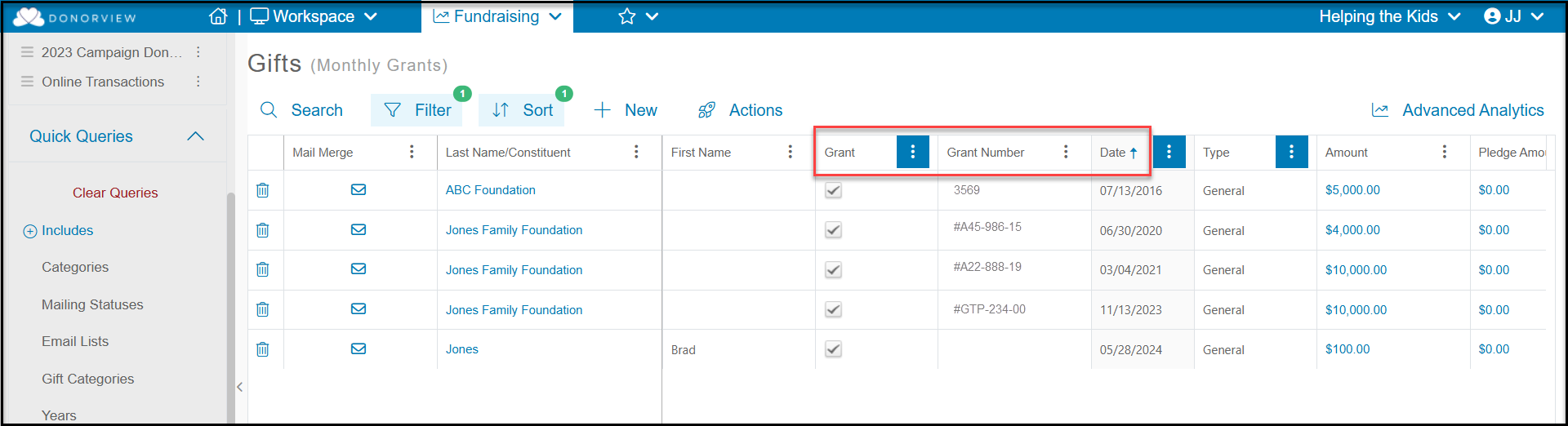
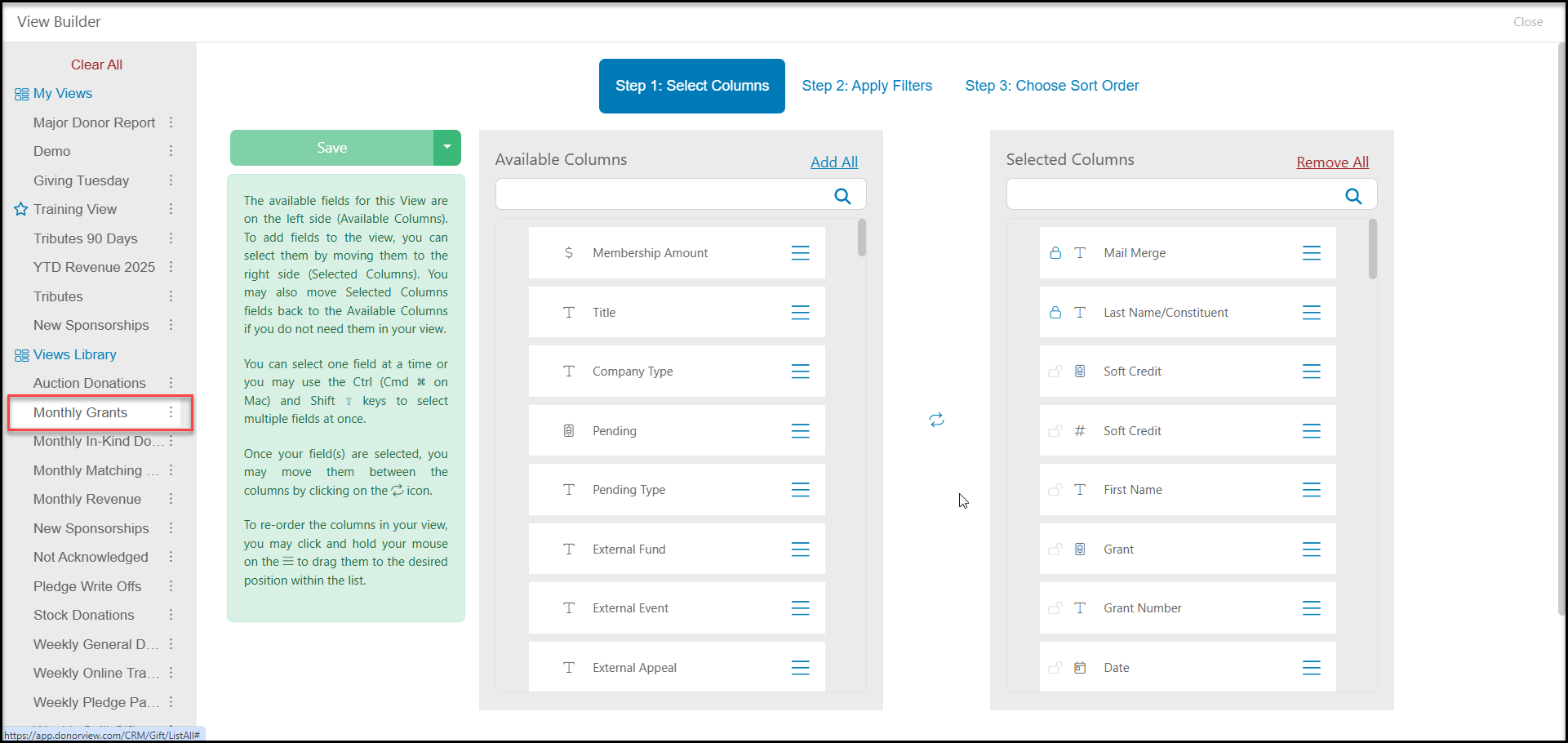
- The Gifts grid View Builder also has a Monthly Grants premade view to use as a starting point. It is set up to only report on funded grants for the current month, but you can change the Date range in the Quick Queries menu.