How do I show that a grant has been funded?
-
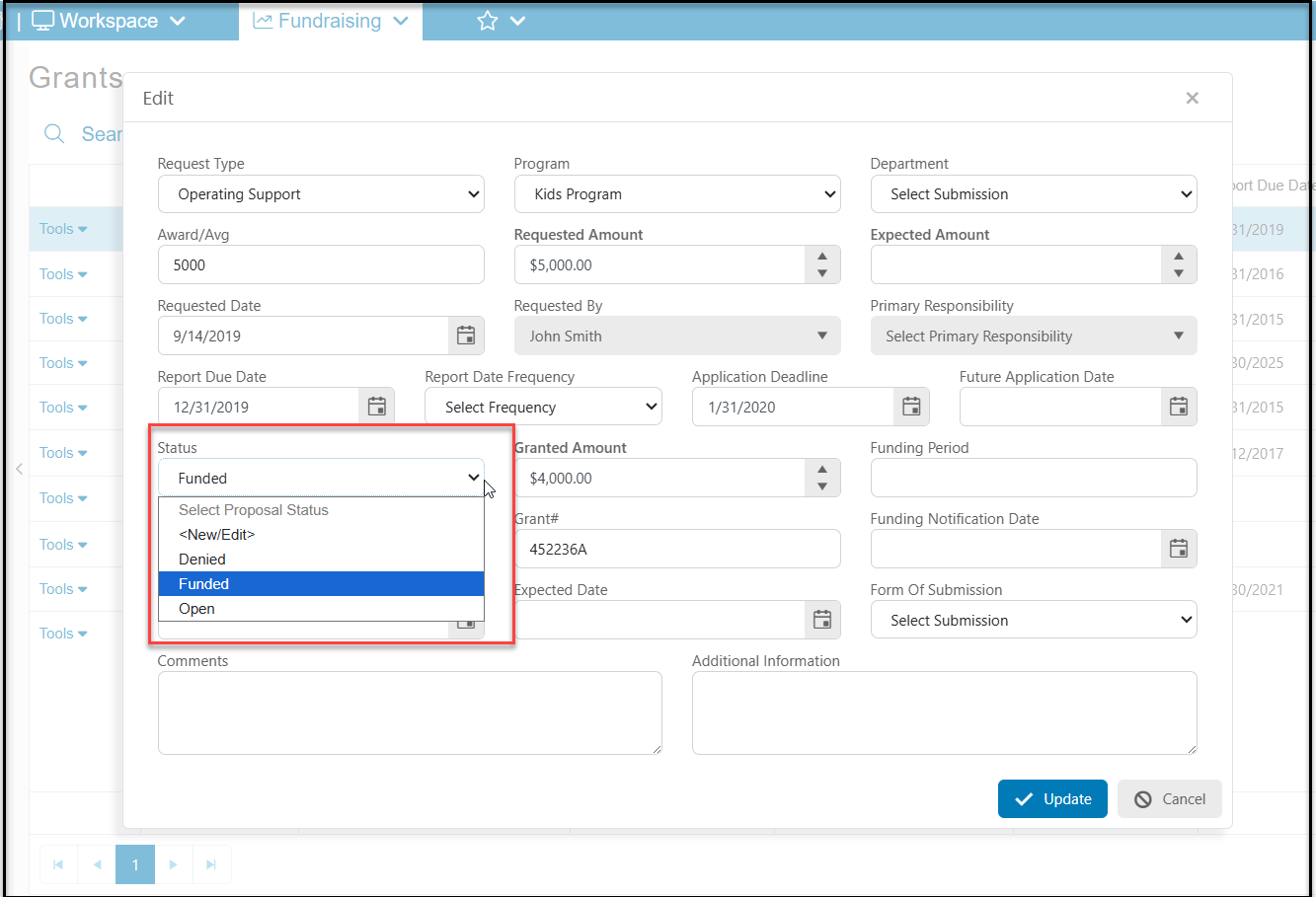
Once the grant gets funded, open the grant proposal from the Grants grid by double clicking on Tools on the left side of the grid, then Edit.
-
Change the Status to "Funded" and complete the remaining fields. Click Update to save the changes.
-
Be sure you have a Mail Merge Gift Template letter already created for acknowledging grants if you wish to use the Save And Acknowledge feature after entering the gift.
-
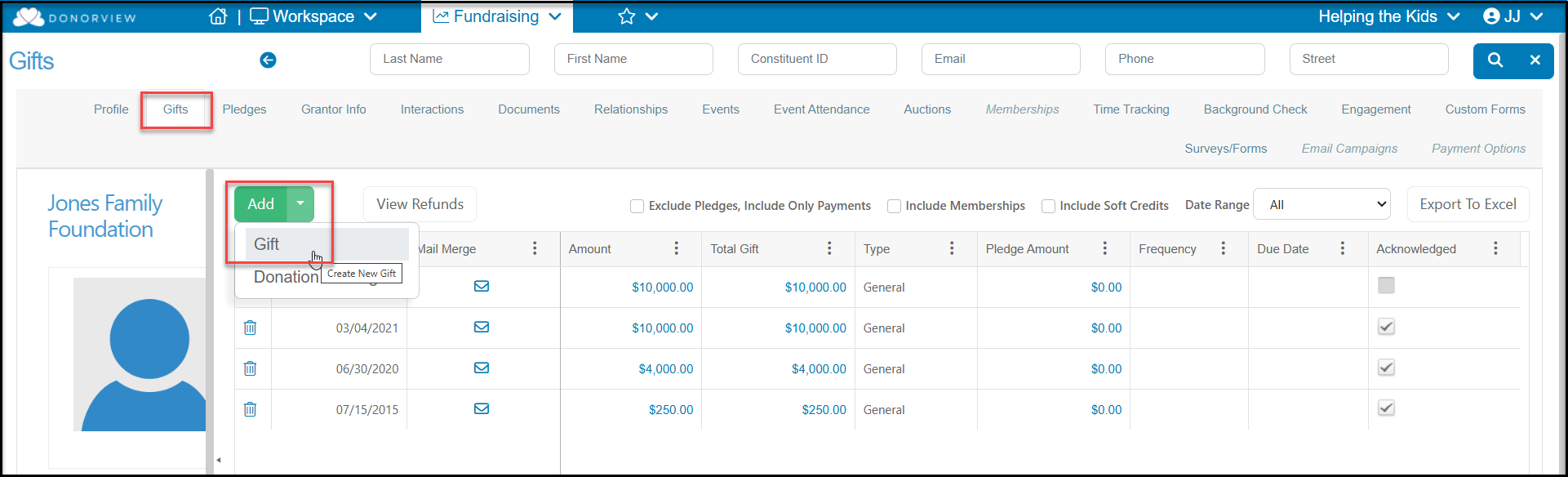
When the funding is received, you will go to the grantor's Gifts tab to enter the donation and link it to the grant.
-
On the Gift Entry page, you will enter the type as General, and enter the Amount and Date of the transaction as well as revenue categories as applicable.
-
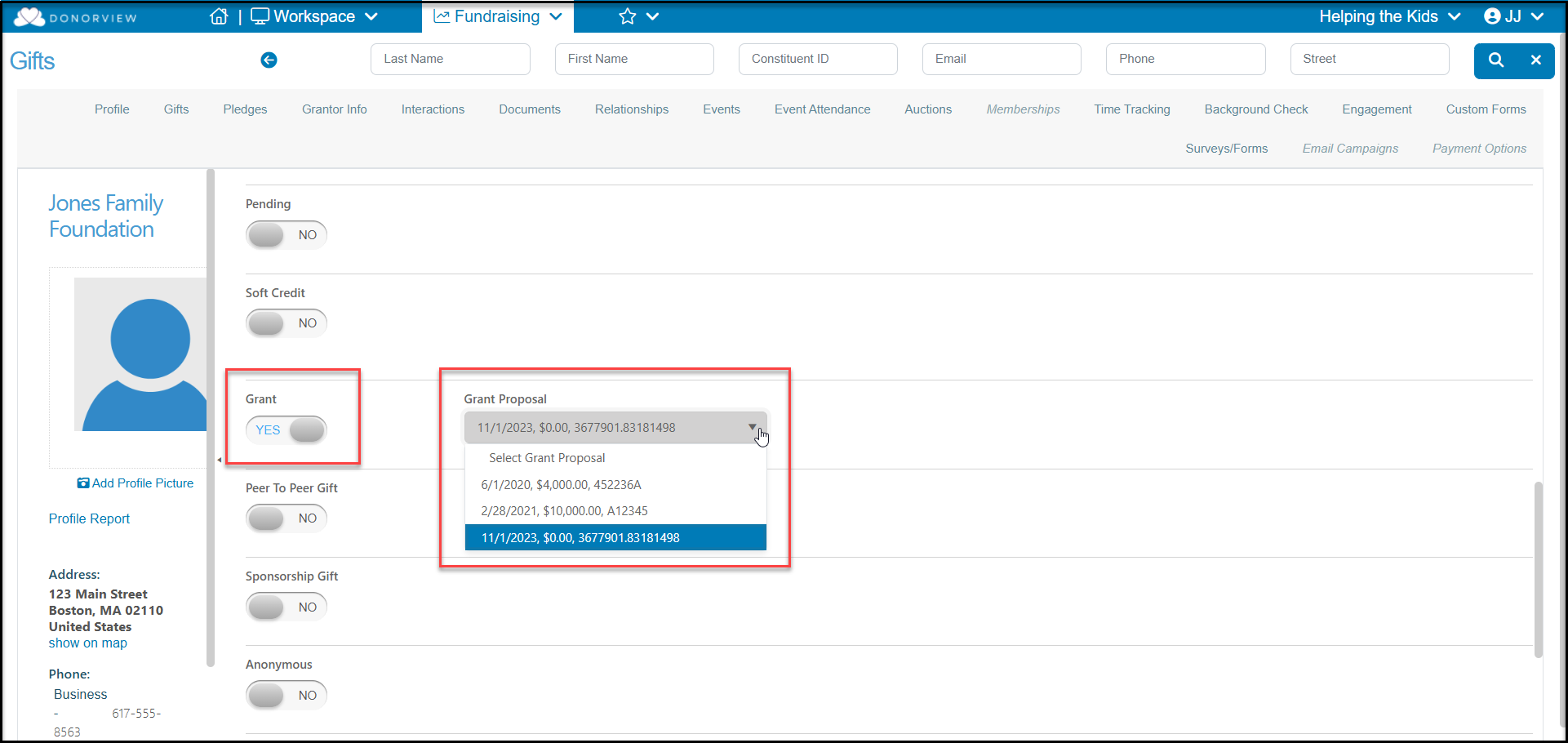
Farther down the page you will find the Grant toggle, which you will set to YES.
-
Once this is set to YES, a new option appears to select the Grant Proposal to link this funding to. Note that only grant proposals with the Status of "Funded" will appear in the drop down list.
-
You can link multiple transactions to the same proposal in the case where the funding may come in smaller increments instead of a lump sum.
-
Complete the rest of the entry and click Save or Save And Acknowledge to send your thank you message.
-
Transactions that are linked to grants will appear on the grantor's Gifts tab as well as on the Gifts grid.
-
You can filter by the Grant column to identify any transactions linked to funded grant proposals.
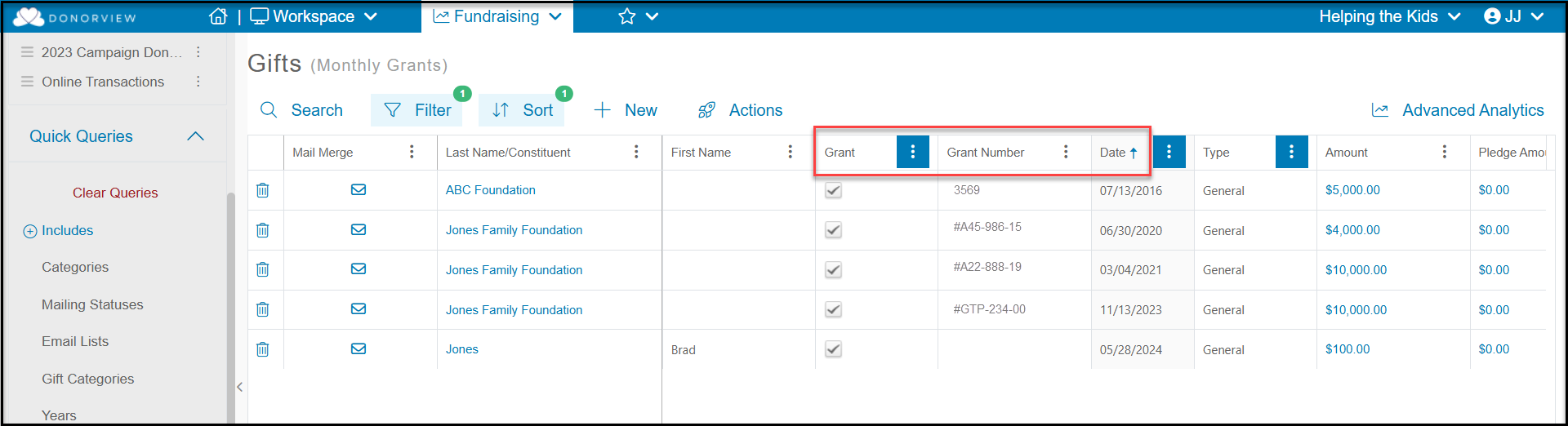
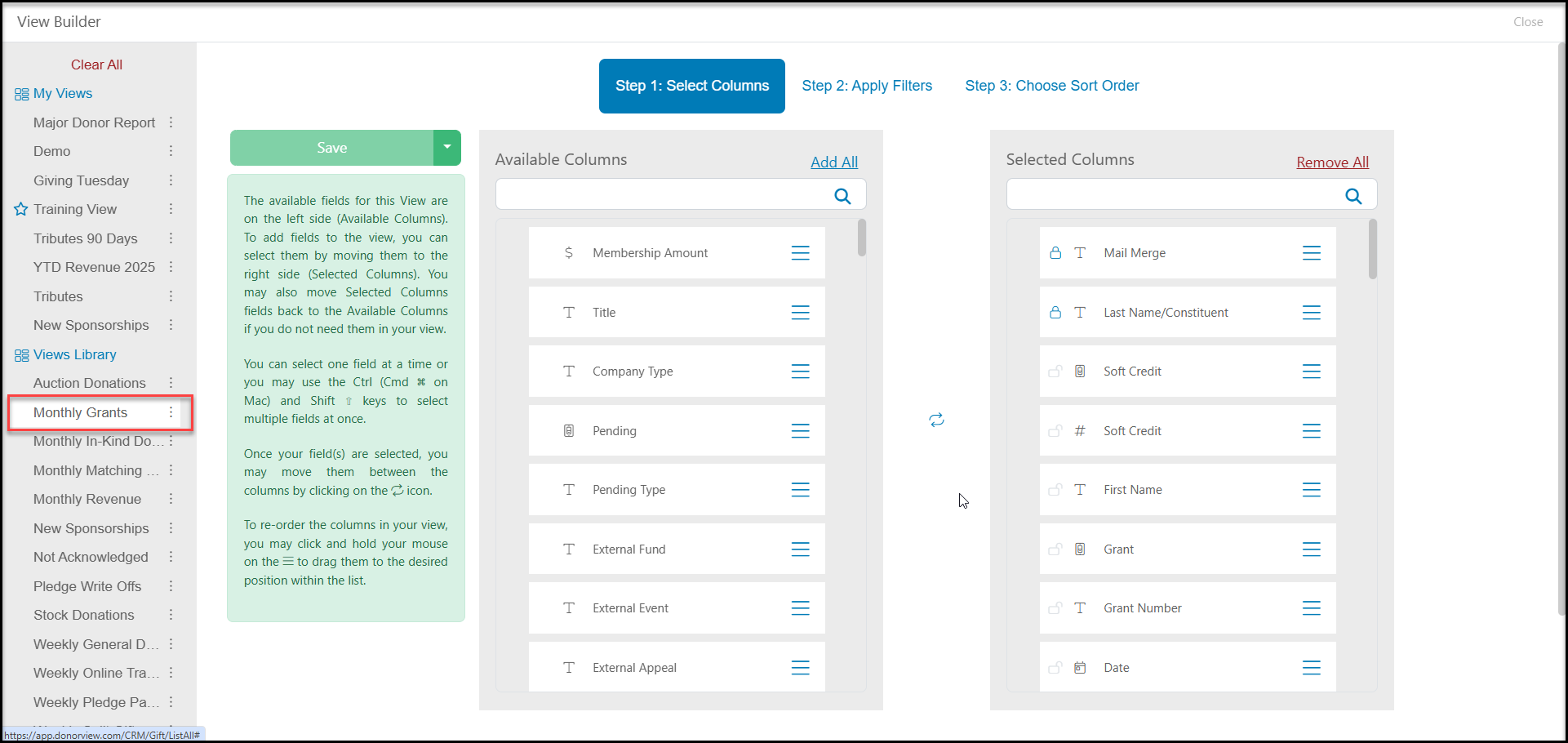
- The Gifts grid View Builder also has a Monthly Grants premade view to use as a starting point. It is set up to only report on funded grants for the current month, but you can change the Date range in the Quick Queries menu.