
You can create an email template from scratch by adding blocks and then inserting content into those blocks. You can learn more about getting your email template started in this article "How do I create and edit an email template?"
Content must be added to columns inside of blocks. Your blocks will include some basic content, like text or an image. You can add additional content by clicking on the Blocks tab, then clicking on the Content menu.
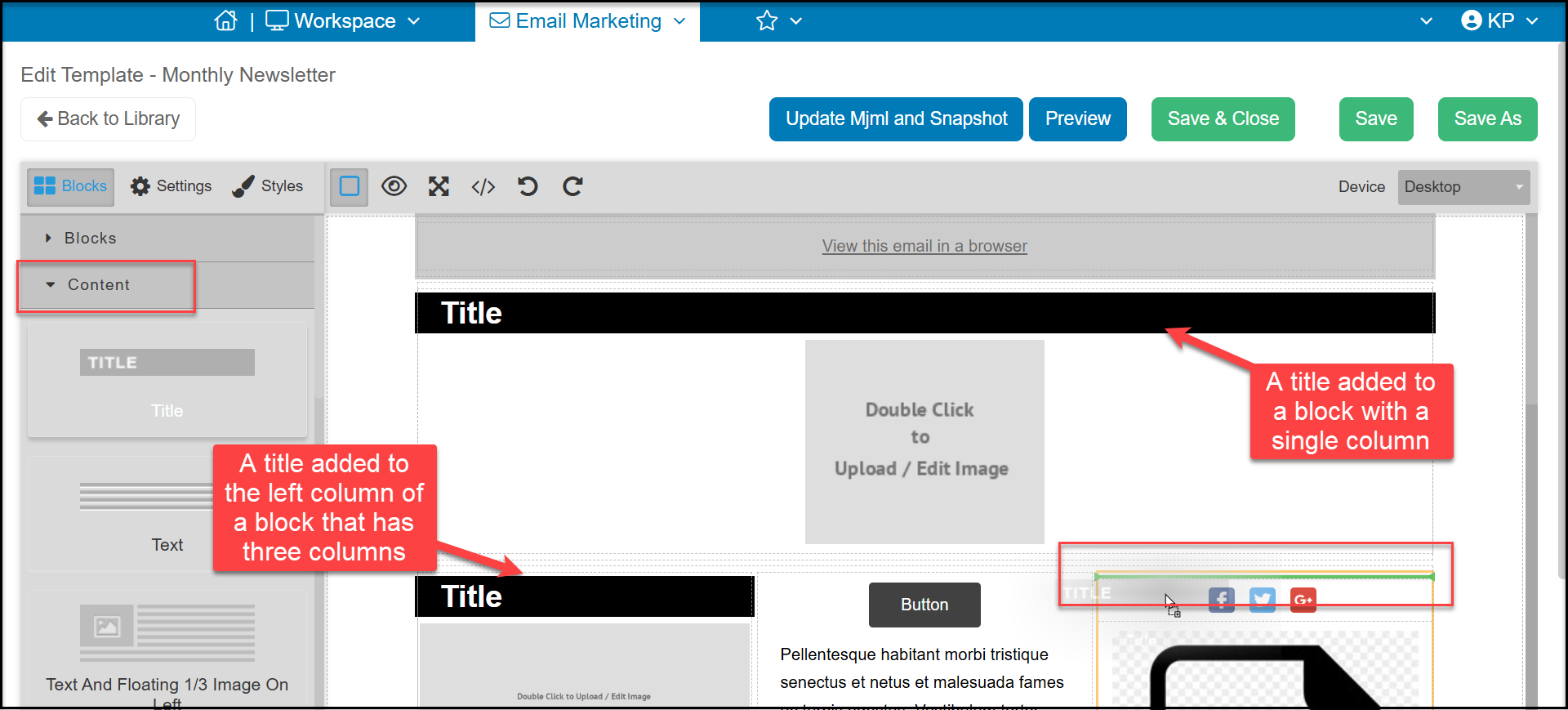
Like blocks, you can drag and drop your selected content into a column. A green line will show where you can place the content. Content can only go inside a column above or below existing content in the column.
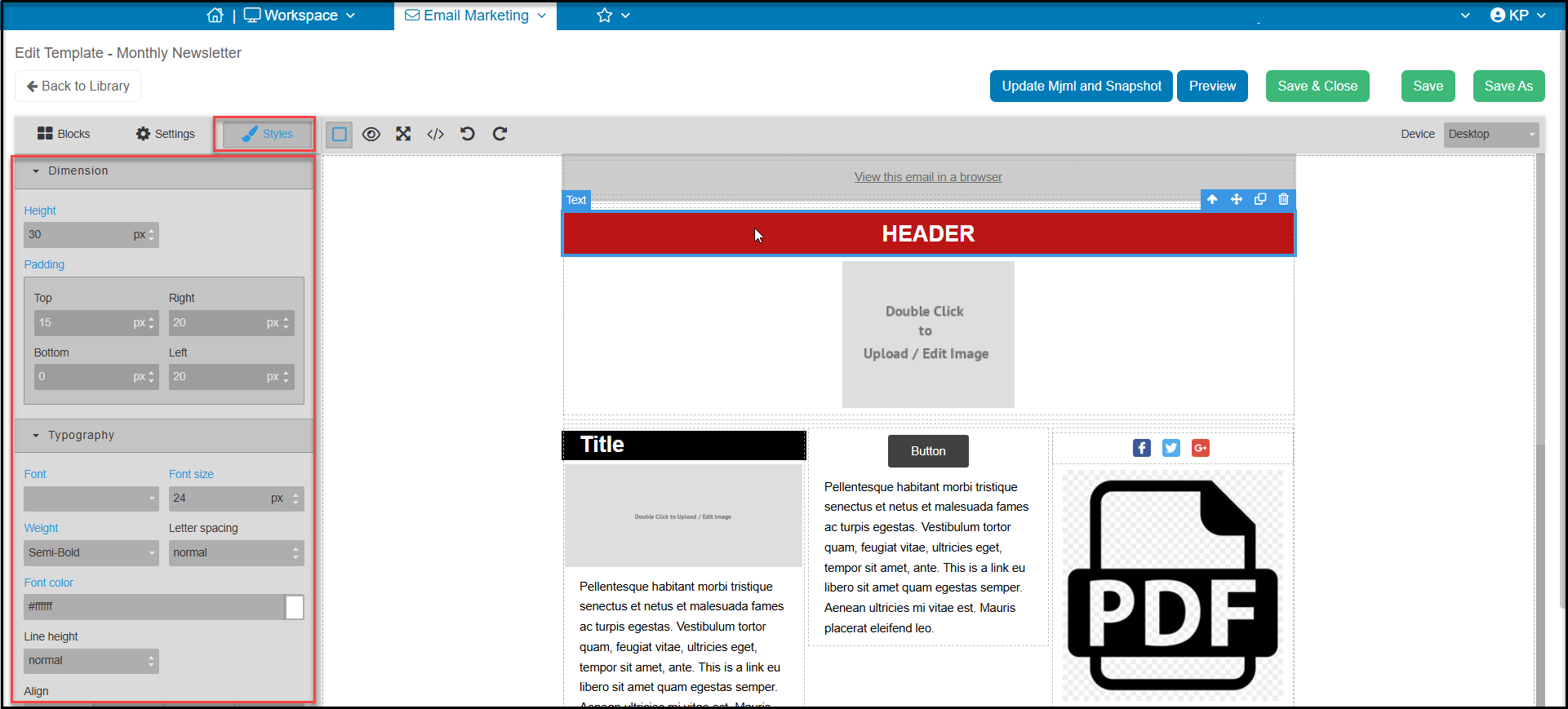
The content will stretch to fill the width of the column as shown in with the Title below.
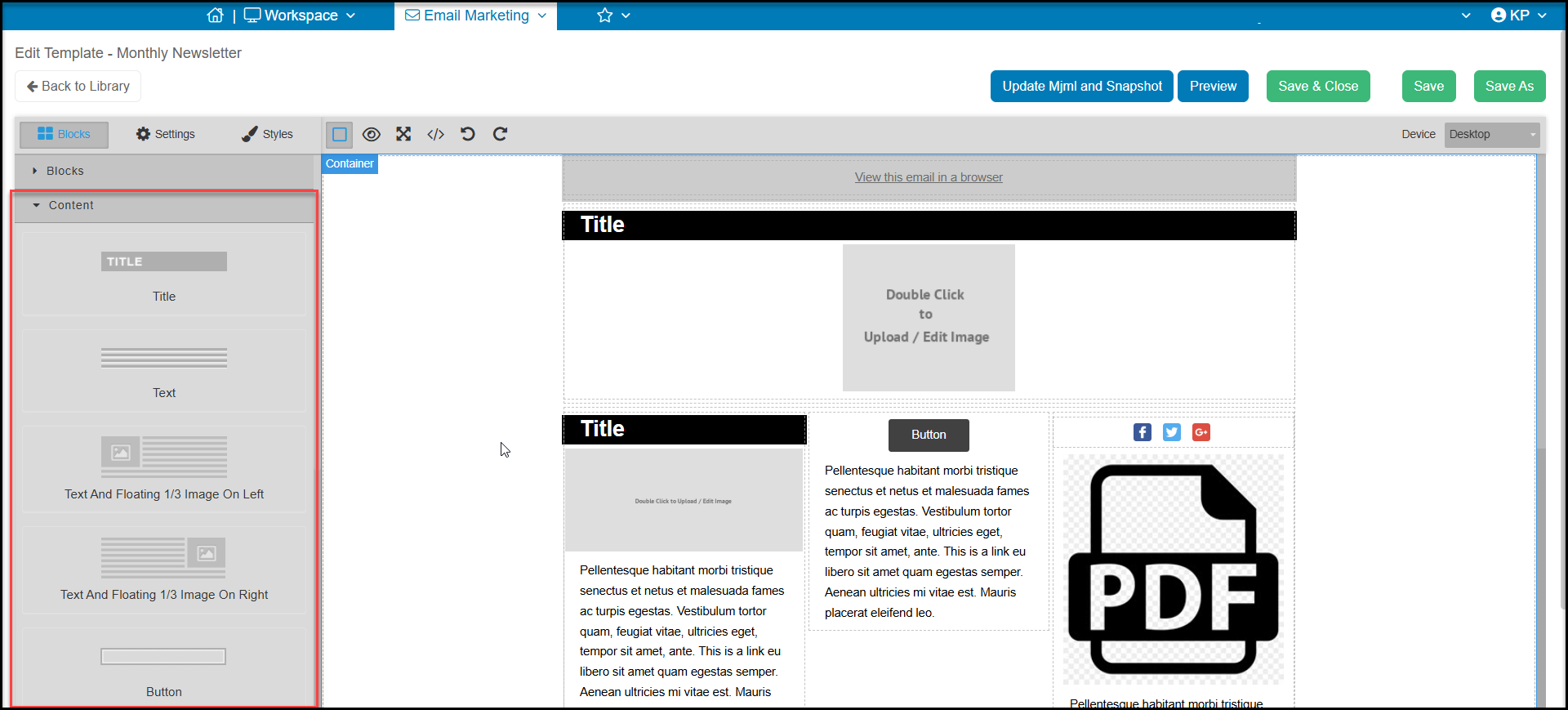
Content that can be added to a column includes:
- Titles
- Text
- Images
- Text and Floating Image (this is where the text will wrap around the image)
- Button
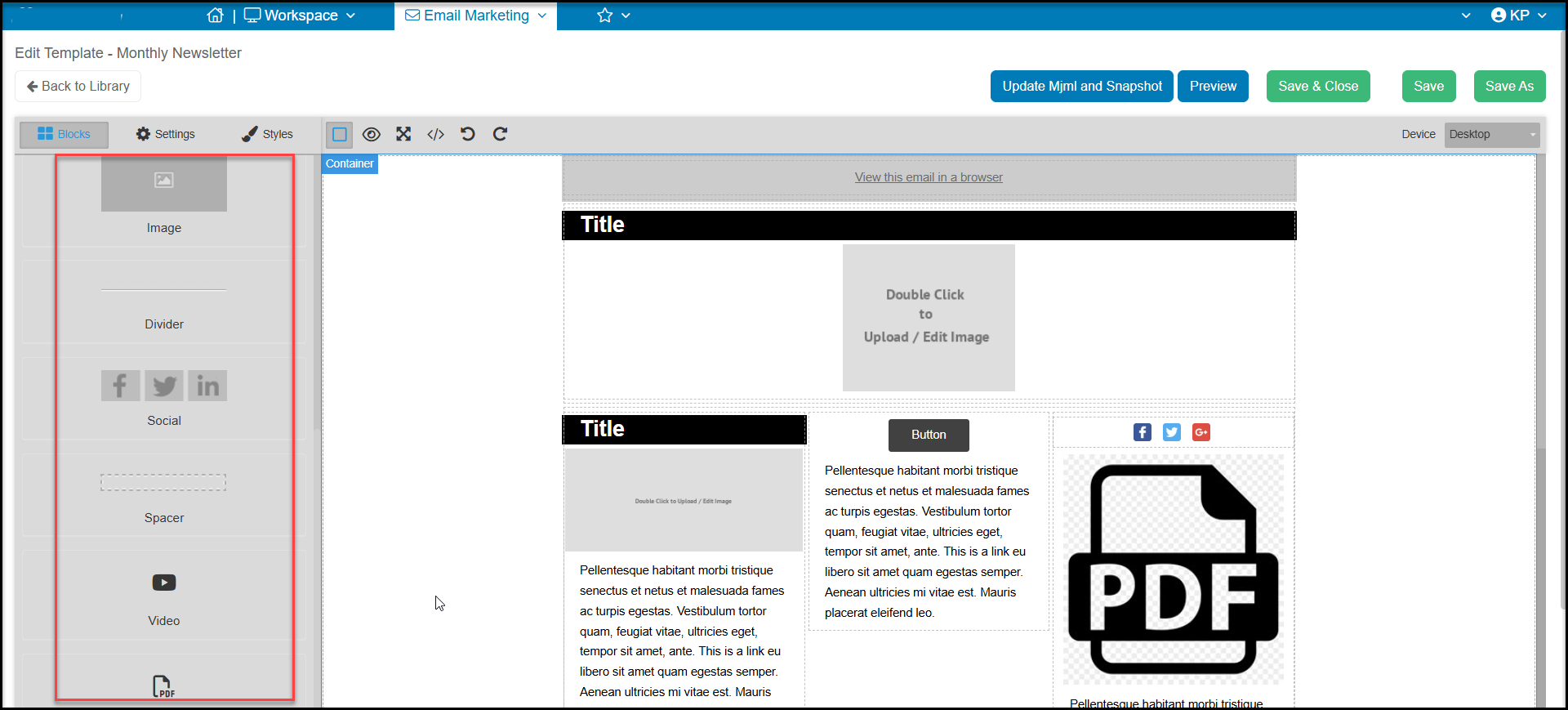
- Divider
- Social Media links
- Spacer
- YouTube Video link
- PDF file link
Adding Titles
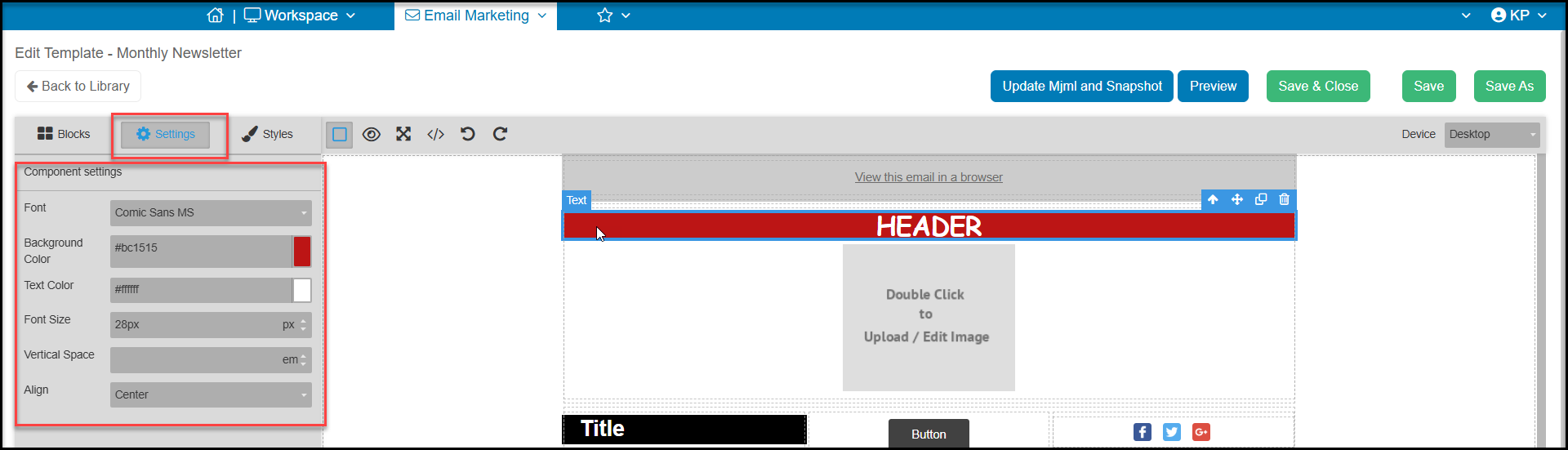
You can add a bold title to any column. When you drag and drop a title into a column, you can click on that element to be able to access the Settings tab to edit it. You can edit the:
- Font
- Background Color
- Text Color
- Font Size
- Vertical Space - which is the spacing between the lines for multi-line headers
- Alignment
To change what the title actually says, you need to double click on the element. Once you double click, you can place your cursor in the field to type what you would like the title to display.
You can also edit style features for this element by using the Styles tab and edit the Height of the title element, the Padding around the text, and other Typography details.
Adding Text
You can add text to any column and use the same tools to edit existing text. As a placekeeper, Latin text is placed in text elements. You can drag and drop Text into any column. As with other elements, a green line will appear in the body of your email to show where the text box can be added.
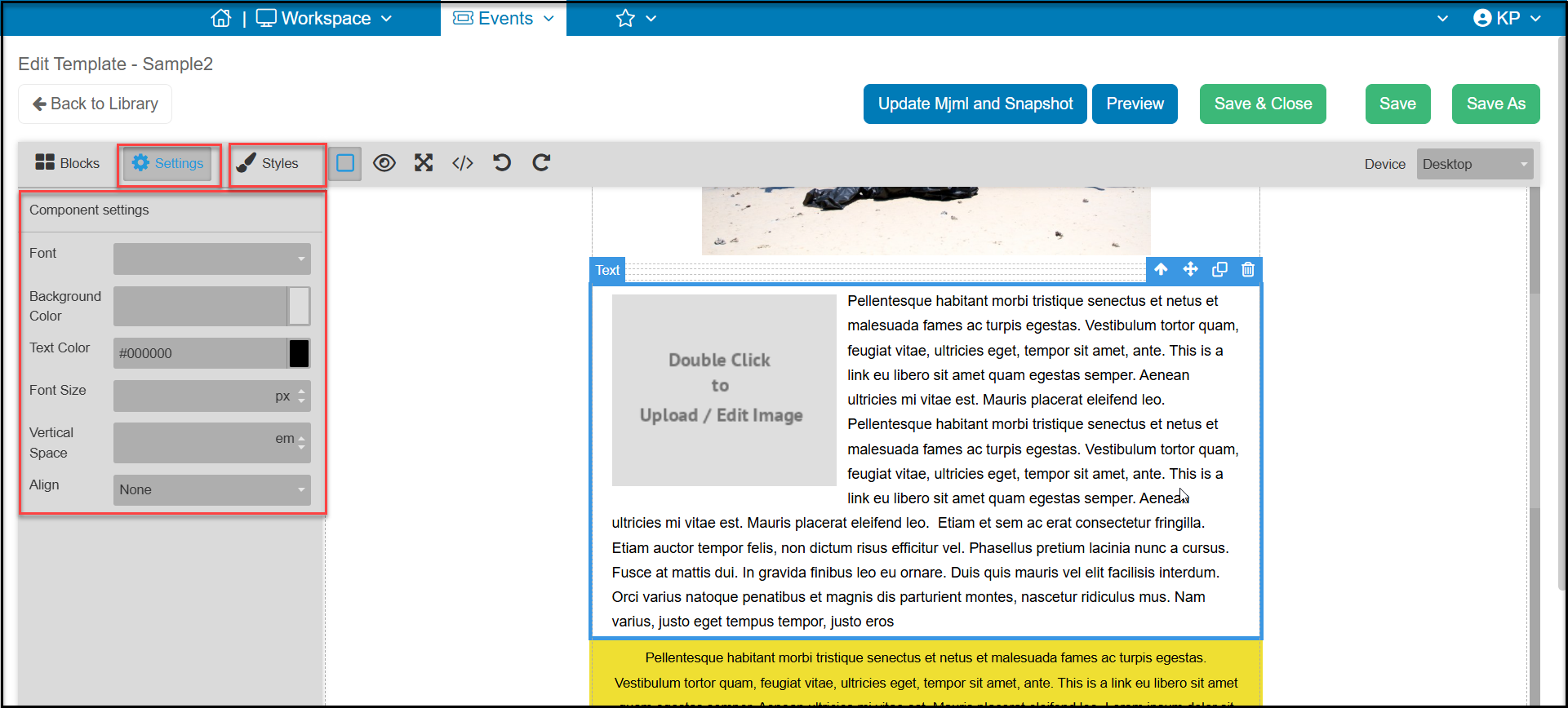
To edit the entire text element, click once anywhere in the box. Under the Settings tab you can edit:
- Font
- Background Color
- Text Color
- Font Size
- Vertical Space - which is the spacing between the lines for multi-line headers
- Alignment
This will change all of the font inside the box.
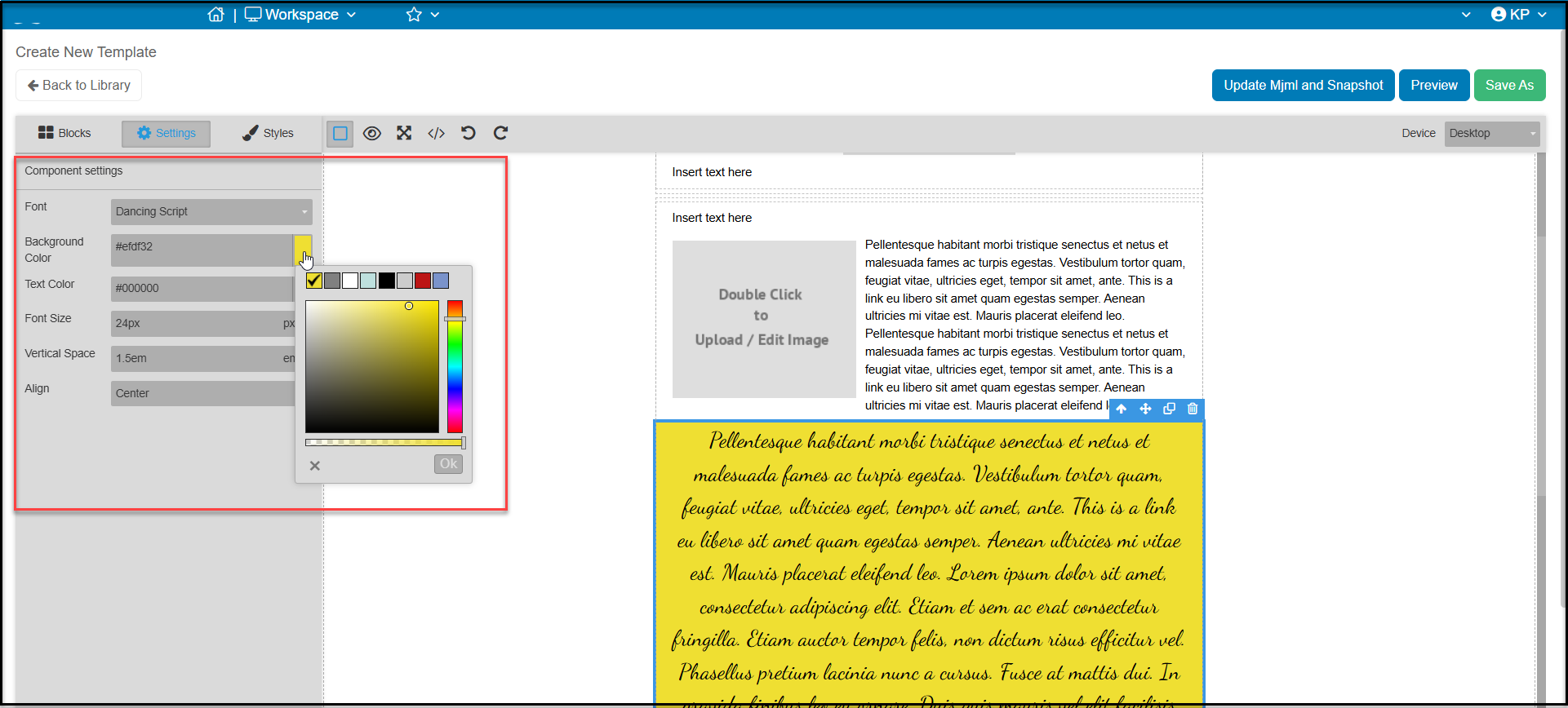
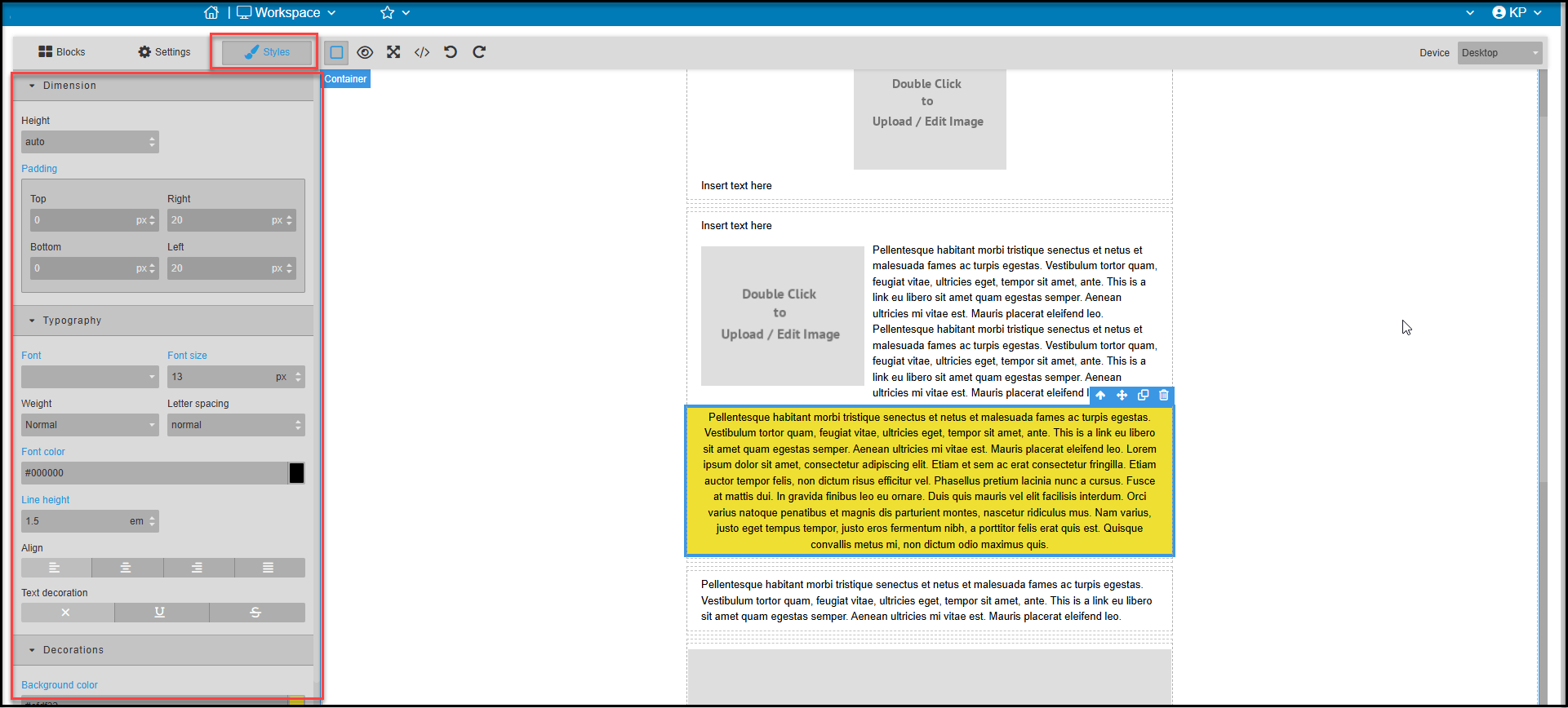
For even more graphics tools, use the Styles tab and edit the Dimensions of the title element, the Padding around the text, other Typography details, and Decorations which allows you to update the background color.
The Settings and Styles tabs affect the entire text box. To edit the specific text, double click in the text box to reveal a new menu either at the top or bottom of the box. You can then delete the sample text and start typing in the box to add your text. You can also use copy/paste to insert text you have created elsewhere.
If you copy and paste text, be sure to remove all text formatting prior to copying and pasting the text into the template. If you do not remove all the formatting prior to inserting the text into the template, there may be hidden formatting that is difficult to modify.
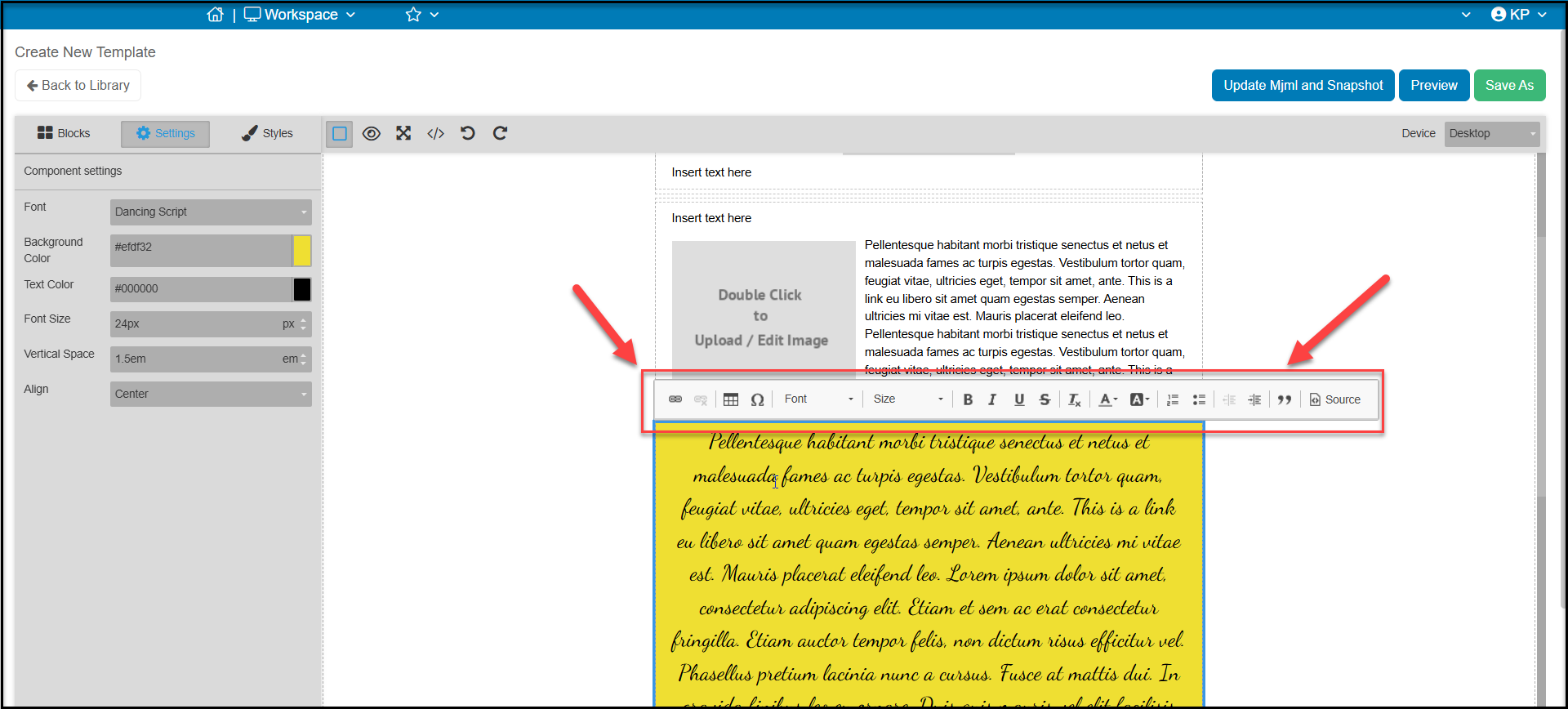
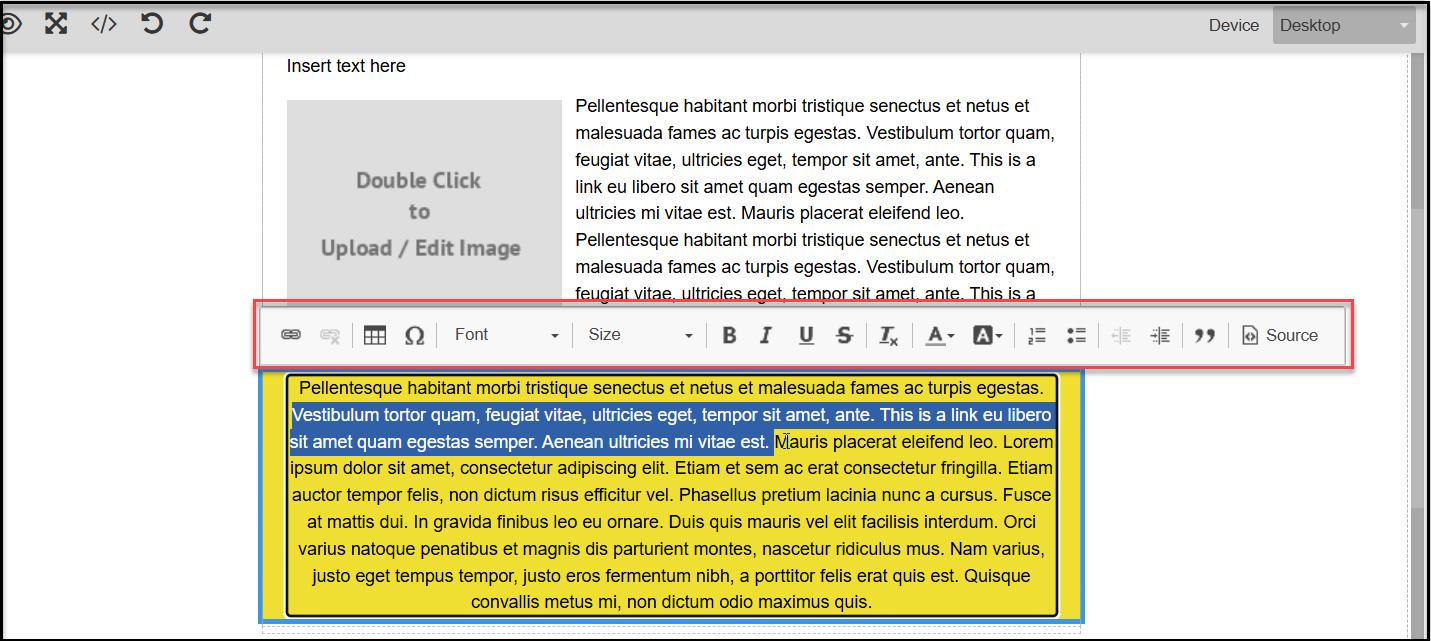
When you highlight text, from left to right on the menu you can:
- Add Hyperlinks (link icon on left)
- If a hyperlink is inserted, you can Remove Hyperlink with the next icon
- Add a Table
- Add a Special Character
- Change the Font
- Change the font Size
- Make the font Bold, Italics, Underline, and Strikethrough
- Select a font Color and Highlight font with a background color
- The “Tx” removes applied formatting
- Add Number or Bullet list
- Indent text
- Add a Block Quote
- Import html Source text
Adding Images
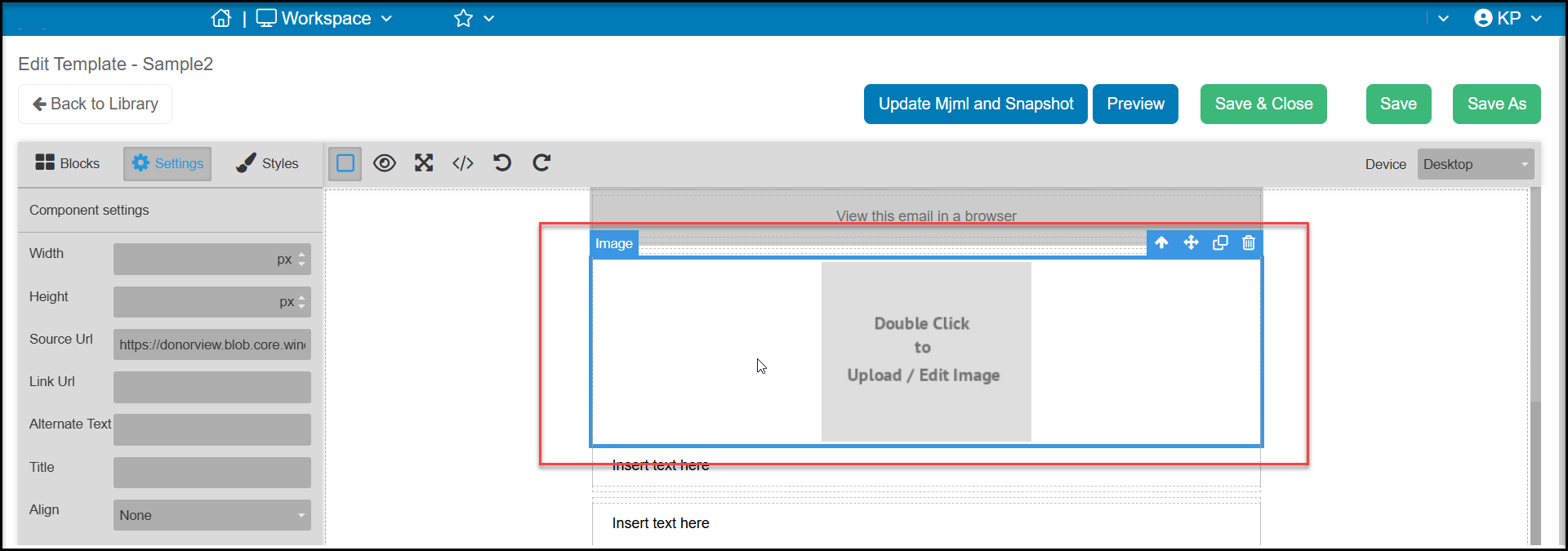
You can drag and drop an image into any column. As with other elements, a green line will appear where the image can be placed. Start by double clicking on the image box to open the media library.
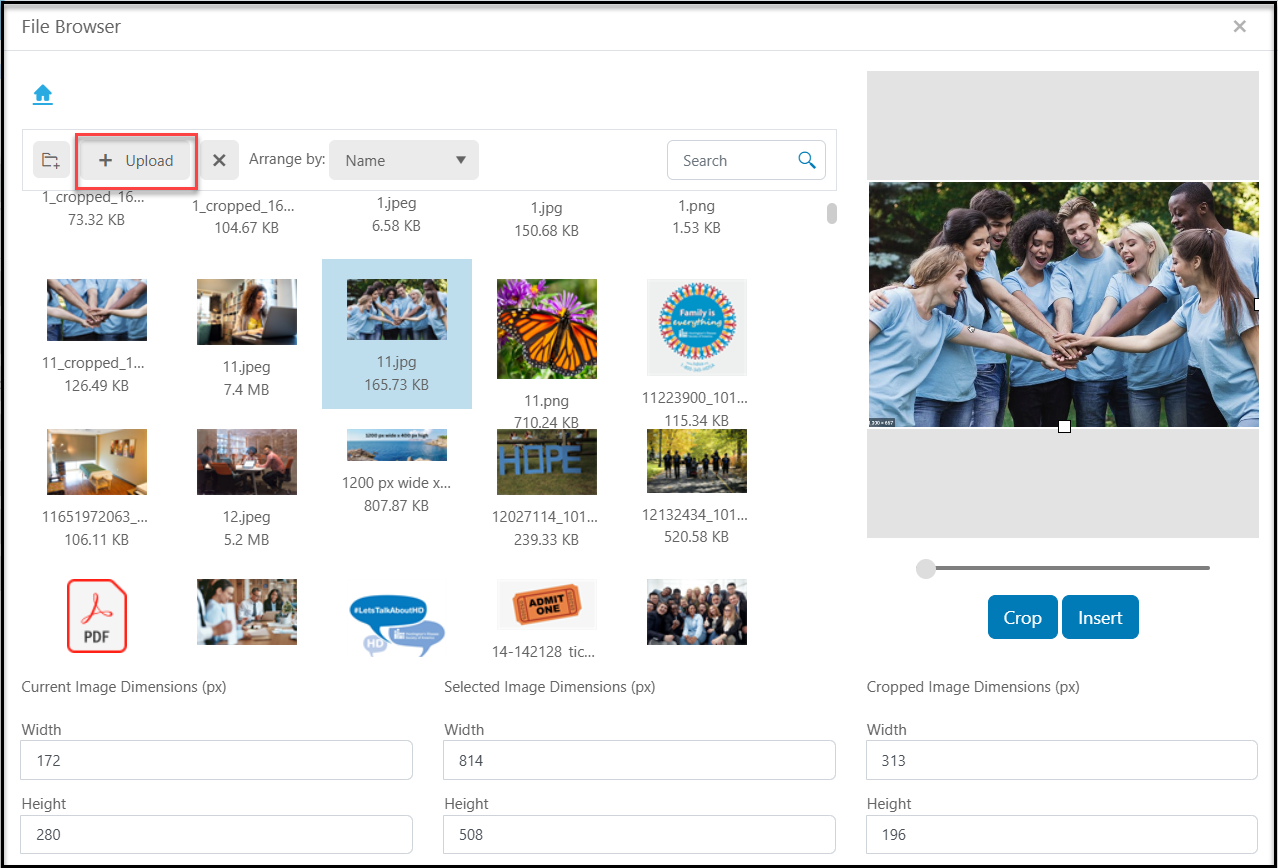
In the media library window, you can select an image to use from your existing files, or you can upload a new image with +Upload button. With the image selected, you can click on Insert to add the image into your document.
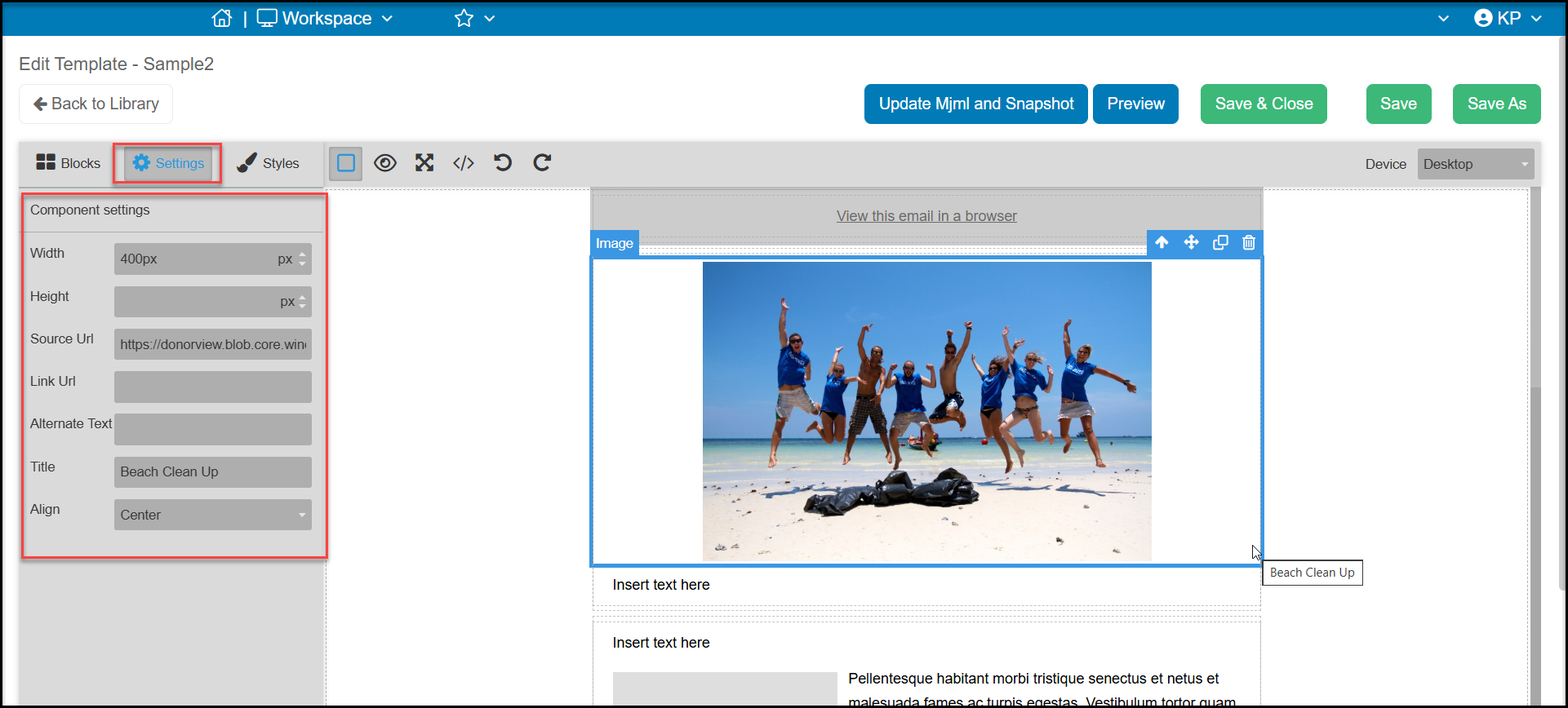
With the image box selected (there will be a blue line around it) you can use the Settings tab to edit:
- The Width of the image - the width will default to the image's default width or the max pixels available for the email. Remember that the default pixel width is 600 pixels wide.
- The Height of the image - changing both the width and height can result in a distorted image
- Source URL is the location in your media library
- Link URL is where you can add a hyperlink so that if someone clicks on the picture, it will open another webpage in a new browser window
- Alternate Text can display information about the image if the recipient has images blocked in their incoming emails.
- The Title displays if you move your mouse over the picture
- Align sets the position of the image.
Additional graphics tools are available under the Styles tab. You can modify the image's Dimensions, Typography (alignment) and add Decorations like a border around the picture.
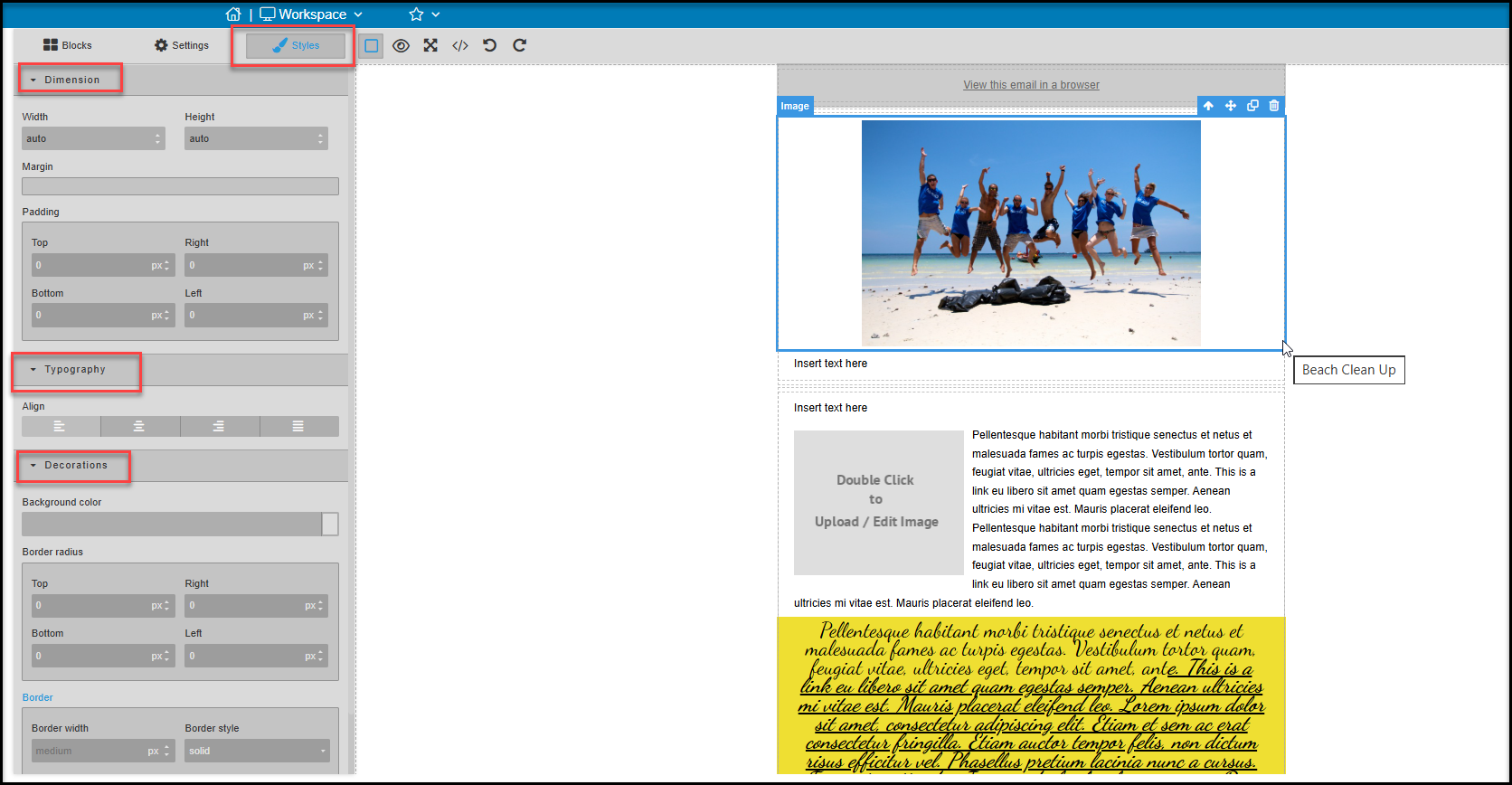
Adding Text and Floating Image
Text with a floating image allows the text to wrap around an image. It operates similarly to a text element where a single click allows you to use the Settings and Styles tab to affect the text in the element. Also like a text element, you need to double click to activate the ability to edit what is inside the box.
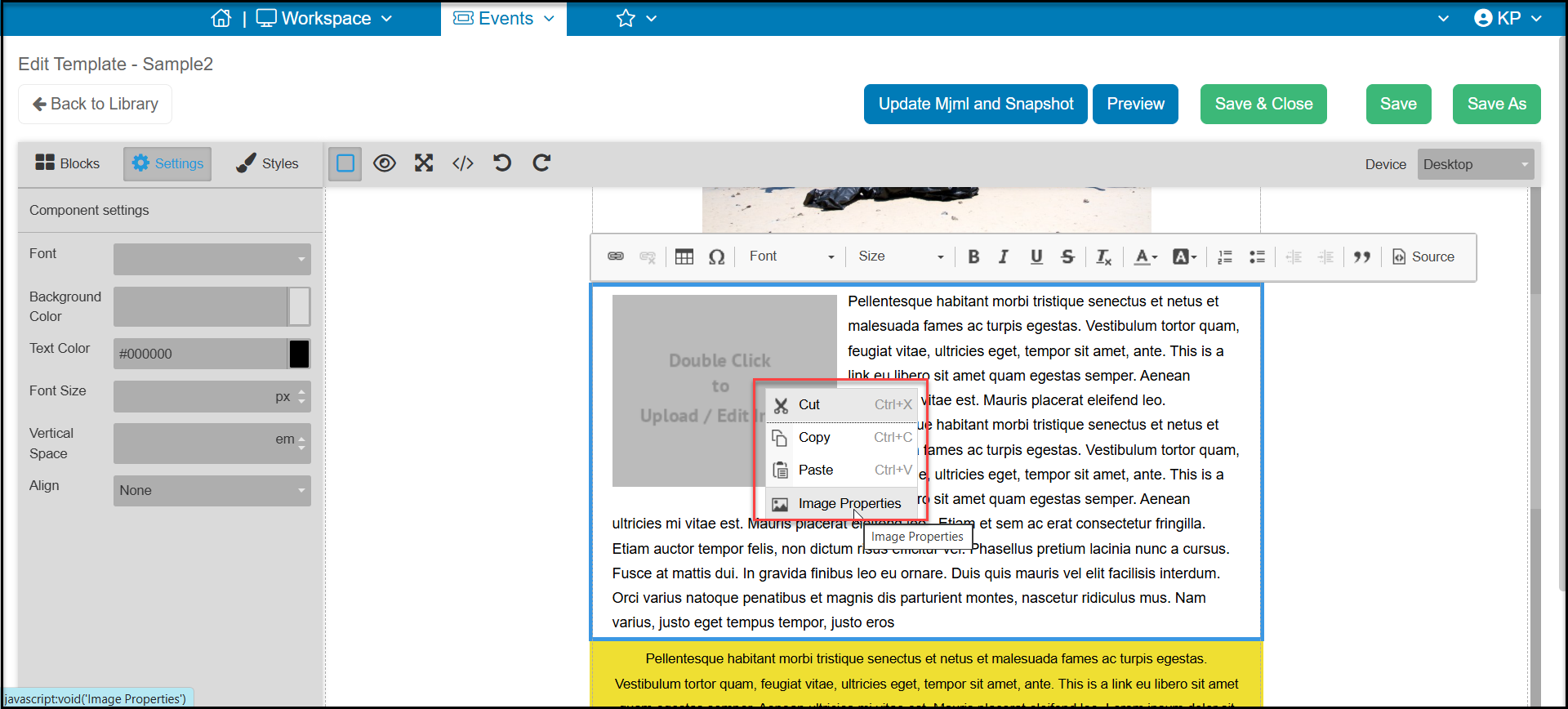
Because the image file is embedded inside the text box, when you double click on the element, you can then right click on the image box and select Image Properties to open the image library and select your image.
Adding Buttons
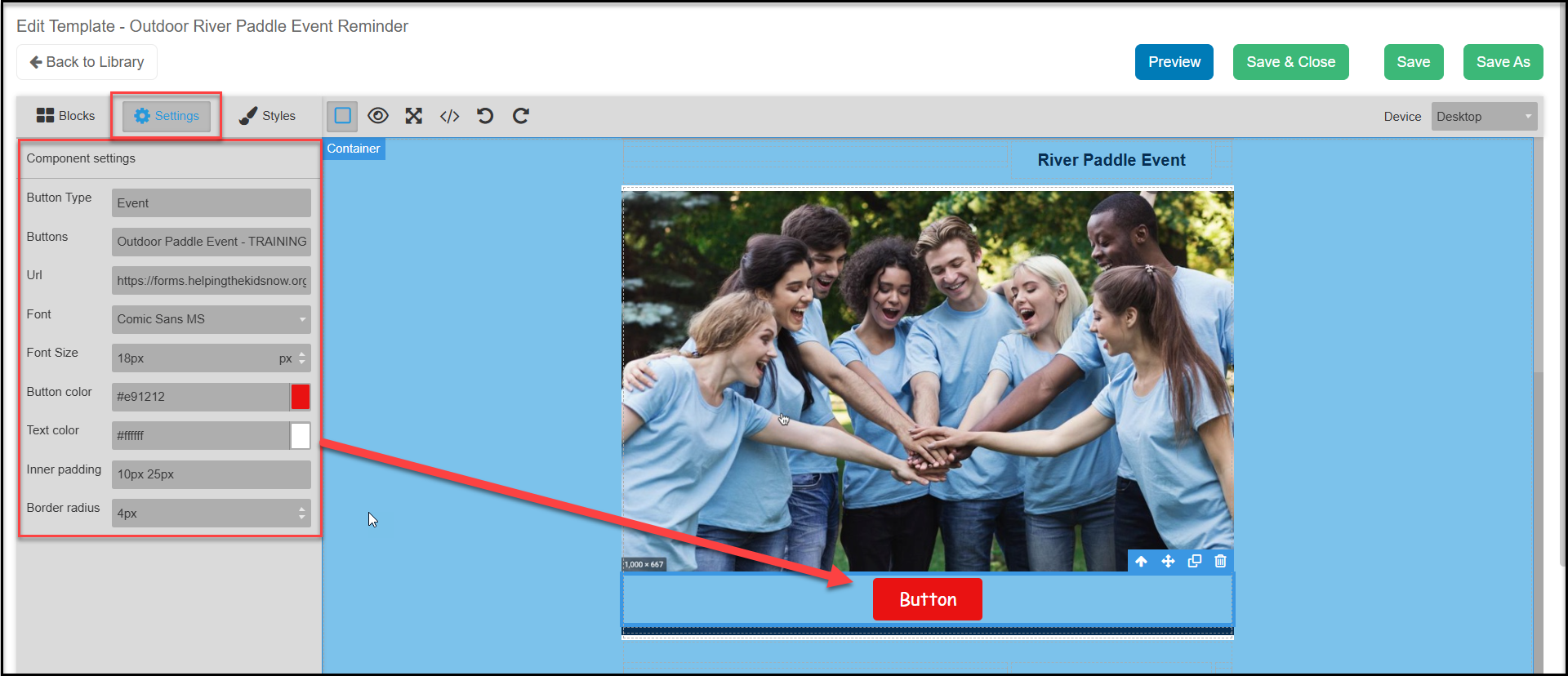
Buttons allow you to add hyperlinks with a visual queue to help your recipients know where to click. When you drag and drop a button into a column from the Settings tab you can select the Button Type to choose what kind of page to link to the button. After selecting the page type, for example "event"," then you can select Buttons and choose which event page to directly link to the button.
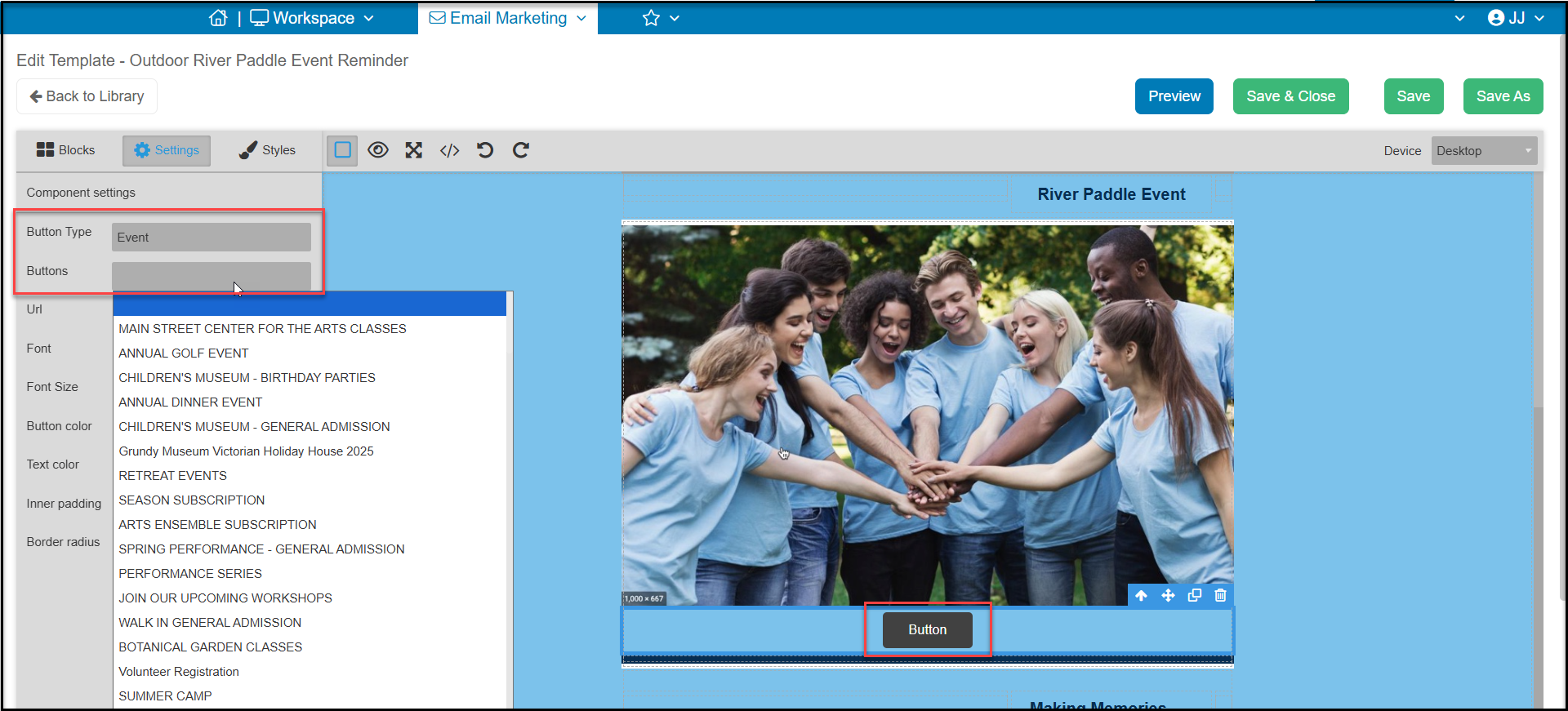
If you select a Button Type and Buttons, the URL will auto populate with your unique page URL. If you prefer, you can add an URL to any page by copy/pasting and URL into that field.
On the Settings tab you can also modify:
- Font
- Font Size
- Button Color
- Text Color
- Inner padding, which is the space around the lettering
- Border radius, which is the radius on the corners of your button.
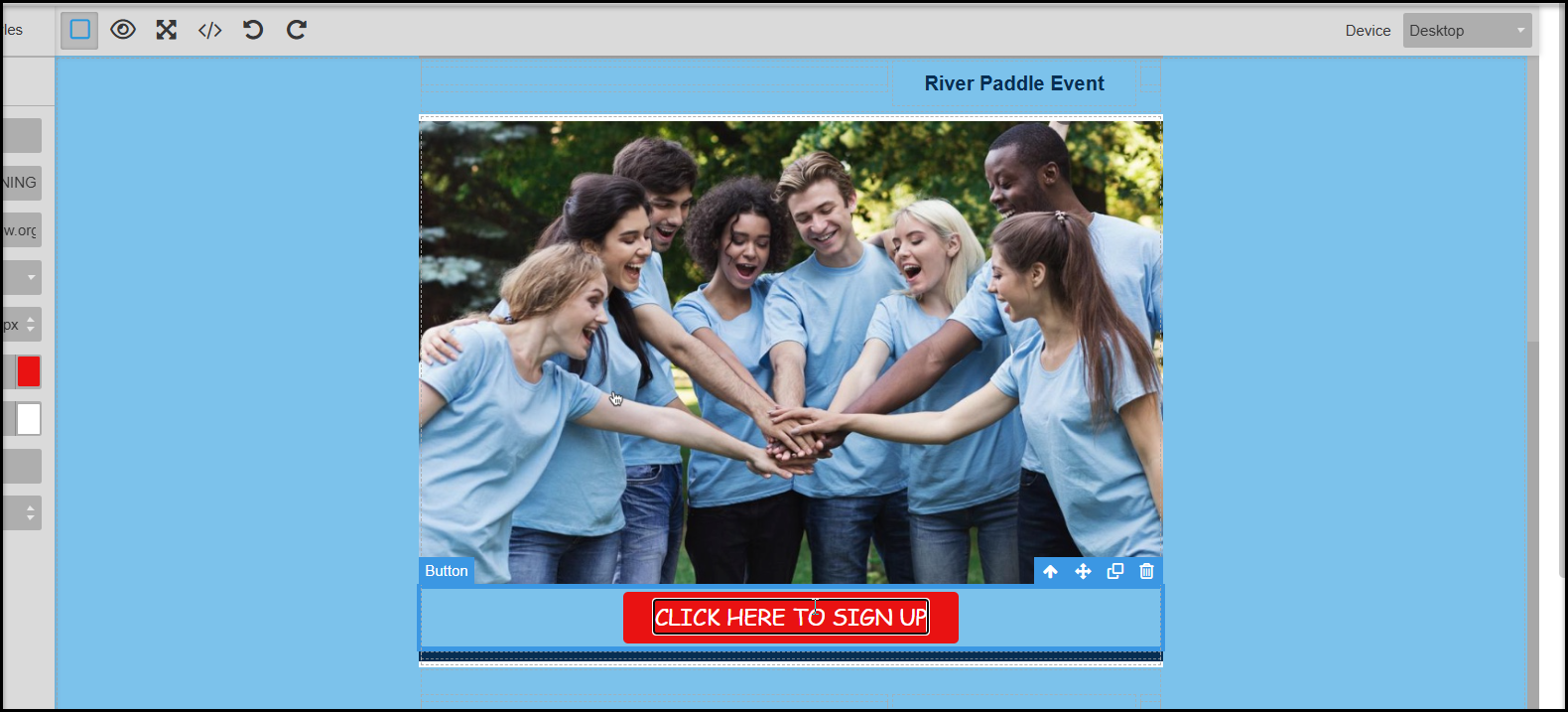
To edit the text in the button, you will double click on the button to reveal the cursor inside the button. You can type in any text desired.
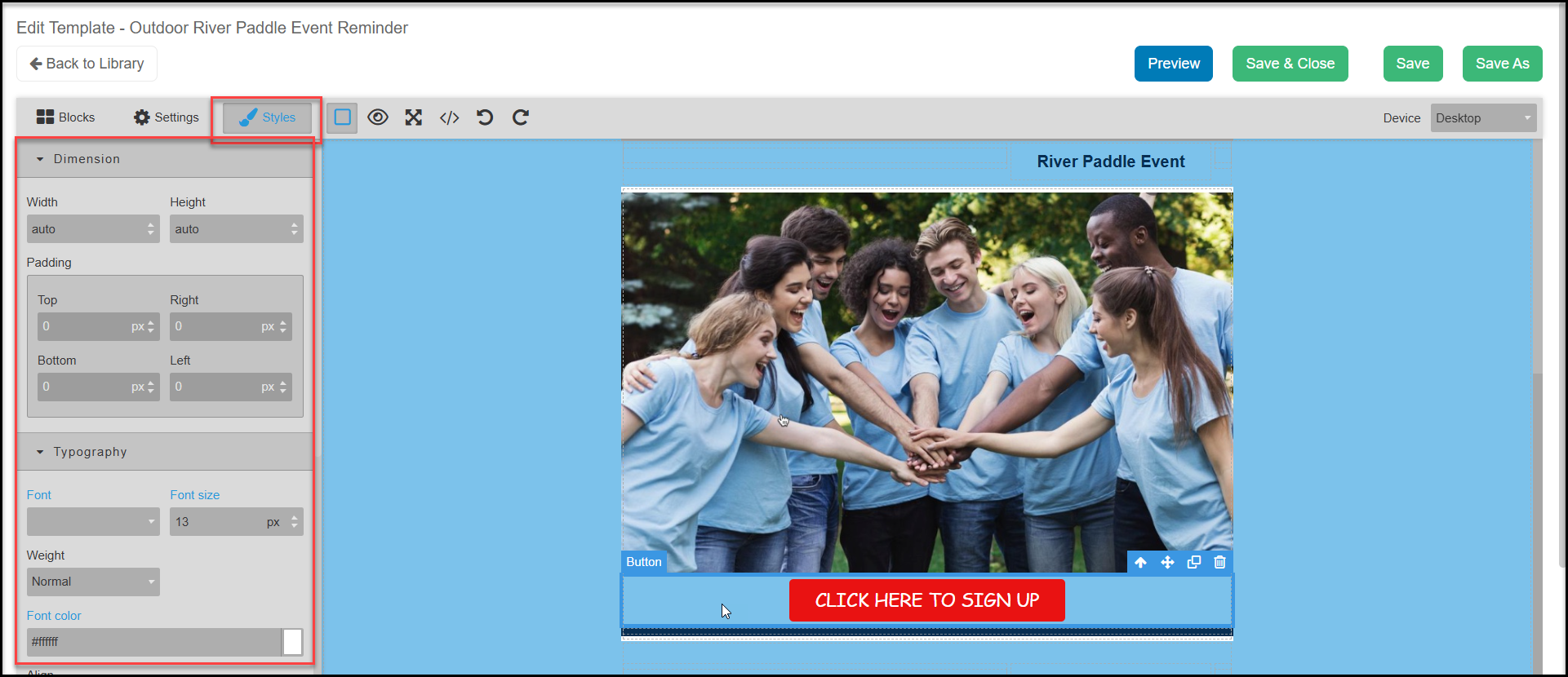
The Styles tab offers additional graphic editing features including the Dimensions of the button, Typography, and Decorations to modify the button.
Adding Dividers
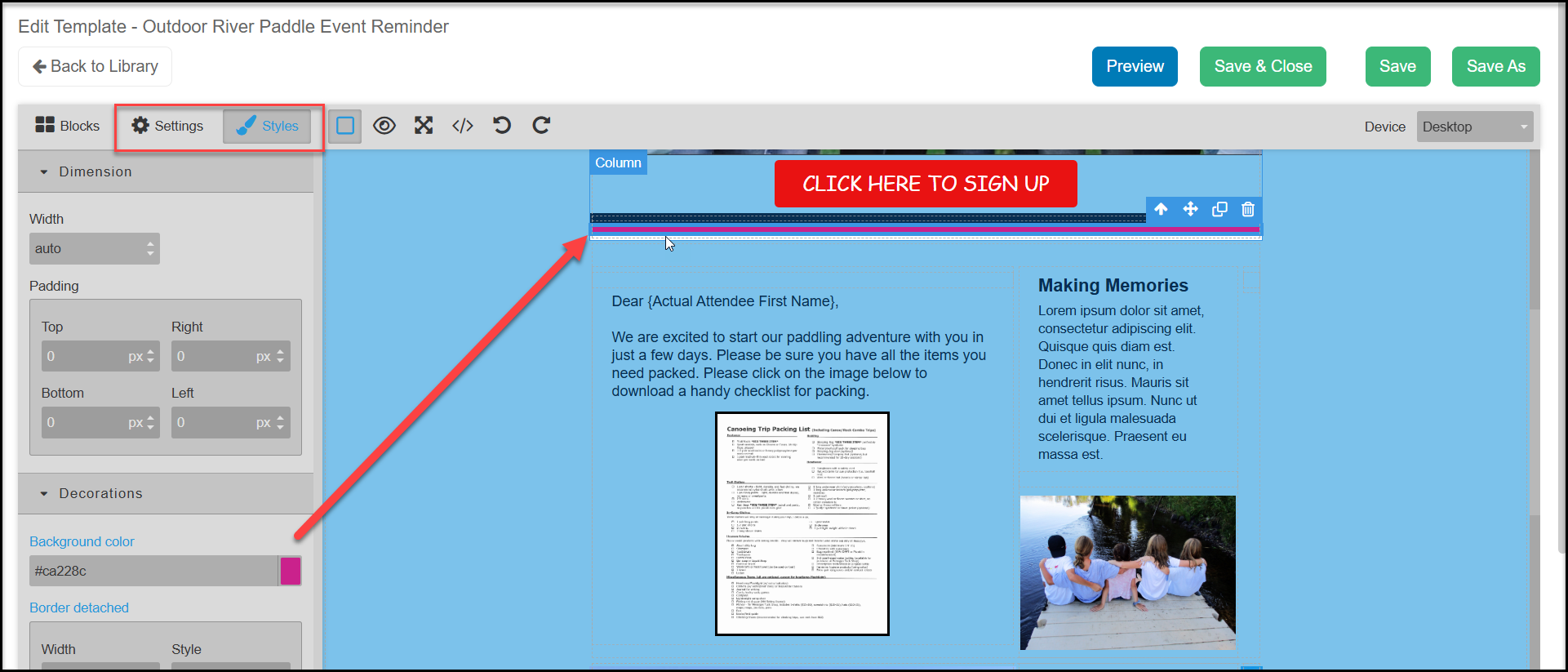
A divider is a thin black line you can place between blocks or columns. A green line will show where the divider will be placed.
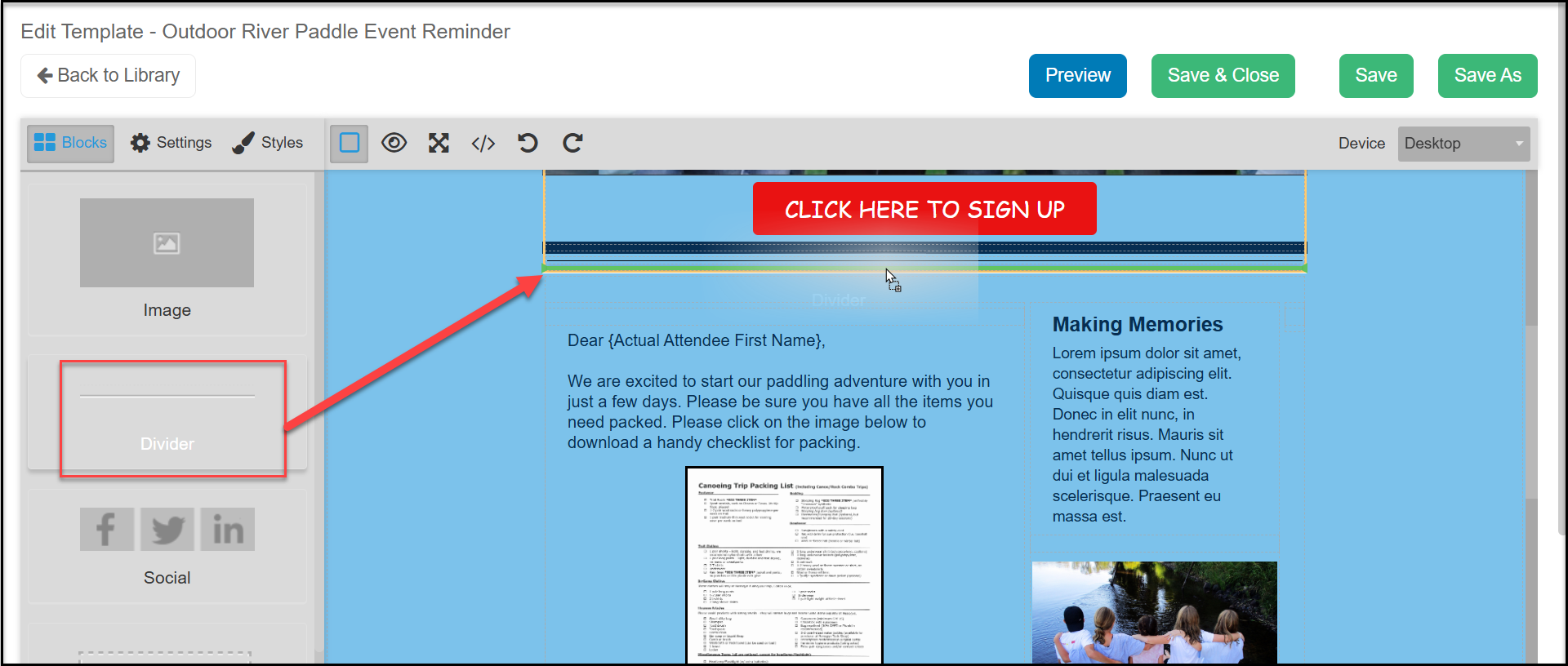
The Settings tab allows you to edit the Thickness and Color for the divider. The Styles tab can edit the Dimensions and Decorations.
Adding Social Media Links
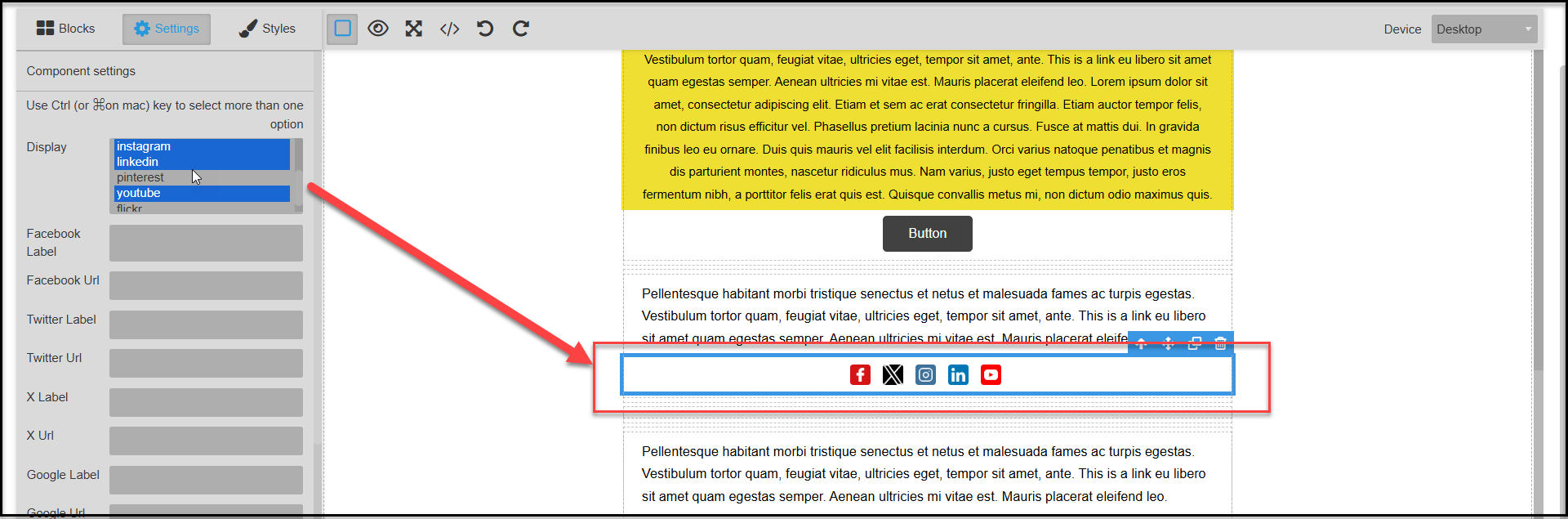
Social Media Links allows you to add social media buttons to your email. By default, the footer of your email will include Facebook, Twitter (now “X”) and Linkedin buttons. If you click on the social media links box, you can edit which links are shown using the Settings tab. Control Click to select which social media links to display.
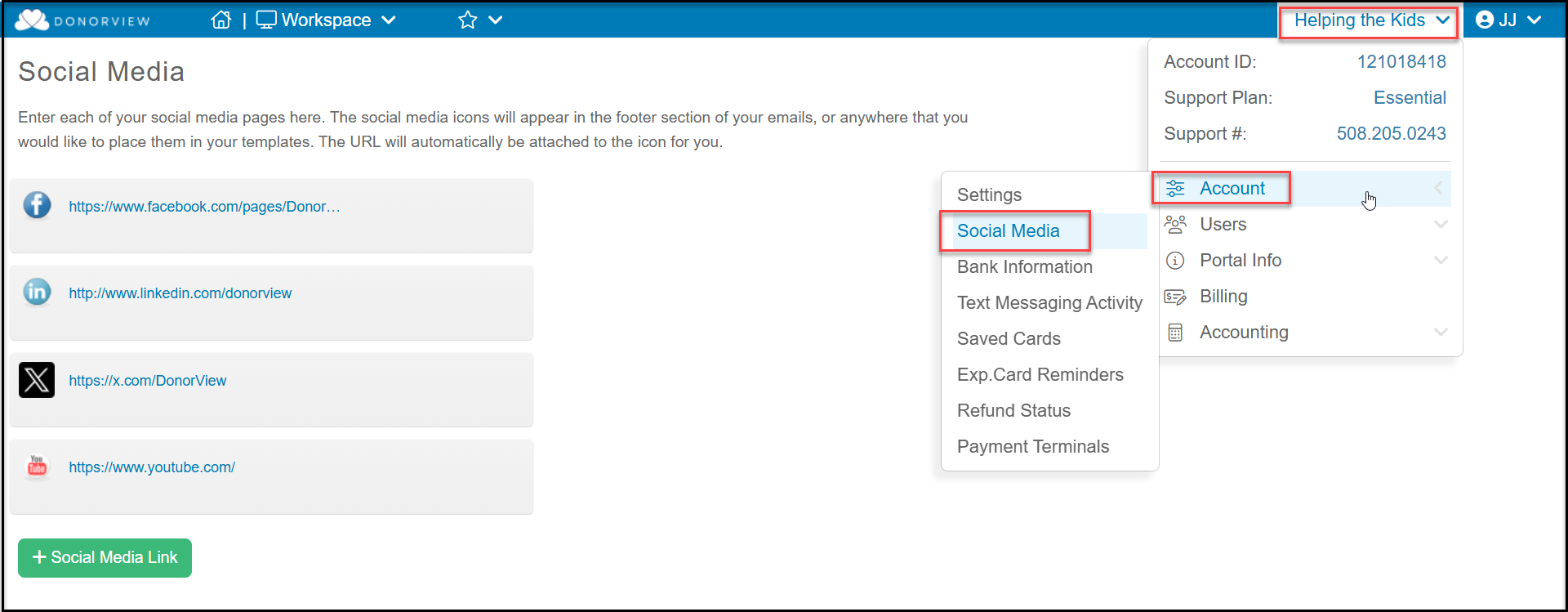
You can manually copy and paste your links into the applicable URL fields or you can set up all your default social media links in your Account Settings.
Admin level users can go to the menu under your organization's name, click on Account, then Social Media to open your social media links page. You can add new links by clicking on +Social Media Link. You can click on an existing social media link to edit it.
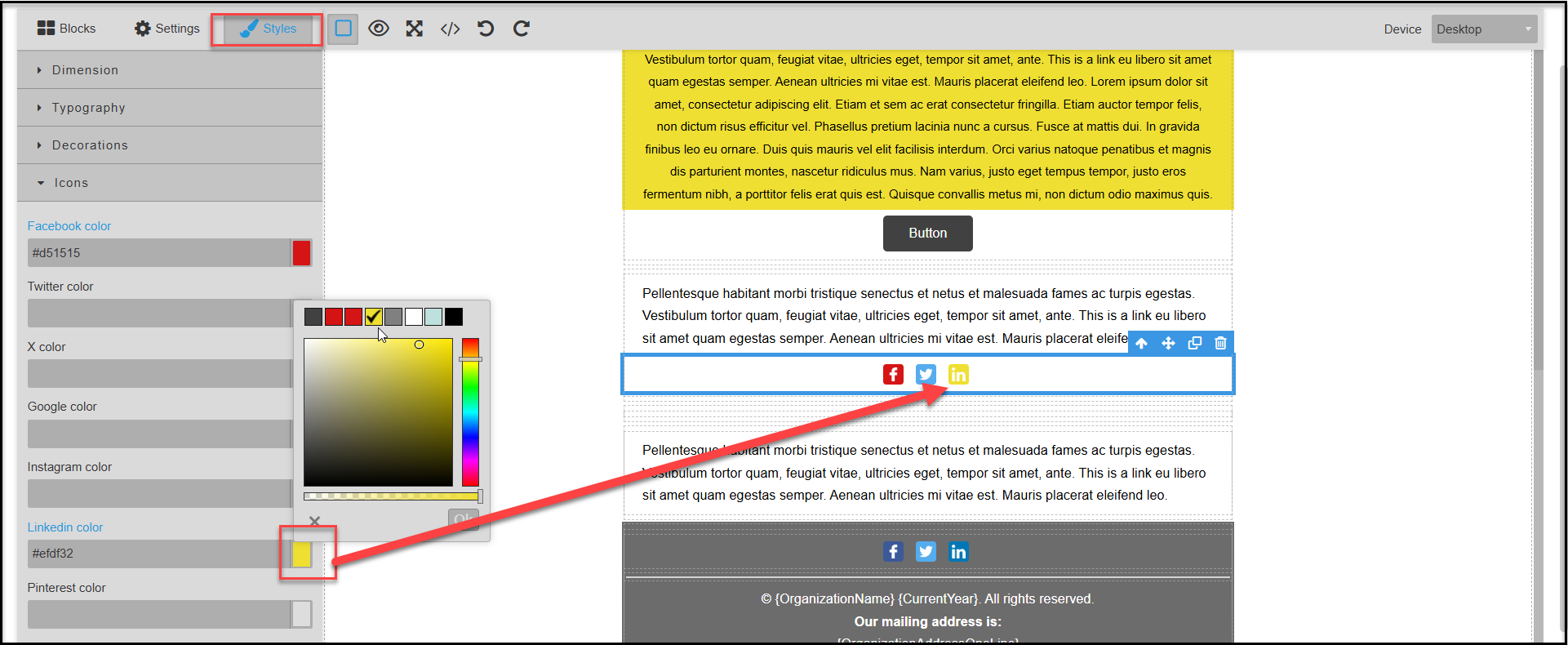
With the Styles tab you can edit the colors of the icons if desired.
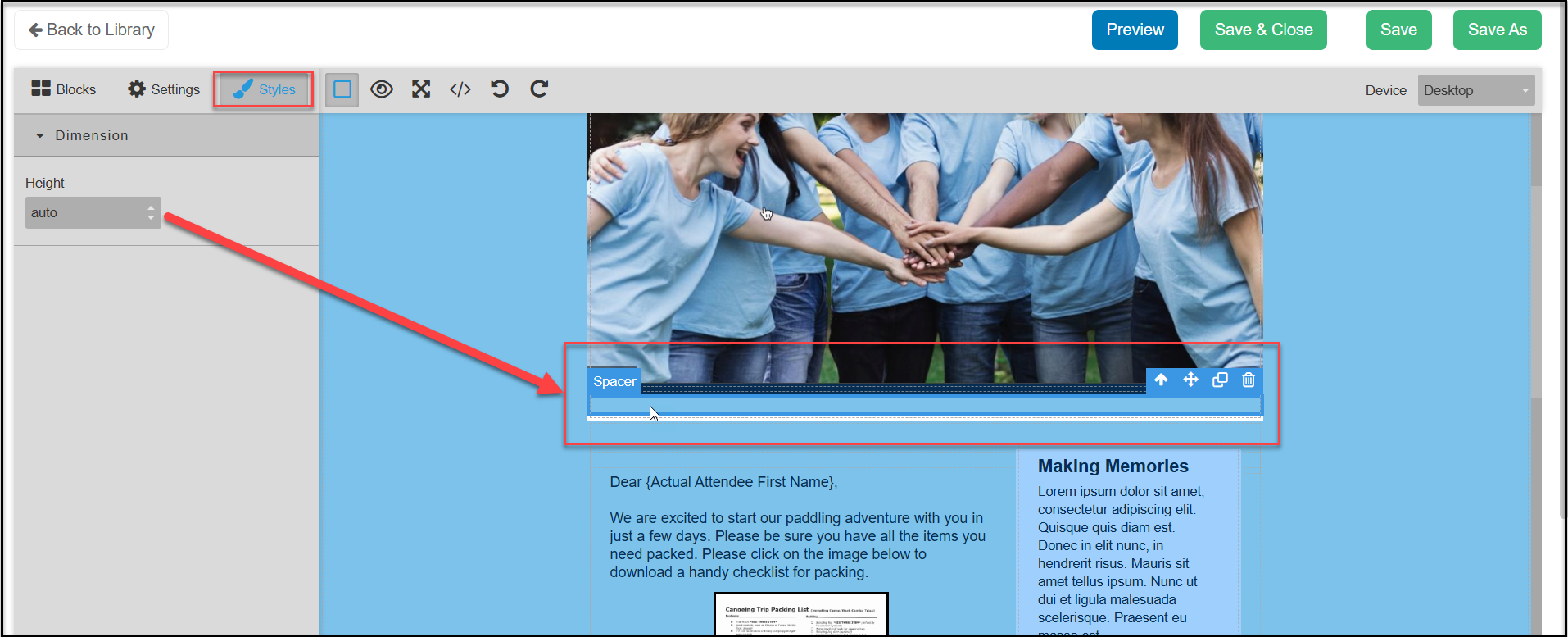
Adding Spacers
A spacer adds a blank box to your email either before or after a column. The only editable feature is found under Styles where you can change the Height of your spacer.
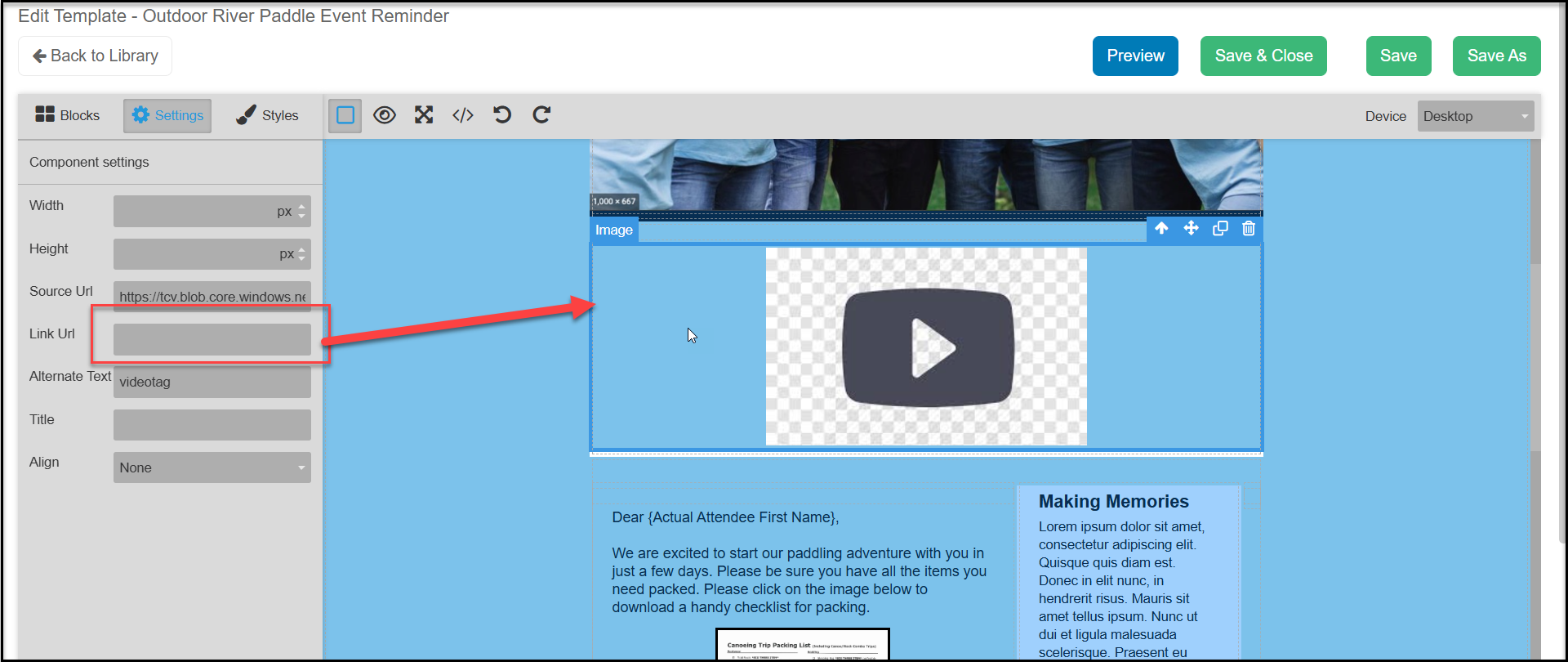
Adding YouTube Video Links
The video link feature allows you to add a link to a YouTube video. This feature only works with YouTube. You will copy and paste the YourTube video url in the Link URL field. The video link will display the thumbnail image that has been uploaded for the video in YouTube. The Settings and Styles tab have the same features as available for an image. When the recipient clicks on the image, it will open the YouTube video in a new browser window.
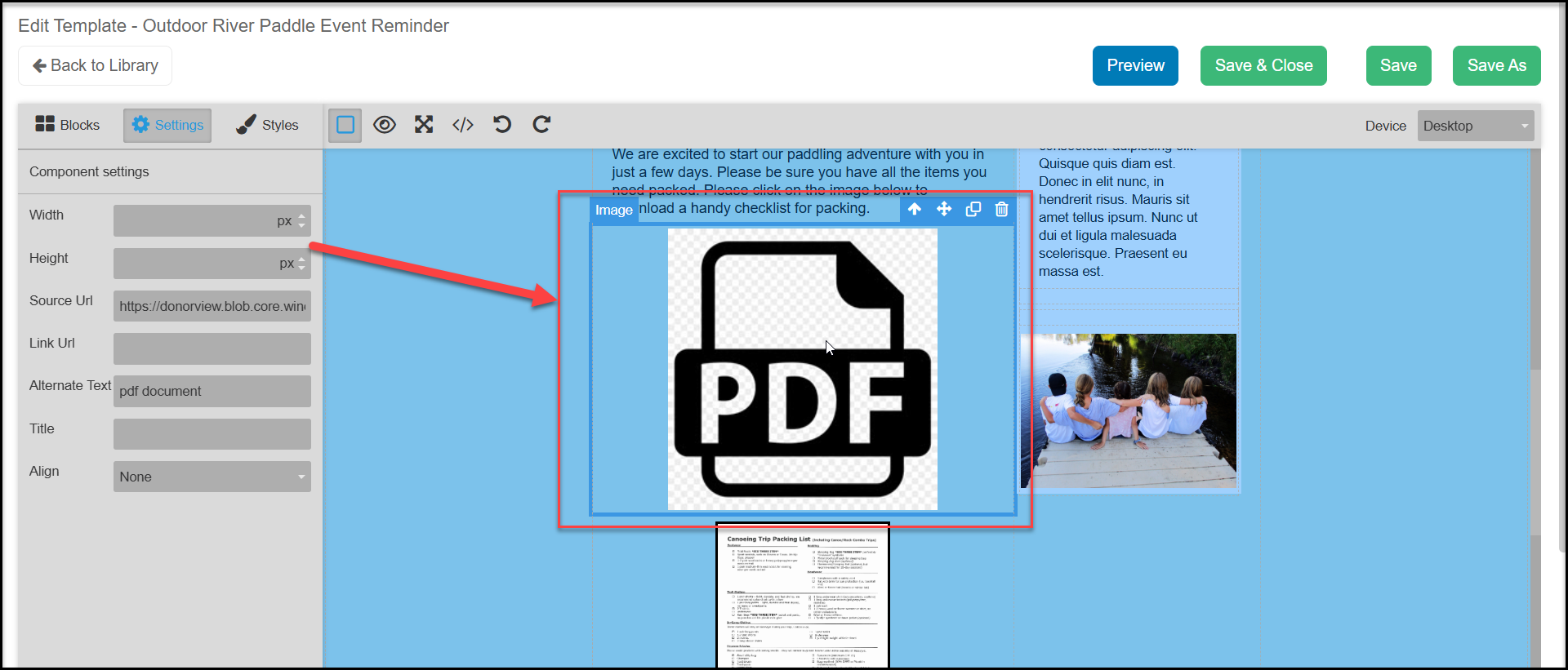
Adding PDF File Links
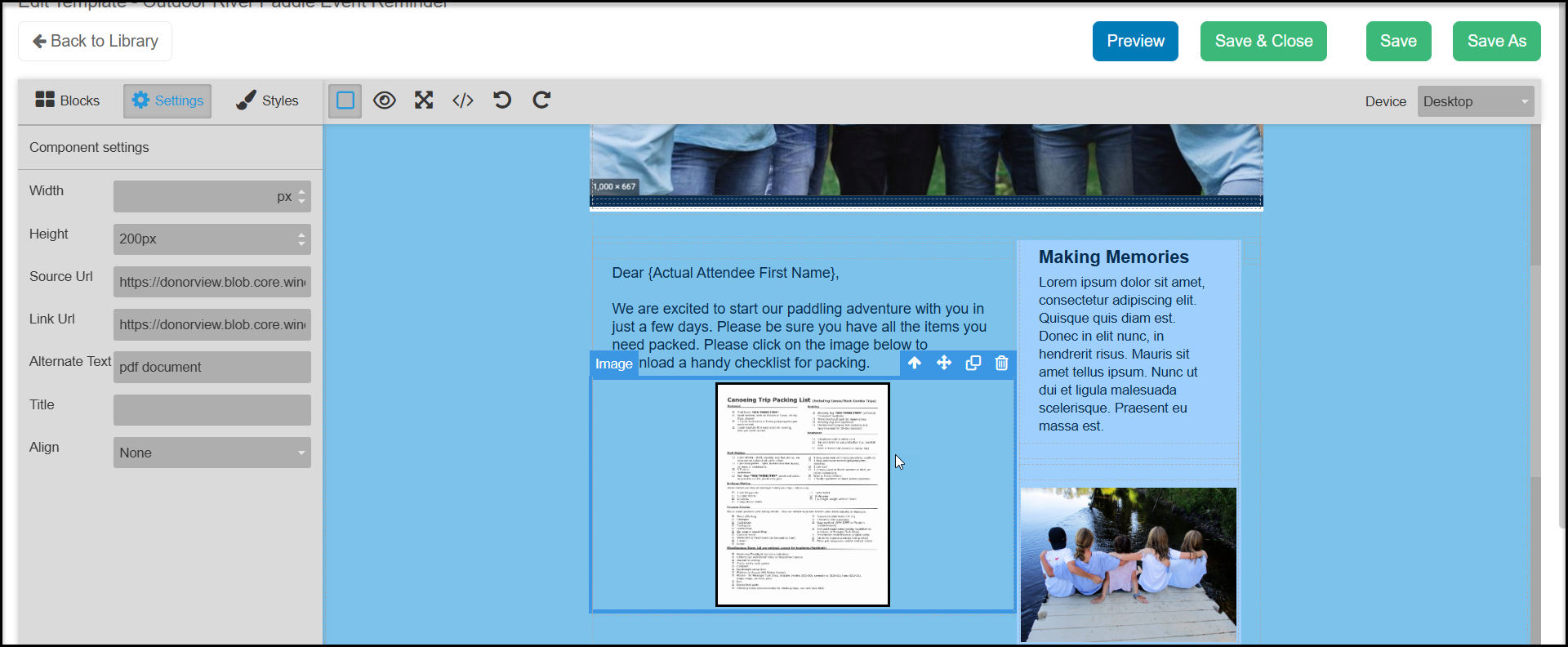
You can also add a link to a PDF file in the body of your email. The pdf is not attached to the email, instead the link is to your media library. Double click on the the PDF box to open the media library.
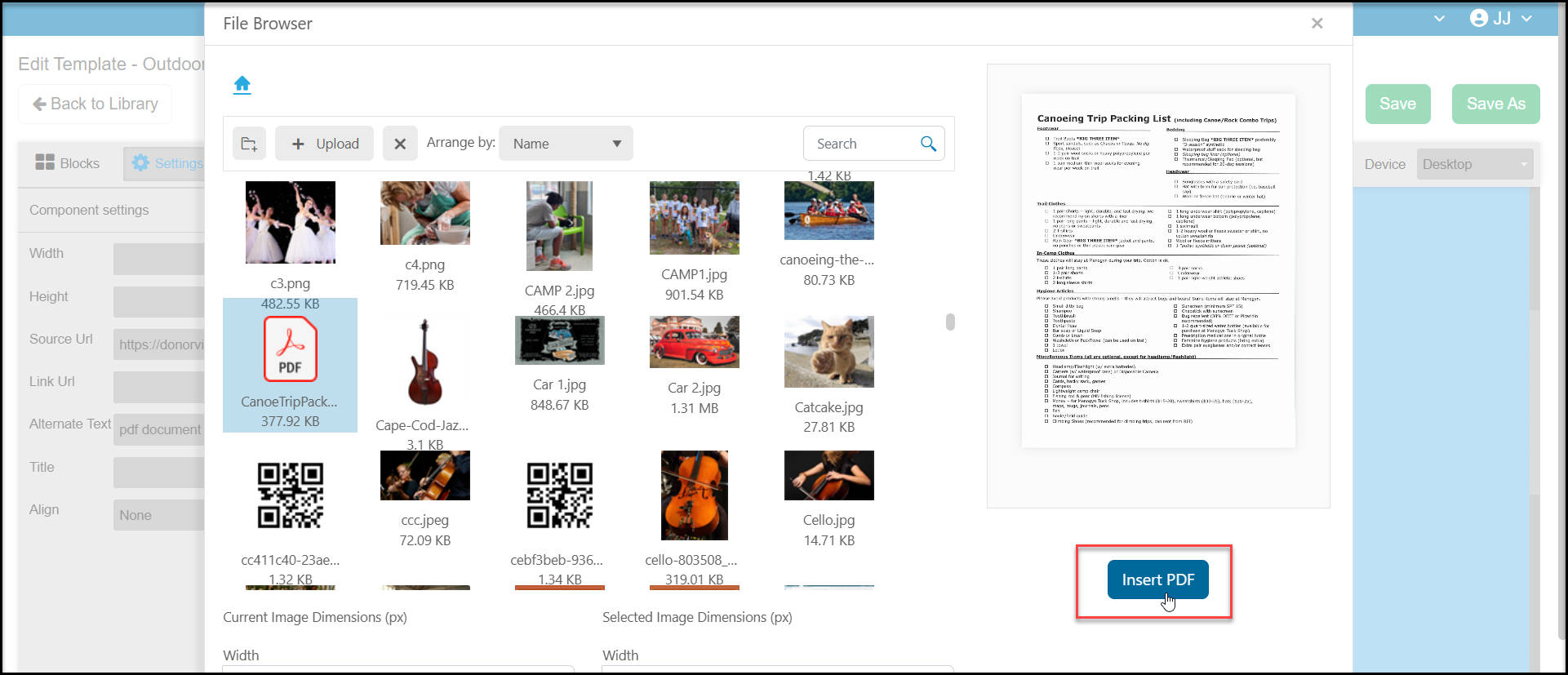
From your media library, you can upload a new file or select one from your library. The software will create an image of the first page of the document. Click on Insert PDF to add the image of your document and link to your email.
When your recipient clicks on the image of the PDF file, it will open the entire PDF document in a new browser window. Like other image elements, you can use the Settings and Styles tabs as described above to customize the way the PDF image is displayed.
When you are finished adding and editing your content, you can click Save to save the changes and continue working. Click Save & Close to save your work and return to the template library. Or click Save As to save this template under another name.