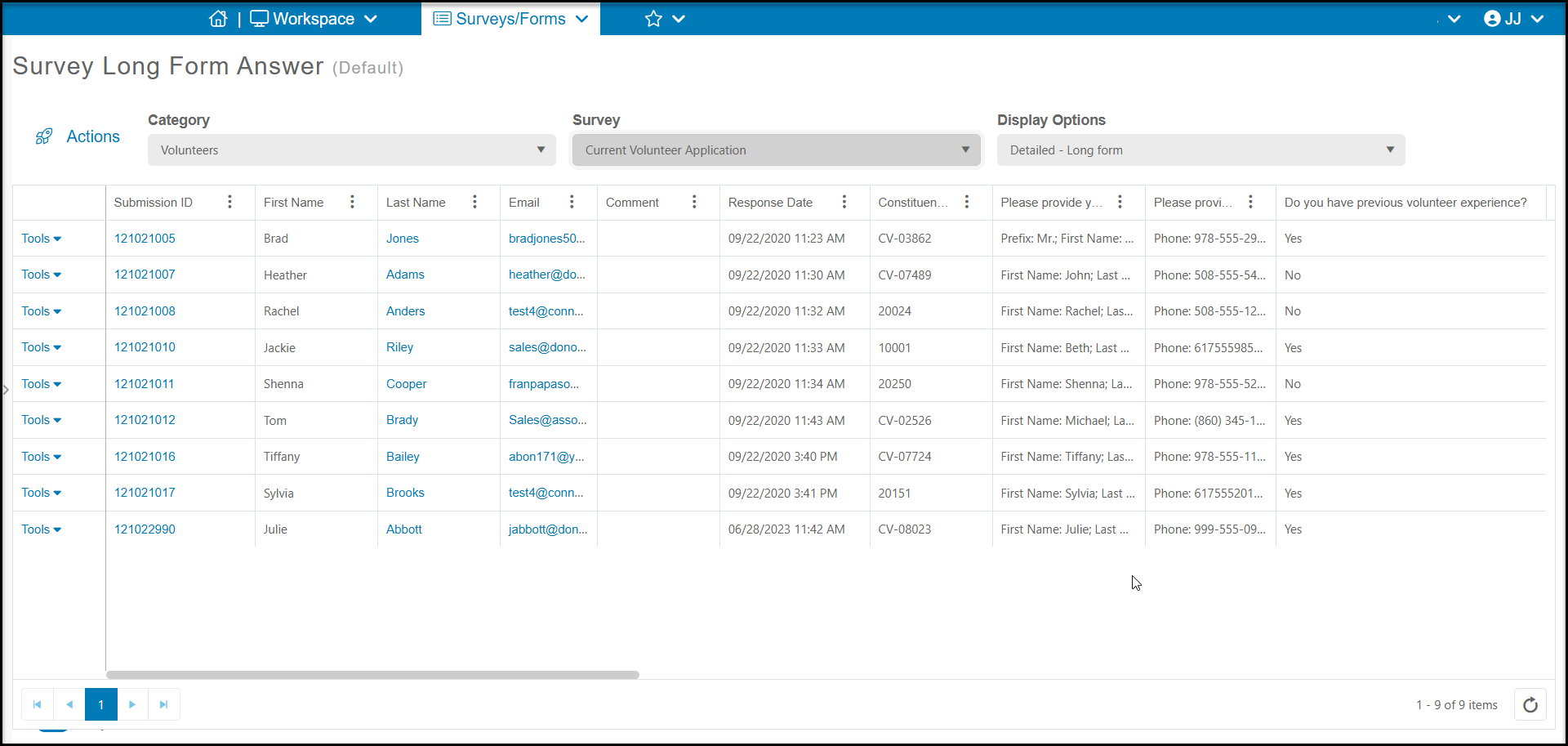
The default display option for any survey will be the Detailed - Long Form. This option has the data arranged so that each response is shown on a single row, with the information about the respondent shown on the left (if applicable) and the answers to each question shown under each column. For example, "Do you have previous volunteer experience?" is the column heading for that question, with the responses for each survey shown on each row as shown below.
For questions with multiple responses like Prefix, First Name, Middle Name, Last Name, and Email or multi-select checkboxes and tables, the responses will be shown separated by a comma.
The results grids will also show a Status column. This column will show just two options:
- Submitted - to indicate that the survey was successfully submitted.
- In Progress - to show a constituent started a survey submission, but has elected to Save and return later to complete it. This option has to be activated on your Survey/Form Settings tab if you wish respondents to have this ability.
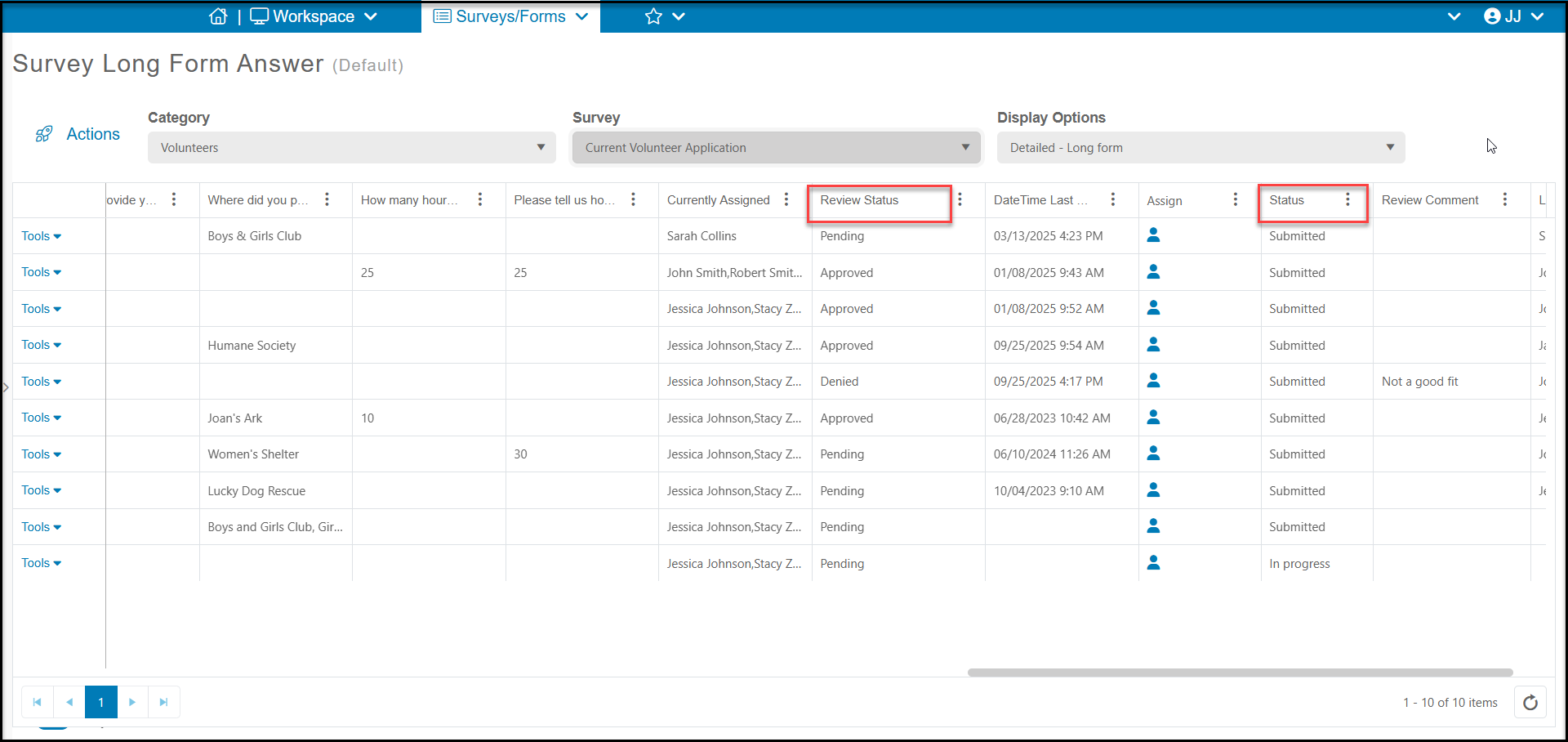
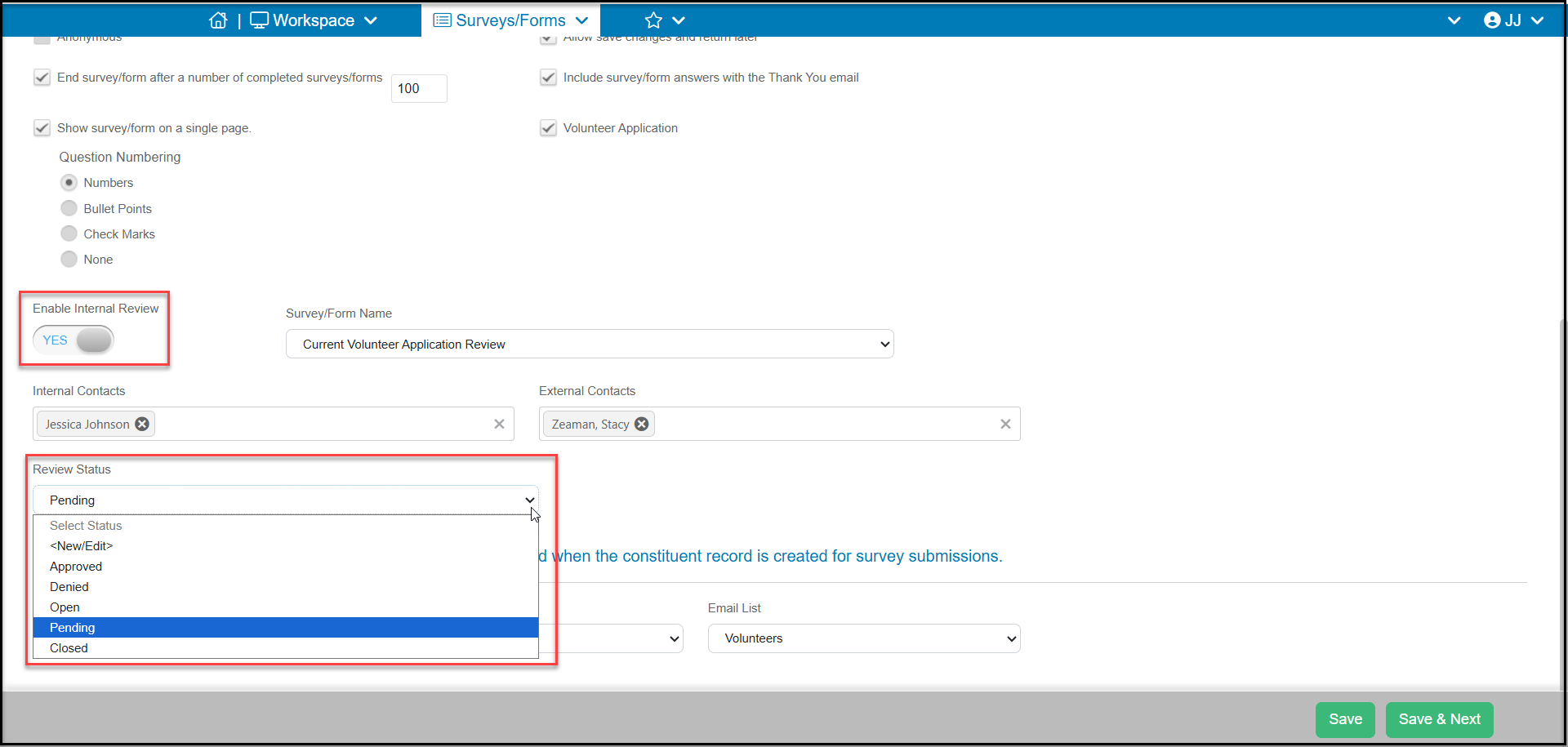
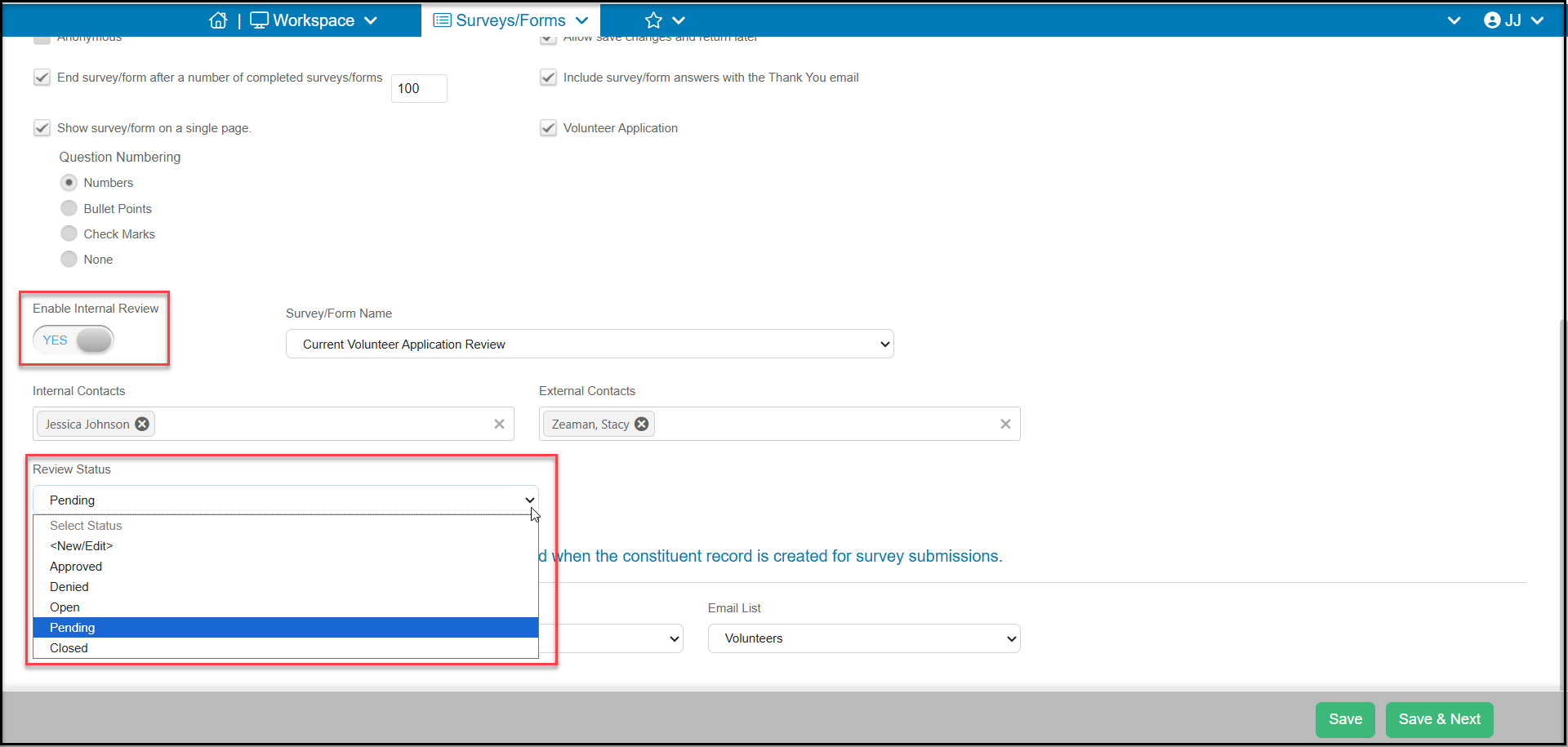
If you have also Enabled Internal Review on the Settings tab, you will see another column called Review Status, which will be populated with the fields you set up in your dropdown menu for Review Status. You will learn more about performing internal reviews in an upcoming lesson.
Specific Responses
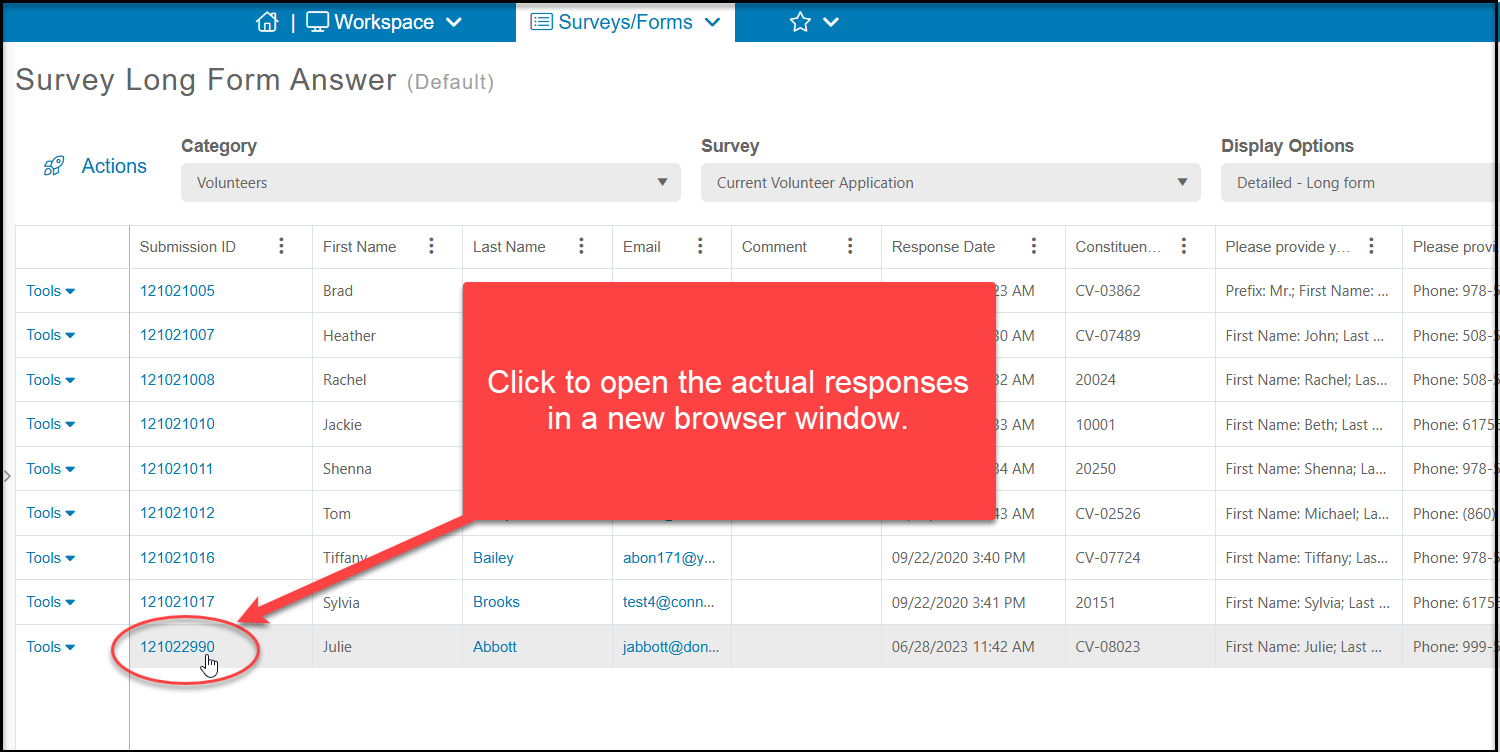
On the grid, the link under the Submission ID column will open the response to look at more details for that particular respondent.
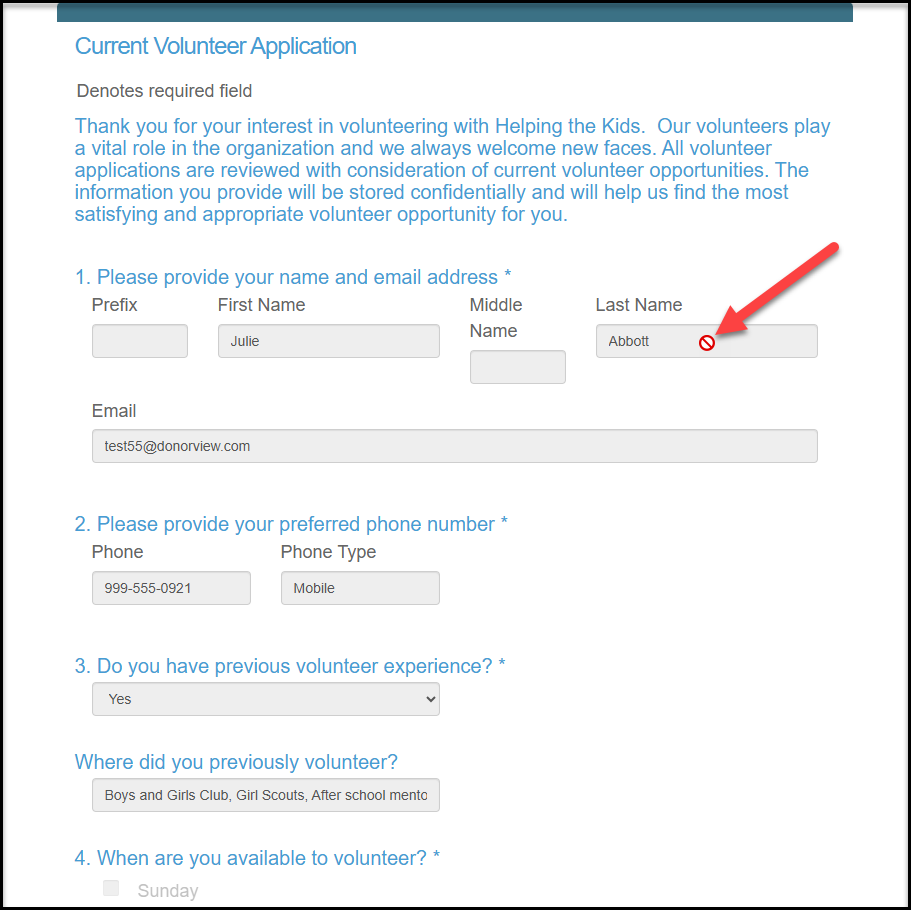
In the new browser window you can review each of the responses, but you cannot make any changes. Placing your cursor in any of the fields will reveal a “no” symbol indicating that the information cannot be edited.
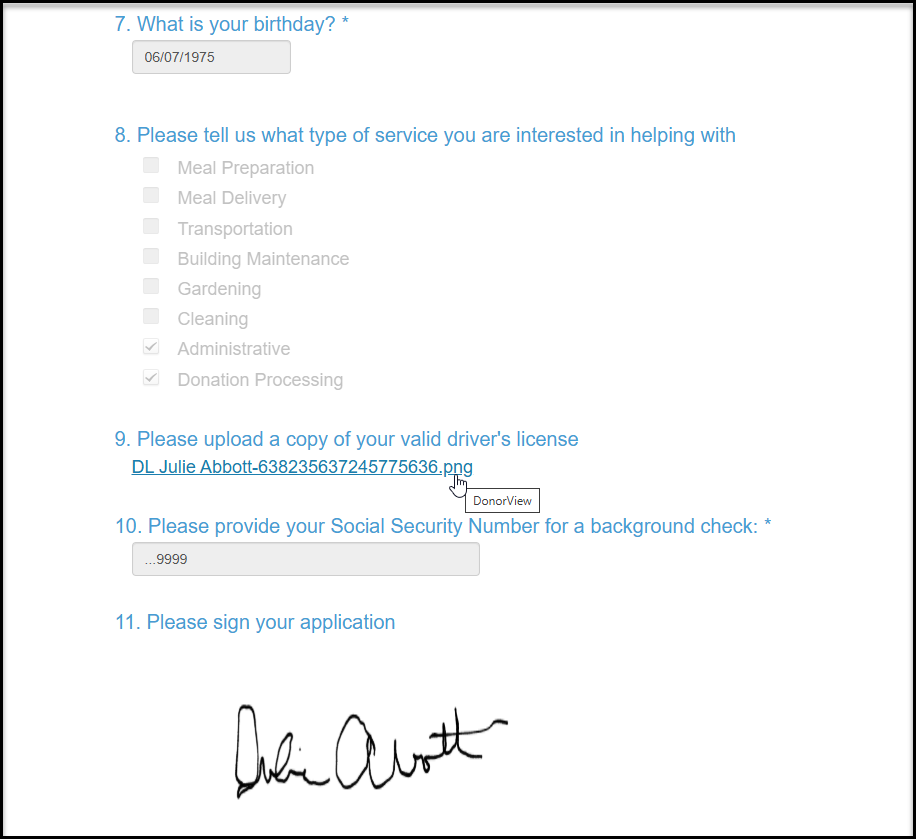
Note that the fields may not display all of the information submitted, as shown in the example below for the question "Where did you previously volunteer? The complete information is always available on the grid if the information submitted exceeds the display size of the field.
If your survey included a Document Upload question, you will find a link to be able to open and view the document submitted. A copy of the document submitted is also saved in the constituent's record in their Documents tab.
Sensitive information will only display the last four characters, as shown in the Social Security Number question below.
You can also see the electronic signatures if they were part of your survey.