Internal setup and editing of P2P Fundraising Pages
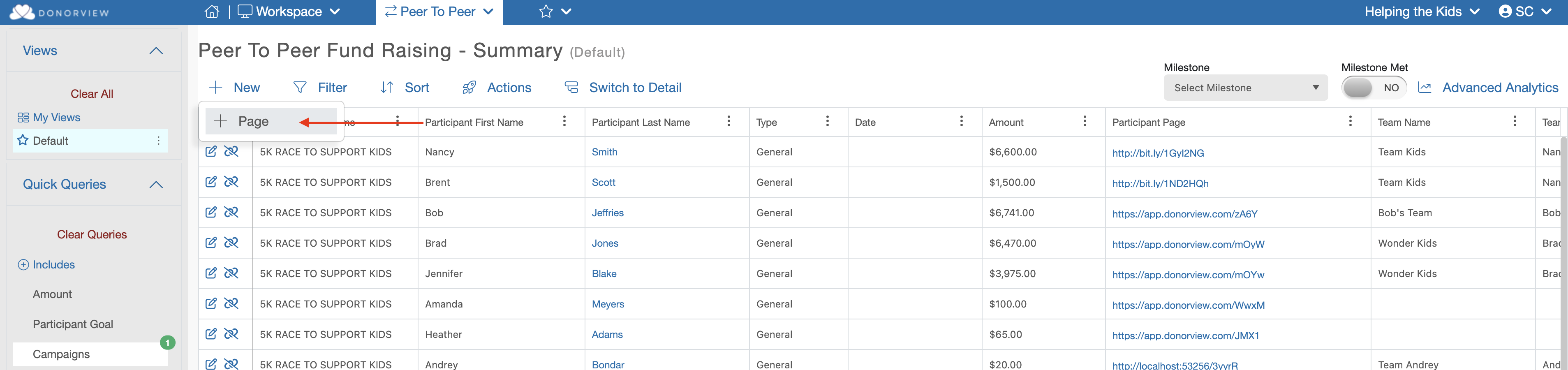
New Peer to Peer fundraising pages can be created on behalf of existing constituent participants who have an email address on file. To create a new fundraising page navigate to the main Peer to Peer Dashboard grid and make sure you have a “Campaign” selected under Quick Queries. The selected Campaign will be what the new fundraising page will be connected too. Above the grid mouse over the “+New” menu and click on the “+Page” menu option.
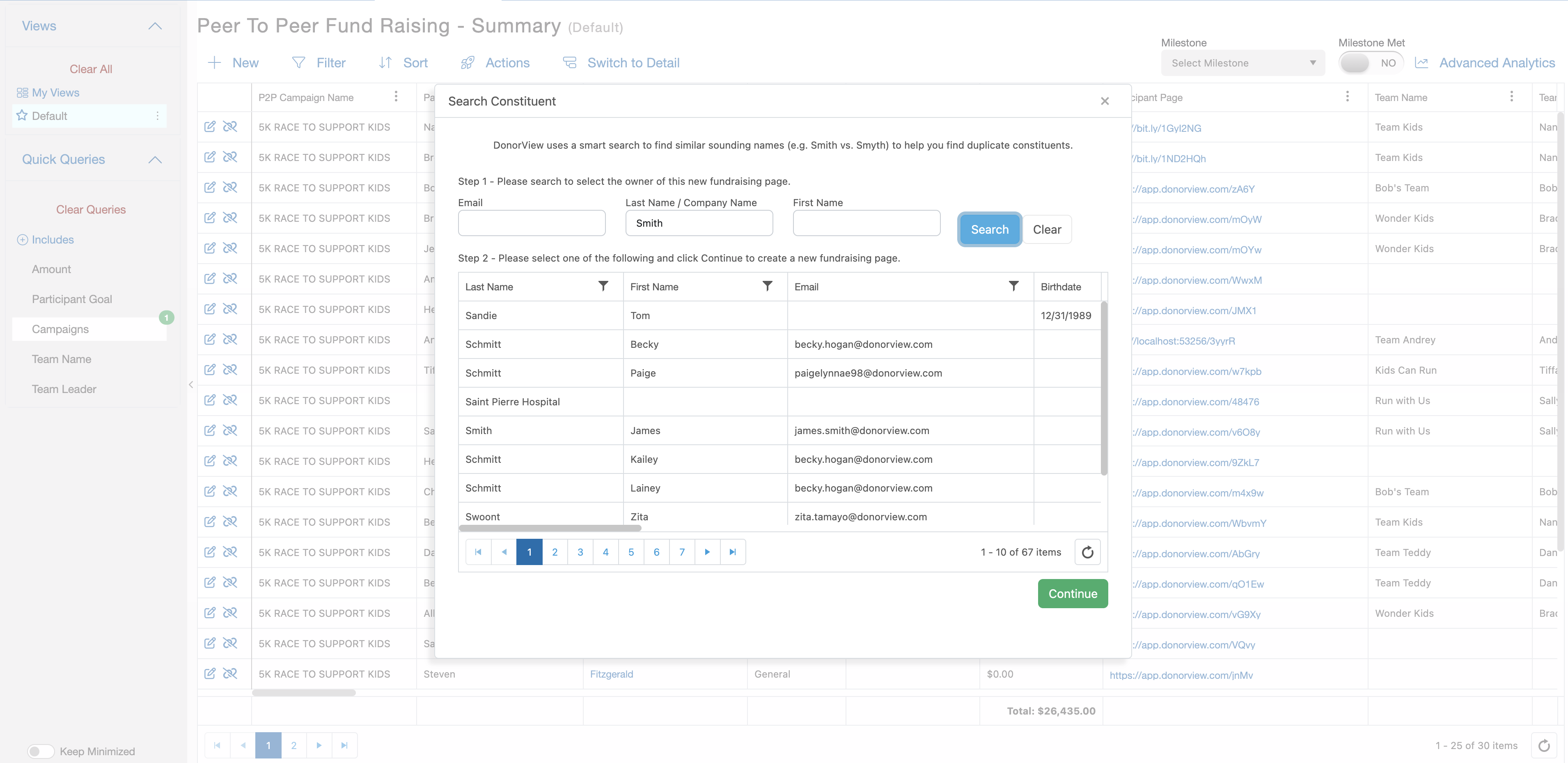
This will launch a search dialog. Within the dialog you can search for the desired participant’s constituent record based on Name or Email. Once found click the desired Constituent’s row in the results. For this setup to work the Constituent must have an email on file. As soon as the Constituent is selected click the green “Continue” button. A warning will appear letting you know that you will be exiting DonorView and moving into this Constituent’s portal account. Switching to their portal will log you out of DonorView.
The portal will launch in a new tab and load the setup screen for creating this constituent’s new fundraising page. After completing the setup you can then share the fundraising page URL with the participant and then log out of their portal account.
This portal account can also be made available to the participant if you wish. You will just need to reset their password under Users>Portal Users and then share with them the link to the portal and their sign in credentials.
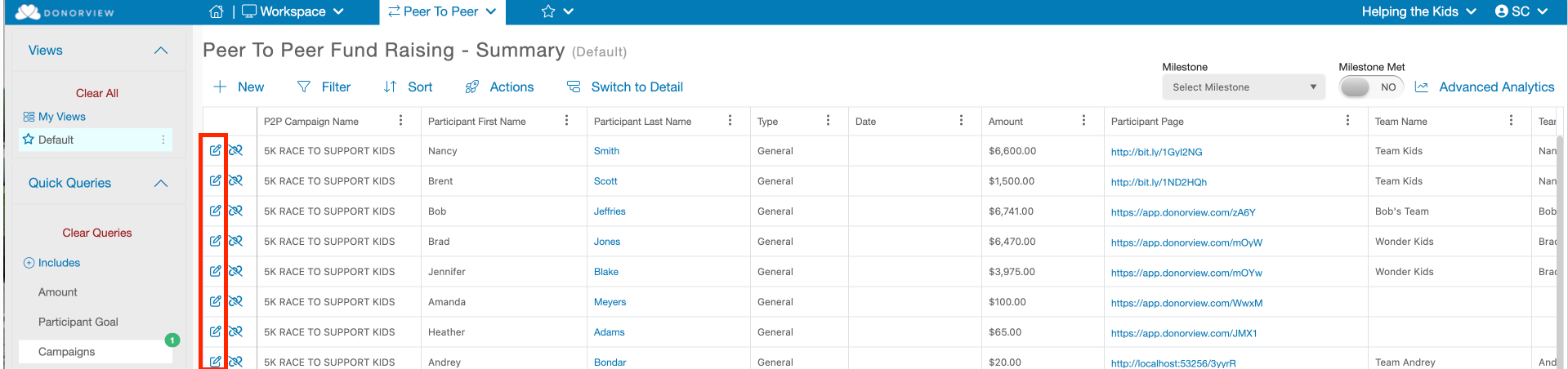
Once you are logged back into DonorView and back on the Peer to Peer Dashboard grid you will find on each grid row a pencil and paper “edit” icon. Clicking this icon will launch that participant’s portal account for you to make edits to their fundraising page. Again, moving into their portal account will automatically sign you out of DonorView.