You can use the identity verification feature to allow survey respondents to skip questions if they already have a constituent record created.
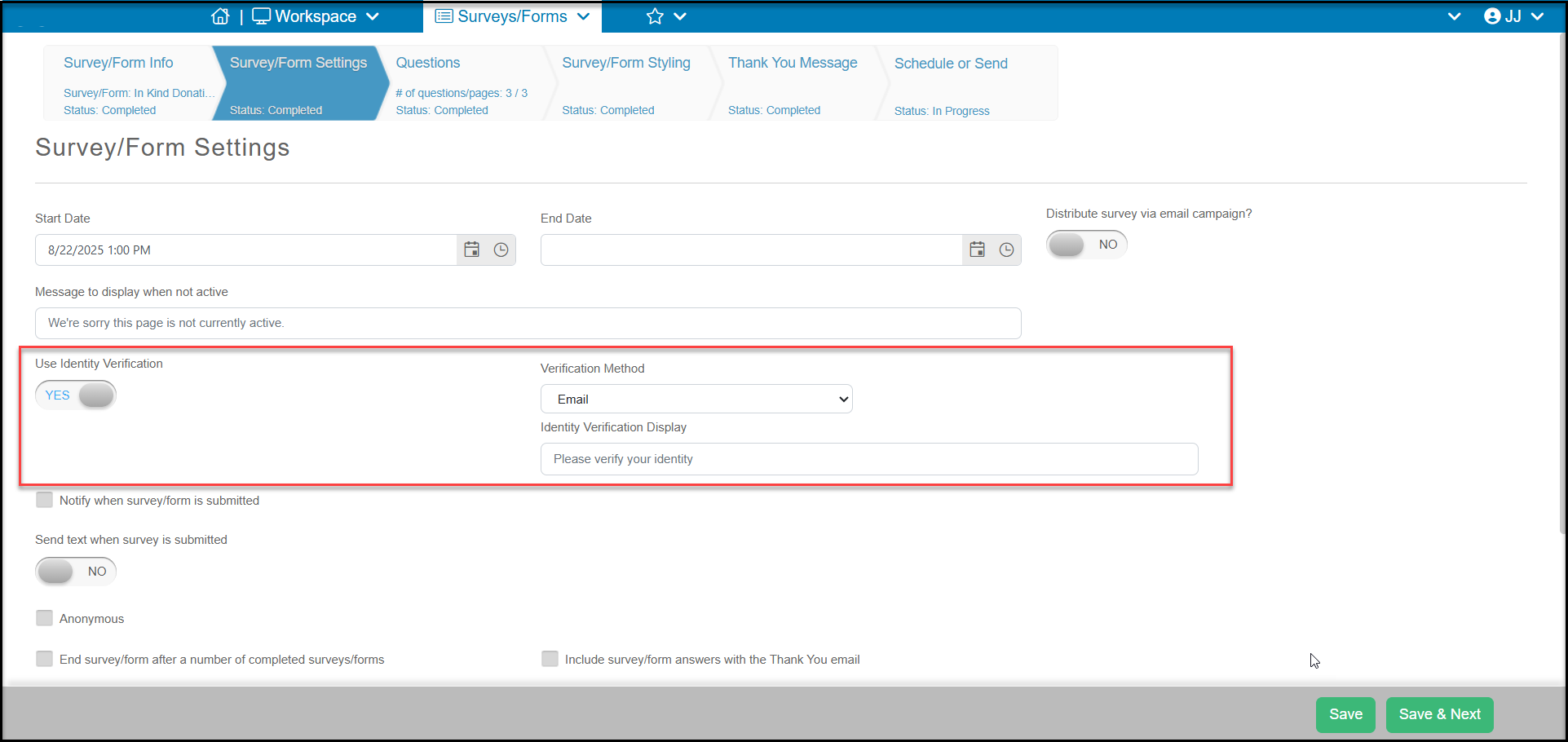
On the Survey/Form Settings tab, set Use Identity Verification to YES. This will reveal two new options:
- Verification Method - this can either be Email, Phone, or Allow the user to choose Email or Phone.
- Identity Verification Display - you can customize what label is assigned to the verification process.
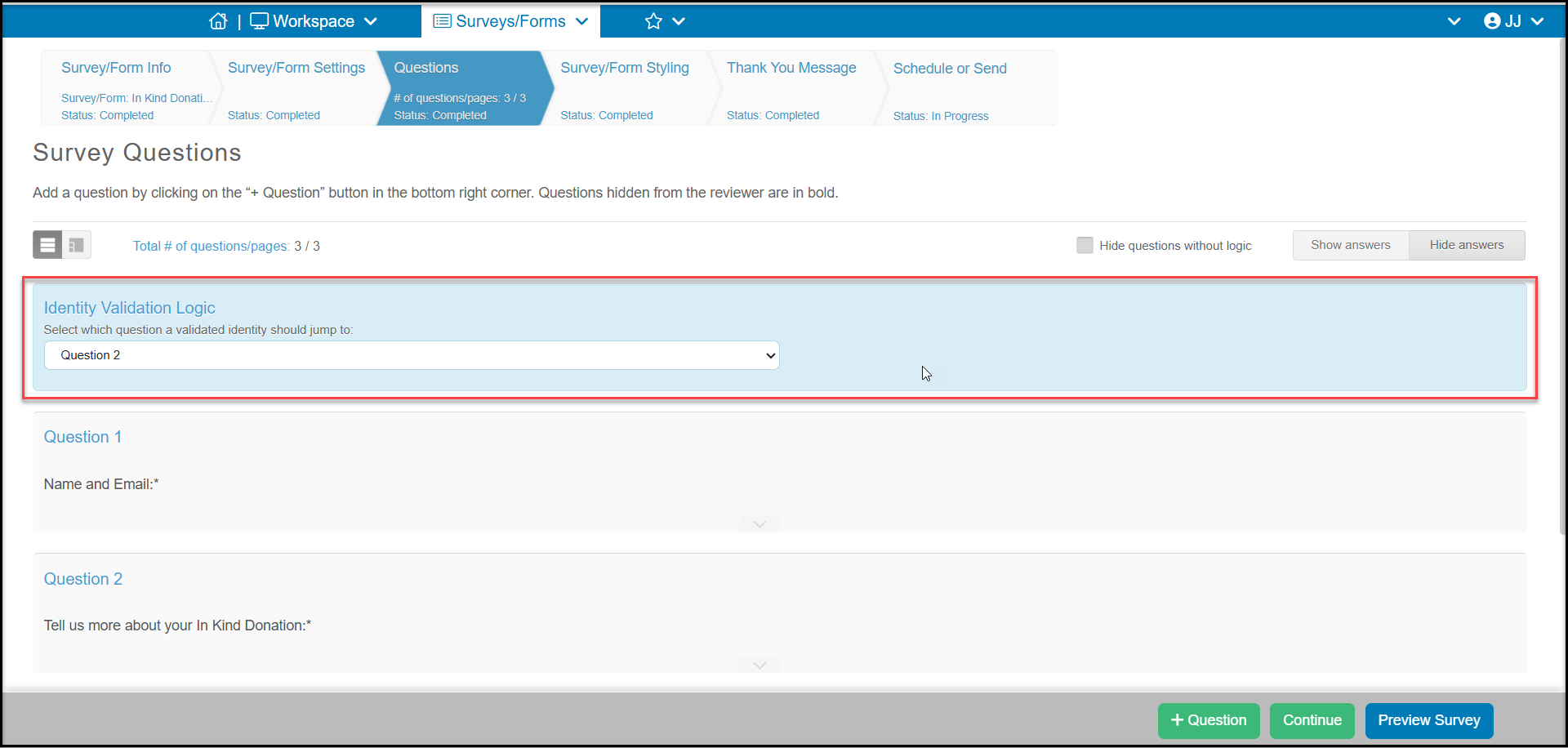
On the Questions tab, you will see a new Identity Validation Logic option. Here you can select which questions can be skipped if the software locates a matching constituent based on email or phone number.
In the example below, the respondent can skip entering the name and email if a matching constituent record is found. If no matching record is found, they will go to question 1 and complete the information and a new constituent record would be created.
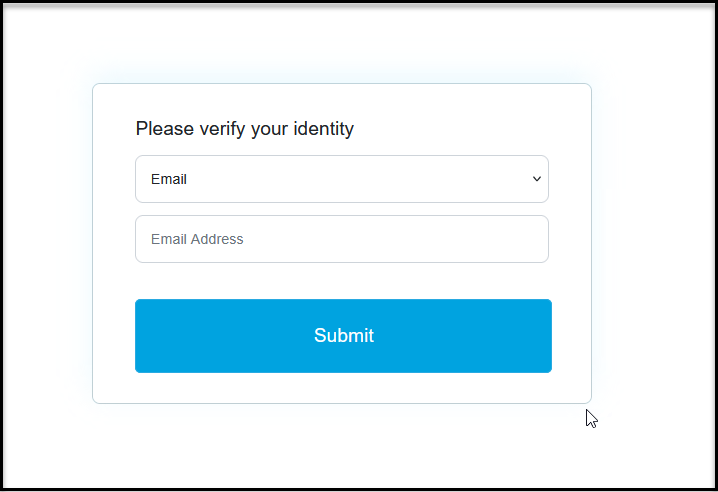
Depending on your set up, when someone uses the link for the survey, the first question they will see is the verification step. In the example below, they can choose from the top drop down whether they will enter their email address or phone number.
If the match is found, they will automatically go to question 2. If no match is found, they will start with question 1.
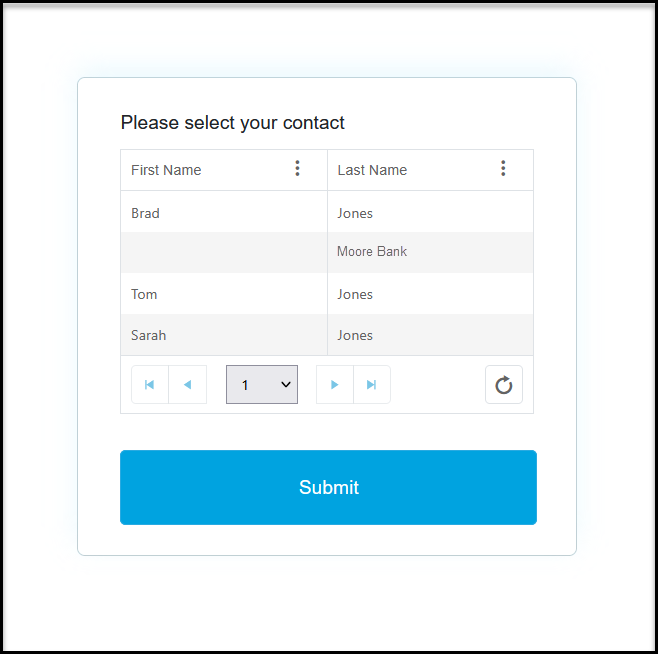
If you have multiple constituents who share the same email address or phone number, a list will be displayed so that the respondent can choose the correct record to link to.