
The reports that the Report Builder can create are also available directly from the Youth Membership Attendance grid by using the queries, filters, and sorts on the grid and view builder. There is no cross-reference with other grids for these reports.
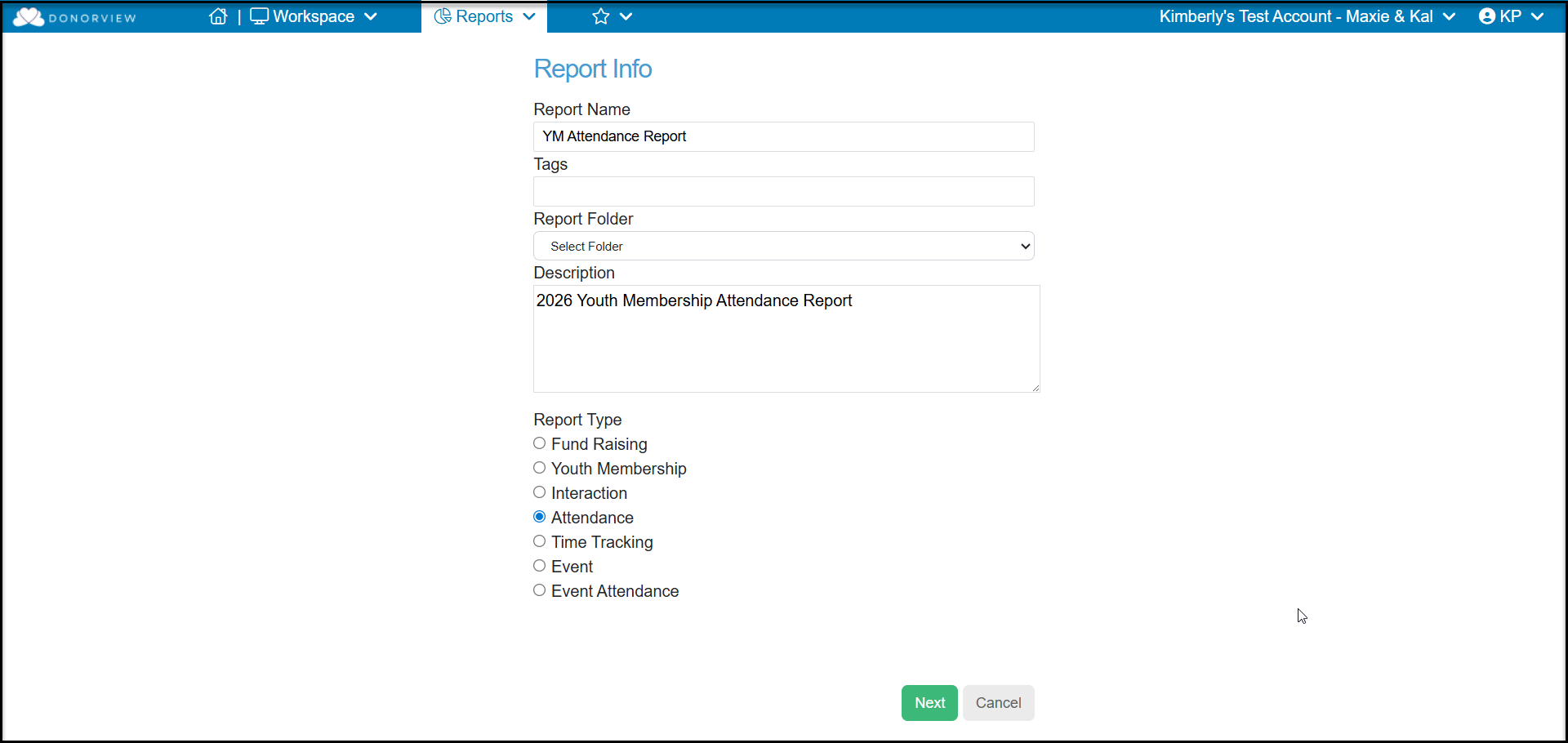
For your new report, enter or select the following:
- Report Name - Enter the name of your report.
- Tags - This is a column available on the Reports grid, so you can apply any desired tags for sorting or filtering the Reports grid .
- Report Folder - This is another column available on the Reports grid, so you can assign this report to a specific folder or create a new one.
- Description - Include a description of your report or its purpose.
- Report Type - Choose Attendance to select fields and prompts from the Youth Membership Attendance grid only. Once selected and Next clicked, this cannot be changed.
Click Next to proceed to the next step.
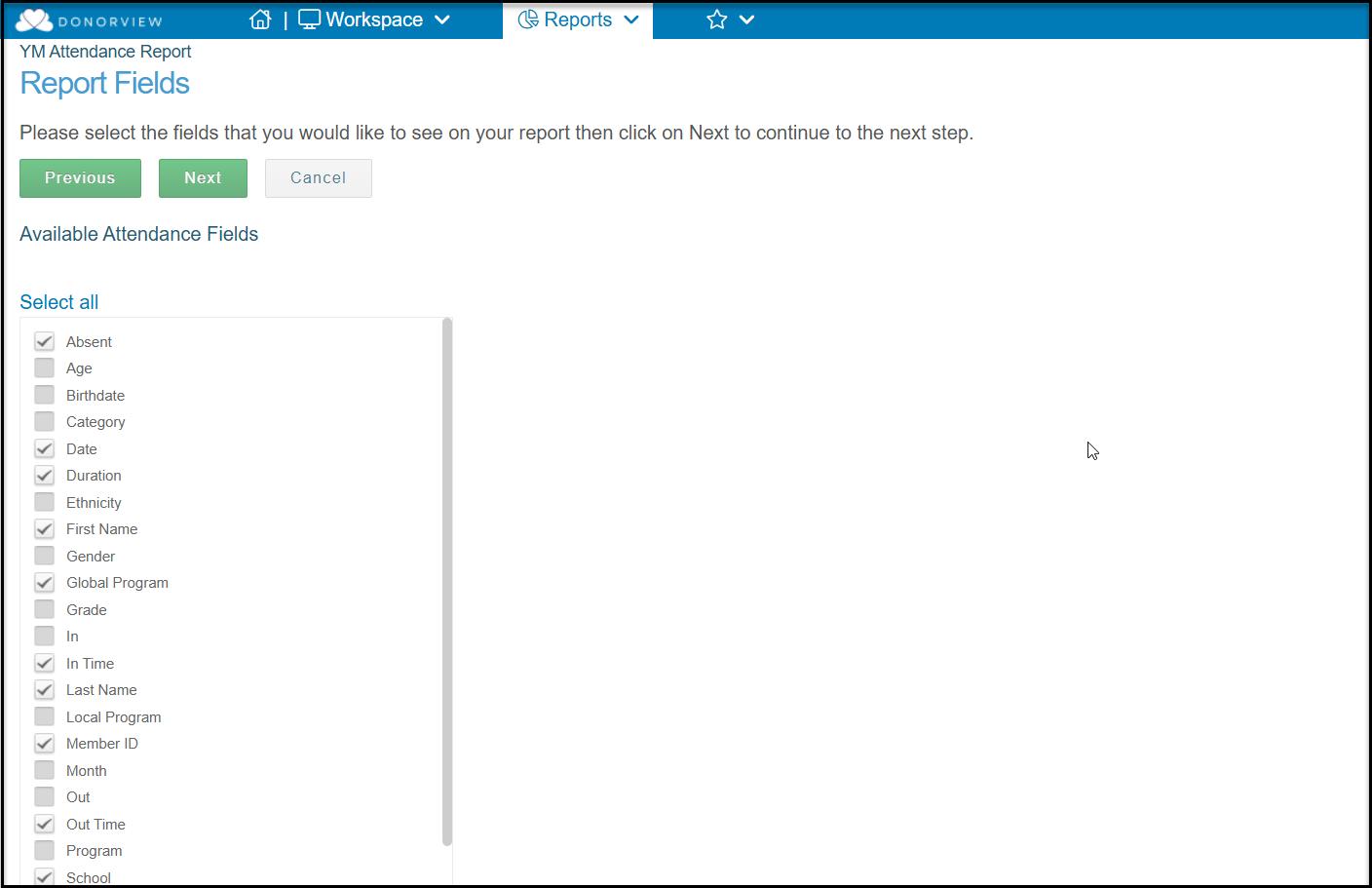
On the Report Fields page you will see one column listing fields available on the Interactions grid.
You will check the boxes next to the fields you wish to include in your report. Each box checked will include that column on your report and any data that is in that field will be shown on the report.
Click the green Next button to proceed to the next step.
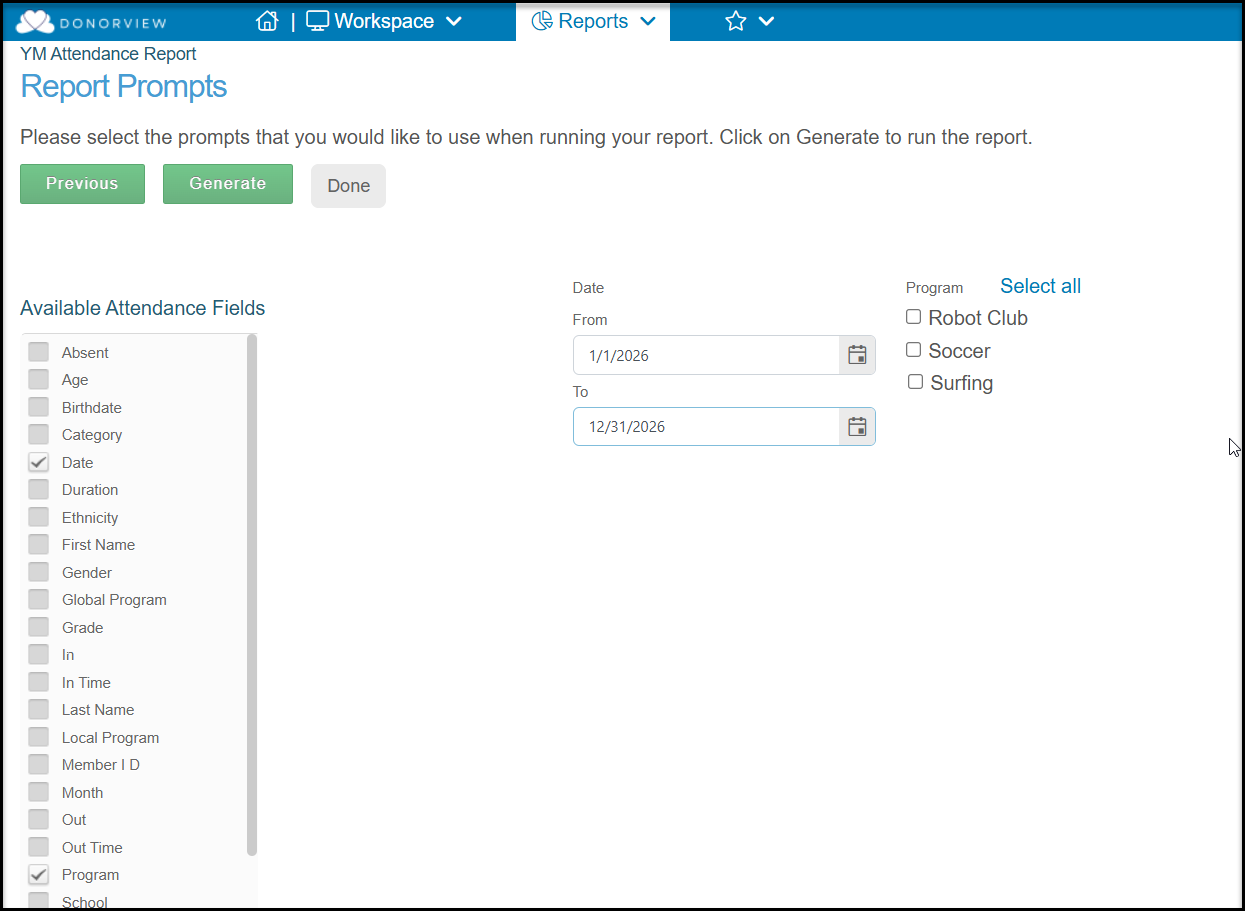
The last step is selecting the Report Prompts. On this page you will select which fields you wish to filter the data by to produce your report. Select the prompt fields from Attendance grid fields.
The prompts selected are performed in the order that they are assigned. So if you choose Date first, the data will be filtered to select only those records that meet the criteria, then the next prompt will be addressed.
Choose your prompts in the order that you wish them to be performed. Once all your prompts are checked, then choose the criteria in each of those prompts by checking the boxes next to the items. You can select multiple criteria under each prompt.
When your prompts and criteria are all selected, click on Generate to download the Excel spreadsheet.
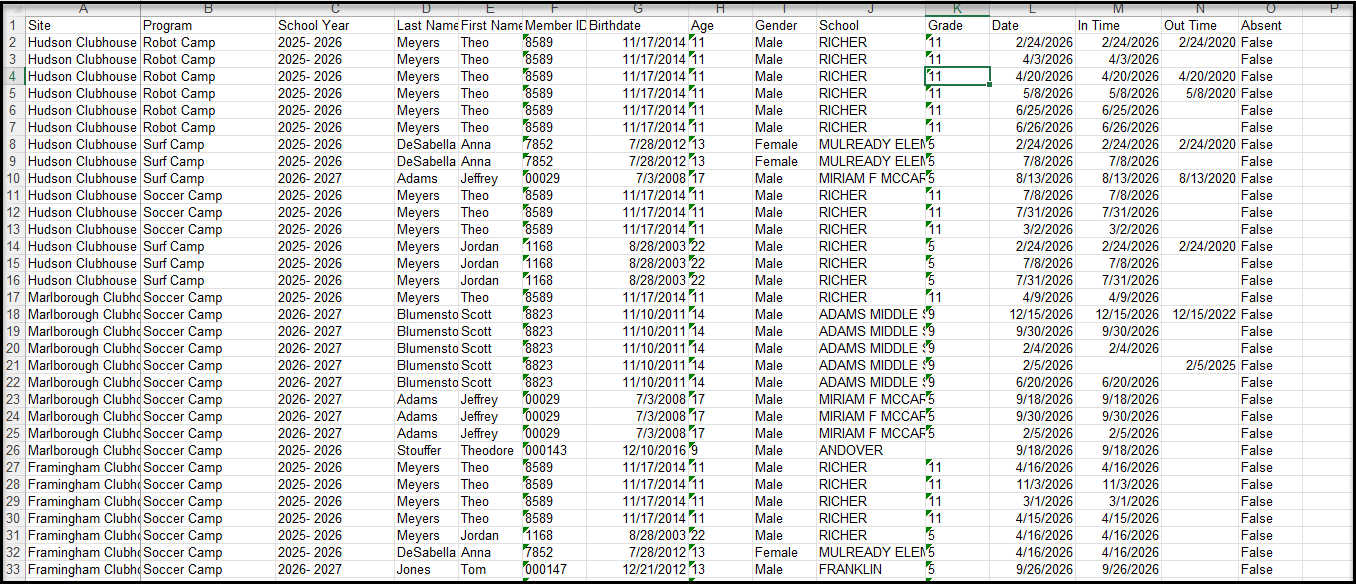
The report will show all the Report Fields you selected in each column. Only those records that meet the criteria you selected in the Report Prompts will be included in the report. The report will show each record that meets the criteria selected, so since some constituents will have multiple check ins in that time range, each attendance meeting the criteria will appear as it own row on the list.
You can go back an adjust the report as needed by using the Previous buttons on the report pages. Once you are finished running your reports, you can click on Done to return back to the Reports grid.
You can rerun the report anytime, but you will need to select the criteria for each prompt again prior to generating the report.