If an attendee cannot make your event you have several options to remove them from the event including:
- Applying a Cancelled Status to the purchase
- Deleting the entire ticket purchase transaction
- Deleting just a specific ticket or attendee from a multiple ticket purchase
- Adding a note to their row on the Event Attendance grid
Option 1 - Applying a Cancelled Status to the purchase
Use this method when there is only one attendee linked to the purchase. If there are multiple attendees per ticket or multiple tickets purchased, use option 3 or . This method will cancel all attendees associated with the purchase and cannot be undone.
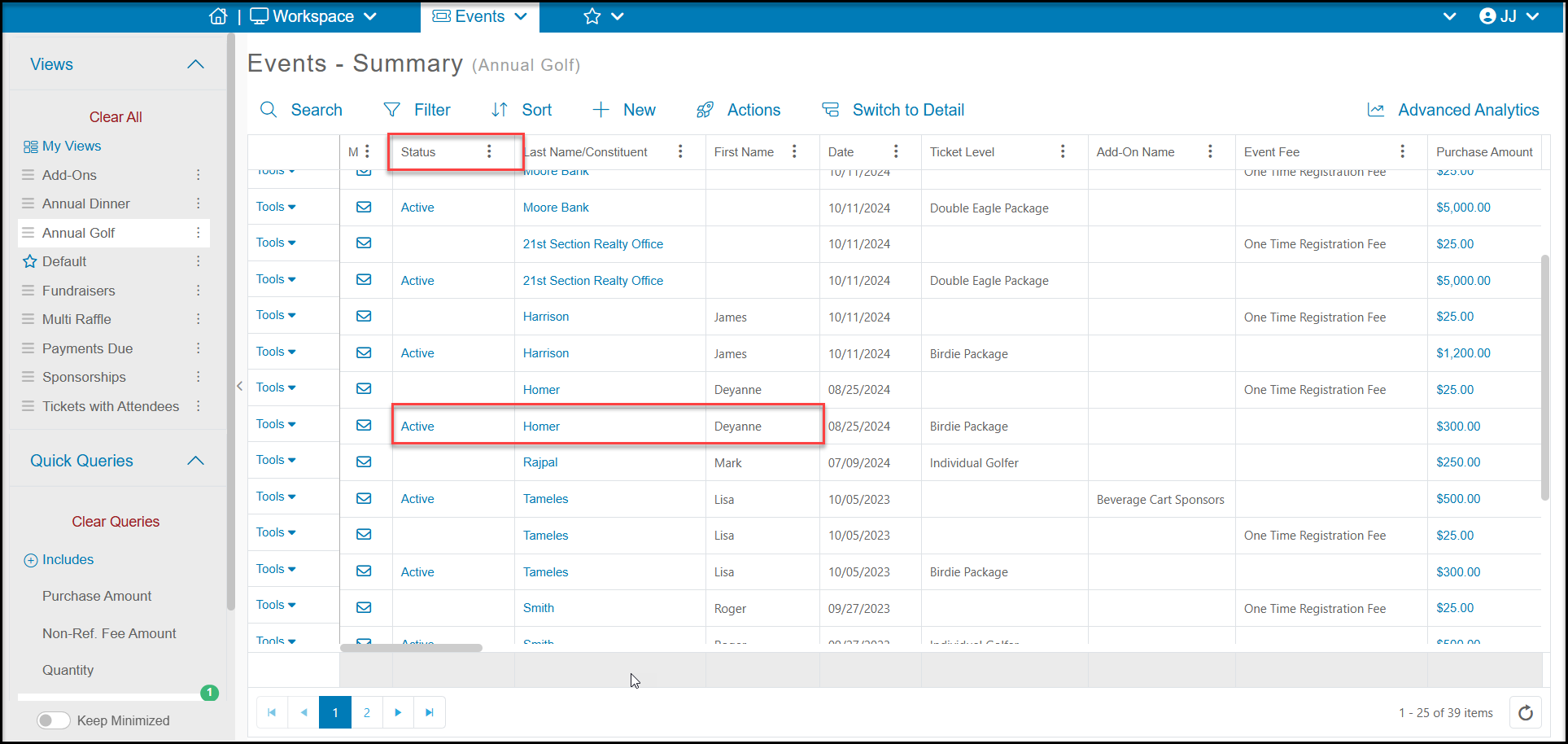
1. To keep the transaction showing on the Events grid, but update the purchase to show that the attendees are not attending, locate the Status column on your Events grid.
2. Next search for the specific purchase you wish to update.
3. Click on the Active link in the Status column.
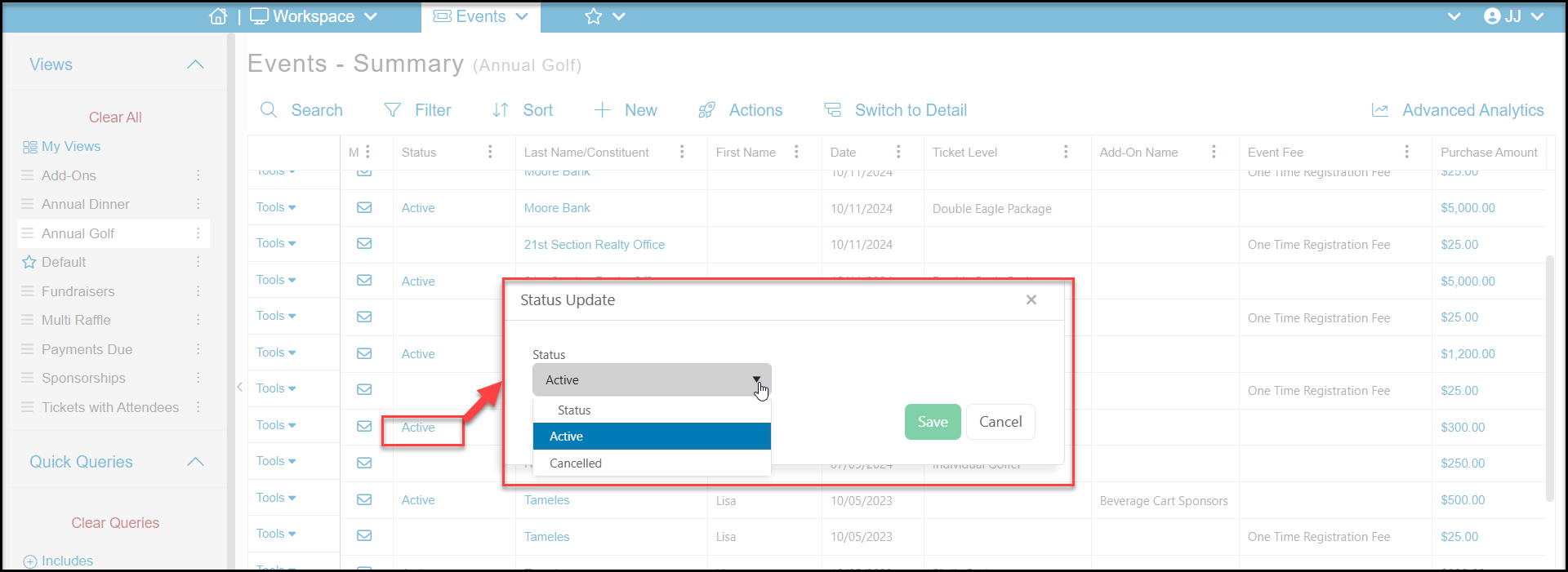
4. In the new window, change the status in the dropdown menu to Cancelled and click Save.
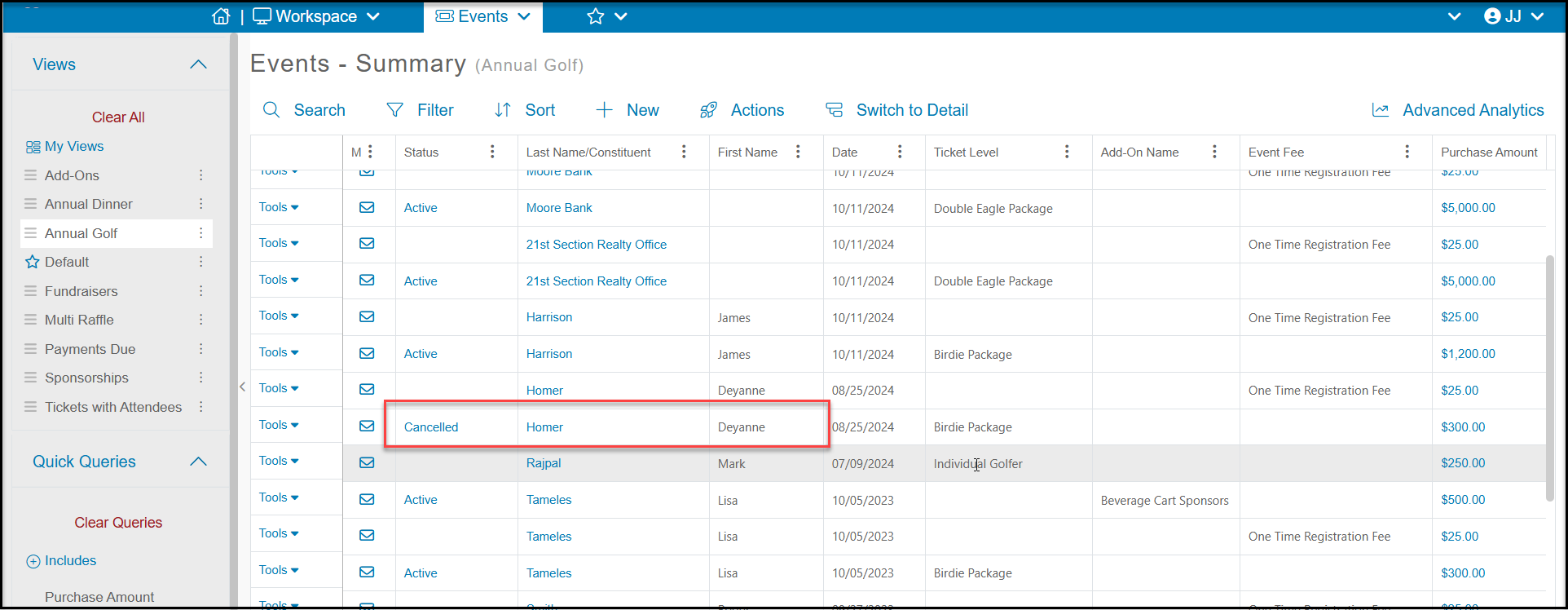
5. The Events grid will show the updated status for this purchase as Cancelled. This will open the tickets for purchase again and remove the associated attendees from the Event Attendance grid.
6. If a refund needs to be issued, please see this article for more information about processing a refund. "How do I issue a refund back on a credit card."
Option 2 - Deleting the Entire Transaction
If you have already processed a refund and wish to remove this ticket from the Events grid, or the tickets are free or not yet paid, you can delete the entire purchase or just a specific ticket or attendee. Deleting an event transaction cannot be undone.
1. To delete the entire purchase, locate the constituent's name on the Events - Summary grid.
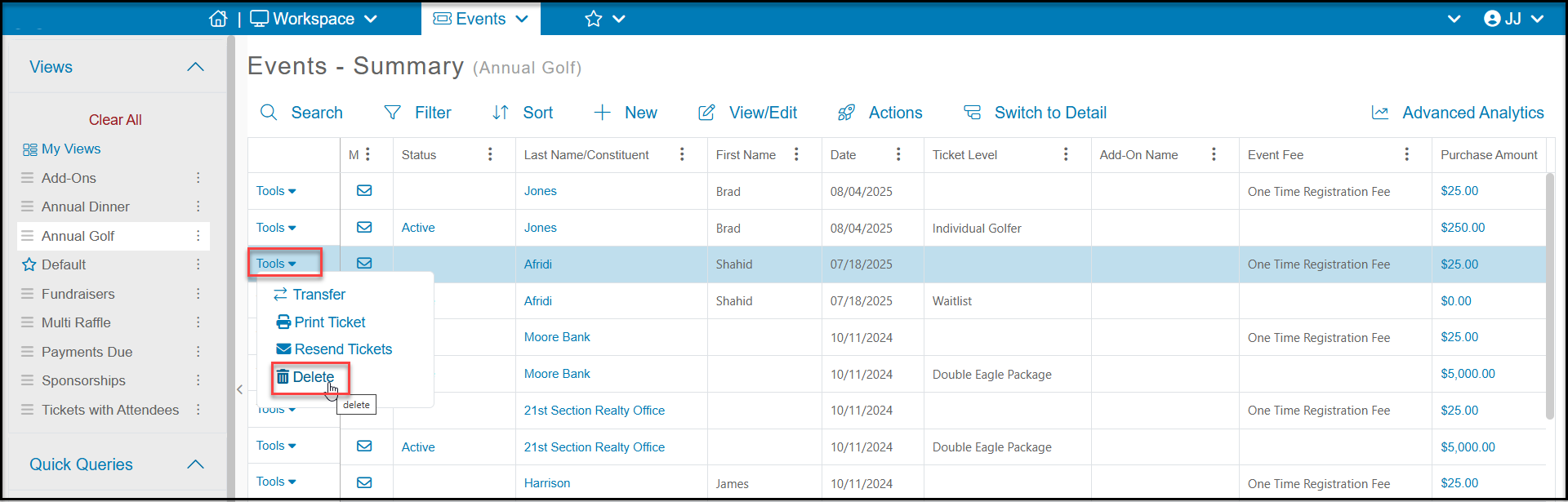
2. Click on the Tools menu on the left side of the row and select Delete.
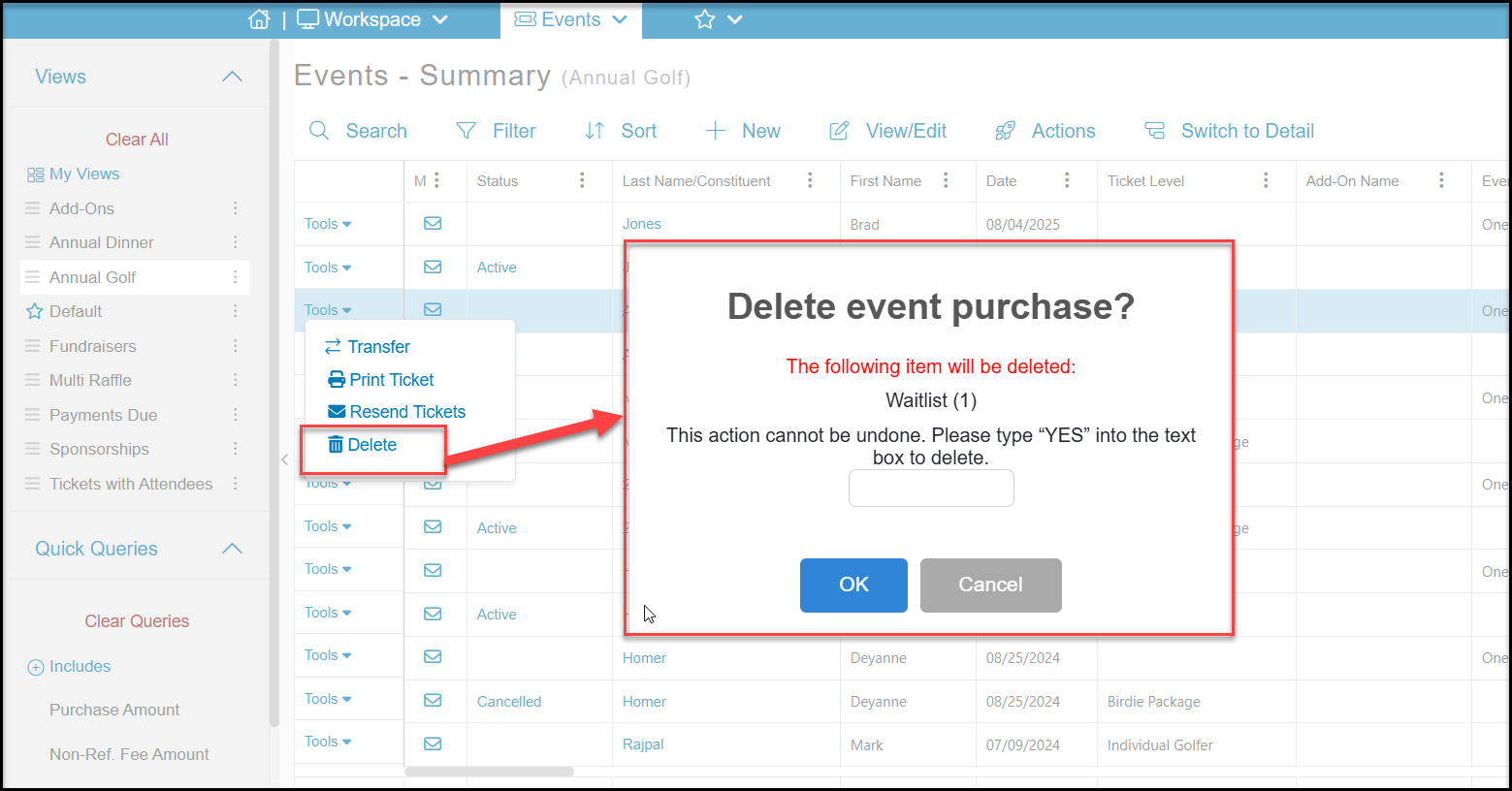
3. In the new window, confirm the entire event purchase should be deleted by entering YES in the box and clicking on OK.
4. This will delete the entire transaction, the names will be removed from the Event Attendance grid, and the tickets will be available for purchase again.
Option 3 - Removing Just a Specific Ticket or Attendee from a Multiple Ticket Purchase
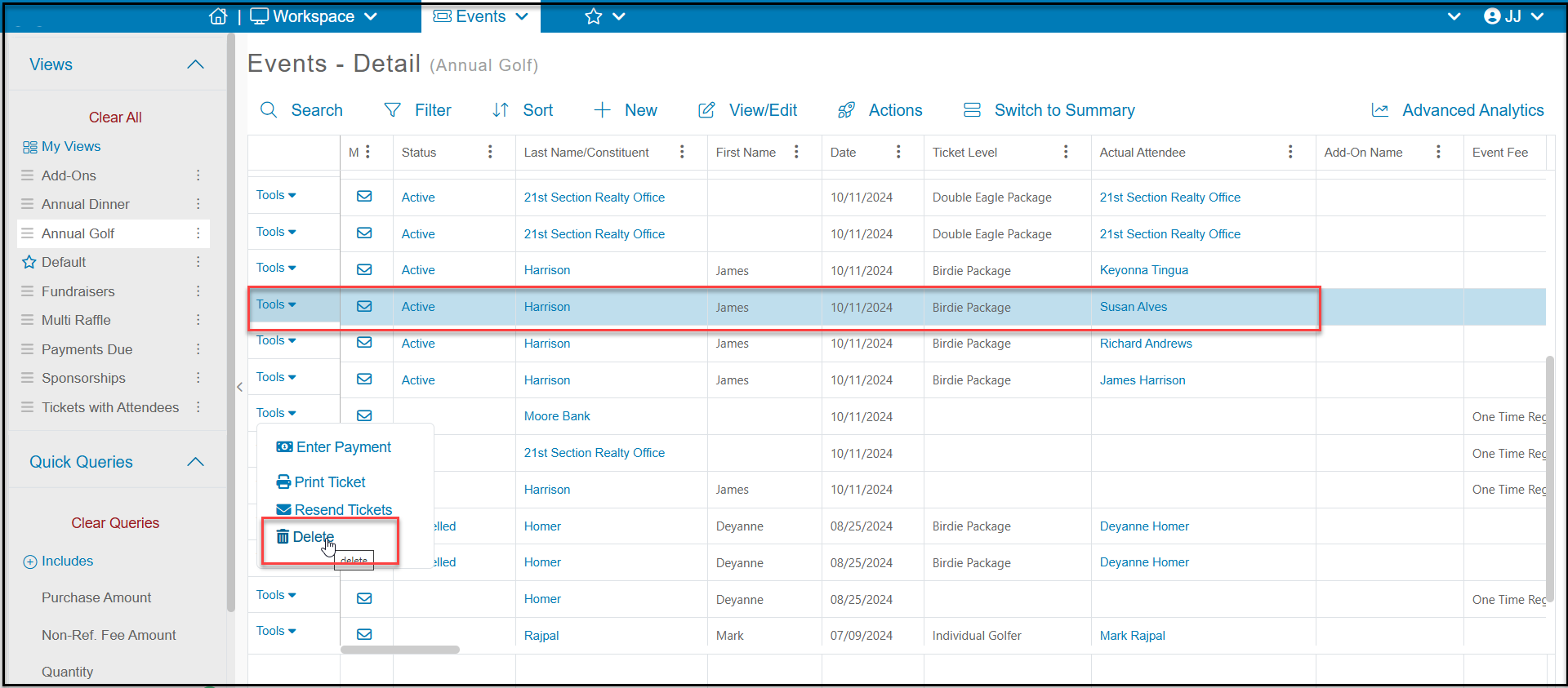
1. If there were multiple tickets purchased and you wish to only delete specific tickets, use the Events - Details grid to perform the deletion. Note that if there were multiple attendees included with a single ticket, you can delete specific attendees.
2. Click on Switch to Detail at the top of the Events - Summary grid.
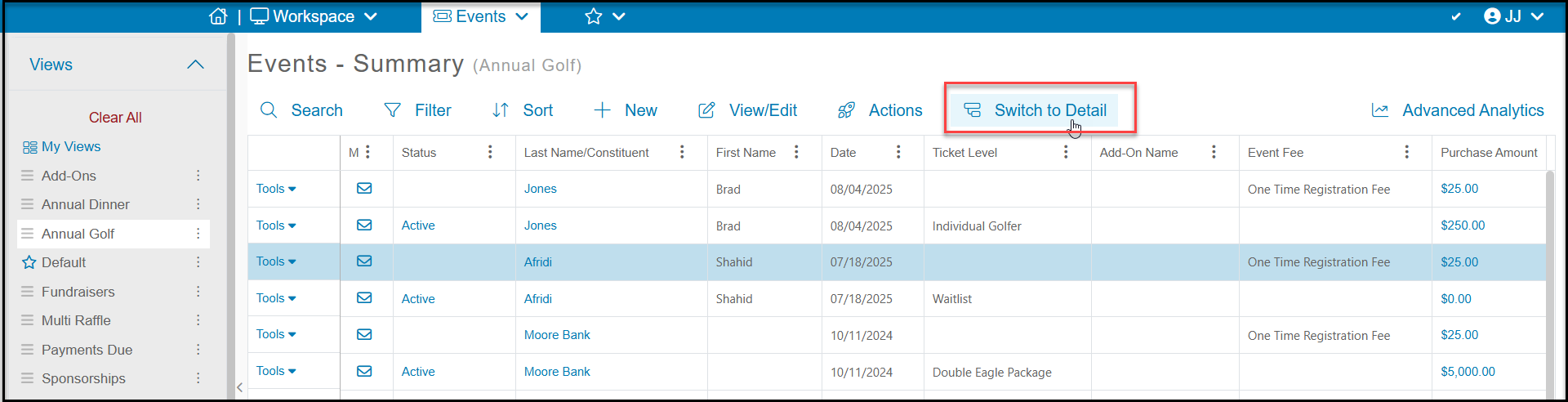
3. The Events - Details grid will show each attendee for the purchase on it's own row.
4. Locate the specific attendee(s) to delete and use the Tools menu and select Delete.
5. Same as above, enter YES to confirm the deletion and click OK to submit.
6. The attendee's name will be deleted from the Event Attendance grid, and the ticket will be freed up for purchase again.
Option 4 - Adding an Attendee Note to Their Row on the Event Attendance Grid
If you do not wish to change the Events grid information, you can either edit the actual attendee name or add a note to the record on the Event Attendance grid.
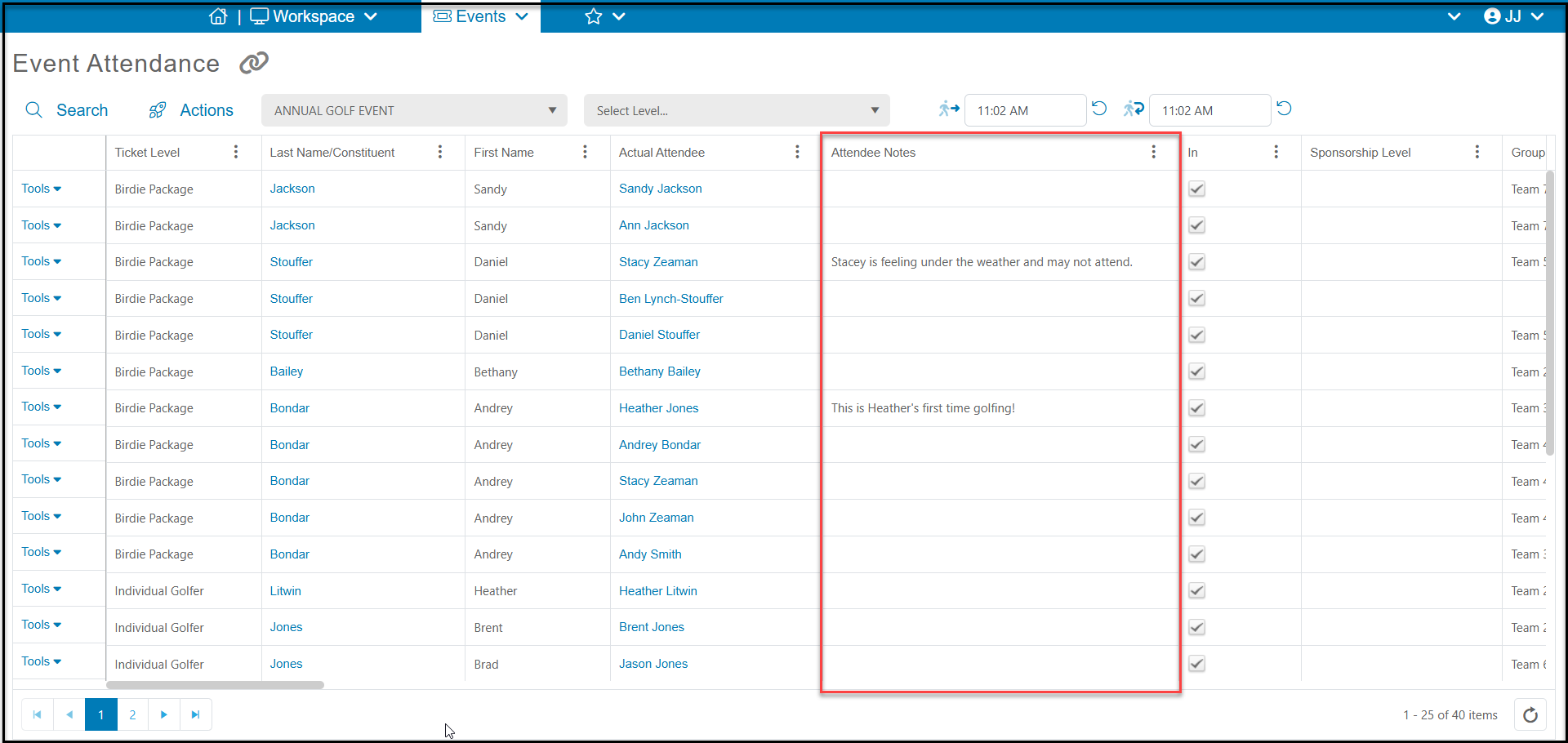
1. On the Event Attendance grid, locate the Attendee Notes column.
2. If you are using this column for additional notes for check-in, move the column near the left side of the grid for ease of viewing.
3. Click on the Tools menu on the left side of the row you wish to update and select Edit.
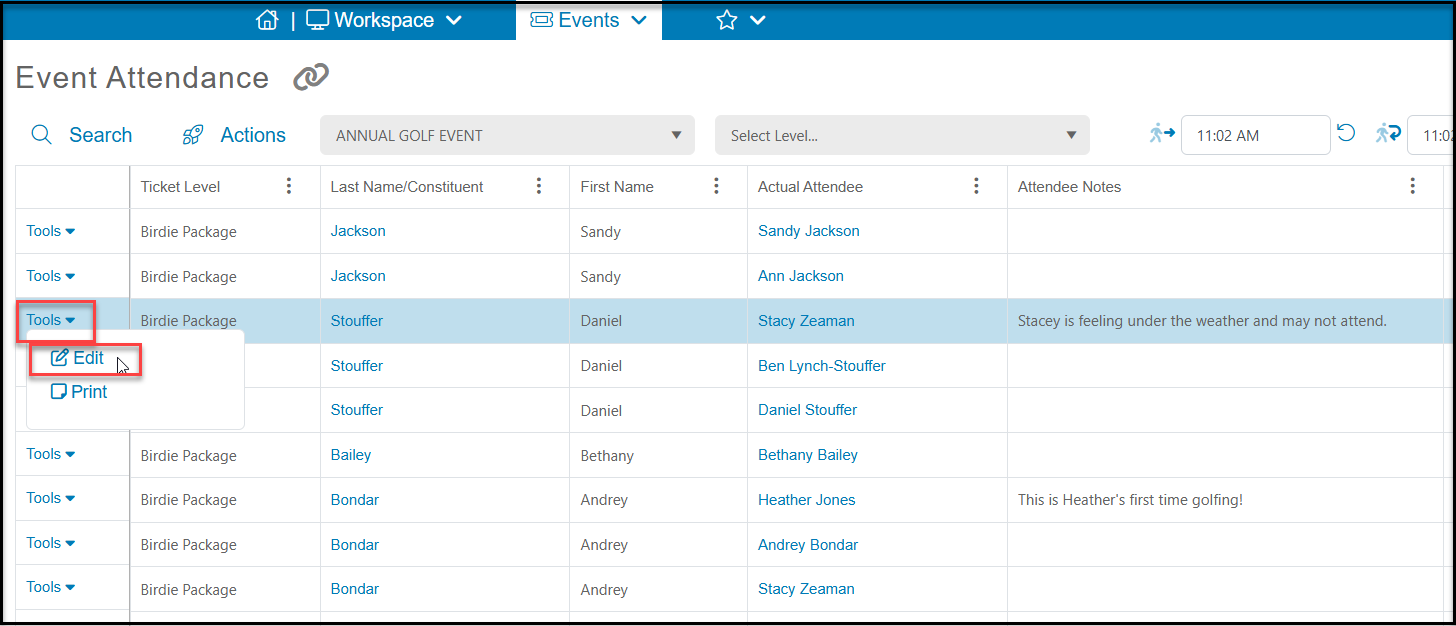
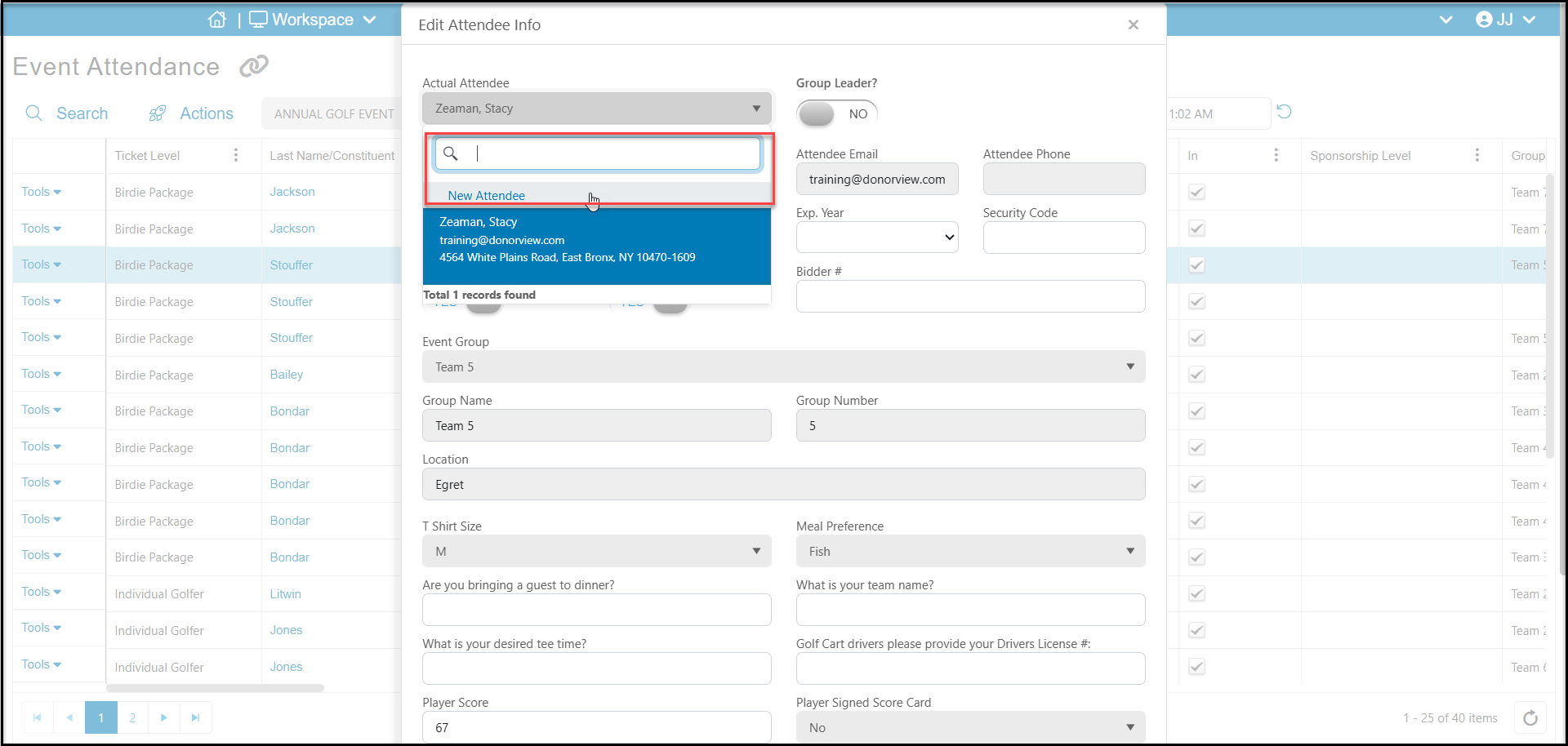
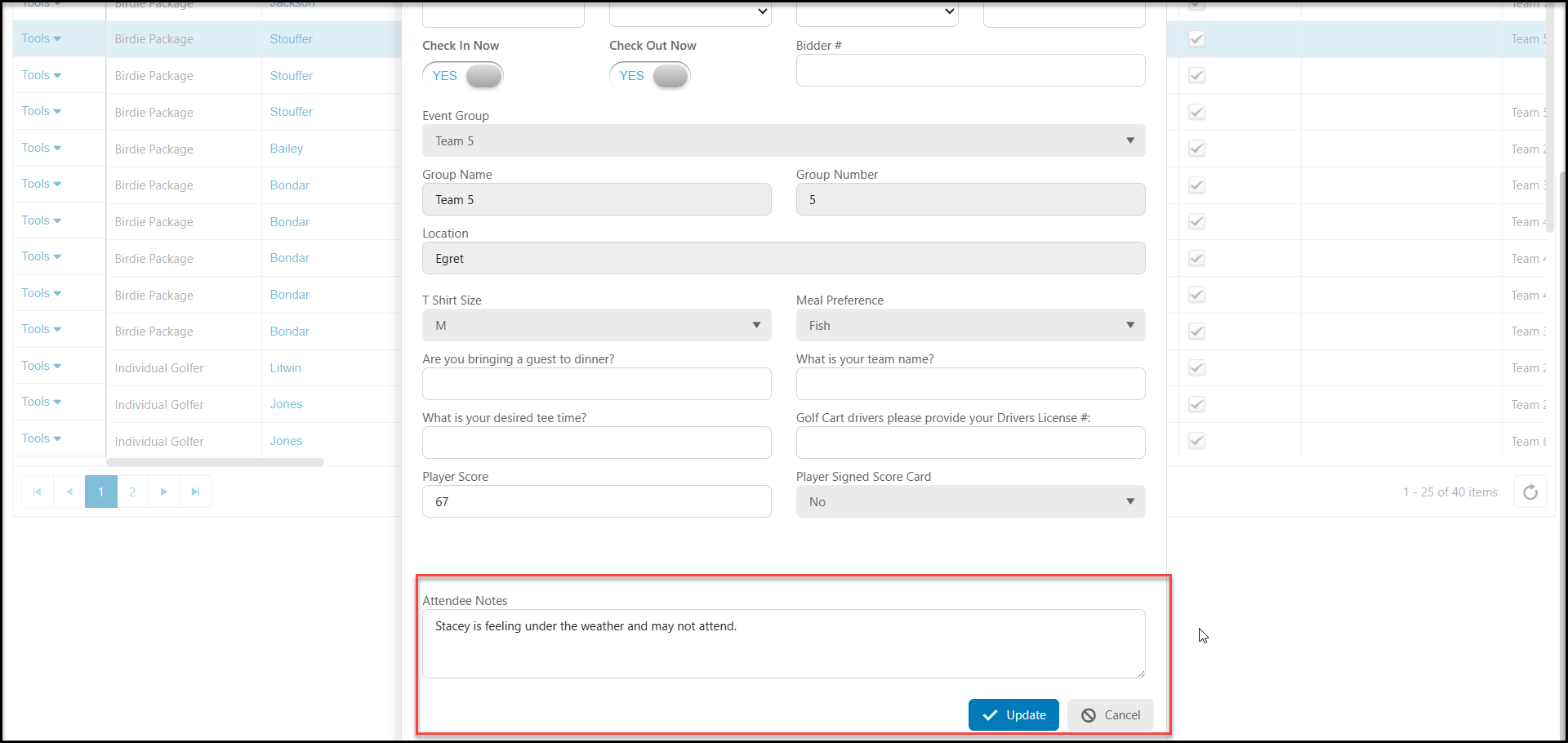
4. In the new window you can select from your database or add a new attendee in the dropdown box at the top of the window or add a note at the bottom of the window. Click Update to save the changes.
5. The updated information will appear of the Event Attendance grid.