
Using the Event Pages in the Events Module you can create recurring or multi-day event registrations through a single event page..
For a recurring or multi-day event, on the Event Settings tab of the Event Page editor, you will complete the Time & Date and Notifications sections. Because you can edit the days available using the Schedule tab, you may want to consider limiting the duration for your recurring event to a few months. This will also limit how far in advance individuals can register for specific dates of your event.

If the event is free, in the Financial Information section toggle the Free Event button to YES. This will hide the amount field on each ticket level.

If you would like to use the Event Module's Scheduler, toggle Show on Scheduler to YES.
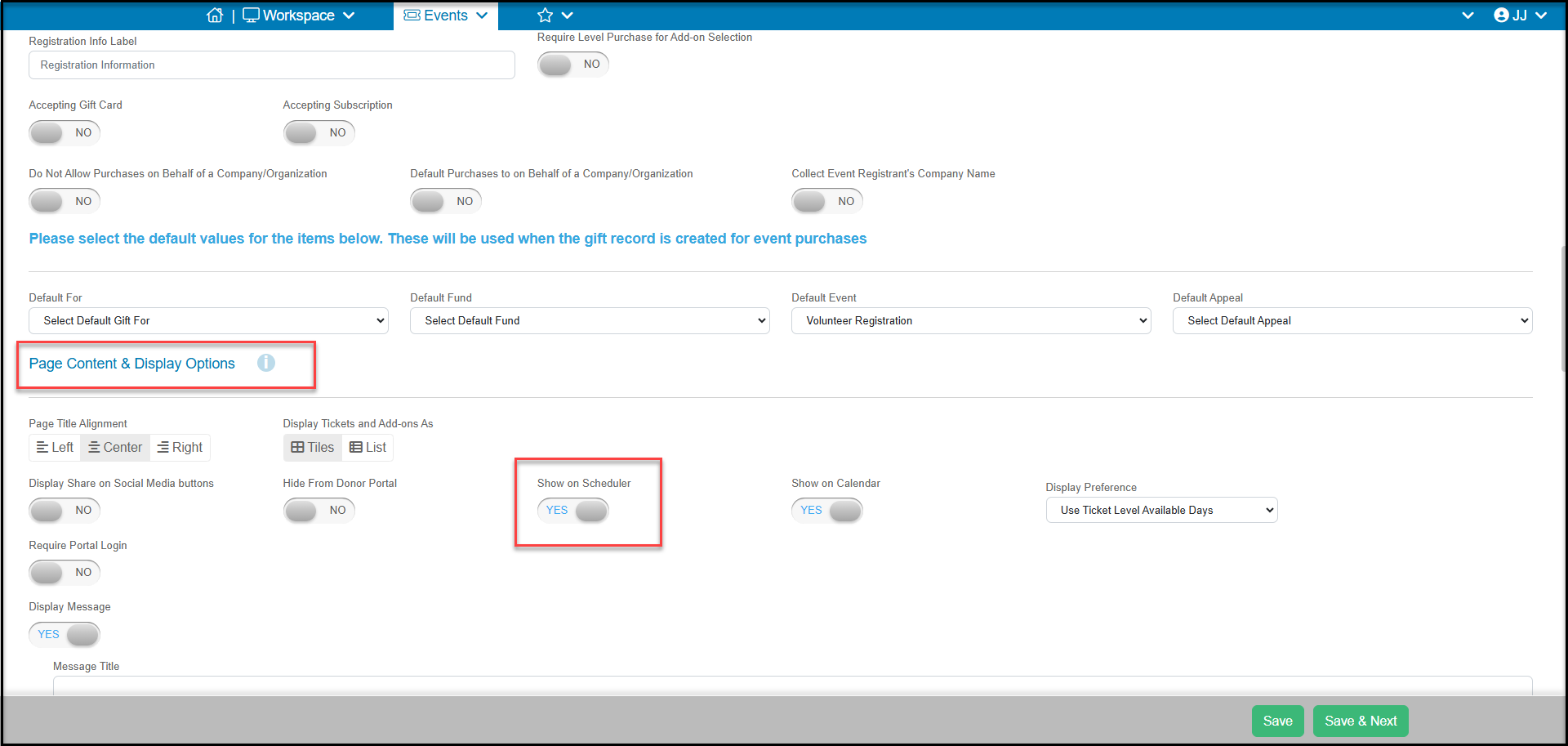
Continuing filling out the Event Settings page as desired and proceed to the Ticketing section.
There are two main recurring event options with additional optional features based on your selection:
"Recurring Event, 1 Registration Covers All Days" allows attendees to submit one registration for a multi-day event that they will attend on multiple dates, such as art or exercise classes that run for multiple sessions on the same day/time.
"Recurring Event, pick Registration for 1 or More Days" allows the attendee to select one or more specific date(s) on a calendar then select Ticket Levels available for that date.
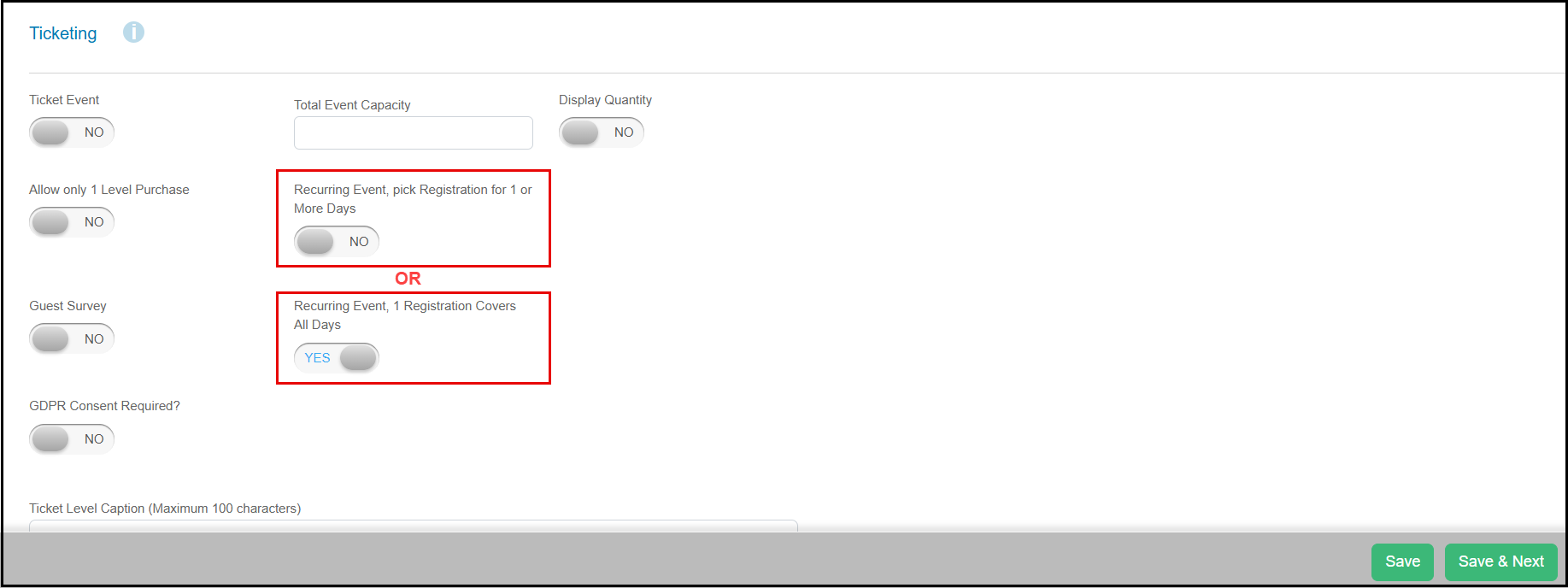
With the "Pick Registration for 1 or More Days" selected you can also select a combination of these additional features:
- To activate a calendar and shopping cart feature, toggle Recurring Event to YES. This allows attendees to register for multiple days in the same transaction. Customize the label of the shopping cart under the Shopping Cart Caption.
- If you want attendees to sign up for only one ticket level per day, toggle Allow only 1 ticket level/day to YES.
- The Generate only 1 ticket feature can be marked YES if you want to enable a multi-day registration feature.
- The multi-day registration feature allows attendees to select a level, then choose the days to participate instead of using the standard calendar where the day is chosen first, then the level.
- Multi-day registration can also be restricted for internal use only, meaning that feature would only be visible to DonorView users who are logged into DonorView and using the same browser to view the page. Toggle Internal Only to YES to keep the multi-day registration hidden from the public view.
For both multi-day event types you can also Toggle Display Quantity to YES to show how many tickets are available on any day (optional).

Once you've selected your multi-day ticketing settings, click Save & Next to continue to the Event Set Up tab.
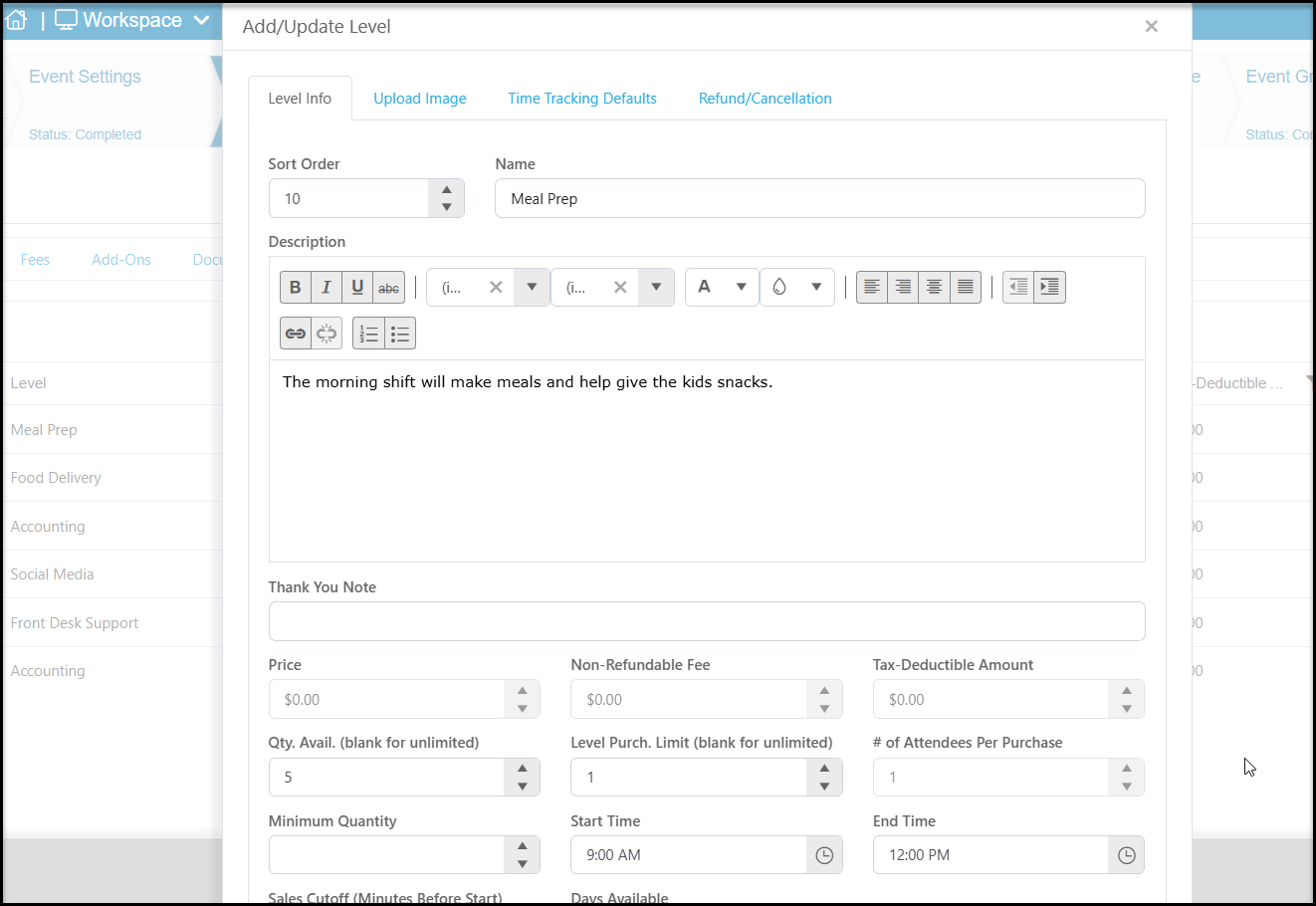
In the Event Setup tab click on +Add Level to add the ticket levels and the days of the week they are available.

- Add the details about the shift and activities to be performed in the Description field.
- If the event was marked as a free event, the Price, Non-Refundable Fee, and Tax-Deductible Amount fields are not available. If this is an event with a price, you can enter it here.
- You'll enter the quantity of spots available in the Qty Avail. field. You should always enter some quantity in here, even it is some very high number. This will help with the Scheduler tab when customizing which days are available, and which are not.
- In the Level Purch. Limit field you can limit how many registrations can be made for this level. You should enter "1" if you do not want your constituents to sign up for anyone other than themselves. If you want to allow people to register more than one person one the same form, you can enter a maximum number or leave blank for unlimited additional guests.
- In the # of Attendees per Purchase field, you typically enter "1" to indicate that each registration is for a single person.
- You should leave the Minimum Quantity field blank unless the registrant must sign up more than one person at a time in order to select this shift.
- Enter the Start Time and End Time for this shift.
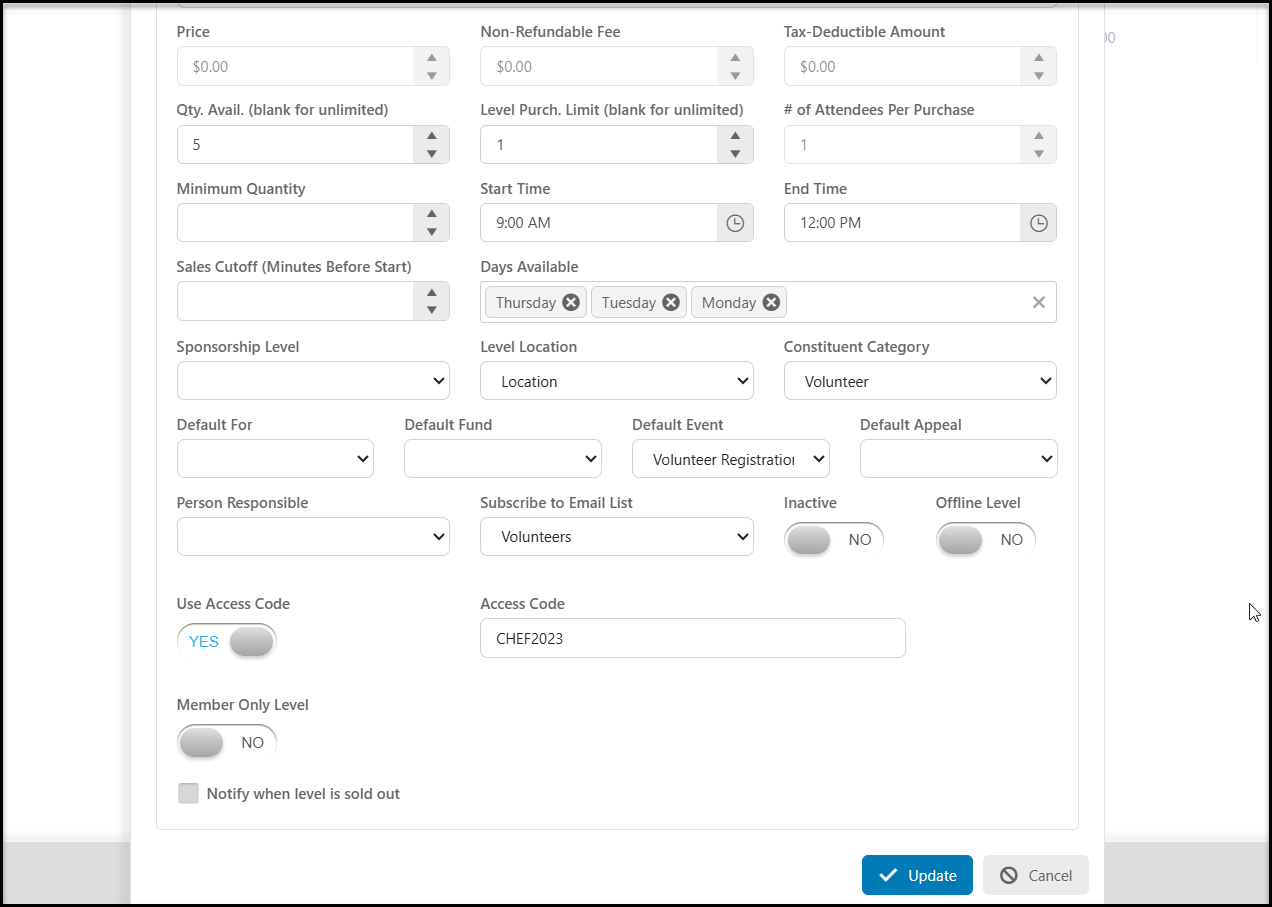
- If you wish to apply a time cutoff for registration, enter the number of minutes prior to the start of the shift in the Sales Cutoff (Minutes Before Start)field. For example, if you only wish to accept registrations within 60 minutes of the scheduled Start Time, then enter “60” in this field. The level will not be shown on the event page after the sales cutoff time.
- Enter the days of the week this level will be available in Days Available. You can select multiple days. Using the scheduler, you will be able to adjust which days in each month or for the duration of your event the level will be available.
- In most cases, Sponsorship Level is left blank, for recurring events.
- If this level is going to be assigned to a Level Location, you can choose it from the drop down list.
- You can also assign volunteers automatically to a Constituent Category and Subscribe to Email List in those fields.
- The Default For, Fund, Event, Appeal are used for reporting on the Gifts grid, so if you would like to assign revenue categories to this specific level that are different than those assigned for the page, you can enter them here.
- If this level will be assigned to a specific person for check in, you can select the user from the Person Responsible drop down list.
- If this level should not be included on your event page, you can set Inactive to YES to hide this level. This will not affect any previous registrations.
- If you wish this level to be visible to internal users only, you can make it an Offline Level by setting this to YES.
- If you would like to restrict who can sign up for a specific level, you could also add an access code by toggling Use Access Code to YES and then creating a code in the Access Code field.
- If this level is available only for members, you can activate the Member Only Level and select which membership page will be displayed if their membership is not found.
- Check Notify when level is sold out and enter the email addresses to receive the notification if desired.
- Click Update to save your changes.
Multi-day and recurring events will activate a new tab called Schedule. This tab allows you to customize the number of tickets available on any given day. For example, if you have a recurring event that will happen over several months and there is a holiday in that time frame when your organization will be closed, you can customize how many spots are available. This grid can be filtered and sorted like other grids in the software. The example below shows that the organization will be closed for Independence Day on July 4th. Clicking on the # of Tickets on that day, you can reduce the number of spots available to 0. On any given day, you can reduce the number of tickets available, but you cannot increase them. Click on Save changes to save the schedule. To Increase the maximum number of tickets available you need to edit the ticket level in Event Setup.

If you need to capture any specific questions for attendees or if you allow multiple attendees to register at one time, you can toggle Capture Attendee Info to YES on the Attendee Info tab to capture the name and contact information for each person (optional). Click Save & Next when complete.

You can continue customizing the style and thank you message.
On the registration page, under the Single Day Select option, the attendee chooses the day on the calendar to reveal what tickets are available on that day. They can select days and a quantity for each level and each is recorded on the bottom of the page. When finished, the person completing the form will enter their information at the bottom of the page and click Submit to complete the registration.

If you activate the Multi Day Select, instead of seeing a calendar, the registrant will select a level and then see all the days available. If you have a very long time frame, the registrant may need to toggle through the pages or edit the From and To fields. The registrant would UNCHECK any of the days they did not wish to register for. When finished, the person completing the form will enter their information at the bottom of the page and click Submit to complete the registration.

Once the registration is submitted the Registrant will receive a thank you email with a list of the levels they have registered for. Registrants and attendees for events can be viewed and managed in the Events Module.