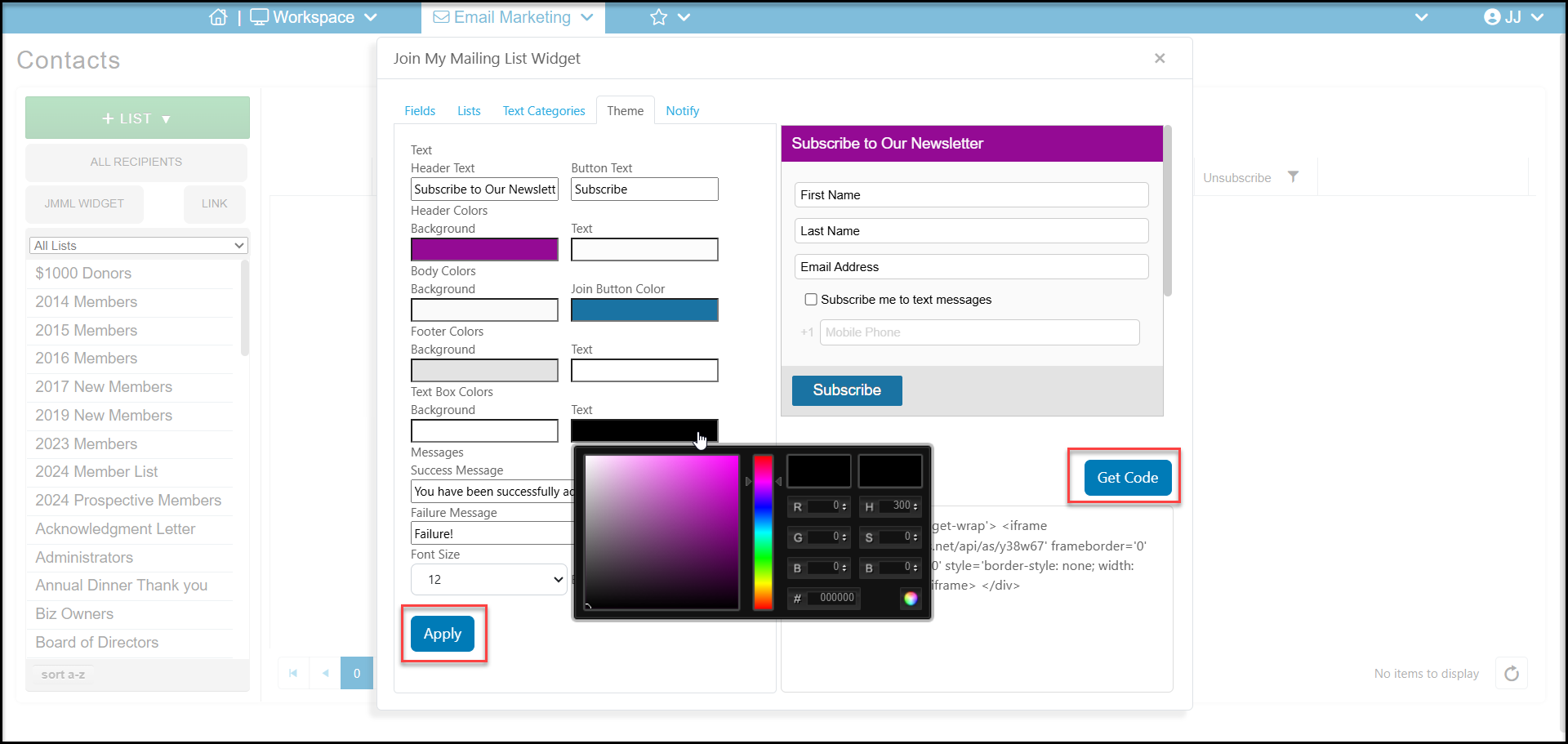
A Join My Mailing List (JMML) widget creates a box that you can embed into your website that allows website visitor to subscribe to one or more of your email list categories. To create the widget, go to Workspace>Email Marketing>Contacts. Select JMML WIDGET.
- Under the Fields tab, you can choose which constituent fields you would like to collect from the person who signs up. If text messaging is activated, you can also collect a mobile phone number with the Text Subscription Fields option.
- Under the Lists tab, you can select which email list categories the person will automatically be subscribed to.
- If you have Text Messaging enabled, you can also select the Text Categories to subscribe them to.
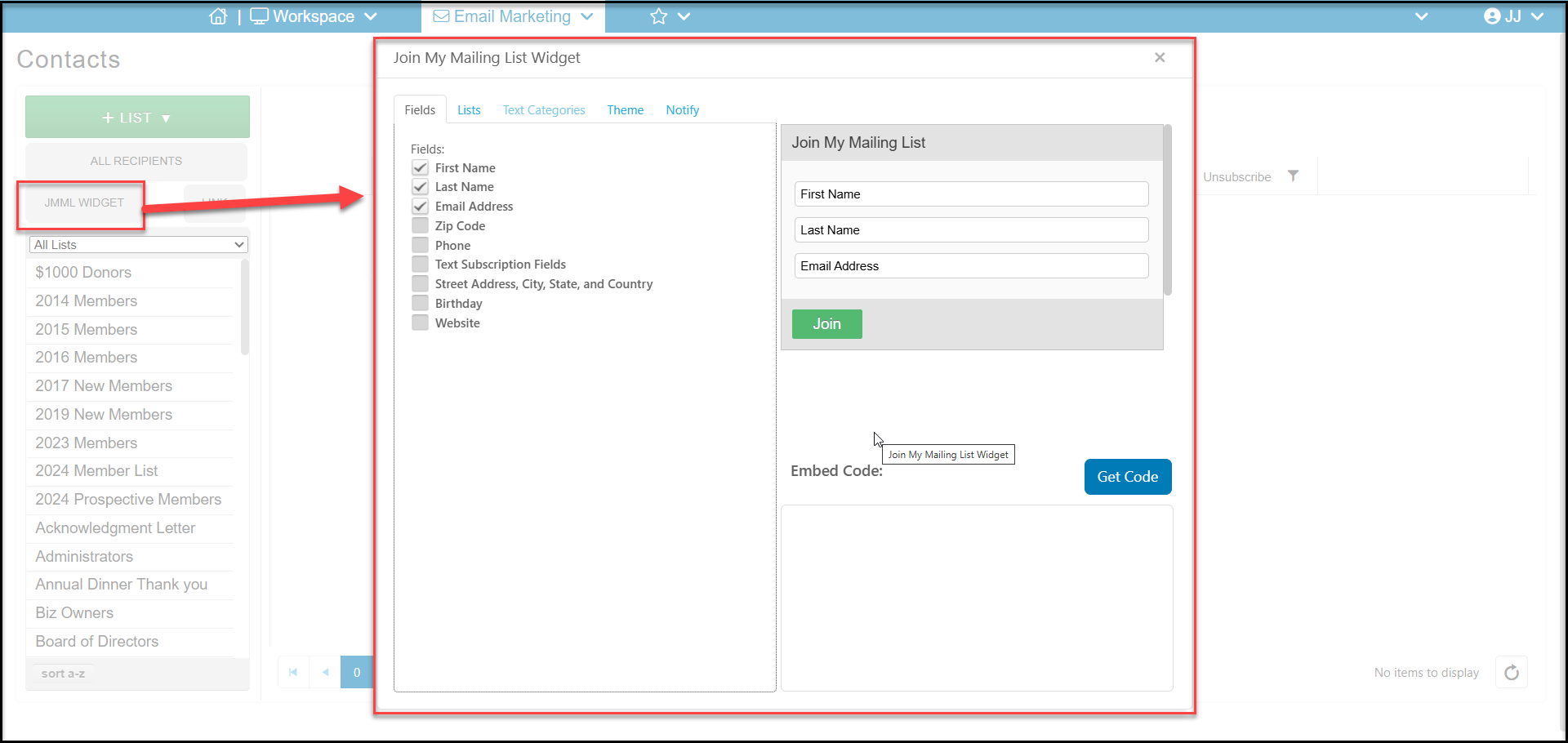
- Under the Theme tab, you are able to change to colors and font sizes on the widget. Click in the color square to reveal the color editor. After making changes, use the slide bar on the side of the window to scroll down to find the blue Apply button to save your theme changes.
- When you have finished making all your selections, click the blue Get Code button to generate the embed code to copy and paste into your website.
- The Notify tab allows you to set up internal notifications when someone subscribes. You can notify up to 5 email addresses, be sure to separate them with a semicolon.
- When someone subscribes from this widget if they are already a constituent, matched by email, the information will populate into their existing record. If they are not already in the database, a new constituent will be created.