You can only delete an email list if it has never been used for an email marketing campaign, emailed survey campaign, or is part of an automated subscription to an email list on a membership, event, donation, or survey page.
To determine if the list in question has been used in an email marketing campaign or survey go to Workspace>Email Marketing>Campaigns. You can select Actions>Export to Excel File. A column called "Lists" will be included on the spreadsheet. You can do the same in Workspace>Surveys/Forms>Surveys/Forms List.
If the email list is included in an email marketing campaign or survey, you won't be able to delete it unless you delete all the email marketing and survey campaigns where it was used. Note that deleting these campaigns will also delete all historical data and survey responses.
To check if the email list is associated with any pages, you will need to review each membership, event, donation, and survey form you have created to determine if you have set up an automatic subscription to the email list. You will need to check the following to ensure the email list is not used in these fields:
- Donation Page Settings Tab > Additional Options: Subscribe Donor to Email List
- Event Page Setup Tab > Ticket Level: Subscribe to Email List
- Membership Page Setup Tab > Membership Level > Advanced: Subscribe to Email List
- Survey/Form Page Settings Tab: Email List
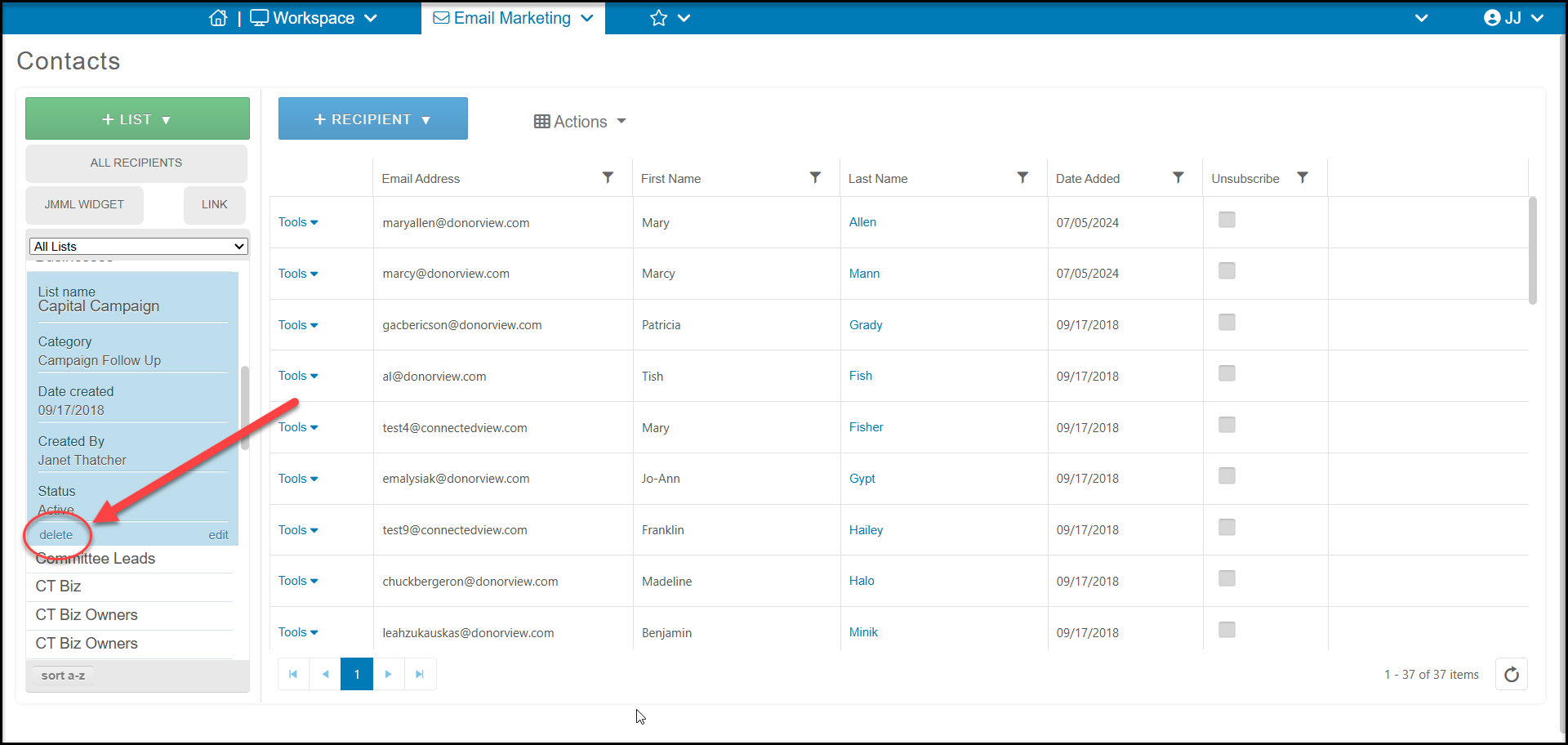
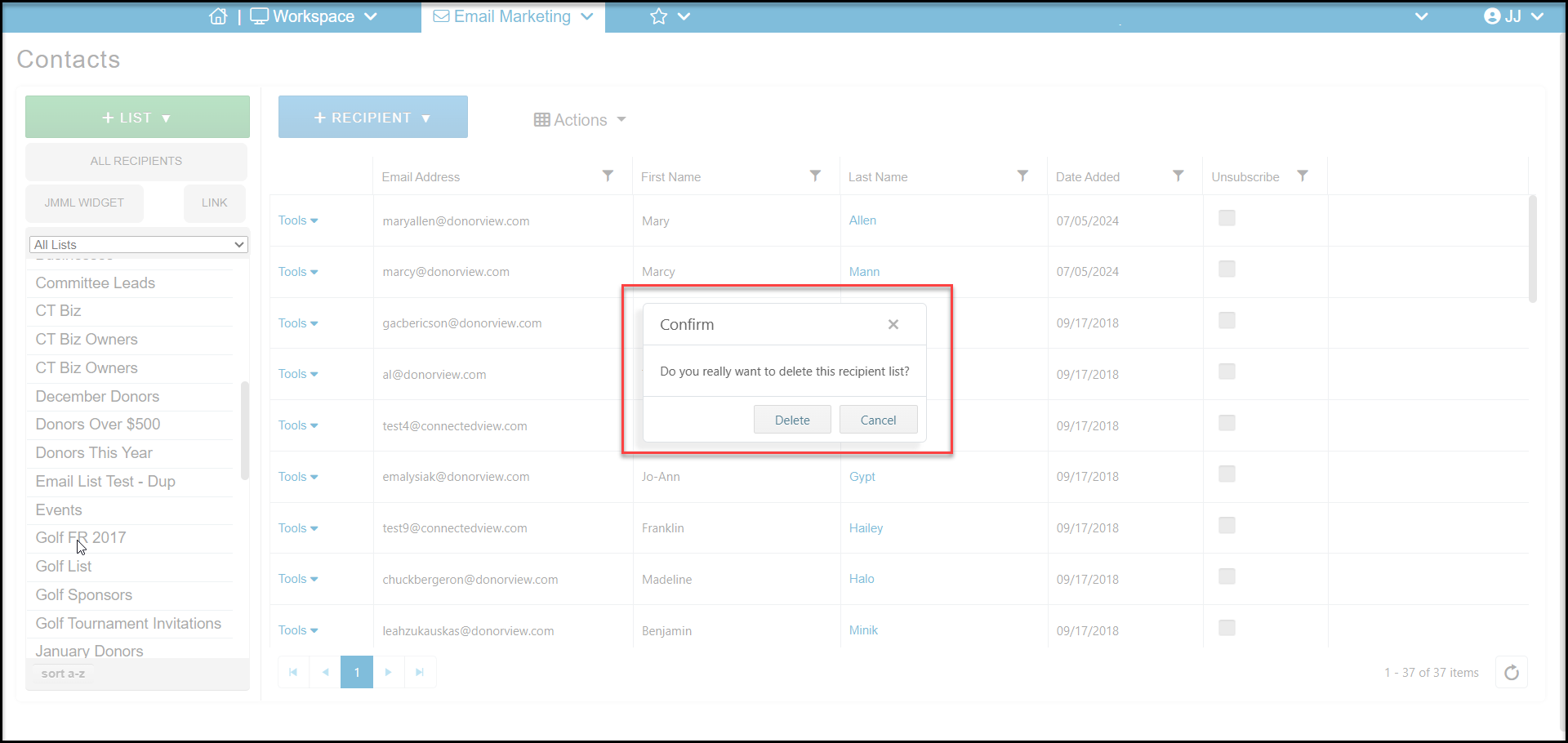
If the list was not used in any email or survey campaigns and is not being used to automatically assign someone to an email list, you can delete it from the Contacts Page in the Email Marketing module. select the list you would like to delete from the lists on the left. If delete shows in the bottom left corner, you can click on delete to open a new window to confirm the deletion.
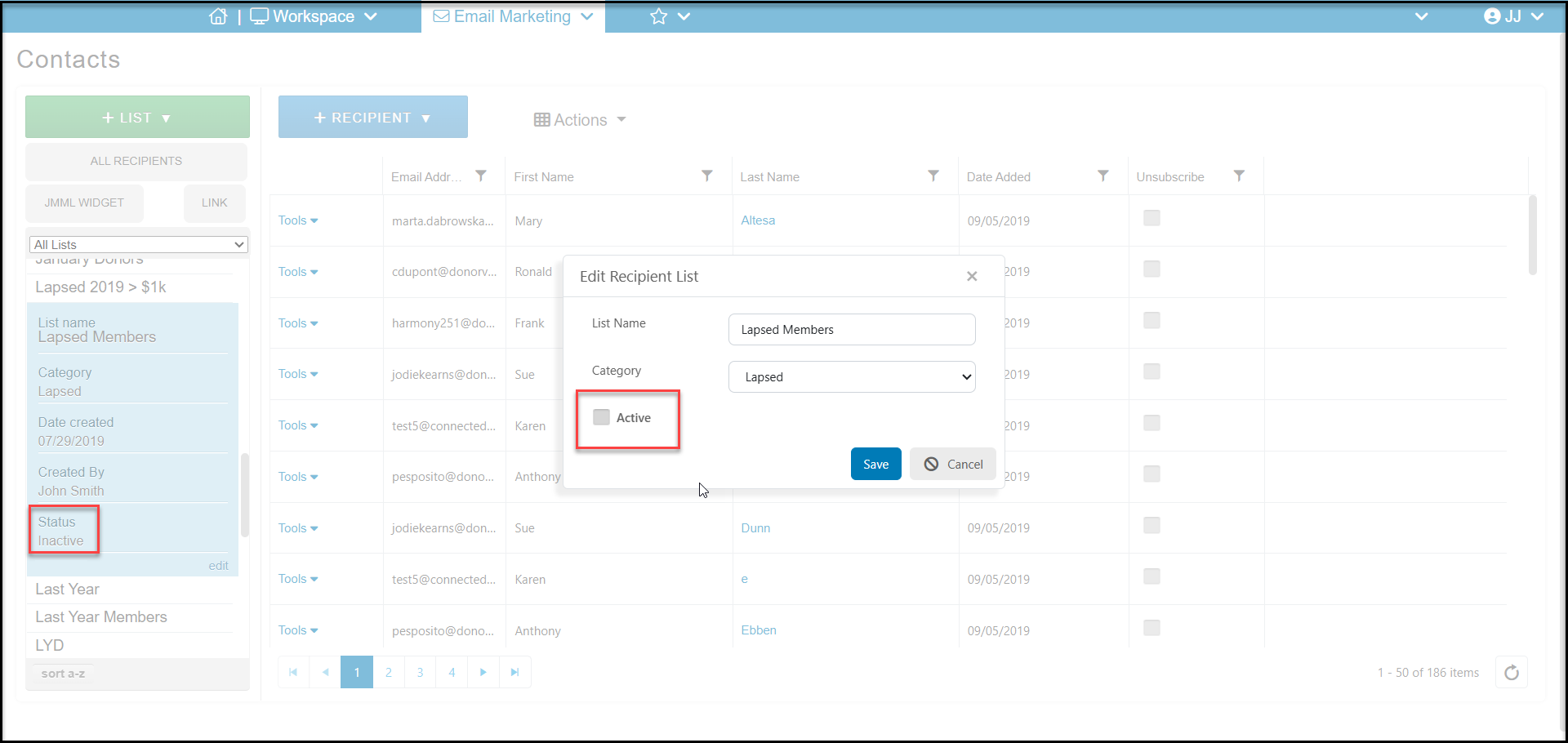
If the list was previously used for a campaign but is not currently being used on a page for an automated subscription, you can instead make the list Inactive by clicking on edit in the bottom right corner. Uncheck the box "Active" to mark the list Inactive and click Save. An inactive list will no longer be shown as an option to select in future email campaigns or to add constituents to that email list.