How do I create a poll?
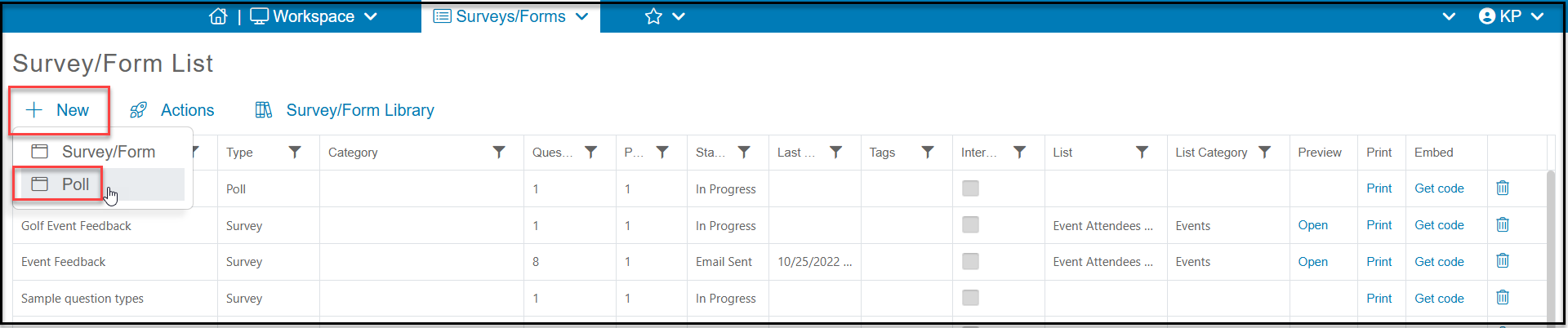
A poll is a unique survey tool that asks just one question. Once the respondent submits their response, they see a graph showing the breakdown of all the responses so far. To create a poll, from the Survey/Form List grid, click on +New and then Poll.
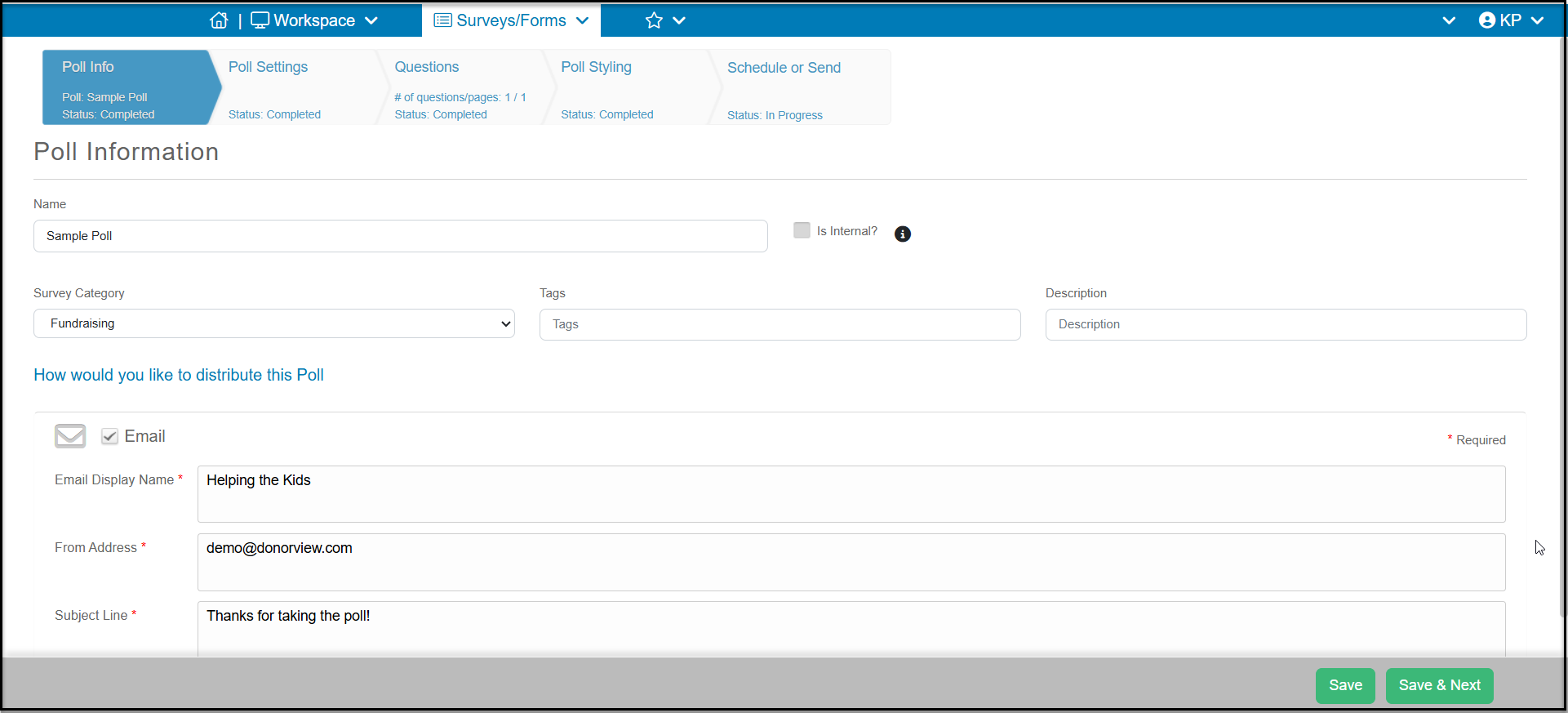
The poll is created in a similar format as a regular survey. The first step will be the Poll Info tab. You have all the same fields as a regular survey, however even though the Is Internal feature is available, it is not used for polls.
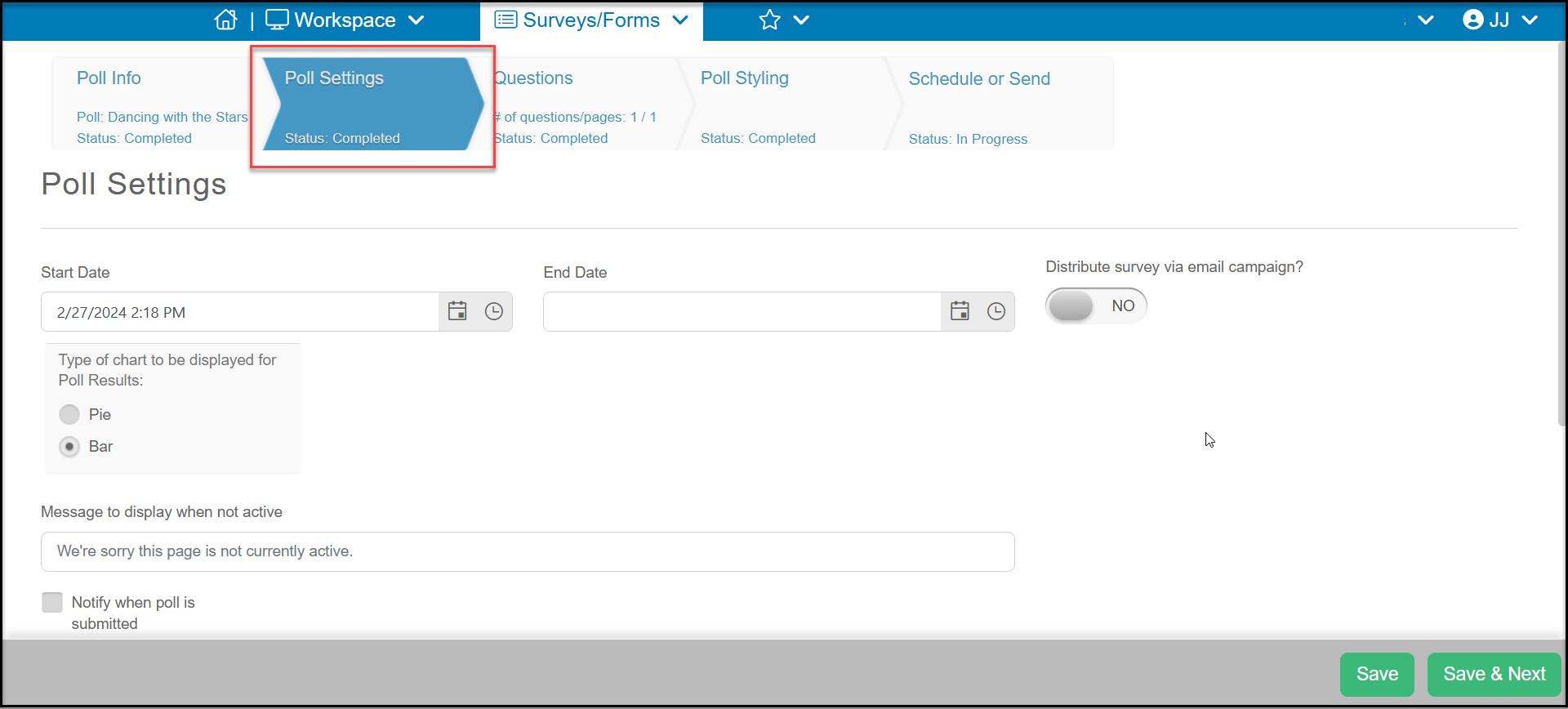
he Poll Settings step has some of the same fields as a regular survey including:
- Start Date - The first date/time that the survey would be available for your constituents to complete. Before this date a respondent would see the error message.
- End Date - The last date/time that the survey is available. After this date a respondent would see the error message.
- Distribute survey via email campaign? - Marking this to YES will add two more tabs to complete, the Attach Recipients List and Welcome Message. This process will covered more in an upcoming lesson.
- Message to display when not active - this is the error message that would display is someone attempts to complete the survey when it is not active.
You also have the option to decide what type of chart is shown after the response is submitted.
- Type of chart to be displayed for Poll Results - choose either a pie chart or bar chart to display the responses.
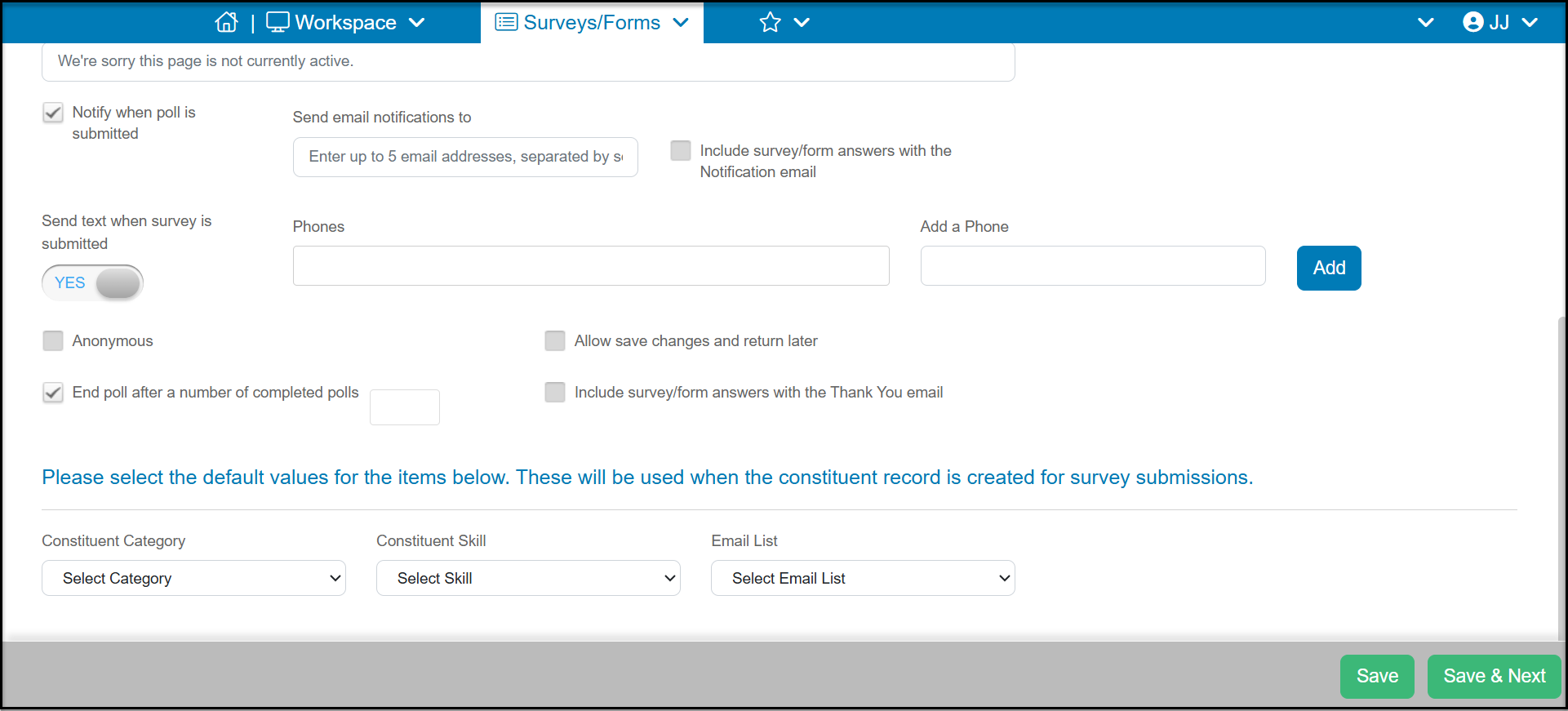
- Notify when survey/form submitted - this box is checked if you would like to receive notifications when a survey has been submitted.
- Send email notifications to - enter up to five email addresses separated by a semicolon to receive an alert when a survey has been submitted
- Include survey/form answers with the Notification email - if this box is checked the notification will include a pdf copy of the submission. Note that the pdf copy may not show all the details for all the fields. It is recommended that you log back into DonorView to see more complete information if needed.
- Send text when survey is submitted- if you have text messaging activated, you can set this to YES and add phone numbers to receive an alert that a survey has been submitted.
- Add a phone - Enter the 10 digit phone number (US only) and click Add to add the phone numbers.
- Phones - a list of phone numbers that have been added to receive the notification.
- Anonymous - You can check this box to identify that you would like the responses to be anonymous however, you cannot ask questions like Name & Email or send the survey via email if you wish the responses to be truly anonymous. Checking this box does not restrict the kinds of questions and does not hide the name and email of the respondent if that is included in the survey.
- Allow to save changes and return later - Although shown as an option, this is not applicable for a one-question poll.
- End survey/form after a number of completed surveys/forms - if you wish to place a cap on the number of responses, you can check this box and you must enter a maximum number of responses in the small box to the right of the field. If this is left blank, you will not be able to receive any submissions.
- Include survey/form answers with the Thank You email - checking this box will include a pdf copy of the submission with the Thank You email.
- Constituent Category - If you are collecting name and email and connecting your responses to a constituent record, you can assign the respondent to a constituent category.
- Constituent Skill - If you are collecting name and email and connecting your responses to a constituent record, you can assign the respondent to a constituent skill.
- Email List - If you are collecting name and email and connecting your responses to a constituent record, you can assign the respondent to an email list.
- Click Save & Next to proceed to the next tab.
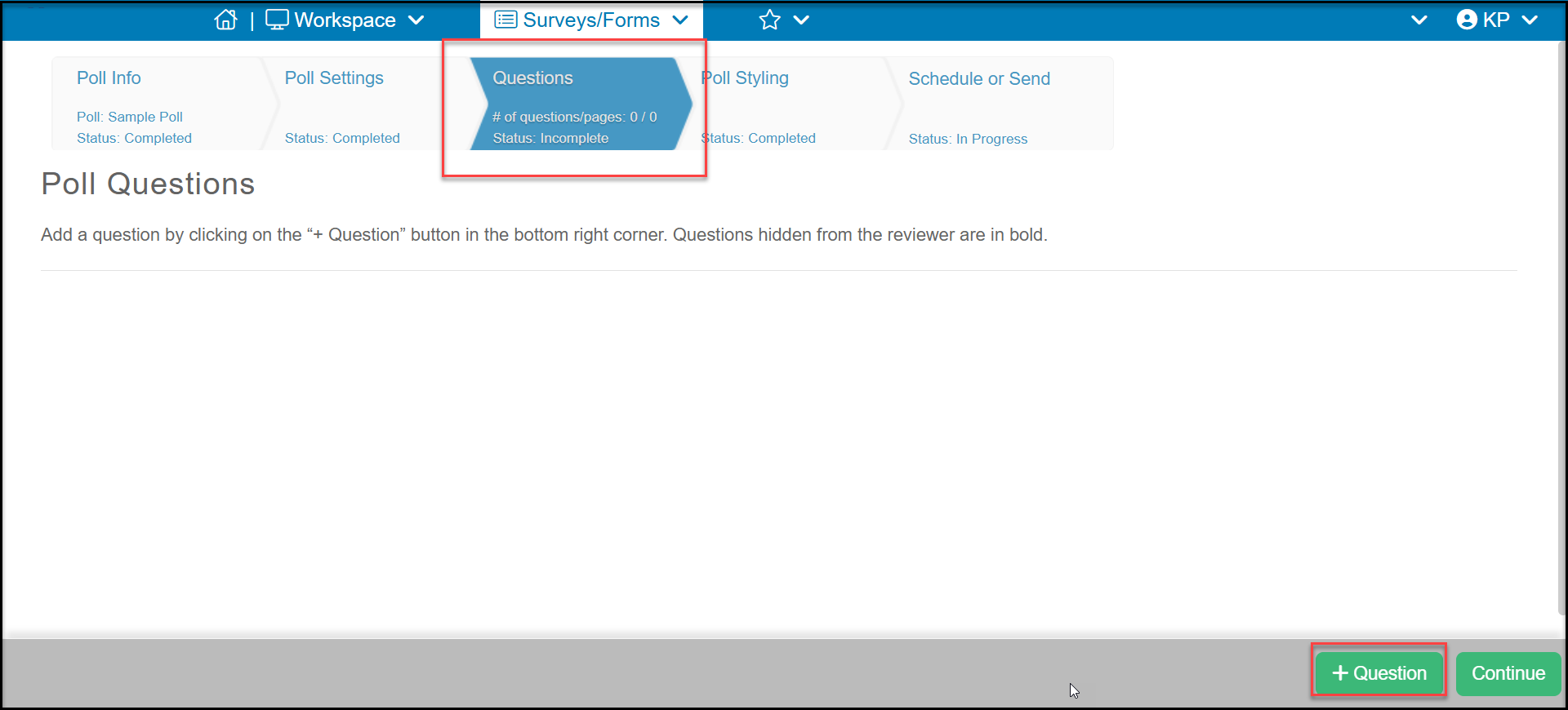
For a poll, only one question can be added. From the Questions tab, click on +Question.
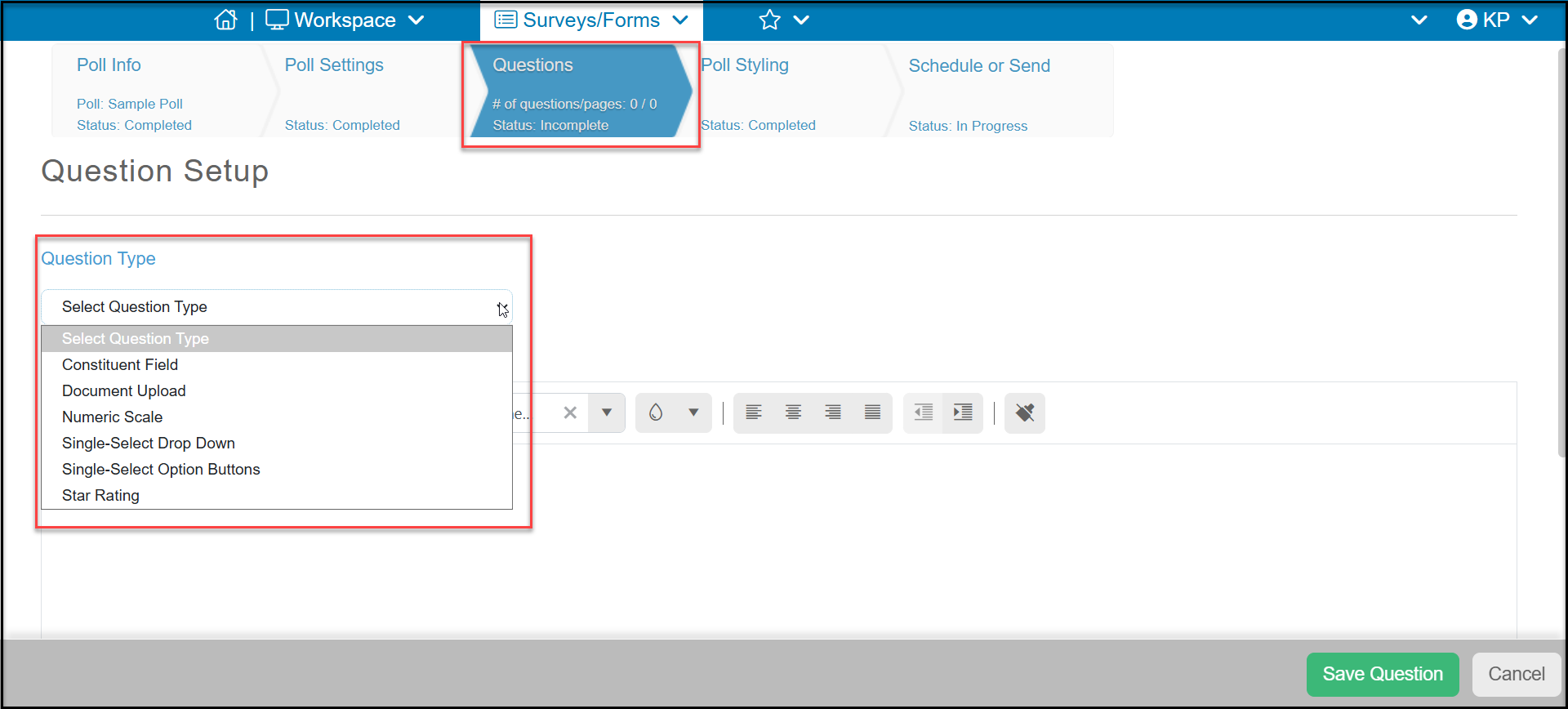
There are limited options for questions collected via a poll. They include:
- Constituent Field (only used when sending polls via email)
- Document Upload (only used when sending polls via email)
- Numeric Scale
- Single-Select Drop Down
- Single-Select Option Buttons
- Star Ratings
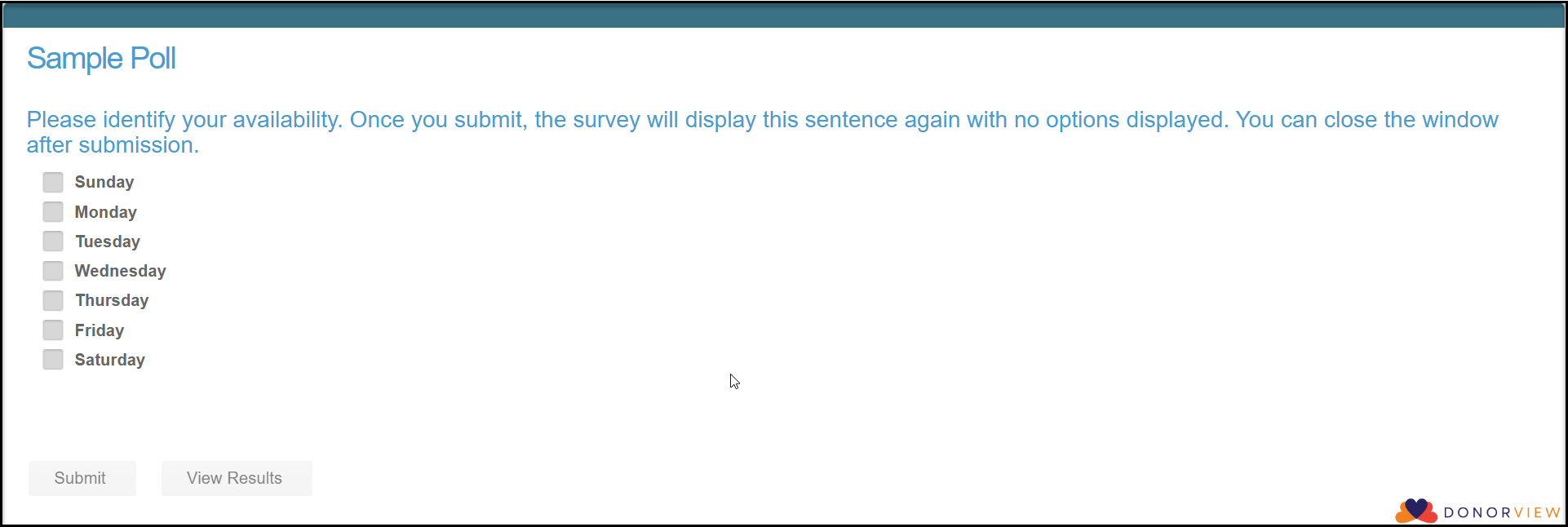
If sending your poll via email (Distribute via email campaign toggle is set to YES on the Settings tab), you can use a single question poll to have constituents update a field on their constituent profile or upload a document into their record. An example would be sending a poll to all your new volunteers asking them to update their Availability field. Note that for multi-select fields, the existing information will not be removed, only new selections added.
When using Constituent Fields or Document Upload, no graphic appears after the submission. You should include some guidance for this in the Question Text area as shown in the example below.
The other available question types allow the respondent to make their selection and then see the results of all submissions so far. If the respondent is the first one to respond, they will only see their response.
For polls, there is no limit to the number of times a constituent can submit their response. So if you want to limit responses, be sure to send the poll via an email campaign. The results will show which email submitted the response, so you can see if anyone submitted more than once.
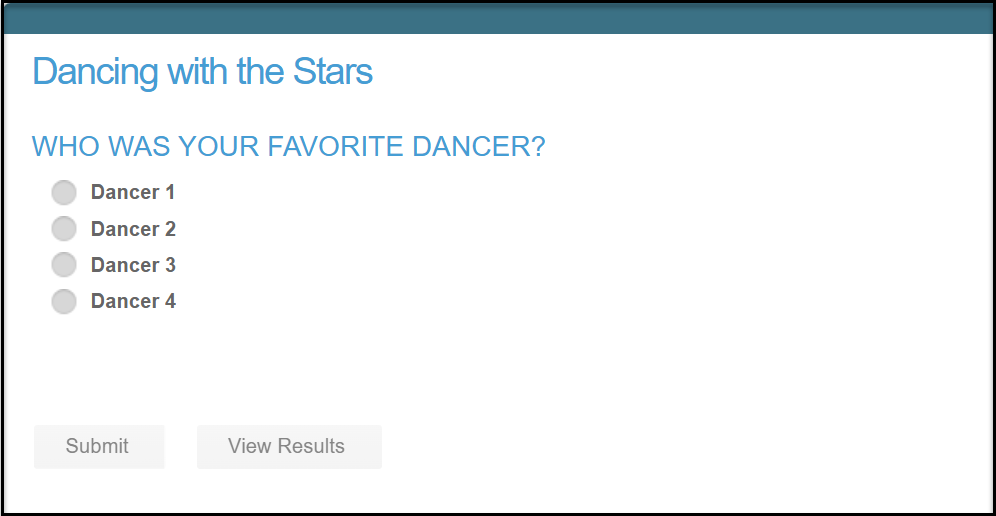
In the example below, Single-Select Option Buttons was used. The respondent can make their selection and click Submit to see the new totals after their submission.
They also have the option not to make a choice and instead click on View Results to see what the current results are.
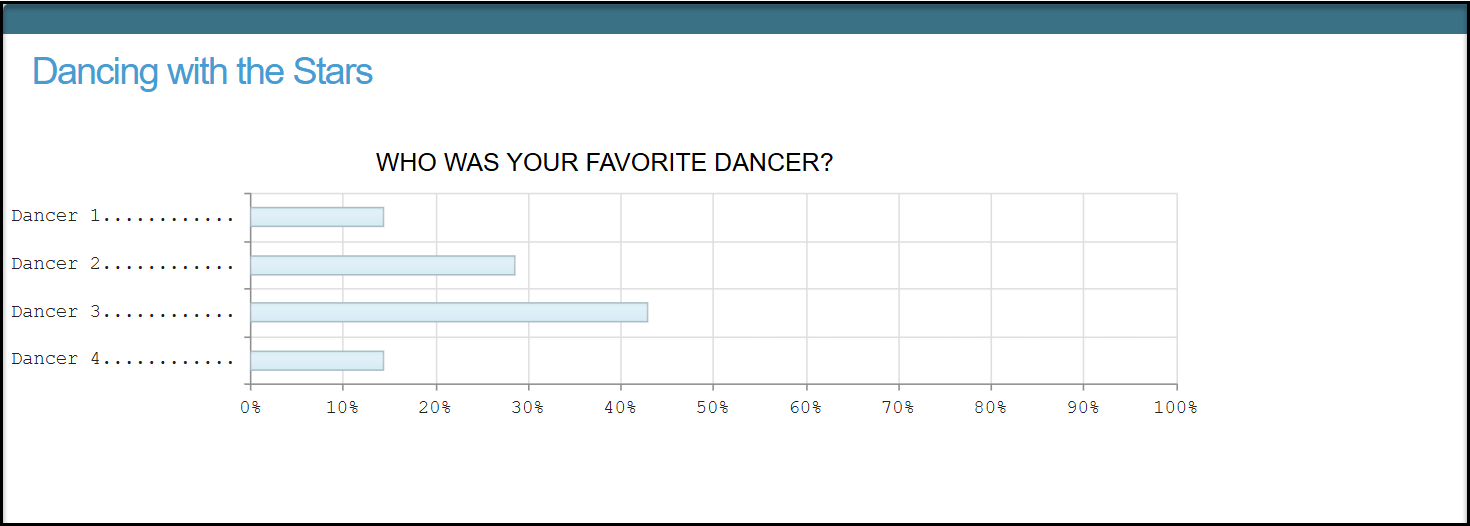
The bar graph shows a percentage each choice is receiving.
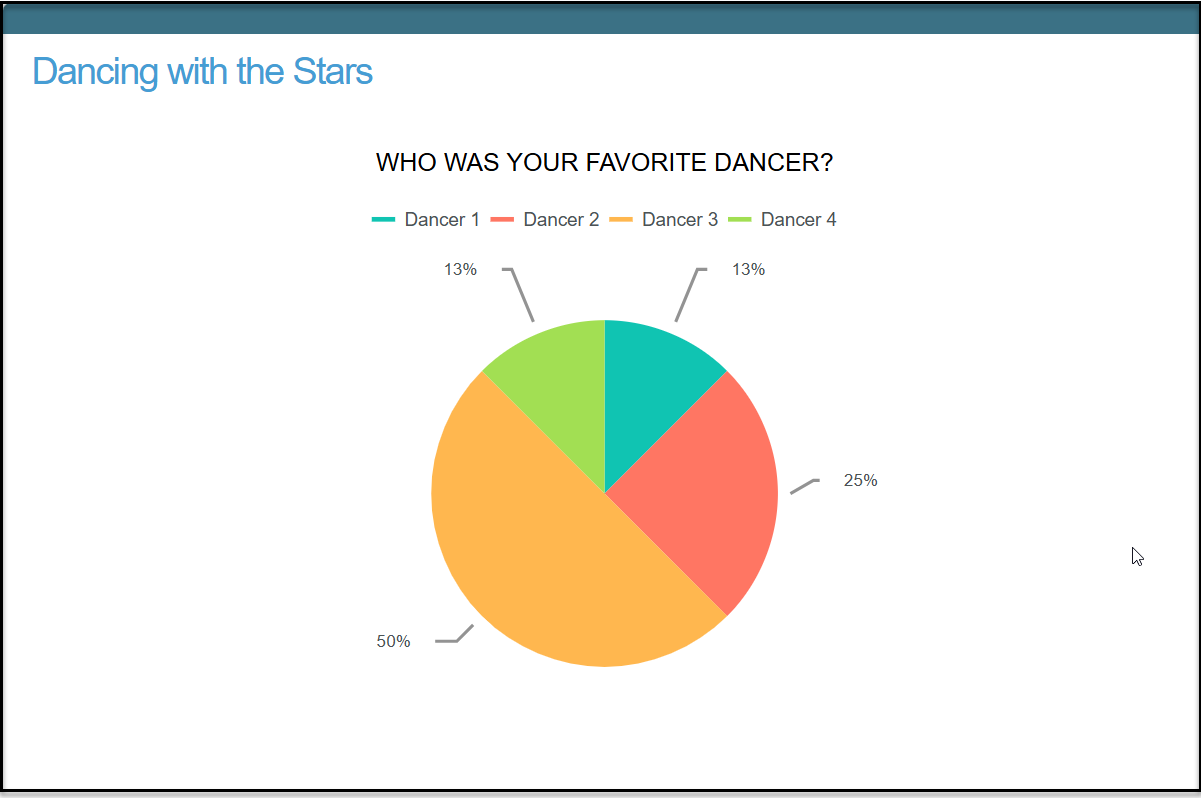
The other option is to show a pie chart to display the results.
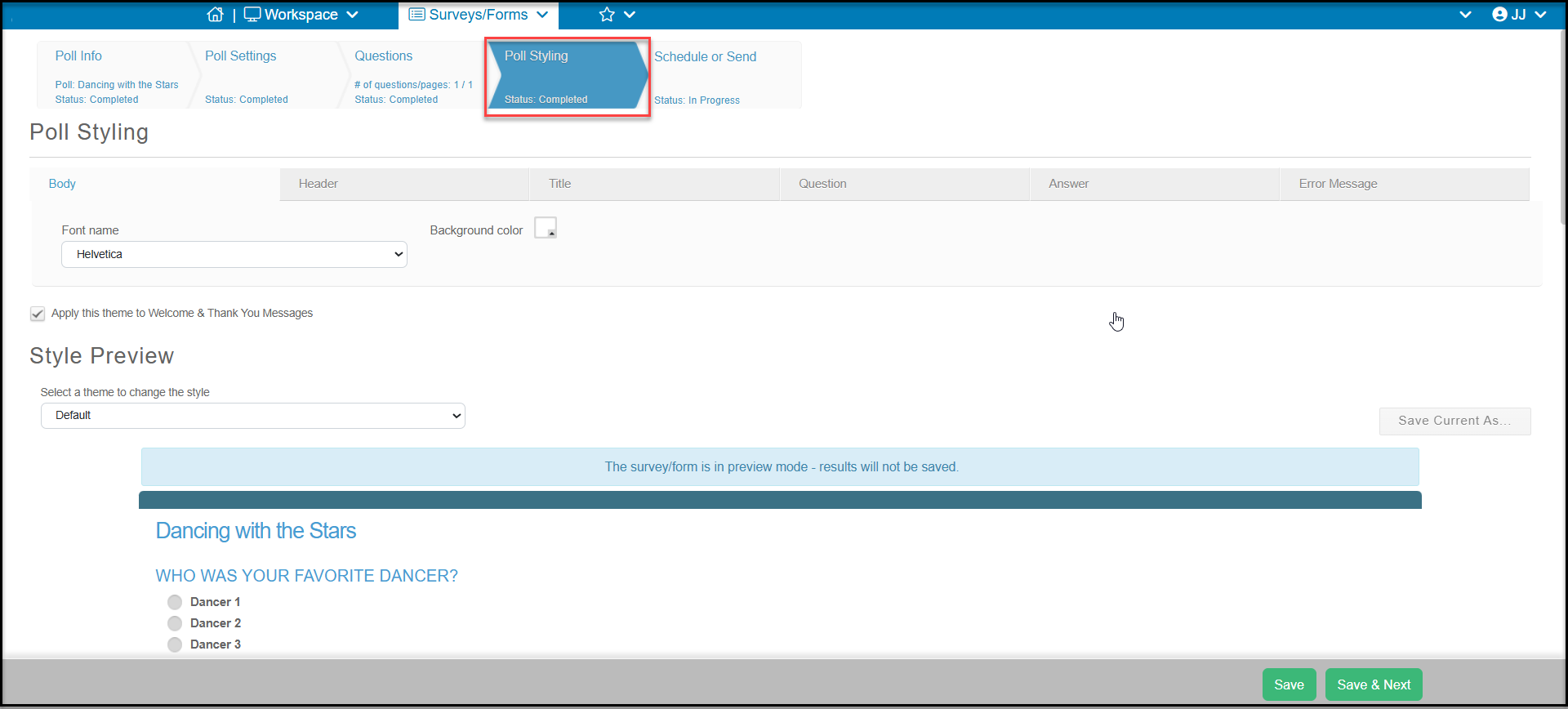
One the Poll Styling tab, you can choose the color theme and edit the features of the Body, Header, Title, Question, Answer and Error Message. You can learn more about these features in this article "Can I customize or edit the fonts and colors in my survey styling?"
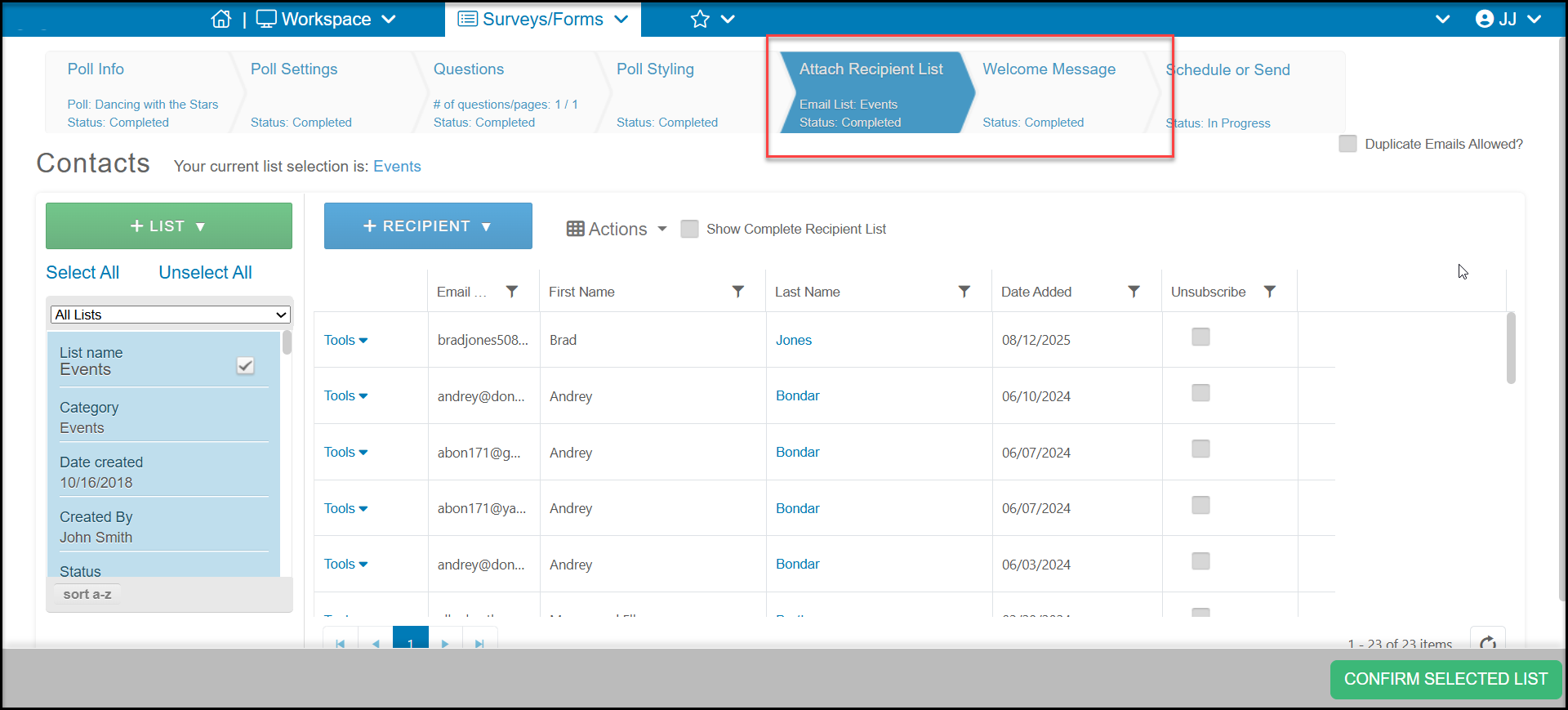
If you have elected to distribute your poll via an email campaign, you will see the two additional tabs, Attach Recipient List and Welcome Message. As described in this article"How do I send my survey or form to an email list?", you can choose as many email lists as desired on the Attach Recipient List tab. You can also customize the Welcome Message to let your respondents know what the instructions are, if any, for your poll.
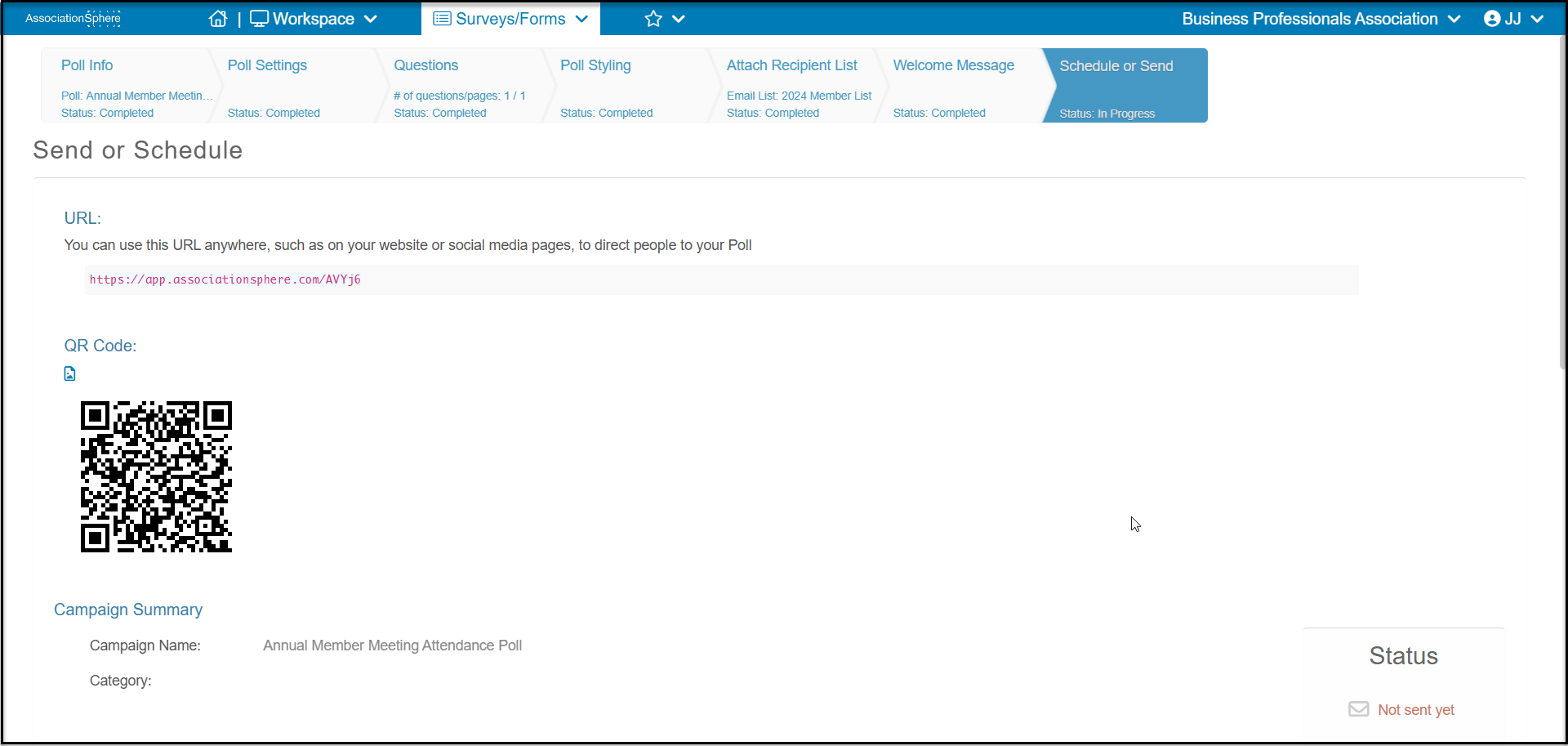
On the last step, Schedule or Send, the software will automatically create a custom URL and QR code that you can share as desired. Use the small image icon on the top left corner of the QR code to download a png image file of the QR code.
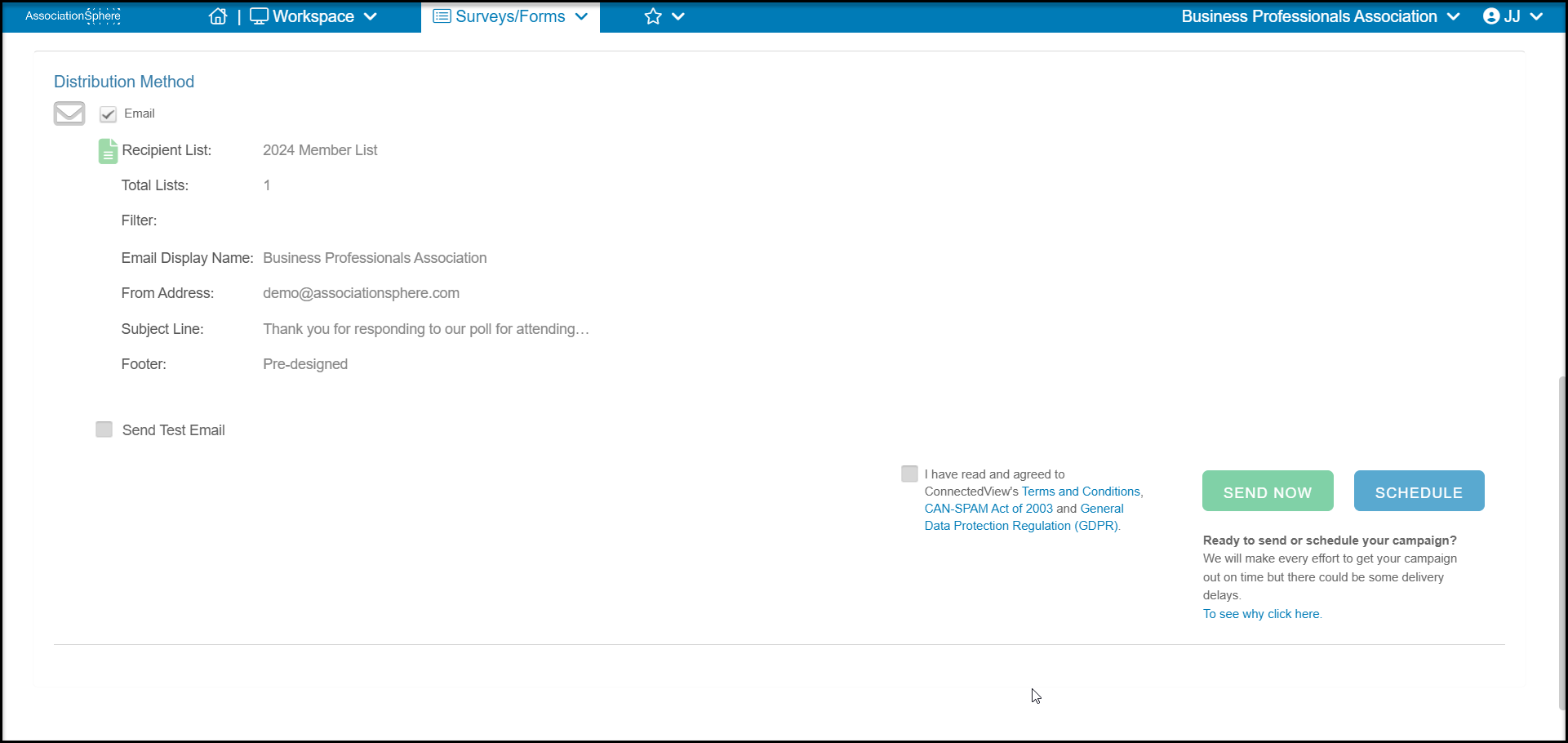
If you are sending your poll via email, towards the bottom of the page you will find the summary information under Distribution Information. You have the option to Send a Test Email if you would like to validate that the operation of the emails and survey. Any survey responses submitted from the test email are not recorded permanently.
When you are satisfied with your survey, you can check the box to verify you are not engaging in SPAM. Then you have the option to Send Now to send the email immediately or Schedule to choose the date and time you would like your email to be sent.