
How do I add logic into my survey or form?
The Add Logic button allows you to direct your survey taker to a specific question according to an answer that they provided. For example, if they were dissatisfied with the service, they can be directed to a question asking what they were dissatisfied with specifically. If they were happy with the service, they can be directed to the next question, and skip the more specific questions about their dissatisfaction. This allows for a truly customized experience for your respondents.
In order to utilize logic in your survey, you must first ensure that the Show survey/form on a single page option is left unchecked.
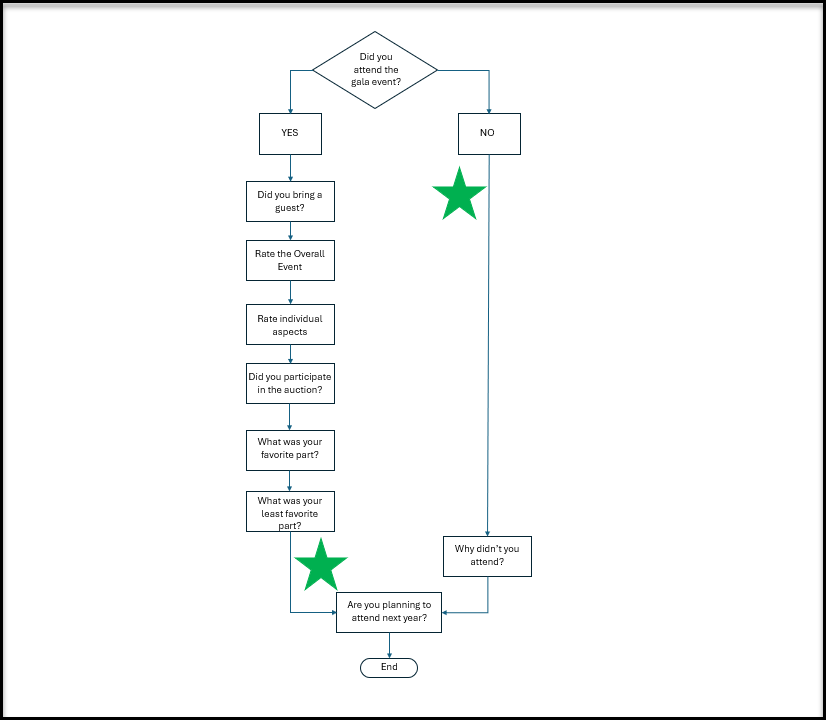
You will create all your questions as described in the previous lesson, Creating a New Survey/Form. You will begin by placing them in the order they should be answered, including those alternative paths for logic. In our example we will be soliciting feedback from our members about a recent gala dinner event. It can be helpful to map out your questions in a flowchart so that you can visualize where logic will be necessary.
In our example below, our first split will happen when we ask if they attended the event. Those who answer “Yes” will be directed down one path, those who answer “No” will be directed down a different path.
Near the end of the questions, when we get to the the question on the Yes path where we ask what was their least favorite part, we need to skip the question asking why they didn't attend, and jump to asking if they plan to attend next year.
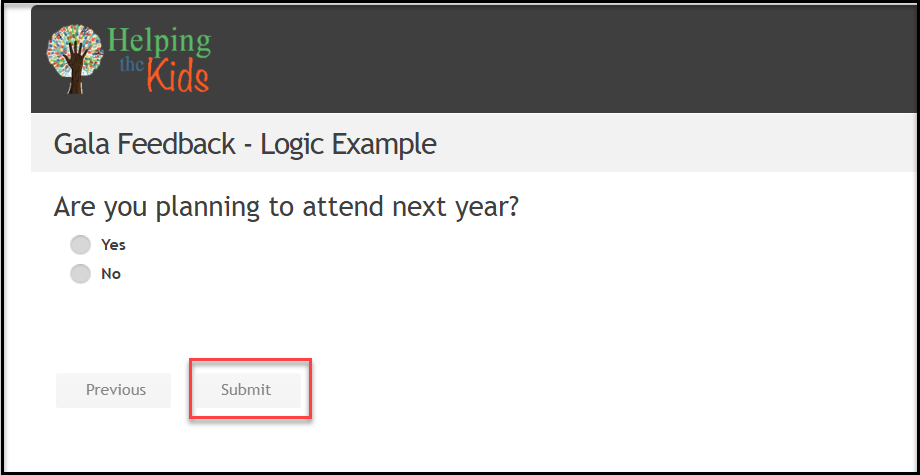
Both paths will merge at the last question asking if they plan to attend next year, which will end the survey.
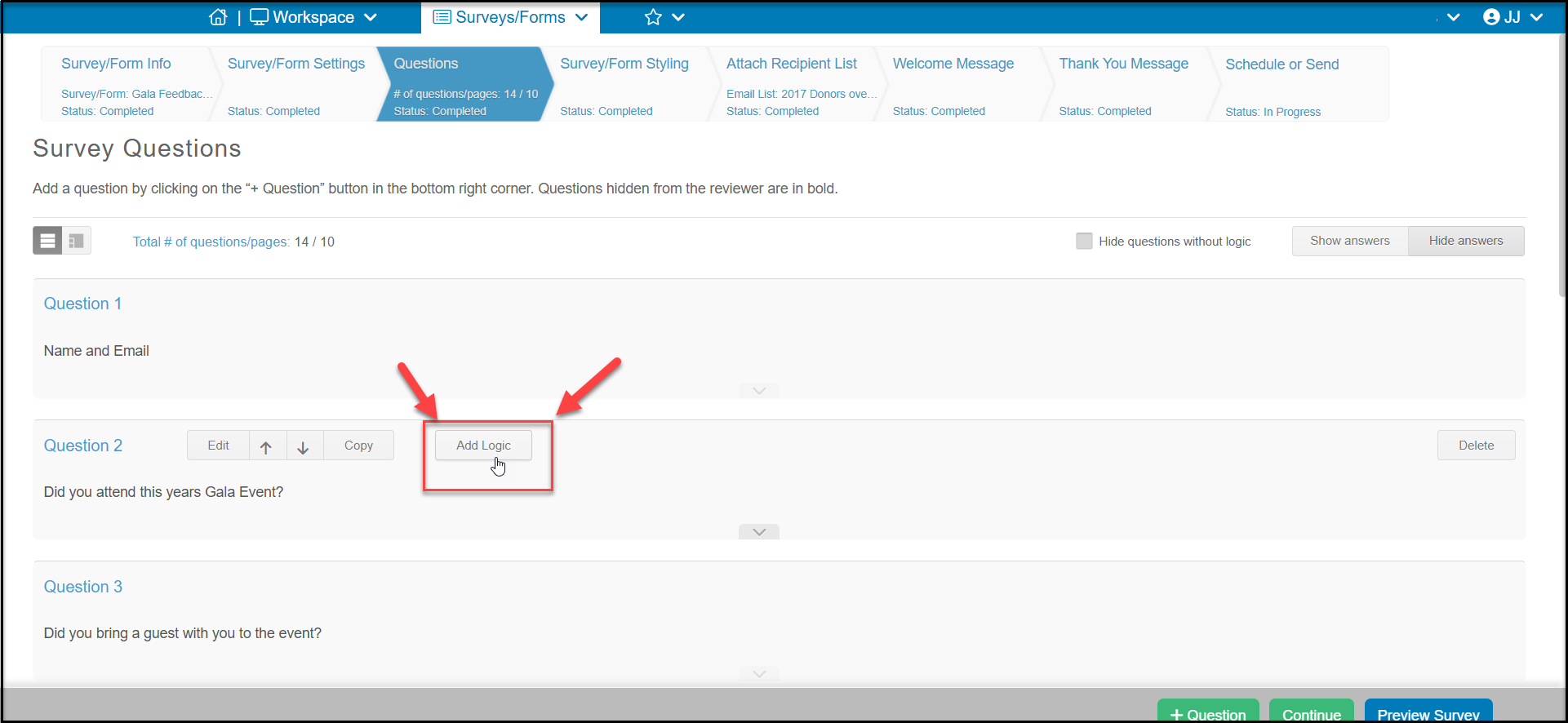
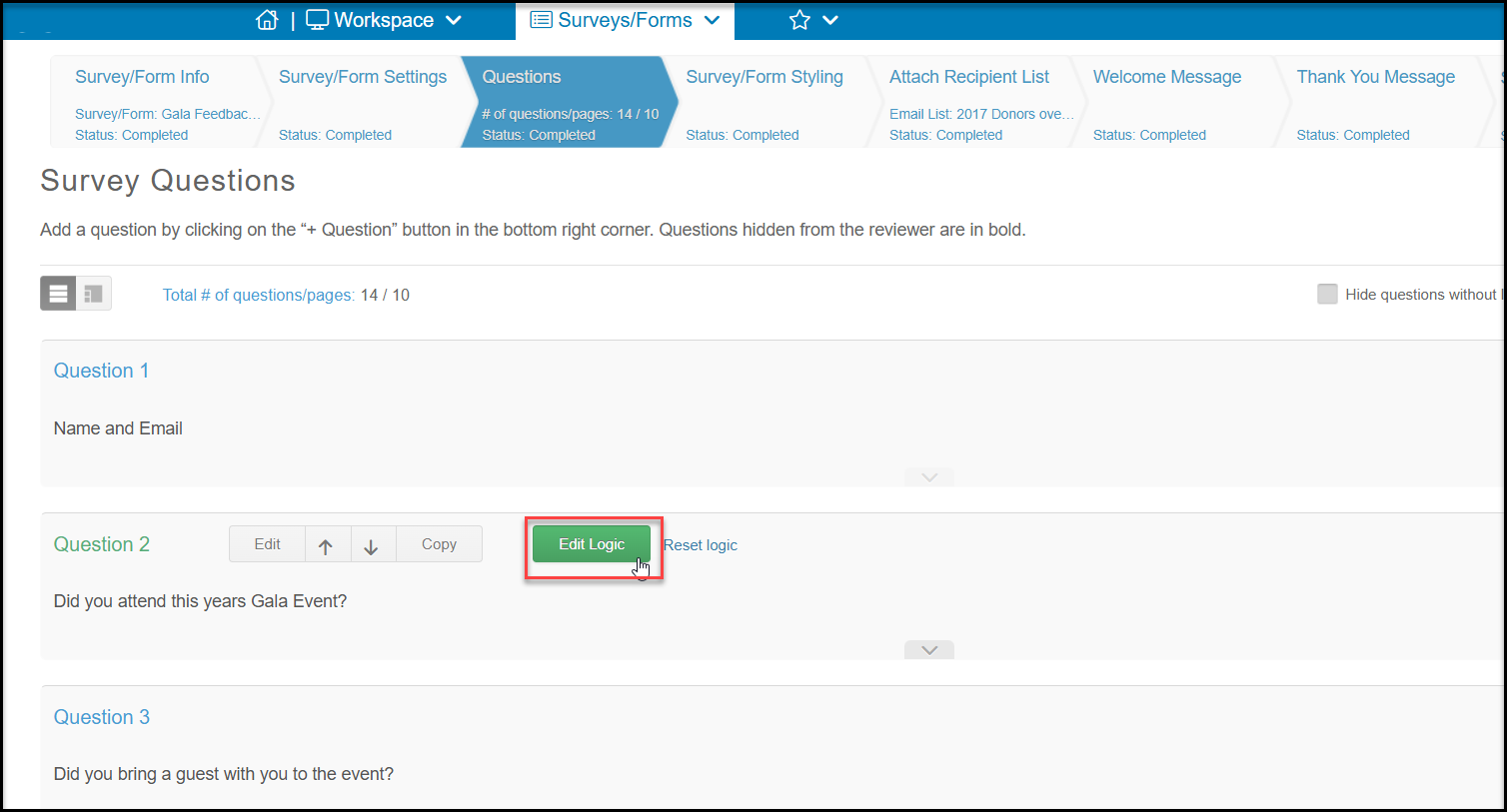
Begin by clicking Add Logic on the first question that requires a split in the path.
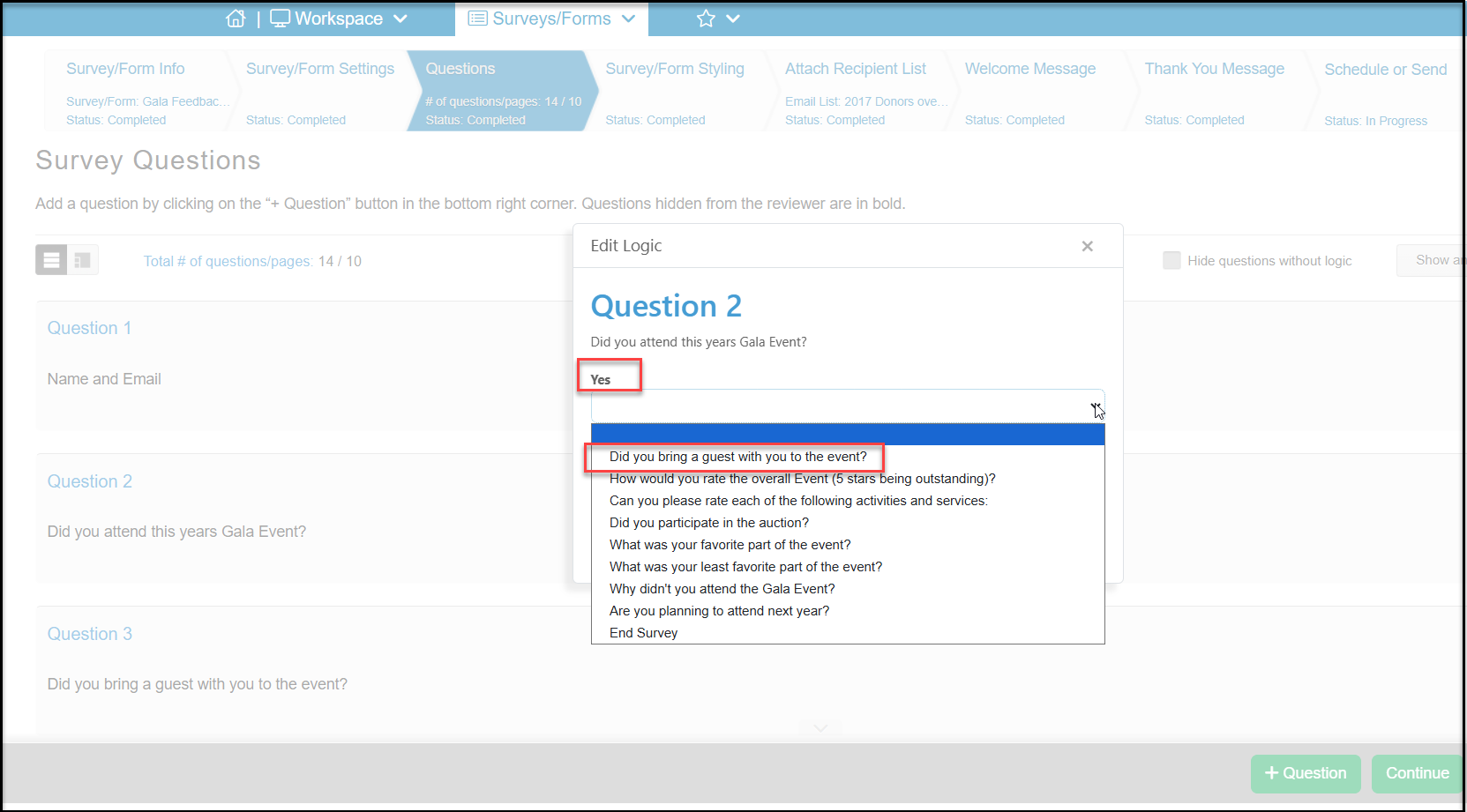
Because this question has two choices, you will add logic to direct the respondent to the appropriate next question based on their answer. If they answer “Yes” to this question, they will go to the next question asking if they brought a guest.
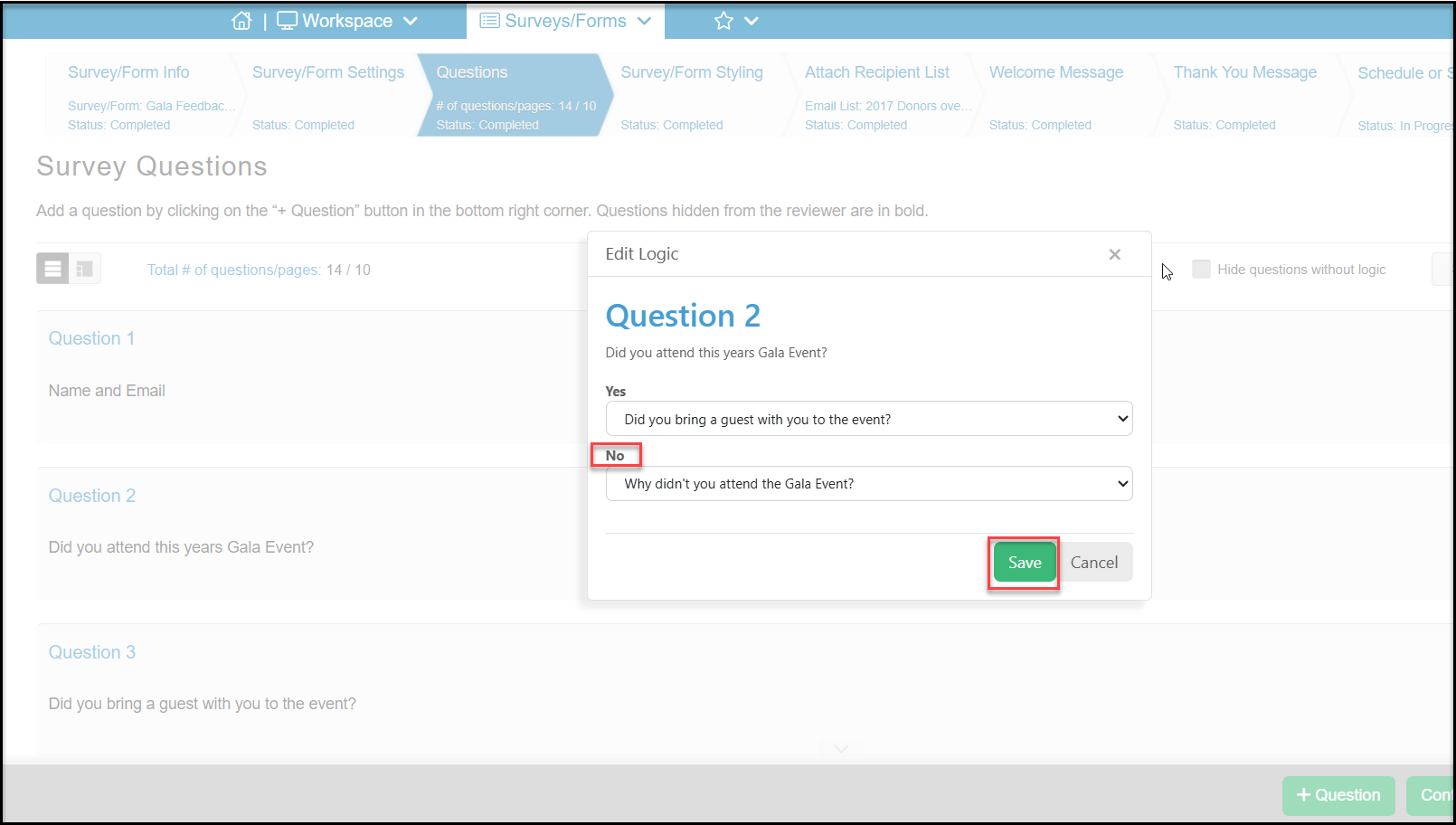
If they answer “No” they are going to skip several questions and go to the question “Why didn't you attend?” Click Save to save your logic choices.
This question can be placed anywhere, but it's placement will require another logic step to skip it if they answered “Yes” as you will see below.
Once logic has been added to a question, the question label will turn green and you will see an new Edit Logic button revealed if you need to edit or change the logic applied. If you wish to delete the logic, click on Reset Logic.
Where the alternate path question is inserted, you will need to add logic to “jump ahead” and skip the question that doesn't apply. So when we get the to next to last question, Question 8, in the “ Yes” path, we need to add logic to say when that question is answered (regardless of the response), we want the respondent to skip Question 9 and go to Question 10. Click Save to save the logic for this question.
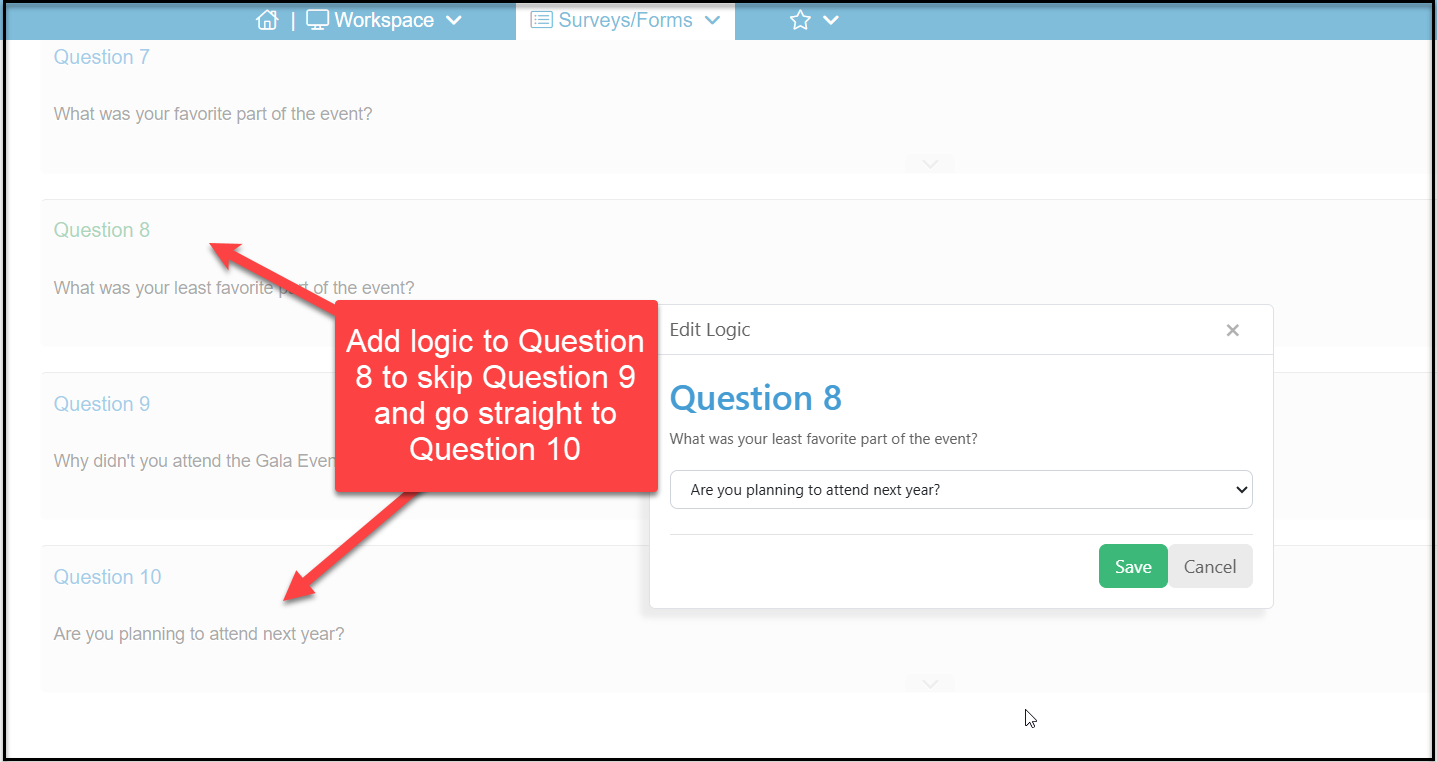
Respondents on both the Yes and No path will be both be asked Question 10, which will be their last question and they can click Submit to complete the survey.
On the actual survey when they get to the question about attending the event, they will see their two choices, Yes or No.
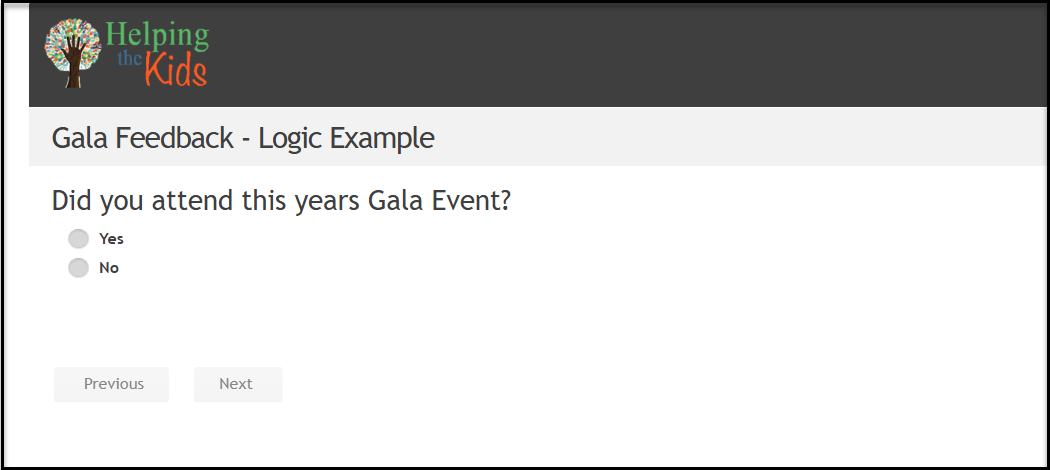
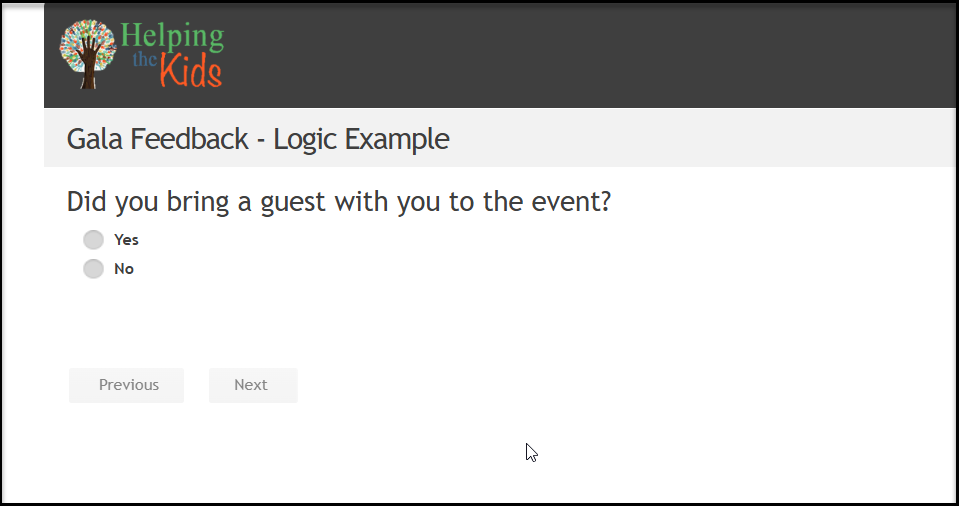
Those that answer YES, will be directed to the next question about bringing a guest.
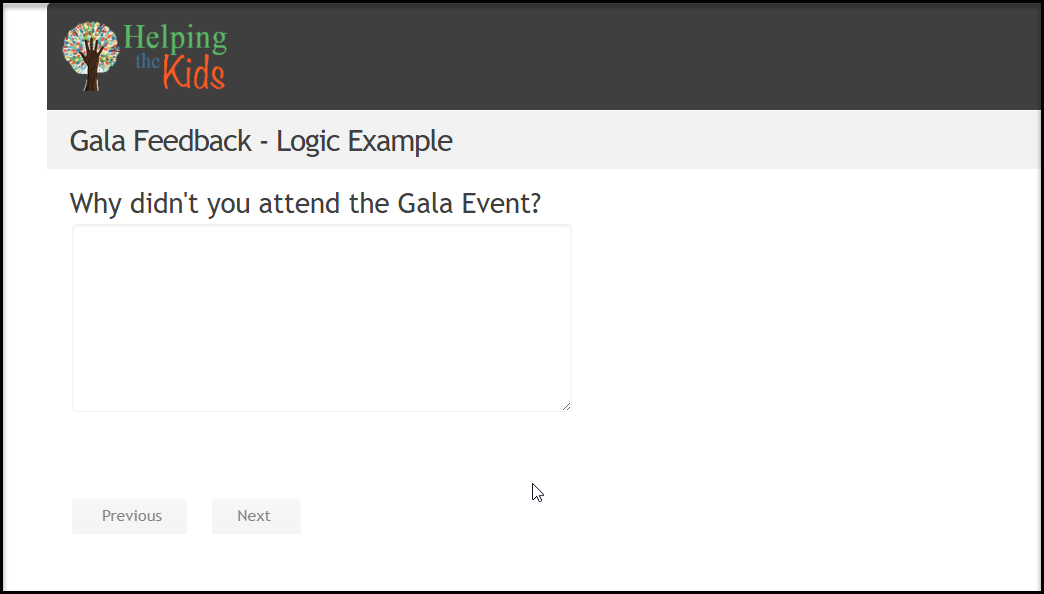
Those that answer No will skip all the questions about how they liked the event, and go straight to the multiple lines of text question asking why they didn't attend.
Regardless of the path, both will converge on the last question asking if they plan to attend next year with the button to Submit the survey at the bottom of the question.
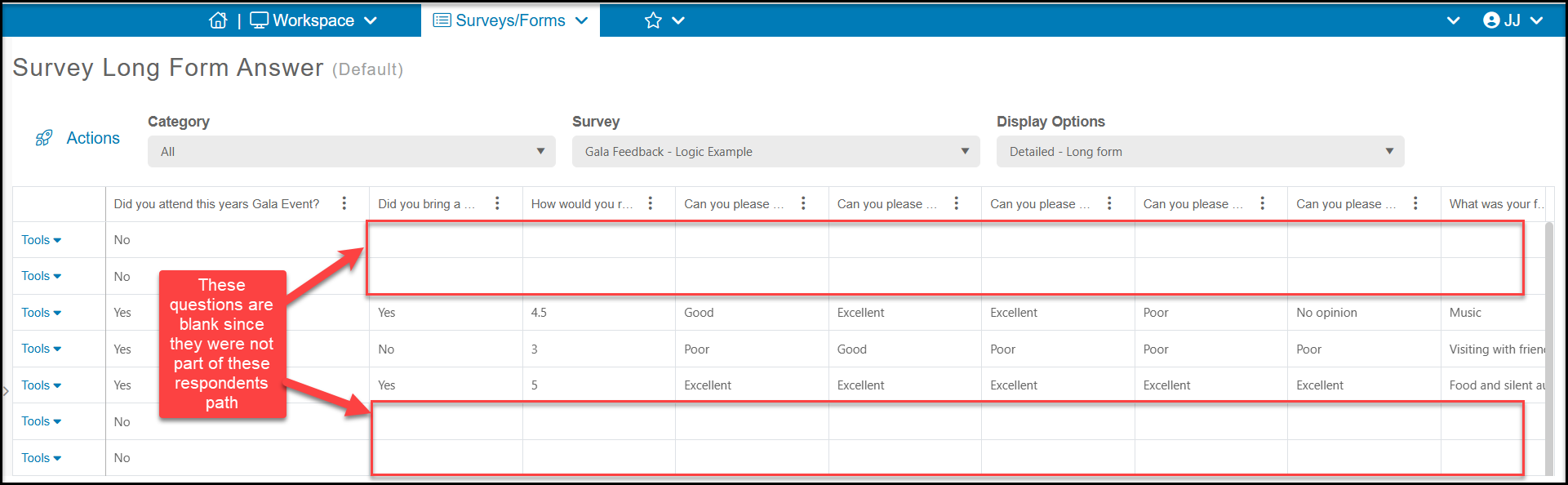
The Surveys/Forms Results grid will show the answers as it does for other surveys. If questions are skipped due to logic, those questions will be blank depending on what path the respondent took.
Learning survey logic requires practice. You can create sample surveys and practice building logic in your survey and test how the survey responds depending on your answers. Once you get the hang of it, you will be able to customize the experience for your constituents and get better results.