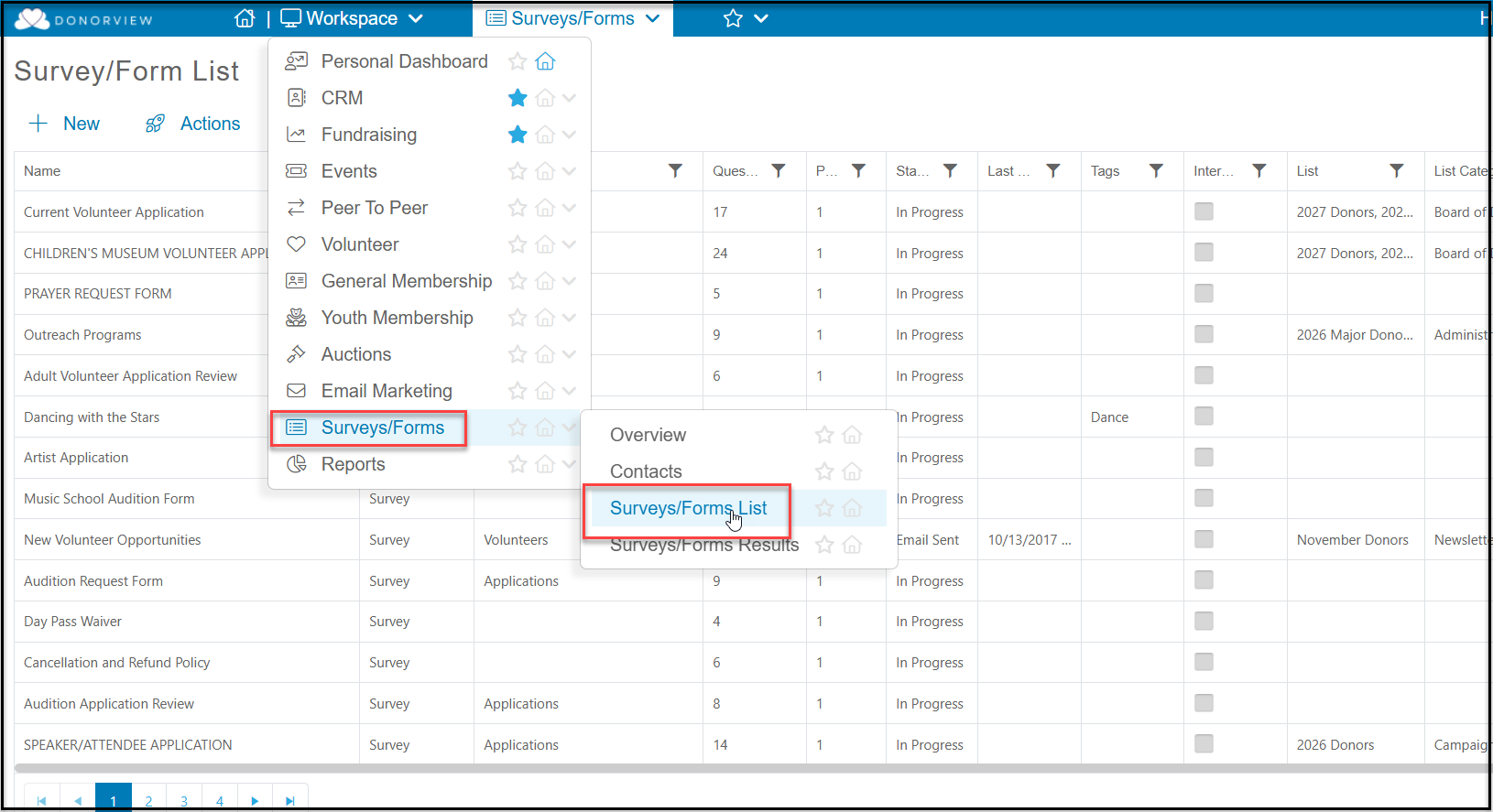
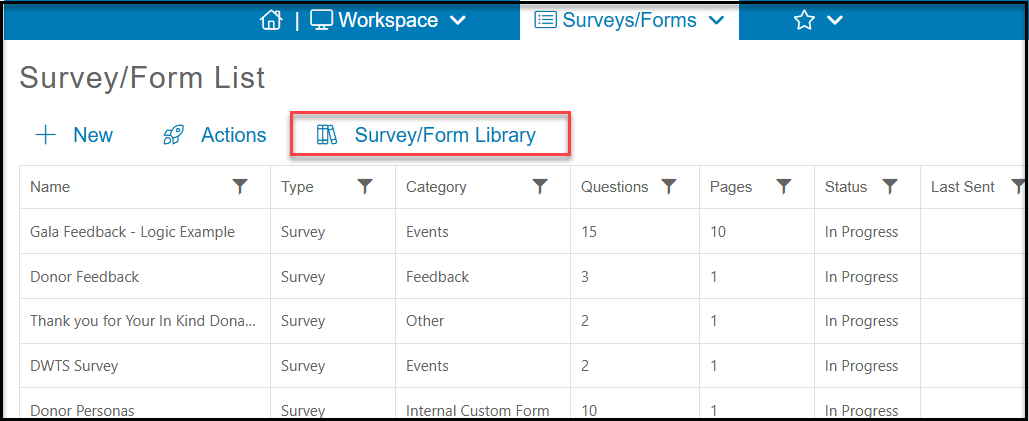
The Survey/Form List grid is where you can begin building your surveys as well as edit existing surveys. It is found in the Workspace menu, in the Surveys/Forms module by clicking on Surveys/Forms List.
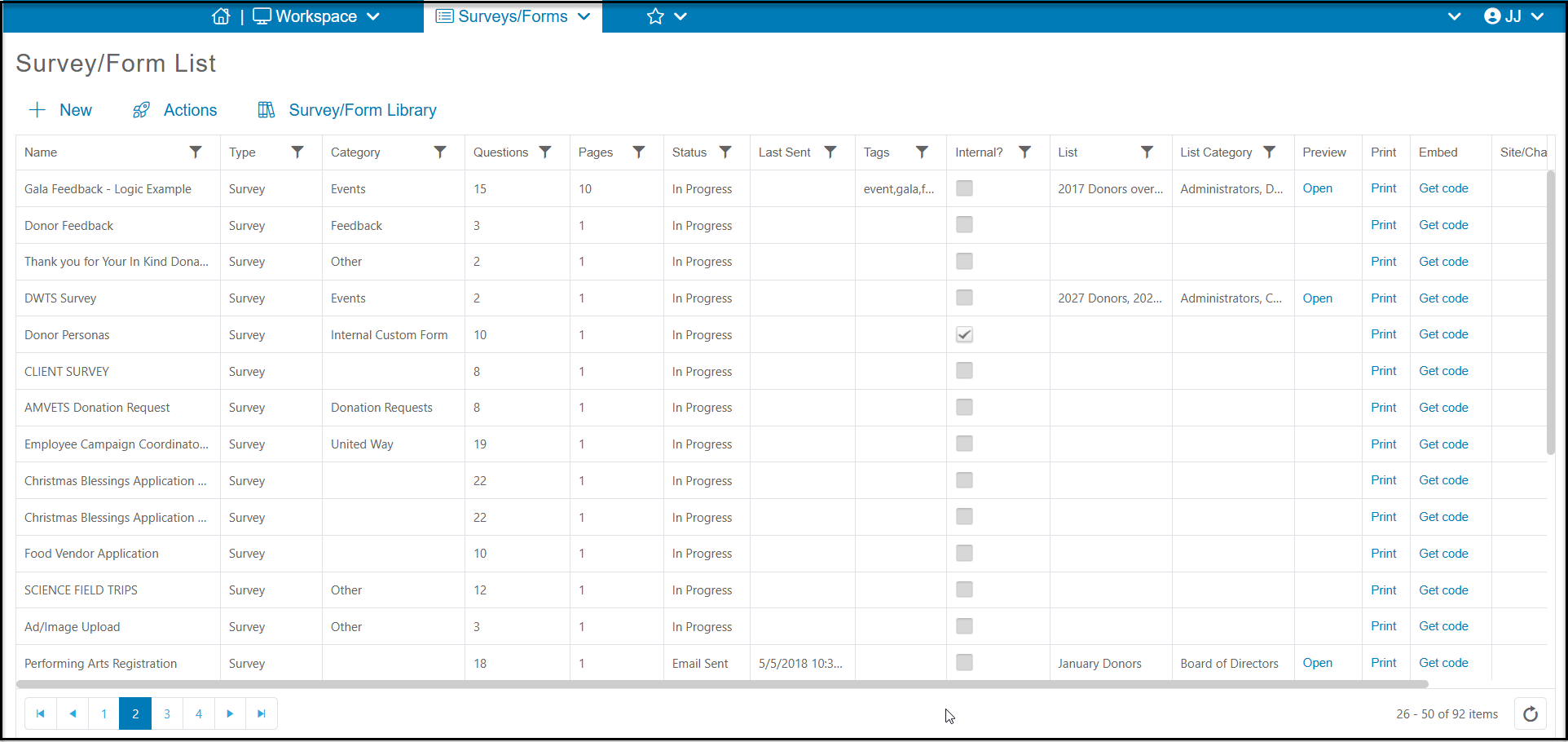
The grid will show information about all the surveys that have been created. Unlike other grids, you cannot move or turn on/off columns and there is no View Builder. There are filter features available with the filter icon at the right of each column.
Columns include:
- Name - name of the survey.
- Type - either Survey or Poll (One question only).
- Category - survey category which is an editable list that is helpful when viewing the results page.
- Questions - total number of questions.
- Pages - total number of pages included.
- Status - In Progress or Email Sent.
- Last Sent - Only has a date/time for surveys sent via email.
- Tags - optional field to add more details about the survey.
- Internal - shows a checkmark for any surveys that are internal use only.
- List and List Category - show the email list and email list categories associated with the survey sent via email.
- Preview - allows you to preview a survey sent via email.
- Print - allows you to open a pdf version of your survey in a new browser window. You can use your browser to print a blank survey.
- Embed - Get Code allows you to copy the html code to add the survey into the frame of your website.
- Site/Chapter - only used for organizations who have this feature activated. If activated, it will show which Site/Chapter the survey is associated with.
- Trash Can - allows you to delete a survey. Deleting the survey will delete all the responses as well.
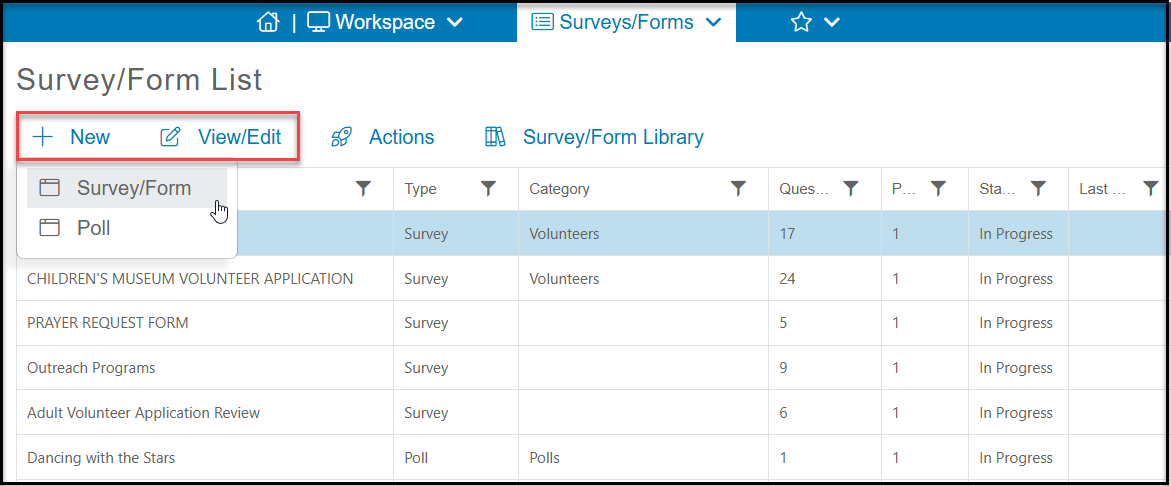
At the top of the grid are several menu options. On the far left, +New will allow you to create a new Survey/Form or Poll from scratch. This process will be covered in the lessons.
If you have a form already created, you can click on that row to reveal the View/Edit option to allow you to edit an existing survey.
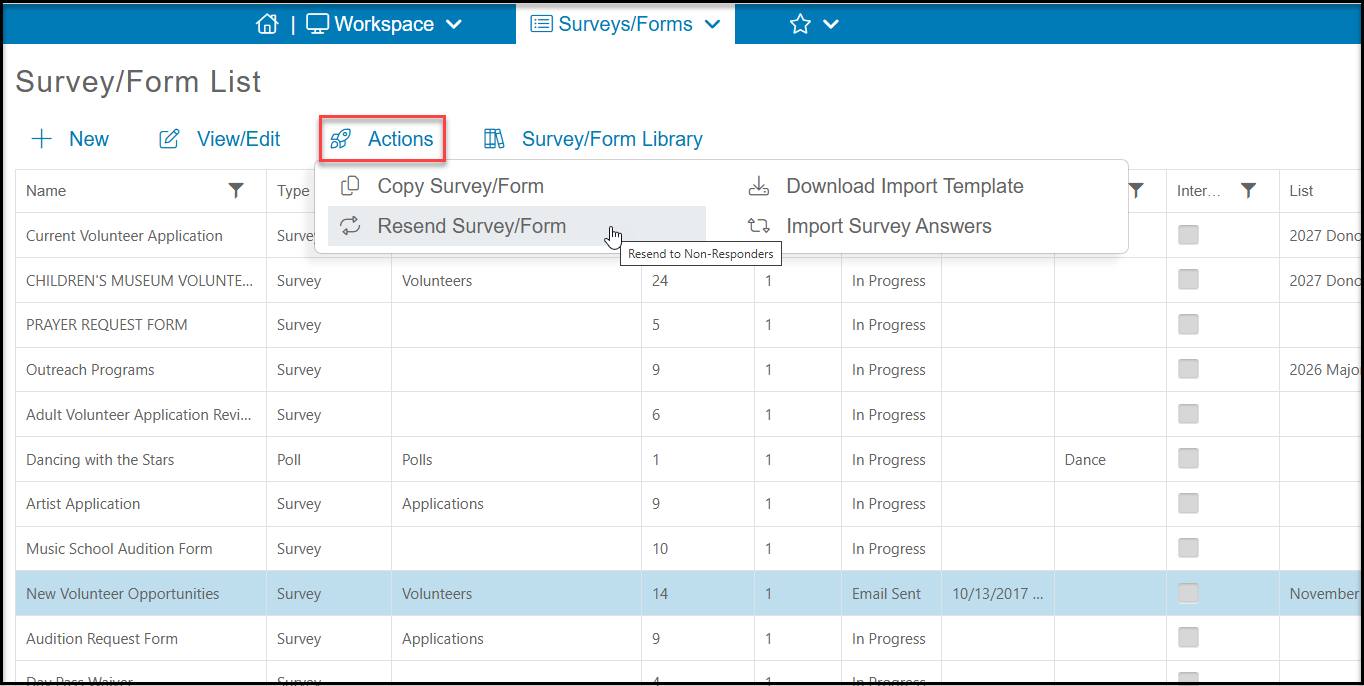
The Actions menu on the Survey/Form List grid allows you to copy, resend, and import survey results. To utilize the Actions menu, you will first need to select a survey from the list.
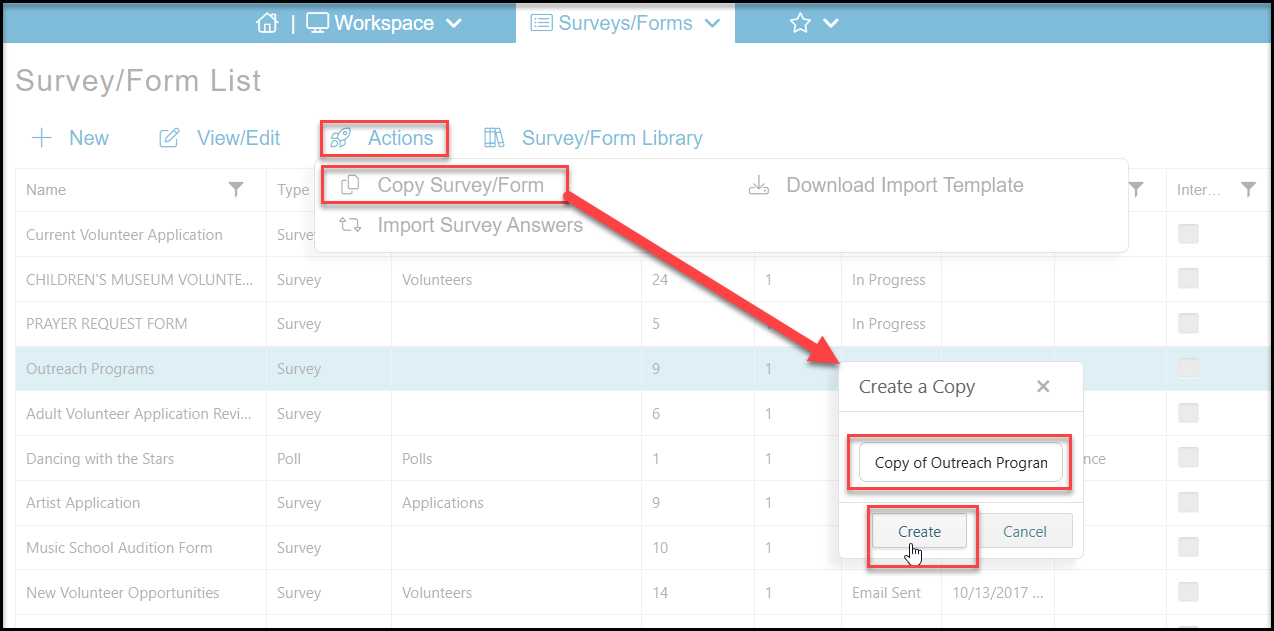
Copy Survey/Form allows you to make an exact copy of the selected survey. When selecting this option there will be a new pop-up window for you to rename the survey. Click Create to begin editing the new survey or click Cancel to exit without saving.
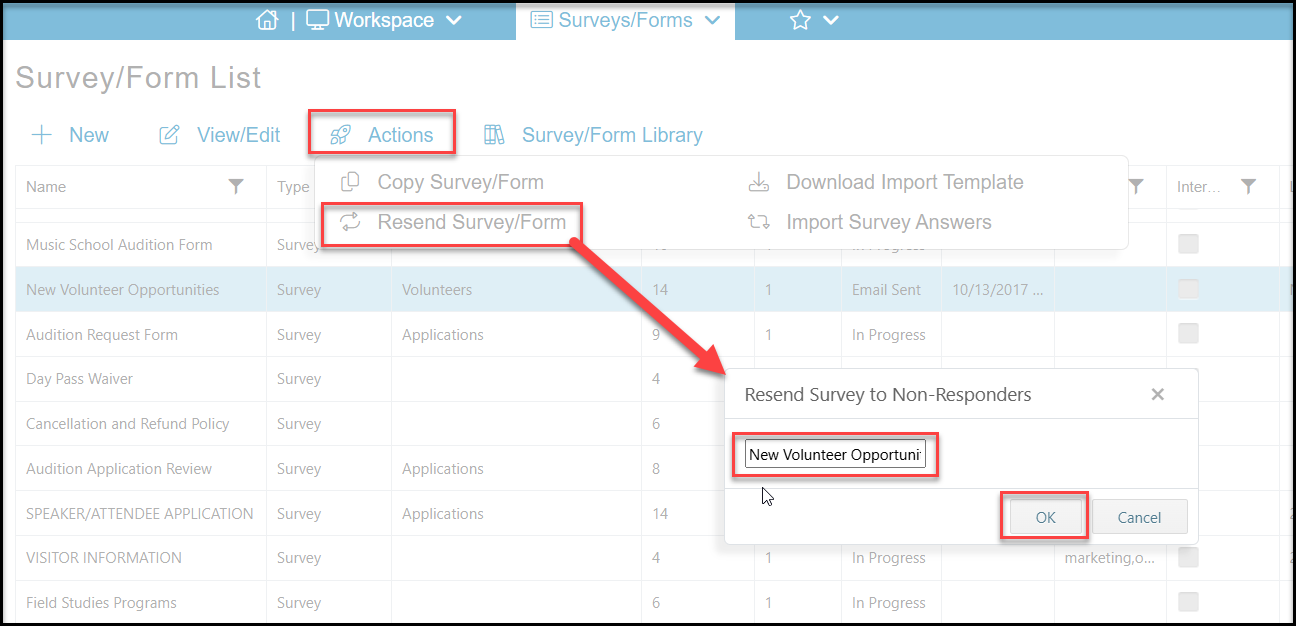
If the survey was sent via email, you can select Resend Survey/Form to resend the survey to non-responders only. In the pop-up window, enter the name of the new campaign and click OK to resend it. Click Cancel to exit without sending.
The Actions menu will also allow you to import survey responses, but it will only import for existing constituents. To import, you must create the survey. The import feature will not import all types of questions. It is limited to multiple choice, single line, and multi-line, and specific dates. It cannot import constituent fields, document uploads, electronic signatures, tables or numeric scales or star ratings.
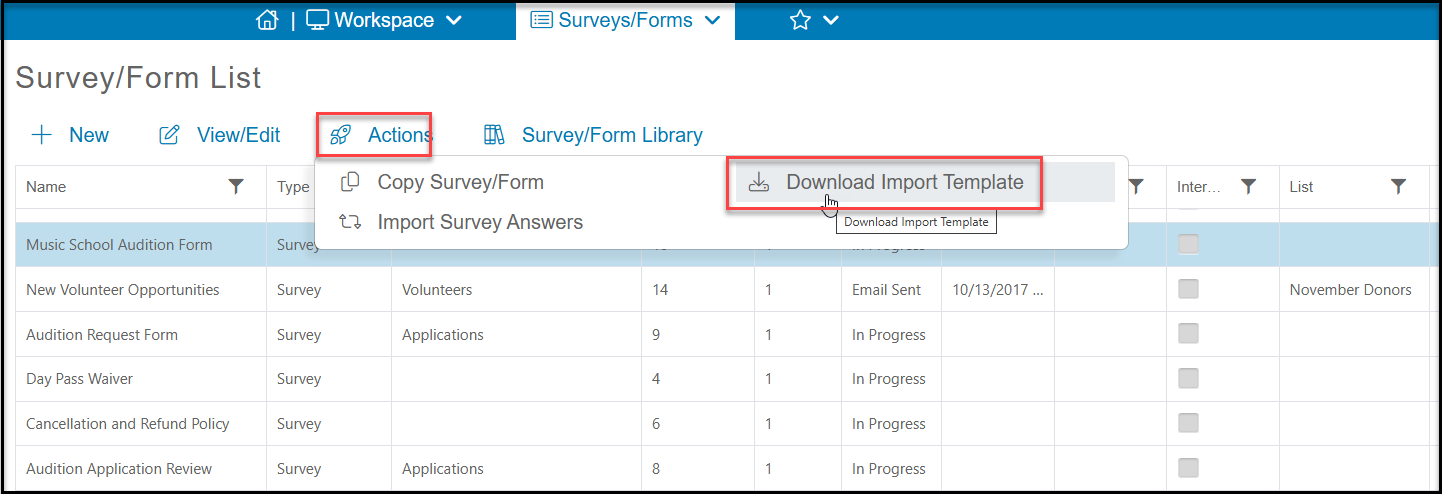
Once you have created it, you can used the Actions menu and select Download Import Template. This will download an Excel file where you can copy and paste your responses into for importing. You can learn more about importing surveys in this article: https://support.donorview.com/en/support/solutions/articles/9000211746-can-i-import-survey-results-
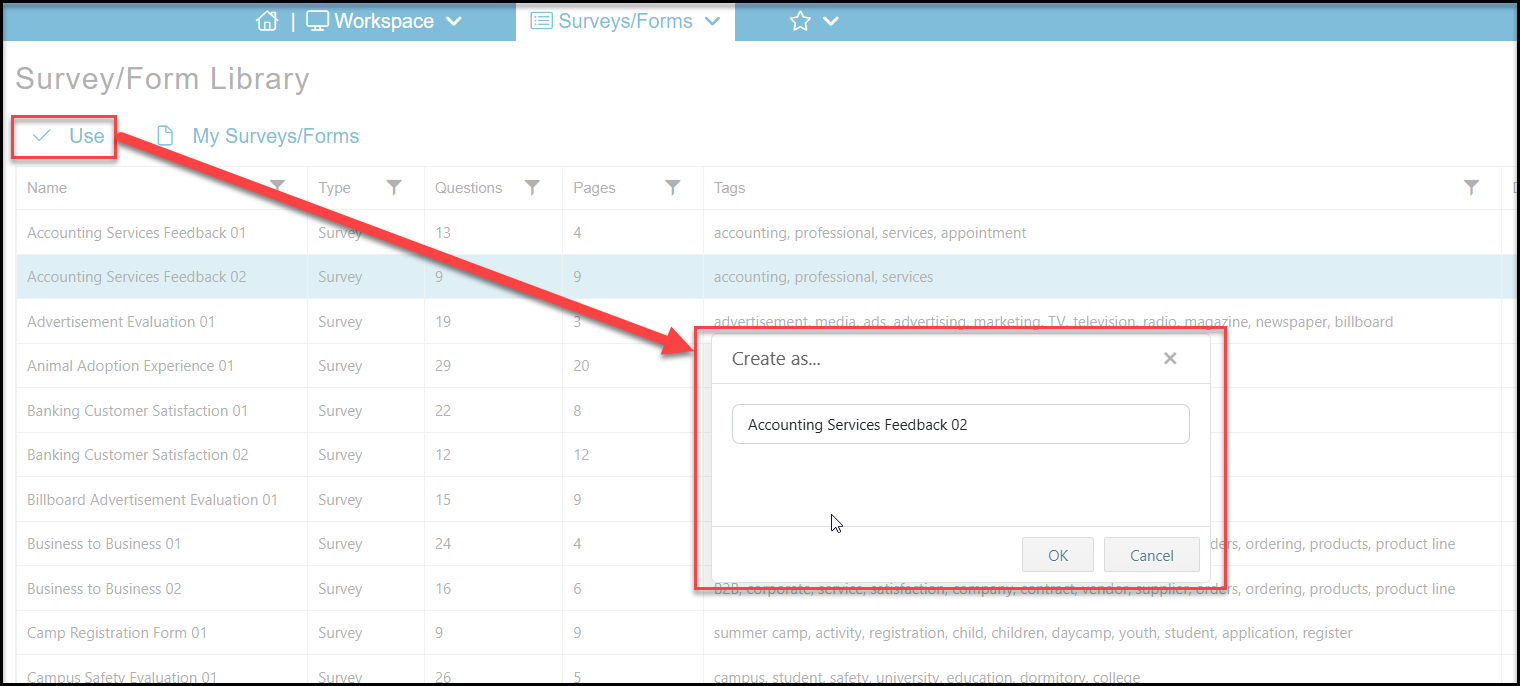
The software includes some sample surveys you can use. Clicking on the Survey/Form Library link at the top of the grid will open a new page.
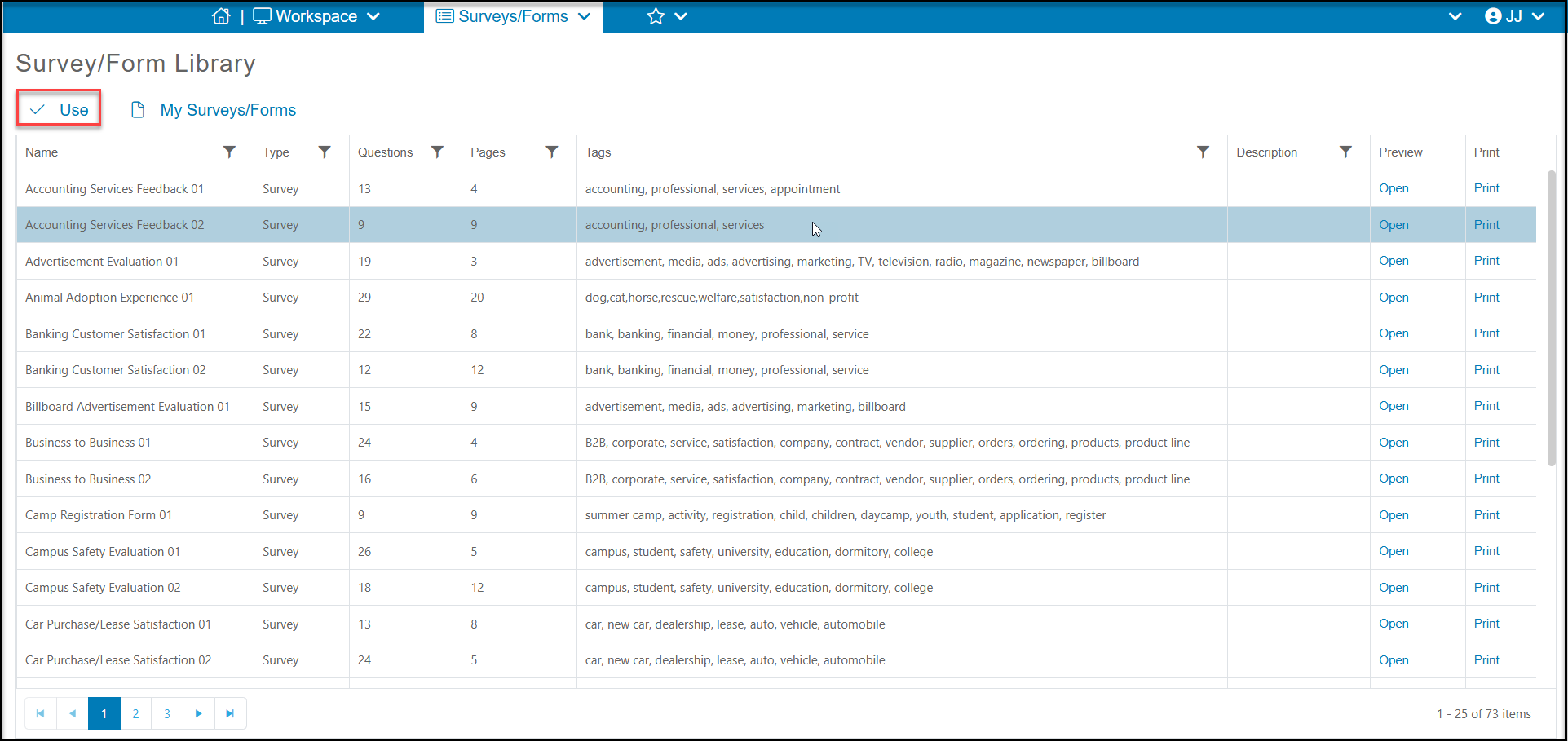
On the new grid you can find a list of sample surveys. You can click on the Open link under Preview to open it and see the questions included. If you would like to use a sample survey, highlight that row and then click Use at the top of the grid.
In the new window enter the new name for your survey and click OK to create it and start editing. Click Cancel to cancel and close the window.