Can I add, edit or delete Constituent Categories?
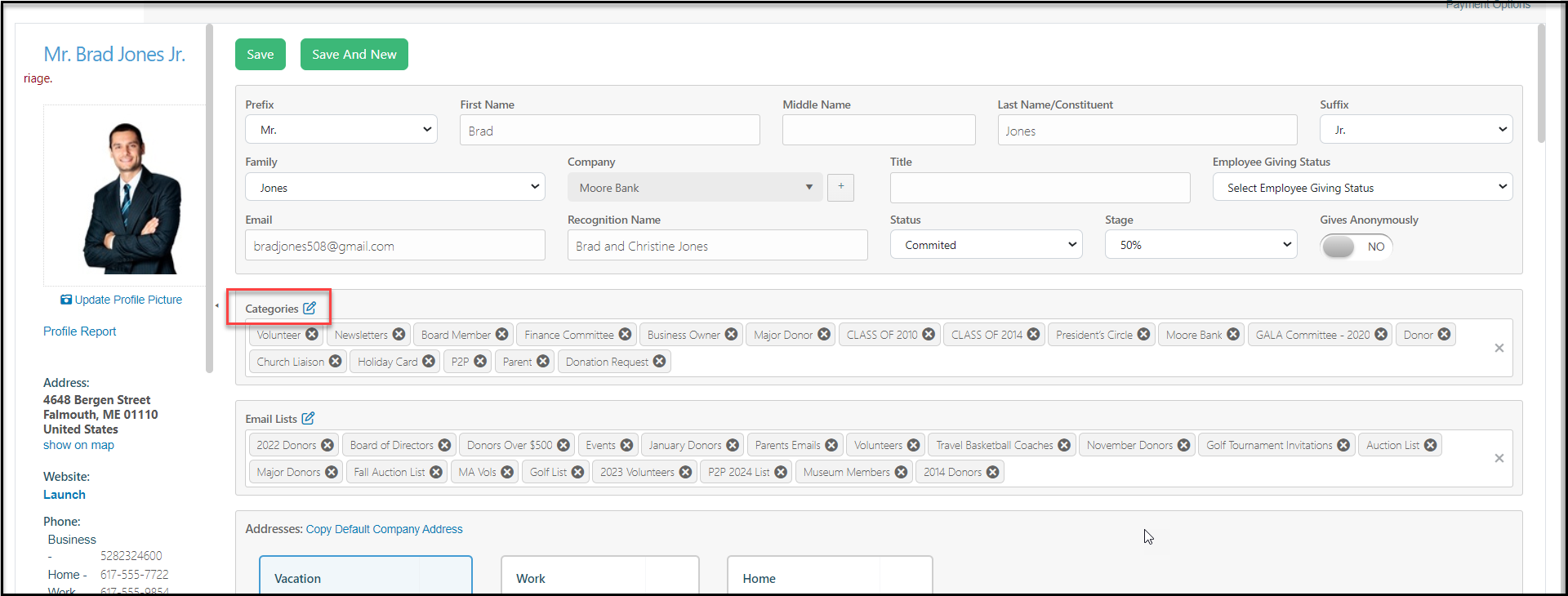
Yes. To modify the categories list, click on the Pencil & Paper (edit) icon next to the Categories label from any constituent profile page.
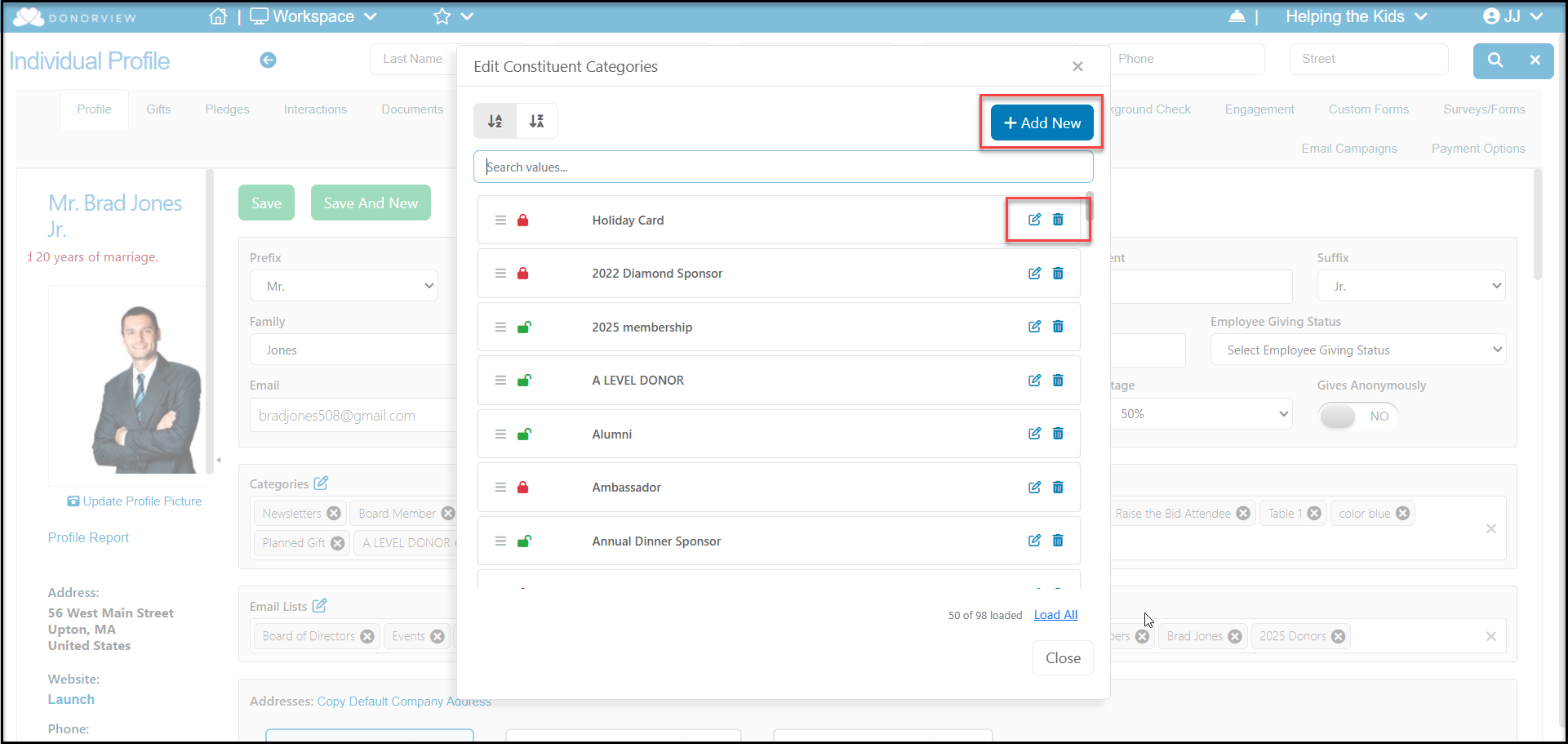
In the new window you can:
- Reorder the list in alphabetical order
- Search for existing values in the search box
- Click on +Add New to create a new category
- Use the edit icon on the right side of a category to edit the name or change the privacy settings
- Use the trash can icon on the right side of a category to delete it. Note that only categories that are not currently in use can be deleted.
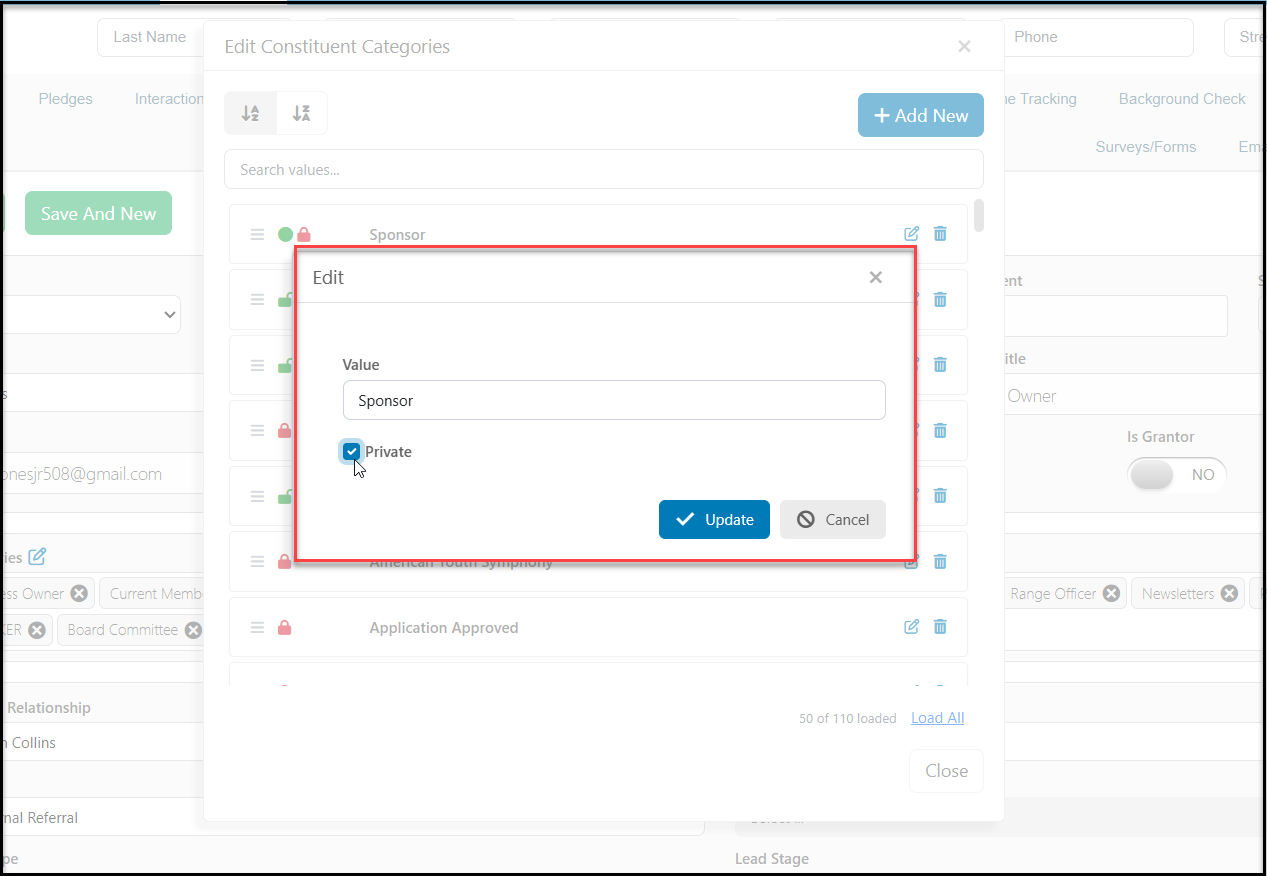
If you are editing or adding a new category, the pop window you will enter the name of the category under Value. If you share a membership directory that is searchable using categories, you can check the box next to Private if you wish this category to be visible internally only. With it marked as Private it would not be included in the search fields on your membership directory.
Click Update to return to the categories list.
Once you are back on the categories list, click Close to close the window and return to the constituent's profile page.
If you want to delete a choice that is in use, you will need to identify all the constituents using that choice. You could filter the Constituents Grid to identify the constituents and use the Batch Update feature in the Actions menu to remove all constituents from that category.