# Why is the Gifts grid not displaying or sorting properly?
> Source: https://support.donorview.com/why-is-the-gifts-grid-not-displaying-or-sorting-properly | Updated: 2026-07-20T16:03:19Z
First, be sure you have selected the correct view. On the left under My Views, you can see what view you are currently seeing on the grid.
If it is highlighted white, it means the view is displaying what was most recently saved and no new queries, filters, or sorts have been applied.
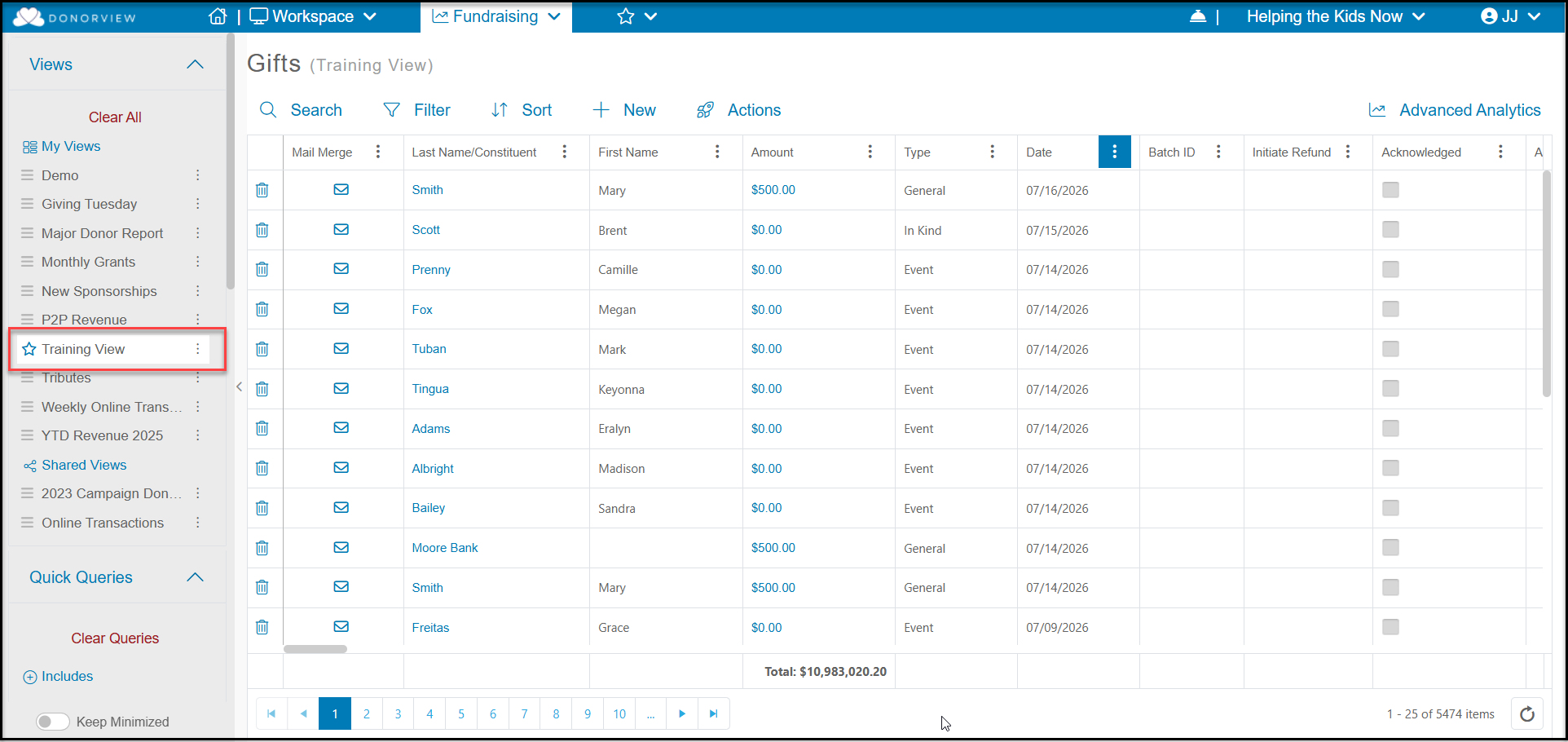 If it is highlighted blue, it means that new queries, filters or sorts have been applied to the view. Multiple columns can be sorted in a grid. If you have a column selected for sorting, you will see a green circle above the Sort. The sorts are performed in the order they are applied.
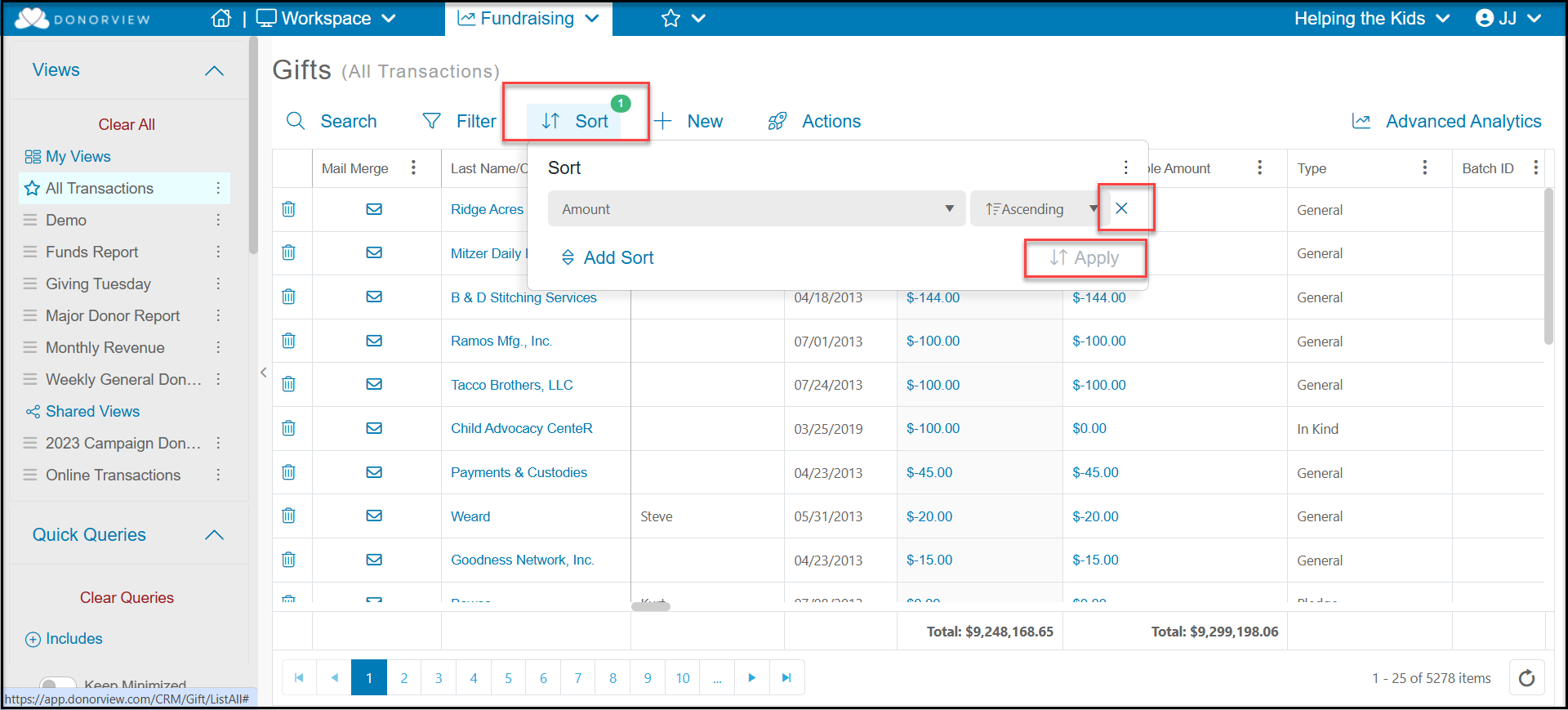
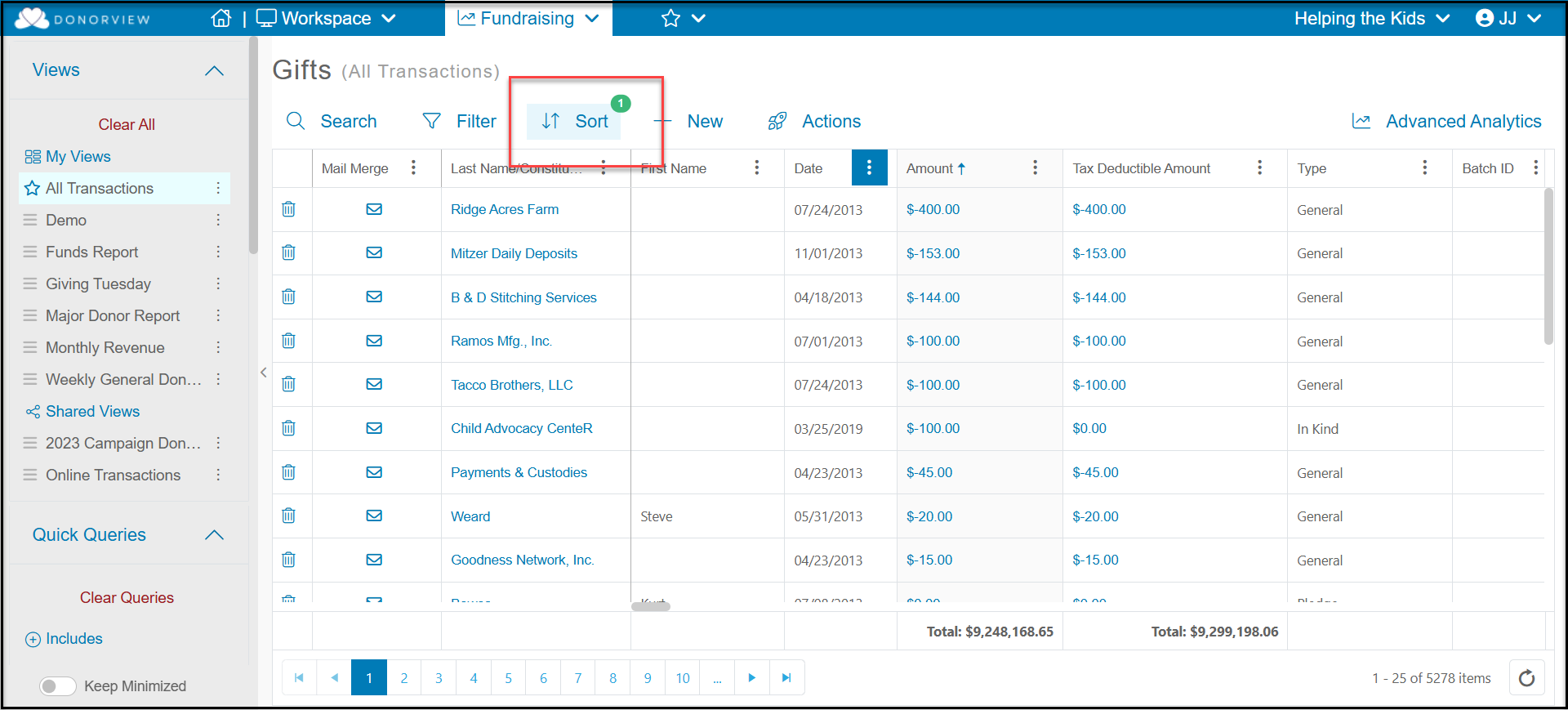 You can clear the sort by clicking on the column (one click sorts in ascending order, two clicks sort in descending order, and the third click clears the sort). You can also clear the sort from the Sort link at the top of the grid. Click the 'X" for the row you wish to remove the sort and then click Apply
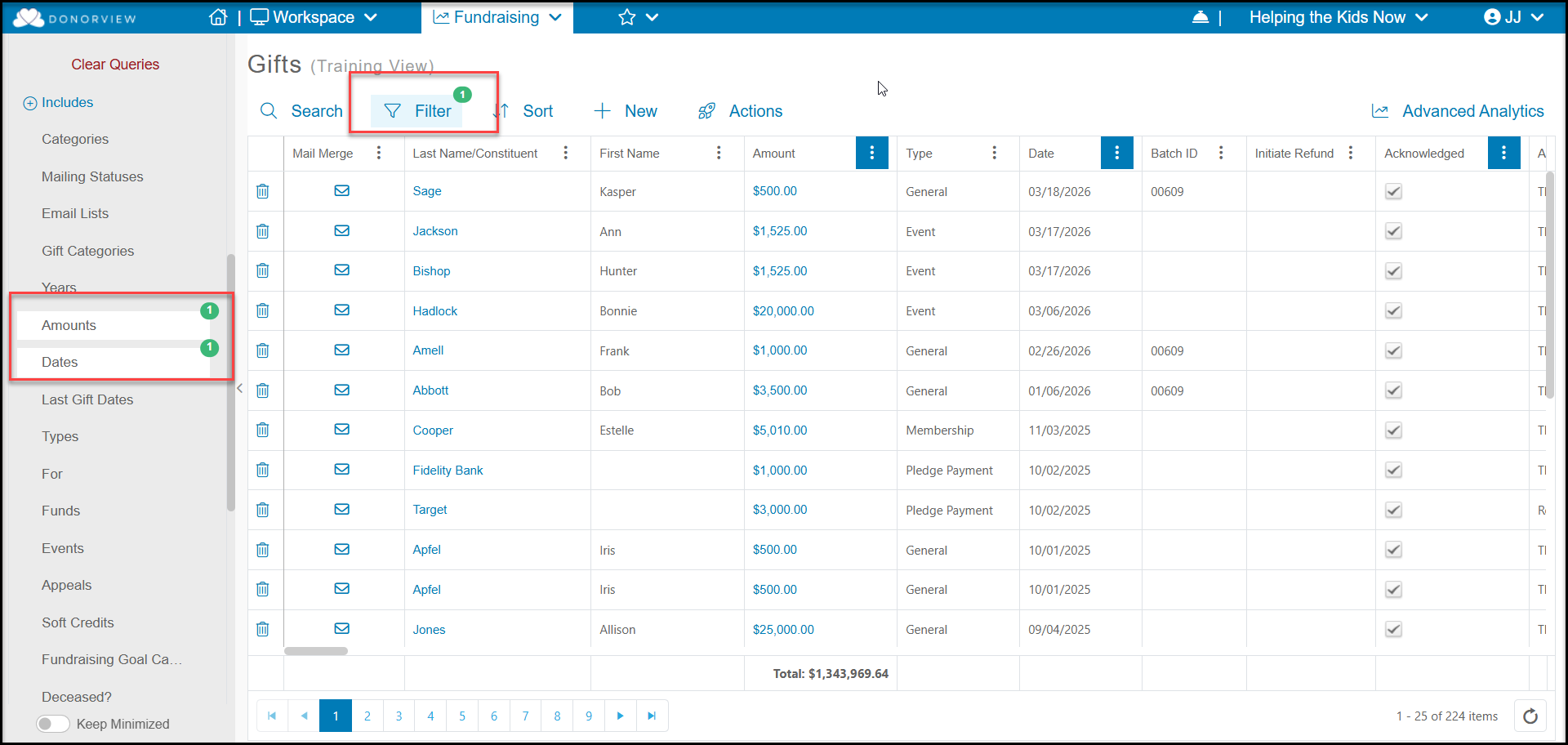
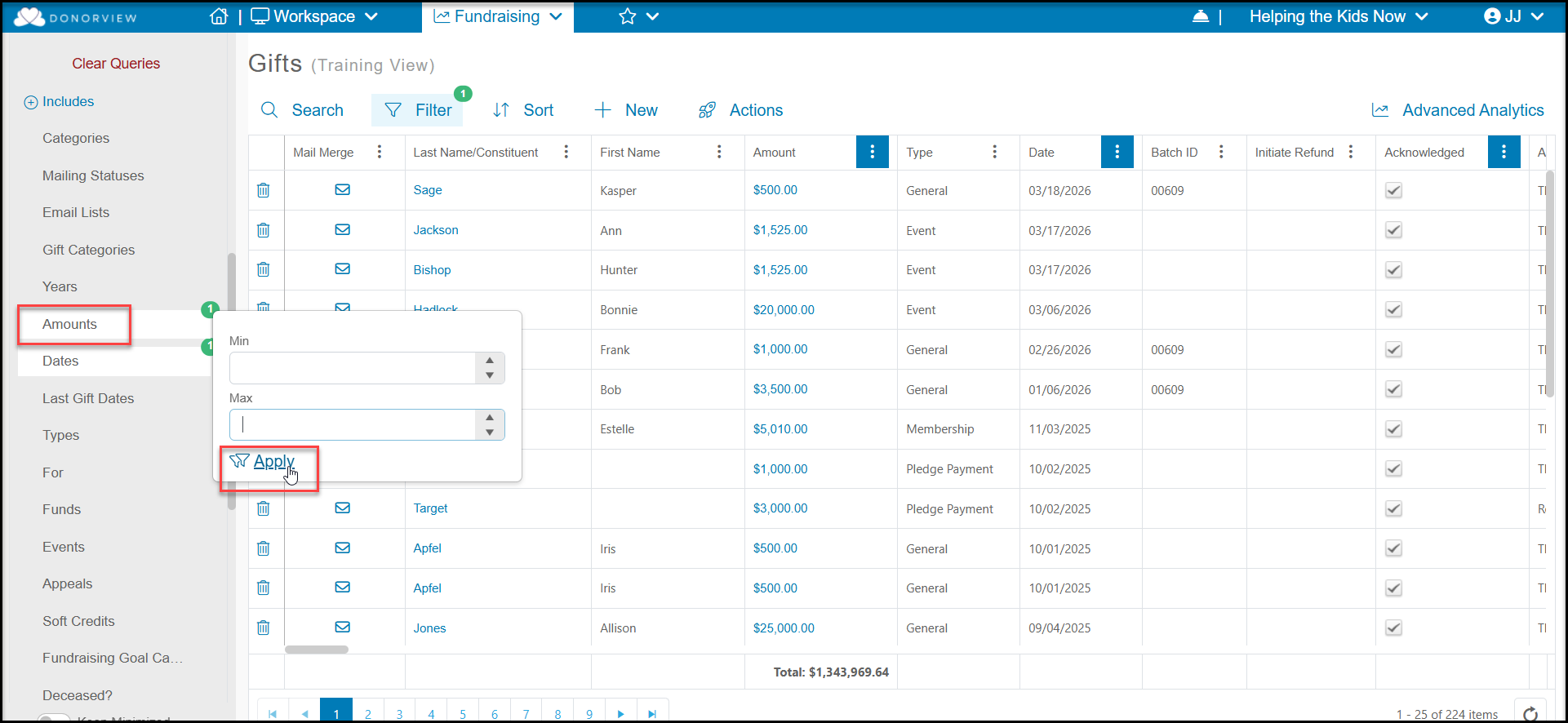
 You may also have Quick Queries or Filters applied. On the left side of the page, check the Includes and Excludes Quick Queries for any selections that have been applied. You can unselect any of the selections and click **Apply** to clear them.
For columns that are not included in the Quick Queries options, you would see a green circle and number next to the Filter field. Like the Sorts feature, you can click the "X" next to any filters and click **Apply** to clear them.
You may also have Quick Queries or Filters applied. On the left side of the page, check the Includes and Excludes Quick Queries for any selections that have been applied. You can unselect any of the selections and click **Apply** to clear them.
For columns that are not included in the Quick Queries options, you would see a green circle and number next to the Filter field. Like the Sorts feature, you can click the "X" next to any filters and click **Apply** to clear them.
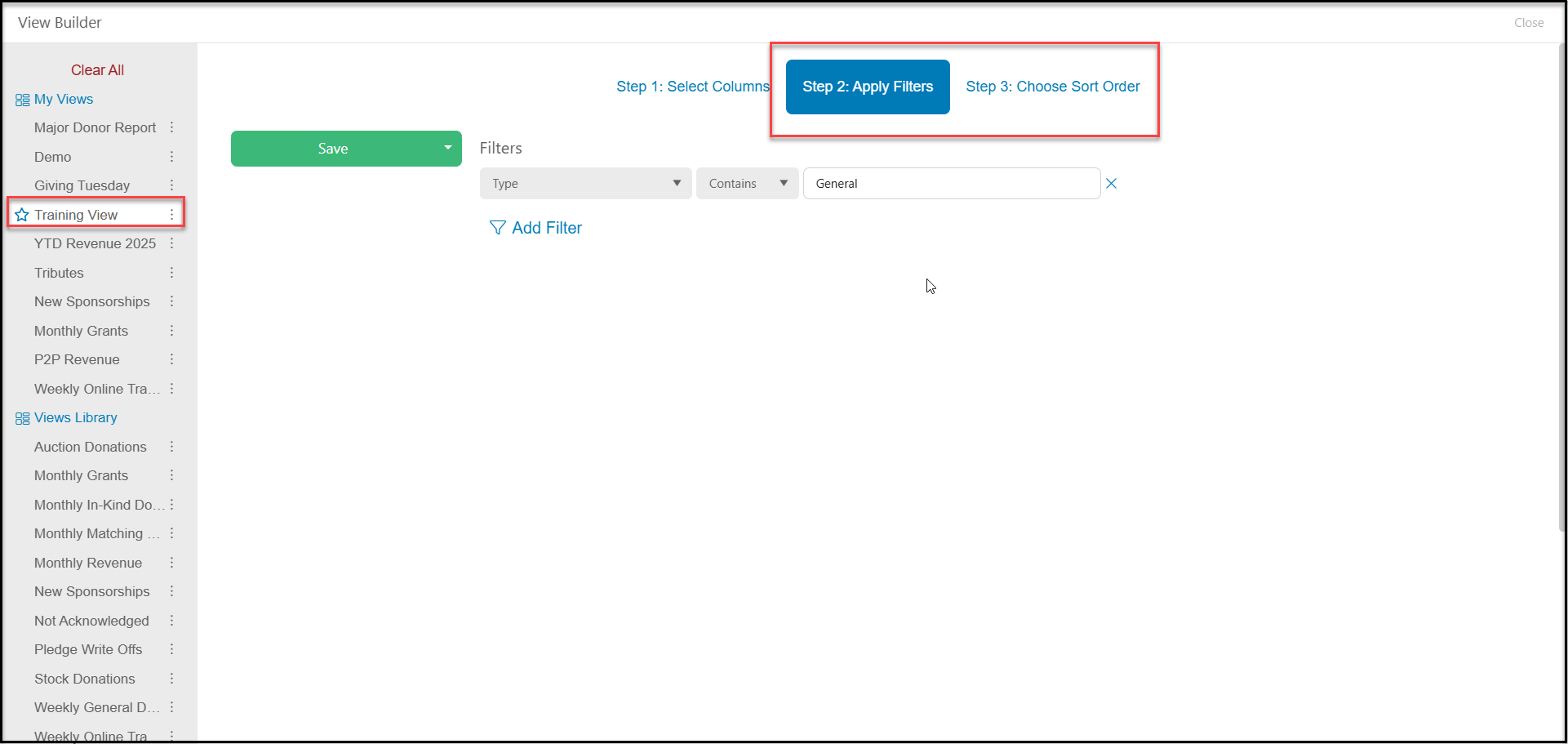
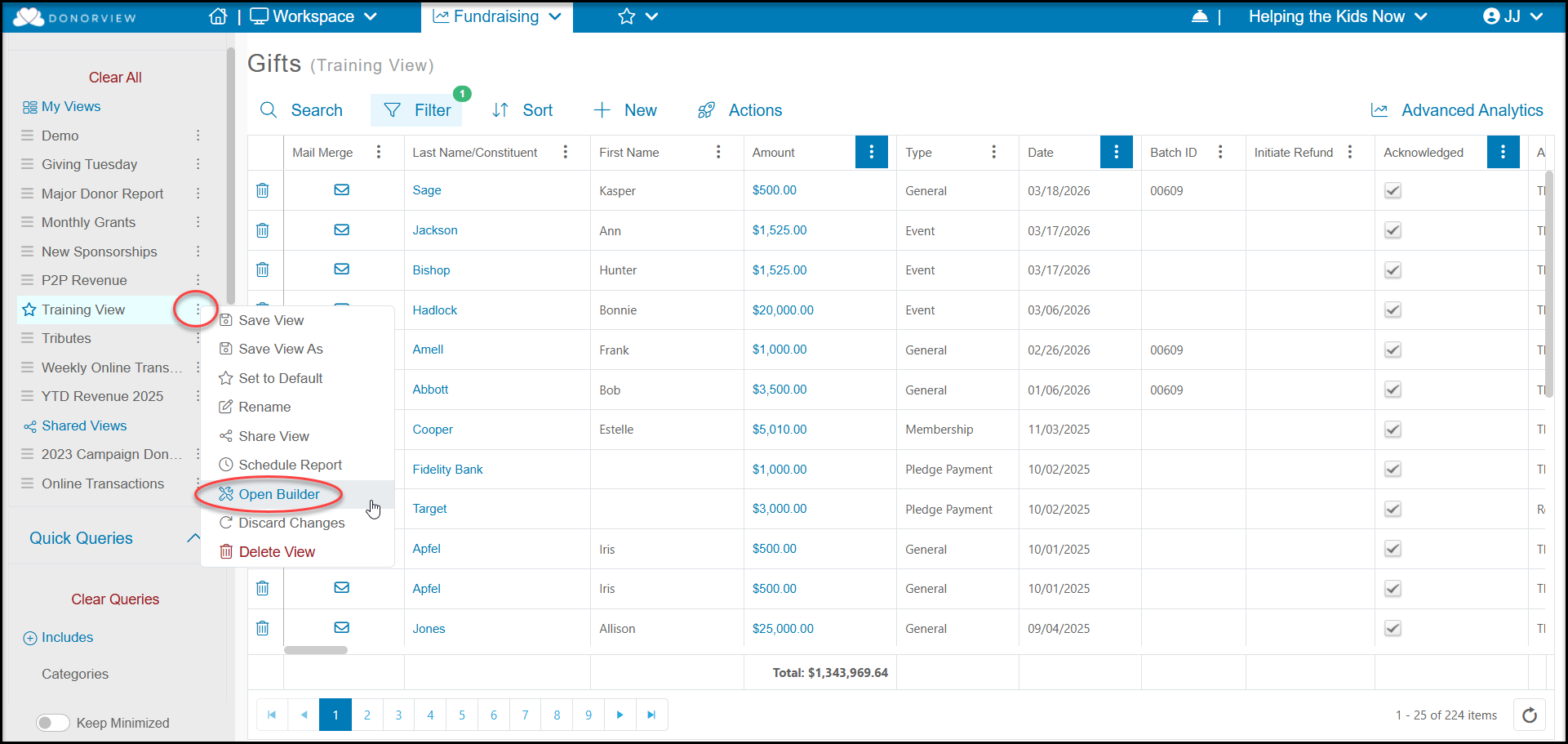
 You can also open the View Builder by clicking on the three dots next to the View and selecting **Open Builder**.
 Once you open the builder, any queries, filters, or sorts that had been temporarily applied will be cleared. Any Queries or Filters that had been saved for your view will show under the **Apply Filters** tab. You would see any sorts on the **Choose Sort Order** tab. You can clear, edit, or add filters and sorts as needed. Click **Save** to save you changes and click **Close** in the upper right corner to return to the grid.