# What is the User Settings page?
> Source: https://support.donorview.com/what-is-the-user-settings-page-dv | Updated: 2025-06-06T19:13:56Z
The User Settings are found in the menu under your user initials in the top right corner of the page.
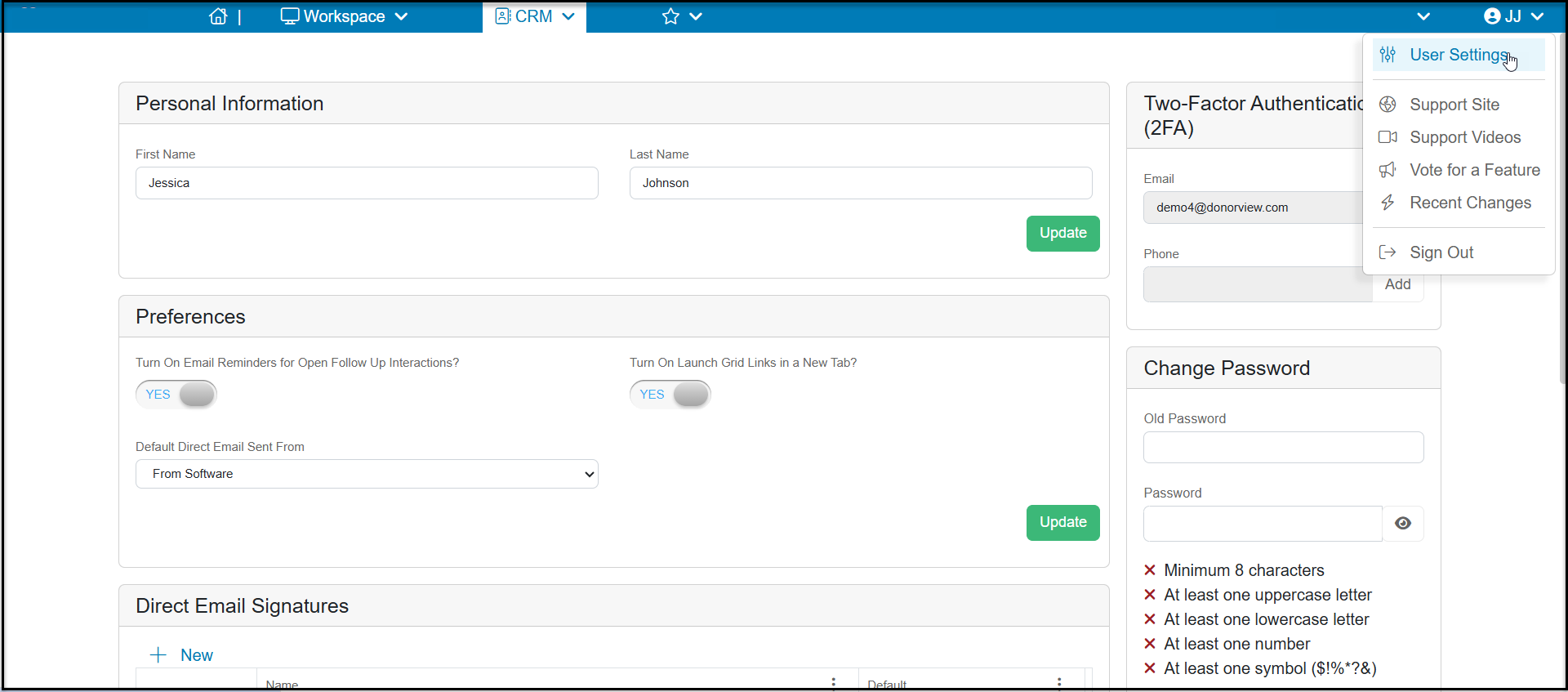
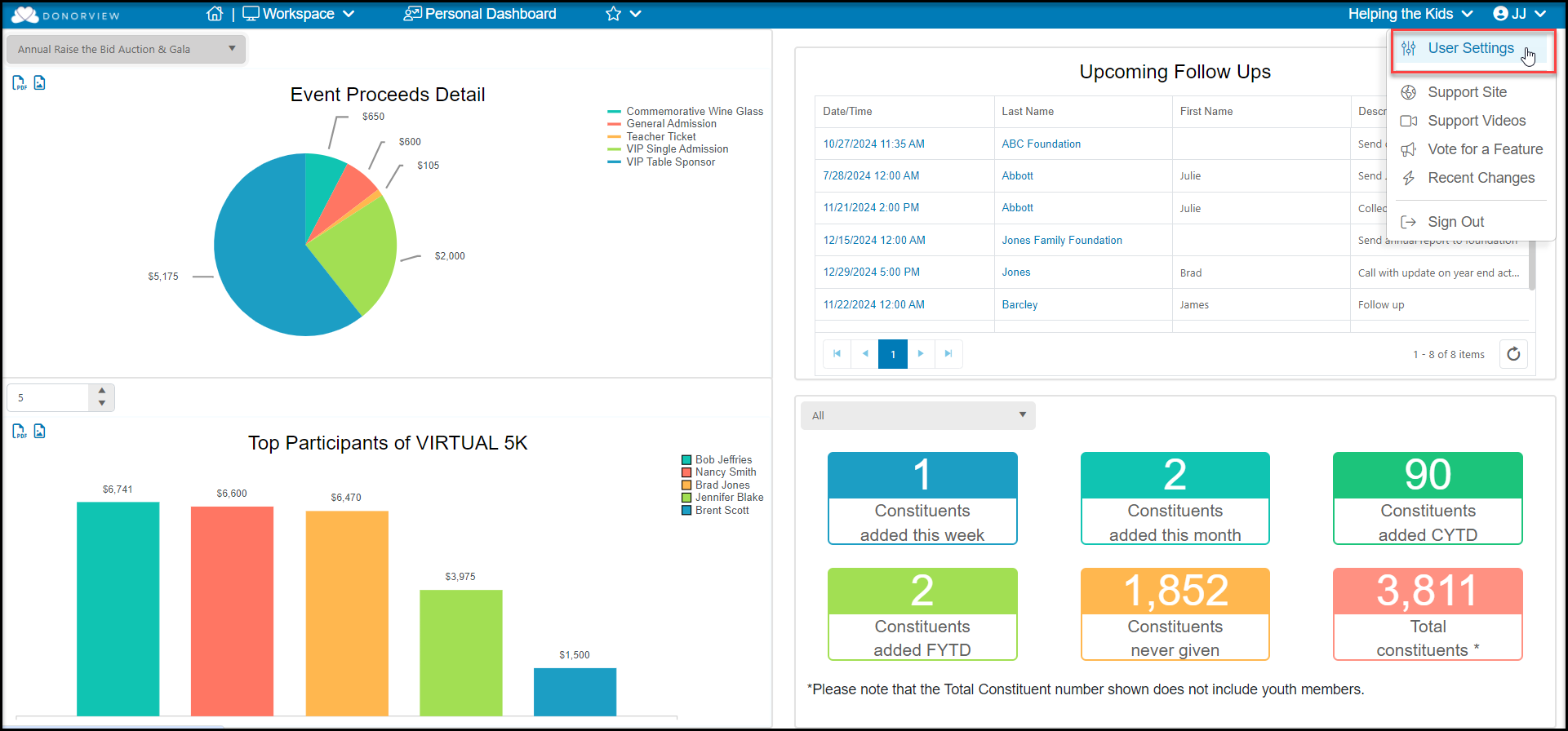 Clicking on User Settings will take you to the page where you can:
- Manage your name under **Personal Information**
- Add your Phone number for **Two-Factor Authentication**
- Set your **Preferences** for email notification for follow ups, launch links in new tabs, and choose to activate direct mail sent from the software.
Clicking on User Settings will take you to the page where you can:
- Manage your name under **Personal Information**
- Add your Phone number for **Two-Factor Authentication**
- Set your **Preferences** for email notification for follow ups, launch links in new tabs, and choose to activate direct mail sent from the software.
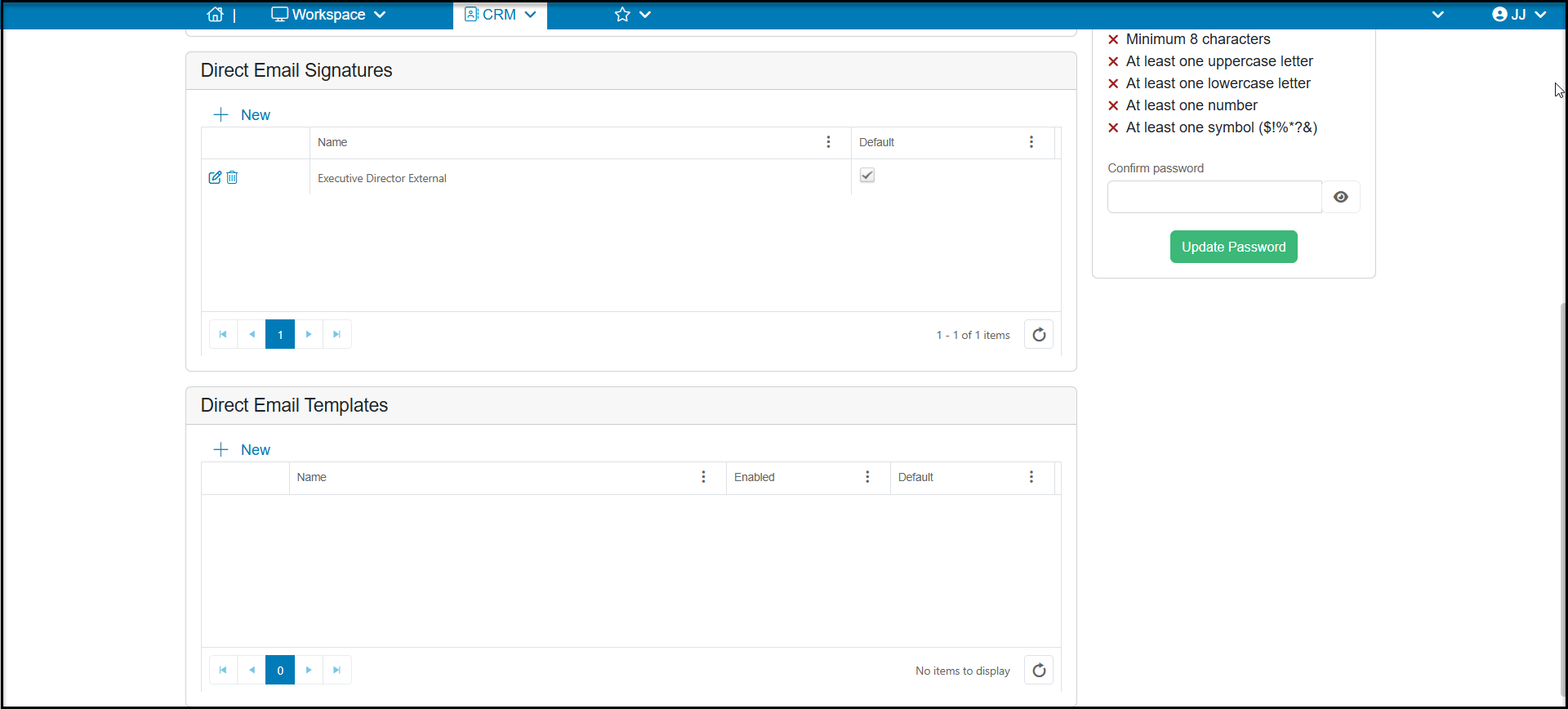
 - Change your **Password.**
- Create **Direct Email Signatures** and **Direct Email Templates**
- Change your **Password.**
- Create **Direct Email Signatures** and **Direct Email Templates**