# What file format does DonorView create for the mail merge letters?
> Source: https://support.donorview.com/what-file-format-does-donorview-create-for-the-mail-merge-letters | Updated: 2026-07-21T20:44:13Z
Mail merge letters can be generated as Adobe pdf files or Microsoft Word doc files depending on the delivery option you choose.
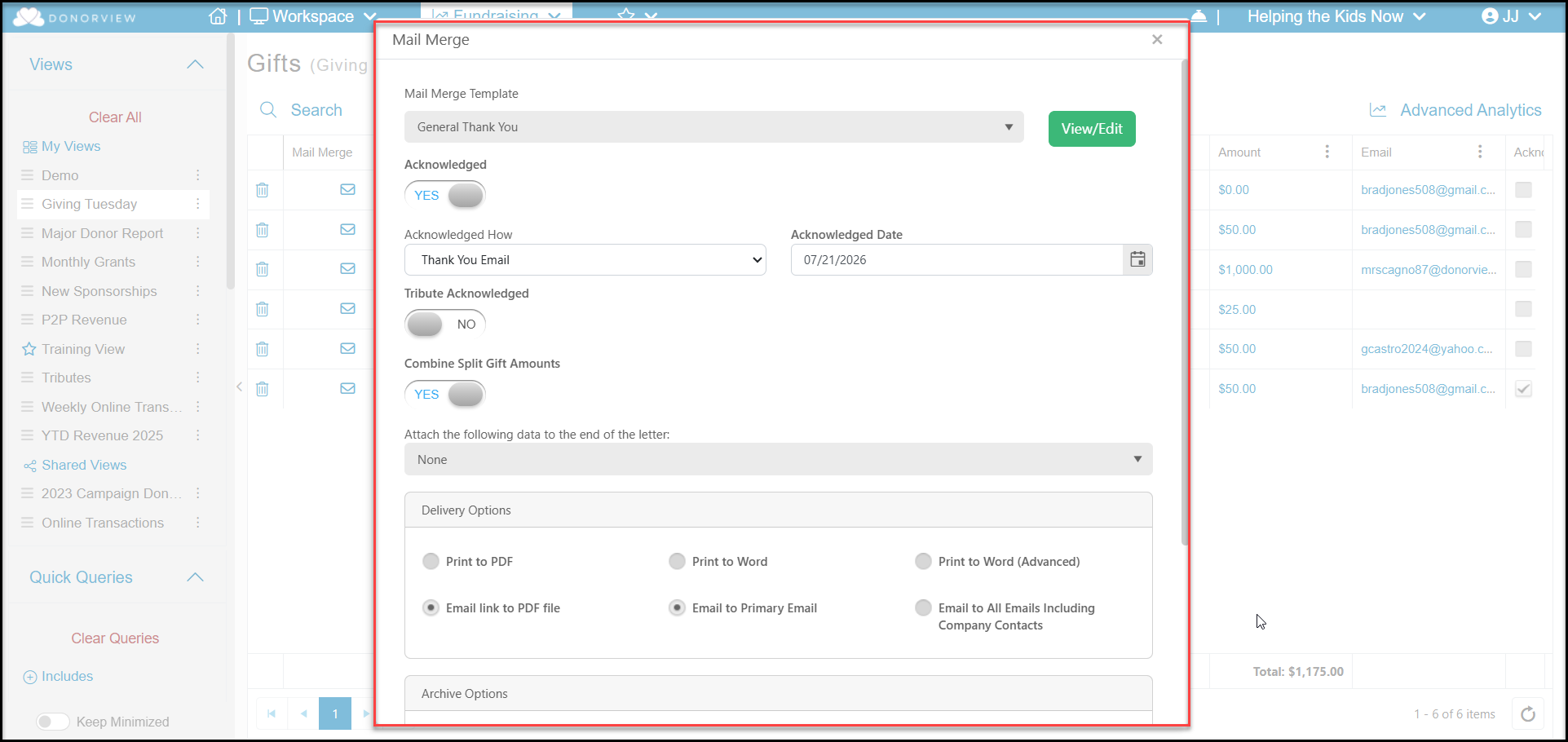 If **Print to PDF** is selected, a new browser tab will open with the pdf file. It will be a single letter when only one recipient is selected, or, if multiple recipients are included in your mail merge, all the letters will be shown as a single document with multiple pages (one page for each letter generated).
If **Email link to PDF file** is selected, another dialog window will open and allow you to customize the email message that will be sent to all the recipients. Each recipient will receive a personalized message and only their applicable letter.
If **Print to Word** is selected, the document will download into your Downloads folder as a single or multi-page Word document for editing and printing. Print to Word (Advanced) performs the same function, but works behind the scenes slightly differently to create the letter and works best for complicated mail merge letters with tables and charts. If the word document is not opening or downloading, check that pop-up blocker is not turned on for DonorView.
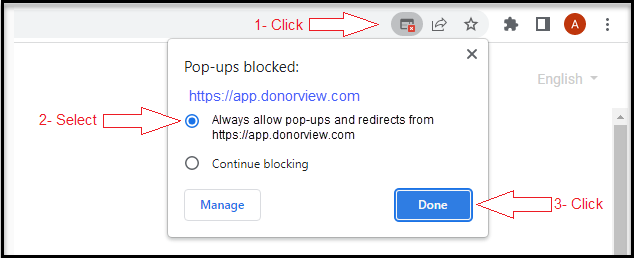
In Chrome, click the pop up blocker icon in the top right of the address bar. Select **Always allow pop-ups and redirects from https://app.donorview.com** and then click **Done**.
If **Print to PDF** is selected, a new browser tab will open with the pdf file. It will be a single letter when only one recipient is selected, or, if multiple recipients are included in your mail merge, all the letters will be shown as a single document with multiple pages (one page for each letter generated).
If **Email link to PDF file** is selected, another dialog window will open and allow you to customize the email message that will be sent to all the recipients. Each recipient will receive a personalized message and only their applicable letter.
If **Print to Word** is selected, the document will download into your Downloads folder as a single or multi-page Word document for editing and printing. Print to Word (Advanced) performs the same function, but works behind the scenes slightly differently to create the letter and works best for complicated mail merge letters with tables and charts. If the word document is not opening or downloading, check that pop-up blocker is not turned on for DonorView.
In Chrome, click the pop up blocker icon in the top right of the address bar. Select **Always allow pop-ups and redirects from https://app.donorview.com** and then click **Done**.