# Text/Push Messaging Overview & Activation
> Source: https://support.donorview.com/textpush-messaging-overview-activation | Updated: 2026-09-17T20:30:32Z
Text/Push Messaging is an optional communication feature available to use with DonorView. It allows you to:
- Send text messages to constituents' mobile phones.
- Activate online auctions to allow for phone or computer bidding.
- Create special text message codes for constituents to be directed to web pages so that they can complete transactions using their mobile phones.
- Send push notifications to constituents who have a portal account and are using the portal mobile app.
There is a limit of 2000 direct text messages sent per day. Direct text messages are those initiated by you. The 2000 message cap does not included any automated responses, auction bidding, any incoming text messages from your constituents, or push notifications.
**Constituent Phone Numbers**
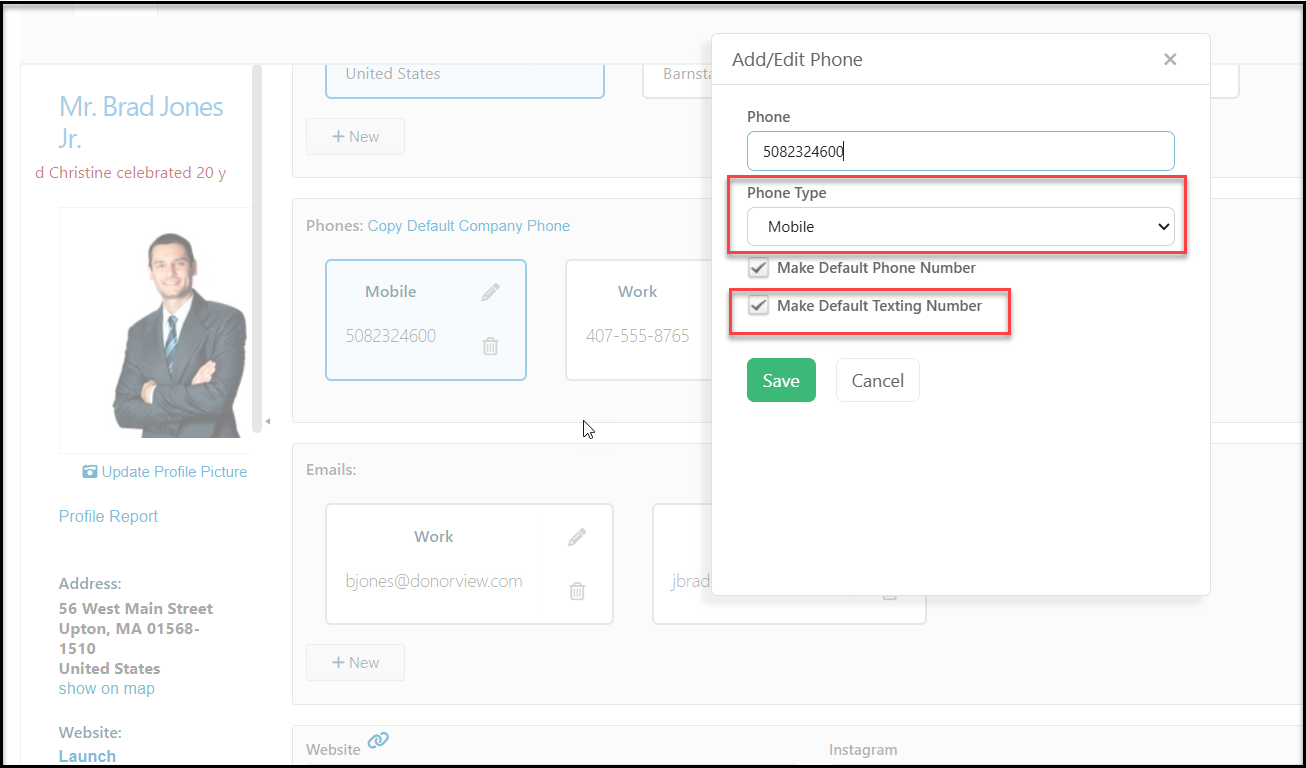
In order for a constituent to receive a text message from the software, they must have a phone number identified as a “mobile” phone number. The messaging service will not send text messages to phone numbers identified as Work, Home, or other labels. If the constituent has multiple Mobile phone numbers, you can select which will be used as the default by checking the box **Make Default Texting Number** for that phone number in their record.
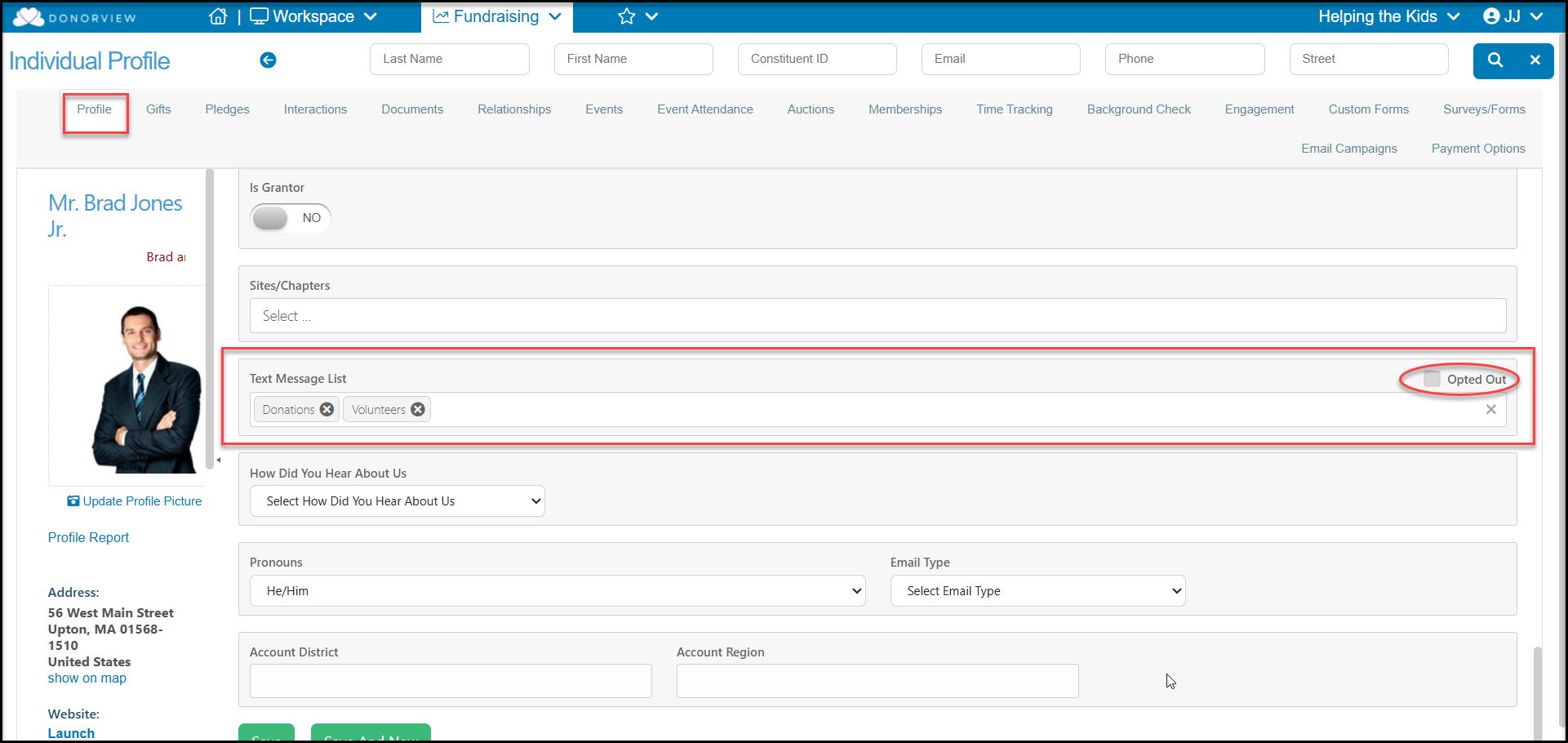
 Constituents can opt-out of text messaging anytime by replying to a message with "stop", "stopall", "unsubscribe", "cancel", "end", or “quit.” You can see if a constituent has unsubscribed from text messaging from their profile page. There will be a checkmark in the **Opted Out** box. This field as well as the date the constituent opted-out are also available on the Constituents, Events, and Event Attendance grids.
 **Activating Text Messaging**
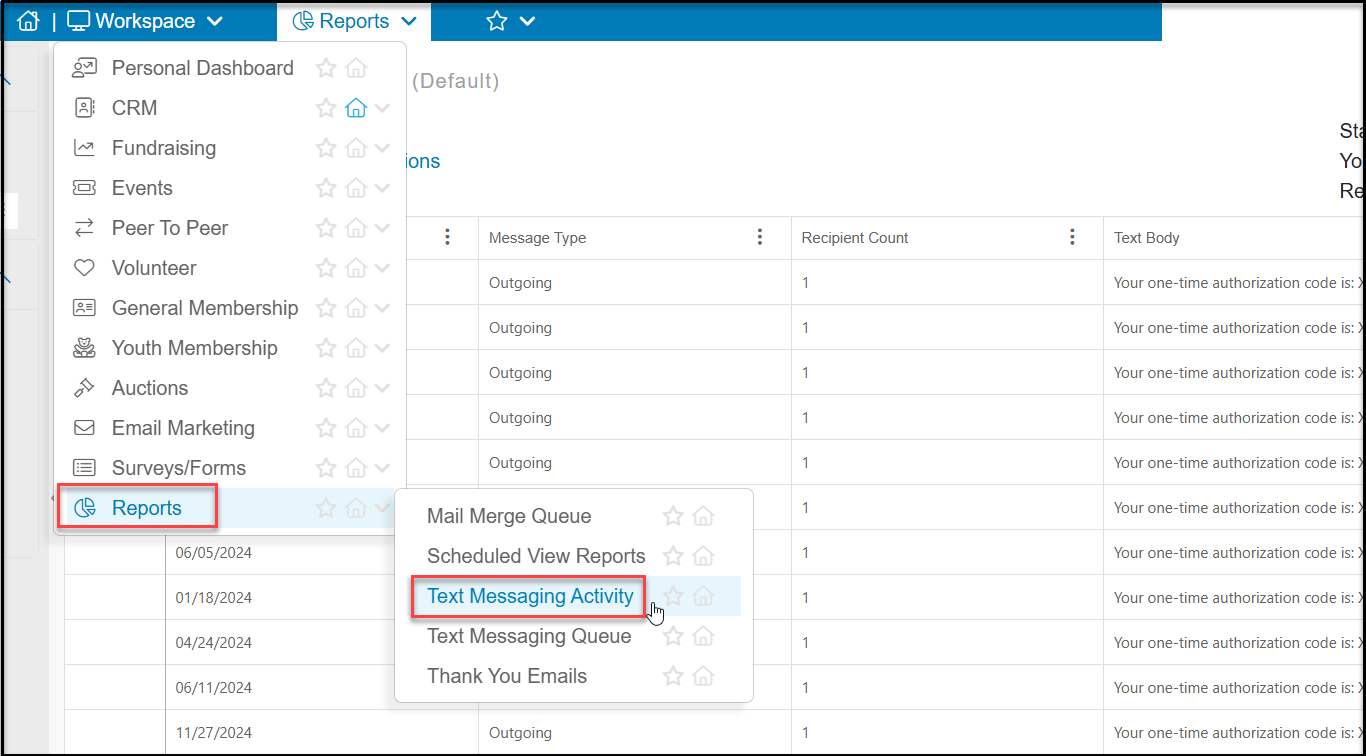
Text messaging is an optional feature with DonorView. There are several subscription levels. Activating text messaging does require an activation fee, but there are several annual plans, including a free plan. To determine what your organization's text messaging status is go to Workspace, and in the Reports module, click directly on **Text Messaging Activity**.
**Activating Text Messaging**
Text messaging is an optional feature with DonorView. There are several subscription levels. Activating text messaging does require an activation fee, but there are several annual plans, including a free plan. To determine what your organization's text messaging status is go to Workspace, and in the Reports module, click directly on **Text Messaging Activity**.
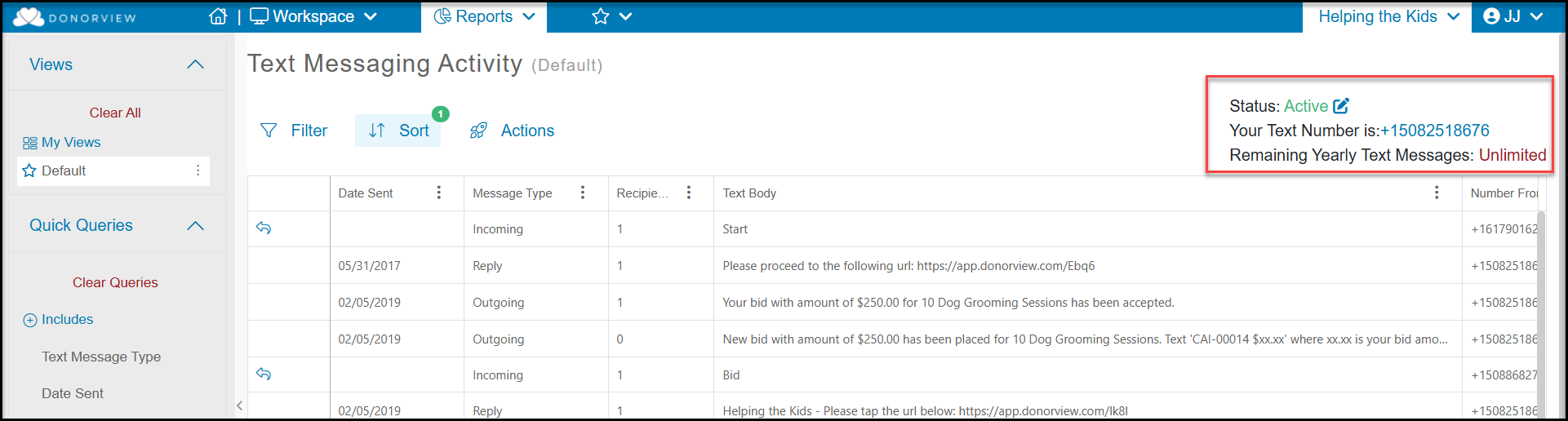
 If your organization has text messaging activated, you will see a **Status** of **Active** in the upper right hand corner. You will also see your organization's virtual message delivery phone number and how many text messages remain in your annual subscription.
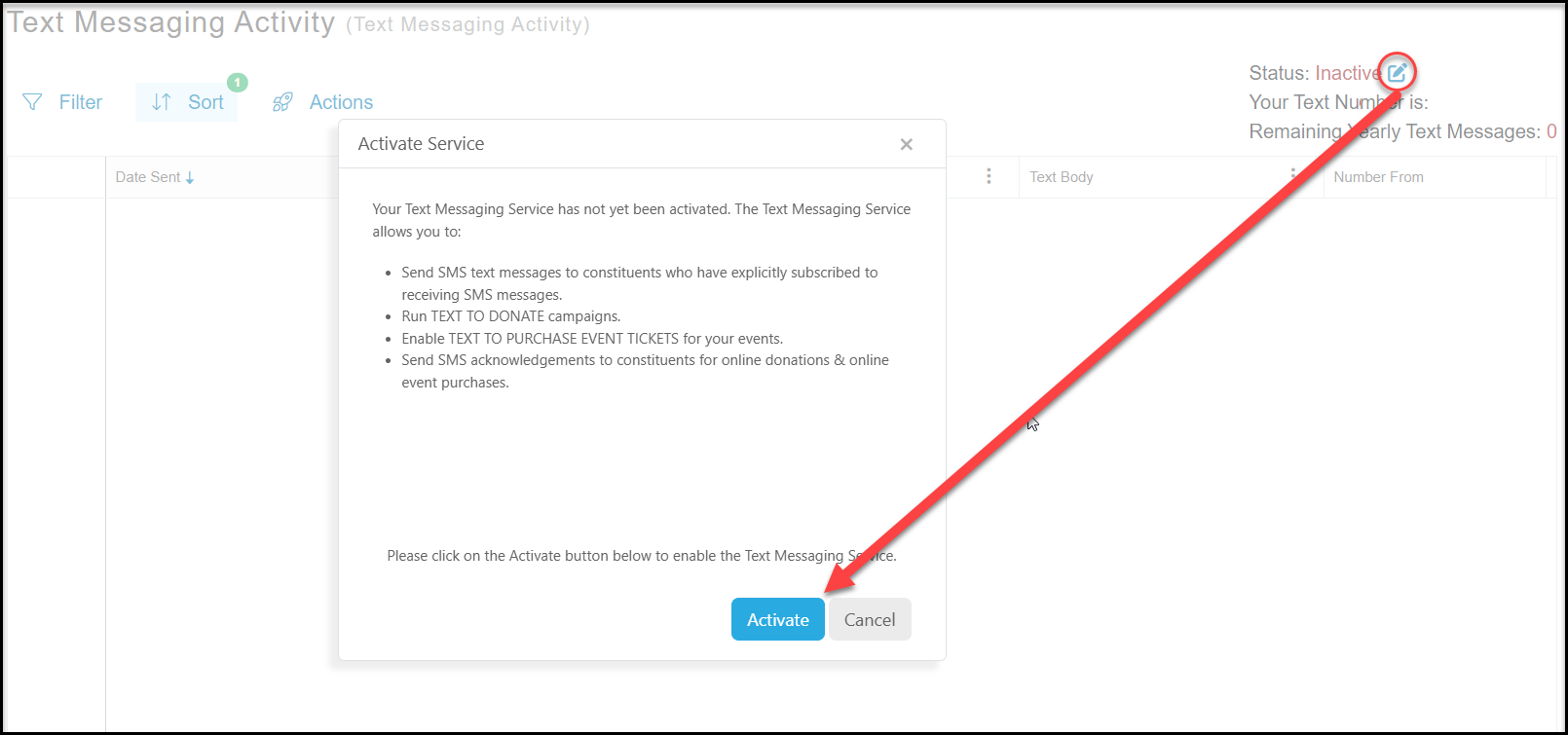
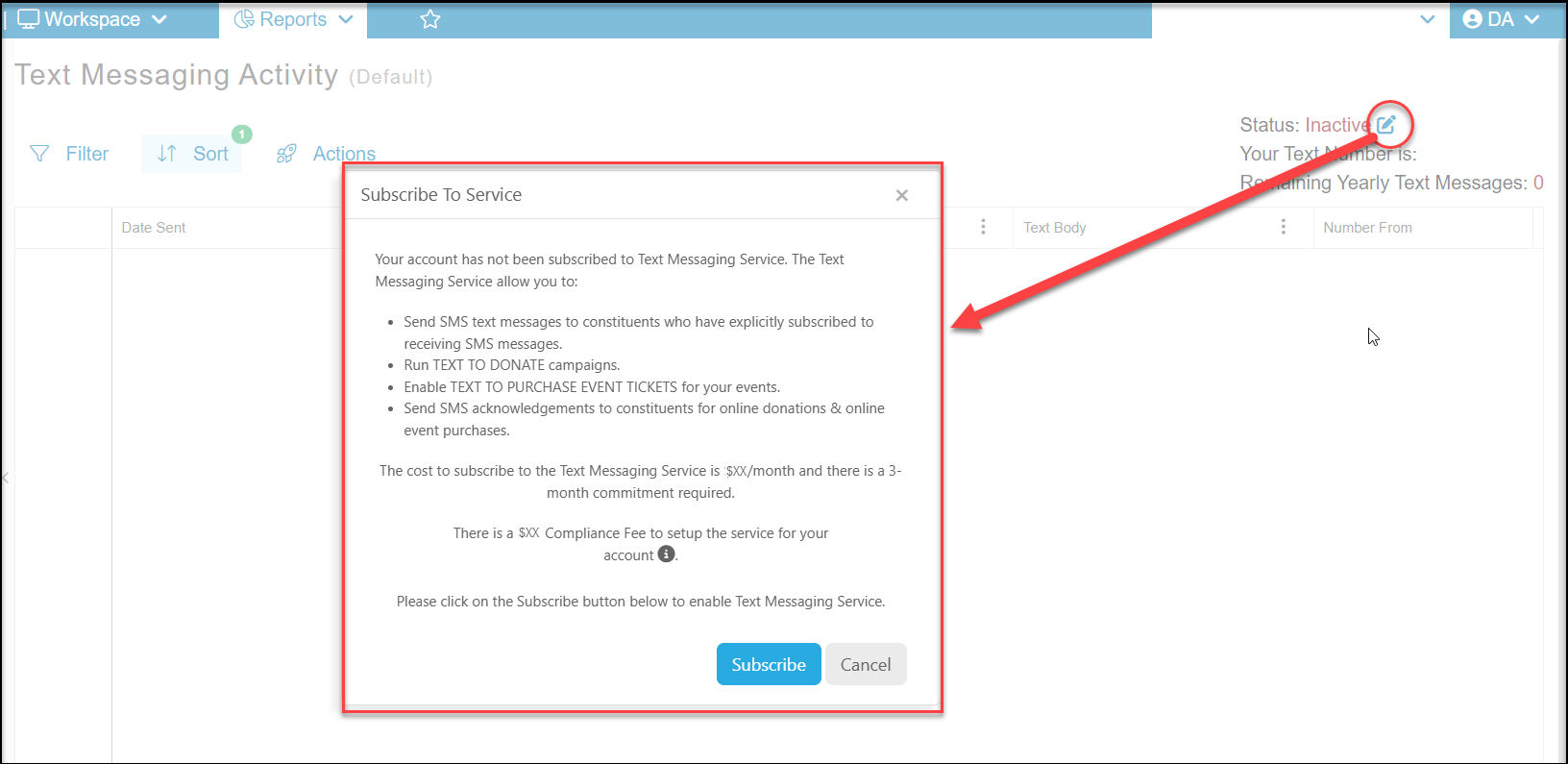
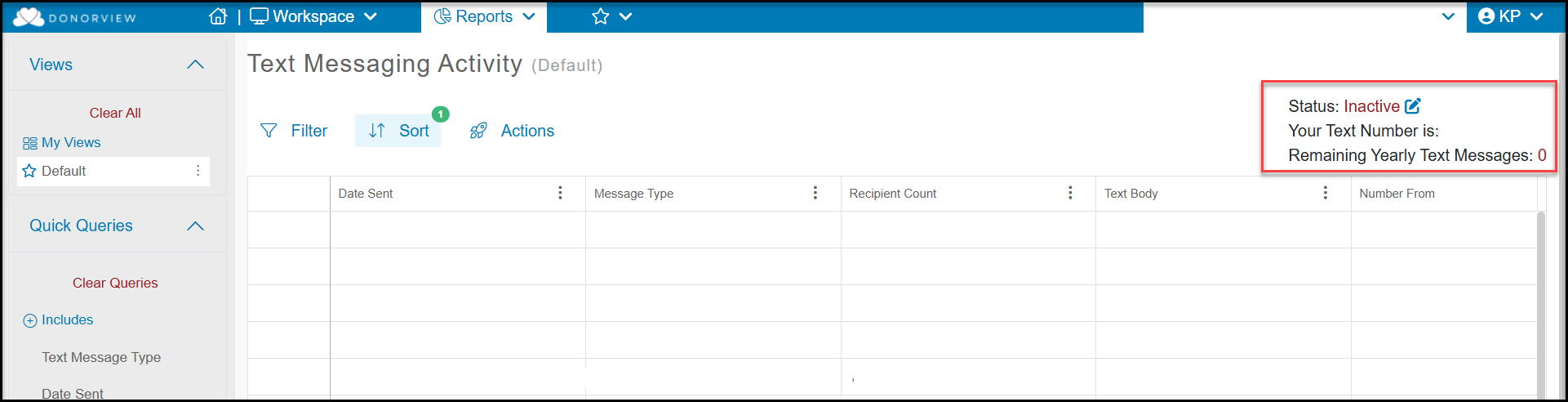
 If text messaging is not yet active, you can click on the pencil and paper icon next to Inactive to open a new window with your subscription options.
 If your contract includes text messaging, a new window will open to give your subscription options and allow you to request activation by clicking on the **Activate** button.
If your contract does not include text messaging, but you would like to subscribe as an additional service, there will be messaging regarding the fees required to upgrade.
The Support Team will be in touch to allow you to select which area code you would like to use for your number. Note that only the area code can be selected, the remainder of the number is applied at random. The Support Team will notify you when the number is activated, which typically takes about two weeks.
If your contract includes text messaging, a new window will open to give your subscription options and allow you to request activation by clicking on the **Activate** button.
If your contract does not include text messaging, but you would like to subscribe as an additional service, there will be messaging regarding the fees required to upgrade.
The Support Team will be in touch to allow you to select which area code you would like to use for your number. Note that only the area code can be selected, the remainder of the number is applied at random. The Support Team will notify you when the number is activated, which typically takes about two weeks.