# Text/Push Messaging Activity Grid
> Source: https://support.donorview.com/textpush-messaging-activity-grid | Updated: 2026-09-17T20:51:00Z
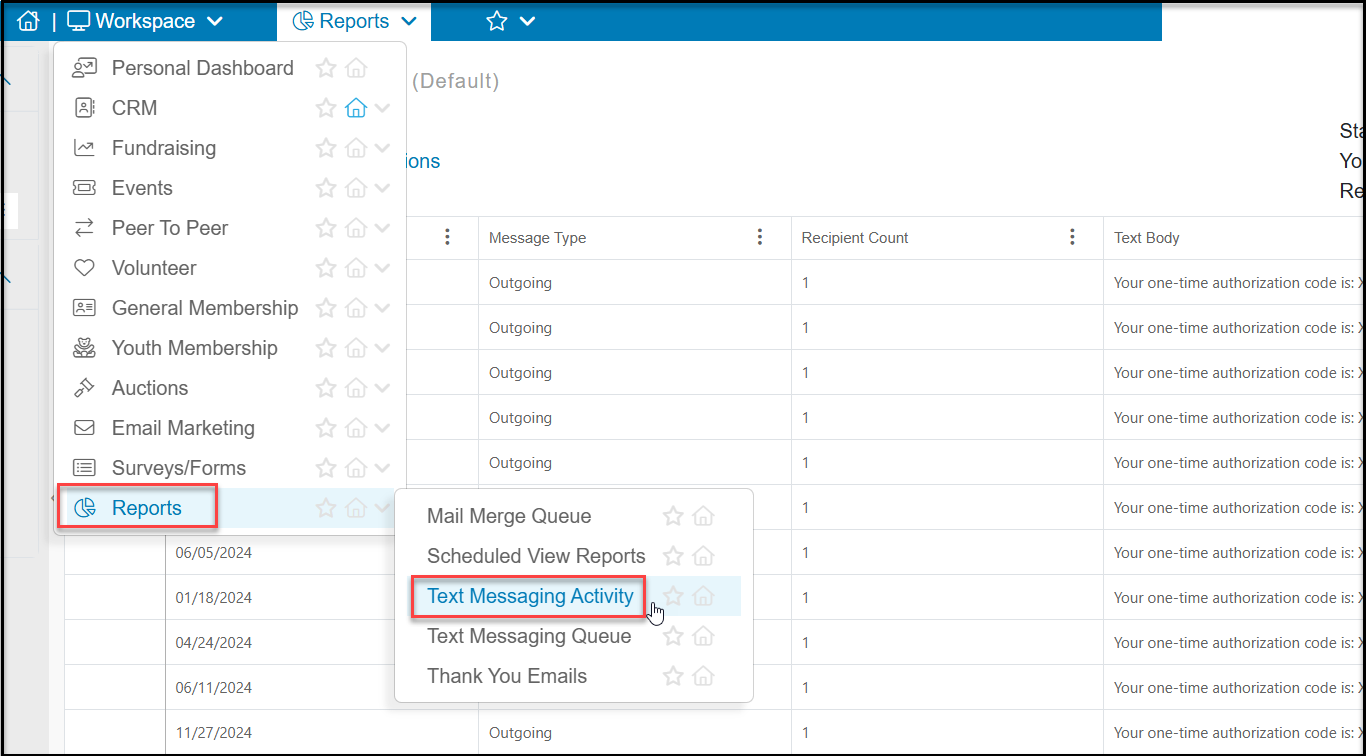
To see a list of all the messages you have sent as well as incoming and automated messages, go to Workspace, hover over Reports, then click on **Text/Push Messaging Activity**.
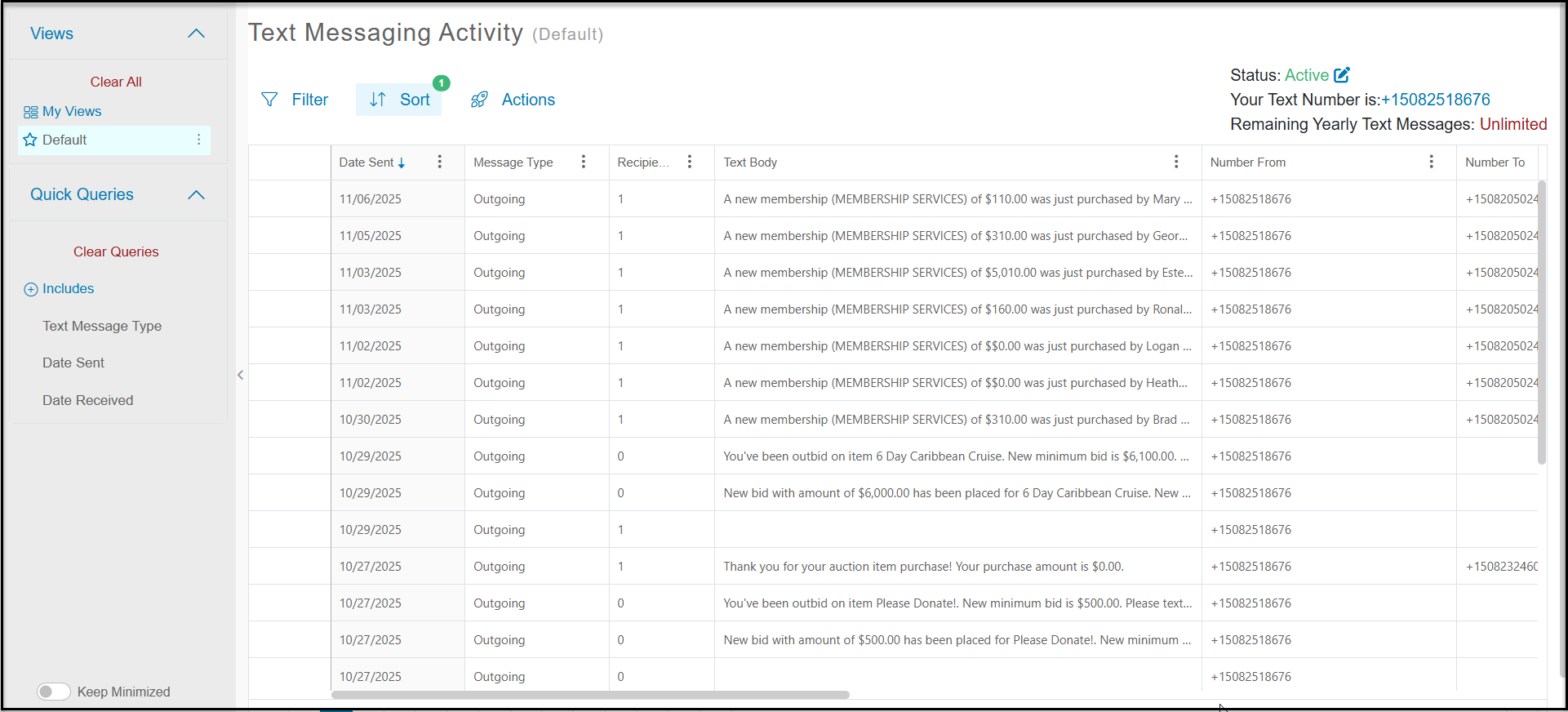
 On the Text/Push Messaging Activity grid you can see a list of all messages incoming and outgoing from the software. It has a default sort by **Date Sent** in Descending order showing the most recent text messages at the top of the list.
The **Message Types** include:
- **Incoming** - Any messages incoming into the software including including Text-2-URL messages. You will learn more about the Text-2-URL feature in an upcoming lesson.
- **Outgoing** - Any message sent from the software including the messages you send to your constituents or automated messaging for auction bidding, and notifications.
- **Reply** - Automated messages sent when a Text-2-URL code is received.
You can see other information like the **Text Body**, what phone number the message was sent to under **Number To**, and the constituents **First Name** and **Last Name**.
This grid operates like other grids and you can create and share custom views. The Actions menu has several special functions which are covered in other articles in this chapter.
On the Text/Push Messaging Activity grid you can see a list of all messages incoming and outgoing from the software. It has a default sort by **Date Sent** in Descending order showing the most recent text messages at the top of the list.
The **Message Types** include:
- **Incoming** - Any messages incoming into the software including including Text-2-URL messages. You will learn more about the Text-2-URL feature in an upcoming lesson.
- **Outgoing** - Any message sent from the software including the messages you send to your constituents or automated messaging for auction bidding, and notifications.
- **Reply** - Automated messages sent when a Text-2-URL code is received.
You can see other information like the **Text Body**, what phone number the message was sent to under **Number To**, and the constituents **First Name** and **Last Name**.
This grid operates like other grids and you can create and share custom views. The Actions menu has several special functions which are covered in other articles in this chapter.