
AI Summary Reports - Coming Soon
For a deeper understanding of what a Constituent’s data can tell you, AI Analytics includes AI Summary Reports. The report will show many of the same analytics as can be found on the main AI Analytics however the by generating they summary you can further analyze and combine available data points for a Constituent into an easy-to-understand summary.
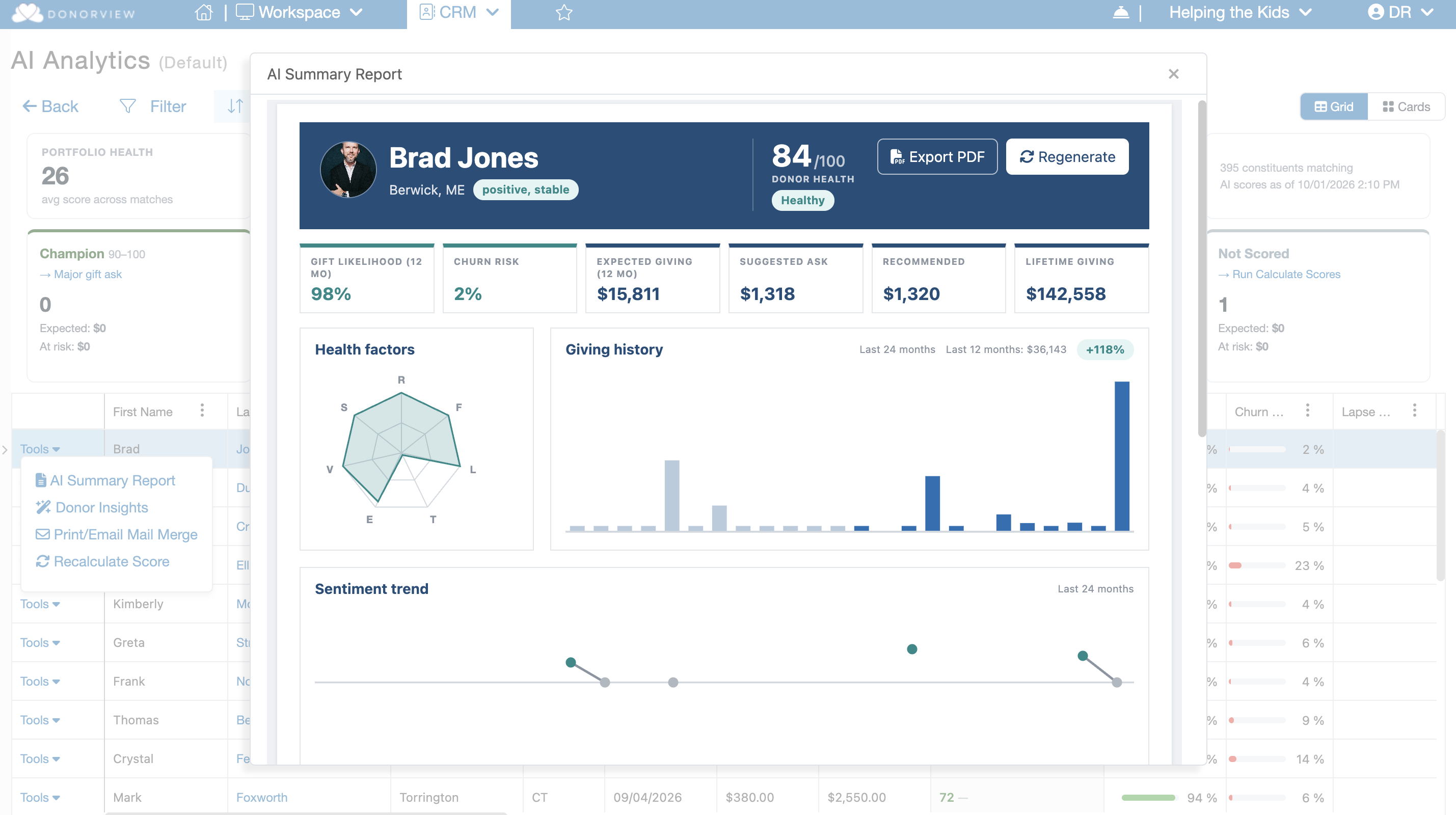
The report includes details about the Constituent’s engagement and relationship with your organization, an overview of their giving story, and a list of Risks and Opportunities.
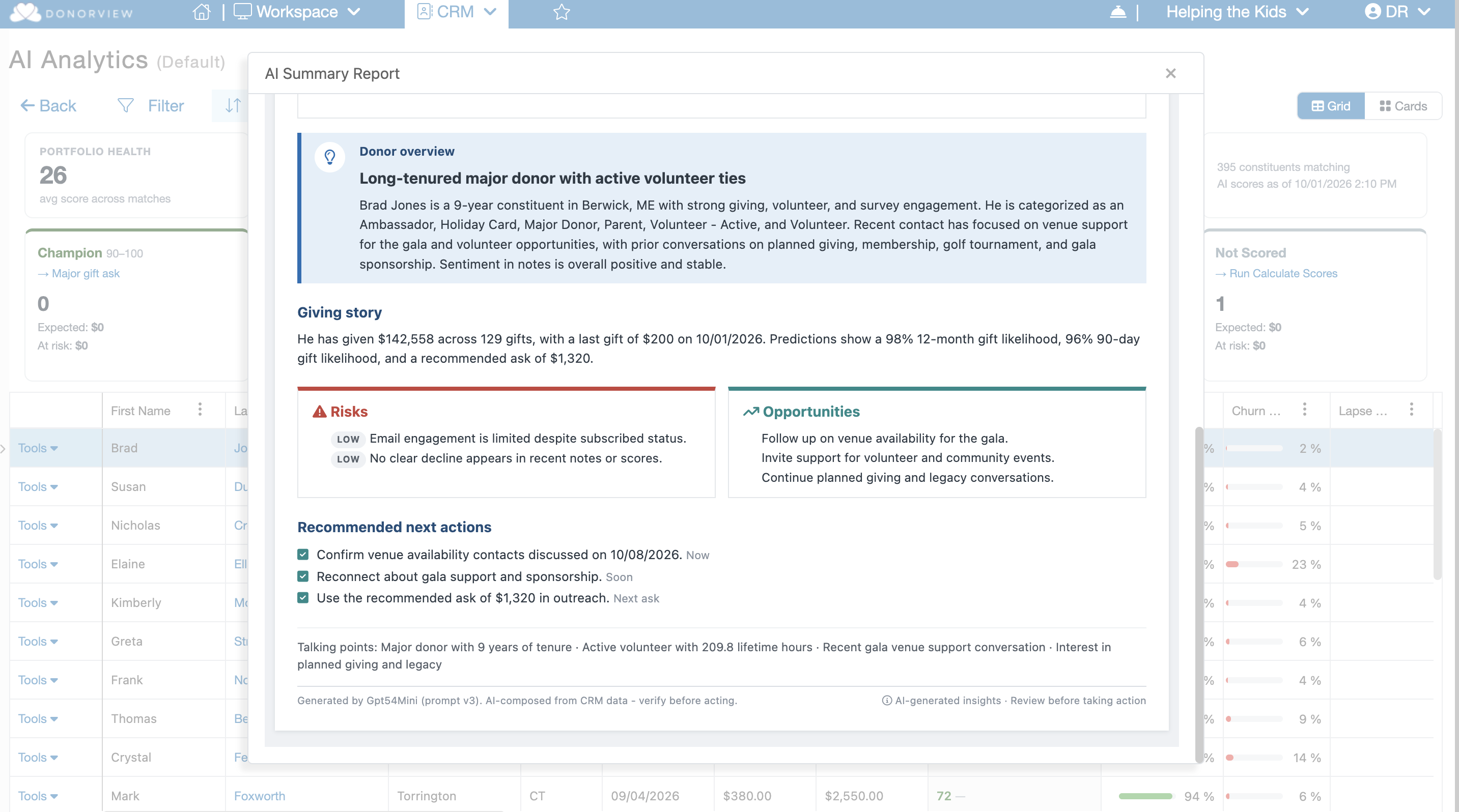
Risks and Opportunities identify potential concerns related to the Constituent and provide recommendations for how your organization may engage with them.
Individual Reports
Individual AI Summary Reports can be launched from the AI Analytics grid, Constituent grid, or within an individual Constituent Profile. On the AI Analytics and Constituent grids, the option to launch the report can be found under the Tools menu for each grid row.
Once launched the AI Summary Report will display several of AI Analytics for that constituent previously available on both the AI Analytics grid and Constituent Grid. Below those stats will be the option to generate the Summary Report. Click the green Generate Report button to generate the AI Summary Report.
Note: Running an AI Summary Report may require Credits. Once a report has been generated, no additional Credits are required to reopen it. However, generating a new AI Summary Report may require additional Credits.
Batch Reports
AI Summary Reports can also be generated in batches directly from the Constituent Grid, making it easy to create reports for multiple Constituents at once.
Begin by filtering the Constituent Grid to display the Constituents for whom you would like to generate reports. Once your desired list is displayed, mouse over the Actions menu and select Batch AI Summary Report.
A confirmation window will display the number of Constituents who are eligible to have a new AI Summary Report generated. Review the information and confirm to begin generating the reports.
Note: The batch process will not generate a duplicate report for any Constituent who already has an existing AI Summary Report on file.
Once confirmed, the eligible reports will be added to a queue for processing. A progress indicator will appear above the Constituent Grid so you can monitor the status of the batch. You do not need to remain on the page while the reports are being generated. Once processing is complete, you will receive an email notification.
After the reports have been generated, you can view an individual Constituent's report by locating the Constituent in the grid, clicking the Tools menu, and selecting AI Summary Report.