Volunteer Registrations Grid Reports
Building reports from the Registrations grid is done using the same features as the Events grid including using the Quick Queries, Filters and Sorts features to customize your view. Since the Registrations grid is essentially the same as the Events grid, but will only show volunteer events, the same built-in views are available in the View Builder.
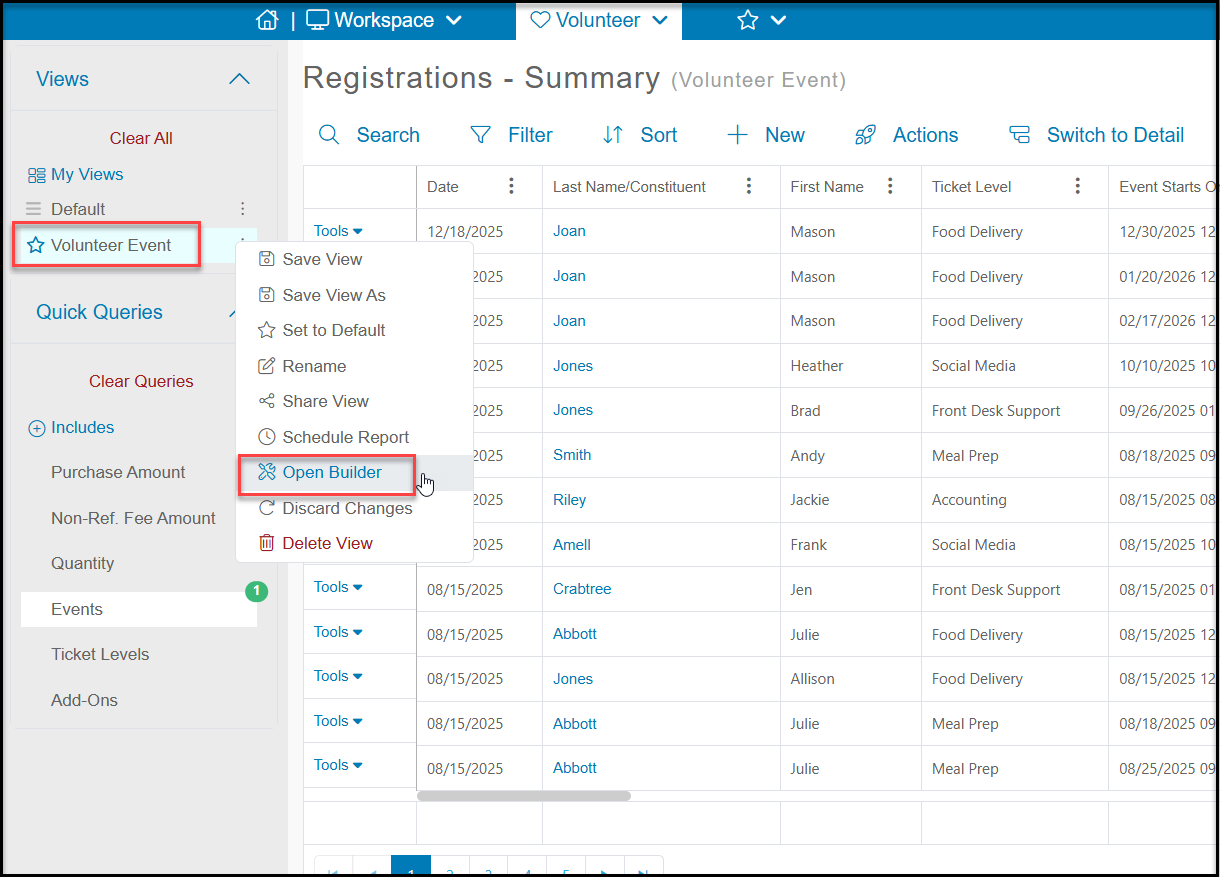
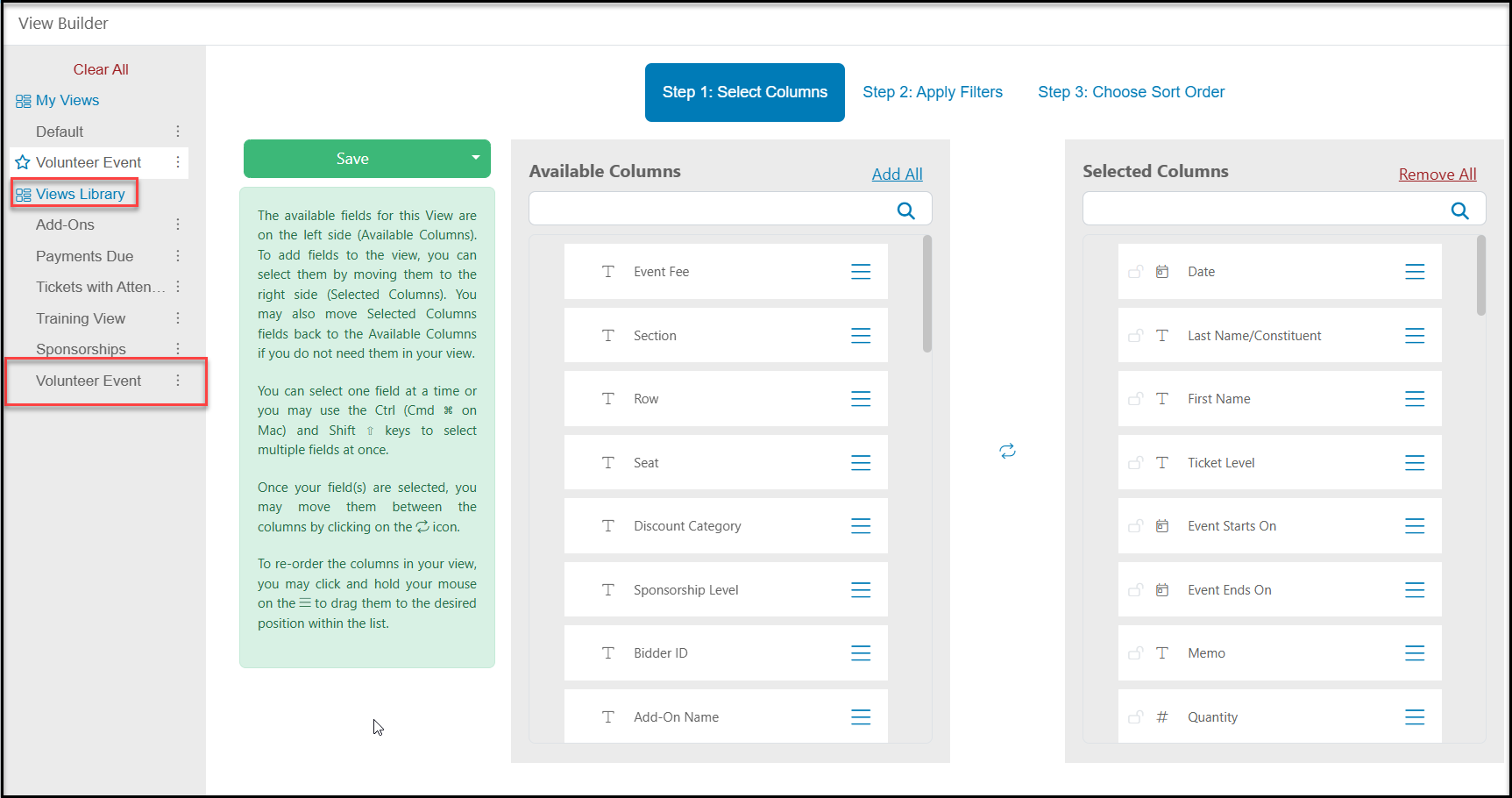
In the Views library there is one view specifically set up for volunteer events that removes any of the financial transaction information and brings the columns important for volunteer events to the left side of the grid. You can select Volunteer Event from the Views Library to use this view as a starting place for your reports. No filters or sorts have been applied to this view.
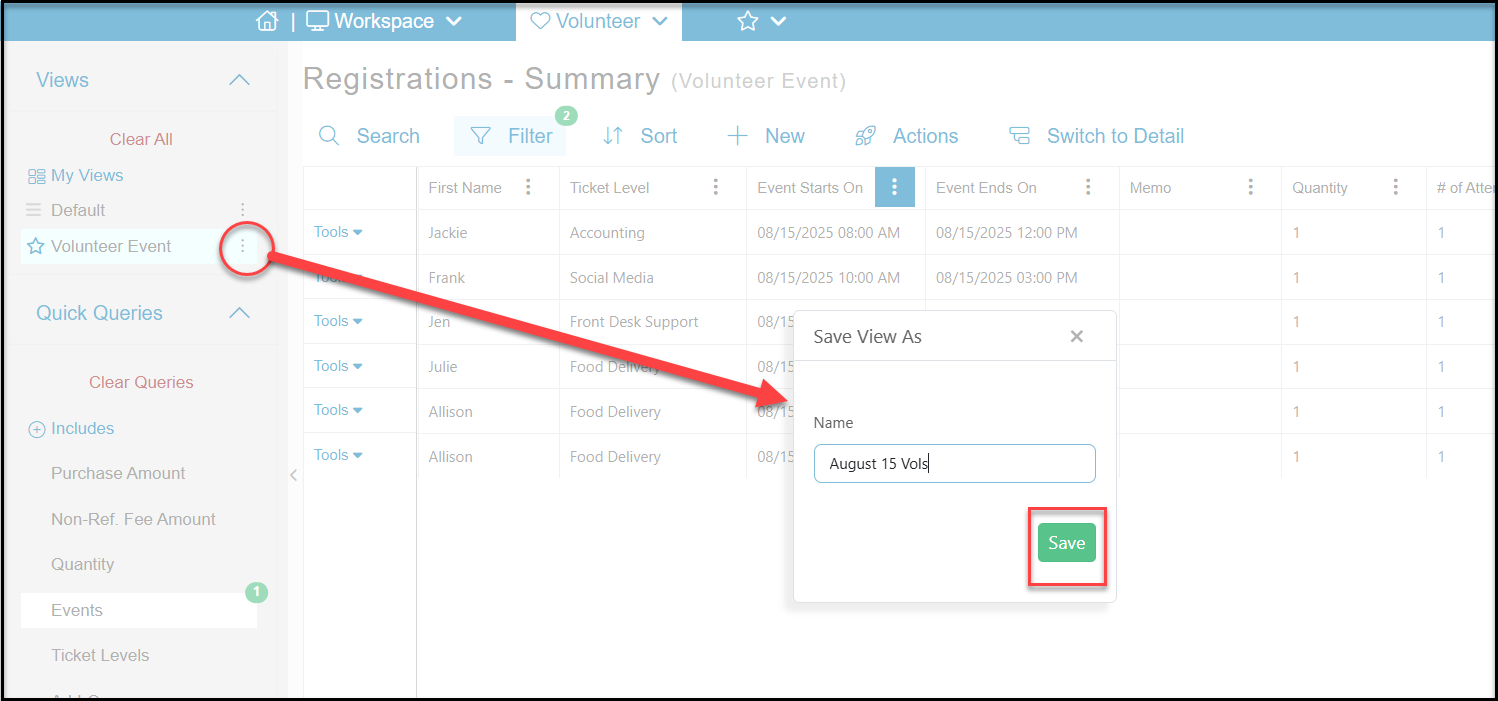
Click the down arrow on the Save button and click Save View As. You can name the view anything you like and then click Save to add this to your My Views list.
Click Close in the top right corner to close the View Builder.
Example Reports
To obtain specific information about your volunteer events, you will add Queries, Filters, and Sorts to your grid view. Below are a few examples.
Volunteers Who Have Not Submitted Their Survey
If you have included a survey or application with your volunteer event registration, you can quickly see who has not completed this step. The survey must be included in the Documents on the Event Setup tab for this information to populate.
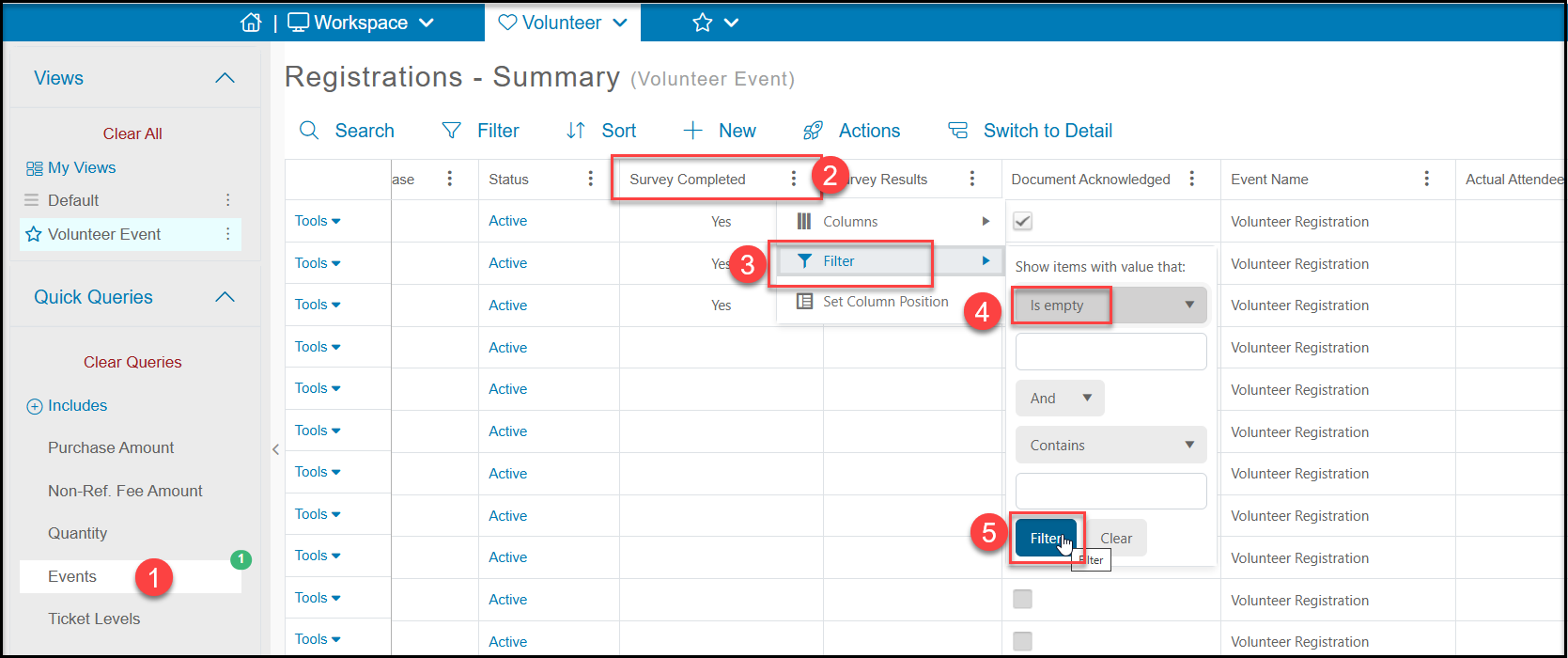
- Choose the appropriate volunteer Event from the Quick Queries menu.
- Locate the Survey Completed column and click on the three dots to the right of the column name.
- Click on Filter.
- Select “Is Empty” from the dropdown list.
- Click Filter.
This will give you a list of all those volunteer registrants who did not submit the survey that was linked to the event page. You can reach out to them with the URL link to the survey using the Actions menu and the Direct Email option.
Note that completing the survey AFTER the event registration will not populate this column. However you can set up notifications for survey submissions from the Survey/Forms Settings tab.
Number of Volunteers Registered for a Specific Level
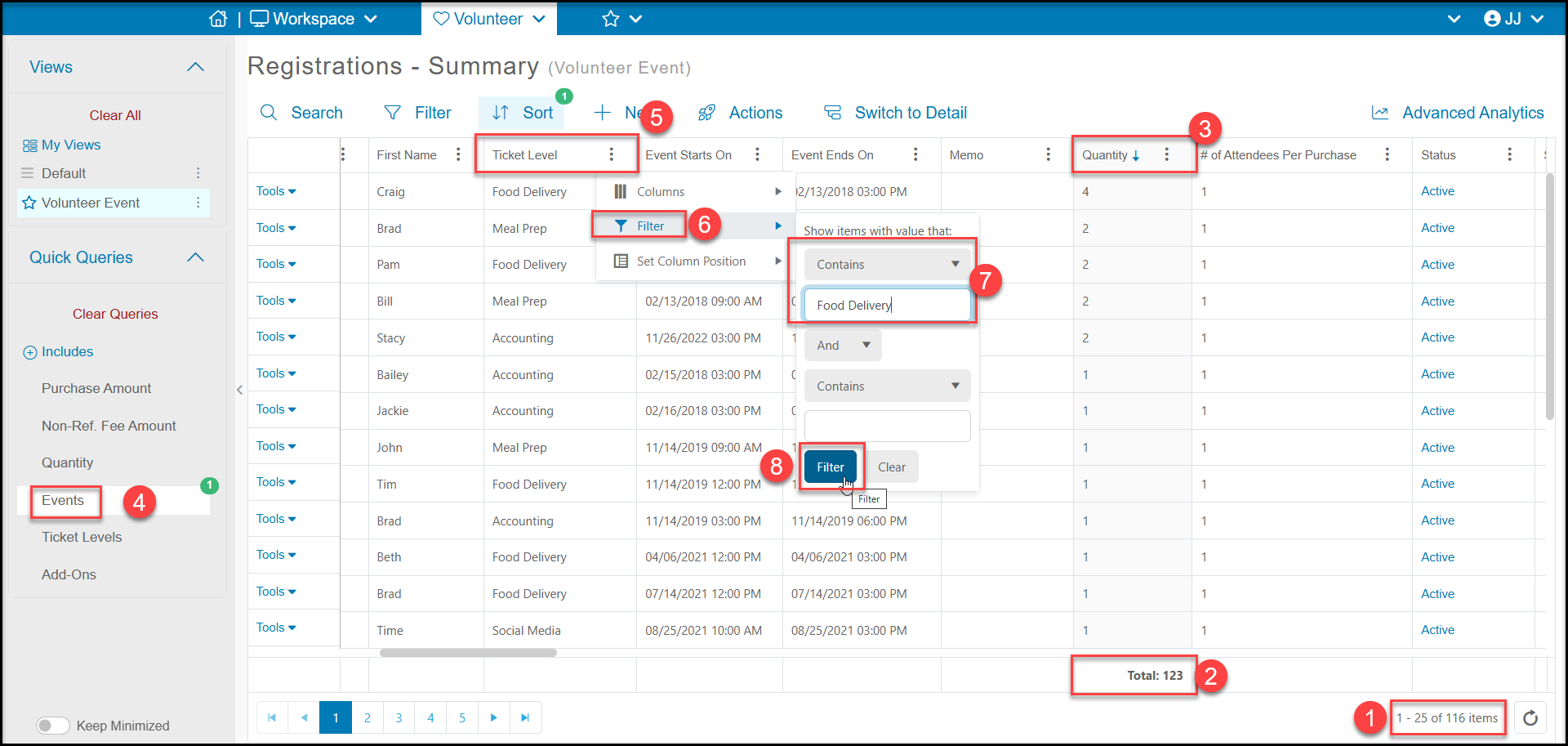
If you would like to see how many registrations you have for a specific activity (Ticket Level):
- In the bottom right corner of your grid, you can see the total number of all ticket level registrations (rows).
- At the bottom of the Quantity column you can see the total number of levels that were registered. If you do not allow volunteers to register for other people (only themselves) these numbers will be the same.
- Note that if you do allow multiple registrations by the same constituent, for example selecting a quantity of “4” to perform Food Delivery for a specific shift, you may need to add a sort to that column to see any registrations for greater than one person. You can click on the column once to sort in ascending order, click a 2nd time to sort in descending order.
- Your event should already be selected from the Quick Queries menu for Event.
- Click on the three dots next to Ticket Level.
- Click on Filter.
- Select Contains from the dropdown and enter the name of the ticket level you wish to see detailed information for.
- Click Filter to show the results on the grid.
You can export this list to Excel using the Actions menu if desired.
Number of Volunteers Registered for a Specific Day
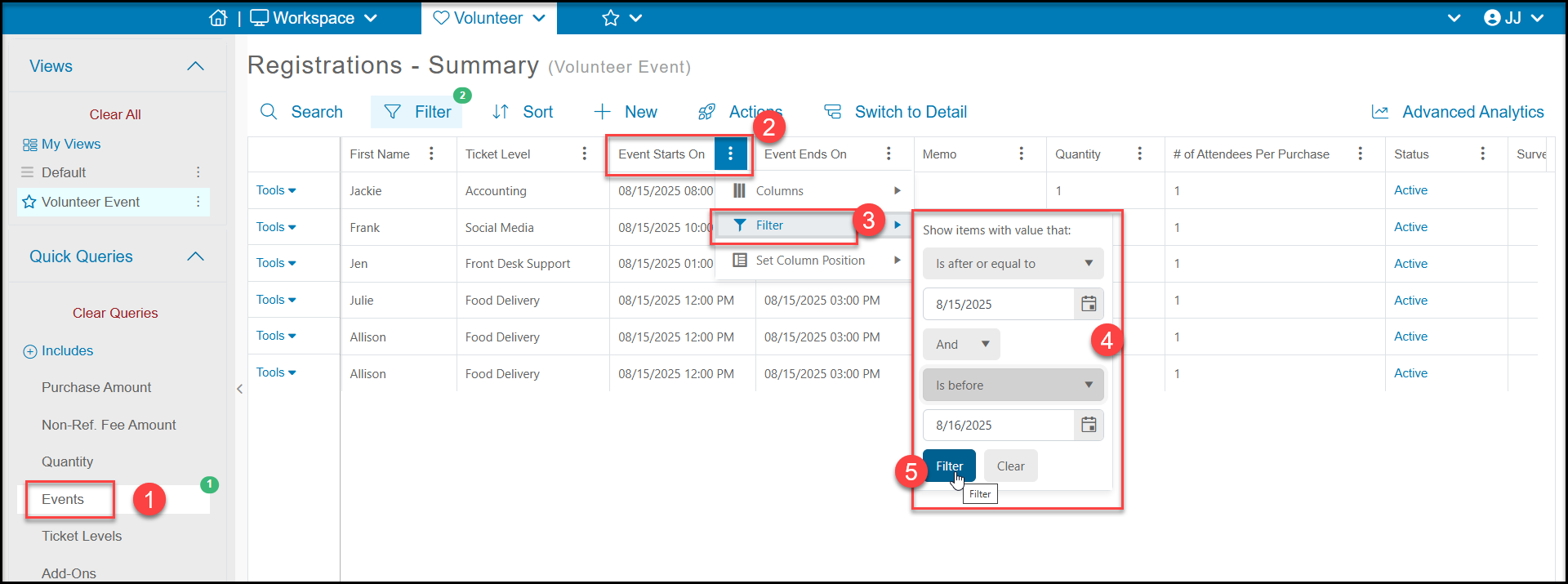
If you are looking for the number of volunteers coming on a specific day, you will use the Event Starts On column.
- Select the volunteer event from the Quick Queries menu for Event.
- Click on the three dots next to Event Starts ON.
- Click on Filter.
- To choose the date range, begin with Is after or equal toand then select the date you want to show on the grid.
- You will also select Is Before in the next filter option and enter the date AFTER your target date.
- You cannot use both Is After or equal to and Is Before or equal to with the same date and all the dates will be excluded because of the “equal to” selection.
- Click Filter to show the results on the grid.
You can export this list to Excel using the Actions menu if desired.
You can also combine these filters to show the Number of Volunteers for a specific ticket level and specific day by adding the filters to both the Ticket Level and Event Starts On columns on the same view.
You can save any view you create to My Views and use it again anytime by clicking on the three dots next to the view's name and selecting Save View As. In the new window, enter the name of your new view and click Save to add it to your list. You can edit the queries, filters, and sorts to show different data as needed.