How do I create volunteer reports?
Volunteer time tracking information is available on the Time Tracking grids and in summary columns on the Constituents grid.
Time Tracking Grids
From the Volunteer Module's Time Tracking grids you can see time tracking histories for each time tracking record on the Details grid and for each volunteer on the Summary grid. Note that this grid will only show constituents who have been assigned to the Volunteer category. The CRM Module's Time Tracking grids will show the time tracking records for all constituents.
Time Tracking Details Grid
The Volunteer Time Tracking grid shows the Detail grid by default. This will list each time tracking record for each volunteer in your view and it sorts by the most recent at the top. You can see the Last Name/Constituent primarily associated with each record on the left.
You can save the Views you create under My Views, but this grid does not include a Views Library in the View Builder.
You also have Quick Query options for building your view including Service Categories, From Date, To Date and Constituent Categories.
The grid includes helpful columns including:
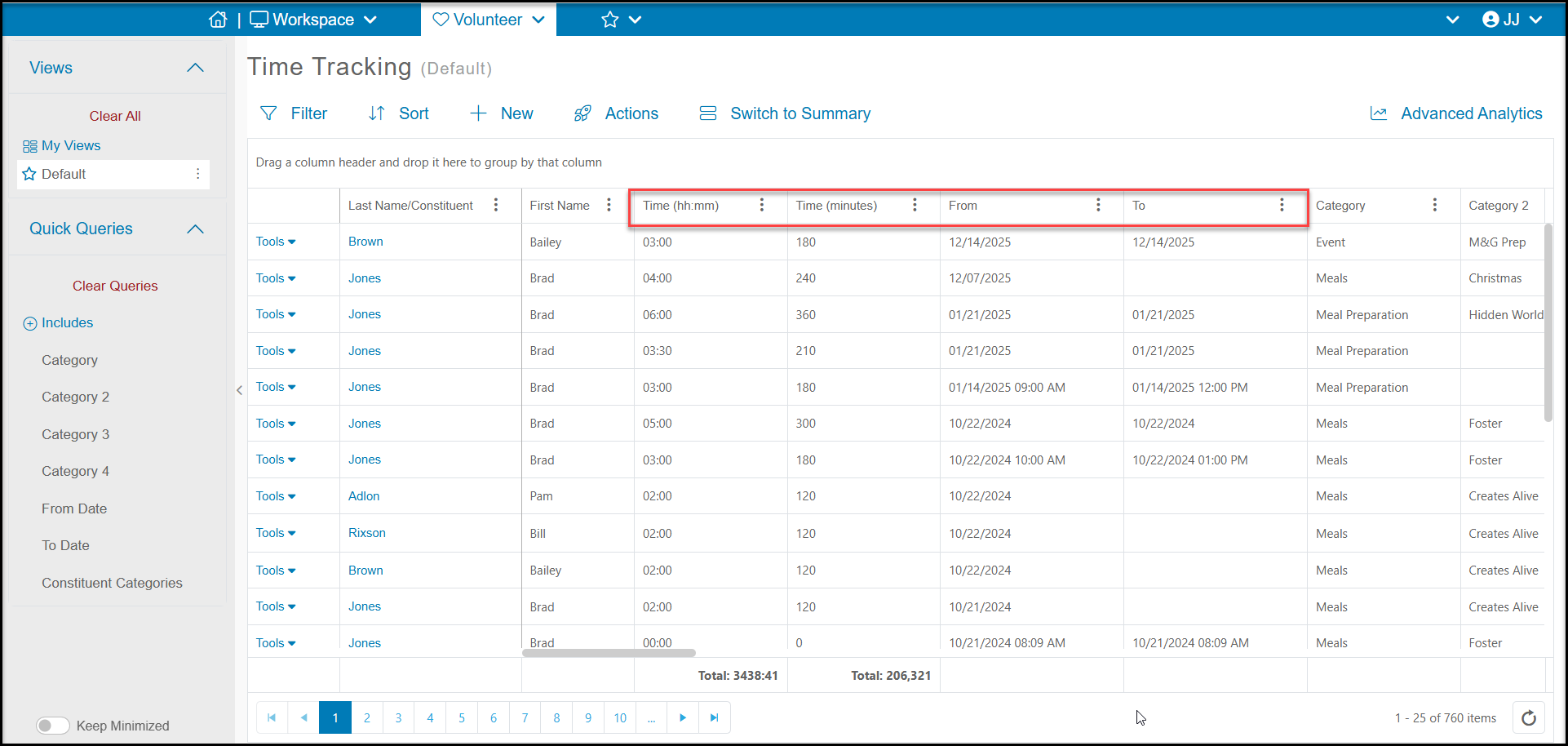
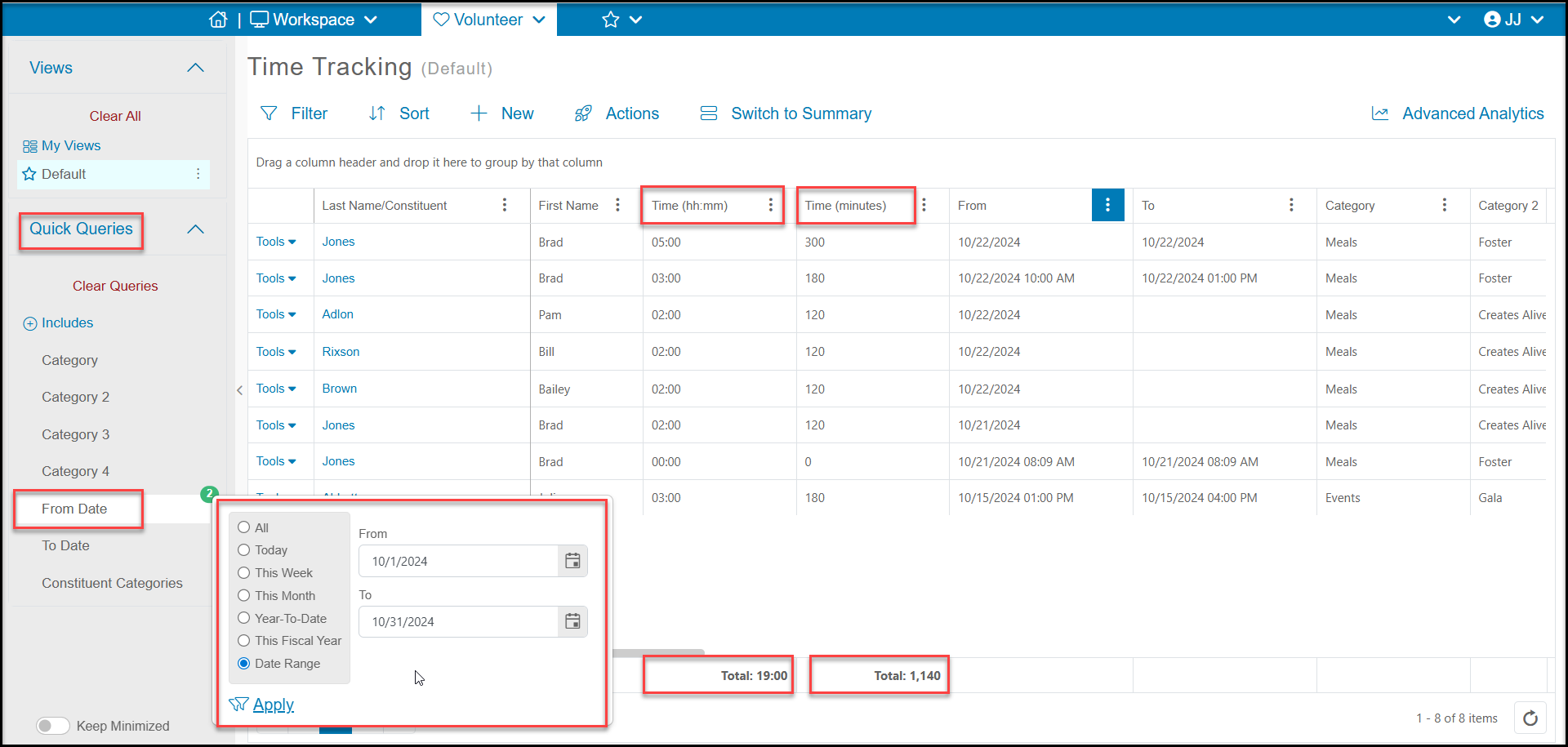
- Time (hh:mm) - This is a text field with the total number of hours and minutes recorded for this time record. Since this is a text field, when exporting to Excel, this column cannot be summed. You would use the Time (minutes) column and divide by 60 to show the number of total hours.
- Time (minutes) - This is a numeric field showing the total number of minutes recorded for this time record.
- From - The start date of the time tracking record. This may show just the date or it could also include the date and start time, depending on how the information was recorded.
- To - The end date of the time tracking record. It could have just a date, a date and time, or it could be blank as this field is optional when the time is not calculated.
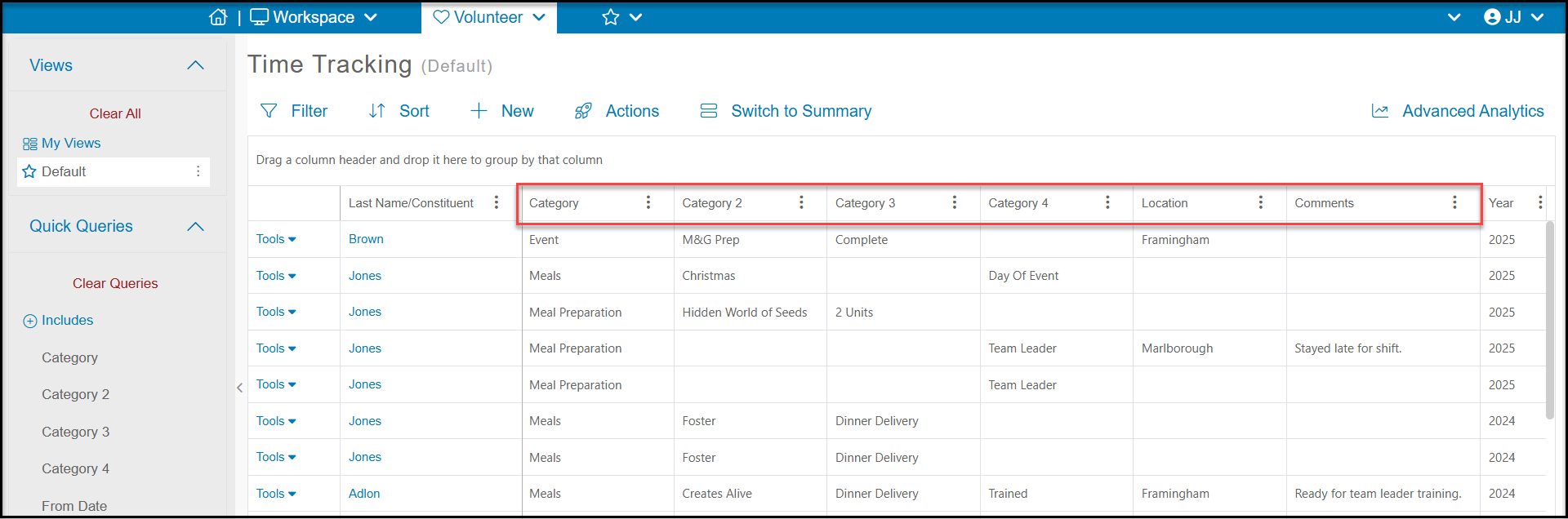
- (Service) Category - The first service category listed on the time tracking record. This is also the only service category available to select when using the mobile app in Kiosk Mode for volunteer check-in.
- Category 2, 3 and 4 - To identify the other service categories assigned to the time record.
- Location - If your organization uses the Location field, will show the location for the time record.
- Comments - For any comments that were manually entered for the time record.
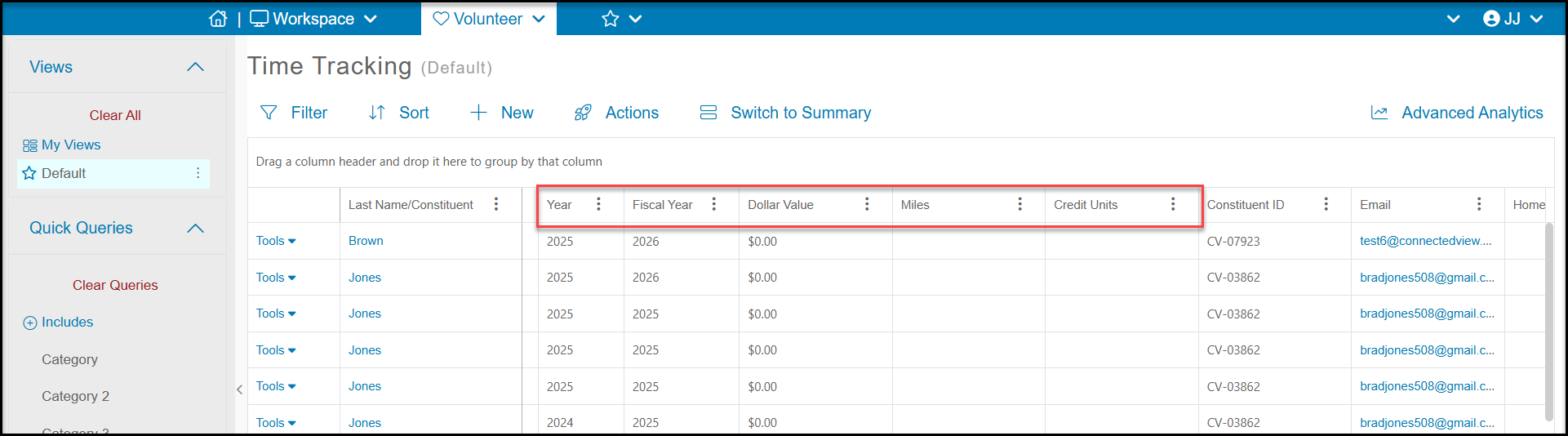
- Year - Shows the calendar year the time was recorded.
- Fiscal Year - Shows the fiscal year the time was recorded. Fiscal year settings are assigned in the organization's Account Settings page.
- Dollar Value - Numeric field showing any dollar value that was assigned to the time record.
- Miles - Numeric field showing any mileage assigned to the time record.
- Credit Units - If your organization assigns credits, like for Continuing Education Units (CEUs), this numeric field will show the number of credit assigned for this record.
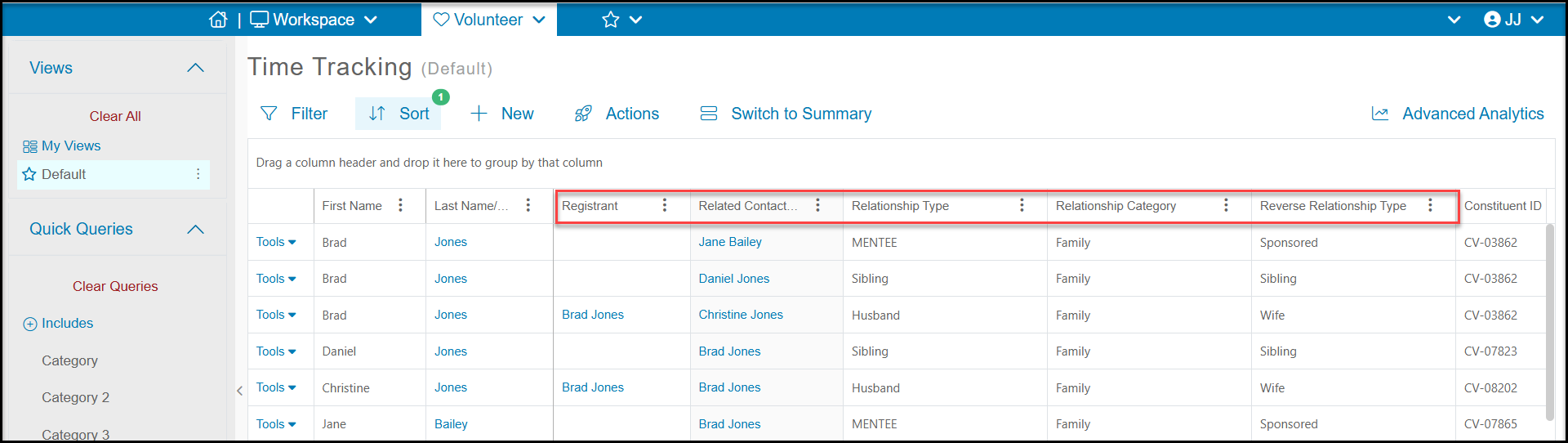
- Registrant - If this time tracking is associated with an event, Registrant will list the name of the constituent who registered for the event. This may or may not be the name associated with the time record. If the volunteer time was for a guest of the registrant, you will see the guest's name listed in the Last Name/Constituent and First Name fields.
- Related Contact- If the time tracking record also identified a Related Contact, the name of the other constituent will be listed. The other constituent will also have a duplicate time record.
- Relationship Type - If a related contact is identified, you can see the relationship type between the volunteer and the related contact
- Relationship Category - You can see what kind of relationships category is assigned for this relationship.
- Reverse Relationship Type - You can also see the reciprocal (reverse) relationship.
Time Tracking Summary Grid
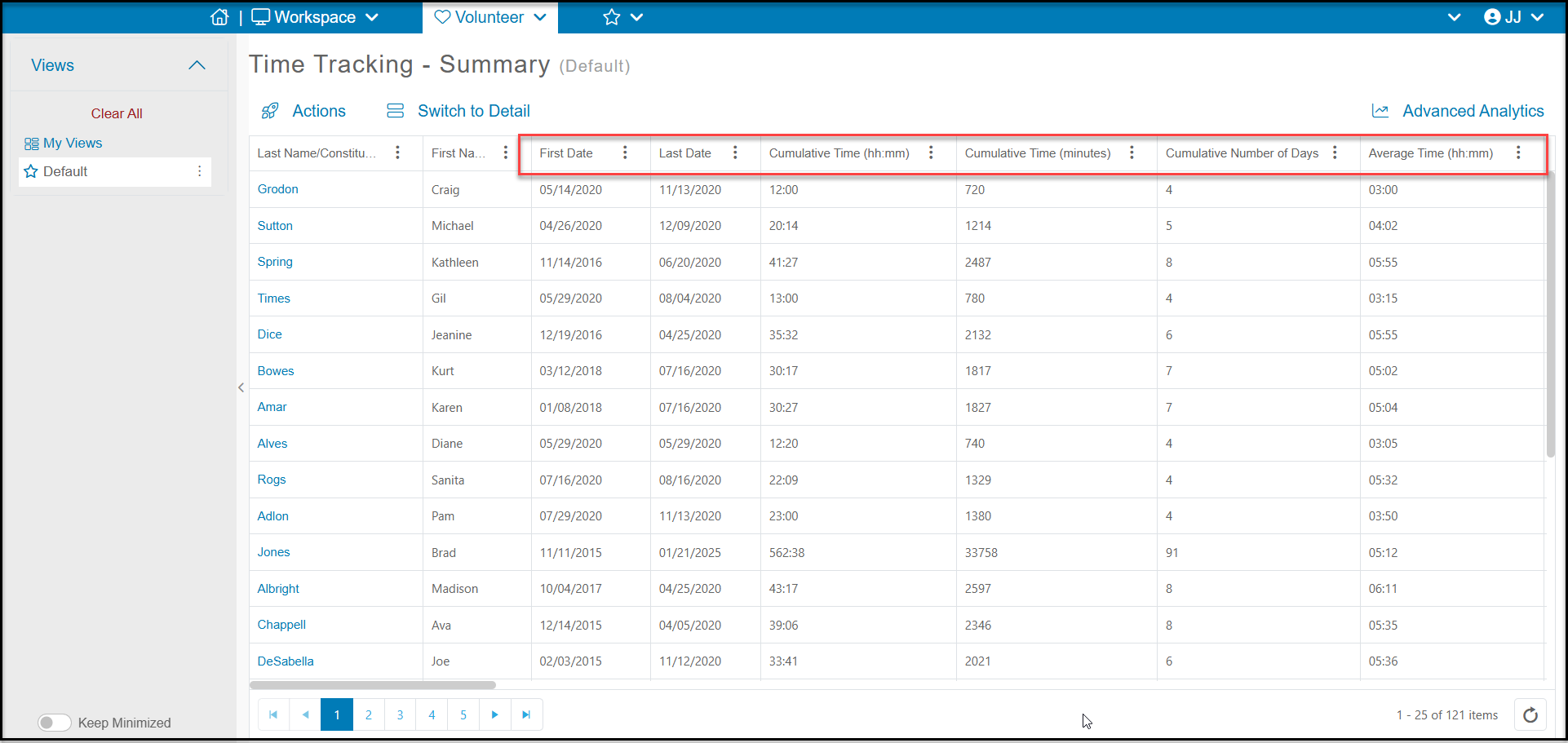
In the Summary view, instead of seeing every time tracking record, you see a list of all volunteers that have any time tracking record. There will be one row for each volunteer. Each row will show a summary for that volunteer including:
- First Date - Their first time tracking record
- Last Date - Their most recent record.
- Cumulative Time (hh:mm) - A text field showing their total lifetime hours.
- Cumulative Time (minutes) - A numeric field showing their total lifetime minutes.
- Cumulative Number of Days - a numeric field showing the total number of days (also the same as time tracking records) they have accumulated.
- Average Time - A text field showing the average number of hours and minutes for each record.
You will find summaries for their time records for total time Year to Date, Last Year, Last Five Years, Fiscal Year, and Last Fiscal Year.
Constituents Grid
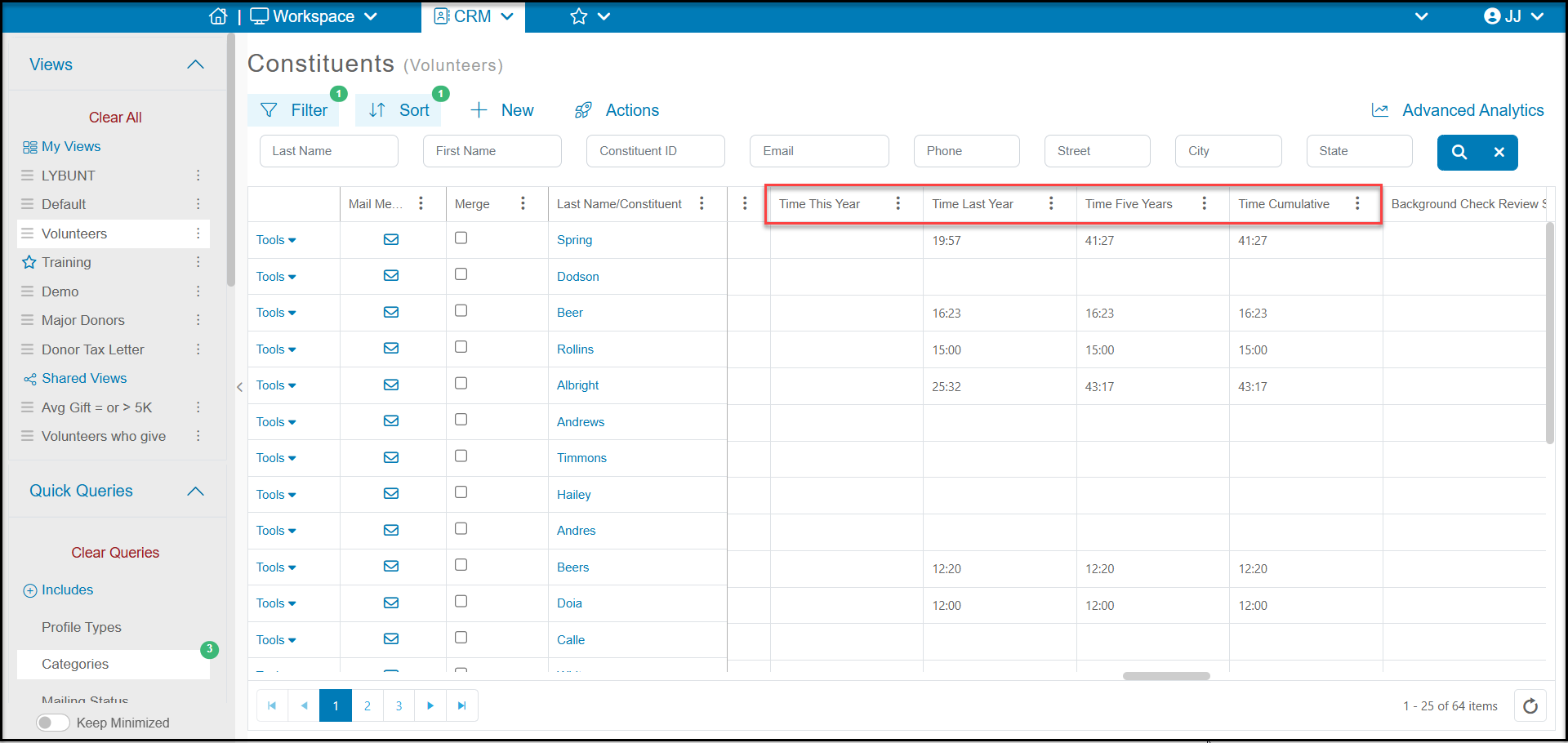
The Constituents Grid also has columns dedicated to summary time tracking information. On the Constituents grid you will find the columns:
- Total Time Records
- Time This Week
- Time Last Week
- Time This Month
- Time Last Month
- Time This Year
- Time Last Year
- Time Five Years
- Cumulative Time
Note that the Constituents grid will show ALL time tracking records, not just time tracking specifically for volunteers or volunteer activities. So if you use the CRM Module's Time Tracking for things like education credits or services to clients, those time tracking records will be included in the constituent's totals.
Example Time Tracking Reports
The Time Tracking Detail grid is used when you want to see totals for a specific time range or for specific service categories or locations. The Time Tracking Summary grid is used when you want to see overall history for things like top volunteer of all time or top volunteer for this year.
Time Tracking Report for Last Month
To create a report showing the total time that was contributed last month, you will use the Time Tracking - Detail grid.
- Using the Quick Queries menu, you can use the From Date and enter the date range for your records.
- Click Apply to update the data shown on the grid.
- As long as your time records don't span more than day, you will see all the time records for that time period including summary Time (hours and minutes) and summary Time (minutes) at the bottom of the grid.
- Using the Actions menu you can export this to Excel as needed. Keep in mind that on the Excel spreadsheet, the hours and minutes column is a text field and cannot be summed. You will use the Time (minutes) column to sum the total time and divide by 60 to show the total hours.
Volunteers Who Have Donated Greater Than 100 Hours This Year
To see any cumulative totals, you will use the Time Tracking - Summary grid.
- Click on Switch to Summary.
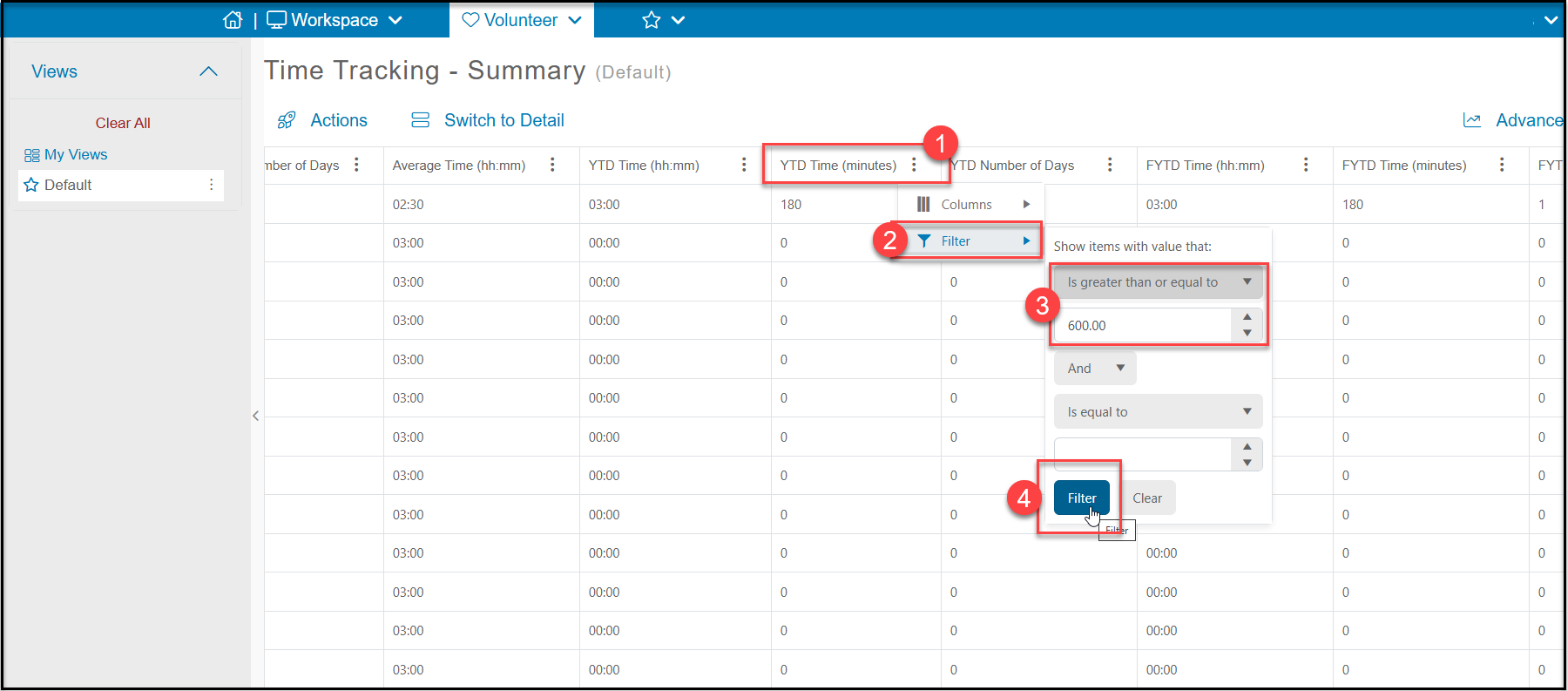
- On the Summary grid, find the YTD Time (minutes) column and click on the three dots. You must use this column instead of the YTD Time (hh:mm) because the (hh:mm) column does not include a filter.
- Select Filter.
- Enter the number of minutes (100 hours x 60 minutes/hour) as Is greater than or equal to.
- Click Filter to update your view to see only those volunteers who have contributed at least 100 hours so far this year.
You could save this view and anytime you view it again in the future, it will always show the latest information so any new volunteers who reach this milestone will be included in the view.