
What Are the User Settings Preferences?
There are three options in the User Settings Preferences section:
- Turn on Email Reminders for Open Follow Up Interactions
- Turn on Launch Grid Links in New Tab
- Default Direct Mail Sent From
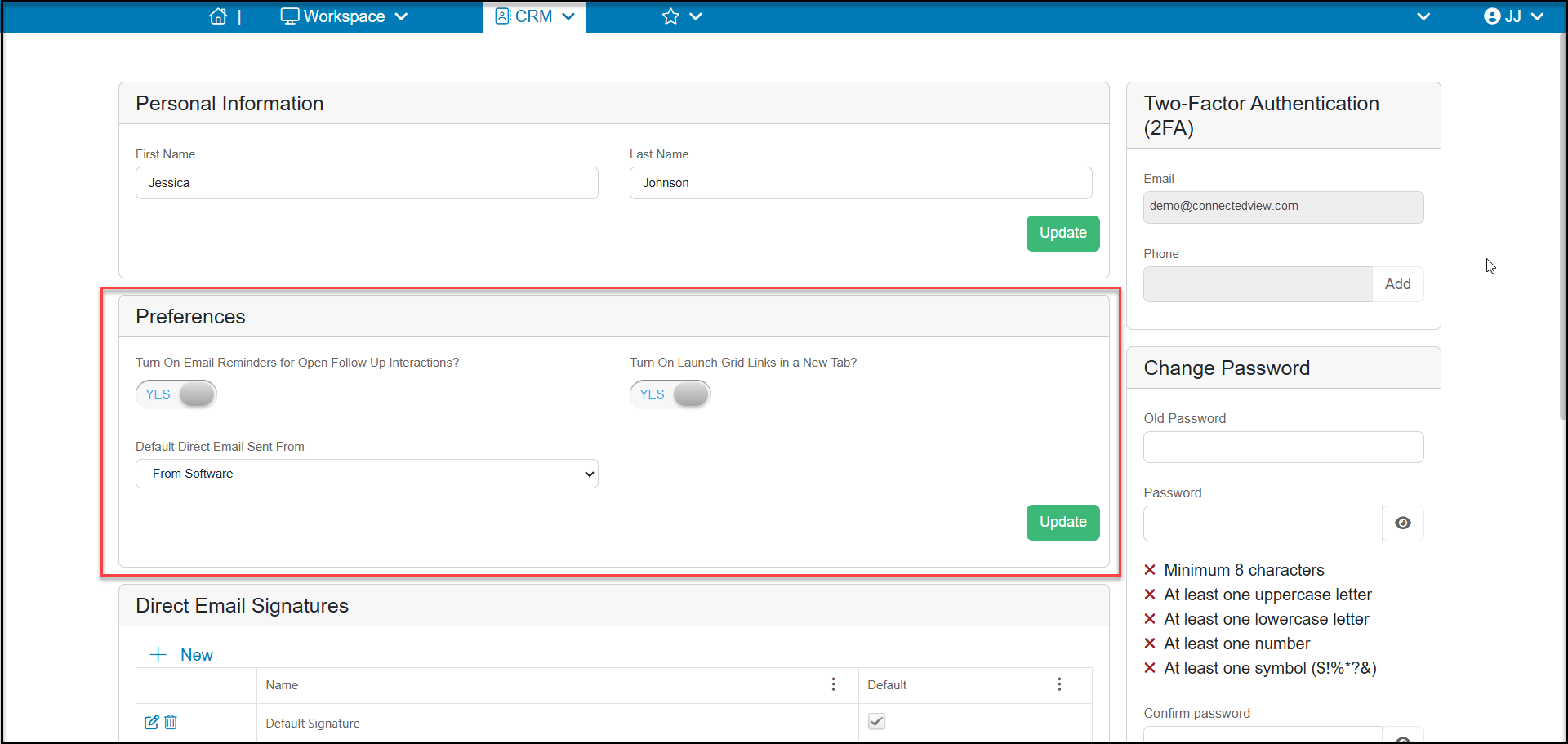
The first preference is Turn on Email Reminders for Open Follow Up Interactions. When this is set to YES, the software will send an email reminder to the email address associated with your user login one day before a follow up interaction due date. The reminders are sent in the morning and are not tied to a specific time, only the date.
The second preference available is Turn on Launch Grid Links in New Tab. When set to YES, if you click on a hyperlink from a grid, for example clicking on a constituents Last Name/Constituent field or the Amount field for a transaction, a new tab will open for the record. You can also use your mouse and the right click (or control click) feature to open links in a new tab.
This is helpful because any queries, filters, or sorts you have applied to your grid will remain intact when you close the newly opened window. Note that if you make changes to the record, for example updating the constituent's name or date of the transaction, this information will not be immediately reflected on the grid until the grid is refreshed.
If Turn on Launch Grid Links in New Tab is set to NO, then whenever you click on a hyperlink you will go directly to that record and will this will clear any queries, filters or sorts that have not been saved in your view when you return to the grid.
The third preference is Default Direct Mail Sent From. The default setting is From Email Client. When left on the default setting, when you click on a constituent's email address, the software will attempt to open the default email service set up for your browser. If you change the default setting to From Software instead, the software will automatically open the Direct Mail feature so that you can send an email from the software. This will also save a copy of the email in the constituent's record for tracking.
When finished making changes to the Preferences, click Update to save the changes.