Managing Recurring Membership Payments
Recurring payments is an option that can be activated on your membership page to allow your members to pay for their memberships in installments. If you allow recurring payments, you should turn OFF the Pay Later option, so that a credit card must be entered to charge the recurring payments.
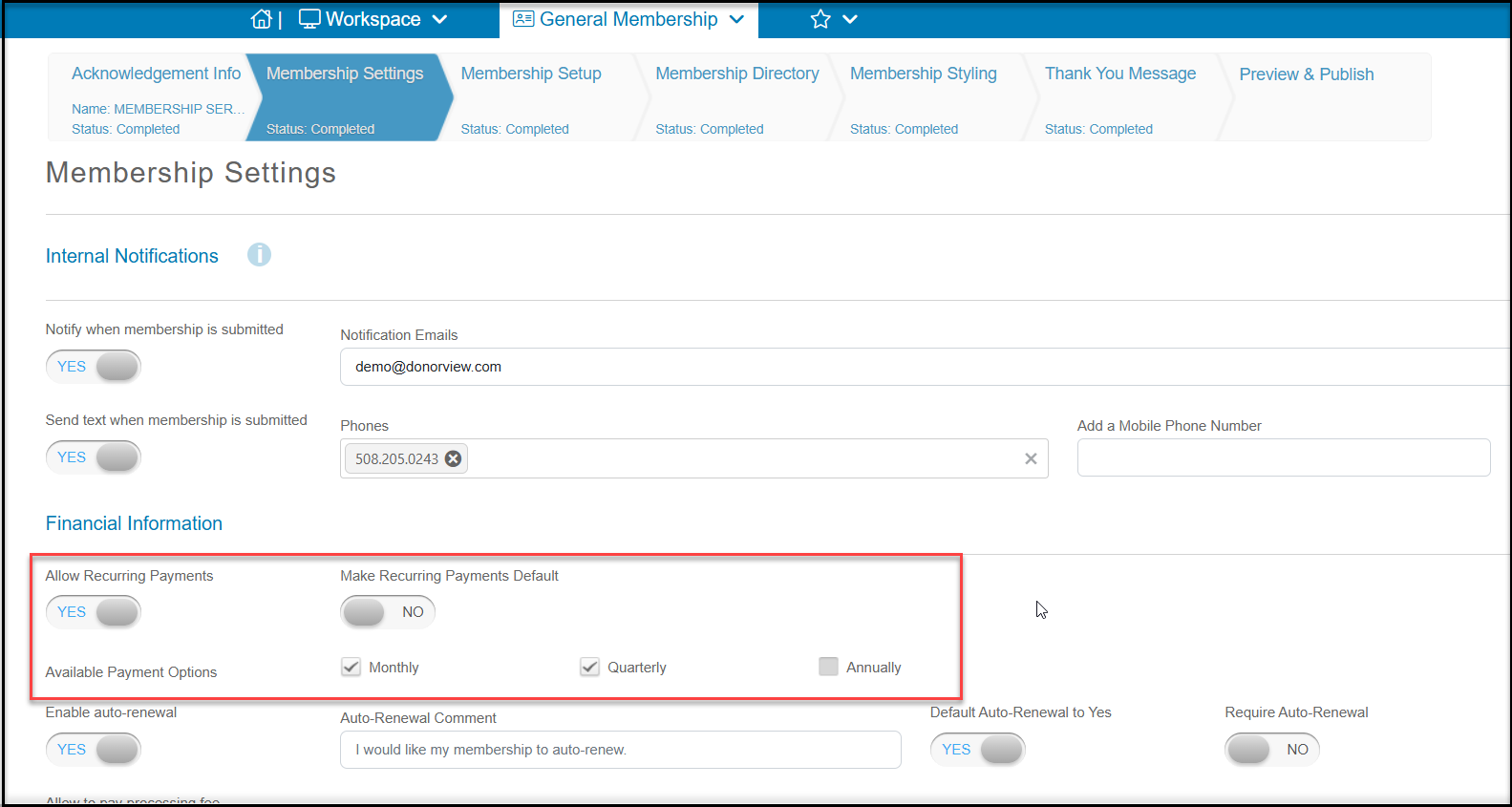
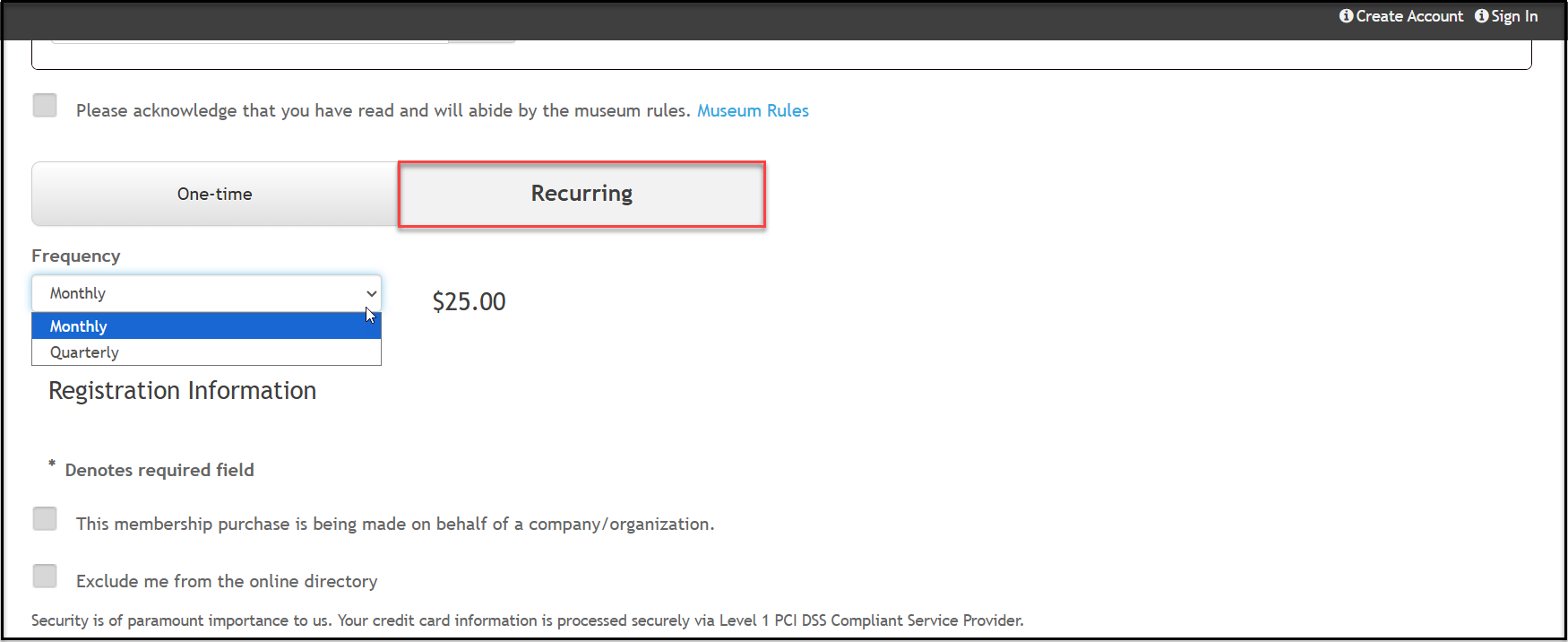
With the Pay Later option off, the member would choose the recurring payment option from the membership page and choose the frequency. With this selection, the member must complete their purchase using a credit card.
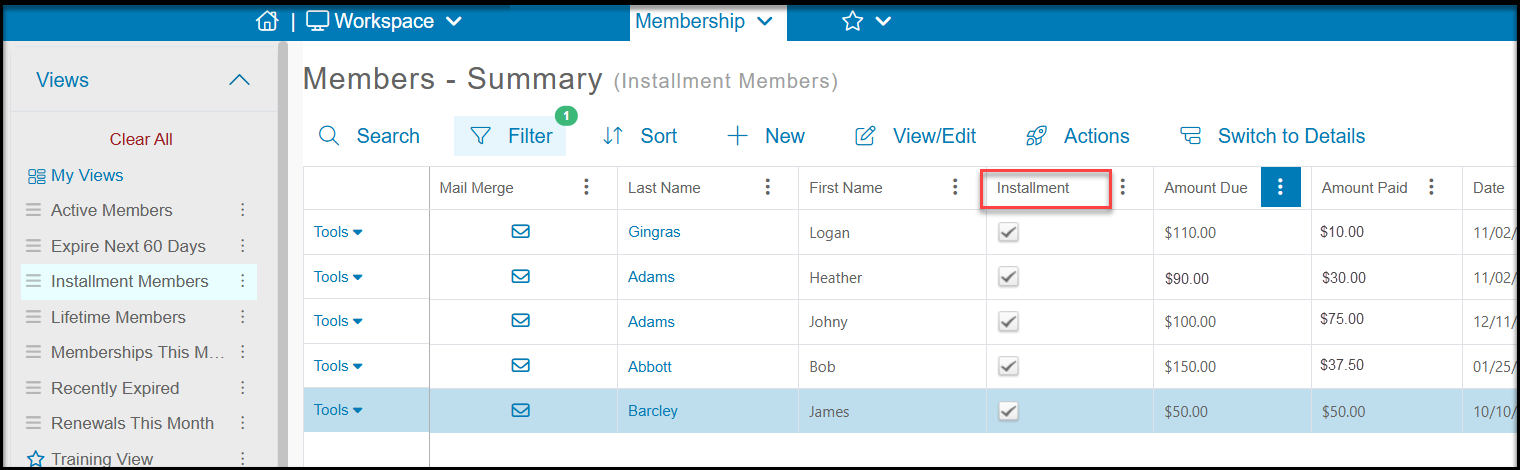
On the Memberships - Summary grid, you can see any memberships identified as Installments with a checkmark in that column. You will also see the Amount Due, Amount Paid, and a column for the original Price.
The software uses the pledge feature to charge the credit card for each payment. For any membership recurring payments, you will also see a corresponding pledge for that constituent.
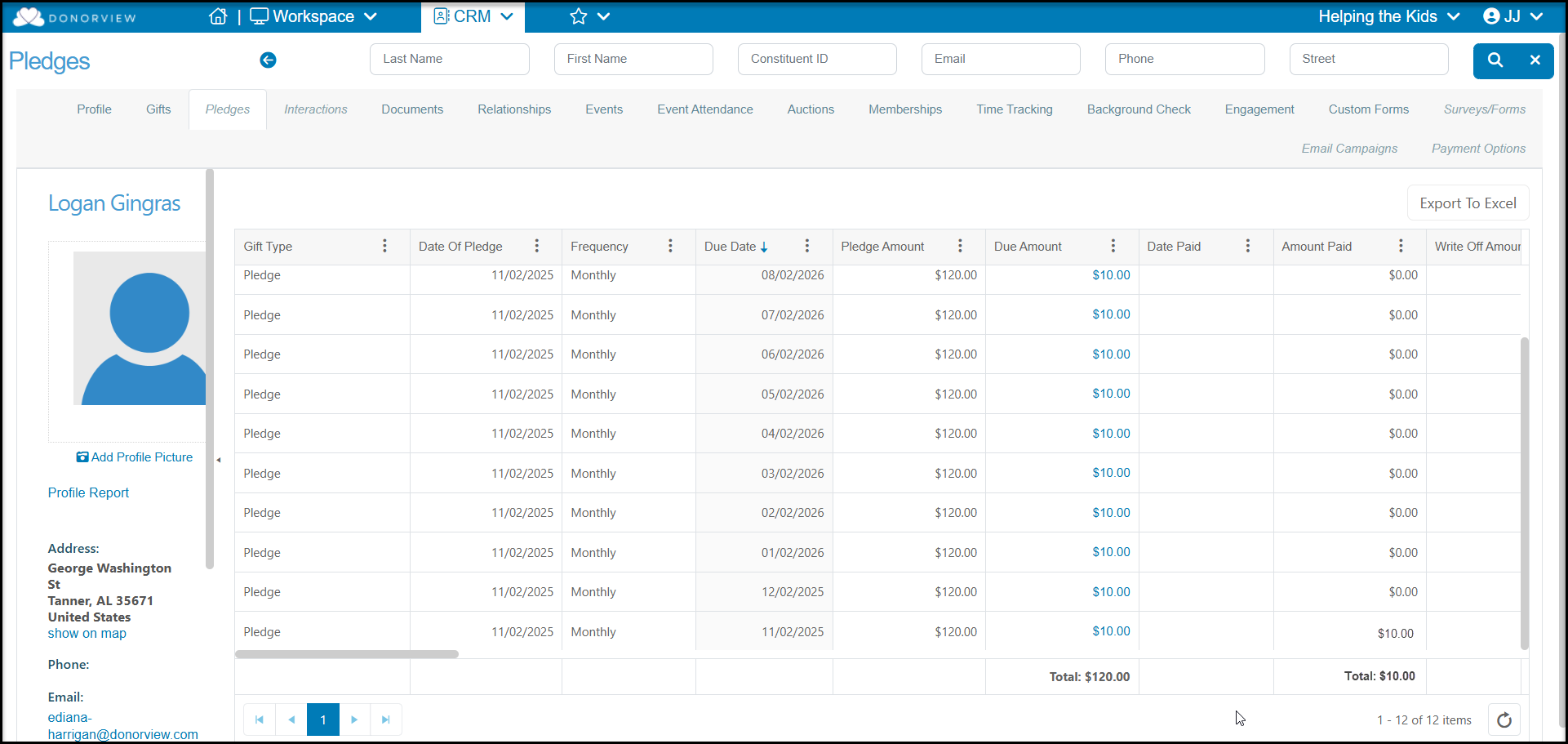
These transactions will automatically charge the credit card when the installment is due and the Amount Due and Amount Paid columns will update.
Members with recurring payments will have a Current Status of “Active,” even when there is a balance due.
- Immediately following the transaction the member's Current Status may be blank on the Membership grid if they are new members.
- If they were previously Active or Inactive, the Current Status may be unchanged on the day of the new transaction.
- The Current Status field only updates once per day, overnight, based on a number of factors including membership expiration date and payments due.
- The member will show on the membership directory and be able to purchase event tickets at a member price immediately after purchase.
- The member will be included on the Membership Attendance grid.
- For new or expired members, the next day, the member's Current Status will update to show as “Active.”
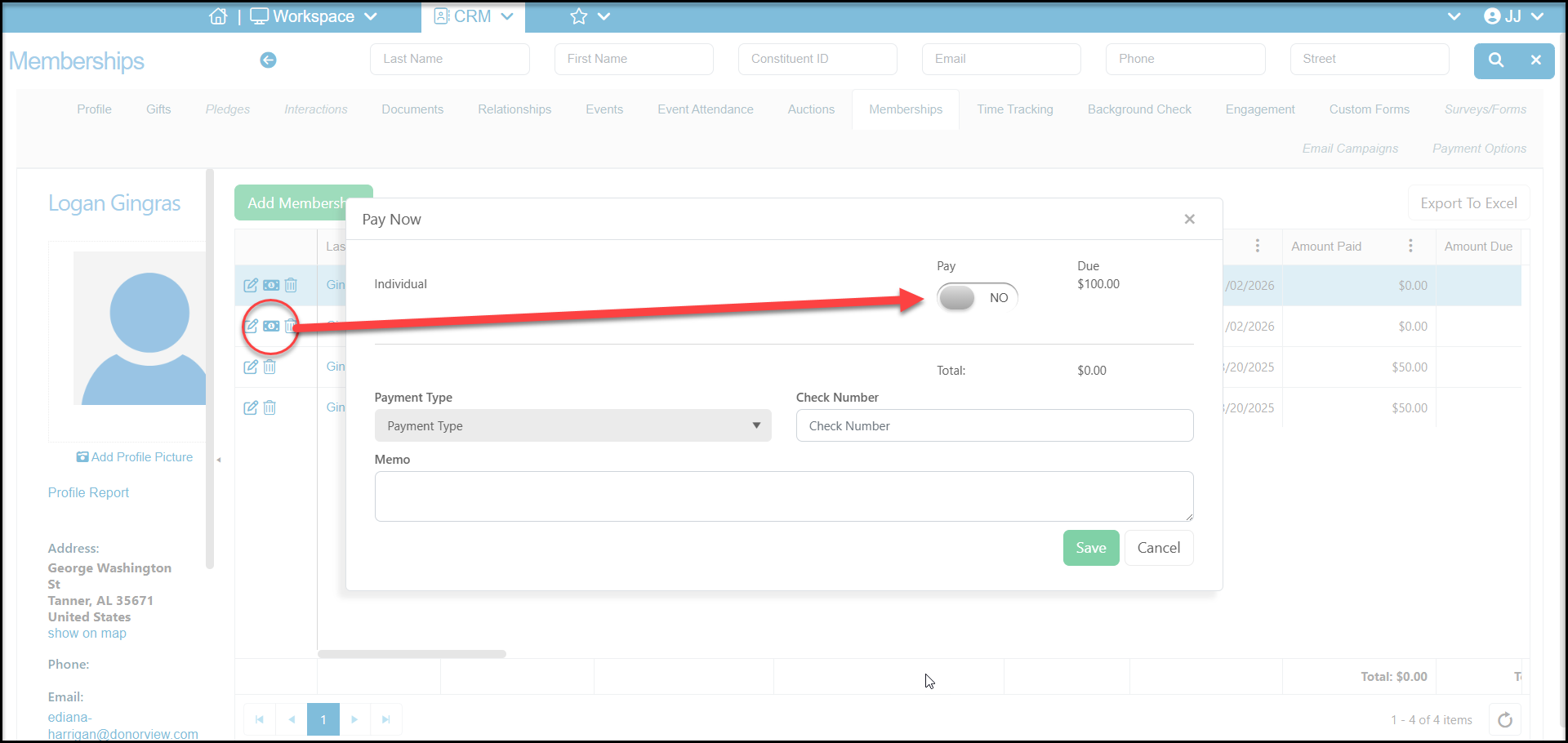
Recurring memberships can be paid off early if desired either by entering a pledge payment manually using the Gifts tab > Add Gift > Pledge Payment feature. Or by clicking on the $ icon on the member's Membership tab and recording the payment received.
Failed Credit Card Transactions for Recurring Payments
Admin level members are able to see a report on the Billing Statements which will indicate any failed credit card payments. If there is a failed credit card payment, you can reach out to the member and request a credit card update. Be sure to reach out within 14 days to ensure the recurring payment can be reinstated. If the update is made after 14 days, you will need to initiate a new membership transaction.
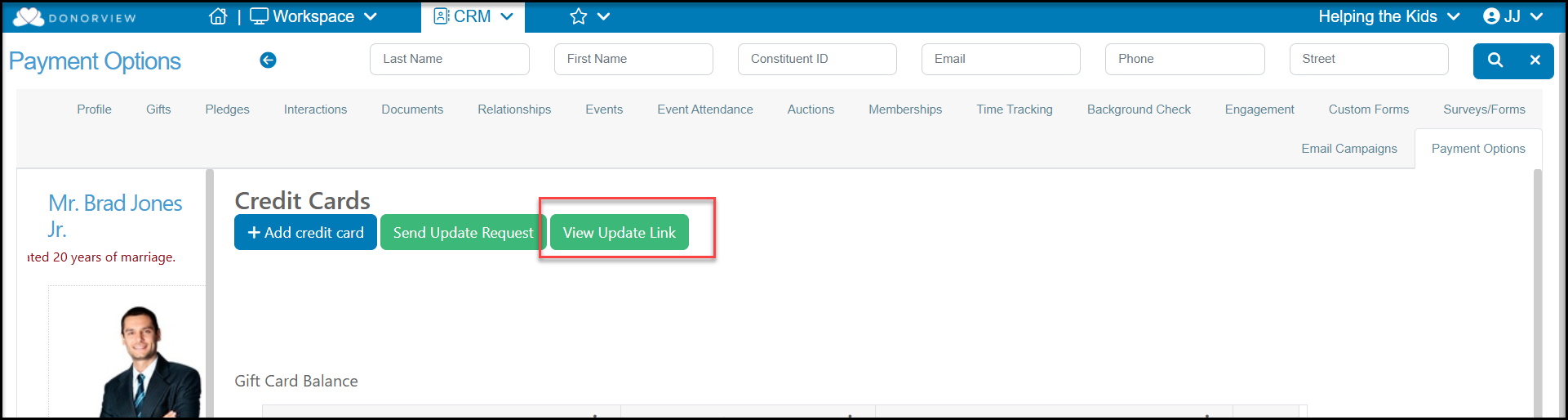
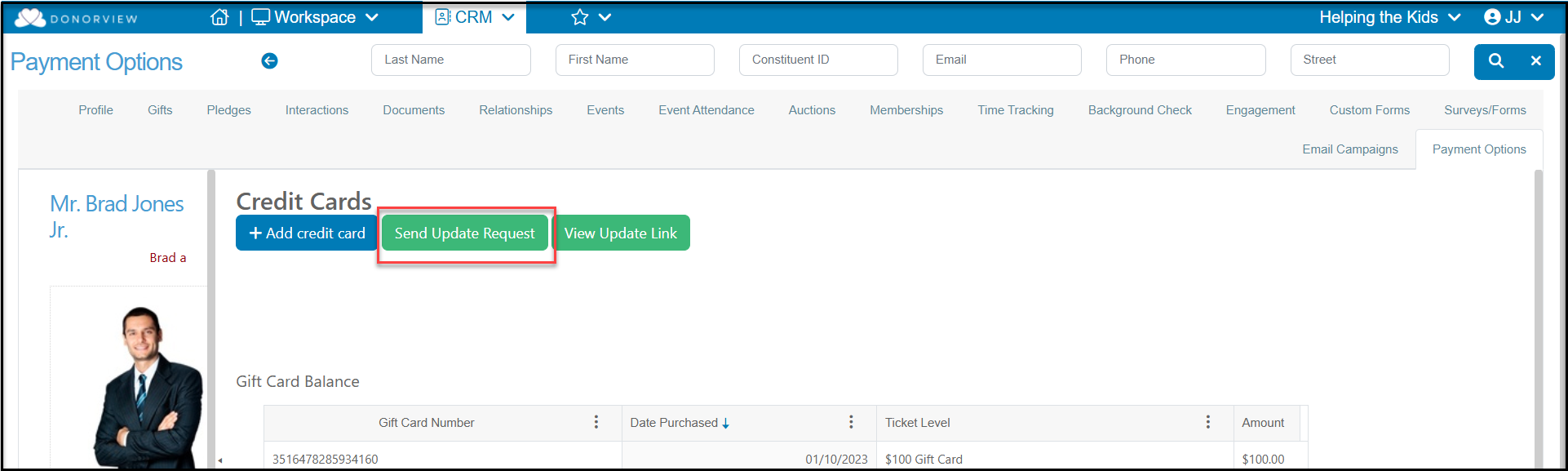
If you are using the Constituent Portal, members can update their payment information in their portal account. You can also send a request and link to update their card. Go to the constituent's Payment Options tab, click on View Update Link.
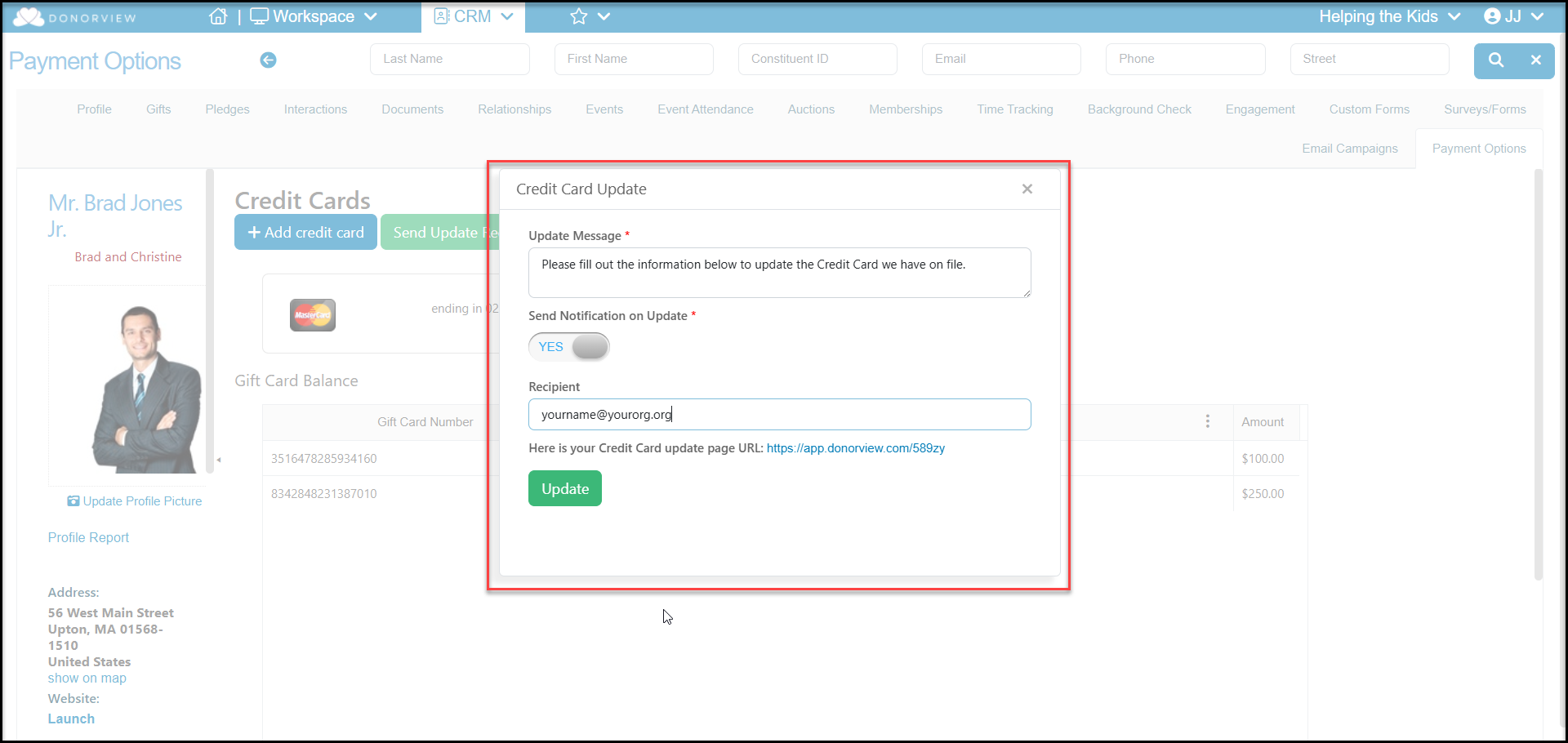
This will open a new window where you can Update Message displayed at the top of the update link as well as activate Send Notification on Update to receive notification emails when the credit card has been added/updated.
Click Update to save your changes.
To send the request, click on the green Send Update Request to generate an email to the constituent to request that they add a credit card to their account.
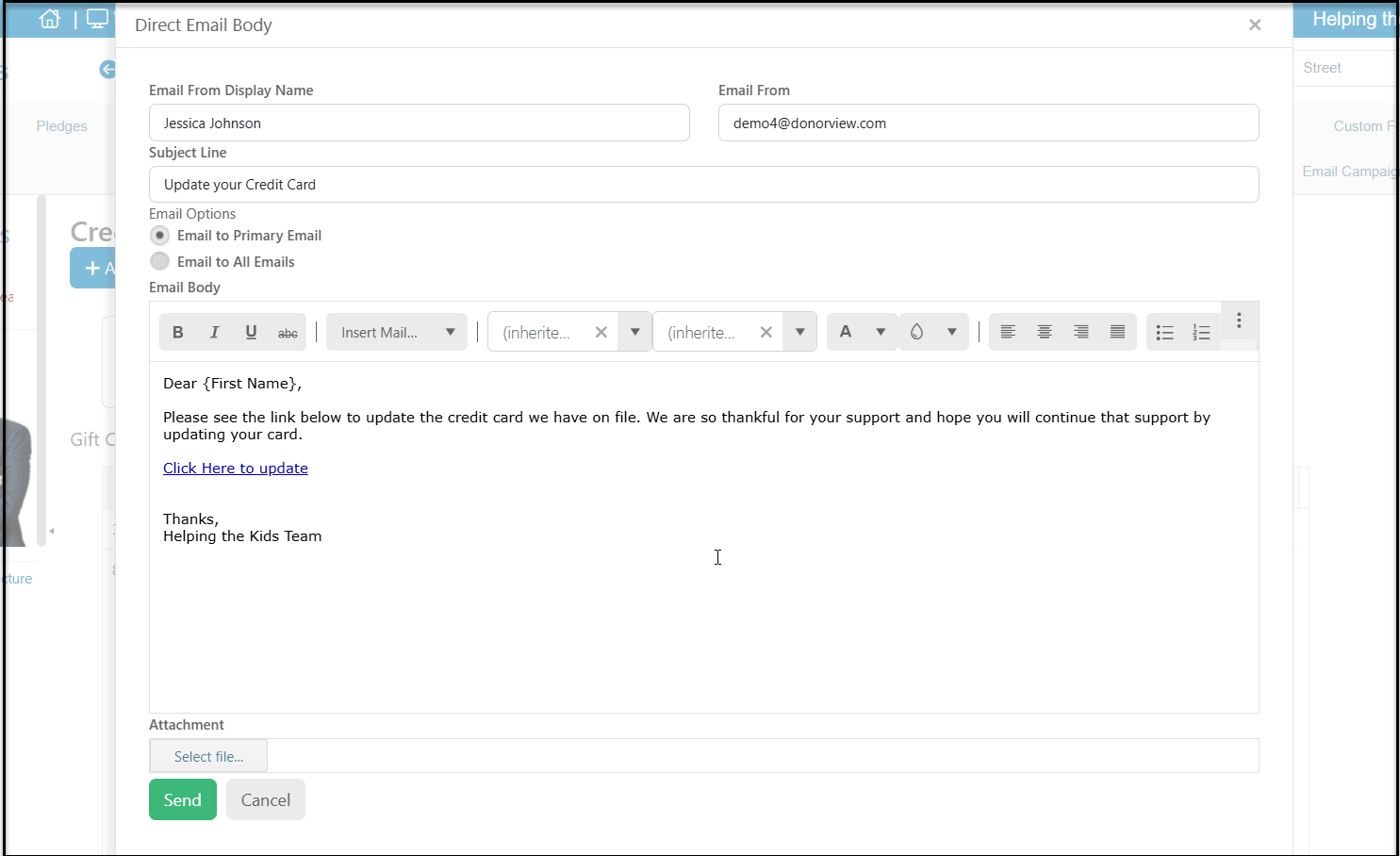
In the email that will be sent to the constituent, you can customize the name and email shown as the sender, the subject line, email options and the body of the email.
Be sure to keep the “Click Here to update” link included on the email.
Click Send to send the email.
When the constituent receives the email, if they Click Here to update it will open that constituent's encrypted URL link to update their personal information and add a credit card to their profile record.
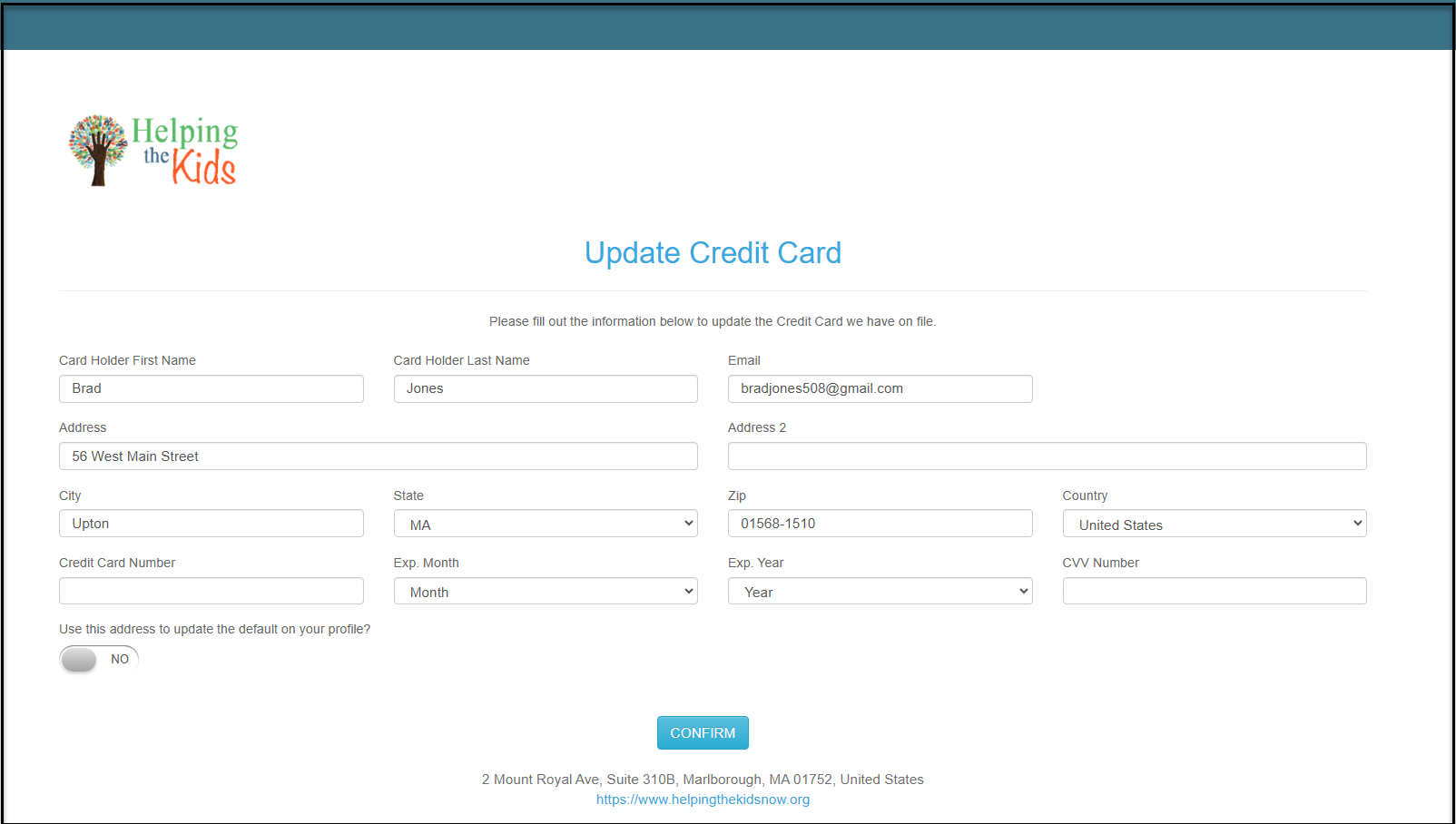
They will update their information, add the credit card number, expiration date, and CCV and click CONFIRM to update their record.
If you have set up notifications, you will receive the notification when the information has been updated and the recurring payments will continue.