
Report Builder - Events
With the Report Builder feature you can create reports that collect information from the Constituents grid and the Events or Event Attendance grid at the same time. This is useful if you need to create a report for a specific event and cross reference this with information only available on the Constituents grid, like custom fields or summary information like cumulative giving amounts.
Most standard event reports can be generated directly from the Events grid. For example, a report on revenue, sponsorships, or ticket sales can be created using the Quick Queries available on the grid. For more examples of event reports directly from the grid, revisit the DonorView Events Module course and the Event Grid & Reports lesson module.
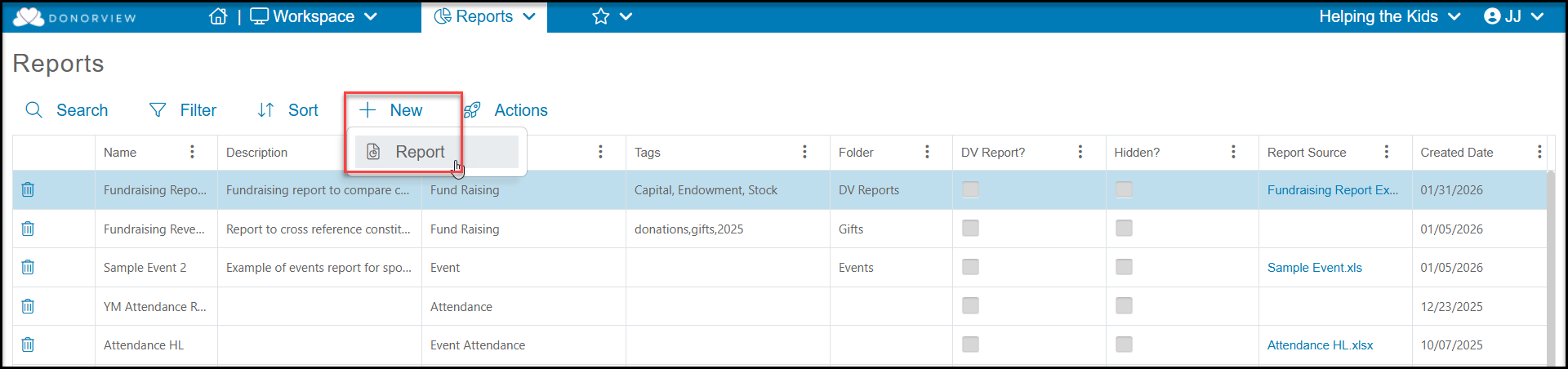
To begin creating an event report, go to the Workspace menu and click on Reports. From the Reports grid, click on +New to create your new report.
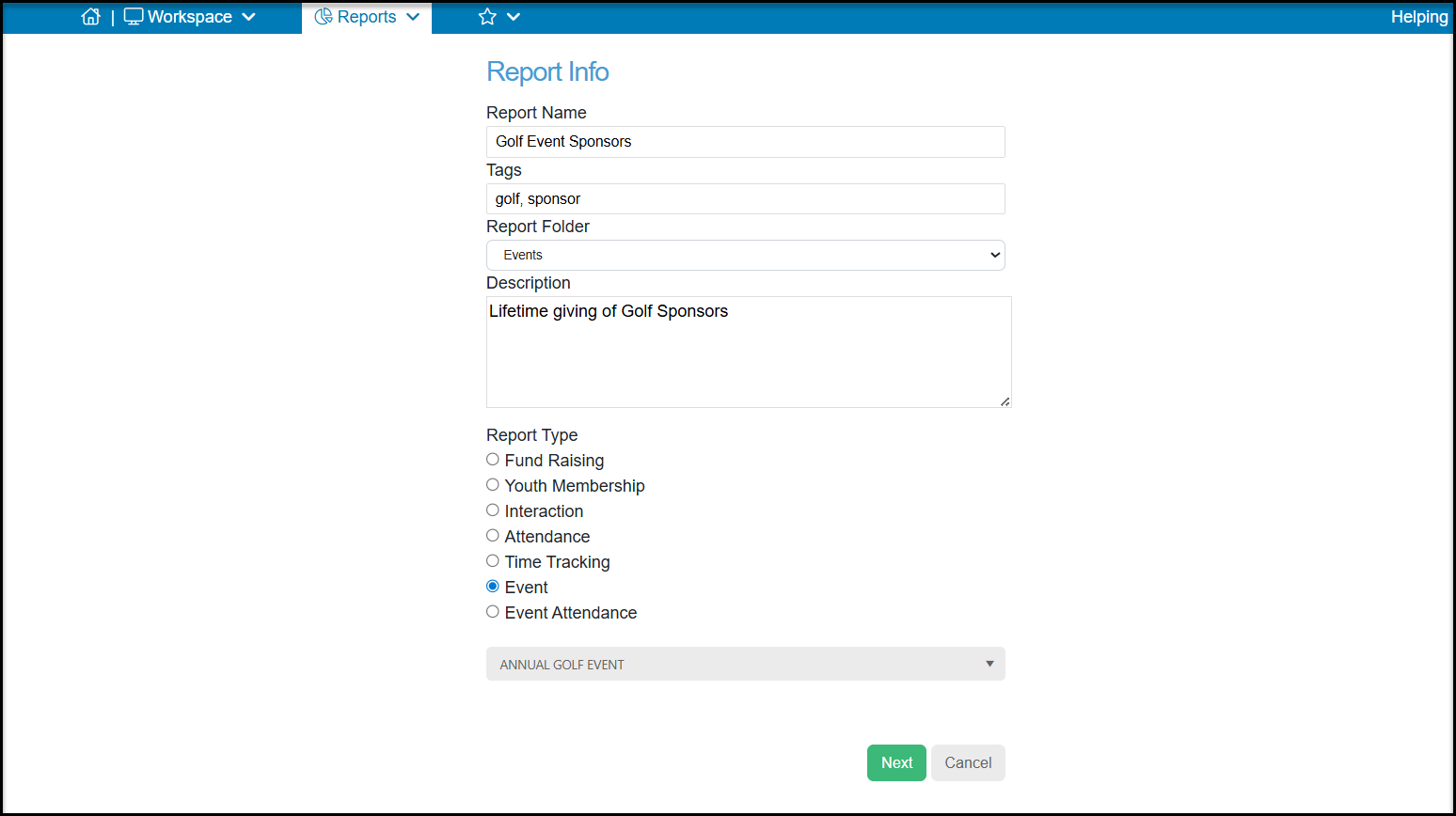
For your new report, enter or select the following:
- Report Name - Enter the name of your report.
- Tags - This is a column available on the Reports grid, so you can apply any desired tags for sorting or filtering the Reports grid .
- Report Folder - This is another column available on the Reports grid, so you can assign this report to a specific folder or create a new one.
- Description - Include a description of your report or its purpose.
- Report Type - Choose Event to be able to cross reference the Events grid. Once selected and Next clicked, this cannot be changed.
- Event - choose the event from the drop down menu. Only one event can be selected at a time.
Click Next to proceed to the next step.
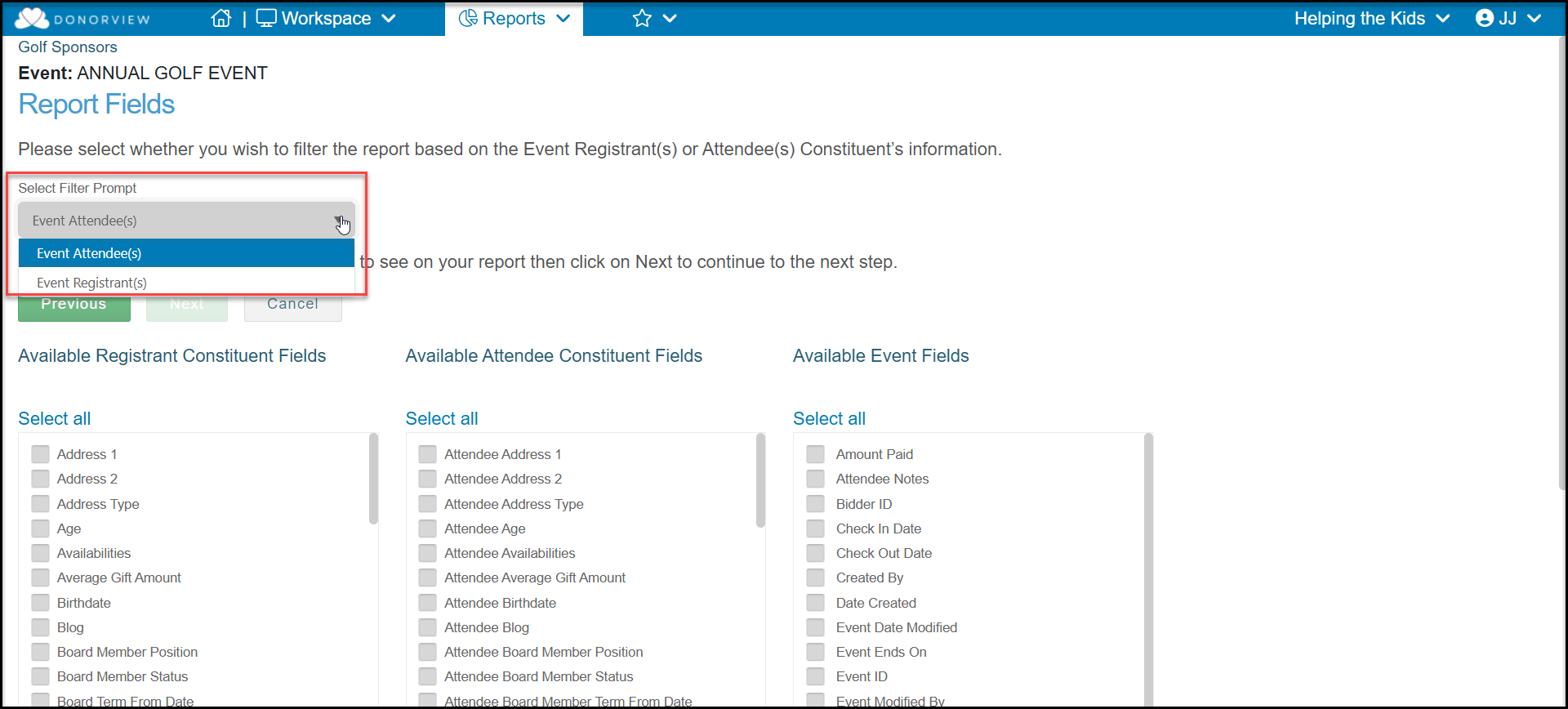
On the Report Fields step, you must first select whether you wish to filter your report by information about the event attendees or the event registrants under Select Filter Prompt. The event registrants are the constituents who purchased/registered for the event, the event attendees can include the purchaser and/or all their guests. Once this selection is made and you click Next below, it cannot be changed.
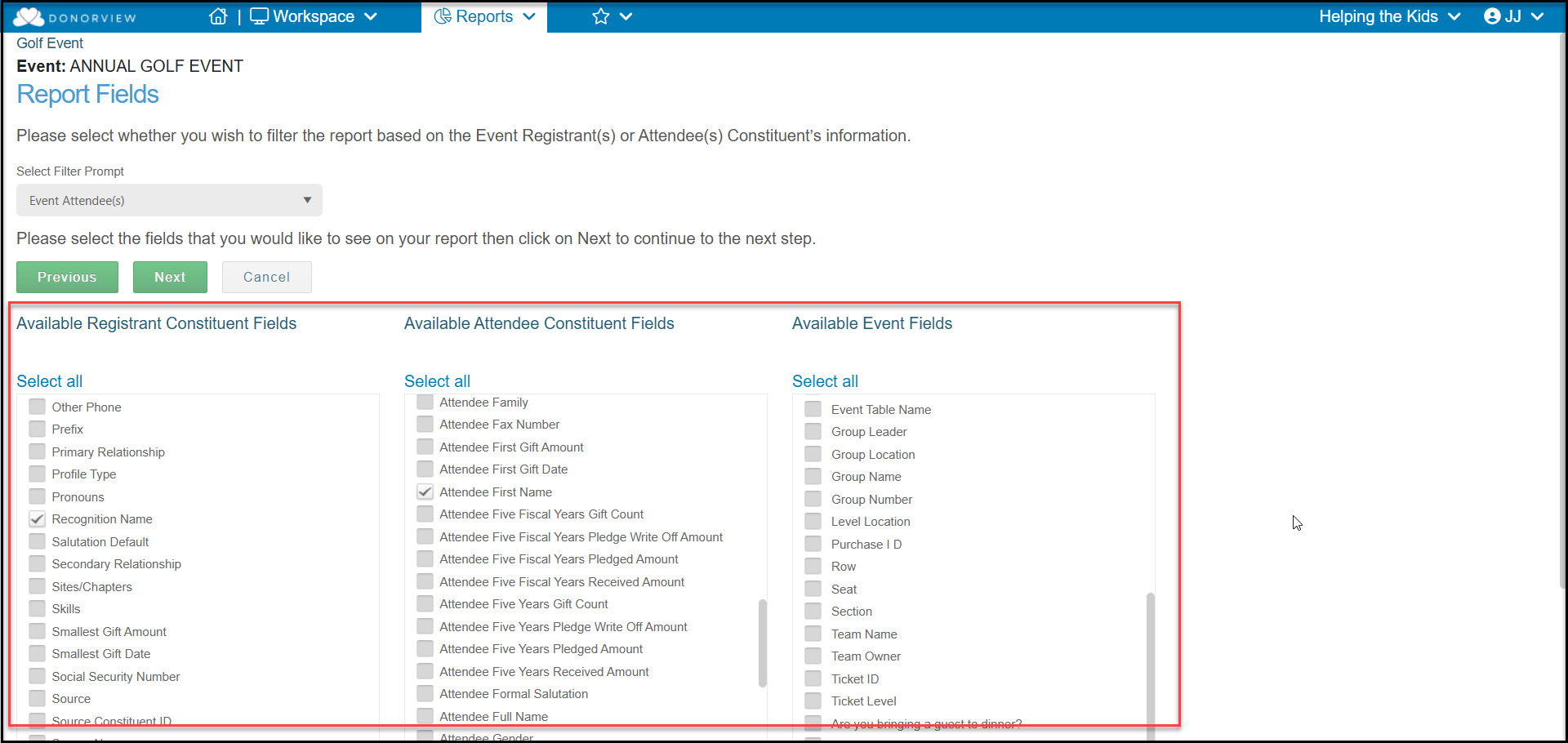
After choosing the filter prompt, you will check the boxes under each of three field categories you wish to appear on the report. You can choose them all with Select All or check the boxes next to specific fields you wish to show on your report.
Each box checked will include that column on your report and any data that is in that field will be shown on the report.
You will be able to change these selections if desired.
Click Next once your selections are made.
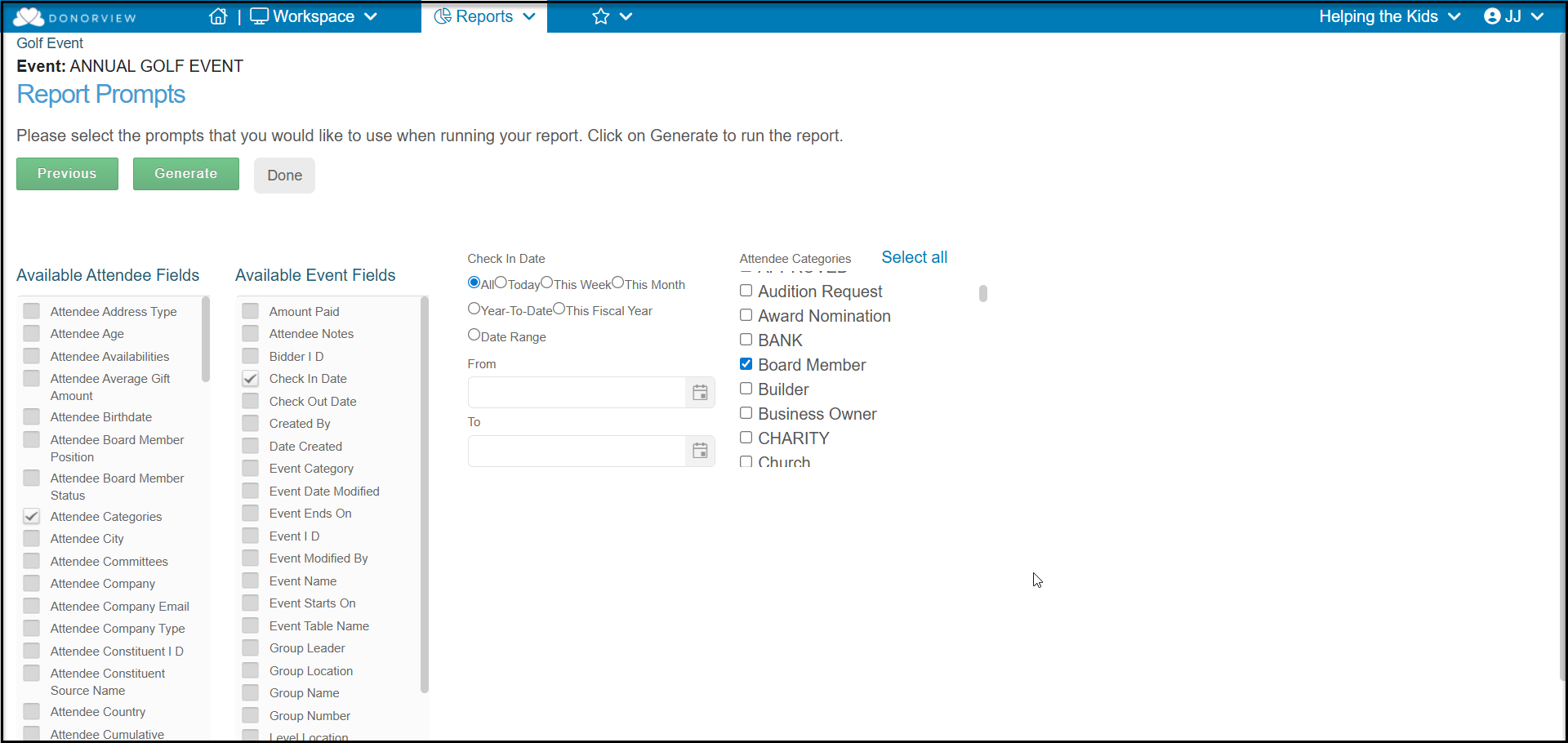
The last step is selecting the Report Prompts. On this page you will select which fields you wish to filter the data by to produce your report. Select the prompt fields from either the Available Attendee (or Registrant) Fields column or Available Event Fields.
The prompts selected are performed in the order that they are assigned. So if you choose Categories first, the data will be filtered to meet the all the Categories you select, then the next prompt will be addressed. These are also additive filters, so each additional prompt you select is an additional filter that must be met in order to be included in the report.
Choose your prompts in the order that you wish them to be performed. Once all your prompts are checked, then choose the criteria in each of those prompts by checking the boxes next to the items. You can select multiple criteria under each prompt.
When your prompts and criteria are all selected, click on Generate to download the Excel spreadsheet.
The report will show all the Report Fields you selected in each column. Only those records that meet the criteria you selected in the Report Prompts will be included in the report.
If you have selected a multi-select field, like Categories, Skills, or Email Lists, the report will include all the items assigned to that constituent, not just those you included in the prompts.
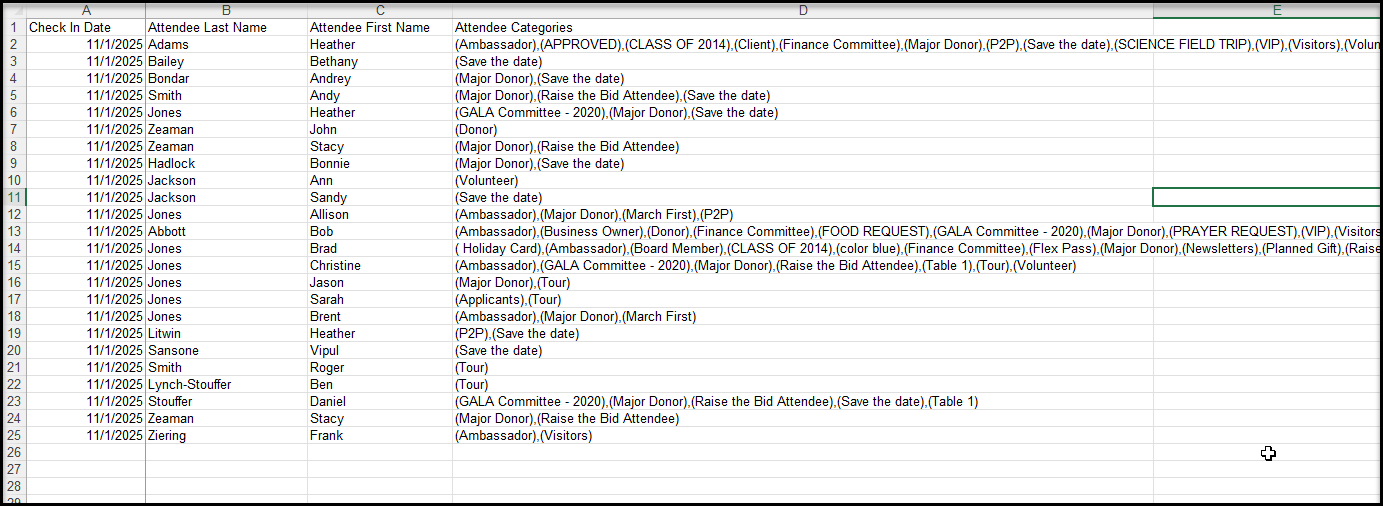
You can go back an adjust the report as needed by using the Previous buttons on the report pages. Once you are finished running your reports, you can click on Done to return back to the Reports grid.
You can rerun the report anytime, but you will need to select the criteria for each prompt again prior to generating the report.