Become a Fundraiser/Join a Team
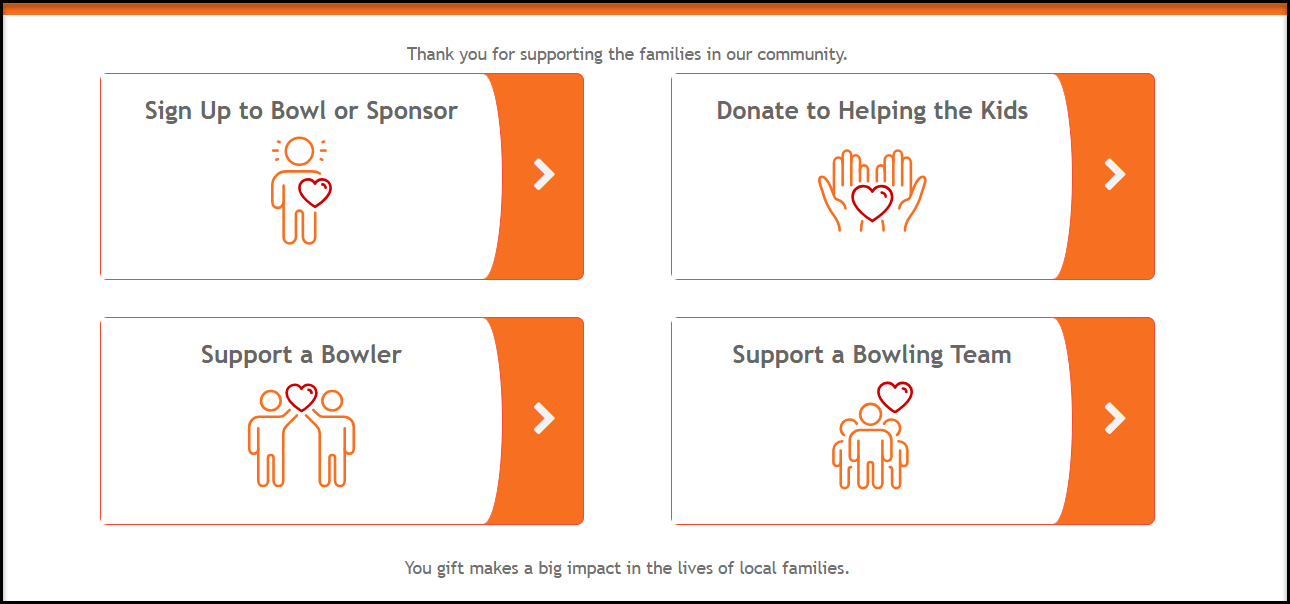
To register for a peer to peer event from the event page, the registrant will select the top left option on the P2P Landing Page. The top left button, the event link button is labeled “Become a Fundraiser/Join a Team” by default. This can be edited, as shown in our example below, to clarify what each option is for your specific event.
When the top left button is clicked, the visitor will be directed to your event page.
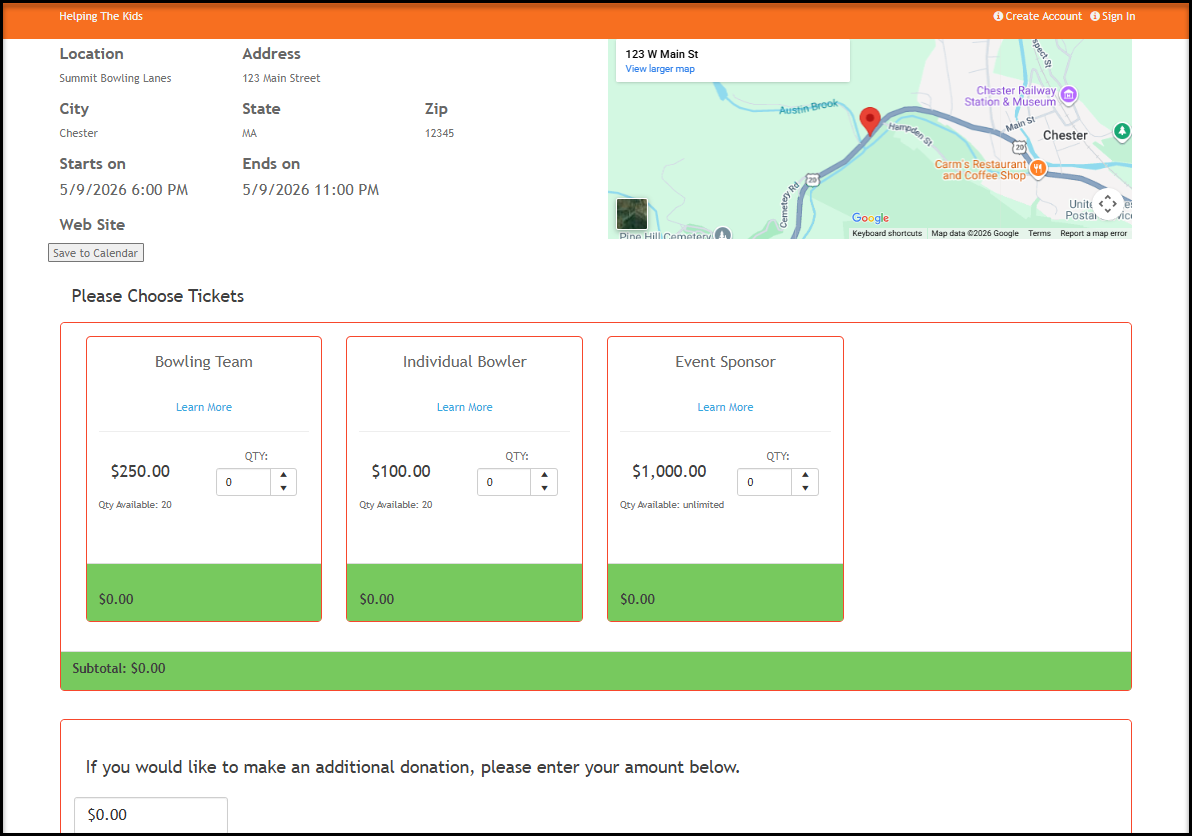
On the event page, the registrant will select which ticket levels they wish to register for. In our example, we will select the Bowling Team.
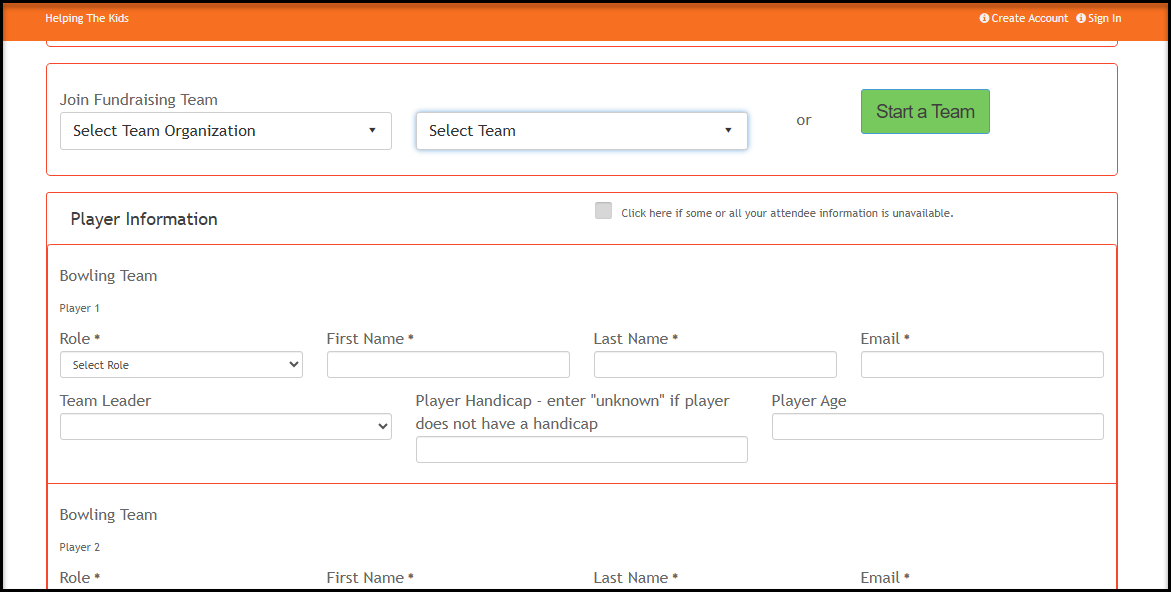
Once the ticket levels and quantities are selected, if you are allowing teams to form the registrant then has the option to Join a Fundraising Team or Start a Team.
In our example below, we have activated the Team Organization option. So a registrant could select a company/organization and then select a team. Or they could choose to Start a Team and create their own team. If you have not selected the Team Organization option, this field will not be visible.
Note that at least one company-type constituent must have registered and created a team in order for any selections to be visible in the dropdown list. So the first organization that signs up, will not see any options in the drop down.
Likewise, when the campaign is started, there will be no options visible in the Select Team dropdown, until at least one team is formed.
If Start a Team is selected, they can enter their Team Name and Team Goal to create the team during the registration process. If they do not choose or create a team at registration, they can always do it later when they create their personal fundraising page.
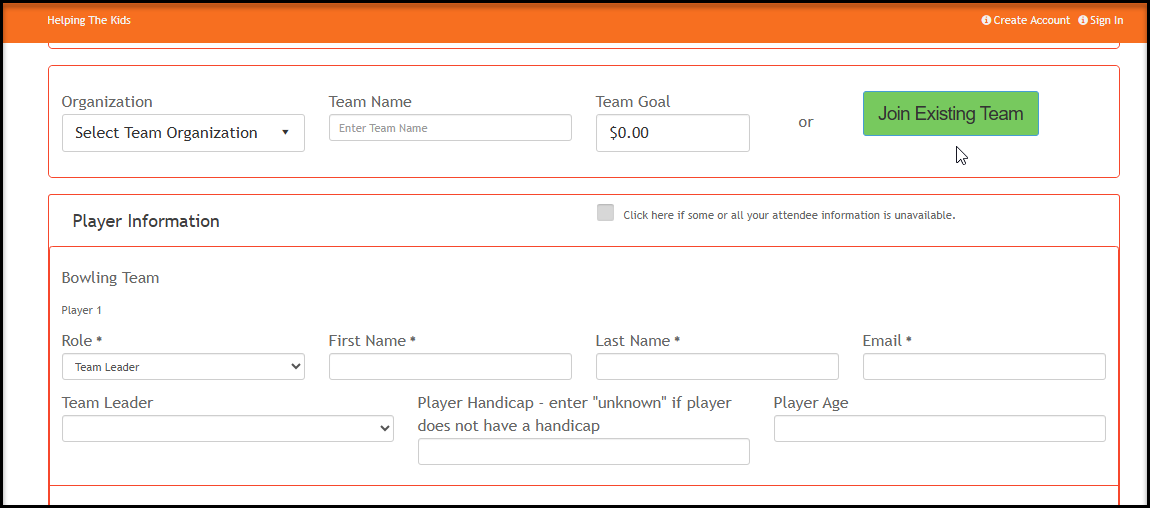
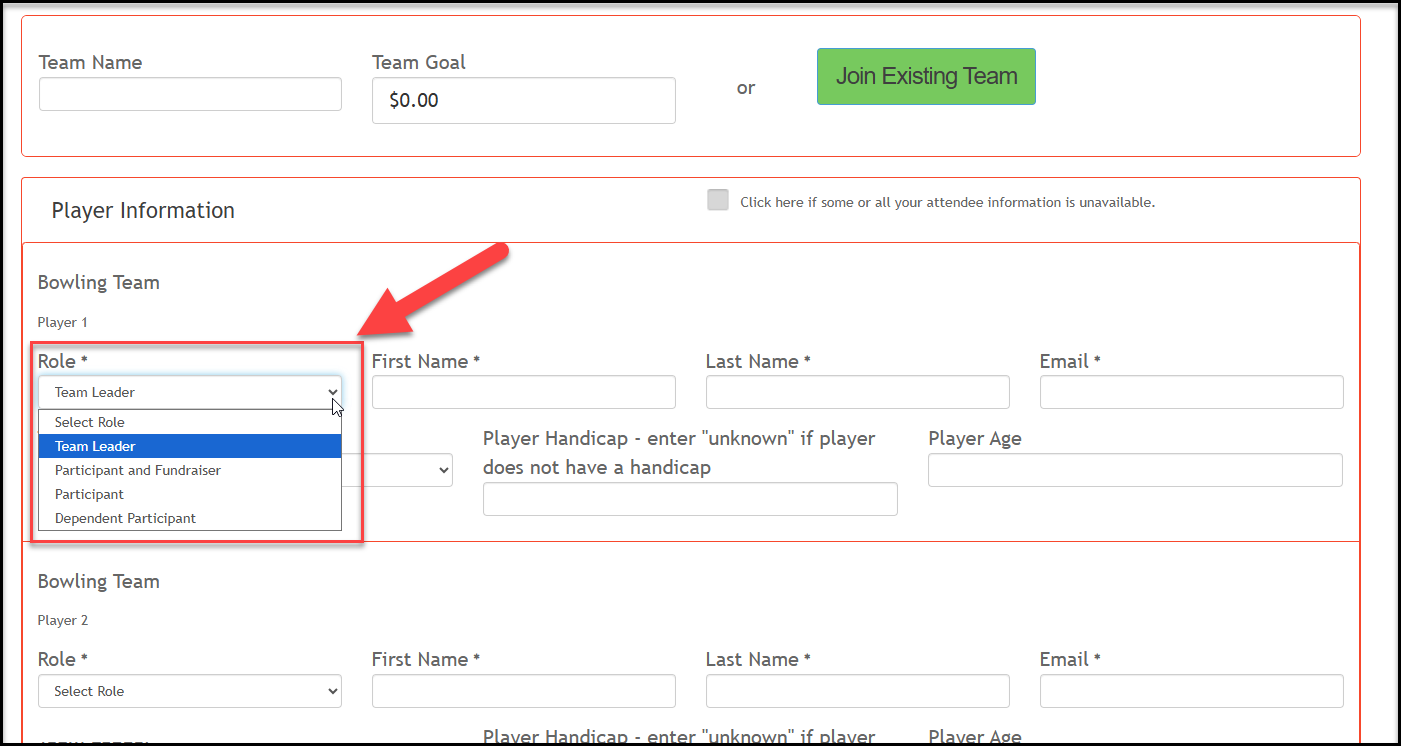
In the Attendee Information area (which we have renamed “Player Information” in our example) the registrant will enter the Role for each person who is participating.
The role options include:
- Team Leader - only one person can be designated as the team leader. This person will be able to edit and manage the team's fundraising page from their portal account. An email address is required.
- Participant and Fundraiser - this person is going to participate in the event, and they will receive information to log in to the portal (or create an account) and create their fundraising page. An email address is required and they will automatically be assigned to this team.
- Participant - this person is only going to participate in the event, they will not be creating a fundraising page. An email address is still required.
- Dependent Participant - this person is typically a child who is participating in the event, but does not need to provide an email address. The idea is that dependent participants do not need to receive any communication about the event.
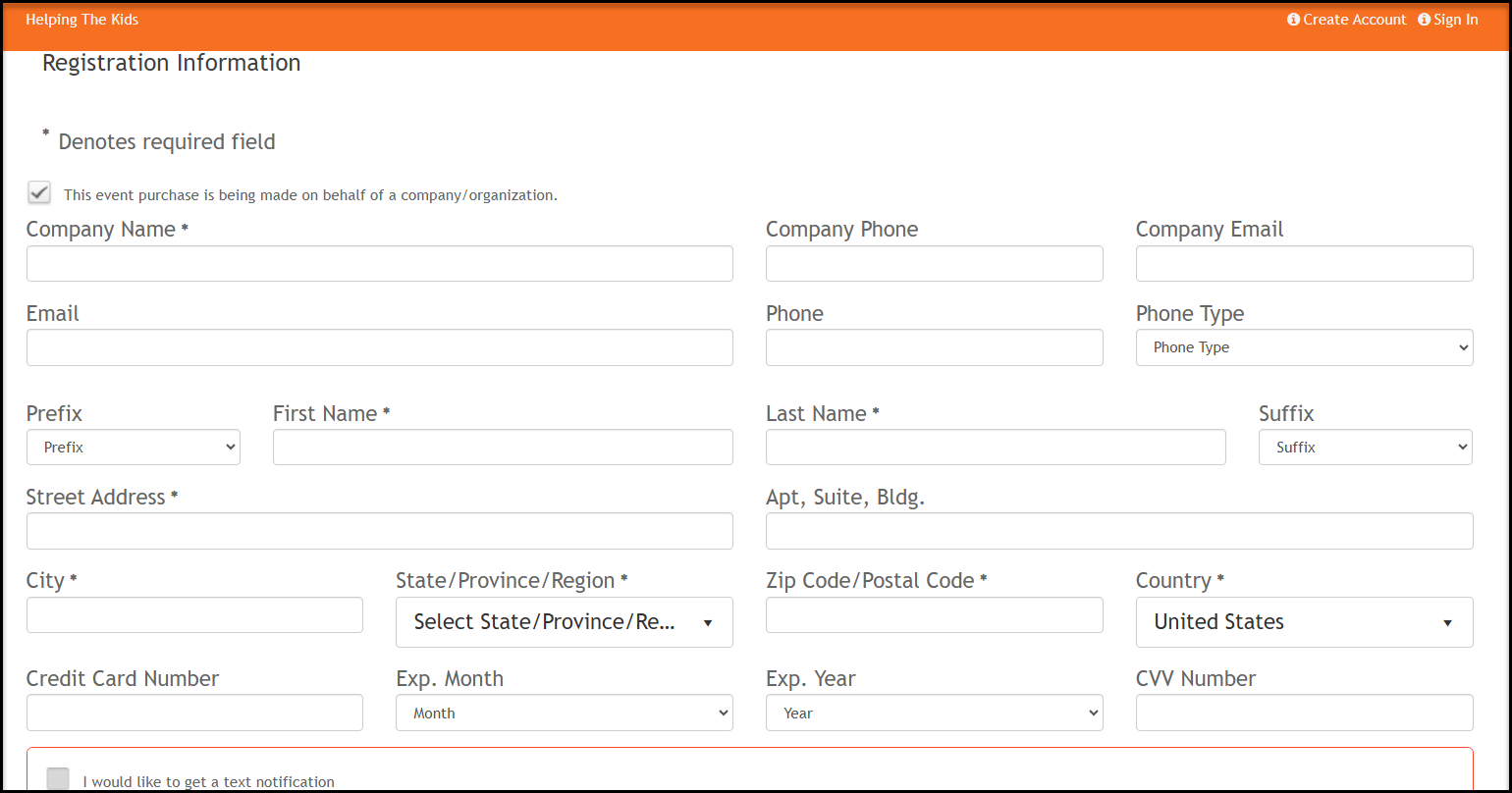
The person or organization registering will complete the registration and payment information at the bottom of the event page and click Submit to complete their registration.
Constituent Portal - Fundraising Pages
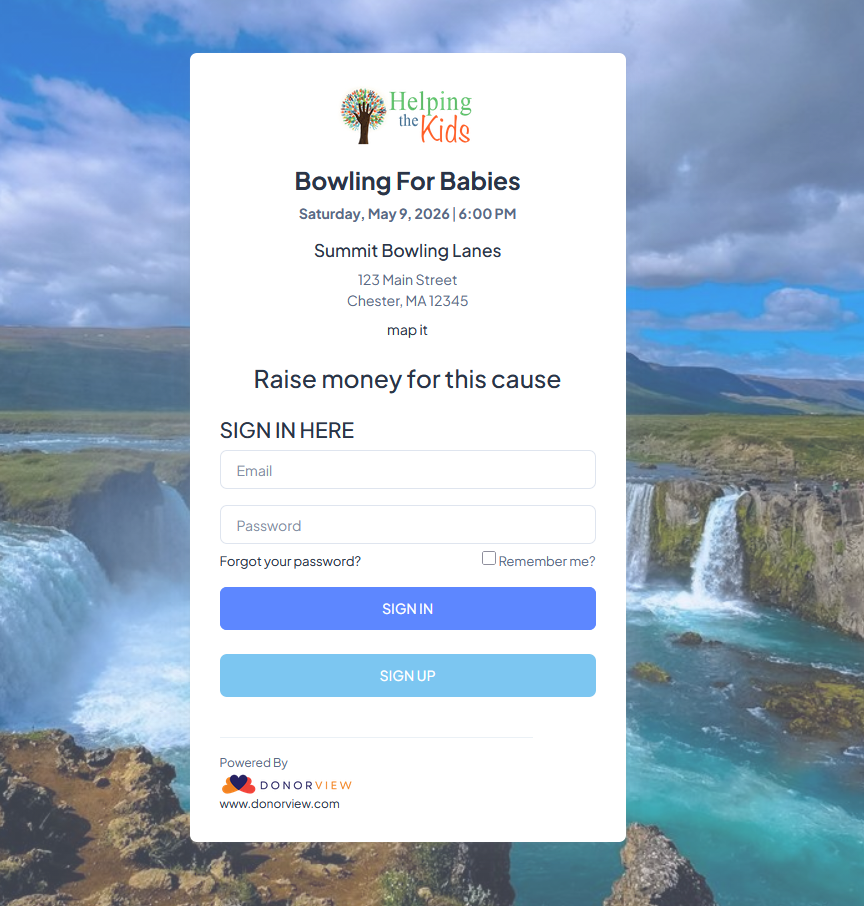
After submitting the event registration, they will immediately be directed to the portal login page to either create an account by clicking on Sign Up or log in to their existing account by clicking on Sign In.
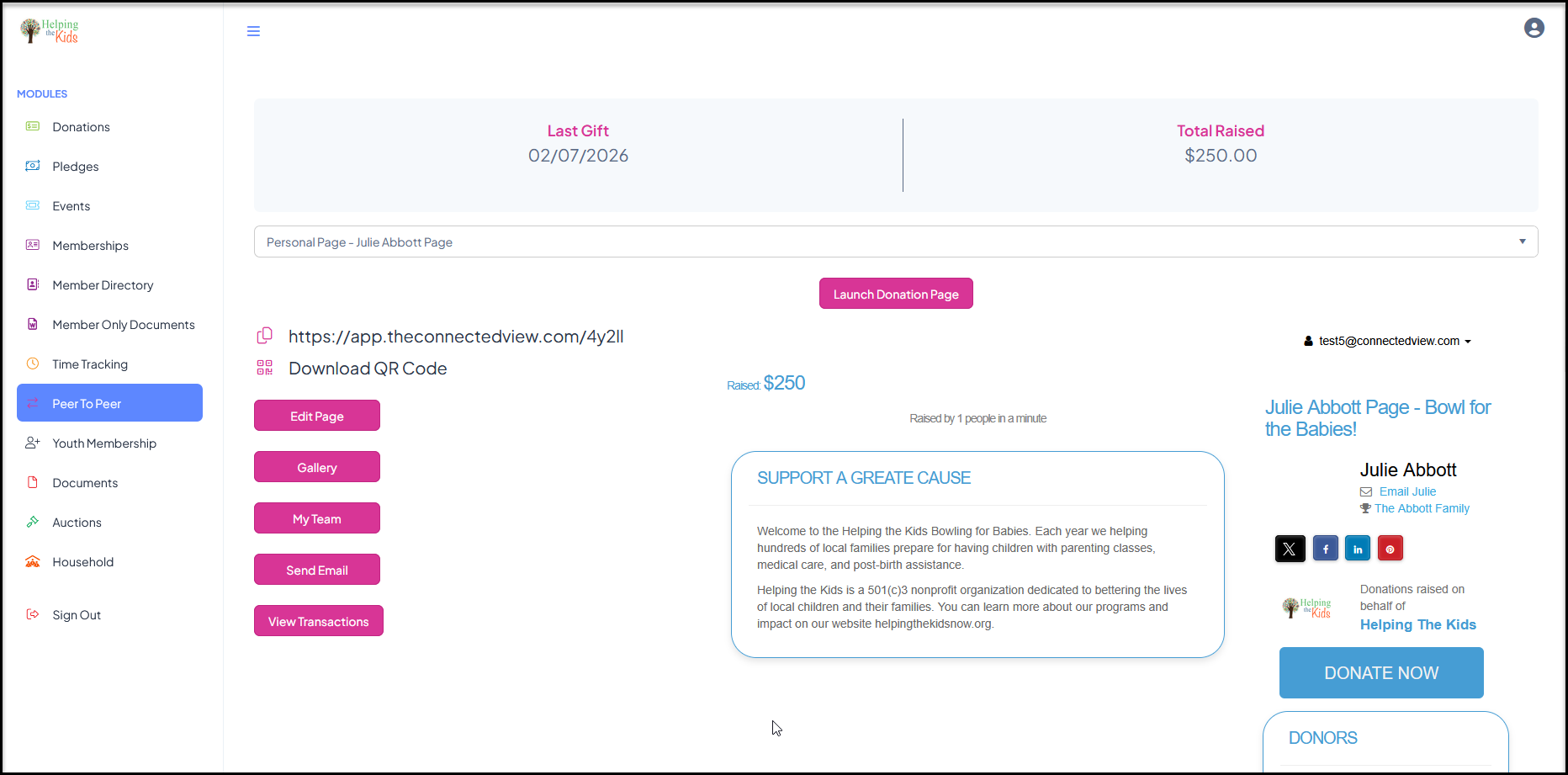
They will be directed to the Peer to Peer module where their fundraising and team pages have already been created. They can edit the default page using the Edit Page button and manage their team page by selecting it from the dropdown list.
Note that if a purchase was required to register, the team and registrant will receive credit for the ticket purchase towards their Total Raised.
Individuals who were identified as Participant and Fundraiser will also receive an email inviting them to create or log in to their portal accounts to manage their personal fundraising pages.