When you link a P2P campaign to an event, the assumption is that all participants will also be fundraisers. If being a fundraiser is optional, you could provide the link to your P2P campaign in your event's thank you email instead of making the direct connection. There are also options to allow registrants or specific team members (like children) to be a participant-only instead of a fundraiser.
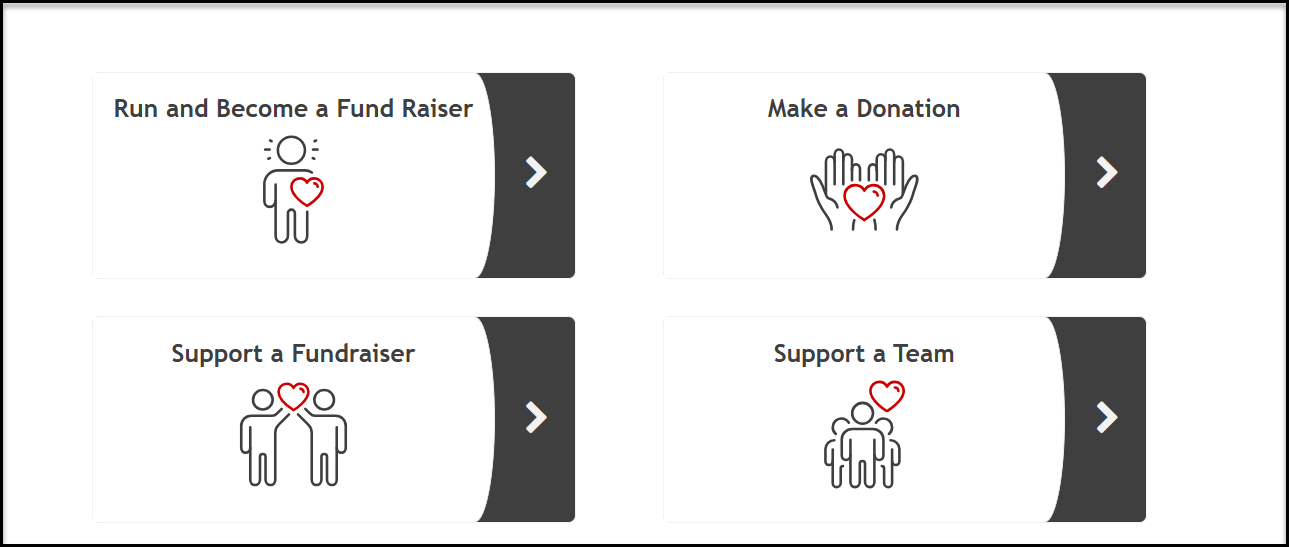
When you link your P2P campaign to the event, there will be a new first page, called a P2P landing page, where visitors will choose what they want to do next, with Become a Fundraiser/Join a Team leading them to the event page to register. The other choices will lead them to your organization's donation page or the individual or team fundraising pages.
Once a P2P campaign is linked to an event and there are event registrations, the campaign cannot be unlinked. So you should be sure this will be the method you want set up before you open the event for registrations.
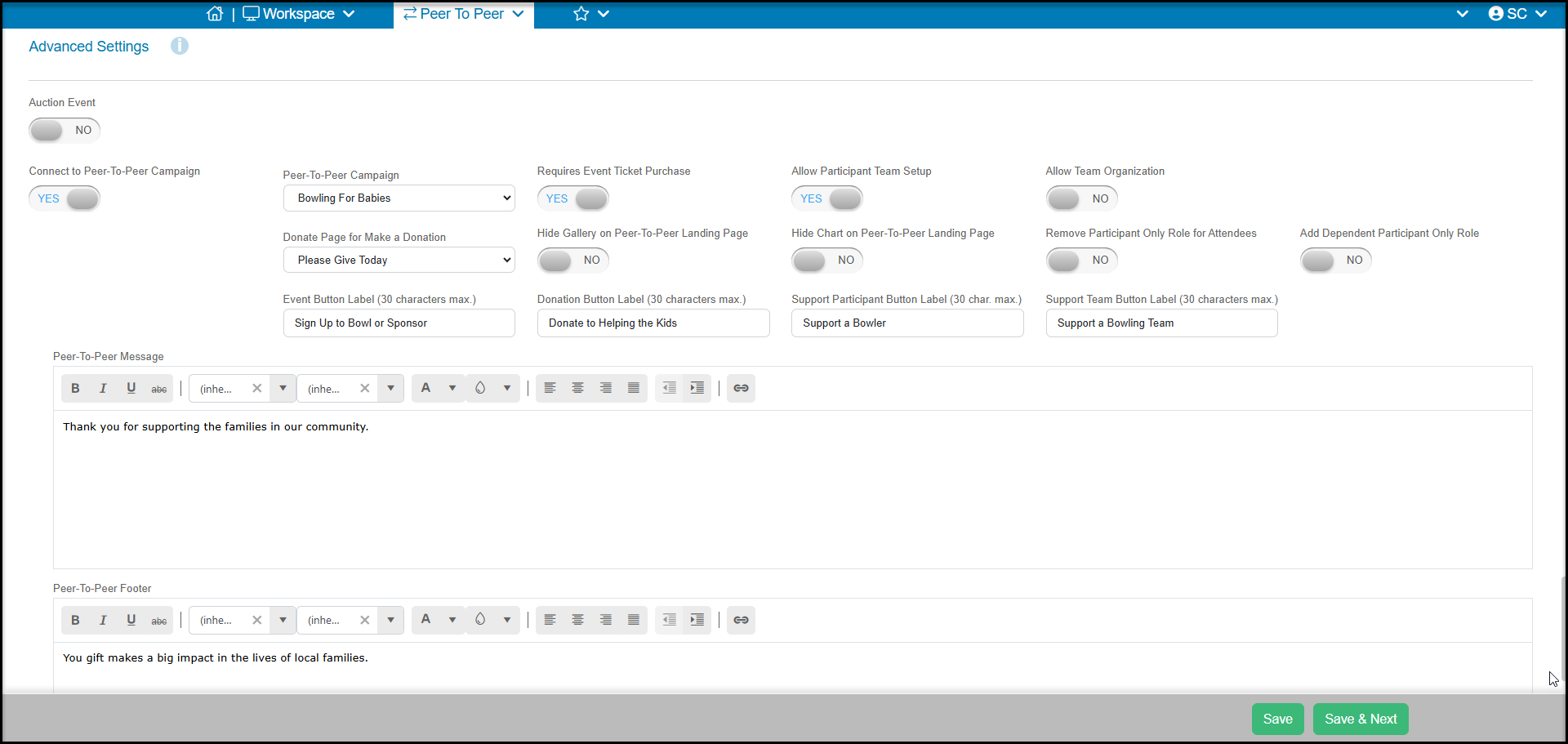
In our example, we have created an event called “Bowling for Babies.” The concept is there is a bowling event and each bowler/team raises money for the nonprofit organization's infant & family programs. You will create your event as you would normally, but under the Advanced Settings section of the Event Settings tab, you will set the toggle Connect to Peer-to-Peer Campaign to YES. Once there are registrations to this event, this setting cannot be turned off or switched to a different P2P Campaign.
With the toggle set to YES, you will then see the following options:
- Peer-to-Peer Campaign - Select the P2P campaign you created from the drop down list. The P2P campaign page must be created first, before linking it to the event.
- Required Event Ticket Purchase - When set to YES, the constituent will be required to register (can be a free or $0 ticket) for a level in order to create a fundraising page or join a team.
- Allow Participant Team Setup - When set to YES, there will be an option for the event registrant to start a team.
- Allow Team Organization - Settings this to YES will add an extra level to the teams, so registrants can be part of a team, and several teams can also be linked to a Team Organization. Registrants will be able to select a Team Organization to join or add their own on the registration page.
- Donate Page for Make a Donation - On the P2P landing page, one of the four choices is making a donation directly to your organization. You will select from a drop down list of your existing donation pages for that button option.
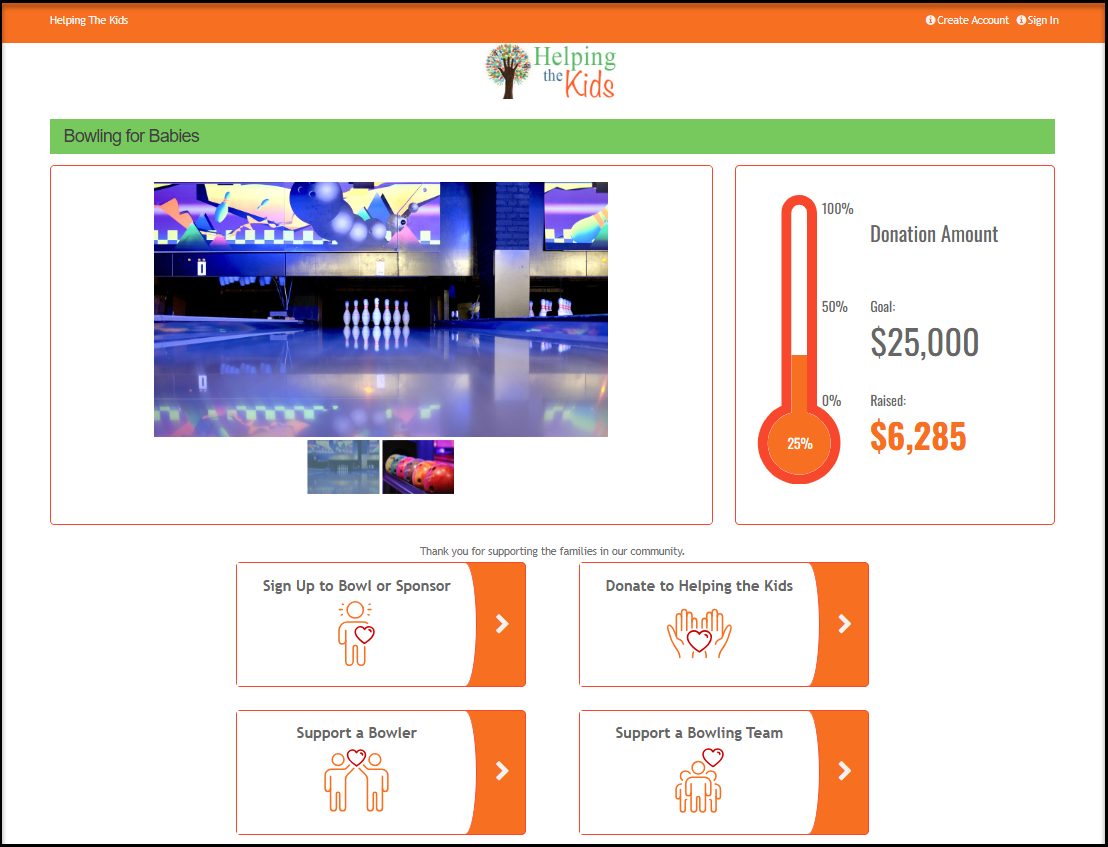
- Hide Gallery on Peer-to-Peer Landing Page - Your event page can include a gallery of images. If you do not wish these images to appear on the P2P landing page, set this to YES.
- Hide Chart on Peer-to-Peer Landing Page - Your event page has an option to show goal progress, if you do not wish the goal progress widget to appear on the P2P landing page, set this to YES.
- Remove Participant Only Role for Attendees - If you do not want any event registrants that are not considered “fundraisers,” you can set this to YES. Leaving it set to NO will allow registrants to choose to be a participant in the event only, not a fundraiser or team leader.
- Add Dependent Participant Only Role - If you have children participating or individuals who you do not wish to capture an email address, set this to YES to add an optional role of Dependent Participant. When this role is selected, the email address becomes optional and this participant will not be sent any portal login information, even if an email is provided. However, the participant will still be shown on the Event Attendance grid and is counted as a constituent in your total number of constituents.
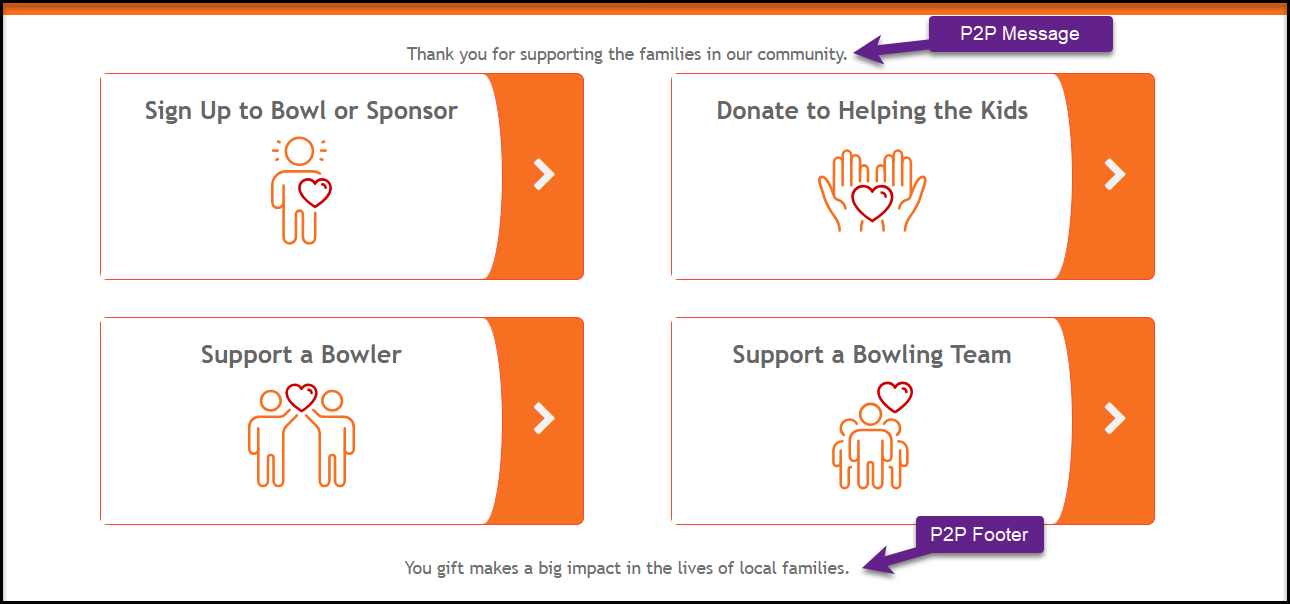
- Event Button Label - The first option on the landing page is to “Become a Fundraiser/Join a Team.” You can rename this button (as we have in our example below) to better describe the link as desired. Choosing this option will take the visitor to the event page to complete their event registration.
- Donation Button Label - This option is a link to open your organization's donation page that you selected above.
- Support Participant Button Label - This option will show a list of all the individual fundraisers. Clicking on a name will open that fundraiser's personal fundraising page.
- Support Team Button Label - This option will show a list of all the teams (if your event includes teams.) Clicking on a name will open that team's fundraising page.
- Peer-To-Peer Message - On the landing page above the option buttons, you can add a message.
- Peer-To-Peer Footer - On the landing page, below the option buttons, you can add a footer message.
Example of a P2P landing page that includes the gallery and goal progress at the top and four option buttons for proceeding to the next step for your event.
The example Message and Footer areas on the page.