
Signing into the Support Academy
You will access the Support Academy via the link under your user initials in DonorView.
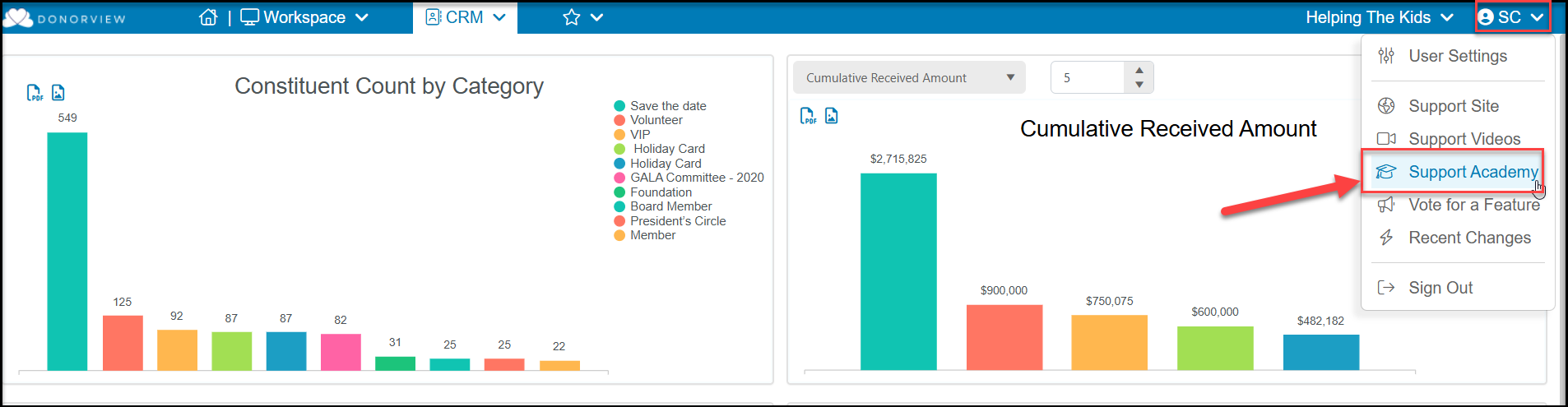
In the new window, click Launch Academy. If your user licenses has not been activated yet and you do not see the link to launch the academy, see this article "How do I sign up for the Support Academy."
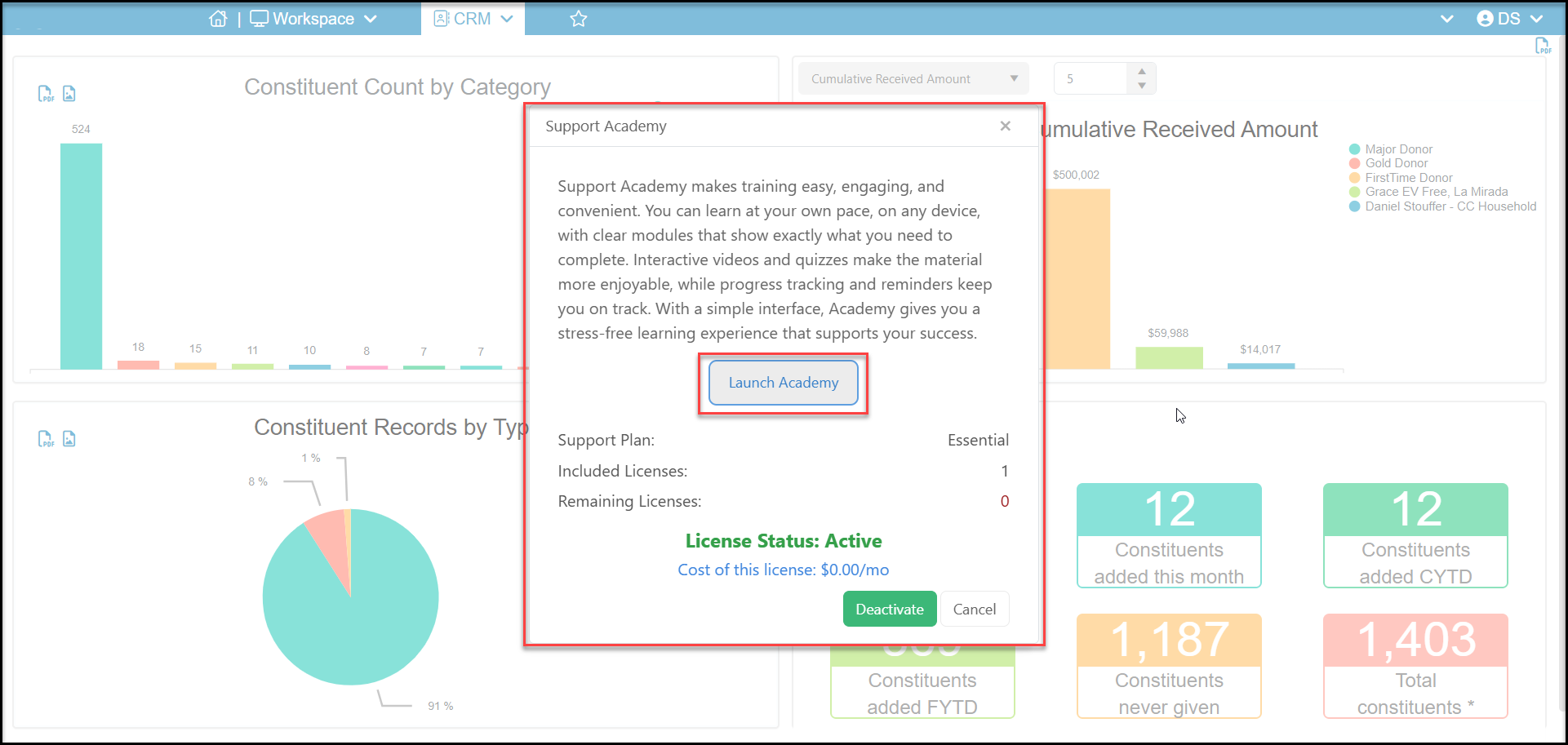
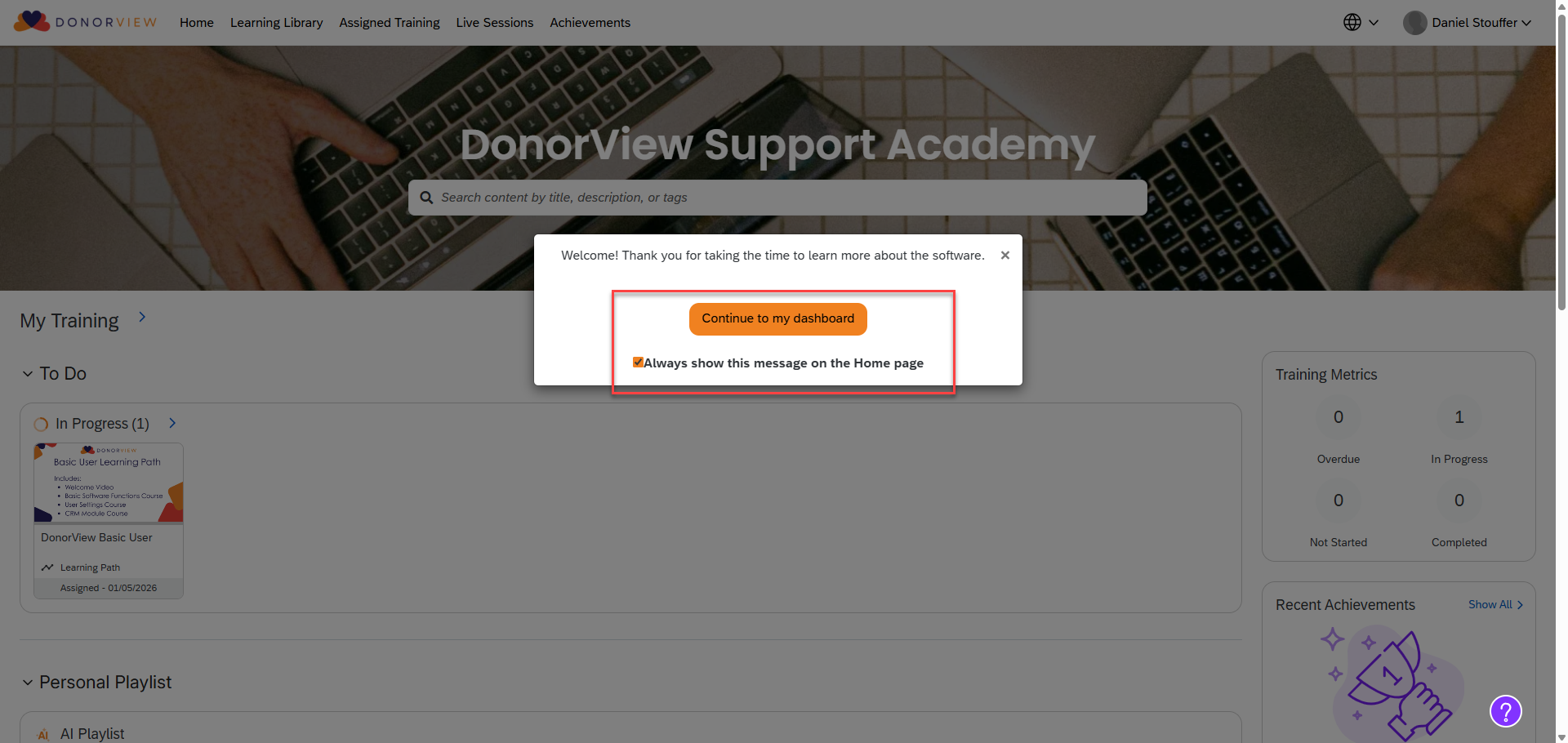
When you click “Launch Academy” you will immediately be redirected to the Litmos learning platform.
You can click Continue to my dashboard. This message can be turned off by unchecking “Always show this message on the Home page.”
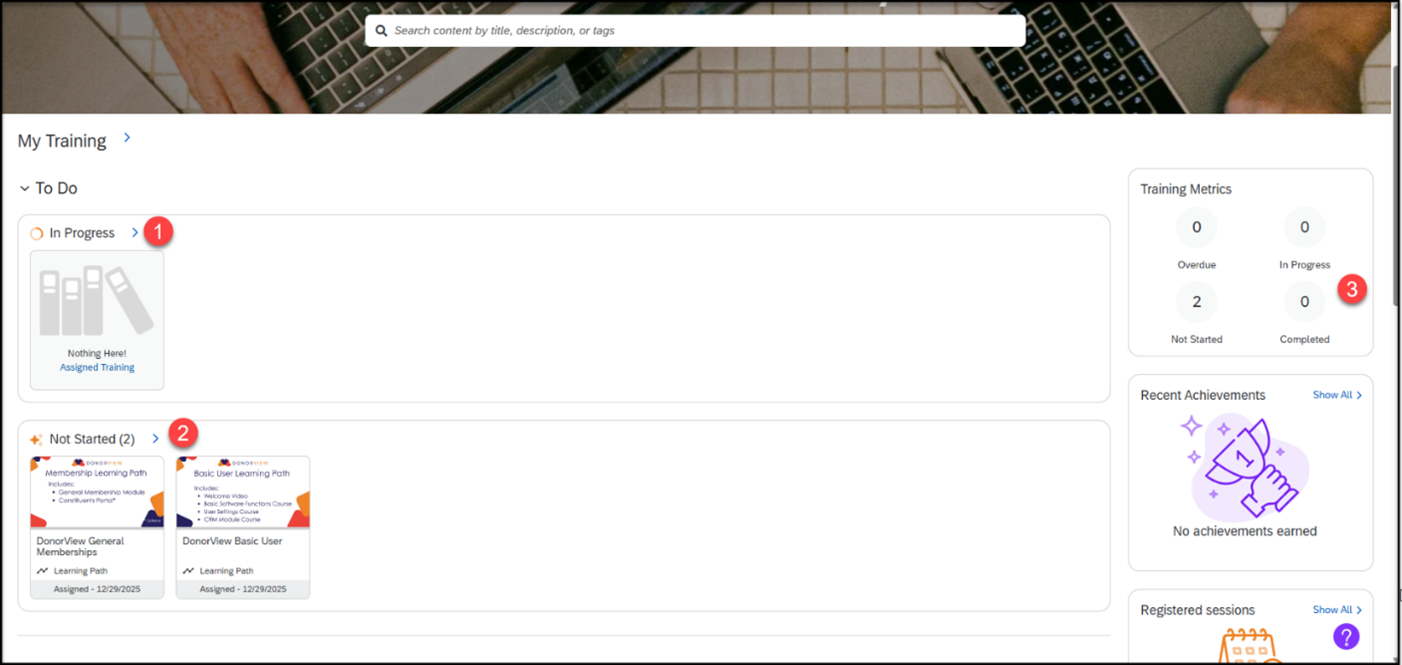
Learner Dashboard
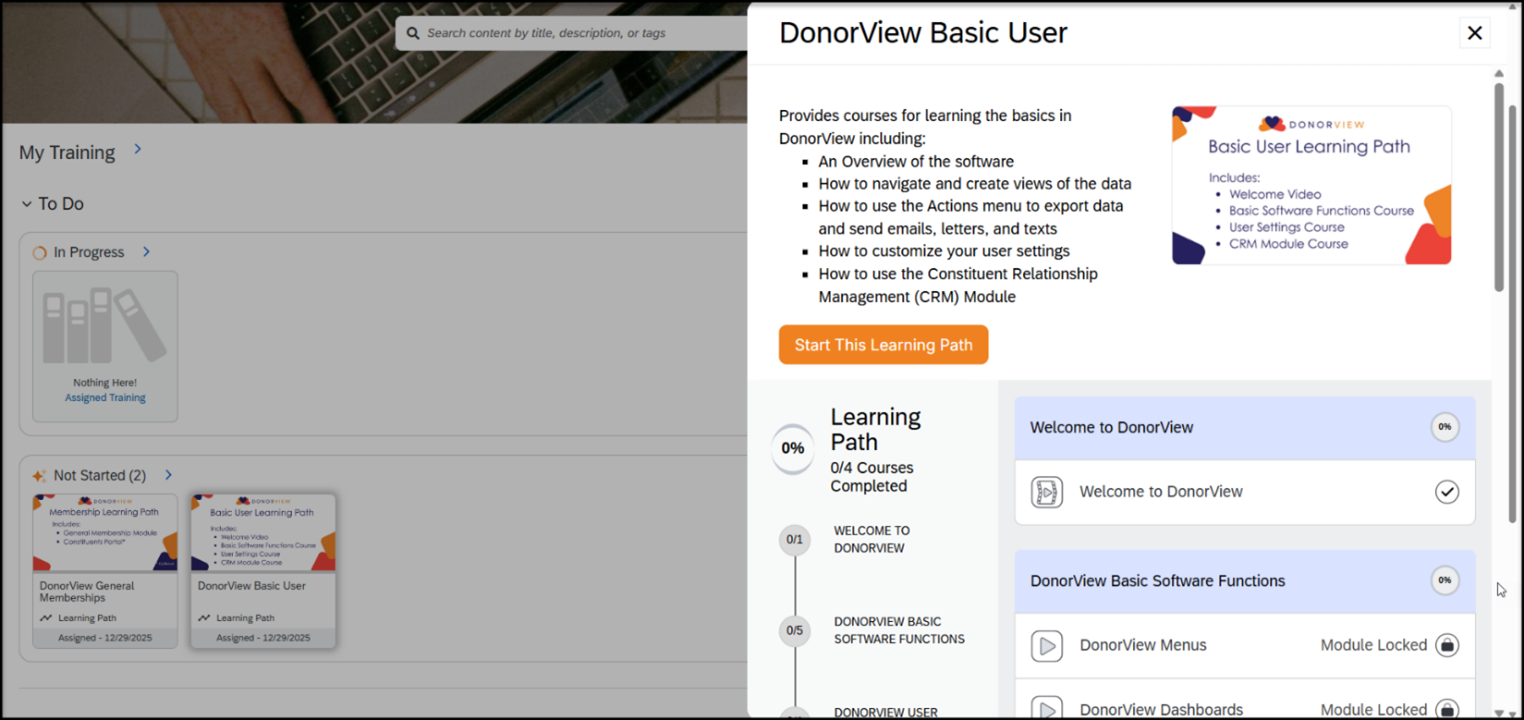
- (1) In Progress courses to show any courses you have started but have not been completed yet.
- (2) Not Started to show any learning paths or courses that have been assigned but not started yet.
- You can also see a count of (3) Completed courses on the right side of the dashboard.
- Clicking on a class will open the menu to start or continue the course as well as an outline of all the courses and modules available.
- Courses which have prerequisites will show “Module Locked” until the prerequisites are met.
Assigned Courses
- All DonorView users are assigned to the Basic User Learning Path. This learning path consists of a welcome video which is an overview of DonorView and three courses to learn the basic operations and the main database module, the Constituent Relationship Management (CRM) Module.
- These items must all be completed prior to moving on to learn more about additional topics like fundraising and events.
- We have found that users who learn the basics of navigation and understanding the grids, menus, and views will find using the software much easier. This will accelerate your ability to put the software into action for your organization.
Starting a Course
- You will start by clicking on the Basic User Learning Path icon under Not Started Yet on your dashboard.
- If you have multiple courses or learning paths assigned, you should start with the Basic User Learning Path for your foundational training.
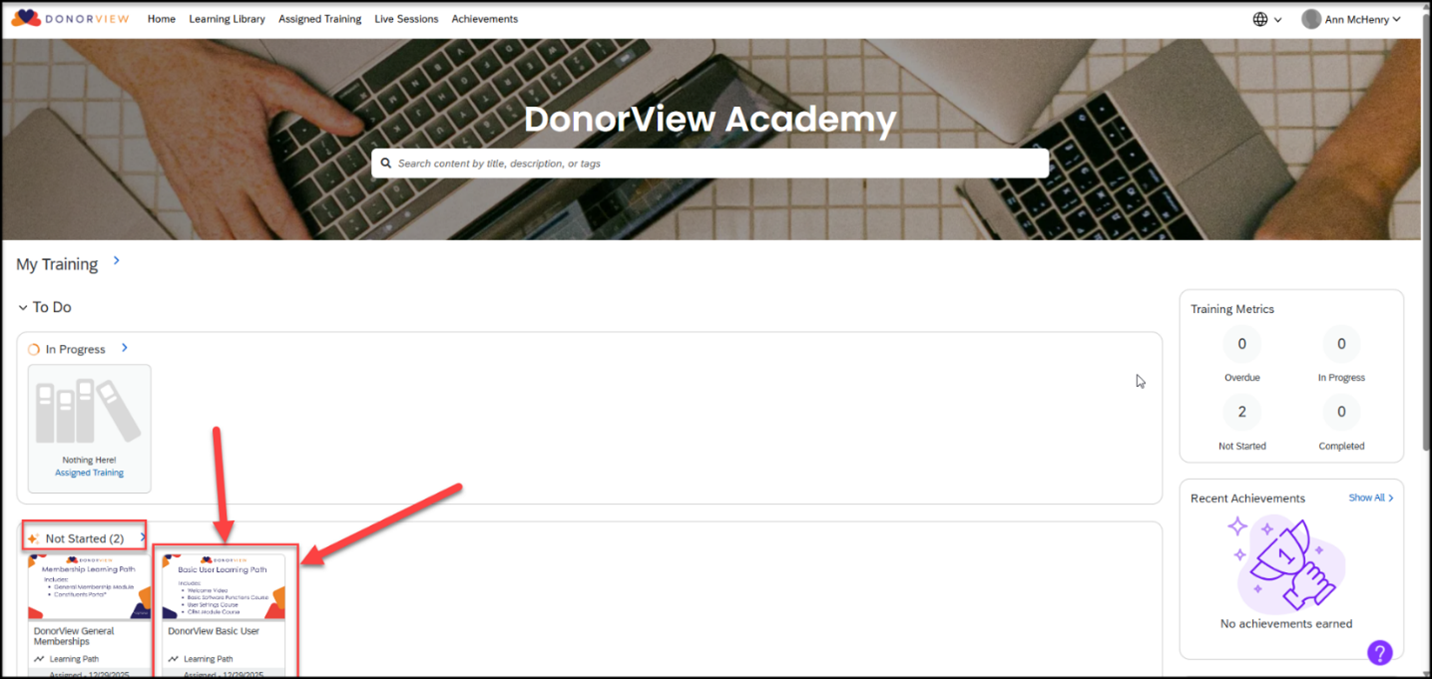
- Clicking on the course will open a window on the side of your screen where you will click on Start This Learning Path.
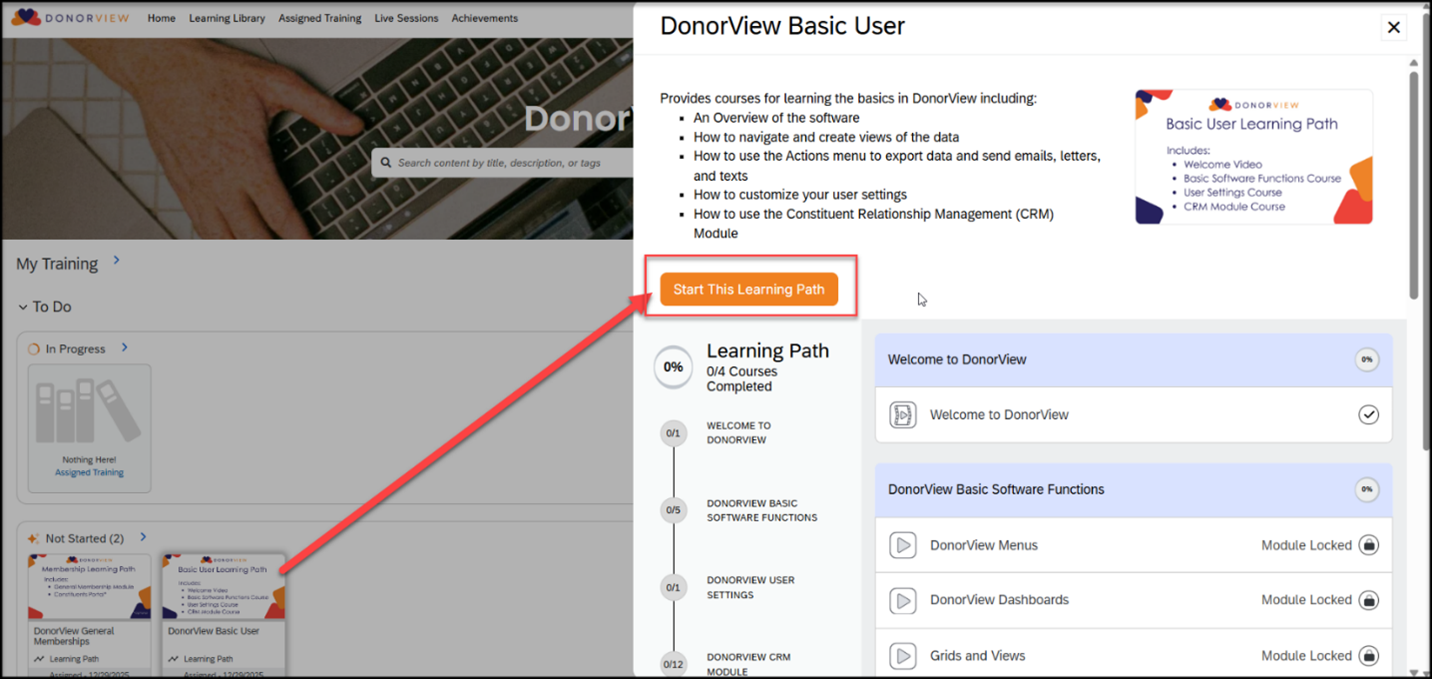
- This will take you immediately to the 14 minute Welcome Video which provides an overview of all the features in the software.
- The video also gives you an introduction to the navigation and terminology used in the software.
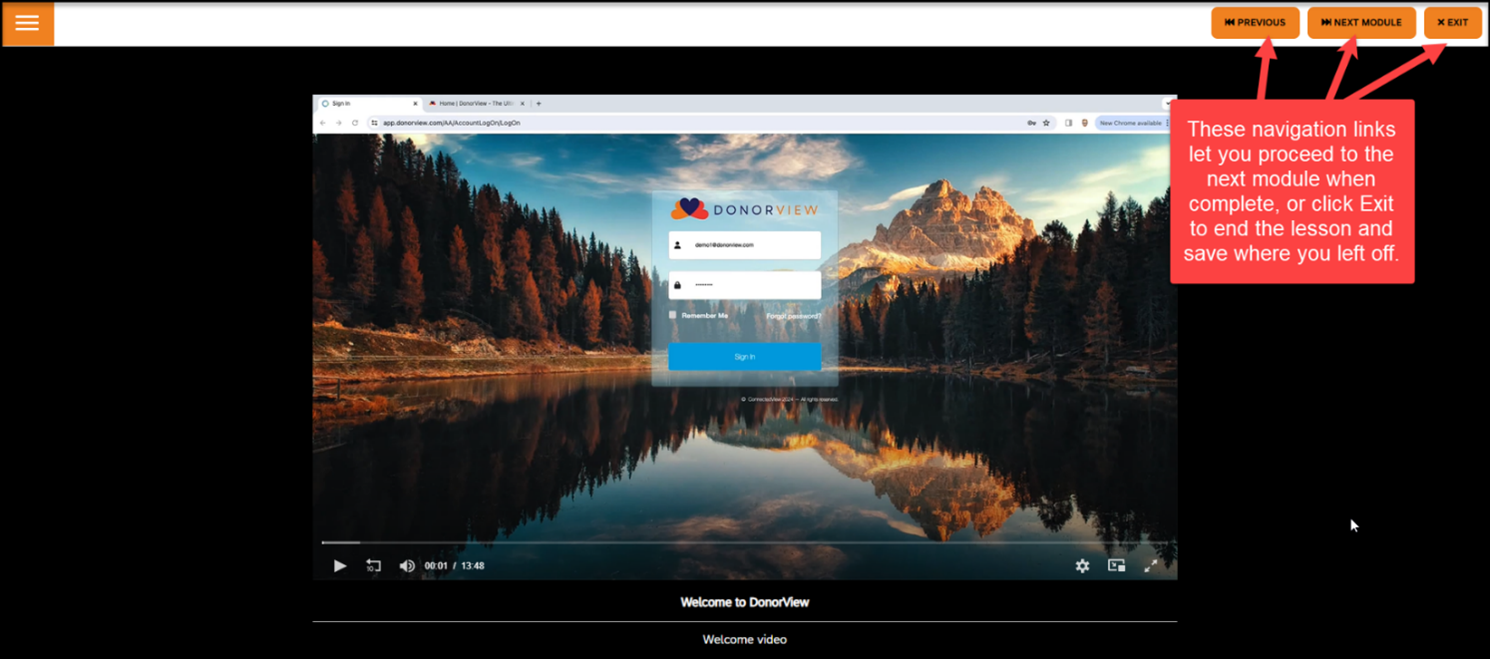
- Once you have watched the video, you can use the links in the upper right corner of the screen to go to the Next Module which will start the next course, DonorView Basic Software Functions.
- You can also click Exit to exit the course and save where you left off.
- Each of the remaining lesson modules will start with an introduction page with a brief message about the topics or learning objectives of that lesson.
- Click on Start Module below the message to begin.
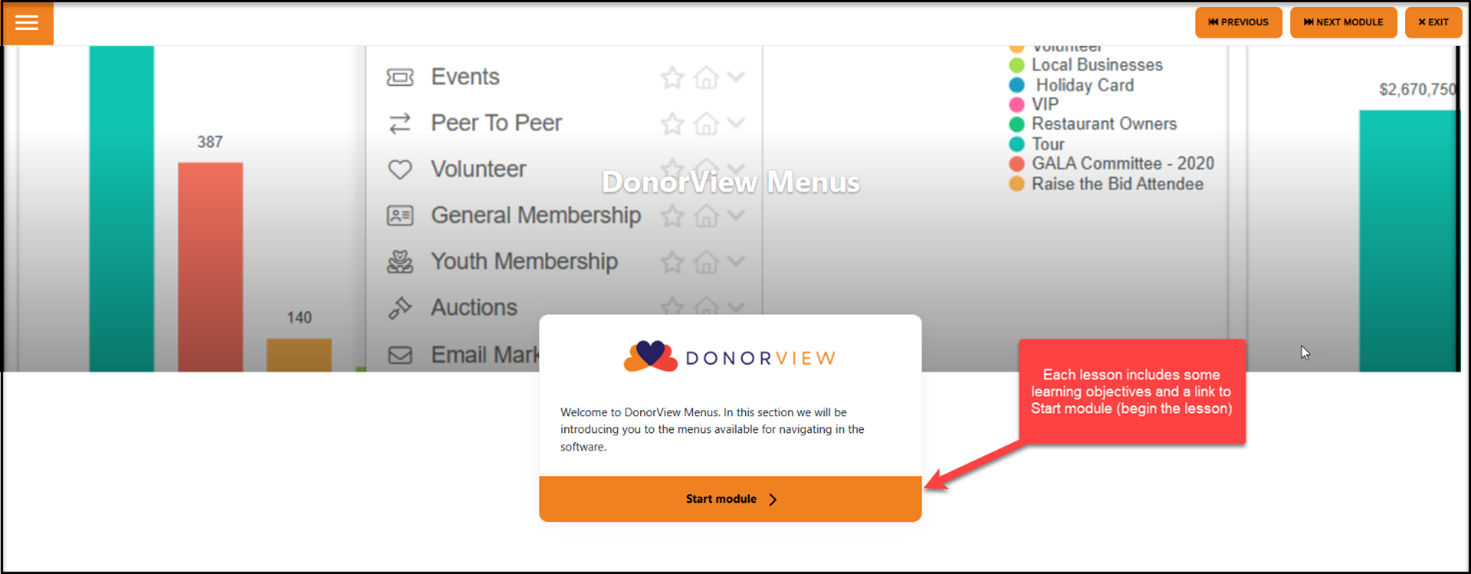
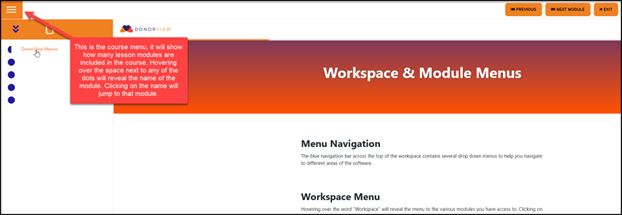
- While taking the course you will see a menu in the upper left corner, which allows you to navigate between the different lesson modules in the course.
- Each course will be made up of mini lesson modules to help you move through the training at your own pace.
- We recommend taking the course in the order that we recommend for the best learning experience.
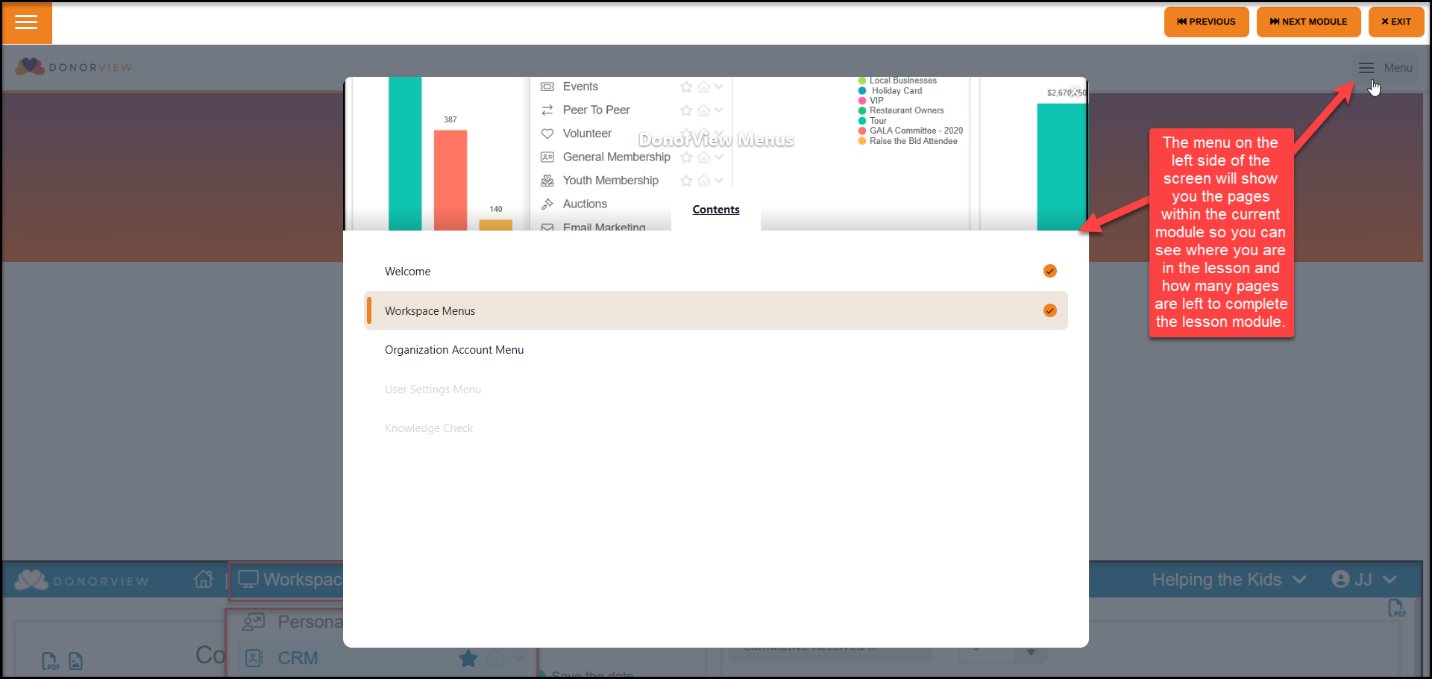
- On the right side of the screen will also be a menu to navigate to the different pages in this lesson module.
- You can see how many pages are included and which ones have been completed.
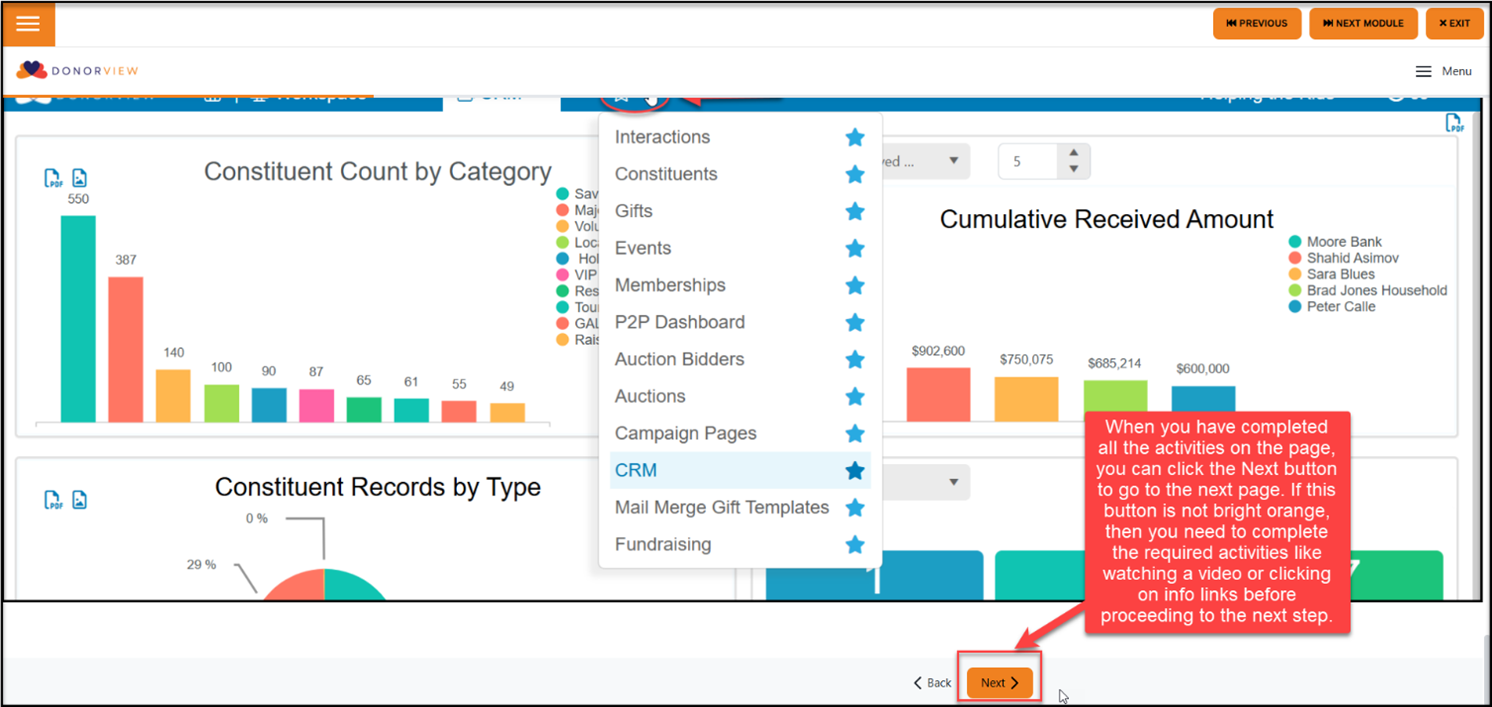
- At the bottom of each page, you will find a Next button to proceed to the next page.
- This button will only be available when you have completed all the activities required on that page.
- Be sure you have watched the required videos or completed the activities before proceeding to the next page.
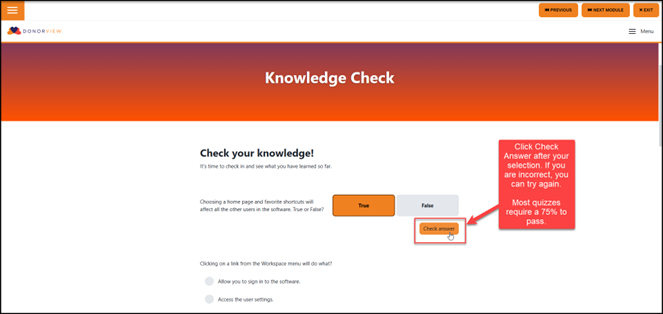
- Some of the lessons will also include a quick quiz.
- You can respond to the question and check your answers as you go through the quiz.
- If you are incorrect, you can try again.
- If you’d like to go back and revisit the information, you can use the Menu link in the upper right corner to go to a specific page in the lesson.
- Most quizzes require a 75% to pass and proceed to the next lesson module.
After Completing the Basic User Learning Path
As soon as your complete the first learning path, you will automatically be assigned to the Intermediate Users Learning Path. This learning path has only one required course, the Fundraising Module, but also includes optional courses on Events, Email Marketing, Surveys/Forms, and Volunteer Modules. You can take these courses in any order. After your successfully complete the Intermediate Learning Path, you will automatically be assigned to the Advanced Learning Path to cover topics like the mobile app, auctions, and peer to peer campaigns.
Learning Library
If you do not wish to proceed to the Intermediate Learning Path, after completing the Basic User Learning Path, you will have access to all the courses in the Learning Library.
The learning library is accessed from the menu link at the top left of the page.
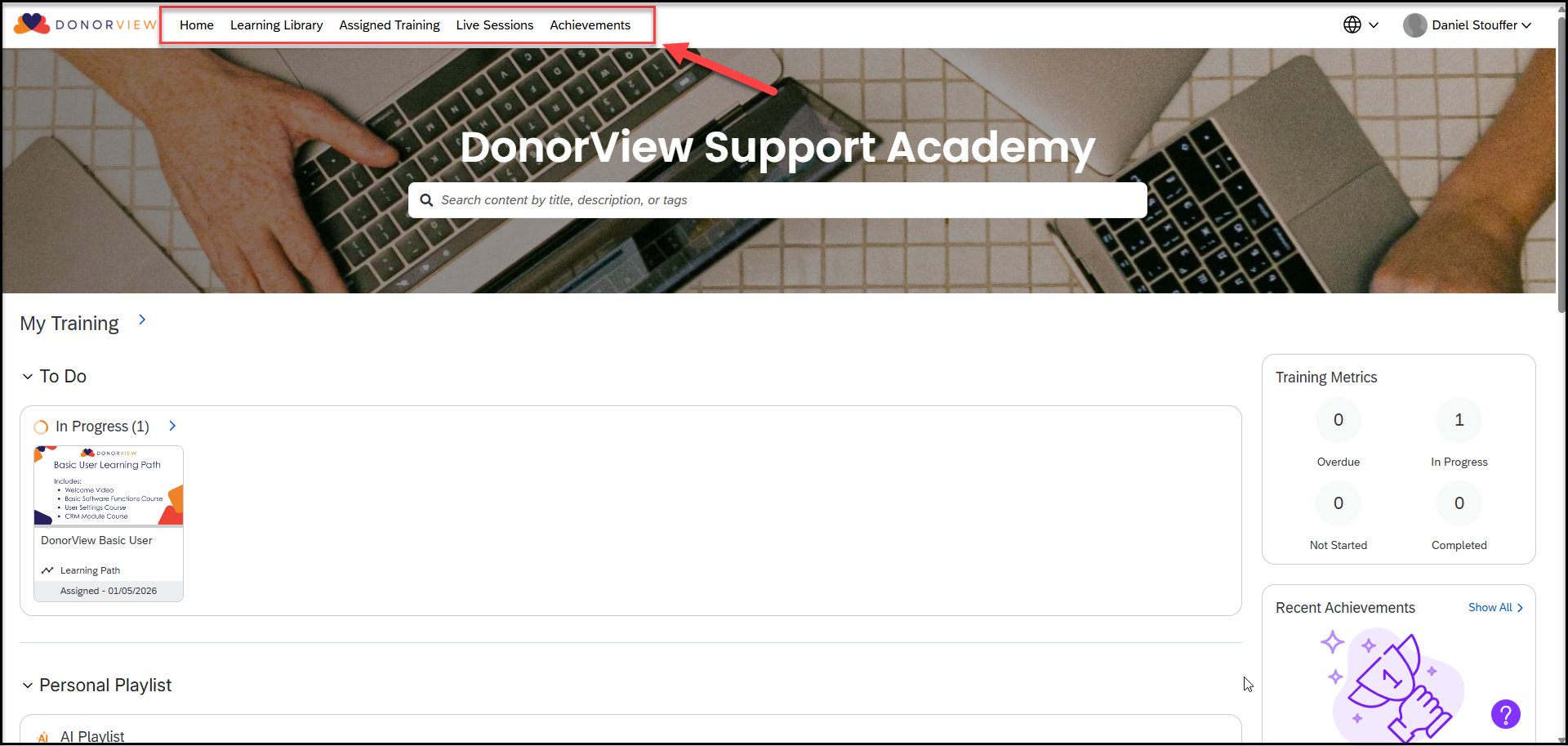
In the Learning Library you can see all the learning paths and courses available.
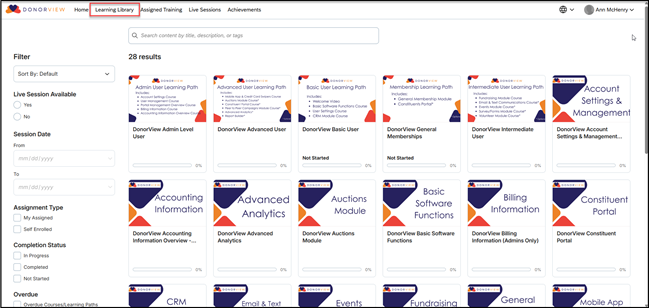
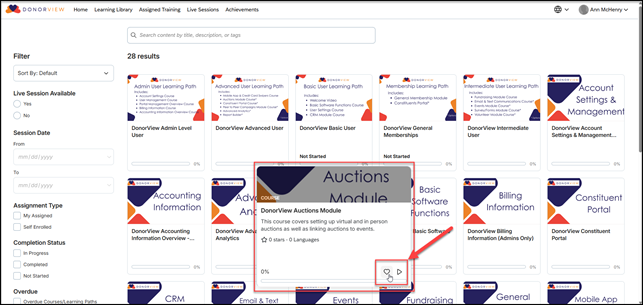
Clicking on a particular class or learning path will open a small pop up to add the class to your Favorites list or click the play arrow to open more details about the course or start the course.
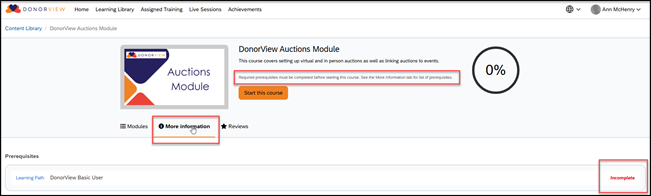
If the course has prerequisites, you can see what the prerequisites are and if you have completed them or not by clicking on More Information.
All of the intermediate and advanced level courses require the completion of the entire Basic Users Learning Path.
Courses cannot be started when prerequisites are not completed. The modules will remain locked until prerequisites have been met.
Retaking a Course
You can retake all or part of a course anytime. You can open the course from the Learning Library, Assigned Training, or from your Achievements menu link.
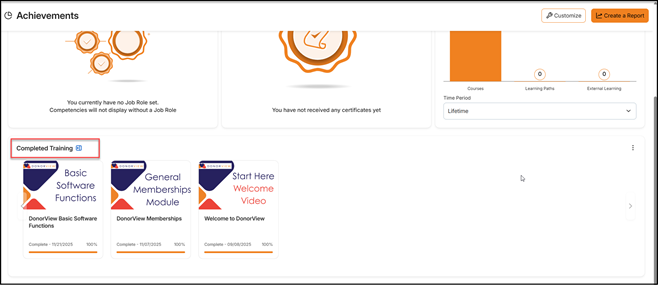
Click on a course to open it for a summary of which lesson modules were completed and your score on any quizzes.
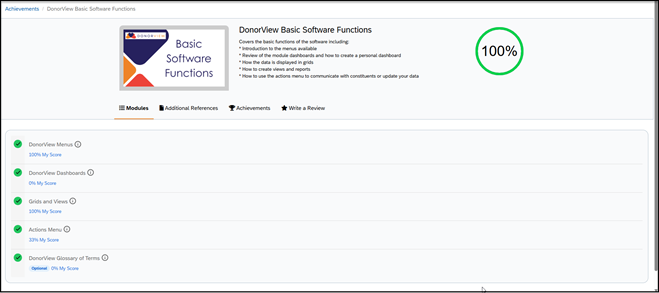
If you’d like to go to just a specific lesson module, you can click on the name of the module to open it.
If you have completed it before, you will have the option to click on Start over to go through the material again.
