Allowing your members to send direct emails to each other can be turned on while setting up you online Membership Form. During the setup go to the “Membership Settings” tab and scroll down to the bottom of the page where all the Membership Directory settings are. Near the bottom of the page you will see a toggle setting titled, “Allow portal users to send direct emails”. Turn on this setting and it will allow for direct emails through the portal.

Please note you will also need to make sure that “Email Address” is included as a field you are sharing through the private Membership Directory in the portal.
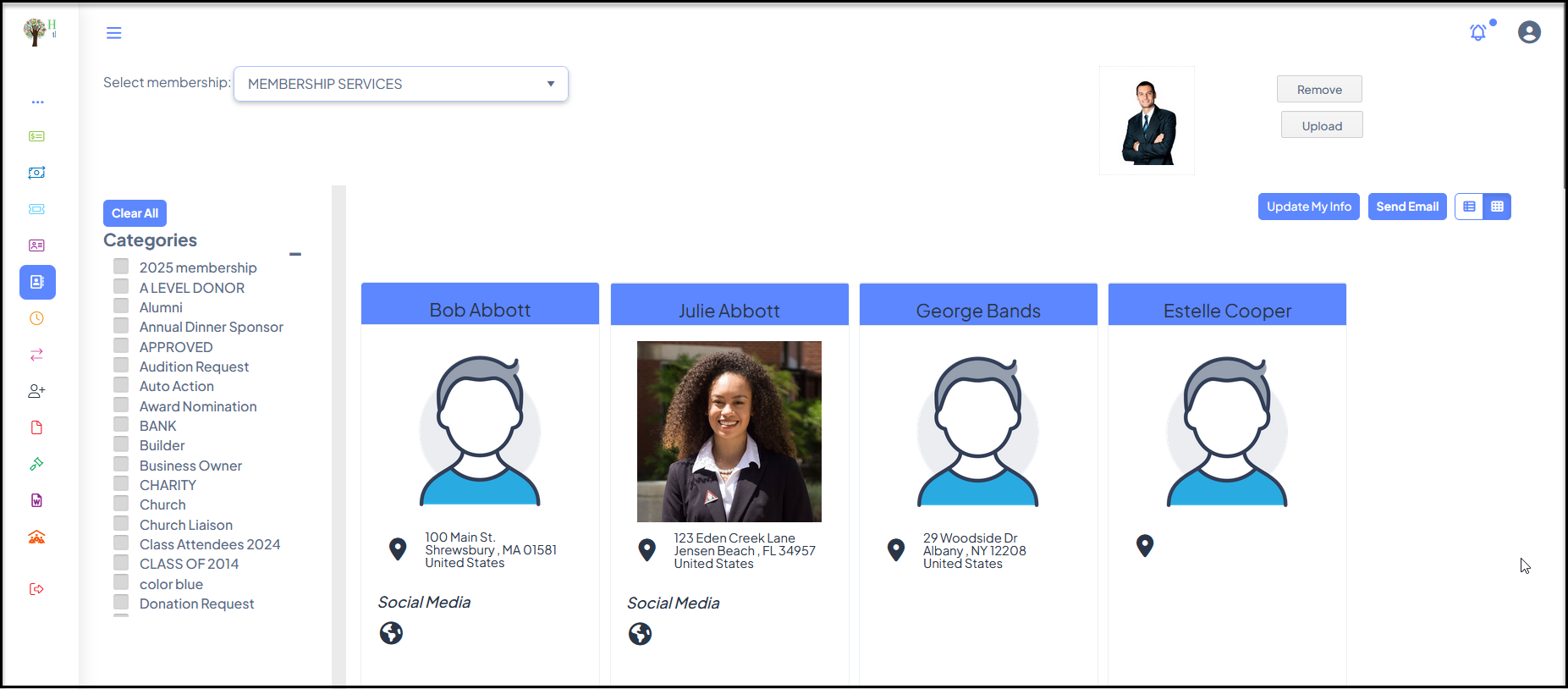
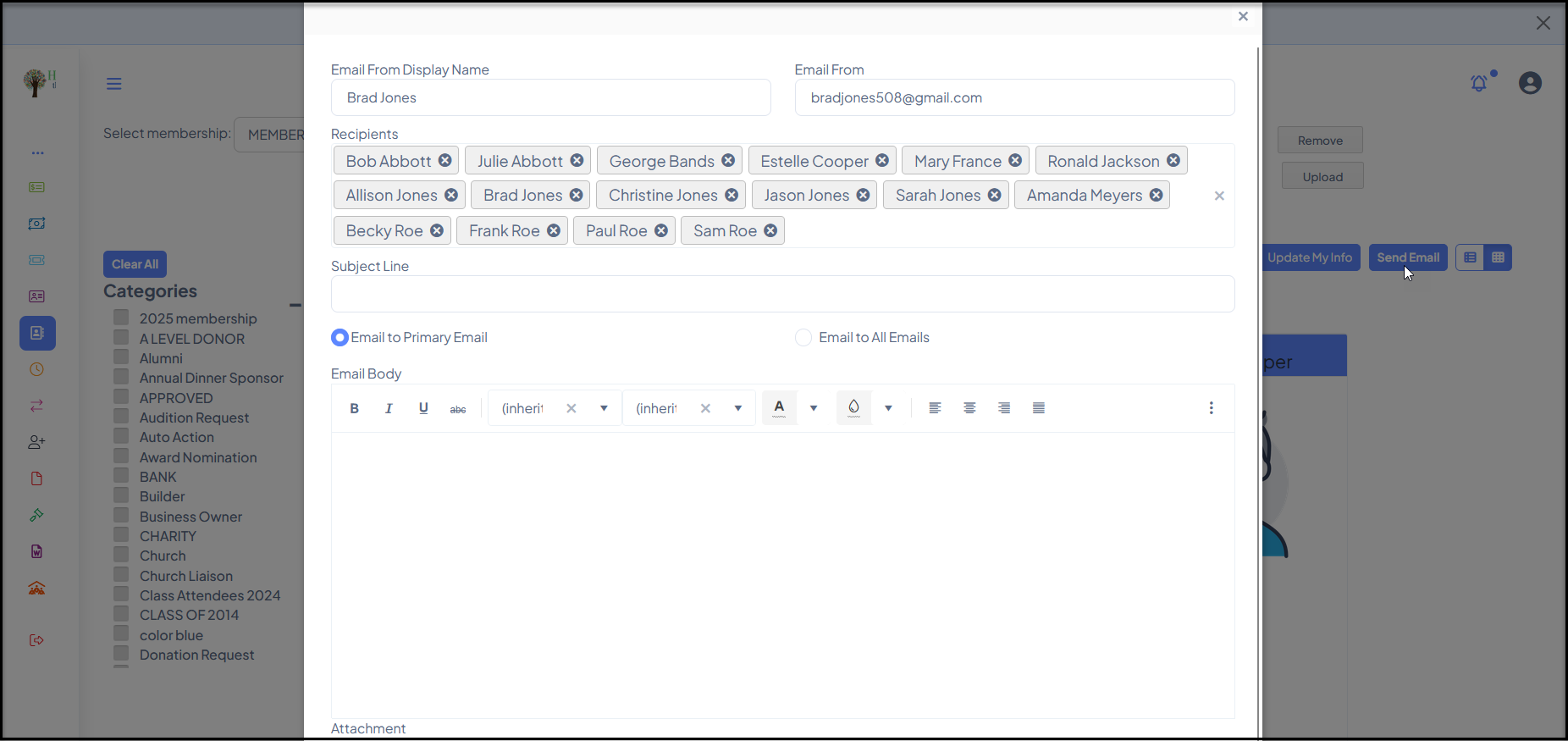
With that setting turned on portal users who have an active membership can go to the Membership Directory and click the email address of the member they wish to send an email to to initiate an email. Or, they can use the Categories to filter the grid for the desired recipients and click the blue “Send Email” button. They are then able to customize the email they wish to send including the Subject Line, Email Body and include an Attachment. Emails are sent under BCC (Blind Carbon Copy), so recipients will not see the emails of the other recipients.