
What is the difference between For, Fund, Event, and Appeal?
Updated Aug 12, 2026·3 min read
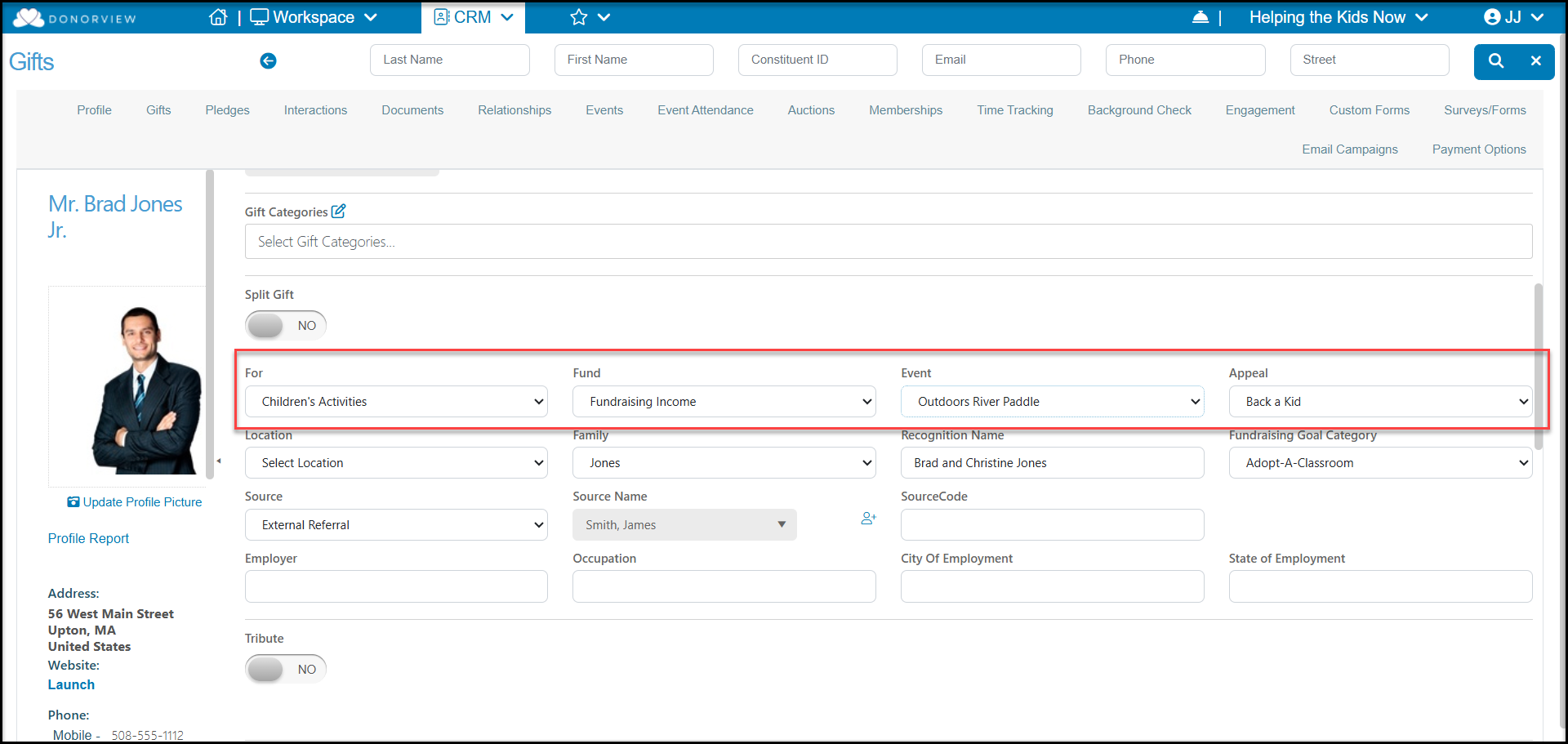
For every transaction that happens in the software, there is an opportunity to assign it to different revenue categories, For, Fund, Event and Appeal. The example below is a gift entry.
- For is generally used to identify how the revenue for this transaction will be used. It could be for a campaign, project, program or any use you assign.
- Fund is usually related to the bank account the money will be deposited in. This field is important if you export your data to Quickbooks and ties the transaction to specific funds in Quickbooks.
- Event allows you to associate the transaction to an event, whether it is an event you have created in the Events Module or some other event not necessarily having it's own event page in the software.
- Appeal lets you tie the transaction to an appeal that you sent to your constituents. Appeals can be things like year-end fundraising appeals, invitations to events, monthly newsletters, etc. You can also create appeals like General or Unsolicited to capture any transactions that don't fit into an obvious category. Tying the transaction to an appeal let's you see how your appeal performed based on the number of appeals sent out versus the number responses and amount raised.
Navigate to Workspace > Fundraising > Gifts
Edit an existing Gift or add a new gift (+ New > Gift) - the gift does not need to be saved to perform the following steps.
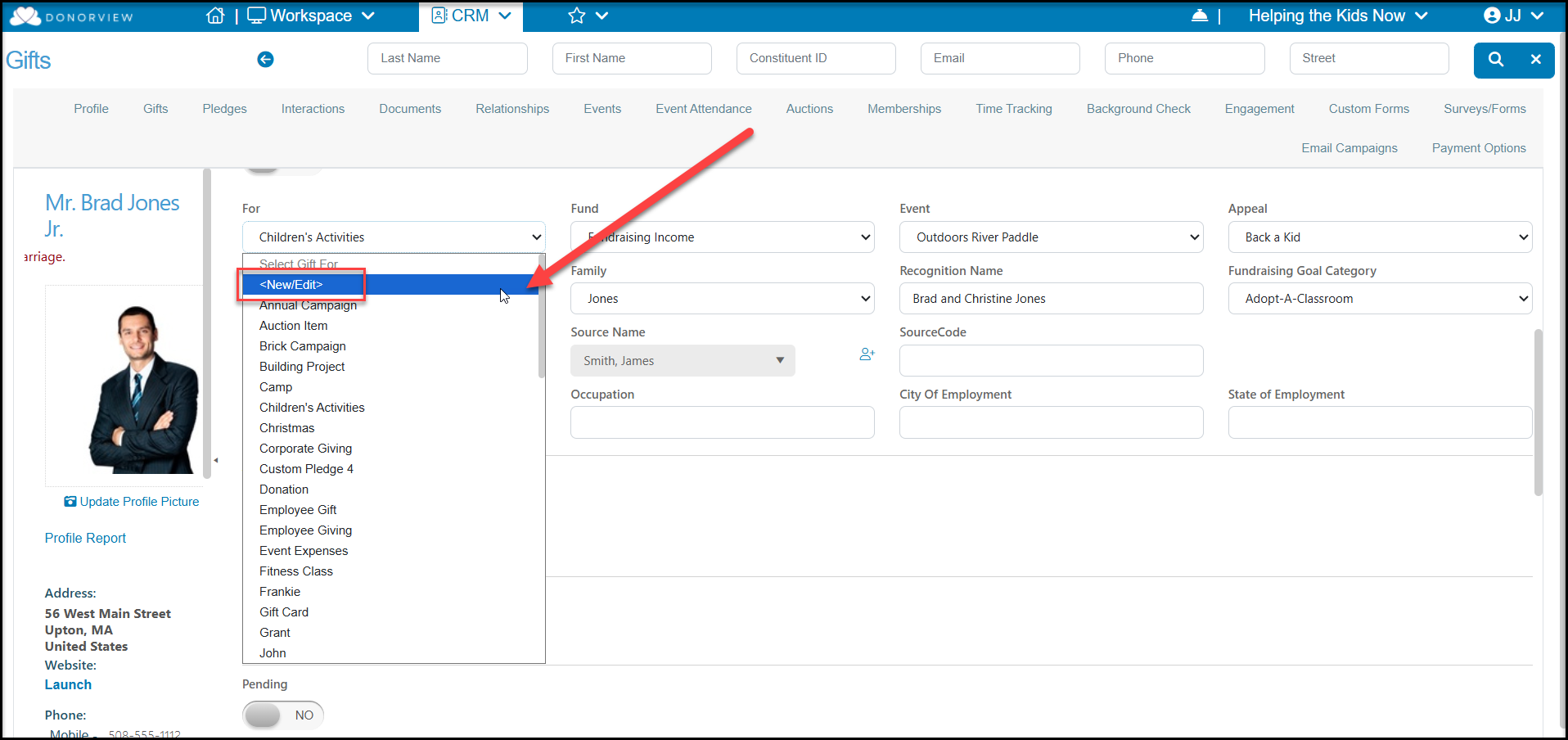
Each of these lists can be edited. Click on the box and select <New/Edit> to open a new window.
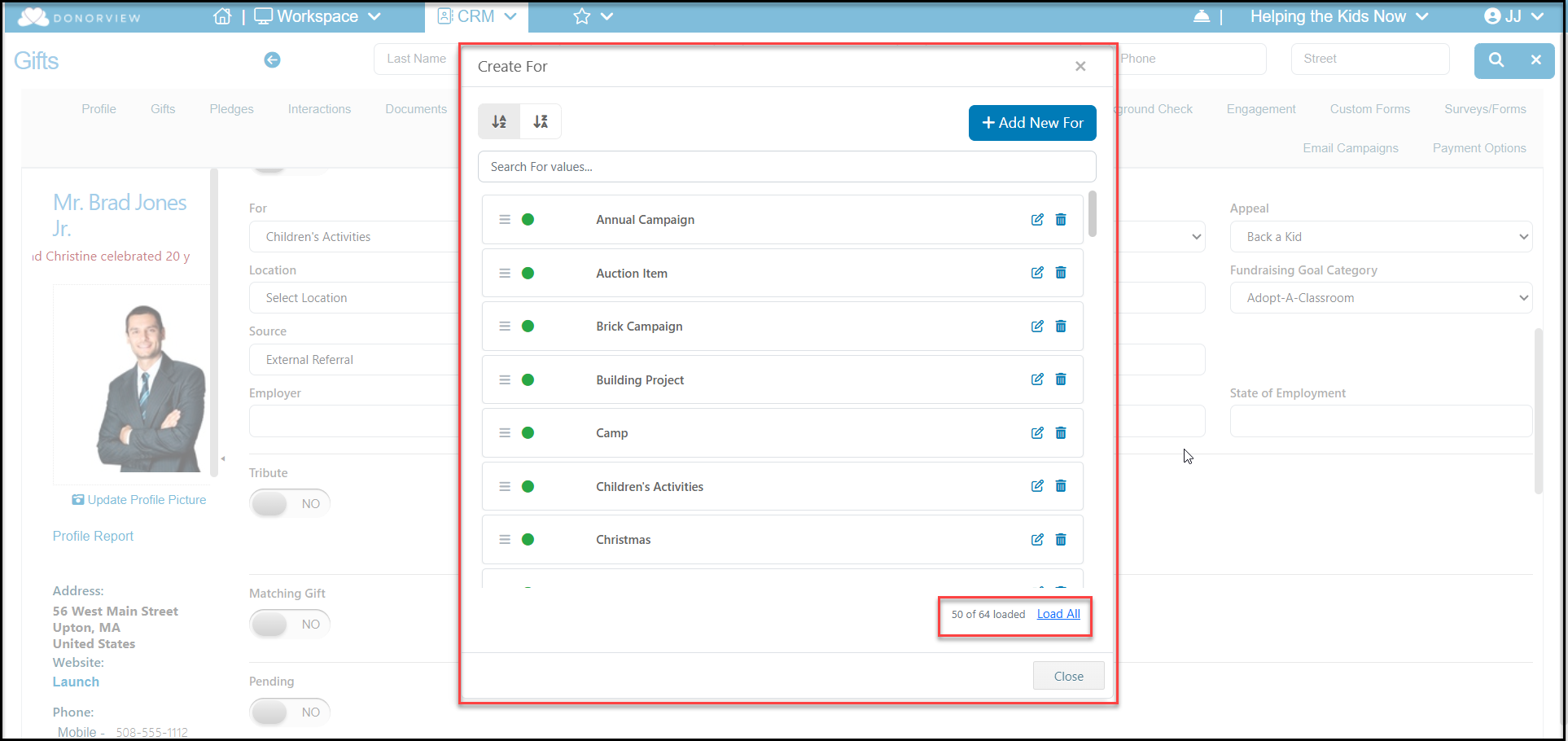
- In the new window you can re-order the list with the alphabet buttons at the top of the window. You an also search for the value to ensure it does not already exist.
- Click on +Add New to create a new value.
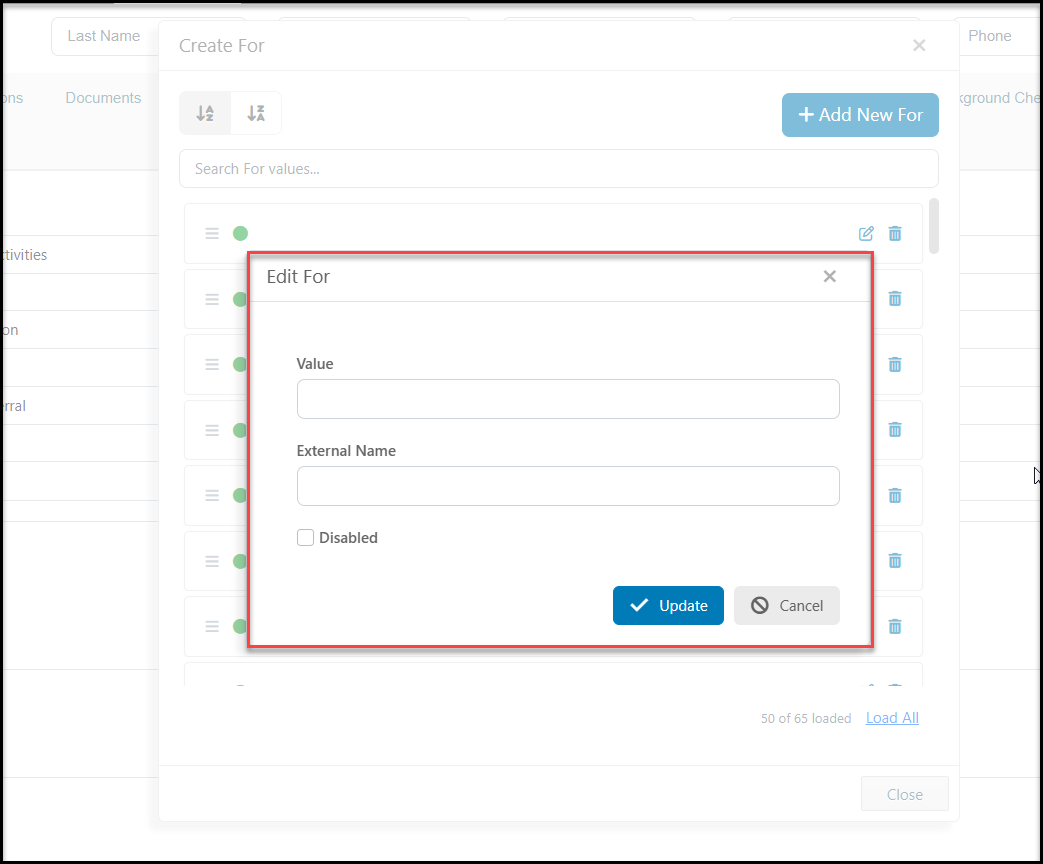
- In the Edit window, enter the name of the new category under Value.
- If this is a revenue category that your donors can select from a donation page and you wish the name to be different from what your internal users see, you can enter an alternative in the External Name. If this is left blank, the internal Value and External Name will be the same.
- Click Update to create the new option.
- Using the edit icon on the right side of each row, you can also open the edit window to make edits or check the Disabled box to keep the value, but prevent future transactions from being assigned to it.
- You can also click on the trash can icon to delete a value that is not in use. If there are transactions that currently have this value assigned to their record, the value cannot be deleted. You would need to update all the previous transactions to remove the value and reassign it before it can be deleted.
Was this article helpful?