How do I create a Year-End Tax Letter?
If you would like to create a year-end tax letter for your constituents, you will use the Constituents grid to create your view and generate your letters.
-
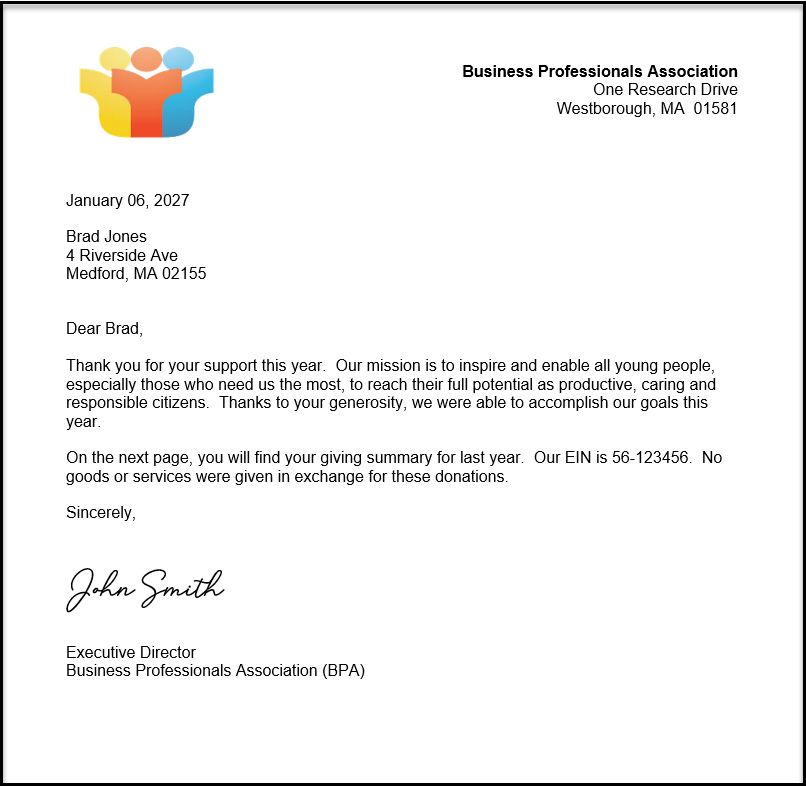
Your first step will be to create your mail merge template letter to act as the cover letter for your statements. See How to Create Mail Merge CRM Template Letters to learn how to create a new template or edit an existing template.
-
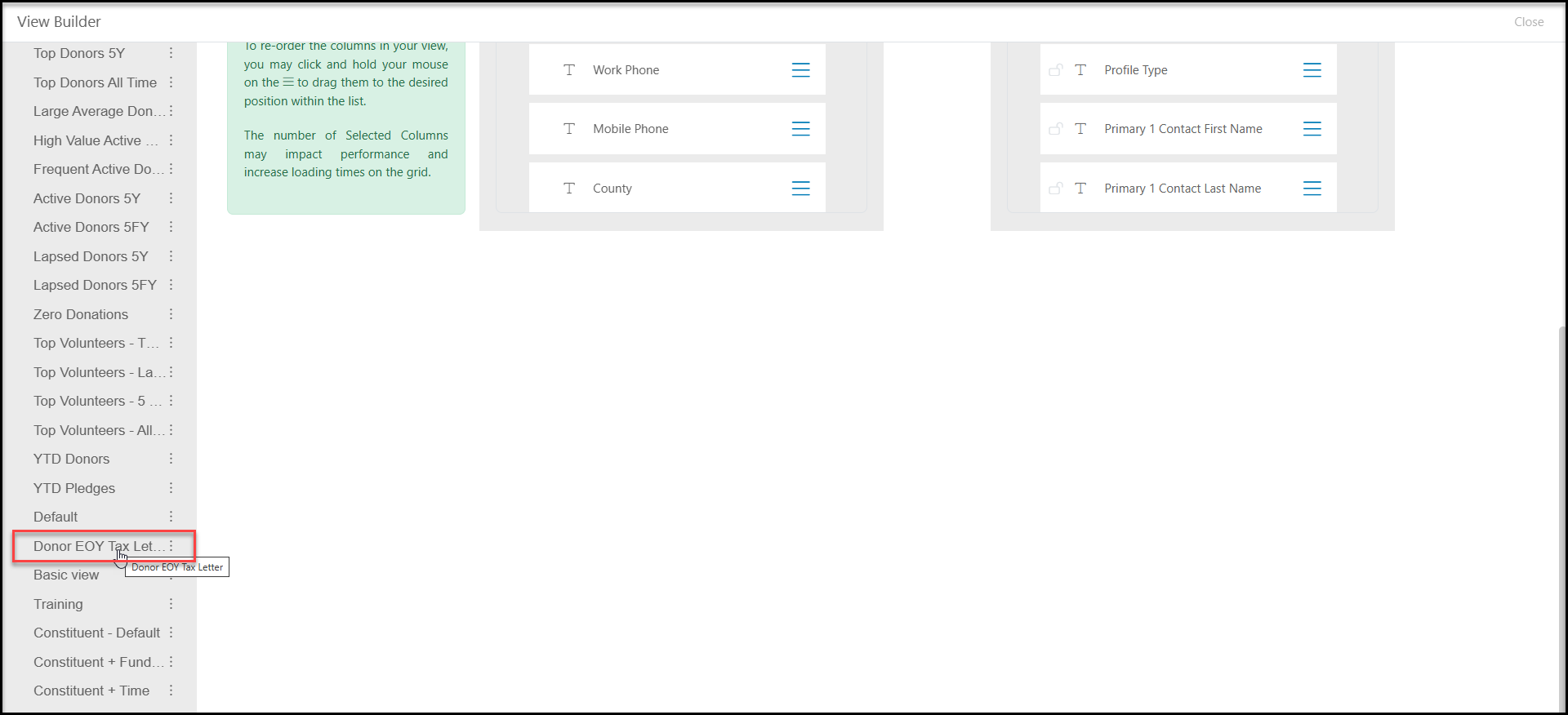
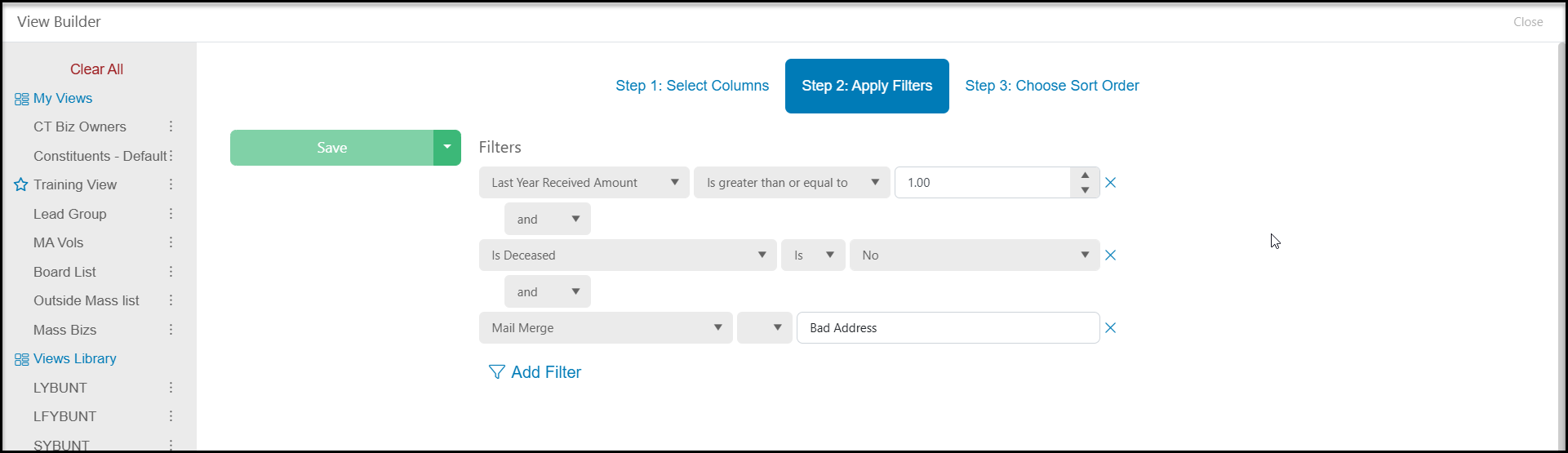
Next, filter the Constituents Grid to identify the constituents who will receive the letter. In the Views Library there is a pre-designed view called "Donor End of Year Tax Letter." This view already has filters applied which assumes the letter is being sent after the 1st of the new year and that you only want to send the letter to constituents with a good address and who are not deceased. You can customize the view as applicable for your organization.
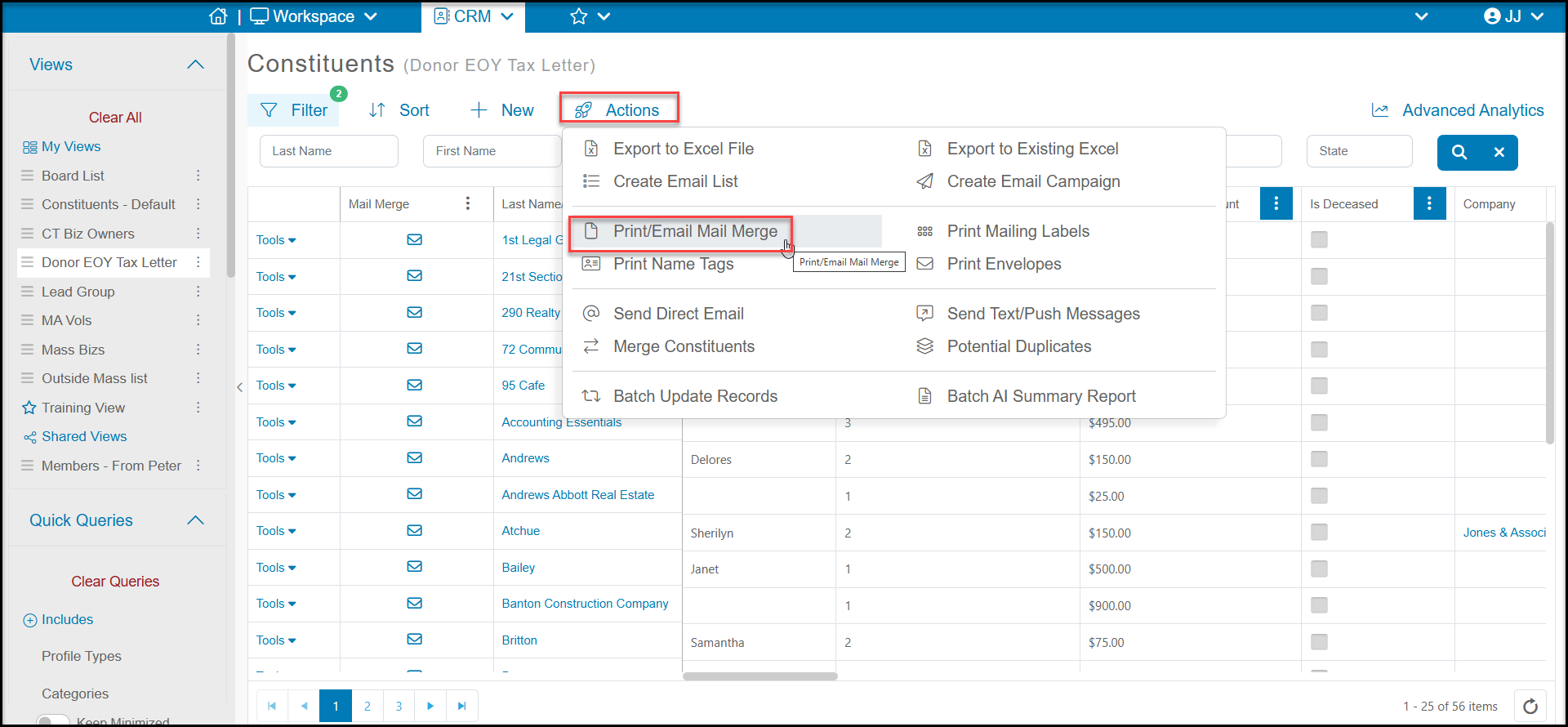
- Once your cover letter template is created and the grid is filtered with the constituents you would like to receive the letter, use the Actions menu and select Print/Email Mail Merge.
-
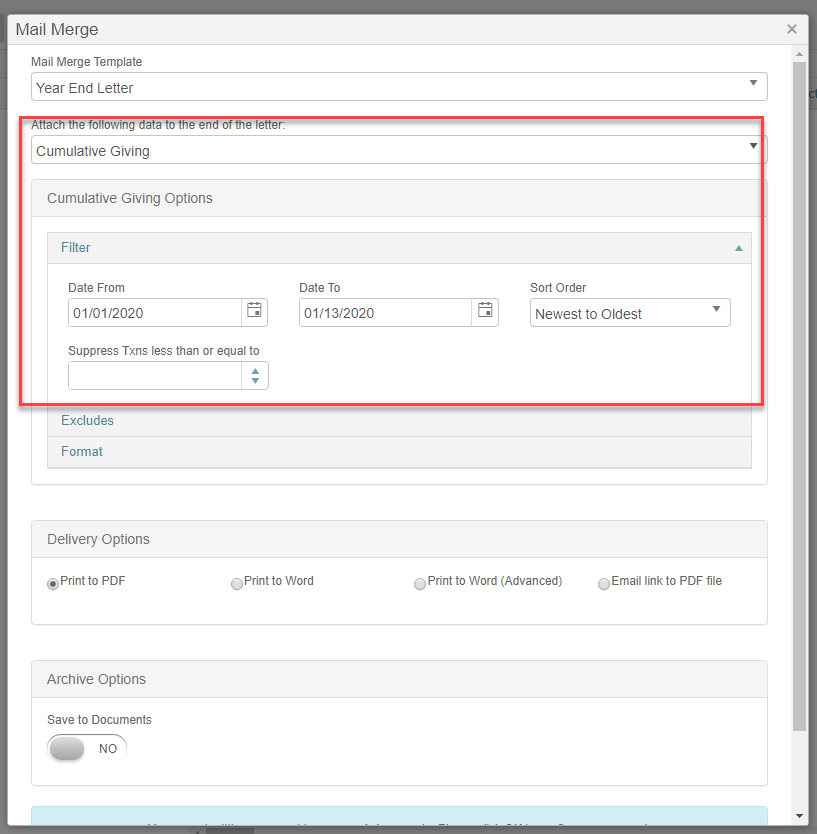
A new dialog box will open where you can select the cover letter template you created and you can attach Cumulative Giving from the second dropdown box.
-
Filter the date range and determine how you would like the data sorted and you have the option to suppress small transactions by entering the value of transactions you would like excluded from the list.
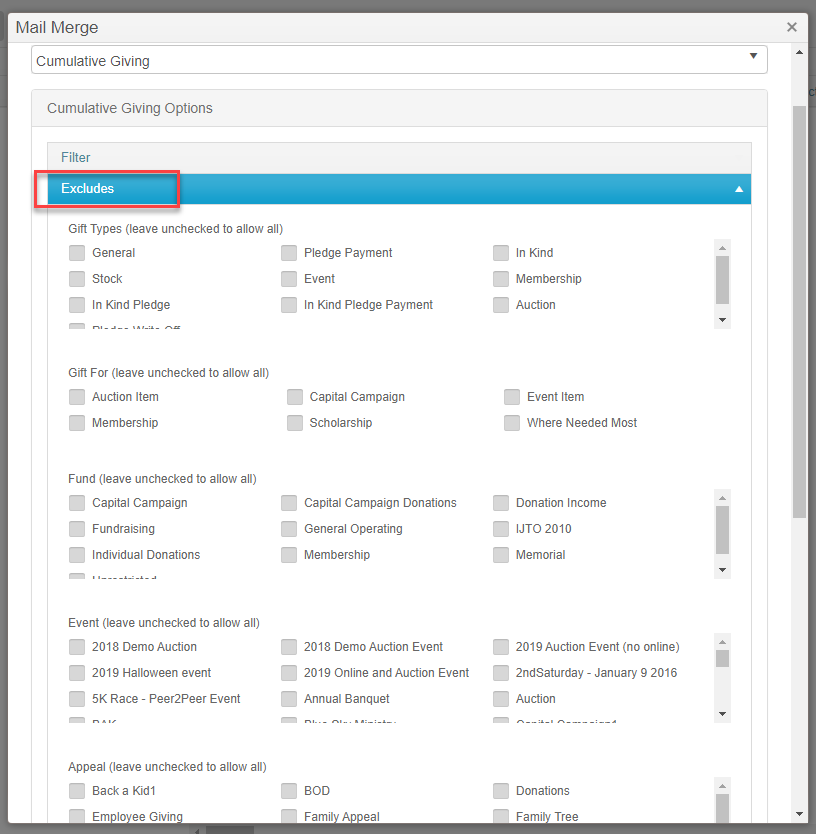
- The next box allows you to exclude different types of transactions, or transactions for specific For, Fund, Events or Appeals.
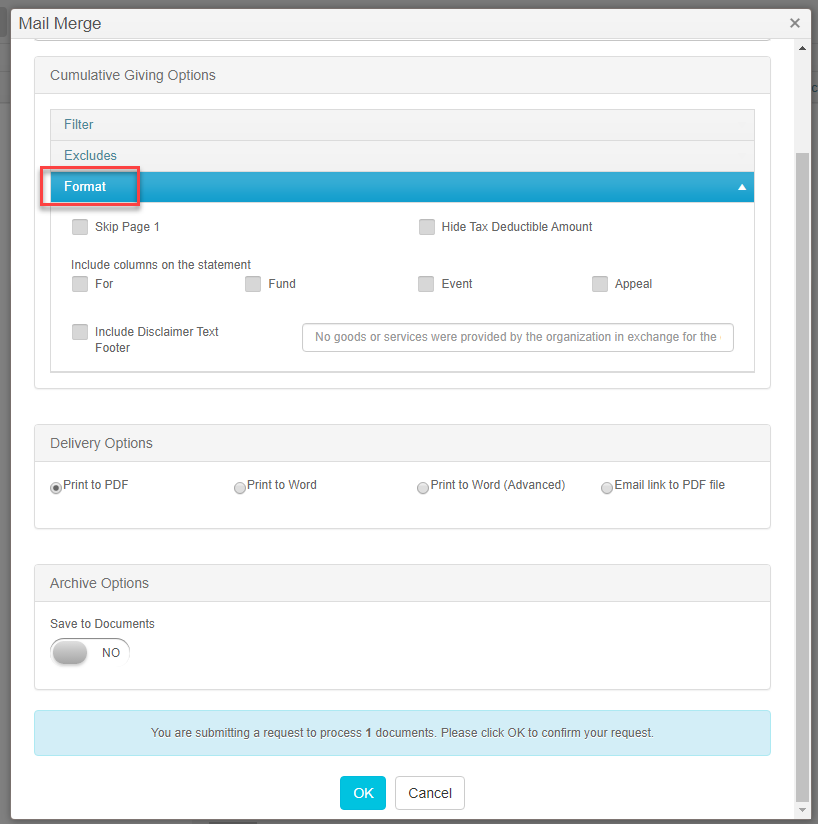
- The final option allows you to choose how you would like the Cumulative Giving report formatted.
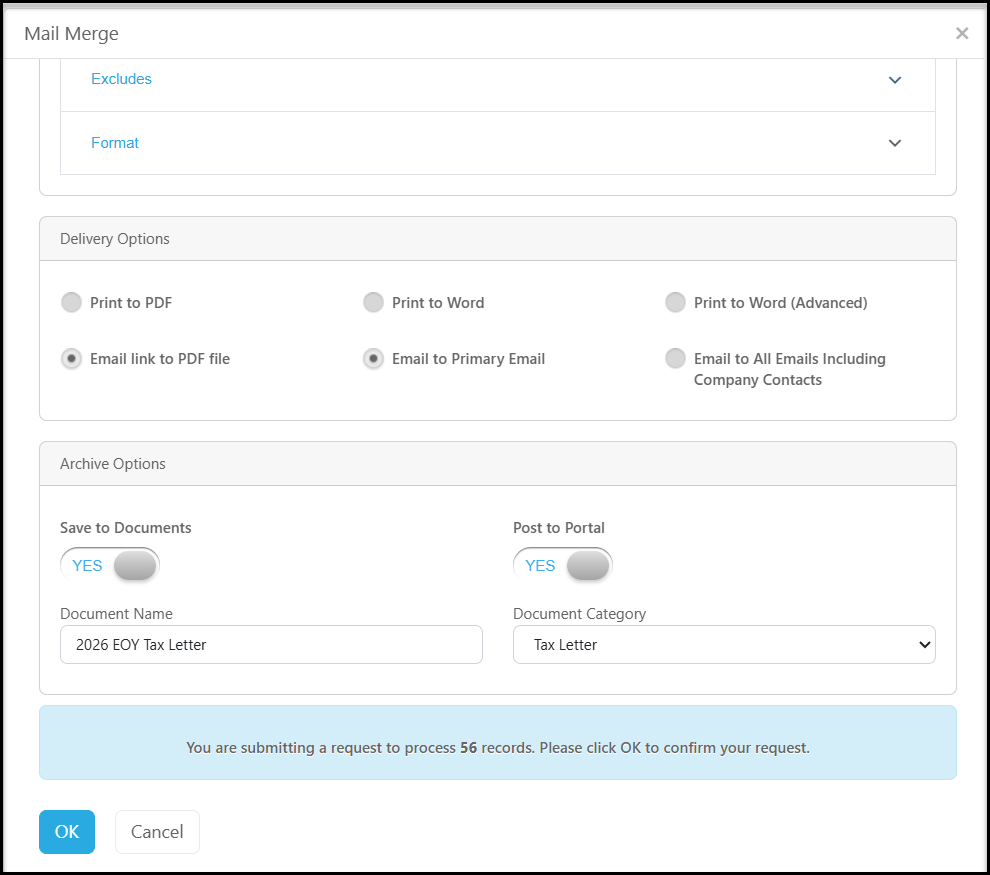
- Next you can choose your Delivery Options.
- Print to PDF will produce a pdf file of the letter and open it in a new tab on your browser.
- Print to Word will produce a Word document and download it to your computer. Be sure that your pop-up blocker is off for your browser. If you need to edit the letter prior to sending it, use the Print to Word feature to make your edits.
- Print to Word (Advanced) will also produce a Word document and download it to your computer, but it is only used for documents which contain complex features like tables and charts.
- Email Link to PDF file will open a new window once you click on OK at the bottom of the window. You can choose to send Email to Primary Email or Email to All Emails which would send a copy to all emails in the constituent's profile. Note that this selection will not allow any edits to the letter. However, you will be able to customize the email message.
- In the Archive Options, you can choose to save a copy of this letter in the constituent's Documents tab and the CRM Documents grid by marking Save to Documents as YES.
- With this marked YES, you also have the option to post this document to the portal for the donor to view if you have activated the Advanced Portal.
- You should enter a Document Name that makes it easy to identify the document.
- You can also assign it to a Document Category. This picklist is editable click on the <New/Edit> option in the list.
- The last step is click OK to generate the letters. For letters that are printed, the PDF file will open or the Word document will download. Clicking Cancel will close the window without generating the letters.
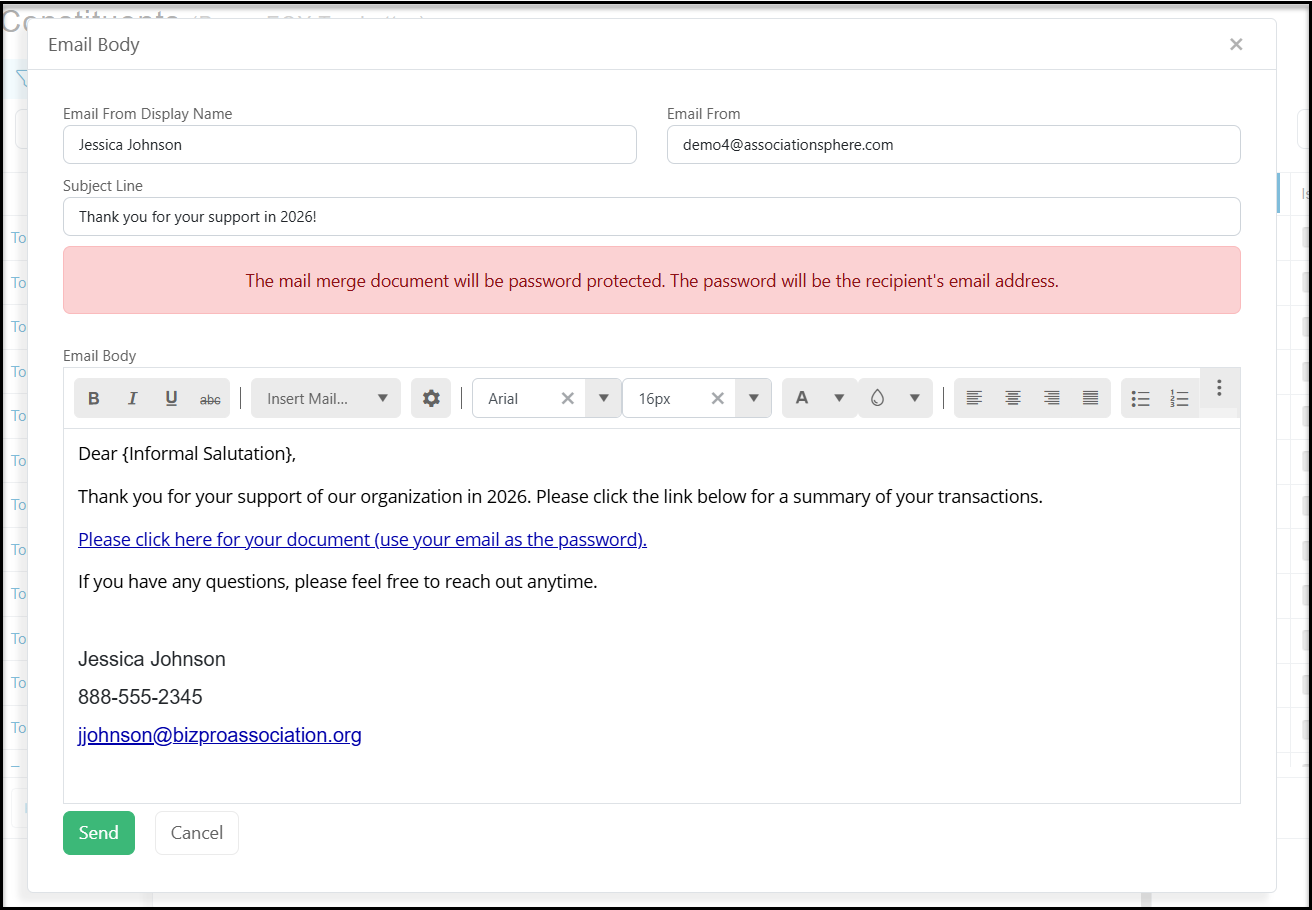
- For sending via email, a new window opens as shown below.
- The Email From Display Name auto populates with your user name and Email From auto populates with your user email address. You can edit as needed.
- You can customize the Subject Line as desired.
- For security, the donor will be asked to enter their email address in order to view the document.
- You can customize the Email Body with merge fields and font preferences.
- A default link will be inserted for the donor to click to download their document as a pdf. If this link is accidentally deleted, you can insert a new one by clicking on the gear icon and entering new text for the link.
- When you have completed the email body, you can click Send to send the email. Cancel will close the window without sending the email.
- Because this letter contains financial information, there is a password protection feature that cannot be bypassed. To open the letter, the recipient will enter their email address to view the document.
Because this list will likely involve a large number of constituents, it may require additional time to process and execute the mail merge. If this happens, you will receive a message indicating the the mail merge is in the Mail Merge Queue.
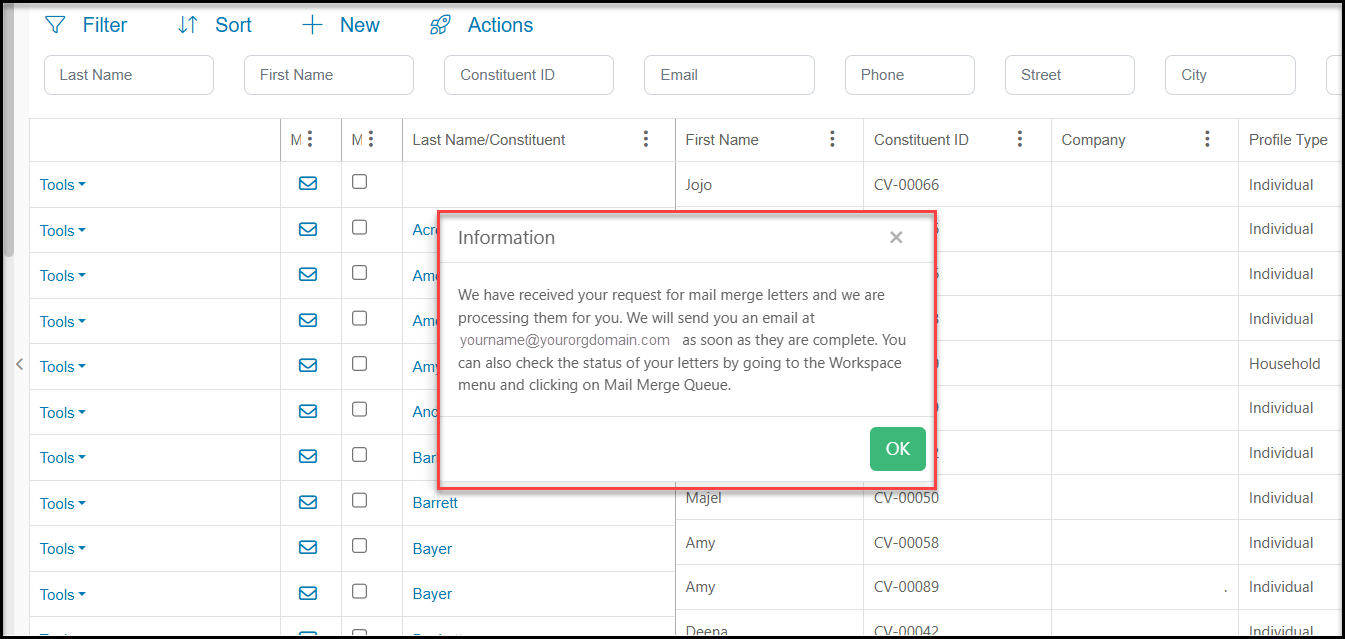
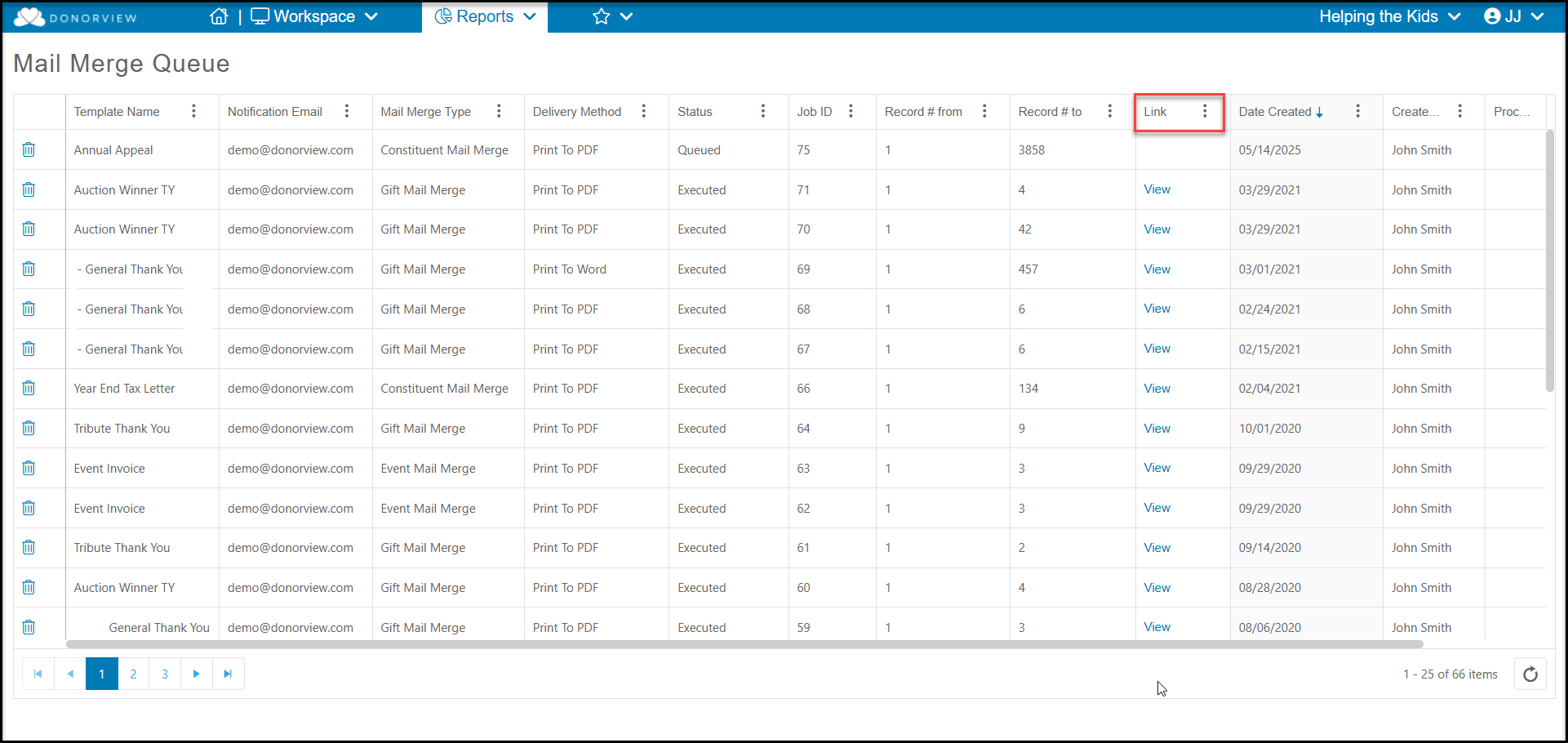
You will receive an email when your mail merge is complete. You can recover the document in the Reports module by clicking directly on Mail Merge Queue.
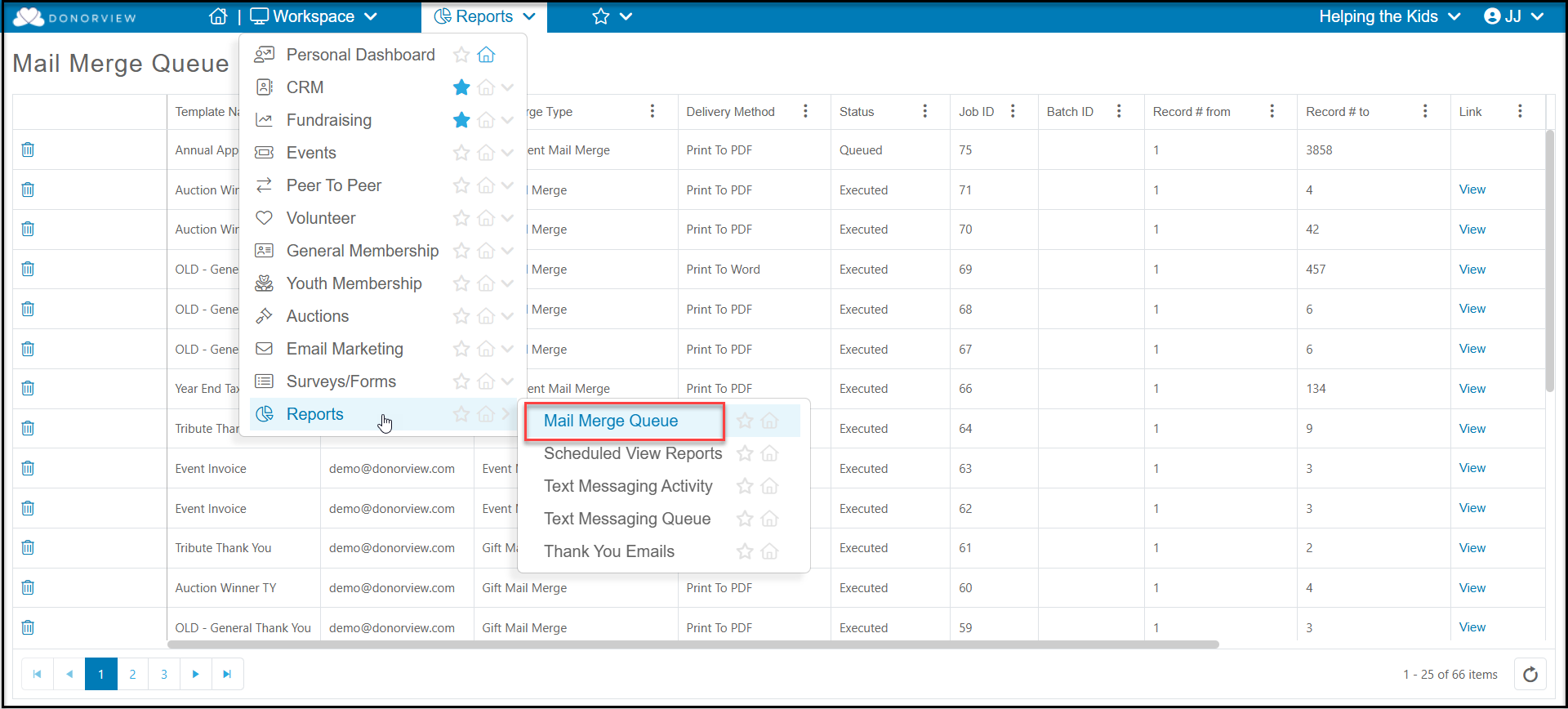
On the Mail Merge Queue grid you can see columns for Template Name, Date Created, Delivery Method, and Status.
Once the mail merge is complete, you can find a link to View in the Link column if the delivery method was Print to Word or PDF. If the message was sent via email, you will see a Email link to PDF file but no link to view. The Processed Records column will also have a link for you to view the records that were included in the message.
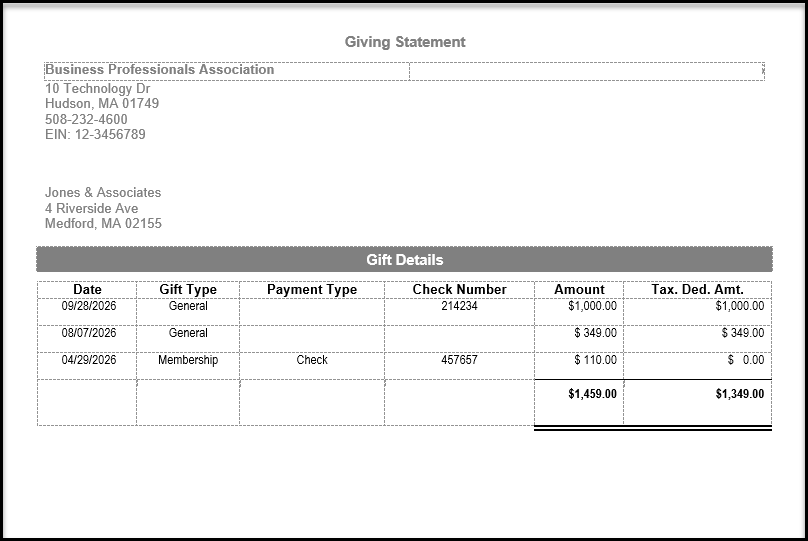
The final letters will include your cover letter as well as the statement of giving attached.