
Updating a Credit Card on a Recurring Donation
Updated Oct 12, 2026·2 min read
You can request an update if you received notice that a credit card was declined or the constituent reaches out to update their credit card information. Please refer to this article "Updating a Constituent Credit Card" for instructions on getting the new card number entered by the constituent using Send Update Request. You can also manually update the card number if you received the new credit card information from your constituent. From the Payment Options tab for that constituent, click on +Add credit card to add a new card number.
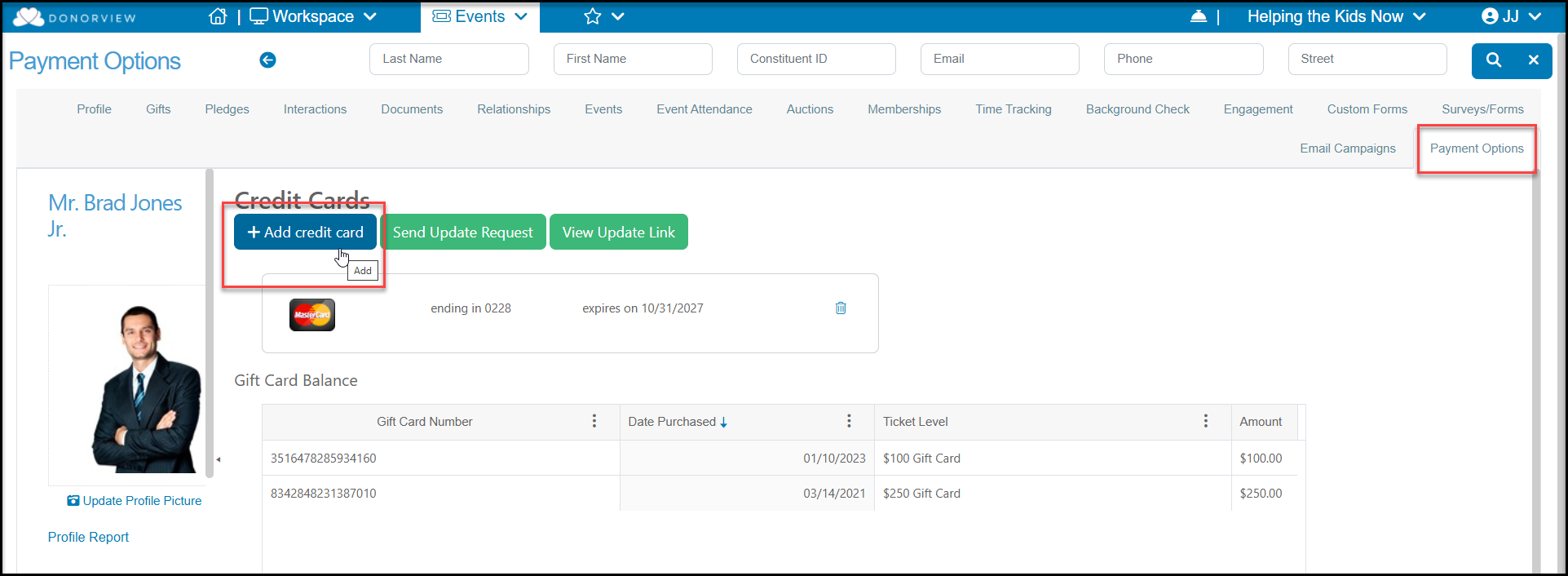
Once the new card has been added or the constituent wishes to charge a different card that is already on file, it will be necessary to update the pledge.
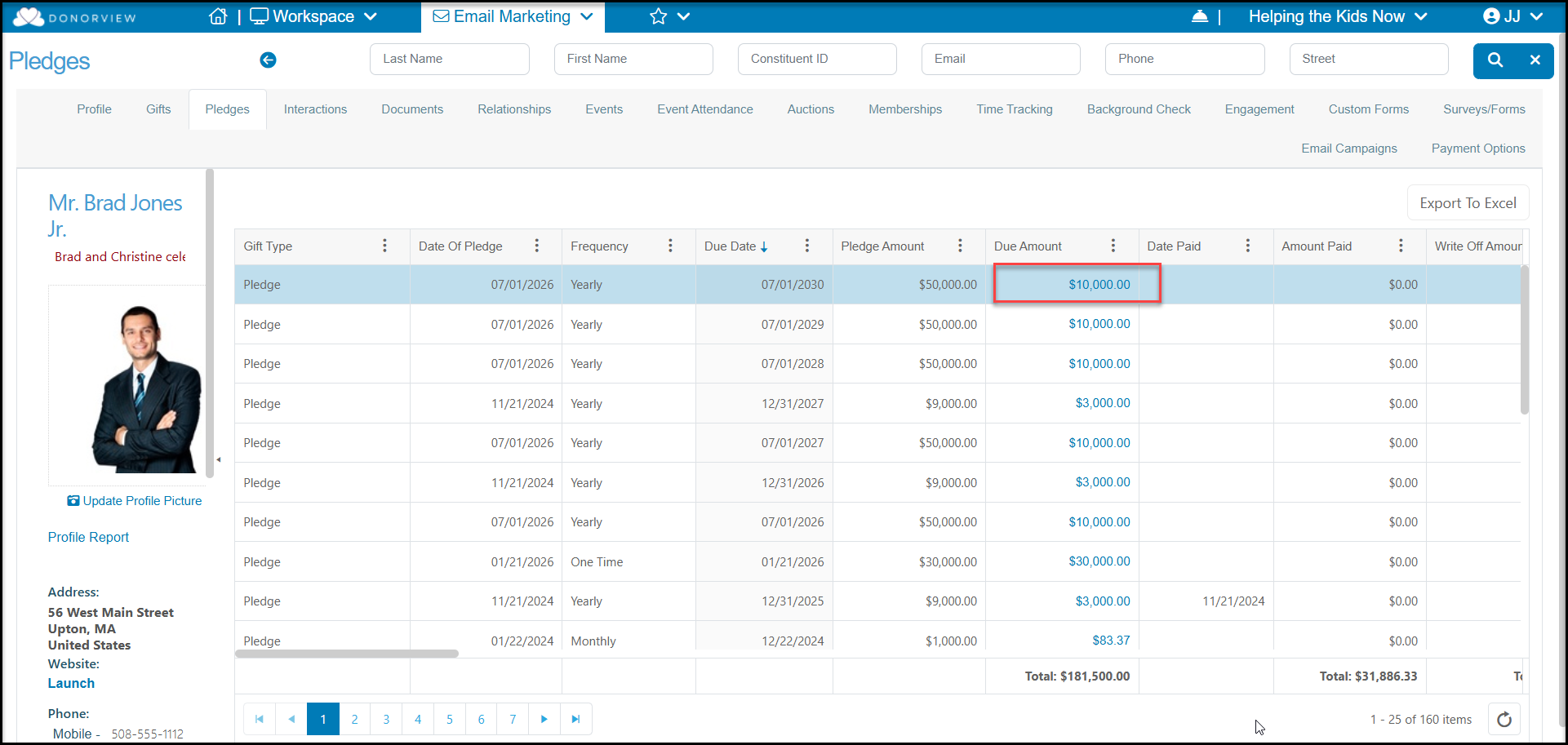
- Go to the pledge from the constituent's Pledges Tab.
- Double click on any of the Due Amounts for that pledge.
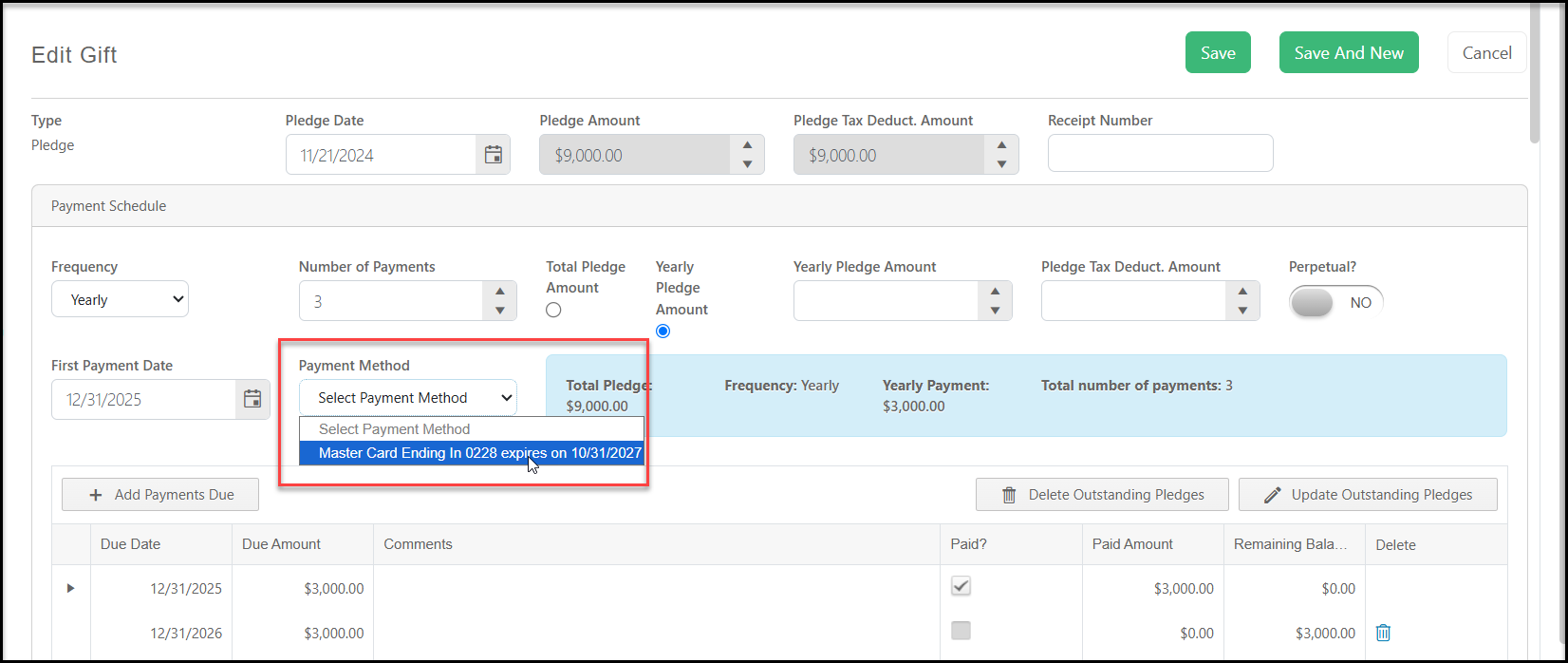
- Go to the Payment Method drop-down and select the new card number.
- Click on the green Save button on the top or bottom of the page to save the change.
- Once the old card is no longer linked to any donations it can be deleted on the Payment Options tab.
- Deleting the old card will stop any Credit Card Expiration notification emails as well.
Was this article helpful?