
Can a pledge or recurring payments be deleted?
Yes, but there are several options to manage a pledge that will no longer be fulfilled.
-
Delete an entire pledge when no payments have every been received.
-
Delete future pledge payments when one or more payments have been received.
-
Write-off a pledge when payments have or have not been received. This method is used if your accounting process recognizes pledges as receivables when they are made and you must account for loss of expected revenue.
Deleting a Pledge with No Payments
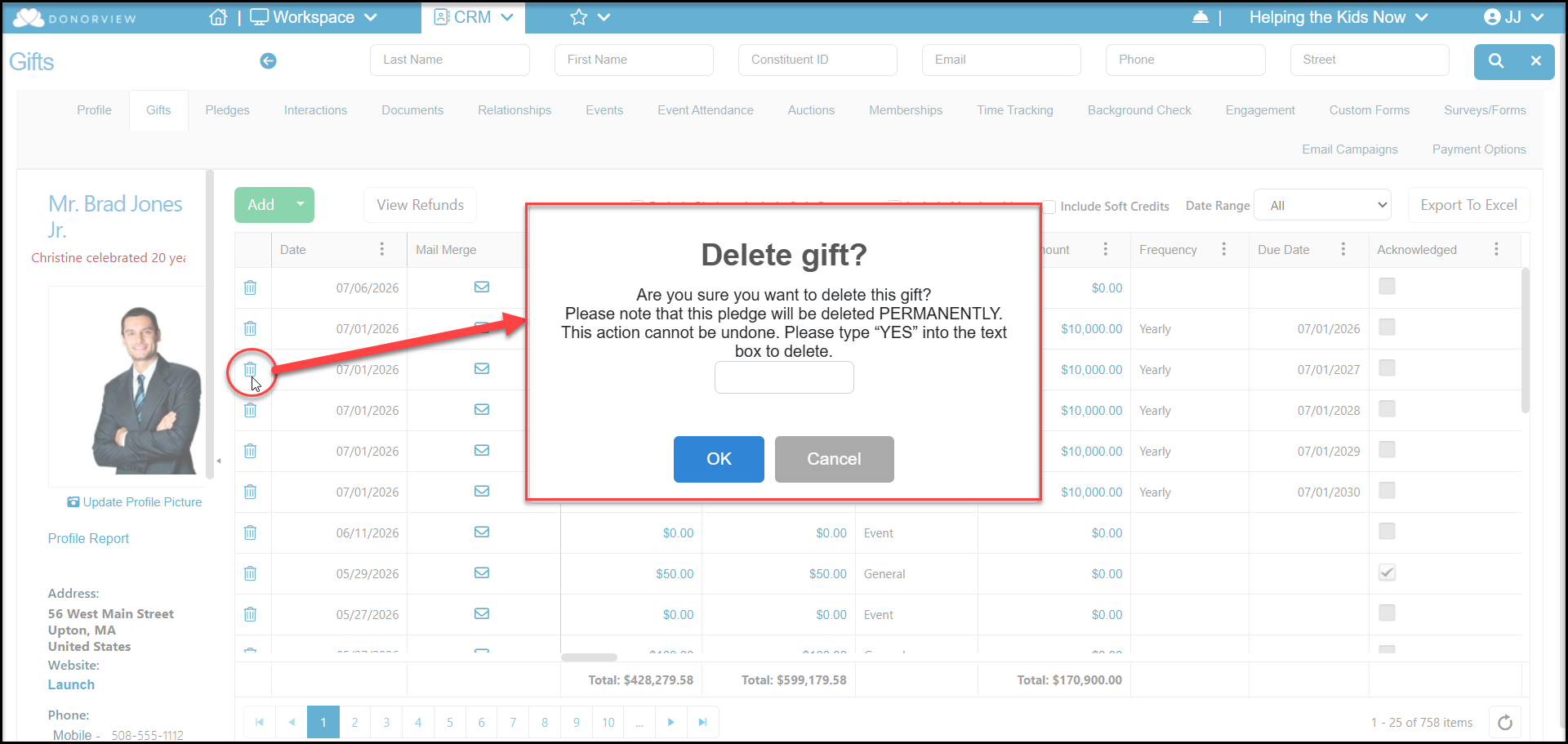
If a constituent made a pledge, but never made any payments, you can delete the pledge from either the Gifts grid or the constituent's Gifts tab. Do not use the Pledges grid. This action cannot be undone and will permanently delete the entire pledge.
Locate any of the transactions labeled "Pledge." If the pledge was originally intended to be multiple payments, there may be several rows labeled "Pledge" but you only need to select one to remove the entire pledge. Click on the trash can icon on the left side of the row. In the dialog box that opens, enter "YES" in the space and click OK to delete the entire pledge. You can also click Cancel to abandon the deletion.
Deleting Future Pledge Payments Due
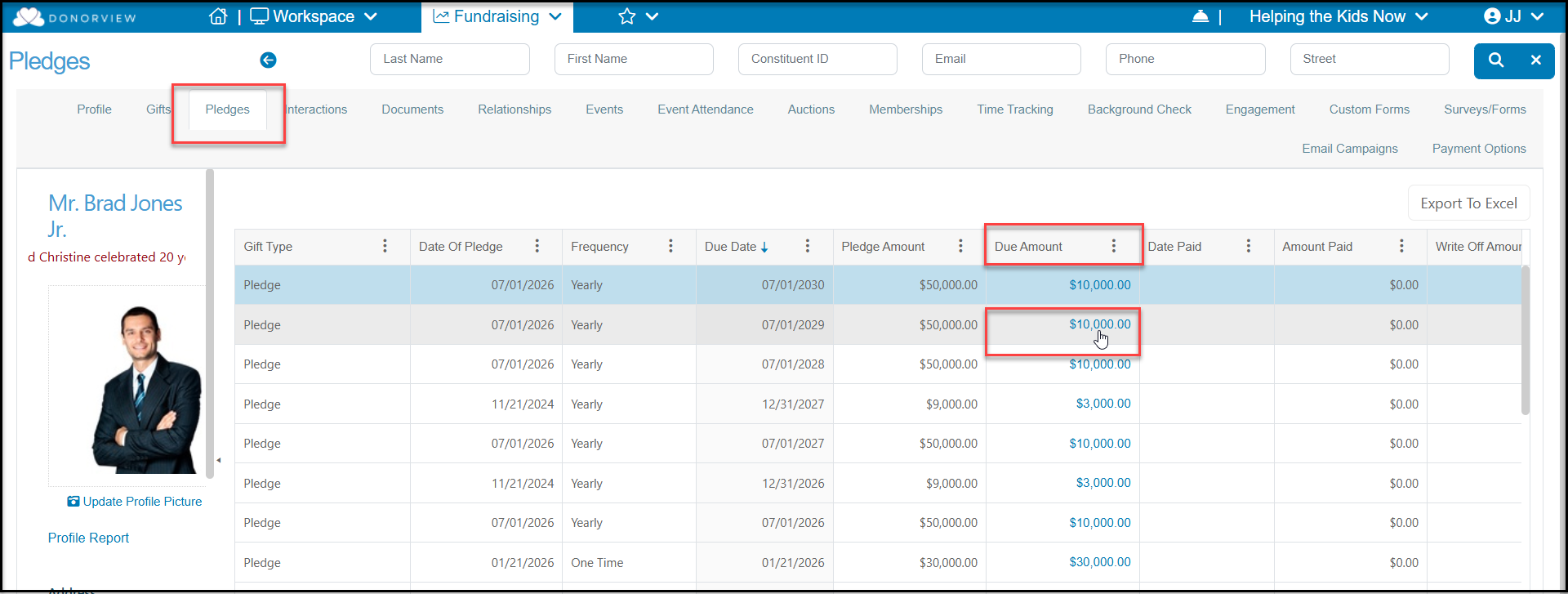
When a constituent has made payments on their pledge, you can maintain the pledge and payments collected, but delete any future payments. For this action, you will use the Pledges grid or the constituent's Pledges tab. Click on any of pledge amounts under the Amount Due column to open the pledge.
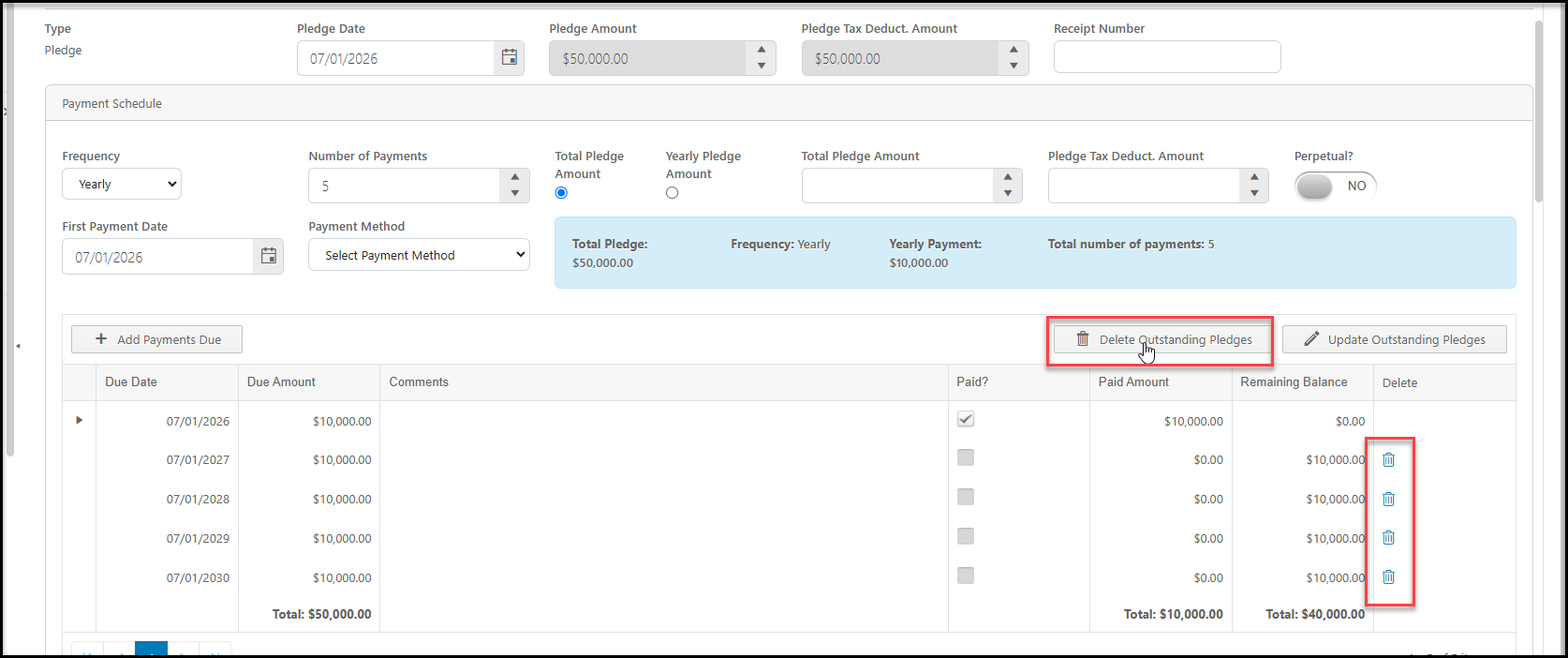
On the Pledge record, you can choose to Delete Outstanding Pledges to delete all the remaining pledge payments with a balance due, or you can choose to delete each specific pledge payment that is due using the trashcan icon on the right side of the row.
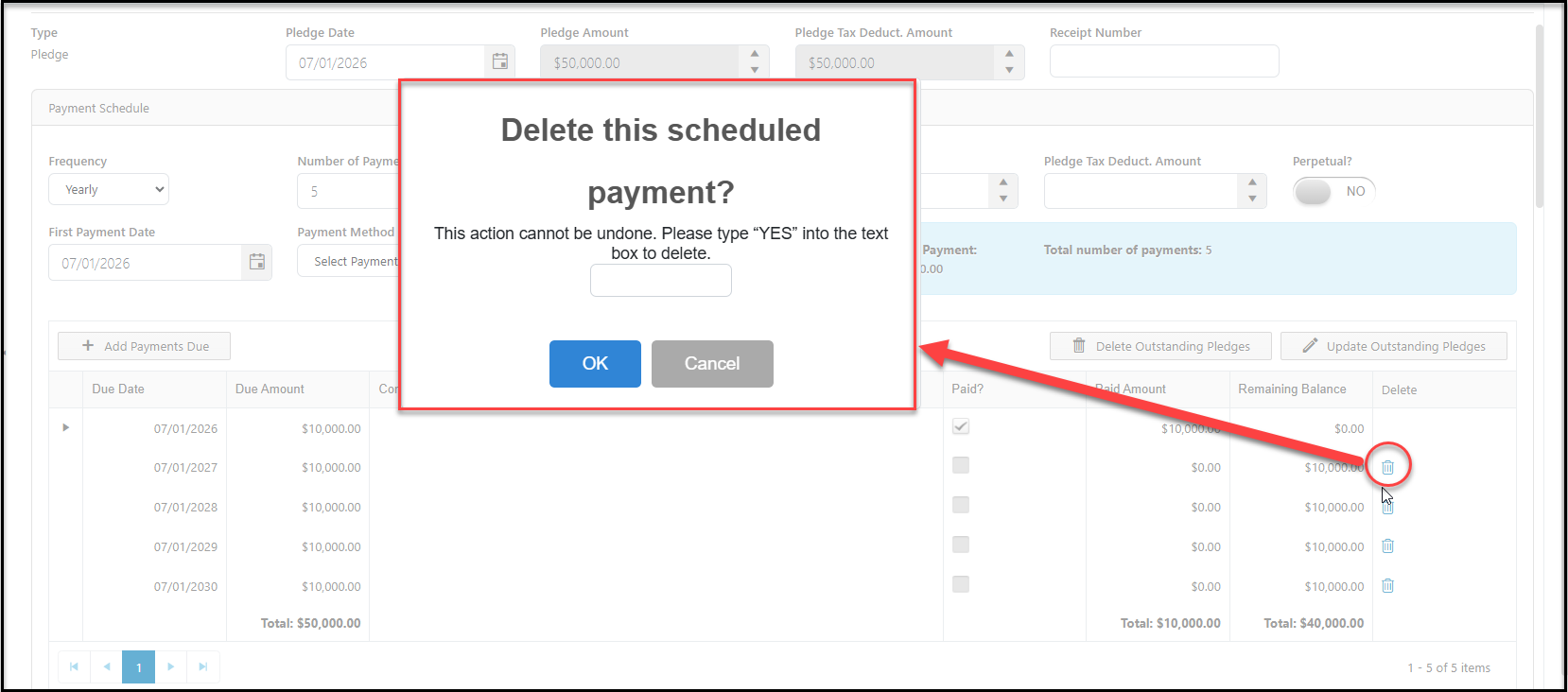
For either method, a new dialog box will open to confirm the deletion. Deleting these open pledges cannot be undone.
Pledge Write-Off
Instead of deleting a pledge, the other option is to write-off the pledge payments with a balance due. A pledge write-off will show that the pledge was originally made, however some, or all of the payments were not completed. To write off a pledge, select the appropriate constituent from the Gifts Grid, and select +New > Gift from the menu at the top of the grid or go to the constituent's Gifts tab and select Add > New Gift. Do not use the Pledges grid or tab.
In the New Gift window:
-
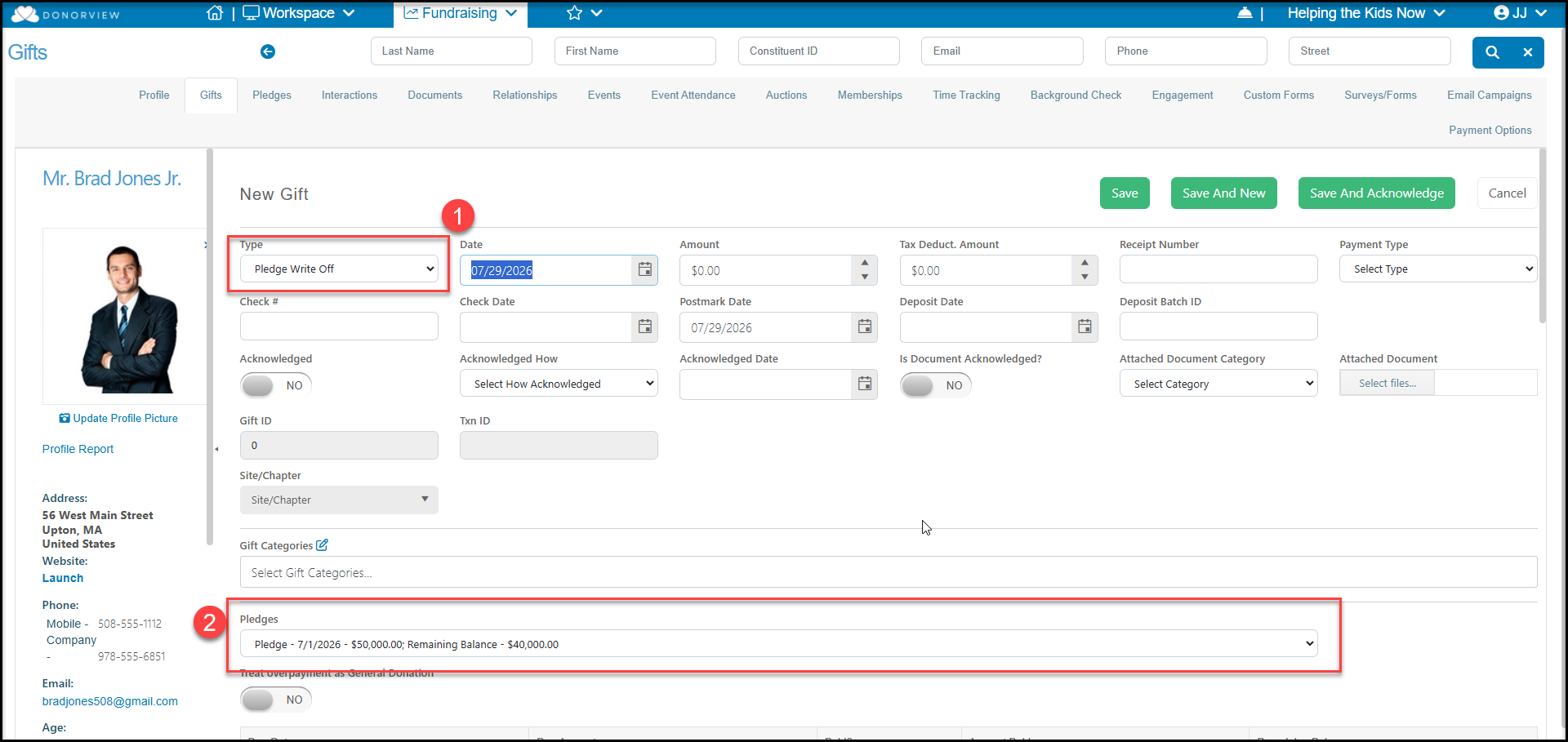
Select the Type as Pledge Write-Off.
-
Choose the pledge to apply the write off under Pledges. This will also provide you with the remaining balance amount.
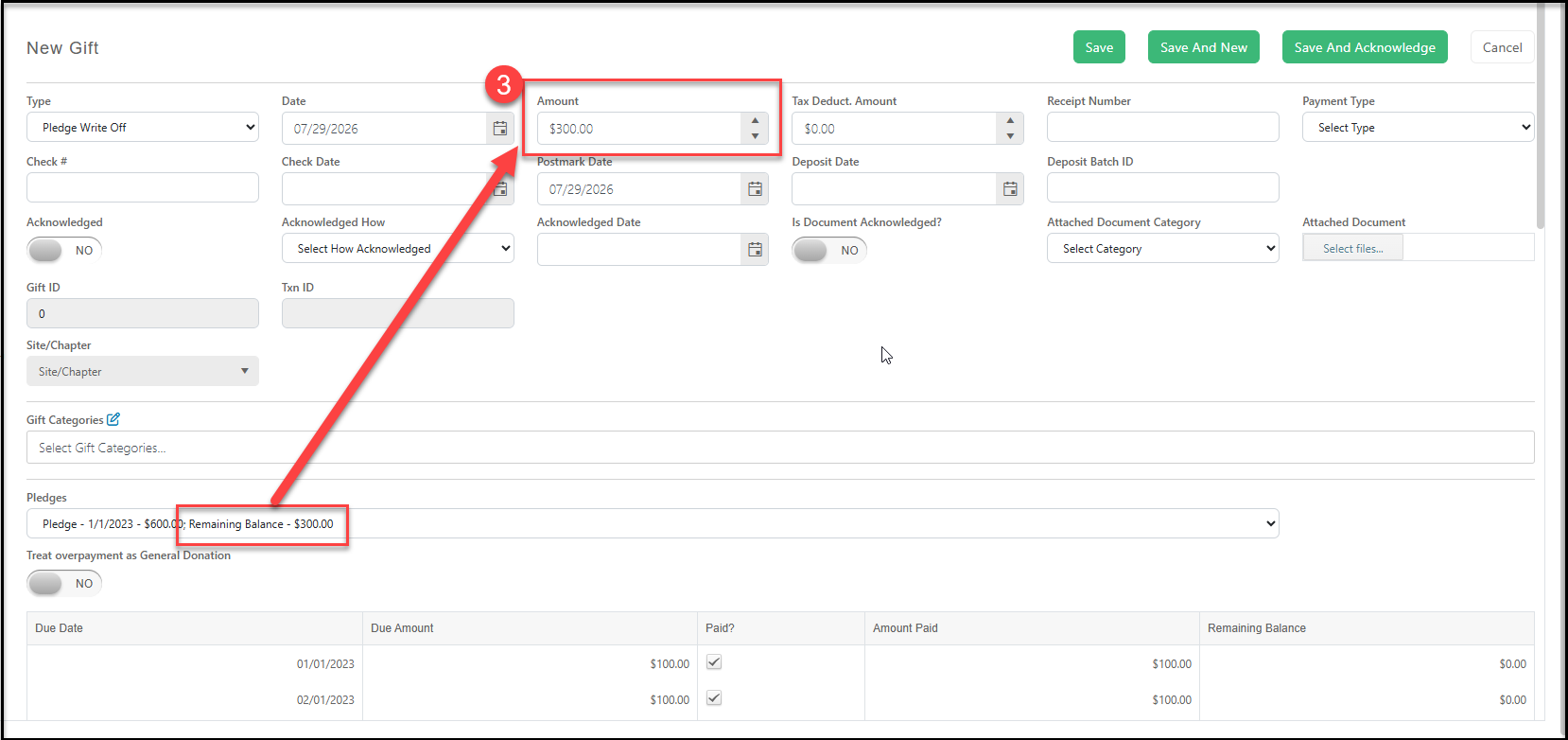
- To write off the entire balance due, enter that amount in the Amount field at the top.
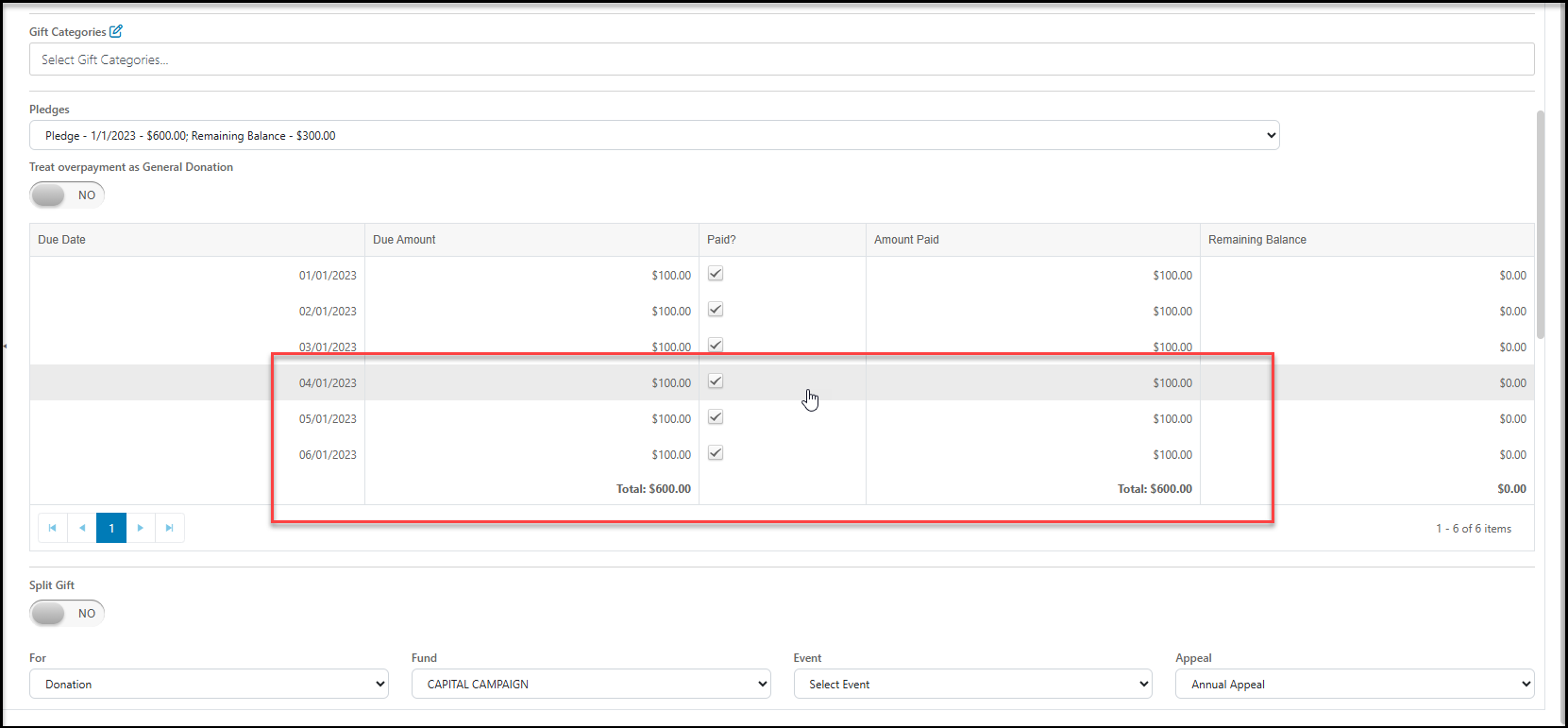
- After the amount is entered, the pledge schedule below will update to add a check mark in the Paid column to reduce the Amount Due to zero for each outstanding row. Note that these are not entered as payments, this is only to update the pledge schedule to reflect a $0 balance.
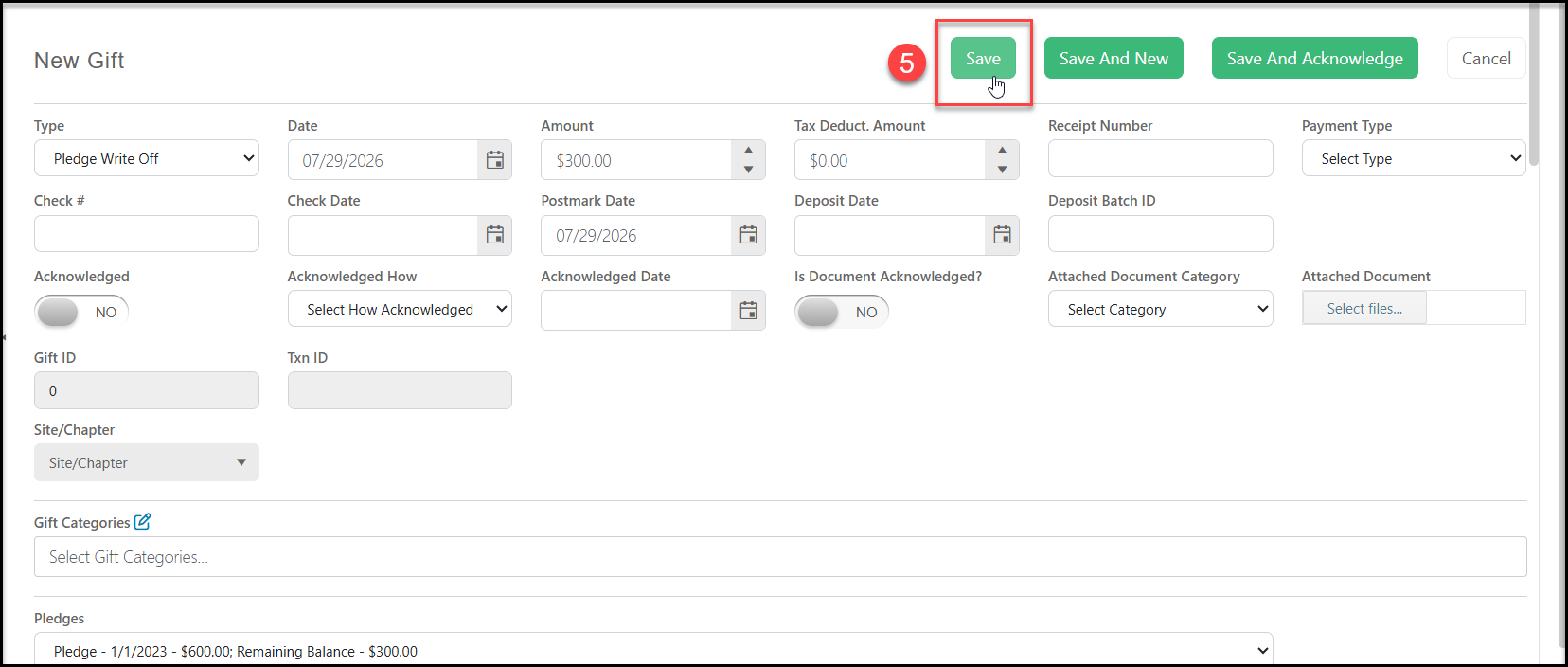
- Click Save to save the write off for this pledge.
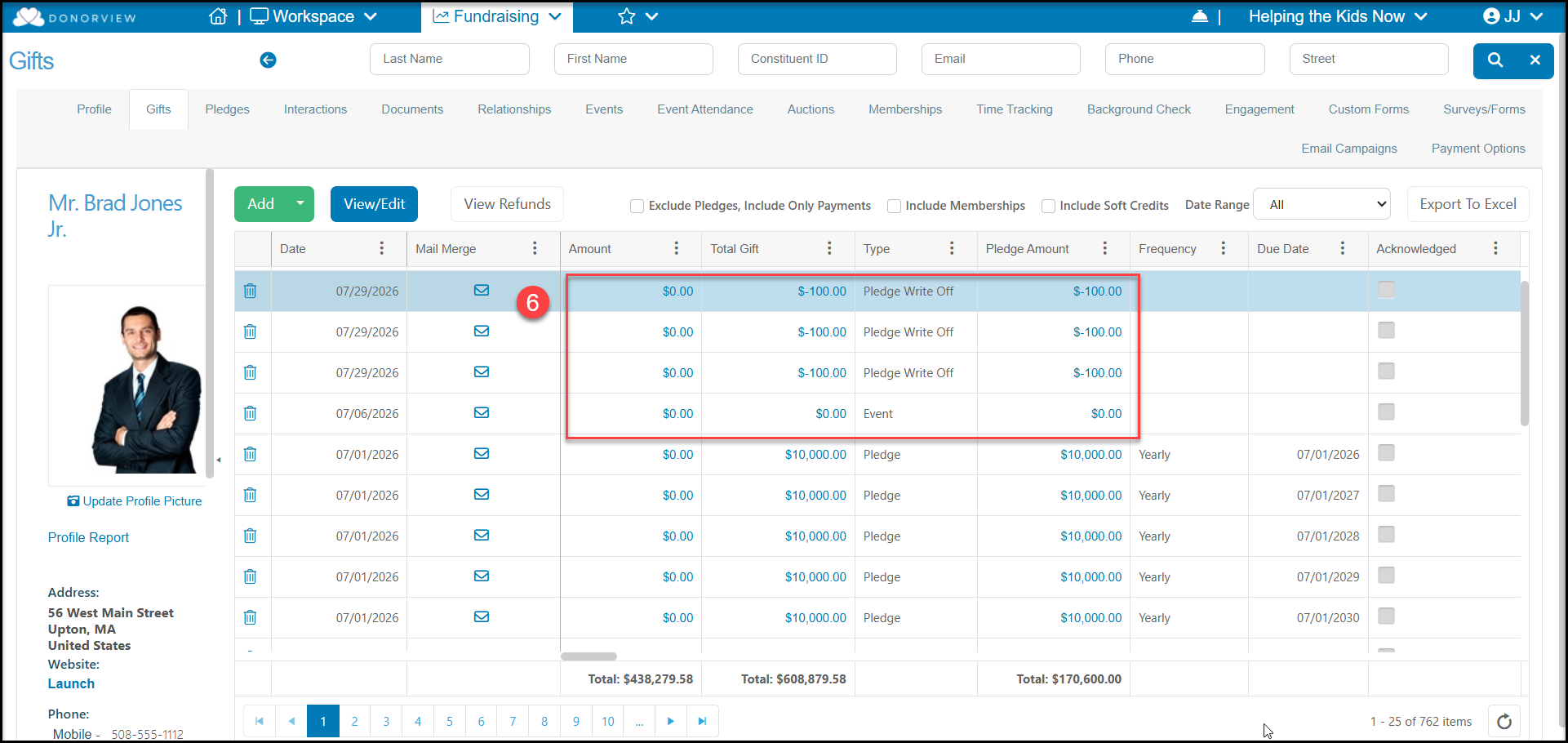
- On the Gifts grid and the constituent's Gifts tab, the pledges that were written off now show as a Pledge Write-Off under the Type column. The Amount is $0, but the Total Gift and Pledge Amount will now show a negative number to indicate the removal of the previous pledge balances.
The benefit of using the write-off feature is consistency in reporting. If your organization is reporting pledges as receivables, or money owed to your organization, deleting the pledge can upset balances from month to month. Using the write-off feature allows your organization to account for money that was expected, but not paid.