
What is the Gifts grid?
The Gifts grid will show all transactions that have been recorded in the software. The grid can be found in the Fundraising Module by clicking on Gifts.
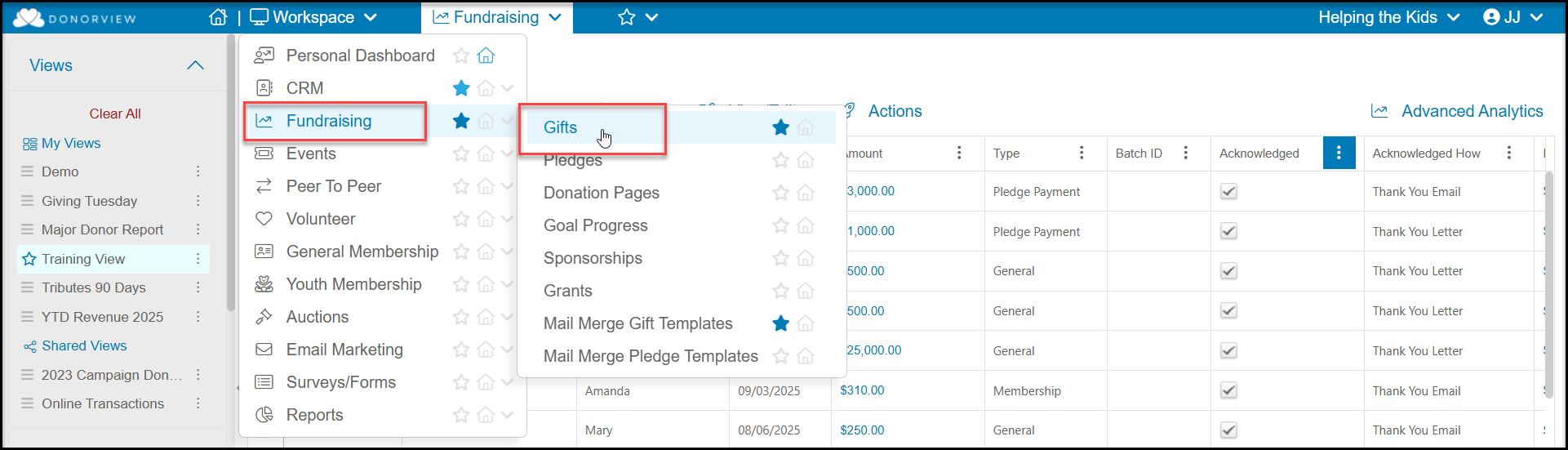
Customizing Your View with Queries, Filters & Sorts
In the left side of the grid will be your list of Views and Quick Queries menu in the grey side bar. If the side bar is not visible, you can click on the small arrow in the center of the left side of the page to open it. Queries, Filters and Sorts are how we customize the data we see on the grid, this is called a “View.” You can also customize the order of your columns, which are visible or hidden, and how wide they appear. Views can be created on the Gifts grid to show specific data, like all revenue in a date range or all transactions for a Fund. There are also a number of built in views in the View Builder. You can learn more about building views and reports in these articles: https://support.donorview.com/en/support/solutions/folders/9000199002
This article also provides information about creating fundraising reports Fundraising Reports.
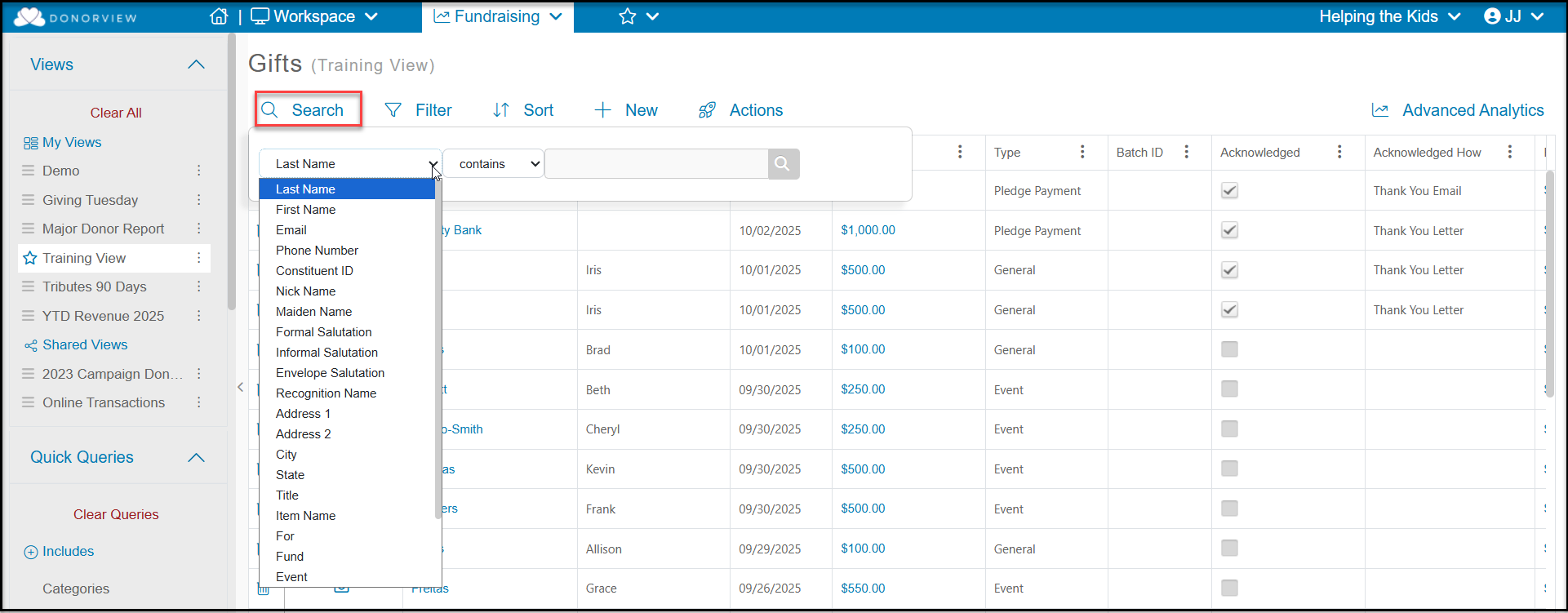
Search
The Search menu at the top of the grid allows you to search for specific transactions. Search results cannot be saved as a view, but will allow to see a list of all records that meet your search criteria. Remember that Last Name and Last Name/Constituent are used interchangeably and this field includes the last name of an individual or the name of a company (organization).
+New Menu
The +New menu at the top of the grid allows you to:
- Add new constituents - both Individual and Company type records
- Add a new interaction for a constituent
- Add a new document to a constituent's record
- Add a new Gift from a constituent
- Create a gift batch to enter multiple General-type donations at once
- Create a new relationship between constituents
- Open a Donation Page and enter a new donation with a credit card
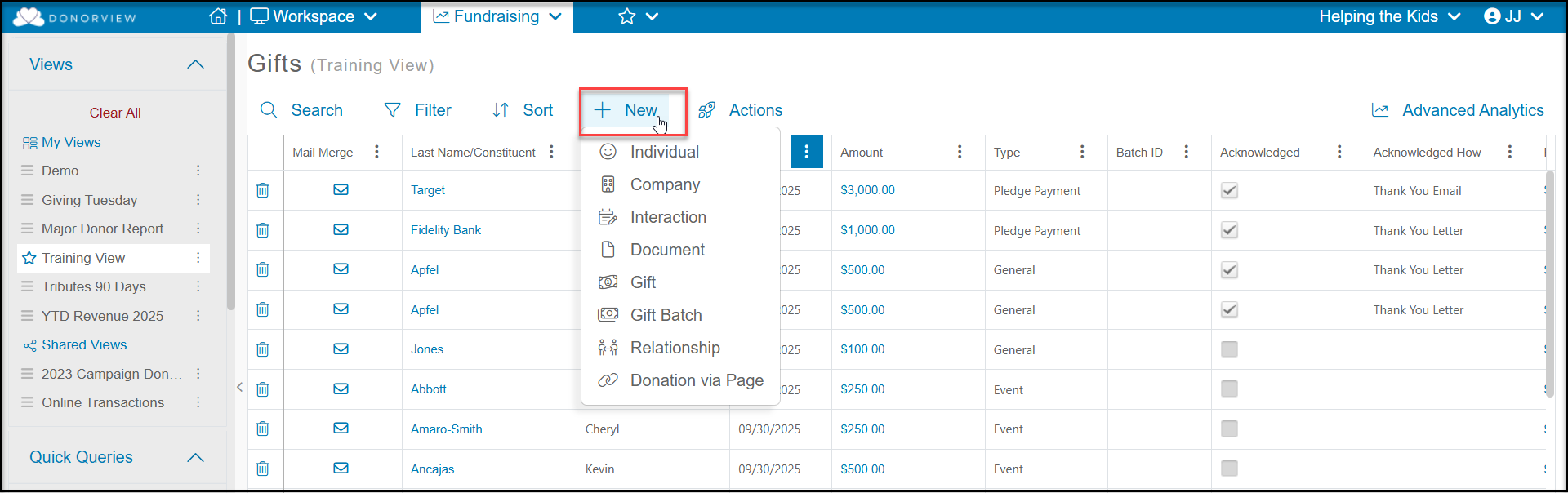
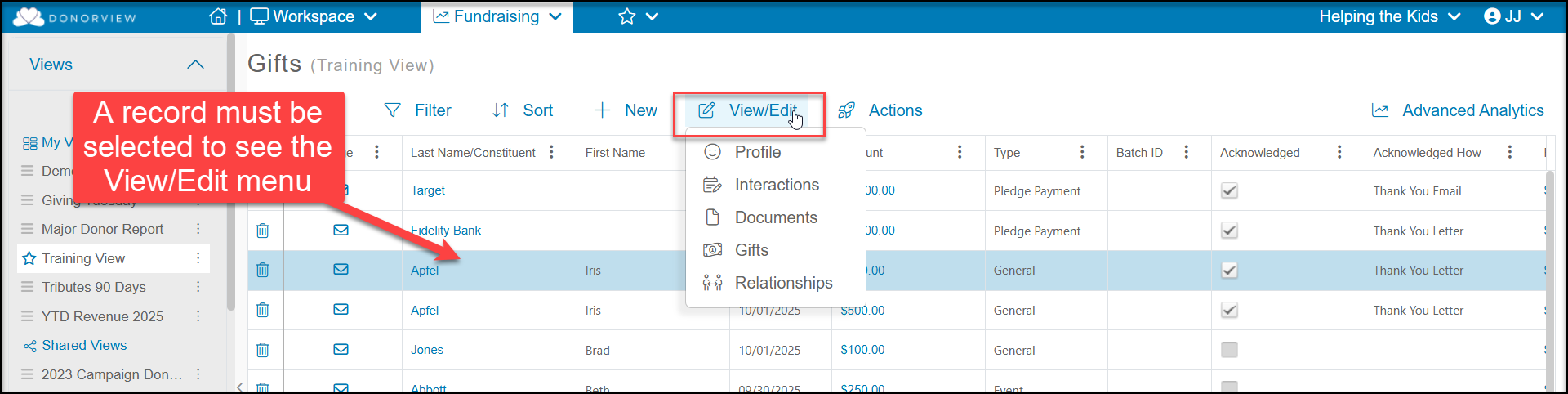
If you click on a row, it will highlight that constituent and anything you select from the +New menu will auto-populate for that constituent.
If you have a constituent selected, you will also see a new menu item, View/Edit, which lets you open the profile record for that constituent and go directly to one of the tabs on their record such as Gifts or Relationships.
Editing Transactions
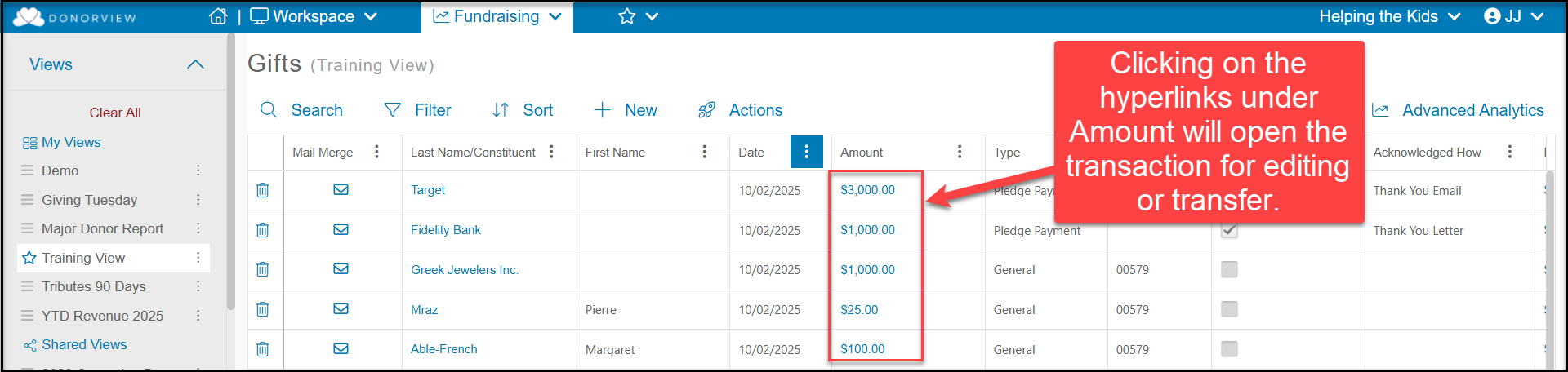
The Gifts grid also allows you to edit any previously entered transactions. Clicking on the amount will re-open the gift entry page where you can update the information or transfer a general donation entry to another constituent if it was mistakenly applied to the wrong constituent. The transaction Type cannot be edited. If the wrong transaction Type was selected, you would need to enter the transaction correctly, then go in and delete the original transaction using the trash can icon.
Actions Menu
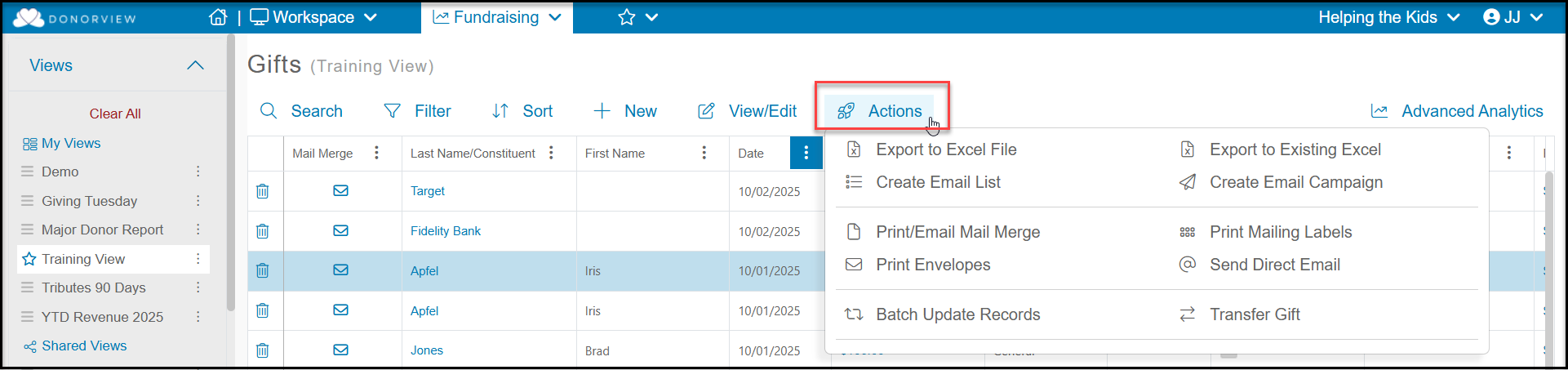
Like other grids, at the top of the Gifts grid you will find the Actions menu. It has many of the same features found on other grids including:
- Export to Excel
- Export to Existing Excel
- Create Email Lists
- Create Email Campaigns
- Print/Email Mail Merge
- Print Mailing Labels
- Print Name Tags
- Print Envelopes
- Send Direct Emails
- Batch Update Records
Transfer Gift
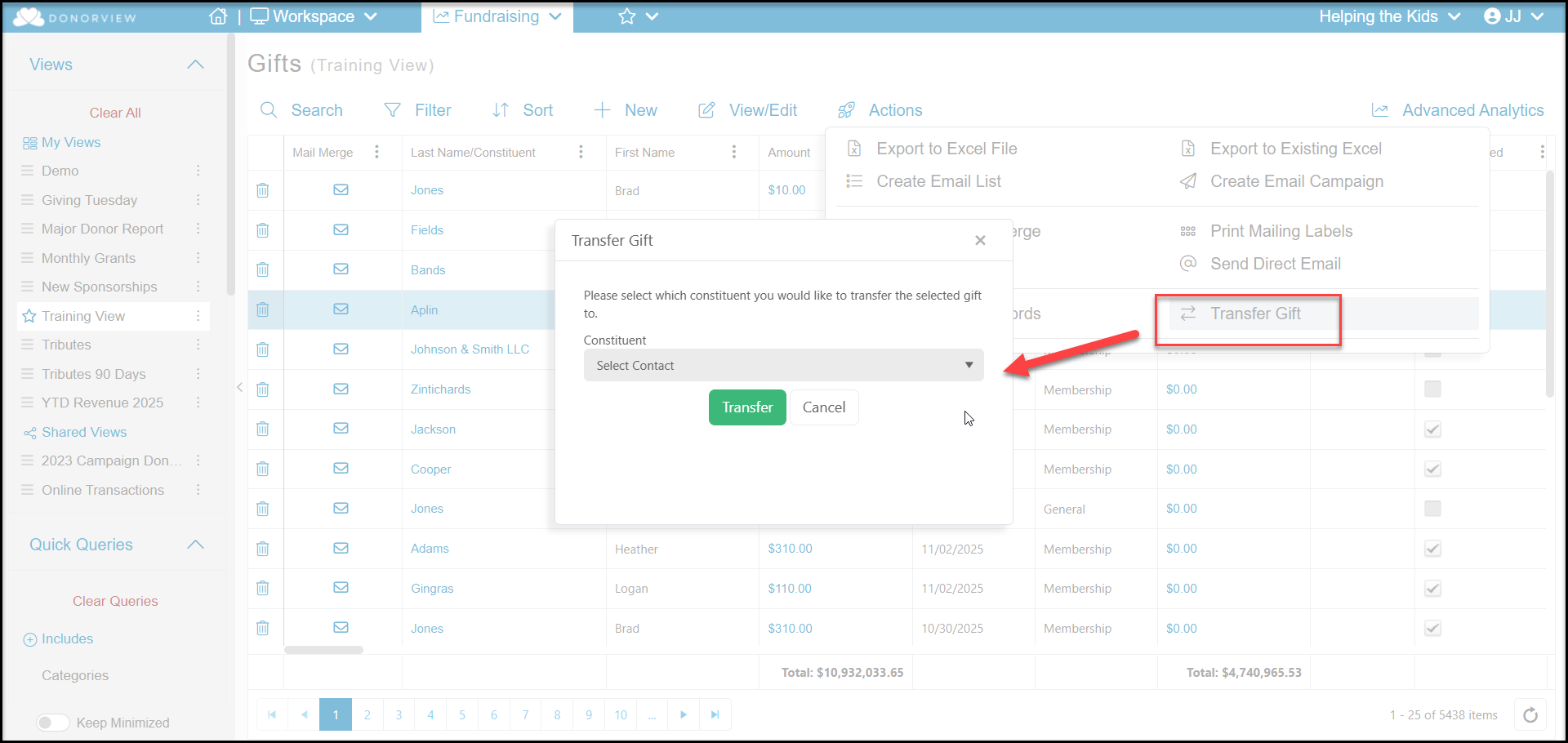
There is one special item only available of the Actions menu and that is Transfer Gift. This option only appears if you have selected a row with a General, In-Kind or Stock type transactions. Clicking this will open the original gift and allow you to choose to transfer that donation to another constituent if necessary.
Only General, In-Kind, and Stock type gifts can be transferred. The transfer recipient must be a constituent in the database prior to initiating the transfer.
Select the new constituent to receive credit for this gift in the drop down menu under Constituent and then click Transfer.
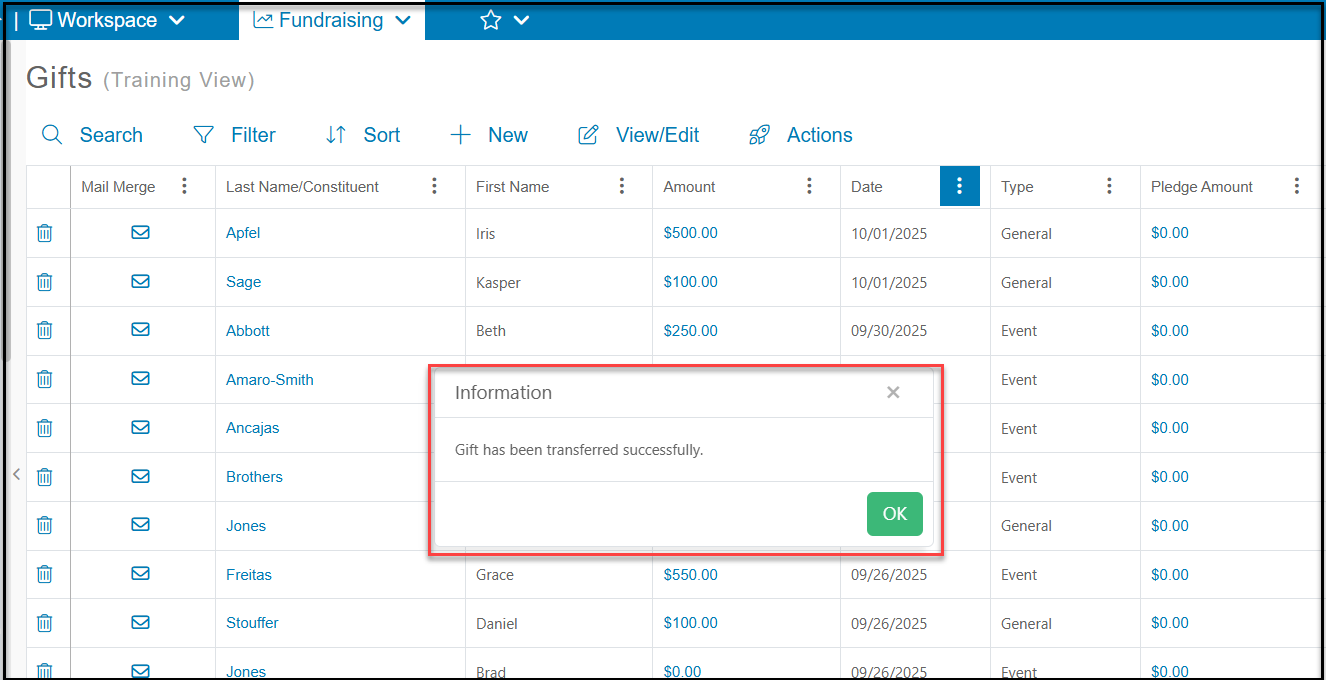
There will be no record of the original gift entry, the transaction will be completely transferred to the new constituent identified. You will see a pop up message confirming the transfer. Click OK to clear the pop up.
Batch Updates
Like other grids, you have the ability to batch update information into the records shown in your current grid view. However, where other grids are limited to a maximum of 500 records, the Gifts grid has no limits on the number of records that can be batch updated at one time. Note that performing a batch update on thousands of records will take a substantial amount of time, so you may want to filter your view into smaller batches to speed up the process.
You can access the batch update feature from the Actions menu by clicking on Batch Update Records.
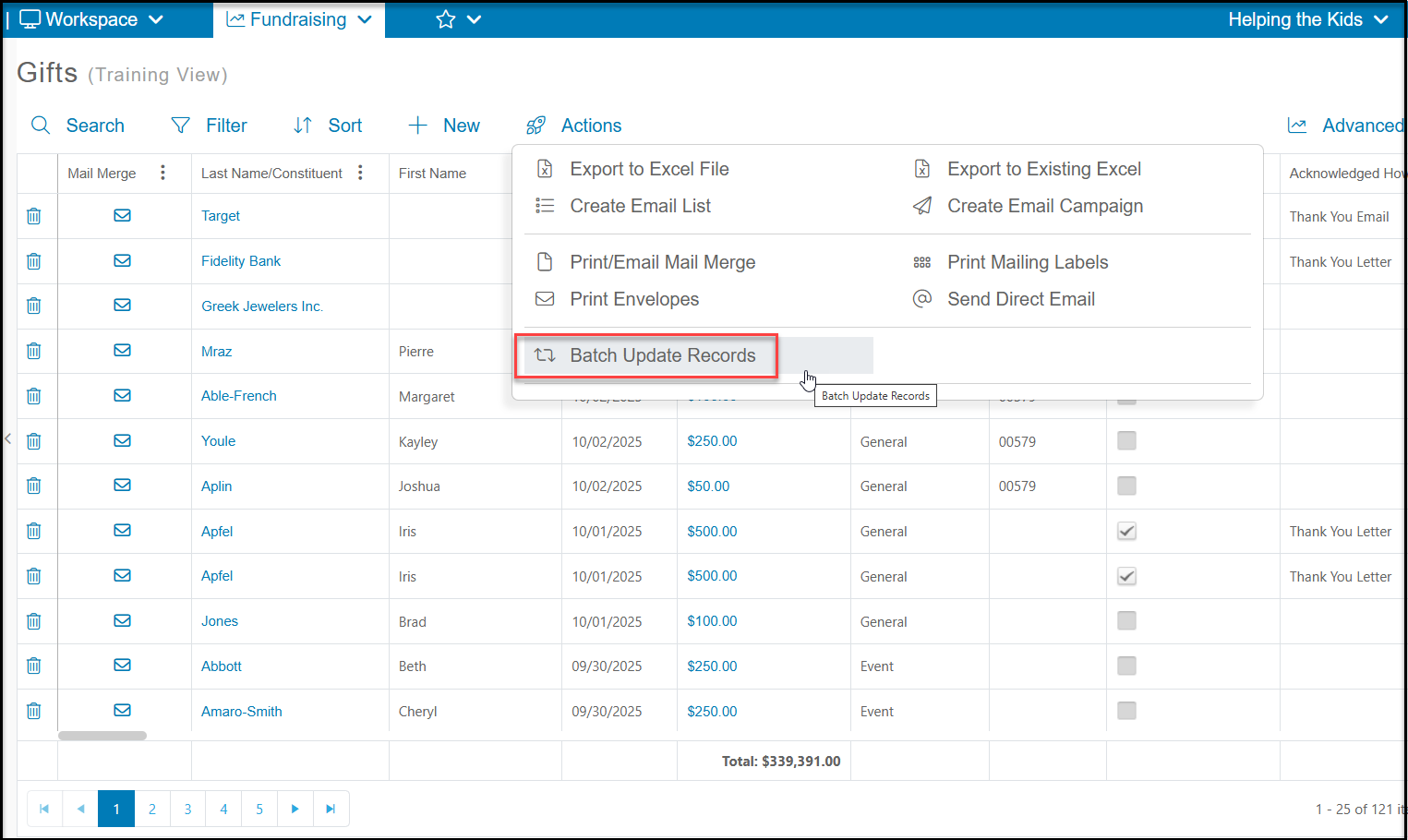
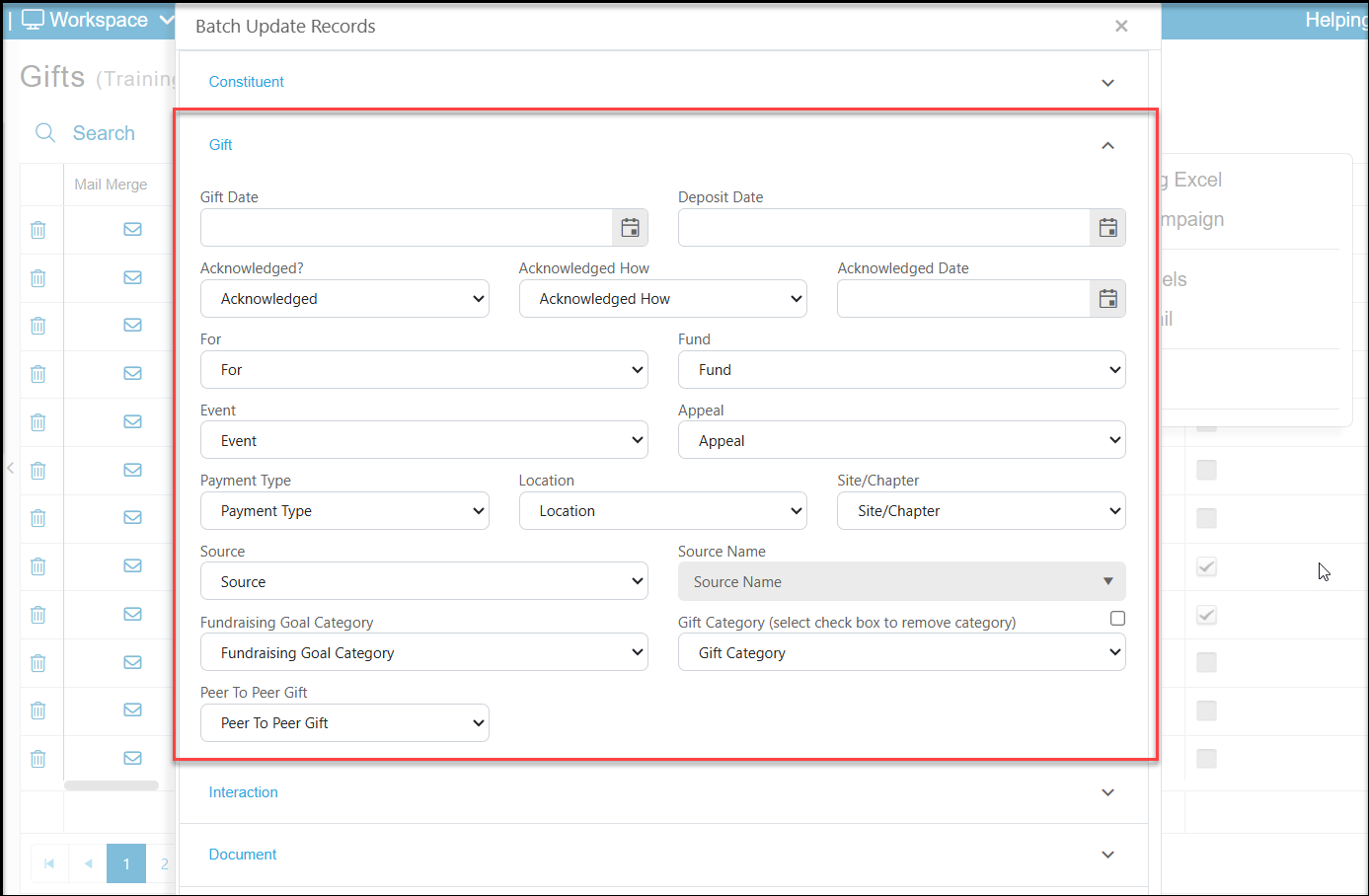
A new window will open to allow you to update Constituent fields and add Interactions, Documents or Time Tracking as you can on other grids. The Gifts grid has an additional feature to allow you to update transactions.
Adding information into a field, for example, selecting a Fund to add to all records, will update and overwrite that field for all the records shown in your view. Any fields you did not select will remain unchanged.
Acknowledgements
You can also run single and batch acknowledgements from the Gifts grid. You can learn more about your options for sending acknowledgements in this article "How do I acknowledge a donation or general gift?"